

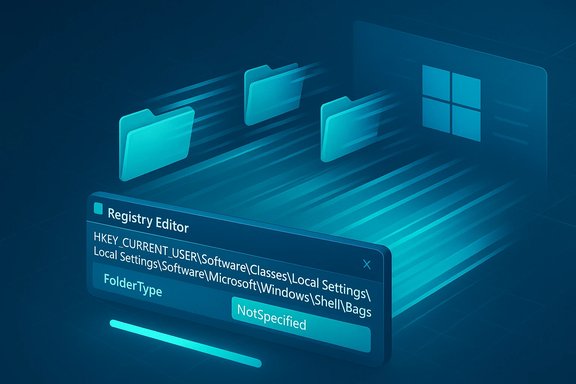
If your File Explorer in Windows 11 feels sluggish when opening folders crowded with documents, photos, or videos, there’s a simple, reversible registry tweak that often delivers a dramatic speed-up — it tells Windows to stop trying to “guess” the best folder view and to treat every folder as a generic folder instead. This advice and the exact steps were recently spotlighted in an operator-level how-to, which walks through creating a FolderType value set to NotSpecified inside the Bags registry tree to disable Automatic Folder Type Discovery.
Windows Explorer has a long-standing behavior called Automatic Folder Type Discovery (sometimes called “folder template” or “folder optimization” detection). When Explorer opens a folder it inspects the contents and attempts to determine whether the folder is best shown as Pictures, Music, Documents, Videos or General items. Based on that decision, Explorer changes the columns, thumbnail rules, and default commands for that view. The feature exists across many Windows generations and traces back to the content-aware behavior present since the Windows XP era. The catch is that the discovery process requires scanning file headers and metadata in the target folder before Explorer chooses the view. On small folders this is invisible, but on folders with thousands of files (for example Downloads, large project directories, or multimedia archives) the sniffing step can create noticeable pauses and sticky UI behavior. Repeated scans, forgotten folder-type assignments, and interactions with thumbnail/preview handlers and cloud providers can keep this cost visible to users. This practical reality is well-documented across Windows how‑to and user-support literature.
Strengths:
Windows Explorer is central to daily productivity, and its responsiveness directly affects how fast you can work. The FolderType = NotSpecified tweak targets one long-standing cause of perceived Explorer slowness — automatic folder type discovery — and across multiple community and technical sources it’s shown to produce reliable, reversible improvements when the symptom is folder‑open lag. Apply it with a backup and a short pilot test, and pair it with other troubleshooting steps if Explorer remains sluggish.
Source: MakeUseOf I fixed Windows 11 File Explorer lag by disabling this old service
 Background
Windows Explorer has a long-standing behavior called Automatic Folder Type Discovery (sometimes called “folder template” or “folder optimization” detection). When Explorer opens a folder it inspects the contents and attempts to determine whether the folder is best shown as Pictures, Music, Documents, Videos or General items. Based on that decision, Explorer changes the columns, thumbnail rules, and default commands for that view. The feature exists across many Windows generations and traces back to the content-aware behavior present since the Windows XP era. The catch is that the discovery process requires scanning file headers and metadata in the target folder before Explorer chooses the view. On small folders this is invisible, but on folders with thousands of files (for example Downloads, large project directories, or multimedia archives) the sniffing step can create noticeable pauses and sticky UI behavior. Repeated scans, forgotten folder-type assignments, and interactions with thumbnail/preview handlers and cloud providers can keep this cost visible to users. This practical reality is well-documented across Windows how‑to and user-support literature. What the MakeUseOf fix changes — plain English summary
- The tweak creates a registry entry under your user profile that forces Explorer to treat all folders as a generic folder type by default.
- Instead of scanning folder contents to decide “this is pictures” or “this is music”, Explorer immediately uses the generic template and displays the folder.
- The result is typically much snappier folder opens, especially for folders with many items or when preview/thumbnail handlers are expensive.
The exact registry change (what you’re actually editing)
Registry path and value
Create (or confirm) the following key/value for your user account:- Key:
HKEY_CURRENT_USER\Software\Classes\Local Settings\Software\Microsoft\Windows\Shell\Bags\AllFolders\Shell - Value name: FolderType
- Value type: REG_SZ (String)
- Value data: NotSpecified
Alternate deployment options
- PowerShell (run as Administrator or under your account with HKCU access):
Set-ItemProperty -Path 'HKCU:\Software\Classes\Local Settings\Software\Microsoft\Windows\Shell\Bags\AllFolders\Shell' -Name 'FolderType' -Value 'NotSpecified' -Type String - .reg file (paste into Notepad and save as MyFix.reg, then double-click to import):
Windows Registry Editor Version 5.00
[HKEY_CURRENT_USER\SOFTWARE\Classes\Local Settings\Software\Microsoft\Windows\Shell\Bags\AllFolders\Shell]
"FolderType"="NotSpecified" - If you already have many corrupted or unwanted saved folder views, some guides recommend deleting Bags and BagMRU first (this clears saved views) and then creating the AllFolders\Shell\FolderType entry to avoid stale view data. Use caution: that will remove custom view settings you previously saved.
Step‑by‑step: Safe procedure to apply the tweak
- Backup first.
- Export the current registry (File → Export in Regedit) or create a system restore point. This is essential — editing the registry affects per-user settings and mistakes can be reversed if you have a backup.
- Open Registry Editor.
- Press Win+R → regedit → Enter (accept UAC prompts).
- Navigate (or paste) the path:
- HKEY_CURRENT_USER\Software\Classes\Local Settings\Software\Microsoft\Windows\Shell\Bags\AllFolders\Shell
- If the keys don’t exist, create them in this order:
- Right‑click Shell → New → Key → name it Bags
- Right‑click Bags → New → Key → name it AllFolders
- Right‑click AllFolders → New → Key → name it Shell
- In the Shell key:
- Right‑click empty area → New → String Value → name it FolderType
- Double‑click FolderType → set Value data to NotSpecified (case sensitive for clarity: capital N and S).
- Apply immediately:
- Restart Explorer (Task Manager → Windows Explorer → Restart) or sign out/sign in. No full reboot required.
- To revert:
- Delete the FolderType string (or delete the Shell\AllFolders\Bags keys you created) and restart Explorer.
Why this helps: the technical reasoning
- Avoided I/O and CPU work: Automatic discovery scans file headers and metadata (and may invoke thumbnail/preview handlers) before a folder view is finalized. On large folders, the scanning itself consumes time and I/O.
- Fewer preview/handler invocations: For some formats, thumbnail generation or embedded metadata parsing launches preview components or codecs that run inside Explorer. Forcing a generic view reduces those calls.
- Consistency reduces re-scan churn: Because the registry override enforces NotSpecified globally, Explorer no longer needs to re-evaluate each folder’s contents to pick a view — it simply paints the generic layout.
Practical benefits (what you’ll notice)
- Faster opening of large folders (Downloads, archive folders, project trees).
- Reduced pauses when navigating folder trees that would otherwise trigger content sniffing.
- Fewer unexpected changes to folder columns and view settings when new files are added.
- A consistent view across folders, which improves predictability for many workflows.
Trade-offs and risks — what you lose or should watch for
- You lose automatic specialized views. Folders with many images will no longer automatically show image‑centric columns or large thumbnails by default unless you manually set them.
- Thumbnails and previews: If you depend on immediate thumbnails for photo-heavy workflows, you’ll need to manually enable thumbnails for those folders (or set per-folder desktop.ini customizations). For most users the performance gain outweighs the convenience loss, but creative pros may prefer selective folder-specific settings.
- Enterprise policies and roaming profiles: In managed environments group policy or roaming profile configurations can override or reset HKCU keys; applying this to many machines should be coordinated with IT.
- Deleting Bags/BagsMRU has consequences: If you follow the “clear Bags and BagMRU then set FolderType” route you will lose all saved folder-specific views and column arrangements — recovering them without a backup is impractical. Back up first.
Alternatives and complementary fixes
Before or instead of applying a global NotSpecified tweak, try these lower‑impact options first:- Change File Explorer default open location from Home to This PC (quick perceptual speed boost because Home aggregates cloud/recent content). This is an easy toggle in File Explorer → ••• → Options → General → Open File Explorer to: This PC. Many users find this reduces perceived launch lag without registry edits.
- Disable Preview Pane: View → Show → uncheck Preview pane (Alt+P toggles).
- Disable thumbnails globally: File Explorer Options → View → check “Always show icons, never thumbnails”.
- Audit shell extensions / preview handlers: third‑party context menu, thumbnail, or preview handlers often run inside Explorer and can hang folder opens; tools like ShellExView can help identify and disable problematic handlers.
- Clear thumbnail cache and reset folder views: Disk Cleanup (Thumbnails) and File Explorer → Options → Clear File Explorer history can help with corrupt thumbnail situations.
- Use a third‑party file manager for heavy-folder workflows if Explorer remains a bottleneck.
Evidence & verification: cross-checking the claims
- Multiple community guides and technical how‑tos show the same registry path and the FolderType = NotSpecified trick as the recommended way to disable automatic folder type discovery. These independent write-ups align on the key and exact value data.
- Authoritative community tutorials (Forums like TenForums and long‑running Windows help sites) document both the behavior of Automatic Folder Type Discovery and the registry method to force a default template, and they also explain the Bags / BagMRU relationship and the need to reset views in some scenarios.
- Historical behavior: Windows Explorer’s content‑dependent folder behavior is not new — it existed in XP and prior versions in different forms (content sniffing/autoplay content detection and folder templates). This contextualizes the claim that the idea predates recent Windows releases.
When to avoid this tweak
- If you rely heavily on automatic image/video previews, or you want Windows to choose specialized thumbnails and columns by default.
- In corporate managed devices where group policies are in force — changing HKCU keys can be reset by policy or conflict with centralized configuration.
- On systems where the perceived lag is due to other root causes (failing disk, heavy antivirus scanning, or buggy shell extensions). Diagnose with Task Manager, Resource Monitor, Event Viewer, and a shell‑extension audit before applying systemwide changes.
Recommended testing plan (safe rollout)
- Try the low-impact alternatives first (This PC default, disable preview pane).
- On one machine, create a restore point and export the current registry.
- Apply FolderType = NotSpecified to HKCU and restart Explorer.
- Use your typical heavy-folder workflows for 24–72 hours and note improvements or regressions.
- If satisfied, consider deploying via a scripted, documented process (PowerShell or .reg import) to other personal machines. For enterprise deployments, test with a small pilot group and coordinate with IT.
Final analysis — strengths, limitations, and verdict
This registry tweak is a low-risk, high-reward fix for a very specific symptom: slow, sticky folder opens caused by Explorer’s automatic content sniffing and view selection. It’s surgical: it addresses the exact mechanism (Automatic Folder Type Discovery) responsible for the scan-and-decide pause.Strengths:
- Fast to apply and fully reversible.
- Delivers immediate, noticeable improvements for large/frequently opened folders.
- Minimal system overhead; it simply avoids extra processing.
- Removes convenience of automatic, optimized folder views — you must manually pick specialized views for folders that need them.
- Not a universal cure for all Explorer slowness; other issues (preview handlers, OneDrive integration, thumbnail corruption, disk health) may also be responsible and require separate fixes.
- In managed environments, policies and updates can override or conflict with the change.
- For most power users and enthusiasts experiencing sluggish Explorer behavior when opening large folders, setting FolderType to NotSpecified is an effective first line of defense after trying safe UI tweaks.
- Always back up and test before wide deployment. If your workflow relies on automatic previews and specialized folder templates, prefer targeted fixes (per-folder desktop.ini settings or selective view configurations) rather than a blanket registry override. The community consensus and multiple technical guides corroborate the approach and its outcomes.
Quick reference: commands and steps to copy
- Regedit path (to paste into Regedit address bar):
HKEY_CURRENT_USER\Software\Classes\Local Settings\Software\Microsoft\Windows\Shell\Bags\AllFolders\Shell - PowerShell one-liner:
Set-ItemProperty -Path 'HKCU:\Software\Classes\Local Settings\Software\Microsoft\Windows\Shell\Bags\AllFolders\Shell' -Name 'FolderType' -Value 'NotSpecified' -Type String - .reg file snippet:
Windows Registry Editor Version 5.00
[HKEY_CURRENT_USER\SOFTWARE\Classes\Local Settings\Software\Microsoft\Windows\Shell\Bags\AllFolders\Shell]
"FolderType"="NotSpecified" - To apply immediately:
Task Manager → Processes → Windows Explorer → Restart.
Windows Explorer is central to daily productivity, and its responsiveness directly affects how fast you can work. The FolderType = NotSpecified tweak targets one long-standing cause of perceived Explorer slowness — automatic folder type discovery — and across multiple community and technical sources it’s shown to produce reliable, reversible improvements when the symptom is folder‑open lag. Apply it with a backup and a short pilot test, and pair it with other troubleshooting steps if Explorer remains sluggish.
Source: MakeUseOf I fixed Windows 11 File Explorer lag by disabling this old service
