

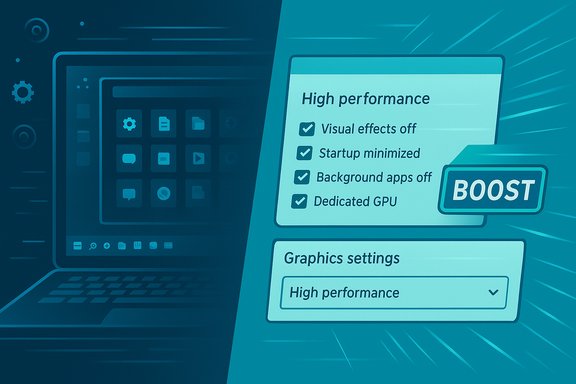
I trimmed a handful of small Windows settings and background processes and the machine that used to feel “slow” regained the snappy responsiveness I expected — and every step I took is reversible, low-risk, and measurable. The five MakeUseOf tweaks — dialing back visual effects, pruning startup apps, killing unnecessary background processes, choosing a performance power plan, and forcing heavyweight apps to use a dedicated GPU — are exactly the kind of no-cost, high-impact changes that return real-world speed without replacing hardware. These moves don’t make your CPU faster in benchmarks, but they dramatically improve perceived responsiveness and resource availability for foreground work.
Windows ships with polished visuals, automatic conveniences, and a permissive approach to background work. That combination is great for first-time users, but over months and years it accumulates a quiet tax on performance: animations and transparency that consume GPU cycles, dozens of apps that register to start at sign-in, and background services that chew memory and I/O bandwidth. Windows exposes controls to reverse most of this behavior, and the five changes reported by MakeUseOf are the shortest path to a noticeably faster PC without hardware upgrades. The community and administrative guidance boil down to three practical truths: trim the UI glitter, reduce silent autostarts, and avoid conservative power limits when you want performance.
Apply the tweaks, measure the results, and keep a small maintenance routine. The result is not just a faster PC but a cleaner, more predictable Windows experience.
Source: MakeUseOf These 5 changes instantly made my Windows PC faster
 Background / Overview
Windows ships with polished visuals, automatic conveniences, and a permissive approach to background work. That combination is great for first-time users, but over months and years it accumulates a quiet tax on performance: animations and transparency that consume GPU cycles, dozens of apps that register to start at sign-in, and background services that chew memory and I/O bandwidth. Windows exposes controls to reverse most of this behavior, and the five changes reported by MakeUseOf are the shortest path to a noticeably faster PC without hardware upgrades. The community and administrative guidance boil down to three practical truths: trim the UI glitter, reduce silent autostarts, and avoid conservative power limits when you want performance.Why these five tweaks matter
- Visual effects (animations, shadows, transparency) are rendered by the GPU or GPU-accelerated compositor and add measurable overhead on integrated chips and weak GPUs.
- Startup programs increase boot time and occupy RAM immediately after sign-in.
- Background apps and services eat CPU, RAM, and disk I/O even when idle, causing stutters during foreground work.
- Power plans throttle CPU/GPU behavior to conserve energy; switching to a high-performance profile lets hardware run at higher clocks.
- GPU assignment settings prevent misconfigured applications from using the slower integrated graphics when a discrete GPU is available.
Visual effects: Trim the glitter to keep the speed
What to change and why it helps
Windows’ visual flourishes — animated menus, shadows, blur/transparency — are not just cosmetic. They consume GPU cycles and driver attention, and on weaker hardware they can cause UI input lag, slower window rendering, and higher power usage. Turning these off returns GPU and CPU cycles to the workload you care about. Many users report an immediate “snappier” feel when animations are reduced or disabled.How to adjust (quick steps)
- Open the Start menu and type Performance, then choose Adjust the appearance and performance of Windows.
- In the Visual Effects tab, select Adjust for best performance to disable all optional effects.
- If you prefer a balance, choose Custom and enable only:
- Smooth edges of screen fonts (legibility)
- Show thumbnails instead of icons (if you rely on previews)
- Alternatively, Settings → Accessibility → Visual effects in modern Windows offers toggles for animations and transparency.
Practical notes and trade-offs
- Disabling all effects looks less polished but is reversible at any time.
- On laptops, turning off transparency and animations can also reduce small, constant GPU usage and slightly extend battery life.
- If you use multiple displays or high-resolution scaling, test readability and window behavior after changes.
Manage startup programs: Don’t let apps throw a party at boot
Why startup apps slow you down
Every program that launches at sign-in consumes I/O, CPU, and memory during the critical moments after boot. That makes the desktop and commonly used applications slower to become responsive. Many installers auto-register themselves to start, and users accumulate these entries over time. The easiest win is to stop unnecessary apps from launching automatically.How to audit and disable startup items
- Press Ctrl + Shift + Esc to open Task Manager.
- Switch to the Startup tab to see programs that run at login and a measured Startup impact estimate.
- Right-click nonessential items and choose Disable.
- Alternatively, go to Settings → Apps → Startup and toggle items off.
A sensible process
- Disable a few nonessential entries, reboot, and measure. Don’t disable antivirus, disk-encryption clients, or backup agents unless you understand the implications.
- Some programs re-add themselves after updates; re-check startup entries occasionally.
Disable background applications: Stop the resource leaks
Why background processes matter
Windows allows many apps to run “in the background” to provide sync, update, and notification functionality. While convenient, dozens of background processes create cumulative pressure on RAM and I/O and increase context switching. Closing or disabling unneeded background apps frees resources for active tasks and reduces the risk of periodic freezes and stutters.How to identify and stop them
- Open Task Manager → Processes and look under Background processes for unusual CPU, Disk, or Memory usage.
- Right-click a process and choose End task to stop it temporarily.
- For UWP/Store apps: Settings → Apps → Installed apps → Advanced options → Background app permissions → set to Never if you don’t need background activity.
- For Win32 apps, check their internal settings for options like “Run in background” or “Start with Windows”. Disable these where appropriate.
Caveats and service-level notes
- Some Windows services are core to system operation; avoid disabling them without clear documentation.
- Use autoruns (Sysinternals Autoruns) only if you’re comfortable with comprehensive startup auditing — it shows every autostart location. Use cautiously.
Power settings: Give your hardware permission to run
Why power plans influence speed
Windows defaults to a Balanced power profile that favors energy efficiency. On many laptops and desktops this results in lower peak CPU/GPU clocks, longer boost cooldowns, and more conservative thermal behavior. Selecting a High performance or Best performance mode removes these software-imposed limits, letting hardware respond faster to workload demands.How to switch
- Open Control Panel → Hardware and Sound → Power Options, or Settings → System → Power & battery.
- Choose High performance (or Ultimate performance if available on desktops).
- For laptops, use the Plugged in profile only when connected to power to avoid excessive battery drain.
Trade-offs and safety
- Expect higher power draw and more heat; keep the machine plugged in for sustained performance and ensure good ventilation.
- For short bursts, switching power mode is ideal; for continuous heavy loads, monitor temperatures and fan behavior.
Force apps to use the dedicated GPU: Use the muscle you paid for
The problem
Some applications default to the integrated GPU (iGPU) even when a discrete GPU (dGPU) is present. This happens when apps don’t declare GPU preferences or Windows chooses a power-friendly option. The result: slower rendering, longer compute times, and worse performance for graphics-heavy tasks.How to assign a GPU per app
- Open Settings → System → Display and scroll to Graphics settings.
- Add a Desktop app (Browse) or select a Microsoft Store app.
- Select the added app, click Options, and choose High performance to force the dGPU.
When this helps and when it doesn’t
- Assign games, video editors, and GPU-accelerated workloads to the dGPU for substantially better performance.
- Some apps still ignore hints and use their own GPU API logic; in those cases, check the app’s internal settings or GPU vendor control panel.
- Keep GPU drivers updated using vendor tools to avoid regressions.
Measuring impact and avoiding false attribution
Measure before and after
Perceptions of speed can be subjective. Use these quick, repeatable tests to validate improvements:- Boot time: measure from power-on to desktop-ready (use Task Manager’s boot-time measurement or a stopwatch).
- App launch: time how long heavy apps take to be responsive (open a browser with many tabs, or your IDE).
- Resource baseline: capture Task Manager snapshots for CPU, Disk, Memory before and after changes.
What these tweaks won’t do
- They won’t increase single-threaded CPU throughput or raw GPU FLOPS.
- They won’t fix hardware limits caused by insufficient RAM or slow mechanical drives. If you’re memory-bound or disk-bound, hardware upgrades (more RAM, NVMe SSD) are the correct fix. The transition from HDD to SSD is typically the most transformative single upgrade for boot and app‑load times.
Advanced additions for power users
1) Storage maintenance and component cleanup
- Run Storage Sense or Disk Cleanup and consider DISM component cleanup (dism /online /cleanup-image /StartComponentCleanup) to reclaim space from superseded Windows components. Be careful with irreversible deletions like Windows.old.
2) Use Autoruns for a complete startup audit
- Sysinternals Autoruns reveals every auto-start location (services, scheduled tasks, drivers, shell extensions). It’s powerful for stubborn autostarts but requires care; unchecking items disables them without uninstalling them.
3) Keep drivers current (GPU, storage, chipset)
- Updated GPU and storage drivers often include performance and stability fixes. Use vendor tools (NVIDIA GeForce Experience, AMD Adrenalin, Intel Driver & Support Assistant) and check Windows Update optional driver packages. Create a restore point before major driver changes.
4) Page file guidance
- Let Windows manage the page file unless you have specific reasons to change it. On low‑RAM systems, increasing virtual memory can reduce out-of-memory events but is no substitute for adding physical RAM.
Risks, trade-offs, and things to watch
- Security and functionality: Don’t disable essential security or sync clients at startup. Turning off a backup client or antivirus can leave you unprotected. Audit before disabling.
- Fast Startup caveats: Fast Startup (hybrid shutdown) speeds cold boots but can break dual‑boot setups, complicate firmware updates, and cause external drive quirks. Disable it when you need deterministic clean boots.
- Power and heat: High-performance power plans increase heat and fan noise; monitor thermals during sustained workloads.
- Unverifiable anecdotes: Purchasing stories or individual hardware purchase claims are user testimony; treat anecdotal upgrade experiences as directional rather than guaranteed.
A recommended, safe 10–15 minute checklist
- Task Manager → Startup: disable 3–5 nonessential items. Reboot.
- Settings → Accessibility → Visual effects: turn off Animations and Transparency; or Performance → Adjust for best performance. Reboot to evaluate.
- Task Manager → Processes: end obvious high-impact background tasks (nonessential) and investigate their source.
- Settings → System → Power & battery: set Power mode to Best/High performance while plugged in. Test heat and responsiveness.
- Settings → System → Display → Graphics: assign demanding apps to High performance (dGPU) and test.
The long game: maintenance to keep your PC fast
Small tweaks deliver immediate returns, but software creep and new installs reintroduce clutter. Make these maintenance habits:- Re-check startup entries monthly.
- Run a storage cleanup and check for large unattended files quarterly.
- Keep drivers and Windows updated, but read update notes for high‑impact driver/OS updates.
- Maintain a restore point before major changes and a current backup in case something goes wrong.
Conclusion
The five changes highlighted by MakeUseOf are practical, fast, and safe first steps to reclaim responsiveness on a sluggish Windows PC. They reduce visual overhead, remove silent autostarts, stop unnecessary background work, give your hardware permission to perform, and ensure apps use the GPU you bought. Measured together, these tweaks often produce a perceptible and repeatable speed boost without spending a dime — and with minimal risk when applied thoughtfully. If your machine still struggles after applying them, the next sensible step is to diagnose hardware limits: low RAM or a mechanical boot drive are common chokepoints where targeted upgrades (more RAM, NVMe SSD) provide the largest objective gains.Apply the tweaks, measure the results, and keep a small maintenance routine. The result is not just a faster PC but a cleaner, more predictable Windows experience.
Source: MakeUseOf These 5 changes instantly made my Windows PC faster
