

Windows users dealing with a frozen full-screen app can often avoid a hard power-off by preparing Task Manager to stay visible, using virtual desktops, reassigning the power button to sleep, or resetting the graphics stack with Win+Ctrl+Shift+B. The larger lesson is that Windows already contains several escape hatches for a locked-up foreground app, but most of them are hidden behind keyboard chords and legacy settings. That is a design failure as much as a troubleshooting opportunity. A frozen game should not turn the physical power button into a user’s first line of defense.
Every longtime Windows user has a version of this story. A game hangs on a black screen. A video editor stops repainting its window. A browser tab drags the whole desktop into molasses. The mouse may still move, or it may not; the keyboard may respond, or it may only seem to. At some point, the user’s eyes drift toward the power button.
That instinct is understandable, but it is also the one Windows has spent decades trying to make unnecessary. A long press on the power button is not a graceful shutdown. It is the modern PC equivalent of cutting power, and while today’s file systems, SSD firmware, and journaling mechanisms are better than their ancestors, “better” is not the same as “risk-free.”
The more interesting point is that the practical fixes circulating among Windows users are not exotic utilities or registry hacks. They are mostly Windows features hiding in plain sight: Task Manager’s “Always on top” behavior, virtual desktops, configurable power-button actions, and a display-reset shortcut that Microsoft documents but rarely explains in a user-facing way. This is not a story about finding a secret third-party tool. It is a story about turning Windows’ own escape routes into muscle memory before the crash happens.
The Reddit-born advice amplified by Lifehacker lands because it reflects how people actually use PCs. Frozen apps do not usually arrive during a quiet maintenance window. They happen when a full-screen game has focus, when a GPU driver misbehaves, when an aging machine is juggling too much memory pressure, or when a display mode switch leaves Windows technically alive but visually unreachable.
That is why Task Manager’s “Always on top” setting is more than a convenience. It changes Task Manager from a diagnostic dashboard into a recovery tool. Once enabled, Task Manager is more likely to appear above the frozen application, giving the user a shot at ending the process without dragging the entire system through an unclean shutdown.
This is the kind of setting Windows should arguably surface during setup, especially on gaming PCs and workstations. Microsoft has spent years modernizing Task Manager’s interface, moving its navigation, adding efficiency-mode indicators, and making the tool feel less like a Windows NT relic. But the most important setting for many users is not cosmetic. It is the one that lets the lifeboat float above the wreckage.
There is still an asterisk. “Always on top” is not magic, and it will not defeat every class of failure. If the graphics driver is wedged, the compositor is stuck, or input is not being processed, Task Manager may not save the session. But in the common case — one foreground app is unresponsive while Windows itself is still alive — this one toggle can mean the difference between killing a process and killing the machine.
It is also worth noting that Ctrl+Shift+Esc remains the cleaner shortcut than the old Ctrl+Alt+Del detour for this specific job. Ctrl+Alt+Del opens the secure attention screen, which is useful when Windows needs to break out of the normal desktop. But if the goal is simply to get to Task Manager as fast as possible, Ctrl+Shift+Esc is the direct route.
This works because the frozen app may own the visible foreground, but it does not necessarily own the entire session. Windows’ virtual desktop system gives the shell another place to draw windows. In practice, the user is not fixing the frozen application; they are stepping around it.
That distinction matters. A new virtual desktop does not guarantee the app will become killable, nor does it repair the underlying failure. But it gives the user a fresh surface on which to launch Task Manager, a command prompt, Event Viewer, or anything else needed to recover. For a full-screen game, emulator, or rendering workload that refuses to give up focus, that can be enough.
The follow-up shortcuts are equally important. Win+Ctrl+Left and Win+Ctrl+Right move between desktops, and Win+Ctrl+F4 closes the current virtual desktop. Without those, the trick can feel like it has created a second mess on top of the first. With them, it becomes a clean escape pattern: create a new desktop, open Task Manager, end the hung app, close the extra desktop.
This is a reminder that Windows’ virtual desktops remain under-marketed relative to their usefulness. Microsoft tends to position them as a productivity feature — one desktop for work, another for personal apps, another for a project. But their more tactical value is recovery. They can turn a single blocked workspace into a problem contained to one surface.
For IT pros, this is the sort of tip worth adding to internal helpdesk scripts. It is easy to teach, does not require admin rights, and avoids asking users to immediately force-reboot a machine. It will not solve deep OS hangs, but it can separate “the application is dead” from “the computer is dead,” and that distinction is where good troubleshooting begins.
The answer lies in the transition. When a Windows PC sleeps and wakes properly, the user often returns through the lock screen rather than the stuck full-screen app. That can create a path back to the desktop, where Task Manager can be opened and the offending process terminated. The power button becomes a controlled state change rather than a blunt-force reset.
This is not a universal cure. If the machine cannot enter sleep because the kernel, firmware, storage stack, or display path is already in serious trouble, the button press may do nothing useful. On some desktops, firmware settings and vendor utilities can also complicate power-button behavior. But for a large class of “foreground app frozen, OS still alive” incidents, sleep can be a surprisingly effective detour.
The setting itself also exposes one of Windows 11’s oddest ongoing tensions. Microsoft has moved much of the operating system into the modern Settings app, but power behavior still straddles the old Control Panel and newer interfaces depending on version, hardware, and configuration. Users looking for a simple “what should the power button do?” control may find themselves back in a legacy panel that looks like it wandered in from a previous decade.
That legacy is not always bad. The old Power Options interface remains one of the more precise places to control lid behavior, sleep behavior, and button actions. But the split personality is a problem when the setting is being used as a safety measure. If Windows wants users to stop long-pressing the power button, it should make the safer behavior easier to discover.
There is also a cultural issue here. Many users have learned that the power button means “off,” and that holding it longer means “really off.” Reassigning a short press to sleep does not remove the emergency long-press behavior, but it does create a useful buffer. It gives the user one more thing to try before crossing the line into an unclean shutdown.
This is not the same thing as force-quitting an application. It will not end a hung game, free memory, or unwind a deadlocked process. Its value is narrower but important: it helps when the machine appears frozen because the display path has stopped behaving. A black screen after a driver hiccup, a failed display-mode transition, or a stuck compositor can look like a total system freeze even when Windows is still responding underneath.
That ambiguity is why the shortcut belongs in the toolkit. Users are often bad at distinguishing an application hang from a graphics hang because the symptom is the same: nothing useful appears on the monitor. Win+Ctrl+Shift+B is a low-cost test before a hard reboot. If the desktop comes back, the problem was not the whole PC.
The shortcut also reflects a broader truth about Windows troubleshooting. Some of the best tools are not visible in menus. They are buried in key combinations, support documents, and community lore. That works for power users, but it leaves ordinary users dependent on search results and Reddit threads at the exact moment they are least able to browse calmly.
There is a risk of over-selling this one. Users should not expect Win+Ctrl+Shift+B to rescue a system that is out of memory, stuck in a kernel panic-like state, or suffering from hardware instability. It is a display recovery shortcut, not a resurrection ritual. But when the screen is black and the alternative is holding the power button, it is absolutely worth trying.
That makes user habit the critical variable. If the only practiced response is to hold the power button, the machine will be power-cycled even when Windows could have recovered. If the user already knows the recovery ladder — Task Manager, virtual desktop, sleep transition, display reset — the odds improve.
This is especially relevant for older PCs. A nine-year-old system with an upgraded SSD and more RAM can still be perfectly serviceable, but age increases the number of edge cases. Firmware may be less polished against newer OS builds. GPU drivers may be more fragile. Thermal behavior may be less forgiving. Games and browsers have not become lighter merely because the hardware is still beloved.
But the advice is not limited to aging machines. Modern high-end PCs can still lock up under full-screen games, multi-monitor mode switches, HDR transitions, GPU overclocking utilities, capture overlays, and driver updates. In fact, the more complex the display and input stack becomes, the more valuable simple recovery paths become.
The smartest framing is not “here are hacks.” It is “here is an escalation path.” Start with the least destructive action and move upward only when needed. Try to regain the desktop. Try to create a new desktop. Try to reset the display stack. Try sleep if configured. Use the hard power-off only when Windows is truly unreachable.
A frozen windowed app is annoying. A frozen full-screen app can become a wall. It may hide the taskbar, obscure Task Manager, capture input, or leave the user unsure whether Windows is processing commands at all. In the worst case, it turns a single bad process into an apparent system failure.
Borderless windowed modes have softened this problem in many games, and modern Windows graphics handling is generally better than the exclusive full-screen era. But the old failure pattern has not disappeared. When the display surface stops updating, the user experience is still binary: either the desktop comes back, or the user reaches for the power button.
This is where Microsoft’s design choices deserve scrutiny. Windows has the components for graceful recovery, but they are scattered. The operating system knows when an app is not responding. It has a secure attention screen. It has virtual desktops. It has Task Manager. It has graphics recovery shortcuts. Yet there is no obvious “panic overlay” for ordinary users that says: this app is hung, press this to end it, press that to move to a safe desktop.
That absence pushes users toward folklore. Reddit threads become documentation. Lifehacker posts become onboarding. Enthusiasts teach each other the keystrokes Microsoft could have made part of the visible user experience.
The “Always on top” Task Manager setting is a particularly good default for power users and support staff. It does not meaningfully change day-to-day operation, but it improves recovery odds during a foreground app hang. On shared or managed machines, administrators may still want consistency and policy control, but on personal workstations the trade-off is easy.
Virtual desktops are also safe enough to teach broadly. The worst likely outcome is user confusion about where a window went, which is solvable by Win+Tab or the left-right desktop shortcuts. Compared with a hard shutdown during an unsaved spreadsheet, that is a tolerable risk.
The power-button advice requires more nuance. In some environments, administrators deliberately define power-button behavior through policy, especially on laptops, kiosks, classroom PCs, or machines that need predictable shutdown semantics. But for home users and enthusiasts, making the short press sleep rather than shut down is a reasonable guardrail. It preserves the long-press emergency escape while making accidental or panic presses less destructive.
The display reset shortcut should be taught with clear boundaries. It is useful for black screens and display glitches, not as a cure-all for every freeze. That distinction matters because users who repeatedly mask driver instability with a shortcut may miss the underlying need to update, roll back, or replace a problematic driver.
A better Windows would make recovery more visible. Imagine a first-run “when an app freezes” card in Tips. Imagine Game Bar offering an emergency “open Task Manager on a new desktop” command. Imagine the Ctrl+Alt+Del screen making process termination more direct for full-screen hangs. Imagine Settings recommending “Task Manager always on top” for gaming or developer profiles.
None of this would require Microsoft to reinvent Windows. The building blocks are already there. The missing piece is product thinking that treats recovery as part of the user experience rather than as support trivia.
This matters because Windows is no longer just an office desktop. It is a gaming platform, a streaming platform, a development workstation, a remote-work endpoint, and a home server interface. The same user may be running a DirectX game, a Linux VM, a browser with dozens of tabs, and a remote desktop session. In that world, graceful failure is not a luxury. It is table stakes.
The old Windows assumption was that power users would find the tools and everyone else would reboot. That is not good enough anymore. SSDs and autosave have made hard resets less catastrophic, but cloud sync conflicts, unsaved local work, corrupted game saves, and interrupted updates are still real consequences.
The larger story is that Windows already gives users several ways out of a frozen app, but it makes too many of them feel like secret handshakes. Until Microsoft turns recovery into a more obvious part of the desktop, the best defense is preparation: set Task Manager to stay visible, learn the virtual desktop escape route, make the power button less destructive, and treat the hard shutdown as the last resort it was always meant to be.
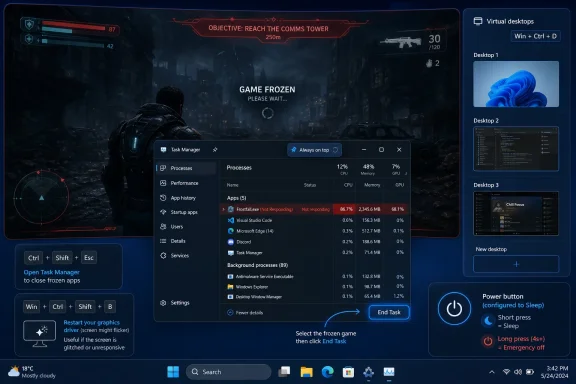 The Frozen App Is a Windows Rite of Passage Microsoft Never Quite Solved
Every longtime Windows user has a version of this story. A game hangs on a black screen. A video editor stops repainting its window. A browser tab drags the whole desktop into molasses. The mouse may still move, or it may not; the keyboard may respond, or it may only seem to. At some point, the user’s eyes drift toward the power button.That instinct is understandable, but it is also the one Windows has spent decades trying to make unnecessary. A long press on the power button is not a graceful shutdown. It is the modern PC equivalent of cutting power, and while today’s file systems, SSD firmware, and journaling mechanisms are better than their ancestors, “better” is not the same as “risk-free.”
The more interesting point is that the practical fixes circulating among Windows users are not exotic utilities or registry hacks. They are mostly Windows features hiding in plain sight: Task Manager’s “Always on top” behavior, virtual desktops, configurable power-button actions, and a display-reset shortcut that Microsoft documents but rarely explains in a user-facing way. This is not a story about finding a secret third-party tool. It is a story about turning Windows’ own escape routes into muscle memory before the crash happens.
The Reddit-born advice amplified by Lifehacker lands because it reflects how people actually use PCs. Frozen apps do not usually arrive during a quiet maintenance window. They happen when a full-screen game has focus, when a GPU driver misbehaves, when an aging machine is juggling too much memory pressure, or when a display mode switch leaves Windows technically alive but visually unreachable.
Task Manager Still Matters, but Only If You Can See It
Task Manager is the obvious weapon against a misbehaving process. The problem is that obvious tools are not always reachable when a full-screen application has seized the foreground. Pressing Ctrl+Shift+Esc may launch Task Manager, but if it appears behind the frozen app, the user is left with the particularly Windows-like frustration of knowing the solution is running somewhere they cannot reach.That is why Task Manager’s “Always on top” setting is more than a convenience. It changes Task Manager from a diagnostic dashboard into a recovery tool. Once enabled, Task Manager is more likely to appear above the frozen application, giving the user a shot at ending the process without dragging the entire system through an unclean shutdown.
This is the kind of setting Windows should arguably surface during setup, especially on gaming PCs and workstations. Microsoft has spent years modernizing Task Manager’s interface, moving its navigation, adding efficiency-mode indicators, and making the tool feel less like a Windows NT relic. But the most important setting for many users is not cosmetic. It is the one that lets the lifeboat float above the wreckage.
There is still an asterisk. “Always on top” is not magic, and it will not defeat every class of failure. If the graphics driver is wedged, the compositor is stuck, or input is not being processed, Task Manager may not save the session. But in the common case — one foreground app is unresponsive while Windows itself is still alive — this one toggle can mean the difference between killing a process and killing the machine.
It is also worth noting that Ctrl+Shift+Esc remains the cleaner shortcut than the old Ctrl+Alt+Del detour for this specific job. Ctrl+Alt+Del opens the secure attention screen, which is useful when Windows needs to break out of the normal desktop. But if the goal is simply to get to Task Manager as fast as possible, Ctrl+Shift+Esc is the direct route.
Virtual Desktops Turn a Locked Screen Into a Side Door
The cleverest trick in this bundle is the virtual desktop maneuver. If a full-screen app is frozen and blocking the current desktop, Win+Ctrl+D creates a new desktop. Windows then shifts the user into that new workspace, away from the stuck app, where Task Manager or other tools may be accessible.This works because the frozen app may own the visible foreground, but it does not necessarily own the entire session. Windows’ virtual desktop system gives the shell another place to draw windows. In practice, the user is not fixing the frozen application; they are stepping around it.
That distinction matters. A new virtual desktop does not guarantee the app will become killable, nor does it repair the underlying failure. But it gives the user a fresh surface on which to launch Task Manager, a command prompt, Event Viewer, or anything else needed to recover. For a full-screen game, emulator, or rendering workload that refuses to give up focus, that can be enough.
The follow-up shortcuts are equally important. Win+Ctrl+Left and Win+Ctrl+Right move between desktops, and Win+Ctrl+F4 closes the current virtual desktop. Without those, the trick can feel like it has created a second mess on top of the first. With them, it becomes a clean escape pattern: create a new desktop, open Task Manager, end the hung app, close the extra desktop.
This is a reminder that Windows’ virtual desktops remain under-marketed relative to their usefulness. Microsoft tends to position them as a productivity feature — one desktop for work, another for personal apps, another for a project. But their more tactical value is recovery. They can turn a single blocked workspace into a problem contained to one surface.
For IT pros, this is the sort of tip worth adding to internal helpdesk scripts. It is easy to teach, does not require admin rights, and avoids asking users to immediately force-reboot a machine. It will not solve deep OS hangs, but it can separate “the application is dead” from “the computer is dead,” and that distinction is where good troubleshooting begins.
The Power Button Is Better as a Trapdoor Than a Guillotine
The most counterintuitive suggestion is to reconfigure the physical power button so that a press puts the PC to sleep instead of shutting it down. At first glance, that sounds like rearranging deck chairs. If the machine is frozen, why would sleep help?The answer lies in the transition. When a Windows PC sleeps and wakes properly, the user often returns through the lock screen rather than the stuck full-screen app. That can create a path back to the desktop, where Task Manager can be opened and the offending process terminated. The power button becomes a controlled state change rather than a blunt-force reset.
This is not a universal cure. If the machine cannot enter sleep because the kernel, firmware, storage stack, or display path is already in serious trouble, the button press may do nothing useful. On some desktops, firmware settings and vendor utilities can also complicate power-button behavior. But for a large class of “foreground app frozen, OS still alive” incidents, sleep can be a surprisingly effective detour.
The setting itself also exposes one of Windows 11’s oddest ongoing tensions. Microsoft has moved much of the operating system into the modern Settings app, but power behavior still straddles the old Control Panel and newer interfaces depending on version, hardware, and configuration. Users looking for a simple “what should the power button do?” control may find themselves back in a legacy panel that looks like it wandered in from a previous decade.
That legacy is not always bad. The old Power Options interface remains one of the more precise places to control lid behavior, sleep behavior, and button actions. But the split personality is a problem when the setting is being used as a safety measure. If Windows wants users to stop long-pressing the power button, it should make the safer behavior easier to discover.
There is also a cultural issue here. Many users have learned that the power button means “off,” and that holding it longer means “really off.” Reassigning a short press to sleep does not remove the emergency long-press behavior, but it does create a useful buffer. It gives the user one more thing to try before crossing the line into an unclean shutdown.
Win+Ctrl+Shift+B Is Not a Magic Spell, but It Deserves a Place in Memory
The most mysterious shortcut in the group is Win+Ctrl+Shift+B. Microsoft documents it as a way to wake the device when the screen is blank or black, and Windows users commonly describe it as a graphics-driver or display-stack reset. Press it, and the screen may flicker, a beep may sound, and the desktop may redraw.This is not the same thing as force-quitting an application. It will not end a hung game, free memory, or unwind a deadlocked process. Its value is narrower but important: it helps when the machine appears frozen because the display path has stopped behaving. A black screen after a driver hiccup, a failed display-mode transition, or a stuck compositor can look like a total system freeze even when Windows is still responding underneath.
That ambiguity is why the shortcut belongs in the toolkit. Users are often bad at distinguishing an application hang from a graphics hang because the symptom is the same: nothing useful appears on the monitor. Win+Ctrl+Shift+B is a low-cost test before a hard reboot. If the desktop comes back, the problem was not the whole PC.
The shortcut also reflects a broader truth about Windows troubleshooting. Some of the best tools are not visible in menus. They are buried in key combinations, support documents, and community lore. That works for power users, but it leaves ordinary users dependent on search results and Reddit threads at the exact moment they are least able to browse calmly.
There is a risk of over-selling this one. Users should not expect Win+Ctrl+Shift+B to rescue a system that is out of memory, stuck in a kernel panic-like state, or suffering from hardware instability. It is a display recovery shortcut, not a resurrection ritual. But when the screen is black and the alternative is holding the power button, it is absolutely worth trying.
The Real Enemy Is Not the Crash, but the Missing Recovery Habit
Windows crashes less dramatically than it used to. Blue screens still exist, driver failures still happen, and applications still hang, but the everyday Windows failure mode in 2026 is often softer: one app stops responding, one display path misbehaves, one full-screen surface refuses to yield. The PC is not always dead. It is trapped.That makes user habit the critical variable. If the only practiced response is to hold the power button, the machine will be power-cycled even when Windows could have recovered. If the user already knows the recovery ladder — Task Manager, virtual desktop, sleep transition, display reset — the odds improve.
This is especially relevant for older PCs. A nine-year-old system with an upgraded SSD and more RAM can still be perfectly serviceable, but age increases the number of edge cases. Firmware may be less polished against newer OS builds. GPU drivers may be more fragile. Thermal behavior may be less forgiving. Games and browsers have not become lighter merely because the hardware is still beloved.
But the advice is not limited to aging machines. Modern high-end PCs can still lock up under full-screen games, multi-monitor mode switches, HDR transitions, GPU overclocking utilities, capture overlays, and driver updates. In fact, the more complex the display and input stack becomes, the more valuable simple recovery paths become.
The smartest framing is not “here are hacks.” It is “here is an escalation path.” Start with the least destructive action and move upward only when needed. Try to regain the desktop. Try to create a new desktop. Try to reset the display stack. Try sleep if configured. Use the hard power-off only when Windows is truly unreachable.
Full-Screen Apps Expose the Weakest Part of the Desktop Model
Full-screen applications have always been special on Windows. They are supposed to feel immersive and low-latency, which is exactly why users want games, media apps, remote desktops, and creative tools to run that way. But immersion becomes a liability when the app stops responding.A frozen windowed app is annoying. A frozen full-screen app can become a wall. It may hide the taskbar, obscure Task Manager, capture input, or leave the user unsure whether Windows is processing commands at all. In the worst case, it turns a single bad process into an apparent system failure.
Borderless windowed modes have softened this problem in many games, and modern Windows graphics handling is generally better than the exclusive full-screen era. But the old failure pattern has not disappeared. When the display surface stops updating, the user experience is still binary: either the desktop comes back, or the user reaches for the power button.
This is where Microsoft’s design choices deserve scrutiny. Windows has the components for graceful recovery, but they are scattered. The operating system knows when an app is not responding. It has a secure attention screen. It has virtual desktops. It has Task Manager. It has graphics recovery shortcuts. Yet there is no obvious “panic overlay” for ordinary users that says: this app is hung, press this to end it, press that to move to a safe desktop.
That absence pushes users toward folklore. Reddit threads become documentation. Lifehacker posts become onboarding. Enthusiasts teach each other the keystrokes Microsoft could have made part of the visible user experience.
IT Departments Should Treat These Shortcuts as Uptime Advice
For sysadmins, the lesson is not that users should be encouraged to experiment wildly during freezes. It is that a small amount of pre-training can prevent unnecessary reboots, lost work, and helpdesk tickets. The cost is low: a few shortcuts, one Task Manager setting, and a note about when to stop trying and call support.The “Always on top” Task Manager setting is a particularly good default for power users and support staff. It does not meaningfully change day-to-day operation, but it improves recovery odds during a foreground app hang. On shared or managed machines, administrators may still want consistency and policy control, but on personal workstations the trade-off is easy.
Virtual desktops are also safe enough to teach broadly. The worst likely outcome is user confusion about where a window went, which is solvable by Win+Tab or the left-right desktop shortcuts. Compared with a hard shutdown during an unsaved spreadsheet, that is a tolerable risk.
The power-button advice requires more nuance. In some environments, administrators deliberately define power-button behavior through policy, especially on laptops, kiosks, classroom PCs, or machines that need predictable shutdown semantics. But for home users and enthusiasts, making the short press sleep rather than shut down is a reasonable guardrail. It preserves the long-press emergency escape while making accidental or panic presses less destructive.
The display reset shortcut should be taught with clear boundaries. It is useful for black screens and display glitches, not as a cure-all for every freeze. That distinction matters because users who repeatedly mask driver instability with a shortcut may miss the underlying need to update, roll back, or replace a problematic driver.
Microsoft’s Hidden Recovery Tools Need a Front Door
The persistence of these tips says something uncomfortable about Windows. Microsoft has spent years polishing the surface of Windows 11, from centered taskbar icons to redesigned system apps, but some of the operating system’s most practical survival mechanisms still feel like oral tradition. Users learn them after something goes wrong, not before.A better Windows would make recovery more visible. Imagine a first-run “when an app freezes” card in Tips. Imagine Game Bar offering an emergency “open Task Manager on a new desktop” command. Imagine the Ctrl+Alt+Del screen making process termination more direct for full-screen hangs. Imagine Settings recommending “Task Manager always on top” for gaming or developer profiles.
None of this would require Microsoft to reinvent Windows. The building blocks are already there. The missing piece is product thinking that treats recovery as part of the user experience rather than as support trivia.
This matters because Windows is no longer just an office desktop. It is a gaming platform, a streaming platform, a development workstation, a remote-work endpoint, and a home server interface. The same user may be running a DirectX game, a Linux VM, a browser with dozens of tabs, and a remote desktop session. In that world, graceful failure is not a luxury. It is table stakes.
The old Windows assumption was that power users would find the tools and everyone else would reboot. That is not good enough anymore. SSDs and autosave have made hard resets less catastrophic, but cloud sync conflicts, unsaved local work, corrupted game saves, and interrupted updates are still real consequences.
The Practical Escape Ladder for a Frozen Windows App
The useful part of this advice is not any single shortcut; it is the order in which the user tries them. A frozen app should trigger a calm escalation, not an immediate power cut. The goal is to preserve the session for as long as Windows is still capable of responding.- Enable Task Manager’s “Always on top” setting before you need it, because changing it after a full-screen app freezes may be impossible.
- Use Ctrl+Shift+Esc as the fastest direct route to Task Manager when Windows is still accepting keyboard input.
- Use Win+Ctrl+D to create a new virtual desktop when a frozen full-screen app blocks the current one, then use Task Manager from the new desktop to end the process.
- Use Win+Ctrl+Shift+B when the symptom looks like a black screen or display failure rather than a normal application hang.
- Consider setting the physical power button to sleep, so a short press becomes a recoverable state change instead of an accidental shutdown.
- Reserve the long power-button hold for the point where Windows no longer responds to keyboard shortcuts, sleep, display reset, or the secure attention screen.
The larger story is that Windows already gives users several ways out of a frozen app, but it makes too many of them feel like secret handshakes. Until Microsoft turns recovery into a more obvious part of the desktop, the best defense is preparation: set Task Manager to stay visible, learn the virtual desktop escape route, make the power button less destructive, and treat the hard shutdown as the last resort it was always meant to be.
References
- Primary source: Lifehacker
Published: 2026-06-10T14:10:07.774110
These Hacks Let You Force Quit Frozen Apps on Windows | Lifehacker
When a full-screen app freezes, you may not be able to access Task Manager in Windows 11. These hacks can help.lifehacker.com - Official source: support.microsoft.com
Keyboard shortcuts in Windows - Microsoft Support
Learn how to navigate Windows using keyboard shortcuts. Explore a full list of taskbar, command prompt, and general Windows shortcuts.support.microsoft.com - Official source: microsoft.com
Boost Productivity with These Windows Keyboard Shortcuts | Microsoft Windows
Try some of our favorite time-saving Windows keyboard shortcuts. Get quick results simply by pressing a few keys, and breeze through your computing.www.microsoft.com
- Related coverage: allthings.how
Windows 11 Keyboard Shortcuts
170+ Windows 11 Keyboard shortcuts to make your Windows 11 experience faster and more productive.allthings.how - Related coverage: howtogeek.com
- Related coverage: docs.citrix.com
Keyboard | Citrix Workspace™ app for Windows
Obtain additional information on the various keyboard options available for Citrix Workspace app for Windows.docs.citrix.com

- Official source: learn.microsoft.com
- Related coverage: makeuseof.com
The Ultimate Guide to Windows 11's Keyboard Shortcuts
Want to zip around Windows 11 with your keyboard? Here's how to perform common tasks in Windows 11 with shortcuts. www.makeuseof.com
- Related coverage: winhelponline.com
Master List of Keyboard Shortcuts in Windows 11 » Winhelponline
This page has the complete list of keyboard shortcuts for Windows 11. Keyboard Shortcuts SEE ALSO: Windows 10 Keyboard Shortcuts (Complete List) That’s it!www.winhelponline.com - Related coverage: easypassprep.com
Windows 11 Quick Reference
Handy Windows 11 cheat sheet with commonly used shortcuts, tips, and tricks.easypassprep.com
- Related coverage: windowschimp.com
- Related coverage: bmccprodstroac.blob.core.windows.net
- Related coverage: sanbruno.ca.gov
- Related coverage: pk-anexcelexpert.com
- Official source: techcommunity.microsoft.com

Windows 11 sleep button gone. | Microsoft Community Hub
Hi All, Recently the sleep option that pops up when I click the power button is no longer there. Neither is hibernate. When I go to my control panel and...
techcommunity.microsoft.com
- Related coverage: windowscentral.com
Windows 11 finally fixes the long-broken “Update and shut down” option that has plagued me for years | Windows Central
Windows finally fixes a shutdown bug that had users second-guessing themselves for years. And now update and shut down works the way it always should have.www.windowscentral.com - Related coverage: techyorker.com
How to Change What Power Button Does in Windows 11 - TechYorker
On most Windows 11 PCs, the physical power button does more than just turn the system on or off. By default, pressing… techyorker.com
- Related coverage: pureinfotech.com
How to change power button action on Windows 11 - Pureinfotech
To change the power button action on Windows 11, open Settings > System > Power and change Power button controls or Control Panel older OSes. pureinfotech.com
- Related coverage: tomsguide.com
How to fix Windows 11's annoying shutdown bug | Tom's Guide
Learn how to fix the Windows 11 bug preventing some PCs from shutting down and why it only affects certain users.www.tomsguide.com
