

A Windows user comparing Task Manager with Microsoft Sysinternals Autoruns found 172 configured autostart entries on an older laptop, while Task Manager showed only 11 startup apps, exposing 161 additional services, tasks, drivers, shell extensions, and orphaned entries outside the normal Startup Apps view. That gap is not a bug so much as a design boundary. Task Manager answers a consumer question — “Which familiar apps launch when I sign in?” — while Autoruns answers the more consequential Windows question: What has been granted a path into startup at all? The difference matters because modern Windows startup is no longer a neat list of apps; it is a layered ecosystem of updaters, drivers, scheduled tasks, services, browser helpers, and leftovers from software that supposedly went away.
Task Manager’s Startup Apps page is one of the better consumer-facing additions Microsoft has made to Windows over the years. It is simple, readable, and mostly safe. If Spotify, Teams, Steam, OneDrive, Slack, or a game launcher is barging into your session, Task Manager gives you a switch you can understand.
That usefulness is also its limitation. Task Manager is not trying to be a full inventory of every Windows auto-start extensibility point. It presents the startup items most users recognize as apps, especially those tied to sign-in behavior and common startup registration paths.
For everyday cleanup, that is often enough. A user can stop a chat app from opening, trim a launcher, or disable a vendor tray utility without wandering into services, drivers, or registry keys. The interface is intentionally narrow because the consequences of the wrong click become serious very quickly once Windows internals enter the frame.
But that narrowness creates a psychological problem. A short Startup Apps list feels like evidence of a clean system. In reality, it may only mean the visible layer is tidy while deeper startup mechanisms remain crowded.
That is why a machine with 11 visible startup apps can plausibly show 172 entries in Autoruns. The two tools are not counting the same universe. Task Manager is a dashboard; Autoruns is a map of the plumbing.
Microsoft’s own description of Autoruns has long positioned it as one of the most comprehensive startup monitors available for Windows. It enumerates Run and RunOnce registry keys, Startup folders, Explorer shell extensions, browser helper objects, Winlogon notifications, auto-start services, scheduled tasks, drivers, codecs, and other auto-start locations that normal users rarely see.
That breadth is precisely why the number can look absurd on first launch. A clean Windows installation is not a minimal operating system in the old sense. A modern PC has graphics control panels, audio services, browser updaters, storage drivers, firmware support utilities, input-device helpers, security components, cloud clients, and Microsoft’s own system infrastructure all competing for a place somewhere in the boot or logon path.
Browser update tasks are a good example because they are mundane, legitimate, and easy to underestimate. Microsoft Edge, Google Chrome, Brave, Firefox-related maintenance services, and similar components often use scheduled tasks or services rather than conventional startup app entries. They are not “apps” in the Task Manager sense, yet they still participate in the rhythm of startup and background maintenance.
Hardware vendors do the same. Intel graphics components, Realtek audio services, Dolby processing layers, Bluetooth stacks, Wi-Fi drivers, touchpad software, RGB utilities, storage controllers, and OEM support assistants may all use services or driver entries. Some are essential. Some are useful. Some are merely the tax imposed by a vendor control panel that wants to be ready whether or not the user ever opens it.
This is where the startup conversation becomes more nuanced than “disable bloat.” A graphics driver is not the same kind of startup resident as a game launcher. An audio service may be the difference between working headset controls and a broken enhancement panel. A browser updater may be annoying to see in bulk, but stale browsers are a security risk.
Autoruns does not magically tell you which entries are unnecessary. It tells you that Windows startup is a negotiation among many subsystems, and that Task Manager hides most of the negotiating table.
These entries accumulate because uninstallers are imperfect. A vendor removes the main application but leaves an updater task. A driver package changes names but leaves an old service registration. A browser, launcher, VPN client, printer suite, or hardware utility exits the machine but strands a registry value pointing at a file that no longer exists.
Autoruns makes these easier to spot by highlighting missing-file entries. That does not automatically mean every yellow entry should be deleted without thought, but it does give users and administrators a much better starting point than Task Manager. If Windows is trying to evaluate a startup path for an executable that no longer exists, that is not a useful startup entry. It is residue.
The performance cost of any single orphan may be tiny. The operational cost is larger. Broken auto-start entries make troubleshooting noisier, complicate malware reviews, and create false trails when a machine behaves oddly. On older laptops — the kind that have survived years of installs, upgrades, vendor utilities, and partial removals — this cruft becomes a biography of neglect.
The article’s 161-entry delta is striking because it gives that neglect a number. It turns the vague feeling that “Windows gets messy over time” into a visible inventory of mechanisms normal cleanup tools do not surface.
The safest first move is not deletion. It is filtering. Autoruns includes options to hide Microsoft or Windows entries, which helps users focus on third-party additions rather than core operating system components. Even then, the right posture is suspicion rather than aggression.
A reasonable cleanup workflow starts with observation. Run Autoruns as administrator, let it finish scanning, hide Microsoft-signed entries if the goal is third-party cleanup, and look for obvious missing-file entries or software names tied to applications you know are gone. Exporting or saving results before making changes is a small habit that can save a large headache.
The distinction between disabling and deleting also matters. Disabling an entry lets you test whether anything breaks. Deleting an entry is more final, and should usually be reserved for clear orphaned items or entries you have verified through the registry path, file location, publisher information, and your own software history.
This is the same reason sysadmins love Sysinternals tools while help desks fear what happens when they become casual advice. Autoruns is not a broom. It is a scalpel.
That matters for performance, but it matters more for security. Auto-start locations are attractive because persistence is valuable. Legitimate software wants to survive reboots so it can update, sync, protect, enhance, or notify. Malware wants the same thing for darker reasons.
Autoruns has long been useful in security investigations because it shows persistence points that ordinary interfaces omit. It is not a replacement for endpoint protection, and it does not determine intent on its own. But it makes persistence visible, and visibility is the beginning of control.
For home users, that means Autoruns can answer a simple question: “Why does this machine still feel busy when Task Manager says startup is clean?” For administrators, it can answer a more serious one: “What code paths has this endpoint inherited from years of software, drivers, and user behavior?”
The surprise is not that Task Manager misses things. The surprise is that many users still treat Task Manager as the authoritative list.
Autoruns belongs in a different category. It is the tool to use when the machine has history. It is for old laptops, upgraded systems, mystery slowdowns, stubborn vendor utilities, half-removed software, unexplained tray behavior, and security reviews where the visible startup list is not enough.
The practical split is simple. Task Manager manages user-facing convenience. Autoruns audits system-facing persistence.
That split also explains why Microsoft has never turned Autoruns into the default Startup Apps interface. Most users do not need to see Winlogon entries, Winsock providers, shell extensions, codecs, and drivers every time they want to stop Spotify. Hiding complexity is good product design — until the hidden layer becomes the place where the real problem lives.
Windows would benefit from a middle ground. The Settings app could expose more categories in a safer, read-only or guided format: scheduled startup tasks, third-party services, missing-file startup entries, and recently added auto-start registrations. Users should not need a forensic utility to learn that an uninstalled program left behind a boot-time souvenir.
Modern applications increasingly behave like platforms. They install update agents, background services, scheduled tasks, shell integrations, protocol handlers, browser components, file sync hooks, context-menu extensions, and telemetry helpers. The executable you launch is only the visible tip.
That model has benefits. Silent updates keep browsers safer. Services enable device features without manual intervention. Scheduled tasks can reduce user friction. Shell extensions make cloud files, archive tools, security scanners, and developer utilities feel native.
But every convenience leaves a footprint. Over years, those footprints overlap. Windows does not become messy all at once; it becomes messy through thousands of individually reasonable decisions.
That is why the old advice to “check Startup Apps” now feels incomplete. It is not wrong. It is just too small for the Windows ecosystem we actually use.
Users should start with the obvious. Disable conventional apps in Task Manager first. Uninstall software normally before editing startup entries. Reboot and observe. Only then should Autoruns become part of the cleanup path.
When Autoruns does come out, the safest targets are stale entries tied to missing files or clearly uninstalled programs. The riskiest targets are drivers, security tools, storage components, networking components, and anything from Microsoft or a hardware vendor that you have not researched. The difference between “unnecessary” and “unfamiliar” is where many self-inflicted Windows problems begin.
For administrators, Autoruns also has value as documentation. Its command-line companion can export results, making it useful for baselining systems, comparing before-and-after states, or investigating persistence across machines. That is the sysadmin version of the home-user revelation: the startup list is not a list; it is a dataset.
The truth is more interesting. Task Manager is the right interface for routine control, and Autoruns is the right interface for reality. One keeps ordinary users from breaking Windows; the other shows how much Windows has agreed to run on behalf of software vendors, device makers, browsers, and the operating system itself.
That does not make Task Manager deceptive. It makes it scoped. The problem is that Windows does not communicate that scope clearly enough. A user looking at 11 startup apps deserves to know that this is not the totality of startup behavior.
Microsoft already owns the tool that proves the point. Autoruns is free, portable, mature, and brutally honest. The gap is not technical capability. The gap is product philosophy.
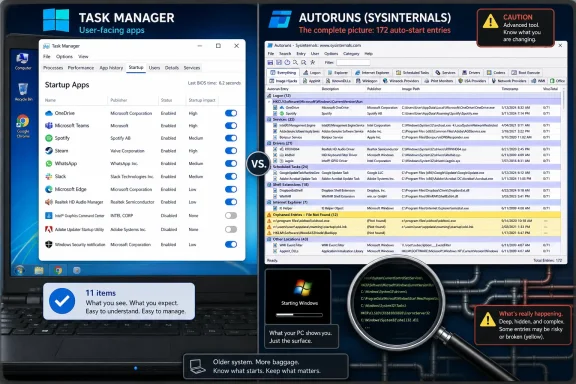 Task Manager Gives Windows Users a Comforting Half-Truth
Task Manager’s Startup Apps page is one of the better consumer-facing additions Microsoft has made to Windows over the years. It is simple, readable, and mostly safe. If Spotify, Teams, Steam, OneDrive, Slack, or a game launcher is barging into your session, Task Manager gives you a switch you can understand.That usefulness is also its limitation. Task Manager is not trying to be a full inventory of every Windows auto-start extensibility point. It presents the startup items most users recognize as apps, especially those tied to sign-in behavior and common startup registration paths.
For everyday cleanup, that is often enough. A user can stop a chat app from opening, trim a launcher, or disable a vendor tray utility without wandering into services, drivers, or registry keys. The interface is intentionally narrow because the consequences of the wrong click become serious very quickly once Windows internals enter the frame.
But that narrowness creates a psychological problem. A short Startup Apps list feels like evidence of a clean system. In reality, it may only mean the visible layer is tidy while deeper startup mechanisms remain crowded.
Autoruns Shows the Startup System Windows Actually Uses
Autoruns, part of Microsoft’s Sysinternals suite, is built from a different philosophy. It does not ask what looks like a startup app. It asks where Windows, applications, drivers, shell components, scheduled tasks, services, codecs, browser components, and logon hooks have registered themselves to run automatically.That is why a machine with 11 visible startup apps can plausibly show 172 entries in Autoruns. The two tools are not counting the same universe. Task Manager is a dashboard; Autoruns is a map of the plumbing.
Microsoft’s own description of Autoruns has long positioned it as one of the most comprehensive startup monitors available for Windows. It enumerates Run and RunOnce registry keys, Startup folders, Explorer shell extensions, browser helper objects, Winlogon notifications, auto-start services, scheduled tasks, drivers, codecs, and other auto-start locations that normal users rarely see.
That breadth is precisely why the number can look absurd on first launch. A clean Windows installation is not a minimal operating system in the old sense. A modern PC has graphics control panels, audio services, browser updaters, storage drivers, firmware support utilities, input-device helpers, security components, cloud clients, and Microsoft’s own system infrastructure all competing for a place somewhere in the boot or logon path.
The Real Startup Tax Is Paid Before the Desktop Looks Busy
The most useful lesson from the 161-entry gap is that startup performance is not only determined by what appears after the desktop loads. Windows is already doing work before the user types a password, and more work starts when the user shell comes alive.Browser update tasks are a good example because they are mundane, legitimate, and easy to underestimate. Microsoft Edge, Google Chrome, Brave, Firefox-related maintenance services, and similar components often use scheduled tasks or services rather than conventional startup app entries. They are not “apps” in the Task Manager sense, yet they still participate in the rhythm of startup and background maintenance.
Hardware vendors do the same. Intel graphics components, Realtek audio services, Dolby processing layers, Bluetooth stacks, Wi-Fi drivers, touchpad software, RGB utilities, storage controllers, and OEM support assistants may all use services or driver entries. Some are essential. Some are useful. Some are merely the tax imposed by a vendor control panel that wants to be ready whether or not the user ever opens it.
This is where the startup conversation becomes more nuanced than “disable bloat.” A graphics driver is not the same kind of startup resident as a game launcher. An audio service may be the difference between working headset controls and a broken enhancement panel. A browser updater may be annoying to see in bulk, but stale browsers are a security risk.
Autoruns does not magically tell you which entries are unnecessary. It tells you that Windows startup is a negotiation among many subsystems, and that Task Manager hides most of the negotiating table.
Orphaned Entries Are the Rot That Task Manager Rarely Exposes
The most actionable discoveries in Autoruns are often not the legitimate services. They are the leftovers. Old scheduled tasks, broken shell extensions, missing executables, abandoned registry pointers, and disabled-looking remnants from uninstalled programs are the startup equivalent of fossil records.These entries accumulate because uninstallers are imperfect. A vendor removes the main application but leaves an updater task. A driver package changes names but leaves an old service registration. A browser, launcher, VPN client, printer suite, or hardware utility exits the machine but strands a registry value pointing at a file that no longer exists.
Autoruns makes these easier to spot by highlighting missing-file entries. That does not automatically mean every yellow entry should be deleted without thought, but it does give users and administrators a much better starting point than Task Manager. If Windows is trying to evaluate a startup path for an executable that no longer exists, that is not a useful startup entry. It is residue.
The performance cost of any single orphan may be tiny. The operational cost is larger. Broken auto-start entries make troubleshooting noisier, complicate malware reviews, and create false trails when a machine behaves oddly. On older laptops — the kind that have survived years of installs, upgrades, vendor utilities, and partial removals — this cruft becomes a biography of neglect.
The article’s 161-entry delta is striking because it gives that neglect a number. It turns the vague feeling that “Windows gets messy over time” into a visible inventory of mechanisms normal cleanup tools do not surface.
Microsoft’s Best Cleanup Tool Is Also a Dangerous One
Autoruns is powerful because it treats the user like an administrator. That is also why it can be dangerous in the wrong hands. Disable the wrong driver, service, logon component, or security entry, and the result may be a broken feature, a degraded device, or a machine that becomes harder to diagnose.The safest first move is not deletion. It is filtering. Autoruns includes options to hide Microsoft or Windows entries, which helps users focus on third-party additions rather than core operating system components. Even then, the right posture is suspicion rather than aggression.
A reasonable cleanup workflow starts with observation. Run Autoruns as administrator, let it finish scanning, hide Microsoft-signed entries if the goal is third-party cleanup, and look for obvious missing-file entries or software names tied to applications you know are gone. Exporting or saving results before making changes is a small habit that can save a large headache.
The distinction between disabling and deleting also matters. Disabling an entry lets you test whether anything breaks. Deleting an entry is more final, and should usually be reserved for clear orphaned items or entries you have verified through the registry path, file location, publisher information, and your own software history.
This is the same reason sysadmins love Sysinternals tools while help desks fear what happens when they become casual advice. Autoruns is not a broom. It is a scalpel.
Startup Has Become a Supply Chain of Trust
The deeper issue is that Windows startup has become a miniature supply chain. Every browser updater, device service, cloud sync helper, overlay, shell extension, launcher, codec, and maintenance task is a trust relationship. You are trusting not just Windows, but every vendor that has persuaded Windows to call its code automatically.That matters for performance, but it matters more for security. Auto-start locations are attractive because persistence is valuable. Legitimate software wants to survive reboots so it can update, sync, protect, enhance, or notify. Malware wants the same thing for darker reasons.
Autoruns has long been useful in security investigations because it shows persistence points that ordinary interfaces omit. It is not a replacement for endpoint protection, and it does not determine intent on its own. But it makes persistence visible, and visibility is the beginning of control.
For home users, that means Autoruns can answer a simple question: “Why does this machine still feel busy when Task Manager says startup is clean?” For administrators, it can answer a more serious one: “What code paths has this endpoint inherited from years of software, drivers, and user behavior?”
The surprise is not that Task Manager misses things. The surprise is that many users still treat Task Manager as the authoritative list.
Windows Cleanup Needs Two Lenses, Not One
There is no reason to discard Task Manager. It remains the right place for basic startup hygiene. If a familiar app is launching at sign-in and you want it to stop, Task Manager is fast, safe, and clear.Autoruns belongs in a different category. It is the tool to use when the machine has history. It is for old laptops, upgraded systems, mystery slowdowns, stubborn vendor utilities, half-removed software, unexplained tray behavior, and security reviews where the visible startup list is not enough.
The practical split is simple. Task Manager manages user-facing convenience. Autoruns audits system-facing persistence.
That split also explains why Microsoft has never turned Autoruns into the default Startup Apps interface. Most users do not need to see Winlogon entries, Winsock providers, shell extensions, codecs, and drivers every time they want to stop Spotify. Hiding complexity is good product design — until the hidden layer becomes the place where the real problem lives.
Windows would benefit from a middle ground. The Settings app could expose more categories in a safer, read-only or guided format: scheduled startup tasks, third-party services, missing-file startup entries, and recently added auto-start registrations. Users should not need a forensic utility to learn that an uninstalled program left behind a boot-time souvenir.
The 161 Missing Entries Are a Warning About Software Habits
The specific count — 161 entries Task Manager did not show — should not be read as a universal benchmark. Another PC may show fewer. A developer workstation, gaming rig, corporate image, or OEM laptop may show far more. The important point is not the number but the architecture that makes such a number possible.Modern applications increasingly behave like platforms. They install update agents, background services, scheduled tasks, shell integrations, protocol handlers, browser components, file sync hooks, context-menu extensions, and telemetry helpers. The executable you launch is only the visible tip.
That model has benefits. Silent updates keep browsers safer. Services enable device features without manual intervention. Scheduled tasks can reduce user friction. Shell extensions make cloud files, archive tools, security scanners, and developer utilities feel native.
But every convenience leaves a footprint. Over years, those footprints overlap. Windows does not become messy all at once; it becomes messy through thousands of individually reasonable decisions.
That is why the old advice to “check Startup Apps” now feels incomplete. It is not wrong. It is just too small for the Windows ecosystem we actually use.
The Sensible Cleanup Playbook Is Cautious, Not Heroic
The best response to an Autoruns scan is not to chase the lowest possible entry count. A healthy Windows PC is not one with an empty startup map. It is one where the entries are understood, current, signed where appropriate, tied to installed software, and serving a purpose.Users should start with the obvious. Disable conventional apps in Task Manager first. Uninstall software normally before editing startup entries. Reboot and observe. Only then should Autoruns become part of the cleanup path.
When Autoruns does come out, the safest targets are stale entries tied to missing files or clearly uninstalled programs. The riskiest targets are drivers, security tools, storage components, networking components, and anything from Microsoft or a hardware vendor that you have not researched. The difference between “unnecessary” and “unfamiliar” is where many self-inflicted Windows problems begin.
For administrators, Autoruns also has value as documentation. Its command-line companion can export results, making it useful for baselining systems, comparing before-and-after states, or investigating persistence across machines. That is the sysadmin version of the home-user revelation: the startup list is not a list; it is a dataset.
The Startup Page Was Never the Whole Story
The MakeUseOf experiment lands because it punctures a comforting assumption. Task Manager looks official, so users treat it as complete. Autoruns looks intimidating, so users assume it is only for emergencies.The truth is more interesting. Task Manager is the right interface for routine control, and Autoruns is the right interface for reality. One keeps ordinary users from breaking Windows; the other shows how much Windows has agreed to run on behalf of software vendors, device makers, browsers, and the operating system itself.
That does not make Task Manager deceptive. It makes it scoped. The problem is that Windows does not communicate that scope clearly enough. A user looking at 11 startup apps deserves to know that this is not the totality of startup behavior.
Microsoft already owns the tool that proves the point. Autoruns is free, portable, mature, and brutally honest. The gap is not technical capability. The gap is product philosophy.
The Old Laptop Test Every Windows Power User Should Run
The most useful lesson from this case is not that everyone should delete 161 startup entries. It is that every long-lived Windows installation deserves an audit before users blame the hardware, the latest update, or Windows itself. A machine that has carried years of browsers, launchers, drivers, utilities, and uninstallers may be starting far more than its owner realizes.- Task Manager is still the safest place to disable familiar user-facing apps that launch at sign-in.
- Autoruns reveals a much wider startup surface, including scheduled tasks, services, drivers, shell extensions, browser helpers, codecs, and registry-based launch points.
- Missing-file and orphaned entries are often the cleanest targets because they usually point to software that is no longer present.
- Drivers, security components, storage services, networking entries, and Microsoft-signed items should not be disabled casually.
- The goal is not to make Autoruns empty, but to make Windows startup understandable, current, and free of stale vendor debris.
- A saved Autoruns snapshot can be useful before cleanup because it gives you a way to compare changes or recover from an overzealous edit.
References
- Primary source: MakeUseOf
Published: 2026-06-20T20:22:07.985647
I ran a free Microsoft tool and found 161 startup entries Task Manager couldn't see
I thought my startup was clean until Autoruns proved otherwise. www.makeuseof.com
- Official source: learn.microsoft.com
Autoruns - Sysinternals | Microsoft Learn
See what programs are configured to startup automatically when your system boots and you login.learn.microsoft.com - Related coverage: documentation.help
Configuring the Displayed Locations and Entries - Autoruns Documentation
documentation.help
