

Two decades of reinstall rituals have taught a useful lesson: the reflex to wipe Windows and start over was once a reliable fix, but on modern PCs it’s often an expensive, time-consuming detour that can make problems worse rather than better. The old payoff — removing intrusive third‑party junk, restoring clean boot times, eliminating fragile drivers — has been blunted by changes in Windows, hardware, and vendor practices. At the same time, a full reinstall still has a place when a system is badly compromised or irreparably conflicted. This feature unpacks the PCMag argument that you should stop reinstalling Windows as a first response, verifies the key technical claims, weighs the risks and benefits, and lays out a practical, safety‑first playbook for users who want a fast, stable PC without needless reimages.
The conventional wisdom among Windows power users used to be: when in doubt, format and reinstall. That logic had strong roots — mechanical hard drives, fragile driver stacks, and OEM bloatware that dug hooks into the system made fresh installs a performance and security reset. The PCMag piece revisits that era and argues that today’s Windows 10/11 ecosystem, improved OEM practices, and built‑in recovery tools make habitual clean installs unnecessary.
This is not denial of past pain. The Superfish/VisualDiscovery episode is a textbook example of how preinstalled software once created real security risk by intercepting HTTPS sessions; regulators intervened and vendors changed practices afterward. The Federal Trade Commission’s complaint and subsequent settlement with Lenovo over VisualDiscovery (Superfish) documents how the software replaced certificates and allowed dangerous “man‑in‑the‑middle” behavior, and Lenovo agreed to long‑term controls as part of the resolution. At the same time, Microsoft’s Signature Edition program (Microsoft Store / Signature Edition PCs) and other market forces pushed OEMs to reduce—or at least tone down—the automatic bundling of trials and aggressive toolbars. The “clean PC” option that Microsoft promoted in retail stores aimed to give customers an out‑of‑the‑box experience without excess trialware. That market and regulatory pressure changed the calculus: a fresh install no longer buys the same security or responsiveness wins it used to.
Bloatware wasn’t just annoying — sometimes it touched low‑level parts of Windows and browsers, causing security and stability problems. Superfish/VisualDiscovery (2014–2015) is the canonical example: an ad‑injection tool that installed its own root certificate and created a security hole that could be exploited to intercept encrypted traffic. Regulators and press coverage drove both vendor fixes and broader awareness.
That said, reinstalling still has its place: when the system is truly compromised, when persistent corruption survives every repair, or when a machine has been used as a chaotic testbed for years. When those rare cases arise, approach the reinstall like the critical operation it is: back up, document, re‑acquire OEM tools, and rebuild with a golden image for the next time.
Stop reinstalling Windows as ritual. Reinstall intentionally, and you’ll spend less time fixing avoidable breakage and more time using the PC the way it was meant to be used.
Source: PCMag Stop Reinstalling Windows—It's Probably Making Your PC Worse
 Background / Overview
The conventional wisdom among Windows power users used to be: when in doubt, format and reinstall. That logic had strong roots — mechanical hard drives, fragile driver stacks, and OEM bloatware that dug hooks into the system made fresh installs a performance and security reset. The PCMag piece revisits that era and argues that today’s Windows 10/11 ecosystem, improved OEM practices, and built‑in recovery tools make habitual clean installs unnecessary.This is not denial of past pain. The Superfish/VisualDiscovery episode is a textbook example of how preinstalled software once created real security risk by intercepting HTTPS sessions; regulators intervened and vendors changed practices afterward. The Federal Trade Commission’s complaint and subsequent settlement with Lenovo over VisualDiscovery (Superfish) documents how the software replaced certificates and allowed dangerous “man‑in‑the‑middle” behavior, and Lenovo agreed to long‑term controls as part of the resolution. At the same time, Microsoft’s Signature Edition program (Microsoft Store / Signature Edition PCs) and other market forces pushed OEMs to reduce—or at least tone down—the automatic bundling of trials and aggressive toolbars. The “clean PC” option that Microsoft promoted in retail stores aimed to give customers an out‑of‑the‑box experience without excess trialware. That market and regulatory pressure changed the calculus: a fresh install no longer buys the same security or responsiveness wins it used to.
Why reinstalling used to be the right play
The HDD era and bloatware that stuck
For many users during the Vista and early Windows 7 years, new laptops arrived slow because of low‑RPM mechanical hard drives and a swarm of startup agents from OEMs and third parties. The combination of slow disks and dozens of background utilities meant long boot times and high I/O contention. A clean image removed all the cruft and gave a snappier desktop.Bloatware wasn’t just annoying — sometimes it touched low‑level parts of Windows and browsers, causing security and stability problems. Superfish/VisualDiscovery (2014–2015) is the canonical example: an ad‑injection tool that installed its own root certificate and created a security hole that could be exploited to intercept encrypted traffic. Regulators and press coverage drove both vendor fixes and broader awareness.
The practical benefit of a known baseline
A fresh install gave power users a repeatable baseline: known drivers, no legacy services, and a clean component store. For technicians rebuilding many systems, an image or reinstall still offered the fastest path to a controlled state where troubleshooting was easier and results were reproducible.What has changed: modern reasons a wipe can be the wrong first move
1) Windows now ships stronger recovery and reset tools
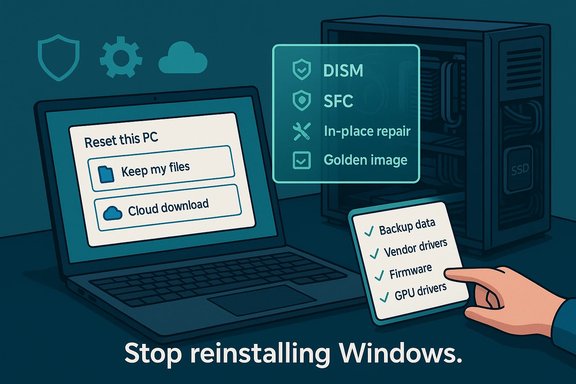
Microsoft’s “Reset this PC” (and its modern cloud download/local reinstall options) allows a reinstall‑like recovery without the hassle of external ISOs and manual driver searches. You can choose to keep your files, reinstall from the cloud to ensure the latest patched image, and restore OEM drivers if you wish. The “Fresh Start” name was consolidated into Reset This PC, which reduces the need to hunt down installer media and simplifies a recovery workflow for most users. These options are documented and supported by Microsoft for Windows 10/11. Because Reset this PC can optionally reapply OEM apps and drivers, a careless full wipe that removes useful manufacturer utilities can be avoided. That leads to the next important change.2) OEMs ship useful hardware utilities that matter
Modern laptops frequently include vendor tools that manage firmware updates, battery charging thresholds, thermal profiles, and keyboard lighting. Examples include Lenovo Vantage and Dell’s Power Manager (now integrated into Dell Optimizer/MyDell). These apps do more than add cosmetic features; they deliver firmware/BIOS updates, thermal management, battery health settings, and vendor‑validated drivers that can be harder to reconstruct after a clean install. Removing them blindly can cost time and, in some cases, reduce device functionality.3) Bloatware is less toxic, and uninstalling is easier
The worst abuses of OEM bloat—software that replaced certificates, installed persistent network‑level hooks, or deliberately intercepted encrypted traffic—were high‑profile and rare after regulatory scrutiny. Today’s preinstalled extras are often benign trials and promotional apps that you can uninstall directly from Settings or the Start menu. Because uninstall is easier, the cleanup benefit of a reinstall is smaller than it once was. Microsoft and OEMs also standardized more of the driver and update flow, reducing the variety of “surprises” a reinstall would normally eliminate.4) Hardware problems aren’t fixed by software wipes
If slowdowns are caused by dust‑clogged cooling, failing storage drives, degraded batteries, or thermal throttling, reinstalling Windows won’t change physical reality. Cleaning fans, replacing thermal paste, moving from HDD to SSD, or replacing a failing drive are the actual fixes. Technical forums and field experience repeatedly show that hardware maintenance is the most reliable route to restoring long‑term performance.When a clean install still makes sense
Despite the above, there remain clear scenarios where a reinstall (or Reset this PC with Remove Everything and Clean Data) is the right choice:- Deep, persistent corruption: SFC/DISM, in‑place repairs, and reset workflows fail to resolve component store corruption or repeated failures across core apps.
- Malware/rootkit compromise: When a machine shows signs of advanced persistent compromise that cannot be reliably removed, starting from known media is the safest path.
- Long‑lived “testbed” systems: Machines used for years of install/uninstall cycles, driver testing, and Insider builds can accumulate hard‑to‑diagnose cruft; a controlled rebuild may be faster. Community case studies show that heavily used test laptops sometimes behave unpredictably and only a fresh baseline solves the problem.
- Preparing a device for resale or transfer: A clean, provable wipe (with the drive‑clean option) is appropriate to protect privacy.
The risks of gratuitous reinstalling
Reinstalling Windows is not neutral. The PCMag piece notes practical downsides that experienced users often ignore:- Time cost: Backing up, re‑installing apps, reconfiguring settings, reactivating licenses, and restoring data are expensive in time. A reinstall can easily take hours or days.
- Lost vendor integrations: Fan curves, battery charging profiles, firmware update convenience, and keyboard lighting settings are often easier managed with the OEM app. A wipe that removes them forces time‑consuming manual driver/utility retrieval.
- Surprising regressions: Even careful in‑place reimages can miss obscure drivers, store‑only OEM packages, or hardware‑specific drivers, leaving some features broken or unstable.
- Data loss risk from user error: People underestimate the scope of their backups—licences, profiles, and app data can be overlooked, making a “clean start” feel expensive.
Practical alternatives: how to get the benefits without the full wipe
Before grabbing the ISO and a USB stick, try this modern, risk‑aware playbook:Quick triage (20–30 minutes)
- Create a System Restore point and a minimal file backup (Photos/Documents).
- Run Windows Security full scan and then run DISM and SFC:
- DISM /Online /Cleanup-Image /RestoreHealth
- sfc /scannow
- Open Task Manager → Startup and disable nonessential high‑impact entries.
- Use Apps & features to uninstall unwanted software, and remove unnecessary Microsoft Store apps.
- Check Device Manager for flagged devices; roll back or install vendor drivers only if needed.
Intermediate repairs (1–2 hours)
- Try an in‑place repair (repair install) using the Windows ISO: it rewrites system files while attempting to keep apps and data. Note: it can preserve problematic third‑party components, so it’s not a cure‑all.
- Use Reset this PC → Keep my files, and select Cloud download if you suspect local image corruption. This is often faster and more reliable than a full manual reinstall.
When hardware is likely the cause
- Inspect cooling, clean dust, and ensure good airflow. Replace thermal paste on older machines.
- Replace mechanical HDDs with an SSD — the single best upgrade for perceived snappiness on older systems.
- Check SMART for drive health and run manufacturer diagnostics.
For power users and admins
- Capture a “golden image” after configuring one machine the way you like and using that image when rebuilds are necessary. This preserves OEM utilities while saving time on mass reimages.
- Use virtualization for risky testing instead of contaminating a primary machine.
If you must wipe: a safe rebuild checklist
- Back up everything — not just Documents, but app data, license keys, browser sync tokens, and Secrets (export BitLocker recovery keys and 2FA backups).
- Note your OEM utilities and vendor downloads (Lenovo Vantage, Dell Power Manager, Asus Armoury Crate, etc. and gather their installers or links. These apps are often model‑specific and easier to reinstall if you have a record.
- Create a current bootable installer with the latest cumulative updates (or use Cloud download) to avoid getting trapped on old media.
- Disconnect internet until you have a local admin account set up and BitLocker keys secured.
- After reinstall, install chipset and vendor drivers first; then GPU; then extras. Validate thermal and power settings with vendor tools.
- Make a new golden image once the machine is configured to speed the next rebuild.
Mythbusting common reinstall claims
- “Reinstalling Windows will always speed my PC.” Not true. If the bottleneck is storage, memory, or thermals, software wipes won’t help. Simple housekeeping (uninstalling startup apps, freeing disk space, changing power plans) or hardware upgrades often deliver far more impact.
- “A clean install removes all OEM‑level risks.” That used to be true largely because of malicious preloads like Superfish, but vendor and regulatory responses have reduced these incidents; a careful uninstall of specific apps is often enough. Still, if you bought a used or suspicious machine, a wipe is defensible.
- “Reset this PC is the same as a manual clean install.” Reset is usually safer and simpler, and Microsoft documents Cloud download/local reinstall options; but if you need a truly pristine factory image or a different Windows edition, manual install may still be required.
Critical takeaways — what to change in your maintenance habits
- Stop making reinstalling Windows your reflex. Treat it as a last resort, not a first stop. The modern toolbox (Reset this PC, DISM/SFC, vendor tools) handles the majority of issues faster and with less risk.
- Invest in proactive maintenance: keep storage under 80% capacity, clean cooling paths, and update firmware and drivers from vendor channels when needed. Those small practices pay off more than periodic reinstalls.
- Learn the vendor apps that ship with your hardware. Tools such as Lenovo Vantage and Dell Power Manager provide battery and thermal control that matter; losing them by habitually reinstalling costs real functionality.
- Build and keep backups and a golden image for fast recovery. This lets you rebuild deliberately and reliably without repeated manual reconfiguration.
Caveats and where to be suspicious
Some claims in the popular narratives are anecdotal rather than systematic. For example, an individual’s memory that a reinstall “always” fixed their machine in the XP era is a valid recollection but not a universal rule today. Where possible, cross‑check platform‑level claims against vendor documentation or regulatory actions — for example, Superfish’s security consequences and Lenovo’s settlement are factual and recorded by the FTC and independent reporting. Also, OEM apps aren’t universally benevolent; they can introduce bugs or telemetry. The guidance here is pragmatic: keep what helps (thermal/battery/firmware management) and remove what doesn’t, but do the removal with backup and awareness that some functions will not return automatically without reinstalling their vendor packages. If an OEM app is causing trouble, research model‑specific guidance before removing it wholesale.Final verdict
Reinstalling Windows is no longer the routine panacea it once was. Modern Windows recovery tools, improved OEM behavior, and vendor utilities that add real device value have shifted the balance toward targeted fixes, maintenance, and controlled resets. For most users, the fastest route to a stable, fast PC is a measured troubleshooting sequence: check for hardware causes, use Microsoft’s repair/reset tools, remove offending apps, and only then opt for a clean reinstall if all other options fail.That said, reinstalling still has its place: when the system is truly compromised, when persistent corruption survives every repair, or when a machine has been used as a chaotic testbed for years. When those rare cases arise, approach the reinstall like the critical operation it is: back up, document, re‑acquire OEM tools, and rebuild with a golden image for the next time.
Stop reinstalling Windows as ritual. Reinstall intentionally, and you’ll spend less time fixing avoidable breakage and more time using the PC the way it was meant to be used.
Source: PCMag Stop Reinstalling Windows—It's Probably Making Your PC Worse
