

I followed this Windows advice for years, and it was all wrong. The biggest surprise isn’t that the old tricks stopped being useful; it’s that Windows itself quietly grew up while many of us kept repeating maintenance rituals from the XP and Windows 7 era. What once looked like responsible care now often amounts to busywork, unnecessary wear, or even a small performance tax. The modern Windows machine is far more self-managing than the one many of us learned to babysit.
For a long time, Windows maintenance advice was shaped by real limitations. Mechanical hard drives fragmented, memory was scarce, background services were inconsistent, and malware protection often depended on third-party tools because the built-in options were weak or incomplete. If you were the family IT person, the advice you gave was usually practical, because the operating system truly needed help. That context matters, because a lot of the habits people still follow were once perfectly rational.
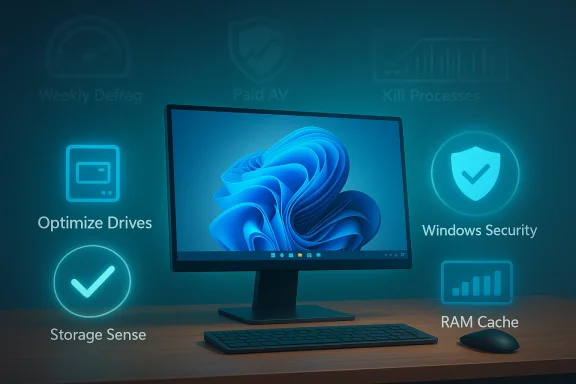
The problem is that Windows changed faster than the folklore surrounding it. Storage shifted from spinning disks to SSDs, system memory became more plentiful, and Microsoft pushed more cleanup, security, and recovery tasks into the operating system itself. Windows 11 and Windows 10 now include built-in mechanisms such as Optimize Drives, Microsoft Defender Antivirus, SysMain, Storage Sense, and Reset this PC that reduce the need for the old manual rituals. Microsoft’s own support pages now describe these tools as standard parts of keeping a PC healthy, not as emergency backups for missing expertise.
That shift has created a strange gap between perception and reality. Many users still treat high RAM usage as a warning sign, treat defragmentation as a weekly duty, and treat paid antivirus as a must-have subscription even when Windows Security already covers the basics. In practice, modern Windows often does better when left alone. The operating system is no longer a fragile machine that needs constant hand-holding; in many cases it is a self-tuning platform that gets worse when users keep intervening for the sake of feeling proactive.
There is also a psychological element here. Manual maintenance feels productive because it is visible: a progress bar fills, a scan runs, a cleanup completes, and the laptop feels “worked on.” But visible activity is not the same thing as useful activity. That distinction is the heart of the modern Windows myth-busting conversation, and it explains why so many old tips survive long after their original technical purpose has faded.
The trouble is that SSDs changed the math. Microsoft’s documentation now treats Optimize Drives as the current replacement for the old Disk Defragmenter, and on SSDs the system performs SSD-appropriate optimization rather than old-fashioned defragmentation. That distinction matters because the point is not to force contiguous file layout at all costs; it is to do the right kind of maintenance for the storage medium in use. Windows supports TRIM-based maintenance and related metadata upkeep on SSDs instead of blindly shuffling data around.
The deeper point is that users often confuse motion with progress. Watching a defrag bar move feels like improvement, but the real issue on an SSD is not file contiguity in the old sense. It is efficient flash management, and Windows already knows how to handle that. An SSD that gets “optimized” the Windows way is being maintained, just not in the way many people picture.
Microsoft Defender Antivirus is now a mainstream security engine, and current AV-TEST results show it scoring at the top end for consumer Windows protection. AV-TEST’s December 2025 consumer results list Microsoft Defender Antivirus with perfect scores across protection, performance, and usability, which is exactly the kind of outcome that weakens the old assumption that “real” protection must be paid for. Microsoft also refreshes Defender through Windows Update and the broader security infrastructure, which keeps the product tightly synchronized with the OS.
That bundle strategy is not inherently bad, but it changes the value proposition. If the malware engine is already strong, then extra features must justify themselves on their own merits. Many consumers are paying for adjacent conveniences, not a better threat-blocking core. That is a very different purchase decision from the one people were making a decade ago.
Windows uses RAM aggressively because RAM is there to be used. The system caches data, keeps frequently used resources ready, and uses mechanisms such as SysMain to anticipate what you might open next. What looks like “used” memory is often simply cached or standby data, which can be reclaimed quickly when an active application needs it. Microsoft’s design goal is not to keep memory usage low for the sake of a pretty graph; it is to make the machine feel responsive.
The trouble starts when users chase the wrong metric. Closing background processes may lower the number in Task Manager, but it can also force the system to reload the same data later from storage, which is slower than leaving it cached. In other words, the “cleanup” may create more work for Windows than it saves. That is exactly the kind of intervention that feels useful and often is not.
Microsoft now provides multiple recovery pathways that are meant to be used selectively, not ritualistically. Reset this PC can reinstall Windows while preserving or removing files, and Microsoft’s recovery documentation treats it as a solution for specific situations such as software problems, malware, or startup failures. Storage Sense and cleanup recommendations also reduce the need to “start over” just to clear temporary clutter.
That rebuild is often the hidden tax people forget. You do not just reinstall Windows. You reinstall apps, reactivate licenses, restore browser profiles, reapply UI settings, and recover all the little customizations that made the PC feel like yours. For many users, that is more painful than the slowdown they were trying to fix.
Microsoft’s current support guidance reflects that reality. Optimize Drives runs on a schedule, Storage Sense can free disk space automatically, and recovery tools are integrated into the OS rather than hidden behind specialist knowledge. Even reinstall workflows are built into Windows in ways that are meant to be accessible to ordinary users. That is a very different operating model from the one many of us learned on.
There is also a user-experience angle here. When people stop micromanaging background services and storage habits, the system can do its job more effectively. That can improve responsiveness, reduce wear from unnecessary writes, and cut down on the accidental damage caused by overzealous “fixes.”
For enterprises, layered security and centrally controlled recovery remain important. Managed Defender policies, device compliance tools, and standardized imaging still have their place because the scale and risk profile are different. For consumers, however, many of those layers are unnecessary. The average household PC does not need to be treated like a corporate endpoint with a security team behind it. That gap between contexts is one reason bad advice survives so long.
This is also why tech advice becomes misleading when it is stripped of context. “Do X every month” sounds disciplined, but it only helps if X actually solves the problem in that environment. Modern Windows often does the same jobs better and more quietly than a human manually poking at settings ever could.
That shift matters because modern computing is increasingly about delegation. If the operating system can manage storage, memory, security, and repair on its own, then the user’s job becomes oversight rather than constant intervention. The smarter strategy is to know when to step in, not to step in by default.
Source: MakeUseOf I followed this Windows advice for years, and it was all wrong
 Background
For a long time, Windows maintenance advice was shaped by real limitations. Mechanical hard drives fragmented, memory was scarce, background services were inconsistent, and malware protection often depended on third-party tools because the built-in options were weak or incomplete. If you were the family IT person, the advice you gave was usually practical, because the operating system truly needed help. That context matters, because a lot of the habits people still follow were once perfectly rational.The problem is that Windows changed faster than the folklore surrounding it. Storage shifted from spinning disks to SSDs, system memory became more plentiful, and Microsoft pushed more cleanup, security, and recovery tasks into the operating system itself. Windows 11 and Windows 10 now include built-in mechanisms such as Optimize Drives, Microsoft Defender Antivirus, SysMain, Storage Sense, and Reset this PC that reduce the need for the old manual rituals. Microsoft’s own support pages now describe these tools as standard parts of keeping a PC healthy, not as emergency backups for missing expertise.
That shift has created a strange gap between perception and reality. Many users still treat high RAM usage as a warning sign, treat defragmentation as a weekly duty, and treat paid antivirus as a must-have subscription even when Windows Security already covers the basics. In practice, modern Windows often does better when left alone. The operating system is no longer a fragile machine that needs constant hand-holding; in many cases it is a self-tuning platform that gets worse when users keep intervening for the sake of feeling proactive.
There is also a psychological element here. Manual maintenance feels productive because it is visible: a progress bar fills, a scan runs, a cleanup completes, and the laptop feels “worked on.” But visible activity is not the same thing as useful activity. That distinction is the heart of the modern Windows myth-busting conversation, and it explains why so many old tips survive long after their original technical purpose has faded.
Why old advice lingers
A lot of Windows folklore survives because it once solved genuine problems. When hard drives were slow and fragmented, a defrag session could make a noticeable difference. When the built-in antivirus was mediocre, a third-party suite did provide real value. When Windows installations became bloated or corrupted more easily, reinstalling could genuinely restore performance. The advice stuck because it worked in the world people actually had.What changed underneath
Today’s Windows is built around background management. Microsoft has steadily turned routine maintenance into scheduled, system-driven work, from SSD-aware optimization to automatic storage cleanup. The net result is that users can spend less time babysitting the machine and more time actually using it. That is a cultural shift as much as a technical one.- Defragmentation is no longer a weekly ritual for most users.
- Security is largely handled by Windows Security and Defender.
- RAM usage often reflects caching, not a problem.
- Reinstalling Windows is now a last resort, not a seasonal tradition.
- Automatic maintenance handles more than it used to.
The Defragmentation Habit That Outlived the Hard Drive
Defragmentation was once one of the most persuasive maintenance tasks because it mapped neatly to how HDDs worked. Files scattered across a platter meant the read head had to physically seek around the disk, and that movement translated directly into slower performance. If you watched the blocks reorganize in Disk Defragmenter, you were watching a real problem being addressed. In that era, the ritual made perfect sense.The trouble is that SSDs changed the math. Microsoft’s documentation now treats Optimize Drives as the current replacement for the old Disk Defragmenter, and on SSDs the system performs SSD-appropriate optimization rather than old-fashioned defragmentation. That distinction matters because the point is not to force contiguous file layout at all costs; it is to do the right kind of maintenance for the storage medium in use. Windows supports TRIM-based maintenance and related metadata upkeep on SSDs instead of blindly shuffling data around.
SSDs do not benefit the same way
On a hard drive, seeking is expensive. On an SSD, access time is radically different, so the classic argument for defrag loses most of its force. That does not mean SSDs never receive maintenance; it means the maintenance is much more subtle. Modern Windows understands the difference and adjusts its behavior accordingly.The deeper point is that users often confuse motion with progress. Watching a defrag bar move feels like improvement, but the real issue on an SSD is not file contiguity in the old sense. It is efficient flash management, and Windows already knows how to handle that. An SSD that gets “optimized” the Windows way is being maintained, just not in the way many people picture.
What Windows actually does now
Microsoft’s support guidance makes clear that its built-in tool handles drive optimization automatically, and other technical references explain that scheduled SSD optimization can include TRIM and limited metadata maintenance rather than full defragmentation. That is why the old advice is not merely outdated; it can be conceptually wrong. The tool name changed because the job changed.- HDDs still benefit from classic optimization logic.
- SSDs are handled with TRIM and SSD-aware maintenance.
- Manual defrag obsession is mostly a relic.
- Scheduled optimization now replaces the old weekend chore.
- The system chooses the right maintenance path.
The Antivirus Subscription That Many Users No Longer Need
Third-party antivirus used to be the safer bet, and for years that advice was defensible. Microsoft’s own security stack was incomplete in the public mind, and the free built-in tools were often treated as the bare minimum. That reputation stuck even after Microsoft invested heavily in Defender and integrated it tightly with the operating system. By now, the default posture for most home users is very different.Microsoft Defender Antivirus is now a mainstream security engine, and current AV-TEST results show it scoring at the top end for consumer Windows protection. AV-TEST’s December 2025 consumer results list Microsoft Defender Antivirus with perfect scores across protection, performance, and usability, which is exactly the kind of outcome that weakens the old assumption that “real” protection must be paid for. Microsoft also refreshes Defender through Windows Update and the broader security infrastructure, which keeps the product tightly synchronized with the OS.
Security has become a platform feature
The biggest change is not just better detection. It is integration. Defender now behaves like part of Windows rather than a bolt-on utility trying to coexist with Windows. That matters because antivirus suites can conflict with each other, consume more resources, and add layers of user prompts that do not always correspond to real security gains. In practice, a lot of paid products have shifted from pure protection into bundles of identity tools, VPNs, and password managers.That bundle strategy is not inherently bad, but it changes the value proposition. If the malware engine is already strong, then extra features must justify themselves on their own merits. Many consumers are paying for adjacent conveniences, not a better threat-blocking core. That is a very different purchase decision from the one people were making a decade ago.
When third-party tools still make sense
There are still users who may want more than Defender. Power users, organizations with specific compliance demands, or households that want centralized cross-device features may choose a paid suite for reasons beyond baseline malware defense. But that should be a deliberate choice, not a reflex. For most home PCs, the built-in stack is now strong enough that the old “you need a separate antivirus” assumption no longer holds.- Defender is now highly competitive on protection.
- Resource overhead is usually lower than many legacy suites.
- Bundled extras are not the same as better malware blocking.
- Enterprise needs can differ from consumer needs.
- Paid security is optional for many users, not mandatory.
Why Killing Processes Was Never the Optimization You Thought It Was
One of the most persistent Windows habits is the urge to “clean up” Task Manager. A user sees memory usage rise, starts ending background processes, and assumes they are freeing up performance. In older versions of Windows, where memory pressure could become genuinely constraining, that instinct sometimes had a kernel of truth. In modern Windows, it is often self-defeating.Windows uses RAM aggressively because RAM is there to be used. The system caches data, keeps frequently used resources ready, and uses mechanisms such as SysMain to anticipate what you might open next. What looks like “used” memory is often simply cached or standby data, which can be reclaimed quickly when an active application needs it. Microsoft’s design goal is not to keep memory usage low for the sake of a pretty graph; it is to make the machine feel responsive.
Task Manager can mislead casual users
This is where good intentions produce bad habits. Seeing 60 or 70 percent memory use can feel alarming if you grew up thinking empty is healthy and full is dangerous. But a modern Windows machine with lots of free RAM is often wasting one of its best resources. If the system is caching aggressively and launching apps faster because of it, that is generally a win.The trouble starts when users chase the wrong metric. Closing background processes may lower the number in Task Manager, but it can also force the system to reload the same data later from storage, which is slower than leaving it cached. In other words, the “cleanup” may create more work for Windows than it saves. That is exactly the kind of intervention that feels useful and often is not.
When memory really is a problem
There is a threshold where intervention makes sense. If RAM pressure is so high that Windows starts paging heavily to disk, performance can drop sharply. That is different from seeing a high but normal memory allocation on an otherwise healthy system. The important distinction is between available headroom and actual thrashing.- High RAM use is often a feature, not a bug.
- SysMain and caching exist to improve responsiveness.
- Ending processes blindly can make later launches slower.
- Actual memory pressure is the real warning sign.
- Numbers need context, not panic.
The Reinstall Ritual That Became a Habit Instead of a Fix
There was a time when reinstalling Windows could feel like maintenance medicine. If a PC got sluggish, a clean slate often did help. Old systems accumulated junk, registry bloat, driver issues, and software conflicts more readily, so the logic was simple: if the machine felt messy, rebuild it. That logic is still echoed in a lot of advice, even though the underlying conditions are not the same.Microsoft now provides multiple recovery pathways that are meant to be used selectively, not ritualistically. Reset this PC can reinstall Windows while preserving or removing files, and Microsoft’s recovery documentation treats it as a solution for specific situations such as software problems, malware, or startup failures. Storage Sense and cleanup recommendations also reduce the need to “start over” just to clear temporary clutter.
Clean installs are still useful, but not casual
A full reinstall remains a valid tool when the problem is severe. Driver conflicts, persistent corruption, serious malware, or a machine that refuses to boot properly can justify the nuclear option. But using that option on a schedule is a different story. It costs time, disrupts workflows, and forces you to rebuild your entire setup from scratch.That rebuild is often the hidden tax people forget. You do not just reinstall Windows. You reinstall apps, reactivate licenses, restore browser profiles, reapply UI settings, and recover all the little customizations that made the PC feel like yours. For many users, that is more painful than the slowdown they were trying to fix.
Better alternatives now exist
Microsoft’s newer tools fill many of the roles that reinstalling used to cover. Storage Sense can clean temporary files automatically, while Cleanup recommendations and recovery options let users take narrower corrective actions. The system is designed to self-heal more gracefully than it once did, which means the annual reinstall tradition has become more superstition than strategy.- Reset this PC is for real problems, not routine cleaning.
- Storage Sense handles temporary file cleanup automatically.
- A reinstall wipes more than just junk.
- Modern Windows usually does not need annual rebuilding.
- Troubleshooting should match the severity of the issue.
Windows Maintenance Has Become More Automated Than We Realize
The common thread across these myths is automation. Windows now handles storage cleanup, security updates, SSD-aware optimization, and memory management more proactively than older versions did. That means a lot of the old manual work is simply redundant. The machine is not waiting for a human to rescue it from basic housekeeping nearly as often as it used to.Microsoft’s current support guidance reflects that reality. Optimize Drives runs on a schedule, Storage Sense can free disk space automatically, and recovery tools are integrated into the OS rather than hidden behind specialist knowledge. Even reinstall workflows are built into Windows in ways that are meant to be accessible to ordinary users. That is a very different operating model from the one many of us learned on.
Less maintenance, more trust
The real lesson is not that you should stop caring about your PC. It is that you should trust the platform where trust is warranted. Modern Windows is much better at routine self-care than the versions that shaped today’s maintenance folklore. Treating every machine like a fragile antique can actually make it harder for Windows to do the optimizations it was built to perform.There is also a user-experience angle here. When people stop micromanaging background services and storage habits, the system can do its job more effectively. That can improve responsiveness, reduce wear from unnecessary writes, and cut down on the accidental damage caused by overzealous “fixes.”
What this means for power users
Power users are not off the hook, of course. They still need to understand when a driver is unstable, when malware remediation needs deeper work, or when an SSD is close to capacity and performance will suffer. But the default posture should be lighter-touch. The best maintenance is often the maintenance you do not have to think about every week.- Automation now covers many old chores.
- Manual intervention should be exception-driven.
- Modern defaults are often the right defaults.
- Good maintenance is about judgment, not activity.
- Trust the built-in tools before reaching for third-party fixes.
Enterprise Expectations vs Consumer Reality
The old advice survived partly because it blurred the line between enterprise discipline and consumer necessity. In managed business environments, administrators still tune policies, deploy security suites, and standardize recovery procedures. That can make more aggressive maintenance habits seem universally appropriate. But home users do not operate in the same environment, and they should not inherit enterprise habits uncritically.For enterprises, layered security and centrally controlled recovery remain important. Managed Defender policies, device compliance tools, and standardized imaging still have their place because the scale and risk profile are different. For consumers, however, many of those layers are unnecessary. The average household PC does not need to be treated like a corporate endpoint with a security team behind it. That gap between contexts is one reason bad advice survives so long.
Different goals, different tools
A business cares about fleet consistency, recoverability, and compliance. A home user cares about simplicity, performance, and not breaking the machine while trying to help it. Those priorities overlap, but they are not identical. A yearly reinstall policy might make sense in a tightly controlled environment with deployment automation; it is far less sensible for a parent, student, or retiree trying to keep a personal laptop usable.This is also why tech advice becomes misleading when it is stripped of context. “Do X every month” sounds disciplined, but it only helps if X actually solves the problem in that environment. Modern Windows often does the same jobs better and more quietly than a human manually poking at settings ever could.
The hidden cost of overmaintenance
Overmaintenance has a human cost as well as a technical one. Every unnecessary antivirus prompt, every defrag session, every late-night reinstall steals time from actual work. If the machine is stable, the better move is often to leave it alone and let Windows do what Microsoft designed it to do.- Enterprises need control; consumers need simplicity.
- One-size-fits-all advice is usually wrong.
- Corporate imaging practices do not equal home best practices.
- Automation scales better than ritual.
- Context determines whether a task is useful.
Strengths and Opportunities
The good news is that this myth-busting moment creates a cleaner, more sustainable way to use Windows. Users who stop fighting the operating system can get better performance, fewer interruptions, and less maintenance fatigue. It also helps people spend money more intelligently, since they can focus on upgrades and tools that solve real problems rather than buying comfort features they do not need.- Windows is more self-managing than many users realize.
- Built-in security is strong enough for most home use.
- SSD-era optimization makes old defrag habits obsolete.
- Automatic storage cleanup reduces manual maintenance.
- Less micromanagement means fewer accidental slowdowns.
- Users can save money by avoiding unnecessary subscriptions.
- Troubleshooting becomes more targeted and less superstitious.
Risks and Concerns
The danger is not that Windows has become too smart, but that users may not update their instincts quickly enough. Old advice can lead to wasted time, needless purchases, or the false belief that a system is failing when it is actually working as intended. In some cases, the wrong “fix” can be more harmful than the original issue.- Users may misread normal behavior as a problem.
- Third-party antivirus bloat can reduce responsiveness.
- Blind process killing can hurt performance.
- Unnecessary reinstalls waste time and erase customization.
- Old HDD advice can be harmful on SSD-based systems.
- People may distrust healthy systems because the graphs look unfamiliar.
- Overreliance on rituals can delay real troubleshooting.
Looking Ahead
Windows will almost certainly keep absorbing more of the maintenance work that used to fall on users. That means the advice will keep changing, and the gap between “what used to work” and “what is actually needed now” may widen further. The best Windows advice in the coming years will likely be less about heroic cleanup and more about understanding what the system already handles well.That shift matters because modern computing is increasingly about delegation. If the operating system can manage storage, memory, security, and repair on its own, then the user’s job becomes oversight rather than constant intervention. The smarter strategy is to know when to step in, not to step in by default.
- Expect more automation in future Windows releases.
- Built-in tools will keep replacing manual rituals.
- SSD-aware maintenance will remain the norm.
- Security will stay integrated, not optional by default.
- Recovery options will keep getting simpler for ordinary users.
Source: MakeUseOf I followed this Windows advice for years, and it was all wrong
