

Meta’s latest Horizon OS experiment turns any flat surface into a usable keyboard and touchpad inside the Meta Quest 3 — and yes, it’s called “Surface Keyboard & Touchpad,” but Microsoft Surface had no hand in building it. The feature, surfaced in the v85 Public Test Channel (PTC) of Horizon OS, uses hand tracking, passthrough plane detection, and a virtual touchpad to deliver a middle ground between clumsy floating keyboards and real, physical peripherals. For Windows users already experimenting with virtual monitors, Windows 11 streaming, and cloud PCs inside Quest, this could be the small input leap that finally makes short bursts of real work inside VR practical.
Horizon OS v85 (PTC) is currently being rolled out to testers in Meta’s Public Test Channel. Meta labels some experimental features as “Experimental” in the headset settings; early testers report that one such experimental toggle enables the new Surface Keyboard & Touchpad experience on Meta Quest 3 devices. That rollout is staggered and gated by PTC enrollment; not every headset in v85 will necessarily surface all features immediately. Meta’s Public Test Channel mechanics and the interface for joining PTC are familiar to regular Quest testers: use the Meta Horizon mobile app, choose your headset under Devices, go to Headset Settings → Advanced Settings and toggle the Public Test Channel option if slots are available.
This new input method is explicitly a Horizon OS feature — it is not a Microsoft product and is not related to Microsoft’s Surface hardware. Meta’s naming choice borrows the word “Surface” as a generic descriptor for “flat surface on which people place their hands,” which explains the inevitable confusion. The key point: it’s a Meta-designed, Horizon OS-native virtual input mapped to real-world desks, counters, and tables that the headset’s passthrough and hand-tracking systems recognize.
The feature is explicitly described as experimental in the v85 PTC channel, and it appears to be limited to Quest 3 hardware at present. Community reports and early hands-on videos indicate that Quest 3’s improved hand tracking and color passthrough are central to the experience; older or lower-tier headsets do not currently receive the same behavior.
We should read this as part of a broader push: better hand tracking, more flexible passthrough experiences, and tighter ties to desktop streaming services all point to VR becoming less of a novelty and more of a practical companion for knowledge work. But hardware and software tradeoffs remain; the tactile fidelity and speed of a laptop keyboard still set a high bar.
For Windows users and workstation-minded VR adopters, the feature reduces friction for short tasks: email responses, quick edits, web browsing, or navigating a virtual desktop. The inclusion of a touchpad is especially promising: precise cursor control has been a long-standing blocker for productivity inside VR, and a well-executed virtual touchpad removes a large chunk of that friction.
If you’re interested in testing the feature, enroll in Quest’s Public Test Channel, have modest expectations, and prepare to use it as a complement rather than a replacement for a physical keyboard. For enterprises and privacy-minded users, tread carefully and evaluate the security implications of hand-tracked input for sensitive typing.
This is not a sweeping revolution — yet — but it is the kind of thoughtful, human-centered iteration that will matter for everyday XR adoption. Meta is taking a practical step: making typing less tiring and pointer control less awkward. If the team keeps iterating on accuracy, noise resilience, and cross-app compatibility, we may see VR become a place where a short burst of real, useful work feels natural instead of inconvenient.
Source: Windows Central https://www.windowscentral.com/hard...ard-but-its-not-a-microsoft-surface-keyboard/
 Background / Overview
Horizon OS v85 (PTC) is currently being rolled out to testers in Meta’s Public Test Channel. Meta labels some experimental features as “Experimental” in the headset settings; early testers report that one such experimental toggle enables the new Surface Keyboard & Touchpad experience on Meta Quest 3 devices. That rollout is staggered and gated by PTC enrollment; not every headset in v85 will necessarily surface all features immediately. Meta’s Public Test Channel mechanics and the interface for joining PTC are familiar to regular Quest testers: use the Meta Horizon mobile app, choose your headset under Devices, go to Headset Settings → Advanced Settings and toggle the Public Test Channel option if slots are available.This new input method is explicitly a Horizon OS feature — it is not a Microsoft product and is not related to Microsoft’s Surface hardware. Meta’s naming choice borrows the word “Surface” as a generic descriptor for “flat surface on which people place their hands,” which explains the inevitable confusion. The key point: it’s a Meta-designed, Horizon OS-native virtual input mapped to real-world desks, counters, and tables that the headset’s passthrough and hand-tracking systems recognize.
What is the Surface Keyboard & Touchpad?
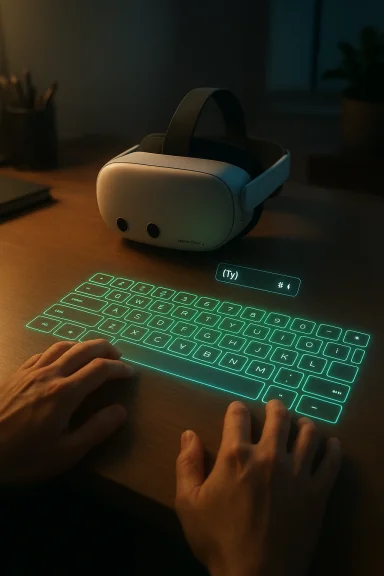
At its core the Surface Keyboard & Touchpad feature does three things:- Detects a flat physical plane in front of you using color passthrough and plane-detection algorithms.
- Maps a full QWERTY keyboard and a rectangular touchpad onto that surface aligned with your hands.
- Uses hand tracking and pinch/press gestures to register keystrokes, plus touchpad gestures for scrolling, selection, and cursor movement.
The feature is explicitly described as experimental in the v85 PTC channel, and it appears to be limited to Quest 3 hardware at present. Community reports and early hands-on videos indicate that Quest 3’s improved hand tracking and color passthrough are central to the experience; older or lower-tier headsets do not currently receive the same behavior.
The touchpad: a bigger deal than it sounds
One of the more notable innovations is the inclusion of a touchpad that behaves like a laptop touchpad inside mixed reality. Test footage and early testers show the touchpad enabling:- Web scrolling with a swipe gesture mapped to the virtual touch surface.
- Cursor control in editor apps like document editors and web apps.
- Single-finger gestures to drag selections or reposition windows inside a virtual desktop.
How it works (technical breakdown)
Meta combines several on-board systems to make Surface Keyboard & Touchpad viable:- Color passthrough + plane detection: Quest 3’s passthrough cameras scan the environment and detect flat surfaces. The system then computes a plane orientation and size that can host a keyboard and touchpad.
- Hand tracking as the primary input channel: Rather than relying on controllers, the feature uses the headset’s hand-tracking pipeline to detect fingers, hand posture, and pinches that map to keystrokes and touchpad gestures.
- Spatial anchoring and key mapping: The software projects a QWERTY layout onto the detected plane and aligns it relative to your hands. The mapping tries to account for hand size and position so that visual keycaps align where your fingers expect them.
- Haptics and audio cues (simulated): Because there’s no physical key travel, the system uses short haptic pulses (where available) and auditory click sounds to simulate keypress feedback. The mechanism for haptic feedback can vary; early tester reports suggest Meta is using controller or headset vibration where possible and audio/visual feedback for purely hand-tracked inputs.
- Touchpad gesture recognition: Pinch-and-drag and swipe gestures on the virtual touchpad are interpreted as standard cursor and scrolling inputs, with the system smoothing motion to compensate for hand-tracking noise.
Device support and rollout status
Right now the Surface Keyboard & Touchpad appears to be a Quest 3-only experimental feature in Horizon OS v85, distributed via the Public Test Channel (PTC). Community posts and early testers indicate:- The feature is not yet universally available across all v85 installations; rollout is gradual.
- Meta has kept the PTC enrollment gating active, and at times slots can be full.
- There are mixed reports on whether the feature works during PC-streamed sessions (Virtual Desktop, Immersed, Windows MR Link) — some testers see it only in native Horizon OS applications, while others report partial functionality in passthrough or mixed reality desktop contexts.
How this intersects with Windows in VR
If you’re a Windows user considering the Quest 3 for productivity, a few adjacent developments make Surface Keyboard & Touchpad interesting:- Microsoft and Meta have been pushing deeper connectivity between Windows 11 and Quest devices via PC streaming and cloud PC (Windows 365) integrations. Quest headsets can host multiple virtual monitors when streaming a Windows desktop, turning the headset into an immersive multi-screen workspace.
- Until now, if you wanted to use a Windows desktop inside Quest you either tethered a physical keyboard to the real-world desk (and used passthrough cutouts / tracked keyboards) or relied on floating virtual keyboards. The former offers the best typing experience; the latter is awkward for sustained input.
- The Surface Keyboard & Touchpad aims to bridge that gap: provide a desk-anchored, tactile-feeling surface without requiring a physical keyboard, making quick replies, document edits, or web browsing inside a virtual Windows desktop feel less clumsy.
Strengths: why this could make VR work-feasible for many users
- Reduced arm fatigue: Typing with hands supported on a real surface is far less tiring than sustained air-typing. That alone makes short to medium tasks much more comfortable.
- Integrated cursor control: The touchpad solves one of the biggest productivity pains in VR — precise pointer movement — without relying on controller gestures.
- No extra peripherals required: For people using Quest 3 on the go or in shared spaces, being able to type on a café table without carrying a keyboard is a convenience win.
- Quick context switching: For short tasks (responding to email, editing a paragraph, navigating a document), the speed of getting started is significantly faster than attaching a Bluetooth keyboard or reconfiguring a PC streaming setup.
- Lower barrier to entry: Casual users who have avoided VR for productivity because of input limitations now have a more compelling, less hardware-heavy option.
Risks, limitations, and privacy considerations
No feature ships without tradeoffs. Here are the most salient concerns and open questions:- Accuracy and latency: Early testers report the Surface Keyboard works well but is not perfect. Mis-registered touches, false positives from hand jitter, and latency during complex gestures are still possible. For mission-critical text entry, a physical keyboard remains superior.
- Lighting and surface dependence: The system relies on passthrough cameras and plane detection; environments with poor lighting or complex textures will degrade performance.
- Haptic realism is simulated: There’s no true mechanical travel; “haptic feedback” is simulated with brief vibrations and click sounds. Some users will find this satisfying for short tasks; others will still miss tactile key travel.
- Security of sensitive inputs: Typing passwords or private data into any hand-tracked virtual keyboard introduces new attack surfaces. For example, an app could theoretically log keystrokes if given the wrong permissions. Enterprises should consider whether virtual input meets their security needs and whether MFA or password managers mitigate risk.
- Data collection and telemetry: Hand tracking signals are sensitive biometric-like data. Organizations and privacy-conscious users should confirm how Meta stores, processes, or transmits hand tracking and typing telemetry, especially in enterprise deployments.
- Interoperability with PC streaming apps: Early reports are mixed on whether the Surface Keyboard is available or reliable in PC-streamed sessions (Virtual Desktop, Immersed, Windows MR Link). If you rely on those workflows heavily, test before committing.
- Naming confusion: Using the word “Surface” invites confusion with Microsoft’s Surface brand. This could create user expectation mismatch or brand friction, even if no legal issue arises.
Practical steps for Windows users who want to try it now
- Enroll your Meta Quest 3 in the Public Test Channel (PTC) via the Meta Horizon mobile app:
- Open Meta Horizon on your phone → Menu → Devices → select your headset.
- Tap Headset Settings → Advanced Settings → toggle Public Test Channel (PTC). If the toggle is greyed out, PTC slots may be full.
- Put your Quest 3 on and update to the latest v85 PTC build via Settings → System → Software Update.
- In the headset, enable Hand & Body Tracking and open Experimental Features / Input settings (availability varies).
- Find a flat, well-lit surface (table or desk), rest your hands in a relaxed position and wait for the keyboard and touchpad to anchor.
- Practice basic touchpad gestures: swipe to scroll, pinch to select or drag; adjust keyboard position if the interface allows.
- If you plan to use Windows streaming (Windows 11 / Windows 365), test the keyboard inside both native Horizon apps and your chosen PC-streaming app to confirm compatibility.
Tips to get the best experience
- Use a clean, non-reflective surface with good ambient lighting to improve plane detection.
- Sit at a natural typing distance and rest your wrists lightly on the desk to mimic a laptop posture.
- Turn off controller-based input when relying on hand tracking to avoid accidental conflicts.
- Keep the headset firmware and mobile app updated; PTC builds iterate quickly and fixes are frequent.
- For lengthy sessions, bring a compact physical keyboard — the Surface Keyboard is a stopgap for short-to-medium tasks, not a full replacement yet.
What this tells us about Meta’s strategy
Meta’s continued investment in input methods for mixed reality reflects a clear strategic posture: make productivity use-cases less painful so more users will adopt Quest headsets beyond gaming. By focusing on realistic input metaphors — hands on a desk, a virtual touchpad, anchored UIs — Meta reduces cognitive and physical friction for everyday tasks. The move also signals that Meta sees value in supporting Windows-centric workflows, complementing Microsoft’s cloud and streaming ambitions for XR workspaces.We should read this as part of a broader push: better hand tracking, more flexible passthrough experiences, and tighter ties to desktop streaming services all point to VR becoming less of a novelty and more of a practical companion for knowledge work. But hardware and software tradeoffs remain; the tactile fidelity and speed of a laptop keyboard still set a high bar.
What to watch next
- Will Meta expand Surface Keyboard & Touchpad to the Quest 3S or other Horizon OS headsets? The feature is currently Quest 3-first; broader hardware support could follow if the experimental rollout succeeds.
- How quickly will the feature be made available to stable channel users? Meta’s PTC rollouts have historically taken weeks to months to reach general availability.
- Will third-party apps and PC streaming clients adopt explicit APIs to better integrate virtual surfaces and pointer input? Developer tooling for consistent virtual input would be a major usability win.
- Will Meta improve haptic feedback fidelity (through controller haptics, peripheral haptics, or on-headset actuators) to reduce the psychological gap between virtual and physical keys?
- How will enterprises view the security posture of virtual typing for sensitive workflows? Expect security-focused guidance and potential enterprise options if adoption grows.
Final analysis: a practical, incremental step that matters
Surface Keyboard & Touchpad isn’t a magical, immediate replacement for a real keyboard. It doesn’t eliminate the need for physical peripherals for long writing sessions, nor does it solve every accuracy or latency issue. But it is an important incremental improvement in VR input ergonomics — precisely the sort of feature that moves the headset from novelty to practical utility for many users.For Windows users and workstation-minded VR adopters, the feature reduces friction for short tasks: email responses, quick edits, web browsing, or navigating a virtual desktop. The inclusion of a touchpad is especially promising: precise cursor control has been a long-standing blocker for productivity inside VR, and a well-executed virtual touchpad removes a large chunk of that friction.
If you’re interested in testing the feature, enroll in Quest’s Public Test Channel, have modest expectations, and prepare to use it as a complement rather than a replacement for a physical keyboard. For enterprises and privacy-minded users, tread carefully and evaluate the security implications of hand-tracked input for sensitive typing.
This is not a sweeping revolution — yet — but it is the kind of thoughtful, human-centered iteration that will matter for everyday XR adoption. Meta is taking a practical step: making typing less tiring and pointer control less awkward. If the team keeps iterating on accuracy, noise resilience, and cross-app compatibility, we may see VR become a place where a short burst of real, useful work feels natural instead of inconvenient.
Source: Windows Central https://www.windowscentral.com/hard...ard-but-its-not-a-microsoft-surface-keyboard/
