

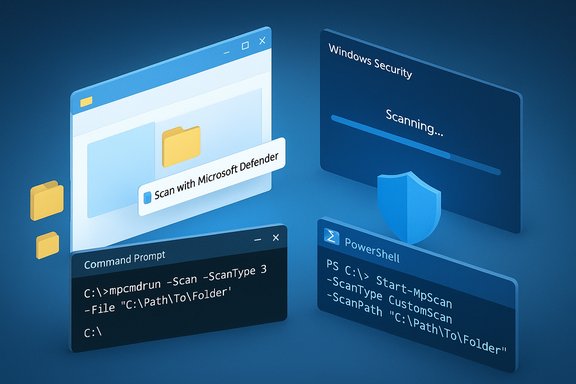
Windows Security (Microsoft Defender) gives you multiple fast ways to scan just the folders you care about — from a single right‑click in File Explorer to scripted, enterprise‑grade scans — and understanding each method, its limits, and the operational trade‑offs can save time and prevent accidental blind spots in protection.
Background
Windows 10 and Windows 11 include Microsoft Defender as the built‑in antivirus and threat‑protection platform. It offers several scan modes: Quick, Full, Custom (folder), and Microsoft Defender Offline (boot‑time). For everyday troubleshooting and routine hygiene, you rarely need a full system scan — targeted folder scans are faster, less disruptive, and ideal for downloads, removable drives, and single project folders. The built‑in UI and context menus make these targeted checks easy, while command‑line tools provide automation and advanced control for power users.This feature unpacks the four easy ways to scan specific folders, explains when to use each method, explores interactions with exclusions and ransomware protection, and gives practical workflows and risk‑mitigation advice to keep your Windows system safe without slowing your work.
Overview of the four easy methods
- Scan from File Explorer (right‑click → Scan with Microsoft Defender) — fastest, for one‑off checks.
- Custom scan from the Windows Security app (Virus & threat protection → Scan options → Custom scan) — guided UI for picking folders.
- Command Prompt with mpcmdrun.exe — advanced, scriptable control for forensic or automated tasks.
- PowerShell Start‑MpScan — scriptable, powerful, recommended for scheduled or repeatable custom scans.
Scan a specific folder from File Explorer
What it is and when to use it
The File Explorer context‑menu scan — “Scan with Microsoft Defender” — is the shortest path from suspicion to action. It’s designed for quick checks of a single folder, a downloaded file, or an inserted USB drive. Use it when you’ve just downloaded a file, copied data from an unknown source, or want a rapid second opinion without leaving the folder view.How to run it
- Open File Explorer (Win + E).
- Navigate to the folder or file you want to check.
- Right‑click and choose Scan with Microsoft Defender.
- View the result in Windows Security (the Virus & threat protection page will open).
Strengths and limits
- Strengths: instant, accessible to all users, and integrates into normal file workflows. It’s ideal for one‑off checks on downloads or removable media.
- Limitations: minimal configuration and logging; not suitable for sweeping drives or scheduled checks. If you need to scan inside nested archives or large folders with tuned options, use a custom scan or command line.
Run a custom scan from Windows Security
What it is and when to use it
The Windows Security app lets you perform a Custom scan that prompts you to choose a folder to scan. This is the recommended method for controlled, UI‑driven folder scans when you want a clear report and don’t need scripting. It’s especially handy for scanning a whole Downloads folder, a suspicious project folder, or external media while seeing progress in the Windows Security interface.How to run it
- Open Start and select Windows Security.
- Choose Virus & threat protection.
- Select Scan options.
- Choose Custom scan, then click Scan now and pick the target folder.
Practical tips
- Use Custom scan when you want UI feedback and the ability to change parameters without scripting.
- If a folder contains very large archives or many small files, expect a longer scan time; Defender will still inspect archived content but performance varies with archive size.
Command‑line scanning: mpcmdrun (Command Prompt)
Why use the command line
Command‑line scanning is required when you want repeatable, automated, or forensic scans — for example, in incident response, bulk checks of multiple folders, or when building diagnostic scripts. Thempcmdrun.exe tool (part of the Defender platform) supports targeted scans and provides console output you can capture to logs.Example steps and command
- Open Command Prompt as Administrator.
- Navigate to the Microsoft Defender platform folder:
- cd C:\ProgramData\Microsoft\Windows Defender\Platform
- locate the current version folder (e.g., 4.x.xxxx).
- Run a folder scan:
- mpcmdrun -Scan -ScanType 3 -File "C:\Path\To\Folder"
When to prefer this method
- Bulk or scripted workflows.
- Incident response when you need terminal output or to chain scans into larger automation.
- Environments where GUI access is restricted.
PowerShell scanning: Start‑MpScan
Why PowerShell matters
PowerShell gives the most direct and modern automation route on Windows. It’s the easiest way to schedule or integrate Defender scans into maintenance scripts and can be used interactively or in scheduled tasks. It also works well in remote administration scenarios.Example command
Open PowerShell as Administrator and run:- Start‑MpScan -ScanType CustomScan -ScanPath "C:\Path\To\Folder"
Advanced uses
- Combine Start‑MpScan with logging, scheduled tasks, or remote execution (remoting/PSExec) to automate nightly folder checks for multiple endpoints.
- Use narrow scopes (specific folders) to limit CPU and I/O during working hours.
Protect critical folders with Controlled Folder Access (ransomware protection)
What Controlled Folder Access (CFA) does
CFA locks specified folders so only trusted apps can modify files there. It’s specifically designed to mitigate ransomware by preventing unauthorized processes from encrypting or corrupting protected data. Enable it for folders like Documents, Desktop, Pictures, and any high‑value project directories.How to enable and manage CFA
- Open Windows Security → Virus & threat protection.
- Select Manage ransomware protection.
- Turn on Controlled folder access and add Protected folders.
- Use Allowed apps to whitelist trusted applications that need write access.
Caveats and operational risks
- CFA can block legitimate apps until they’re explicitly allowed, which may disrupt workflows in development or content‑creation environments. Review Protection history and whitelist judiciously rather than blanket‑allowing many apps.
- CFA needs Defender services active; if a third‑party AV places Defender in passive mode, CFA may not be configurable until Defender is re‑enabled. Use vendor removal tools or policy changes to restore Defender if necessary.
Excluding and whitelisting folders (when you trust content)
When exclusions are appropriate
Exclusions are useful for very large virtual machine images, developer build directories, large media libraries, or application data that trips on‑access scanners and creates performance issues. Use exclusions sparingly and prefer narrow file or process exclusions over broad folder exclusions where possible.How to add exclusions
- Open Windows Security → Virus & threat protection → Manage settings under Virus & threat protection settings.
- Select Add or remove exclusions and add the folder, file type, or process.
Risks
- An exclusion removes Defender’s scanning from that scope — it’s a blind spot. Keep a documented audit of exclusions and review periodically. If performance is the reason for exclusion, consider targeted exclusions or off‑hours full scans instead.
Compressed archives, encrypted files, and defender limits
Scanning archives
Defender inspects archive contents during scans, but very large or nested archives may increase scan time and put pressure on CPU and I/O. For massive archives, manual extraction in an isolated environment or targeted scanning of the extracted contents can be faster and more thorough.Encrypted containers and encrypted files
Encrypted files (including some container formats and encrypted Office documents) may not be fully analyzable while encrypted. If you must scan encrypted content, decrypt it in a controlled environment or scan after mounting the encrypted volume with the necessary credentials. Treat claims about exact engine behavior for every container format as variable; verify per case. Flag: behavior will vary depending on encryption method and Defender updates.Interactions with third‑party tools: VPNs, AV suites, and second opinions
- Third‑party antivirus products typically disable Defender real‑time protection to avoid driver conflicts; Defender will usually enter passive mode until the third‑party product is removed. If you plan to rely on Defender, remove other AV suites cleanly with vendor tools.
- VPN features in security suites affect network traffic handling but do not change Defender’s ability to scan local folders. However, network‑based protections (web filtering) live in different components — don’t conflate local scanning with network protections.
- For stubborn or unusual samples, use a reputable second‑opinion scanner (such as Malwarebytes on demand) or upload files to a multi‑engine service for consensus — treat multi‑engine results as evidence, not absolute proof.
Advanced workflows and troubleshooting
When scans don’t find the problem
- Reboot into Safe Mode and run full scans — Safe Mode reduces active interference from malware.
- Run Microsoft Defender Offline for boot‑time scanning when you suspect rootkits or persistent threats; Microsoft documents typical offline scan durations (approximate average ~15 minutes) but times vary by hardware and sample complexity. Flag: exact durations are variable and should be treated as estimates.
- If Defender is disabled or won’t start after uninstalling third‑party AV, use vendor removal tools, check Defender services (WinDefend, WdNisSvc), and run component repairs/distribution updates.
Logging and evidence collection
- Use command‑line outputs from
mpcmdrunor PowerShell to capture scan results for incident records. For deep forensic work, collect process paths, hashes, and Protection history entries before restoring or deleting files.
Recommended, practical workflows (four scenarios)
- Single suspicious download (fast): Right‑click in File Explorer → Scan with Microsoft Defender → Check Protection history.
- Folder of newly downloaded content (thorough UI): Windows Security → Virus & threat protection → Scan options → Custom scan → Select folder → Review results.
- Remote or automated checks (repeatable): Scheduled PowerShell task using Start‑MpScan targeted to a folder path; log output to a central location.
- Forensic or incident response: Boot into Safe Mode, run
mpcmdrunscans from an admin shell, then use Microsoft Defender Offline if persistence is suspected. Keep evidence copies and use second‑opinion tools as needed.
Strengths, limitations, and risks — a critical analysis
Strengths
- Deep OS integration reduces compatibility issues and gives Defender a broad feature set (real‑time protection, Controlled Folder Access, tamper protection, offline scan) that is sufficient for most home and small‑office users. Defender’s cloud‑delivered protections and telemetry enable fast updates and good baseline detection.
Limitations and risks
- Exclusions create blind spots. Broad folder exclusions should be a last resort. Maintain an audit log of exclusions and prefer precise rules.
- Controlled Folder Access can disrupt workflows and block legitimate apps until whitelisted — this requires operational discipline to manage allowed apps safely.
- No single AV engine catches everything. Use second‑opinion tools and behavioral analysis for elusive or complex samples. VirusTotal and sandbox detonations are valuable triage tools but should not be treated as irrefutable proof.
- Enterprise environments must consider Defender for Endpoint (EDR) and centralized policies; consumer Defender lacks full EDR capabilities required in high‑security settings. Validate policy changes against ADMX and managed controls rather than registry hacks.
Unverifiable or variable claims (flagged)
- Any claim giving precise timing (scan durations) or absolute detection guarantees should be treated as estimates. Performance and detection change with updates, hardware, and the evolving threat landscape; verify time‑sensitive or SLA‑style claims against up‑to‑date vendor documentation before operationalizing.
Final recommendations
- Use the File Explorer right‑click scan for fast, ad‑hoc checks.
- Use Windows Security Custom scan for guided folder scans when you want UI feedback.
- Use PowerShell or mpcmdrun for automation and incident response; capture console output for records.
- Enable Controlled Folder Access for high‑value folders, but manage allowed apps deliberately to avoid productivity interruptions.
- Avoid broad exclusions; where performance is an issue, schedule heavy scans for off‑hours or create narrow exclusions and re‑evaluate them periodically.
- For persistent or unusual threats, boot to Safe Mode and use Microsoft Defender Offline plus second‑opinion tools. Keep forensic evidence and use a clean reinstall if remediation stalls.
Conclusion
Scanning specific folders with Windows Security is straightforward and flexible: File Explorer and the Windows Security UI put targeted scans within a click or two, while Command Prompt and PowerShell let technical users automate, log, and integrate Defender checks into broader maintenance or incident response playbooks. Controlled Folder Access and carefully managed exclusions provide additional layers of protection and performance tuning, but both require operational discipline to avoid creating blind spots or disrupting legitimate applications. Apply the method that matches your confidence level and risk tolerance: quick context‑menu scans for single suspicious items, UI custom scans for guided checks, and scripted command‑line scans for repeatable, auditable workflows. With those options and the right operational controls, you can keep a tight security posture while minimizing disruption to everyday work.Source: Windows Report How to Scan Specific Folders With Windows Security (4 Easy Ways)


