

Microsoft restored file access in Microsoft Teams and Office for the web on June 1, 2026, after incident MO1329446 prevented some Microsoft 365 users from opening documents in Teams, Excel for the web, PowerPoint for the web, and related browser-based Office experiences. The service came back, but the explanation did not arrive with it. That is the uncomfortable part for administrators: the outage is over operationally, yet still unfinished from a risk-management perspective. In Microsoft 365, “resolved” means users can work again; it does not always mean IT knows what failed, what remained available, or whether the same weak point is still sitting in the path.
The June 1 incident was not a Teams outage in the old, simple sense of the word. Users were not merely locked out of chat or meetings. They were blocked from opening files through Teams and Office for the web, which is a different kind of disruption because it cuts through the fabric of how Microsoft 365 work actually happens.
Microsoft tracked the problem as MO1329446 in the Microsoft 365 admin center and described it as a cross-service issue affecting Office for the web experiences. Reports tied the impact to multiple Office web apps, including Excel for the web and PowerPoint for the web. Users saw an error telling them that Office Online services were not available and that Microsoft was working to restore them.
By early afternoon Eastern time on June 1, Microsoft had marked the incident resolved. The awkward detail is that the company reportedly recovered the service without listing a specific engineering action that fixed it. As of June 2, the public picture remained incomplete: restoration had been confirmed, but the root cause had not been clearly explained.
That matters because administrators do not run postmortems on vibes. They need to know whether a failed deployment, authentication dependency, routing problem, storage-layer issue, front-end service regression, or some other shared dependency caused the trouble. Each possibility implies a different set of fallback plans, monitoring gaps, and escalation procedures.
Microsoft’s architecture makes the distinction important. Files shared in Teams channels are stored in SharePoint, while files shared in chats are stored in OneDrive for Business. Teams wraps those repositories in a conversational interface, adds permissions and collaboration context, and makes the document feel like part of the channel. Underneath, though, the document path depends on other Microsoft 365 services.
That split is why a web-based file outage can be both narrower and more disruptive than it first appears. If the issue sits in an Office for the web experience, a file might still exist safely in SharePoint. It might still sync through OneDrive. It might still open in a locally installed Office app. But if the user’s habitual workflow is “open the file from Teams in the browser,” the practical effect is the same as the file disappearing.
For IT teams, the lesson is not that Microsoft’s architecture is broken. It is that Microsoft 365’s integration can hide the seams until something goes wrong. The more successful Teams becomes as a hub, the less users understand the underlying paths they might need when the hub stumbles.
That is where the outage becomes more than an availability blip. A user blocked from opening a PowerPoint deck before a client call does not care that SharePoint may still be healthy. A finance team unable to open a shared Excel workbook in the browser may not know whether the file is inaccessible, locked, corrupted, or simply unreachable through one interface. A security team using a Teams channel during an incident may lose precious minutes if its working notes and escalation lists are buried behind a failed web experience.
The problem is amplified by user training. For years, Microsoft and IT departments have encouraged employees to stop emailing attachments, stop saving files locally, and collaborate in shared cloud workspaces. That shift is sensible, but it also means the fallback cannot be “just use the old way” unless the old way has been documented, tested, and approved.
Cloud collaboration reduces many historical risks: version sprawl, lost laptops, shadow file shares, and fragile VPN-only access. It also creates a new operational dependency on the interface layer. When the interface fails, users need a map to the repository, not a lecture about how the repository is architected.
That record should be captured internally. Help desks need the outage window. Service owners need to know which departments reported impact. Security teams need to distinguish a Microsoft service interruption from suspicious account behavior, especially when users begin retrying logins, switching devices, sharing links through alternate channels, or asking colleagues to download and resend files.
The administrative record should be boring and precise. When did the first ticket arrive? Which apps failed? Did the error appear only in Teams, only in Office for the web, or across both? Could users open the same file from SharePoint? Could they open it from OneDrive sync? Did desktop Office work? Were mobile apps affected?
That kind of documentation is rarely glamorous, but it pays dividends. Without it, every future incident starts from scratch. With it, administrators can tell the difference between a Microsoft-side repeat, a browser regression, a conditional access mistake, a local network problem, and a user education issue.
Administrators still need to decide whether any business process failed during the outage. Did a deadline slip? Did a customer deliverable stall? Did an approval move outside the normal system? Did users create duplicate local copies that now need to be reconciled? Did someone move sensitive files into an unapproved channel because the approved path was temporarily unavailable?
These are the moments when cloud outages become governance problems. A temporary workaround can create a permanent data-management headache if nobody follows up. Local copies of regulated documents, ad hoc email attachments, personal cloud storage, and unmanaged chat transfers all become more likely when the official path fails and users are under pressure.
The cleanup should also include communication. Users do not need a full engineering postmortem, especially when Microsoft has not provided one. They do need to know which workaround is preferred the next time Teams cannot open a file. Silence invites improvisation, and improvisation is where shadow IT thrives.
For many organizations, that second path should begin with direct SharePoint and OneDrive access. If a Teams channel’s Files tab fails, users should know how to reach the underlying SharePoint document library. If a chat-shared file does not open in Teams, they should understand that the file may live in the sender’s OneDrive. That knowledge does not need to be universal in depth, but it does need to exist among service desk staff, team owners, executive assistants, project leads, and incident coordinators.
Desktop Office apps are another important fallback, but only if they are deployed, licensed, updated, and familiar. Some organizations have leaned heavily into browser-first workflows. That can be efficient until the browser-based Office path is the thing that breaks. A locally installed Word, Excel, or PowerPoint app may provide resilience, but only if users can find the file and open it without creating version-control chaos.
OneDrive sync can also help, particularly for priority folders and high-value teams. But sync is not a magic continuity plan. It has its own failure modes, storage implications, and governance questions. The goal is not to sync everything everywhere; it is to decide which working sets deserve offline or near-local availability because the cost of interruption is high.
This is a recurring tension in cloud operations. Vendors have deep telemetry and centralized control, which lets them restore service quickly. Customers have business accountability, but limited visibility into the machinery that failed. The result is a lopsided post-incident process: Microsoft can close the incident when the service is healthy, while customers are still trying to reconstruct what the outage meant inside their organizations.
The phrase “potential cross-service issue” is useful during triage but insufficient after recovery. Cross-service dependencies are exactly what administrators need to understand. If Office for the web, Teams, SharePoint, OneDrive, identity, and front-end routing are all part of the user experience, then a failure in one layer can masquerade as a failure in another.
This is why post-incident reports matter. Even a concise explanation can help tenants decide whether the incident was a one-off platform hiccup or a sign that their continuity assumptions are too narrow. Without that detail, the safest conclusion is conservative: assume the path can fail again, and make sure the business has another one.
That has advantages. Browser-based Office lowers friction, speeds collaboration, reduces dependency on local installs, and makes shared editing feel natural. It also concentrates risk in web experiences that depend on many moving parts: authentication, service routing, document rendering, storage access, permissions, session state, and the client browser itself.
When something goes wrong, the user sees a simple failure: the file will not open. Underneath, the problem could sit almost anywhere. That ambiguity is expensive for help desks because the early symptoms of a Microsoft-side outage can resemble local browser problems, stale credentials, broken conditional access rules, network filtering, or a file-specific permission issue.
Administrators should resist the urge to treat every web failure as a cache-clearing exercise. Browser troubleshooting still has its place, but the first branch in the decision tree should be whether Microsoft has acknowledged a service issue. The faster the help desk can identify a cloud incident, the less time it wastes “fixing” endpoints that were never broken.
That means a Teams file outage should trigger process-level thinking. Which workflows actually stopped? Which merely slowed down? Which had acceptable alternate routes? Which depended on one person knowing where the SharePoint folder lives? Which required local Office apps that some users no longer have?
The answers will vary by organization. A law firm drafting client documents, a manufacturer coordinating plant maintenance, a hospital administration team managing policy files, and a software company running incident response in Teams all experience the same Microsoft outage differently. The common thread is that the official service status does not automatically translate into business impact.
Good continuity planning starts by identifying critical collaboration spaces. Not every Team needs a full fallback plan. Some channels are social, stale, or low-value. Others are effectively operational systems. Those are the ones that need documented alternate access, clear ownership, and periodic testing.
When users cannot open a file in Teams, they may ask someone else to download it and email it. They may move it to a personal device. They may paste sensitive content into another messaging app. They may grant broader SharePoint permissions in a hurry. They may click around through unfamiliar links while trying to find another way in.
Attackers understand this pattern. Confusion, urgency, and degraded normal channels make users more susceptible to phishing and social engineering. That is especially relevant in Microsoft 365 environments, where account compromise, device-code phishing, OAuth consent abuse, and token theft remain persistent threats.
The right response is not to terrify users during an outage. It is to give them a safe script. If Teams cannot open a file, use this SharePoint path. If that fails, call this number. If someone sends an unexpected “alternate link,” verify it. If a file must be sent outside the normal workflow, record the exception and clean it up afterward.
Security controls are easier to preserve when the workaround is pre-approved. If IT does not define the emergency path, users will invent one.
That is the daily reality of Microsoft 365 administration. The platform is not static infrastructure. It is a continuously changing service, with new features, retired features, licensing shifts, client updates, service incidents, security advisories, and admin center messages all competing for attention.
This matters because operational resilience is partly a staffing problem. The same team that must investigate file-access failures may also be reviewing message center posts, adjusting Teams policies, validating update rings, responding to phishing campaigns, and explaining to executives why a familiar button disappeared.
Cloud vendors often describe this cadence as modernization. Administrators experience it as a permanent state of controlled instability. The better organizations treat Microsoft 365 not as a utility that simply exists, but as a living platform that requires change management, incident response, and user education.
If the answer is yes, administrators should preserve what worked. Maybe users already knew the SharePoint route. Maybe OneDrive sync covered the right folders. Maybe desktop Office opened documents cleanly. Maybe the help desk quickly identified the incident and sent a useful advisory.
If the answer is no, the outage exposed a dependency that had been hiding in plain sight. That is not a reason to abandon Teams or Office for the web. It is a reason to stop pretending the default path is the only path worth documenting.
Organizations should also be careful not to overcorrect. Building elaborate manual continuity plans for every Teams channel will create paperwork nobody reads. The better approach is tiering: identify the collaboration spaces tied to revenue, legal obligations, executive operations, customer commitments, security response, or time-sensitive delivery, and give those spaces practical fallback procedures.
The target is not perfection. It is reducing the number of users who stare at an Office Online error and have no idea what to do next.
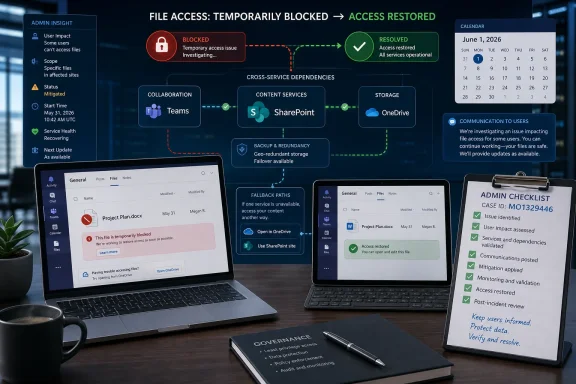 Microsoft Fixed the Symptom Before Explaining the Failure
The June 1 incident was not a Teams outage in the old, simple sense of the word. Users were not merely locked out of chat or meetings. They were blocked from opening files through Teams and Office for the web, which is a different kind of disruption because it cuts through the fabric of how Microsoft 365 work actually happens.Microsoft tracked the problem as MO1329446 in the Microsoft 365 admin center and described it as a cross-service issue affecting Office for the web experiences. Reports tied the impact to multiple Office web apps, including Excel for the web and PowerPoint for the web. Users saw an error telling them that Office Online services were not available and that Microsoft was working to restore them.
By early afternoon Eastern time on June 1, Microsoft had marked the incident resolved. The awkward detail is that the company reportedly recovered the service without listing a specific engineering action that fixed it. As of June 2, the public picture remained incomplete: restoration had been confirmed, but the root cause had not been clearly explained.
That matters because administrators do not run postmortems on vibes. They need to know whether a failed deployment, authentication dependency, routing problem, storage-layer issue, front-end service regression, or some other shared dependency caused the trouble. Each possibility implies a different set of fallback plans, monitoring gaps, and escalation procedures.
Teams Is the Front Door, Not the Filing Cabinet
The instinctive reaction to a Teams file-access incident is to treat it as a Teams problem. That is understandable, but it is also misleading. Teams is where many users encounter the file, not necessarily where the file lives.Microsoft’s architecture makes the distinction important. Files shared in Teams channels are stored in SharePoint, while files shared in chats are stored in OneDrive for Business. Teams wraps those repositories in a conversational interface, adds permissions and collaboration context, and makes the document feel like part of the channel. Underneath, though, the document path depends on other Microsoft 365 services.
That split is why a web-based file outage can be both narrower and more disruptive than it first appears. If the issue sits in an Office for the web experience, a file might still exist safely in SharePoint. It might still sync through OneDrive. It might still open in a locally installed Office app. But if the user’s habitual workflow is “open the file from Teams in the browser,” the practical effect is the same as the file disappearing.
For IT teams, the lesson is not that Microsoft’s architecture is broken. It is that Microsoft 365’s integration can hide the seams until something goes wrong. The more successful Teams becomes as a hub, the less users understand the underlying paths they might need when the hub stumbles.
A Small File Outage Can Become a Big Business Interruption
A failure to open Office files sounds modest compared with an Exchange outage or an identity incident. In many organizations, it is not modest at all. Teams channels increasingly hold project plans, client deliverables, legal drafts, sales decks, incident-response notes, approval trackers, and working spreadsheets that act as informal business systems.That is where the outage becomes more than an availability blip. A user blocked from opening a PowerPoint deck before a client call does not care that SharePoint may still be healthy. A finance team unable to open a shared Excel workbook in the browser may not know whether the file is inaccessible, locked, corrupted, or simply unreachable through one interface. A security team using a Teams channel during an incident may lose precious minutes if its working notes and escalation lists are buried behind a failed web experience.
The problem is amplified by user training. For years, Microsoft and IT departments have encouraged employees to stop emailing attachments, stop saving files locally, and collaborate in shared cloud workspaces. That shift is sensible, but it also means the fallback cannot be “just use the old way” unless the old way has been documented, tested, and approved.
Cloud collaboration reduces many historical risks: version sprawl, lost laptops, shadow file shares, and fragile VPN-only access. It also creates a new operational dependency on the interface layer. When the interface fails, users need a map to the repository, not a lecture about how the repository is architected.
The Admin Center Is the Starting Point, Not the Postmortem
The first cleanup task is straightforward: administrators should check MO1329446 in the Microsoft 365 admin center and determine whether their tenant was listed as affected. The Service health dashboard is designed for exactly this purpose, showing active incidents, issue history, affected services, status updates, and post-incident information when Microsoft publishes it.That record should be captured internally. Help desks need the outage window. Service owners need to know which departments reported impact. Security teams need to distinguish a Microsoft service interruption from suspicious account behavior, especially when users begin retrying logins, switching devices, sharing links through alternate channels, or asking colleagues to download and resend files.
The administrative record should be boring and precise. When did the first ticket arrive? Which apps failed? Did the error appear only in Teams, only in Office for the web, or across both? Could users open the same file from SharePoint? Could they open it from OneDrive sync? Did desktop Office work? Were mobile apps affected?
That kind of documentation is rarely glamorous, but it pays dividends. Without it, every future incident starts from scratch. With it, administrators can tell the difference between a Microsoft-side repeat, a browser regression, a conditional access mistake, a local network problem, and a user education issue.
“Resolved” Does Not Mean “No Action Required”
Microsoft’s cloud status language is optimized for service restoration, not for local operational closure. When Microsoft says a service is restored, the platform may be functioning again. That does not mean a tenant’s incident process is complete.Administrators still need to decide whether any business process failed during the outage. Did a deadline slip? Did a customer deliverable stall? Did an approval move outside the normal system? Did users create duplicate local copies that now need to be reconciled? Did someone move sensitive files into an unapproved channel because the approved path was temporarily unavailable?
These are the moments when cloud outages become governance problems. A temporary workaround can create a permanent data-management headache if nobody follows up. Local copies of regulated documents, ad hoc email attachments, personal cloud storage, and unmanaged chat transfers all become more likely when the official path fails and users are under pressure.
The cleanup should also include communication. Users do not need a full engineering postmortem, especially when Microsoft has not provided one. They do need to know which workaround is preferred the next time Teams cannot open a file. Silence invites improvisation, and improvisation is where shadow IT thrives.
The Fallback Path Must Be More Than “Try Again Later”
The practical question after MO1329446 is not whether Microsoft 365 can have outages. It can, it does, and every serious administrator already knows that. The question is whether users have a sanctioned second path to critical files when the default one fails.For many organizations, that second path should begin with direct SharePoint and OneDrive access. If a Teams channel’s Files tab fails, users should know how to reach the underlying SharePoint document library. If a chat-shared file does not open in Teams, they should understand that the file may live in the sender’s OneDrive. That knowledge does not need to be universal in depth, but it does need to exist among service desk staff, team owners, executive assistants, project leads, and incident coordinators.
Desktop Office apps are another important fallback, but only if they are deployed, licensed, updated, and familiar. Some organizations have leaned heavily into browser-first workflows. That can be efficient until the browser-based Office path is the thing that breaks. A locally installed Word, Excel, or PowerPoint app may provide resilience, but only if users can find the file and open it without creating version-control chaos.
OneDrive sync can also help, particularly for priority folders and high-value teams. But sync is not a magic continuity plan. It has its own failure modes, storage implications, and governance questions. The goal is not to sync everything everywhere; it is to decide which working sets deserve offline or near-local availability because the cost of interruption is high.
The Root-Cause Gap Is a Trust Problem
Microsoft does not owe every tenant a novel-length engineering confession for every service incident. But when a cross-service file-access problem interrupts Teams and Office for the web, the absence of a clear root cause leaves administrators in a weak position. They cannot assess recurrence risk. They cannot explain the event cleanly to leadership. They cannot tune monitoring or playbooks with confidence.This is a recurring tension in cloud operations. Vendors have deep telemetry and centralized control, which lets them restore service quickly. Customers have business accountability, but limited visibility into the machinery that failed. The result is a lopsided post-incident process: Microsoft can close the incident when the service is healthy, while customers are still trying to reconstruct what the outage meant inside their organizations.
The phrase “potential cross-service issue” is useful during triage but insufficient after recovery. Cross-service dependencies are exactly what administrators need to understand. If Office for the web, Teams, SharePoint, OneDrive, identity, and front-end routing are all part of the user experience, then a failure in one layer can masquerade as a failure in another.
This is why post-incident reports matter. Even a concise explanation can help tenants decide whether the incident was a one-off platform hiccup or a sign that their continuity assumptions are too narrow. Without that detail, the safest conclusion is conservative: assume the path can fail again, and make sure the business has another one.
Microsoft 365 Has Made the Browser a Critical Endpoint
The June 1 incident also points to a broader shift in enterprise computing. The browser is no longer just a convenient client. For many Microsoft 365 workflows, it is the productivity runtime.That has advantages. Browser-based Office lowers friction, speeds collaboration, reduces dependency on local installs, and makes shared editing feel natural. It also concentrates risk in web experiences that depend on many moving parts: authentication, service routing, document rendering, storage access, permissions, session state, and the client browser itself.
When something goes wrong, the user sees a simple failure: the file will not open. Underneath, the problem could sit almost anywhere. That ambiguity is expensive for help desks because the early symptoms of a Microsoft-side outage can resemble local browser problems, stale credentials, broken conditional access rules, network filtering, or a file-specific permission issue.
Administrators should resist the urge to treat every web failure as a cache-clearing exercise. Browser troubleshooting still has its place, but the first branch in the decision tree should be whether Microsoft has acknowledged a service issue. The faster the help desk can identify a cloud incident, the less time it wastes “fixing” endpoints that were never broken.
Continuity Planning Has to Follow the Work, Not the Product Name
Traditional continuity plans often map systems by application: email, file server, ERP, CRM, phone system. Microsoft 365 blurs that model. A single business process may depend on Teams chat, SharePoint storage, OneDrive links, Office for the web editing, Entra ID sign-in, Outlook notifications, and Power Automate approvals.That means a Teams file outage should trigger process-level thinking. Which workflows actually stopped? Which merely slowed down? Which had acceptable alternate routes? Which depended on one person knowing where the SharePoint folder lives? Which required local Office apps that some users no longer have?
The answers will vary by organization. A law firm drafting client documents, a manufacturer coordinating plant maintenance, a hospital administration team managing policy files, and a software company running incident response in Teams all experience the same Microsoft outage differently. The common thread is that the official service status does not automatically translate into business impact.
Good continuity planning starts by identifying critical collaboration spaces. Not every Team needs a full fallback plan. Some channels are social, stale, or low-value. Others are effectively operational systems. Those are the ones that need documented alternate access, clear ownership, and periodic testing.
Security Teams Should Watch the Workarounds
Availability incidents often create security exposure indirectly. The outage itself may not be a breach, but the human response to the outage can weaken controls.When users cannot open a file in Teams, they may ask someone else to download it and email it. They may move it to a personal device. They may paste sensitive content into another messaging app. They may grant broader SharePoint permissions in a hurry. They may click around through unfamiliar links while trying to find another way in.
Attackers understand this pattern. Confusion, urgency, and degraded normal channels make users more susceptible to phishing and social engineering. That is especially relevant in Microsoft 365 environments, where account compromise, device-code phishing, OAuth consent abuse, and token theft remain persistent threats.
The right response is not to terrify users during an outage. It is to give them a safe script. If Teams cannot open a file, use this SharePoint path. If that fails, call this number. If someone sends an unexpected “alternate link,” verify it. If a file must be sent outside the normal workflow, record the exception and clean it up afterward.
Security controls are easier to preserve when the workaround is pre-approved. If IT does not define the emergency path, users will invent one.
The Together Mode Retirement Is Noise, but the Admin Burden Is Real
The file-access outage arrived as Teams administrators were already tracking other platform changes, including Microsoft’s planned retirement of Teams Together Mode on June 30. The two events are not technically equivalent. One is a service incident; the other is a feature lifecycle change. But from an administrator’s calendar, they land in the same pile: more Teams-related change to understand, communicate, and absorb.That is the daily reality of Microsoft 365 administration. The platform is not static infrastructure. It is a continuously changing service, with new features, retired features, licensing shifts, client updates, service incidents, security advisories, and admin center messages all competing for attention.
This matters because operational resilience is partly a staffing problem. The same team that must investigate file-access failures may also be reviewing message center posts, adjusting Teams policies, validating update rings, responding to phishing campaigns, and explaining to executives why a familiar button disappeared.
Cloud vendors often describe this cadence as modernization. Administrators experience it as a permanent state of controlled instability. The better organizations treat Microsoft 365 not as a utility that simply exists, but as a living platform that requires change management, incident response, and user education.
The Real Test Is Whether Users Could Keep Working
The most important post-incident question is brutally simple: when Teams could not open files, could the business continue?If the answer is yes, administrators should preserve what worked. Maybe users already knew the SharePoint route. Maybe OneDrive sync covered the right folders. Maybe desktop Office opened documents cleanly. Maybe the help desk quickly identified the incident and sent a useful advisory.
If the answer is no, the outage exposed a dependency that had been hiding in plain sight. That is not a reason to abandon Teams or Office for the web. It is a reason to stop pretending the default path is the only path worth documenting.
Organizations should also be careful not to overcorrect. Building elaborate manual continuity plans for every Teams channel will create paperwork nobody reads. The better approach is tiering: identify the collaboration spaces tied to revenue, legal obligations, executive operations, customer commitments, security response, or time-sensitive delivery, and give those spaces practical fallback procedures.
The target is not perfection. It is reducing the number of users who stare at an Office Online error and have no idea what to do next.
The June 1 Outage Leaves a Short Checklist With Long Consequences
MO1329446 should not become just another forgotten service-health entry. It is a useful reminder that Microsoft 365 resilience depends as much on tenant practices as on Microsoft’s engineering. The incident is over, but the operational lesson is still live.- Administrators should confirm whether MO1329446 affected their tenant and preserve the incident details for internal review.
- Help desks should document which user groups, file types, apps, and access paths failed during the outage.
- Teams owners should know the SharePoint or OneDrive location behind critical files before the next service interruption.
- Organizations should test whether desktop Office apps, OneDrive sync, and direct SharePoint access provide usable fallback paths for priority work.
- Security teams should review whether users created risky workarounds, duplicate files, or unmanaged sharing exceptions during the disruption.
- IT leaders should watch for any Microsoft follow-up that explains the root cause or lists preventive actions.
References
- Primary source: TechRepublic
Published: Tue, 02 Jun 2026 16:18:33 GMT
Microsoft Teams File Outage Resolved, but IT Teams Still Need to Check Fallbacks - TechRepublic
Microsoft resolved a Teams file access outage, but IT teams should check tenant impact, document the outage window, and test Microsoft 365 file fallbacks.www.techrepublic.com
- Related coverage: bleepingcomputer.com
Microsoft investigates Office Apps, Teams file access issues
Microsoft says an ongoing incident is preventing users of its Teams collaboration platform and Office for the web cloud-based productivity suite from opening files.www.bleepingcomputer.com
- Related coverage: abit.ee
Microsoft Confirms Global Outage Affecting Office for the Web and Teams
Microsoft confirmed a global outage on June 1 2026 affecting Office for the web and Teams. Files were inaccessible for several hours before the issue was resolved.abit.ee
- Related coverage: sqmagazine.co.uk
Microsoft Investigates Teams and Office File Access Outage
Microsoft is investigating a Teams and Office for the web outage that is preventing some users from opening files across affected services.sqmagazine.co.uk - Related coverage: ixbt.com
Файлы не открываются и нет доступа: Microsoft подтвердила глобальный сбой, затронувший Office и Teams
За несколько часов проблемы решилисьwww.ixbt.com - Related coverage: techradar.com
Struggling to launch Teams? Microsoft recalls update causing failed startup and infinite loading loops – here's what we know | TechRadar
A service update was triggering an error in some Teams desktop clientswww.techradar.com
- Related coverage: windowscentral.com
No escape: Microsoft flatlines Office Online Server — it's now Microsoft 365 cloud or nothing | Windows Central
Microsoft has officially ended Office Online Server, leaving enterprises with one option: embrace the cloud or get left behind.www.windowscentral.com - Related coverage: windowsforum.com
Microsoft 365 Identity Outage: My Sign-Ins 504 Errors Blocked MFA Setup (MO1329260) | Windows Forum
Microsoft resolved a Microsoft 365 service incident on June 1, 2026, after some users were blocked from reaching the My Sign-Ins portal, setting up...windowsforum.com - Official source: techcommunity.microsoft.com
- Related coverage: investigacion.udem.edu.mx
Is there a global Microsoft outage today?[[[Microsoft Services Status]]]]
PDF documentinvestigacion.udem.edu.mx
