

Microsoft has completed the government-cloud launch of camera view switching between multi-camera Microsoft Teams Rooms on Windows, giving participants in one equipped meeting room direct control over the view received from another. The capability, tracked as Microsoft 365 Roadmap ID 555855, reached general availability for GCC High and DoD environments in June 2026 and was marked launched in Microsoft’s July 21 roadmap update. Although the interface change appears modest, it addresses a persistent hybrid-meeting problem: a remote room no longer has to accept whatever camera angle the sending room or its automation chooses.
Microsoft Teams Rooms has evolved from a basic conference-room endpoint into a specialized collaboration platform combining Windows, certified audiovisual hardware, resource accounts, cloud services, and room-management tools. Early deployments typically relied on one front-mounted camera that captured everyone at a conference table, often leaving distant participants small, side conversations invisible, and presenters outside the frame.
The rise of hybrid work exposed the limits of that arrangement. A single wide-angle image might prove acceptable in a six-person huddle room, but it rarely represents a divisible training room, classroom, courtroom, multipurpose chamber, or large boardroom effectively.
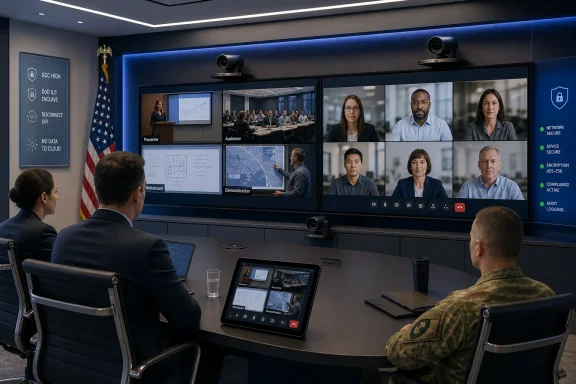
Microsoft’s multiple camera view architecture moved that responsibility into Teams Rooms on Windows. An appropriately configured room can send up to four individual camera streams, allowing receiving participants to view the feeds together or select a particular perspective.
That distinction matters. A person using Teams on a Windows or Mac computer already had a mouse-driven video tile with view-selection controls, but a group seated in another conference room needed an interface designed for the shared-room console or a touch-enabled front-of-room board.
The selection changes only the local receiving room’s experience. It does not reconfigure the cameras in the remote room, interrupt the meeting, or force every participant to watch the same angle.
Each selection advances to another available view. The sequence loops through the configured feeds, providing a relatively simple interaction that avoids presenting room occupants with an elaborate production interface.
This approach is especially useful for Surface Hub-style collaboration spaces and large interactive displays. It aligns the control with the object being controlled, reducing the cognitive gap between selecting a participant and understanding which image will change.
The listed cloud scope is significant. This roadmap entry is not a declaration that every Teams tenant has suddenly received multi-camera support; it documents the room-to-room switching experience for Microsoft’s government cloud instances, where feature availability commonly trails the commercial service because of additional validation and compliance requirements.
Remote viewers receive a composite or selectable representation of those feeds. The room remains a single entity in the participant roster, helping preserve a manageable meeting layout even when several cameras are active.
When no content is being shared, a remote participant can see as many as four camera feeds arranged within the room’s video tile. The feeds use a 16:9 presentation and are distributed evenly in the available tile area.
When content occupies the main meeting stage, Teams may show one camera feed at a time in the smaller room tile. Participants can still cycle through the available perspectives, preserving control even when presentation material has visual priority.
This prevents a meeting from becoming a contest over one global camera switch. It also avoids granting remote participants control over the sending room’s physical camera configuration, a distinction that improves predictability and limits disruption.
That difference separates multi-camera view from native PTZ control. A PTZ command changes where a camera points or how tightly it frames a subject, while multi-camera switching chooses among established perspectives such as front, side, audience, or lectern.
The sending room bears most of the configuration burden, although receiving rooms must also run supported software and receive the relevant service-side capability.
Microsoft’s published prerequisites include:
That limitation prevents two different intelligence layers from competing to structure the same meeting video. It also means administrators must verify the exact camera mode exposed to Teams rather than assuming that any certified intelligent camera will function as one of four ordinary inputs.
Windows 10 support for Teams Rooms ended on October 14, 2025. An organization still operating an old Windows 10 room should not expect dependable access to new 2026 capabilities; it needs to upgrade eligible hardware to Windows 11 or replace equipment that cannot meet the current platform requirements.
Administrators should first identify the distinct activities that remote participants need to observe. A camera should exist because it reveals something another camera cannot, not simply because the room has an unused USB port.
Administrators should avoid angles that expose sensitive displays, doorways, adjacent work areas, or documents lying on tables. Multi-camera coverage increases visual reach, which can improve collaboration while also widening the room’s privacy footprint.
A standardized policy can define which room categories receive multi-camera capability, but camera mapping still demands room-specific verification. Centralized configuration should complement—not replace—an onsite audiovisual acceptance test.
The June 2026 general-availability milestone therefore represents more than routine interface parity. It expands advanced hybrid-room functionality for government agencies, defense organizations, contractors, and regulated partners that cannot simply move meetings to the commercial Teams service.
Receiver-controlled switching gives each site more autonomy. One facility can focus on the speaker while another watches the demonstration area, without requiring a central operator to anticipate every location’s priorities.
Camera placement deserves particular scrutiny. A wider set of feeds can inadvertently capture access-control systems, sensitive wall displays, personal information, restricted equipment, or people outside the intended meeting area.
Administrators should verify tenant availability and device readiness before announcing completion. A controlled pilot across representative room types is safer than assuming identical behavior throughout an estate.
That flexibility can make hybrid meetings feel less like watching security-camera footage and more like choosing an appropriate seat in the room.
Switching lets users move between context and detail. During a briefing, they might watch the presenter; during questions, they can select the audience or panel; during a practical exercise, they can focus on the relevant work area.
Touch-board controls improve directness, but organizations should still provide concise room guidance. A small instruction card or a short introductory animation may be more effective than a lengthy user manual no one reads during a meeting.
Meeting leaders should use explicit verbal cues, such as naming the presenter camera or demonstration view. Technology can personalize the image, but participants still need shared language to coordinate attention.
Multiple camera view emphasizes deliberate coverage from separate physical cameras. IntelliFrame emphasizes software-generated framing and participant-focused composition from a compatible camera feed.
A multi-camera design is often more suitable when the space itself contains separate zones. No amount of digital cropping can recover a clear presenter image if the only camera faces the audience, nor can it reliably reveal a demonstration hidden behind other participants.
The best approach is purpose-driven:
Native Teams control can simplify some of those deployments by keeping the interaction inside the familiar meeting interface. It does not eliminate professional room design, but it can reduce dependence on bespoke controls for straightforward scenarios.
A useful classification might include:
Support runbooks should check the system in layers. Teams Rooms Pro Management can reveal device health and configuration information, but technicians may still need to inspect physical cabling, camera power, firmware, and local previews.
The important metric is not just raw internet capacity. Packet loss, jitter, wireless contention, proxy behavior, and quality-of-service configuration can determine whether multiple feeds remain useful under load.
Remote learners can select the view that matches the current activity rather than waiting for an instructor to manage camera production while teaching.
With several mapped perspectives, a receiving classroom can shift focus as the lesson changes. This is particularly useful when multiple sites participate as groups rather than as individual students on laptops.
However, these environments may also require official recording rules or a mandated public view. Personalized camera selection should not be confused with the authoritative composition used for records, broadcasts, or evidentiary capture.
Native switching offers a useful middle ground between a single webcam and a fully produced broadcast. It is still essential to test whether camera resolution, focus distance, and lighting make fine details readable.
Microsoft’s receiver-controlled model adds a distinct layer: it gives the viewer agency instead of relying entirely on automation.
Manual selection is less cinematic but more predictable. Microsoft is effectively combining automation-ready meeting rooms with an escape route for users who need a specific view.
It may, however, reduce the need for proprietary control layers in medium-complexity rooms. If Teams can expose four useful views through a familiar console, organizations may reserve custom switching hardware for spaces that truly need production-grade control.
Organizations choosing between Teams Rooms on Windows and Android should evaluate future room complexity, not just initial cost. A platform that works for one camera today may not meet a planned multi-zone design later.
Room administrators should also watch how Microsoft aligns multi-camera selection with native PTZ support, intelligent framing, Front Row layouts, webinars, town halls, and other structured meeting experiences.
Such labels would also improve accessibility and support documentation. A named logical view is easier to discuss than “camera three,” especially after hardware replacement changes USB enumeration.
Platform parity will matter in enterprises that standardize the user experience while purchasing room hardware from several manufacturers.
That possibility raises governance questions. Selecting a published feed is relatively low risk, while remotely moving a camera can expose areas the host did not intend to share. Any future integration will need clear permissions and visible indicators.
Without usage evidence, organizations risk maintaining expensive room complexity based on assumptions. The most successful deployments will connect user behavior, meeting quality, and support data.
Microsoft’s camera view switching for multi-camera Teams Rooms on Windows is a carefully scoped improvement with consequences beyond its small contextual-menu control. By allowing one room to choose its own view of another, Teams shifts part of the hybrid-meeting experience from automatic or sender-controlled production to individualized visual agency. For GCC High and DoD customers, the June 2026 launch brings that model into environments where room design, security, and operational predictability carry exceptional weight. The feature will deliver the greatest value when organizations pair it with disciplined camera placement, current Windows room hardware, Teams Rooms Pro licensing, clear user training, and a firm rule that every additional camera must solve a real collaboration problem.
 Background
Microsoft Teams Rooms has evolved from a basic conference-room endpoint into a specialized collaboration platform combining Windows, certified audiovisual hardware, resource accounts, cloud services, and room-management tools. Early deployments typically relied on one front-mounted camera that captured everyone at a conference table, often leaving distant participants small, side conversations invisible, and presenters outside the frame.The rise of hybrid work exposed the limits of that arrangement. A single wide-angle image might prove acceptable in a six-person huddle room, but it rarely represents a divisible training room, classroom, courtroom, multipurpose chamber, or large boardroom effectively.
From one camera to multiple perspectives
Organizations responded by installing additional cameras, including front-of-room, rear-of-room, presenter, audience, side-wall, and whiteboard-focused units. Historically, using those devices often required an external video switcher, a production operator, proprietary camera automation, or several meeting endpoints joined to the same call.Microsoft’s multiple camera view architecture moved that responsibility into Teams Rooms on Windows. An appropriately configured room can send up to four individual camera streams, allowing receiving participants to view the feeds together or select a particular perspective.
The feature is part of a longer rollout
Multiple camera view itself is not entirely new. Microsoft added support in Teams Rooms on Windows version 5.2 and enabled remote participants on Teams desktop clients to navigate available views. The newly launched roadmap item extends the practical control model to room-to-room meetings, particularly in the tightly controlled GCC High and DoD cloud environments.That distinction matters. A person using Teams on a Windows or Mac computer already had a mouse-driven video tile with view-selection controls, but a group seated in another conference room needed an interface designed for the shared-room console or a touch-enabled front-of-room board.
What Microsoft Has Launched
The new capability lets occupants of one Teams Room on Windows switch the camera view presented by another multi-camera Teams Room. Users can initiate the change through the remote room’s entry in the participant panel on the local console or directly from its video tile when using a supported touch board.The selection changes only the local receiving room’s experience. It does not reconfigure the cameras in the remote room, interrupt the meeting, or force every participant to watch the same angle.
Console-based control
On a conventional Teams Rooms installation, users can open the participant panel and locate the room sending multiple video feeds. Its contextual controls include the option to switch camera view.Each selection advances to another available view. The sequence loops through the configured feeds, providing a relatively simple interaction that avoids presenting room occupants with an elaborate production interface.
Direct manipulation on touch boards
Touch-enabled installations provide a more immediate method. Participants can interact with the remote room’s video tile and switch the displayed camera angle without shifting their attention to a separate tabletop console.This approach is especially useful for Surface Hub-style collaboration spaces and large interactive displays. It aligns the control with the object being controlled, reducing the cognitive gap between selecting a participant and understanding which image will change.
Availability is deliberately narrow
Roadmap ID 555855 lists Microsoft Teams across desktop, Teams, and Surface device platforms, with general availability in GCC High and DoD. The item was created on February 6, 2026, scheduled for June 2026, and marked launched in the July 21, 2026 update.The listed cloud scope is significant. This roadmap entry is not a declaration that every Teams tenant has suddenly received multi-camera support; it documents the room-to-room switching experience for Microsoft’s government cloud instances, where feature availability commonly trails the commercial service because of additional validation and compliance requirements.
How Multi-Camera View Works
The sending room must first be configured for multiple camera view. Teams then treats the room as one meeting participant while carrying several associated video perspectives rather than exposing each physical camera as an unrelated attendee.Remote viewers receive a composite or selectable representation of those feeds. The room remains a single entity in the participant roster, helping preserve a manageable meeting layout even when several cameras are active.
Supported meeting behavior
Microsoft documents multiple camera view for scheduled Teams meetings and Meet Now meetings. It is not intended for ordinary peer-to-peer calls, and organizations should not assume that every Teams event format handles the feeds identically.When no content is being shared, a remote participant can see as many as four camera feeds arranged within the room’s video tile. The feeds use a 16:9 presentation and are distributed evenly in the available tile area.
When content occupies the main meeting stage, Teams may show one camera feed at a time in the smaller room tile. Participants can still cycle through the available perspectives, preserving control even when presentation material has visual priority.
Personal rather than global selection
The most important architectural choice is that camera selection is receiver-side and personal. If Room A switches its view of Room B from an audience camera to a presenter camera, Room C and individual desktop participants can continue watching their preferred views.This prevents a meeting from becoming a contest over one global camera switch. It also avoids granting remote participants control over the sending room’s physical camera configuration, a distinction that improves predictability and limits disruption.
Multi-stream is not the same as camera switching hardware
Teams is not necessarily moving a physical pan-tilt-zoom camera whenever a user chooses another view. It is selecting among video feeds that the sending room has already configured and made available.That difference separates multi-camera view from native PTZ control. A PTZ command changes where a camera points or how tightly it frames a subject, while multi-camera switching chooses among established perspectives such as front, side, audience, or lectern.
Technical Requirements
Organizations cannot activate the experience on an ordinary Teams desktop computer merely by connecting several webcams. Microsoft designed it for certified Teams Rooms on Windows deployments, with defined application, licensing, and peripheral requirements.The sending room bears most of the configuration burden, although receiving rooms must also run supported software and receive the relevant service-side capability.
Licensing and software prerequisites
A multi-camera sending room requires a Teams Rooms resource account assigned a Microsoft Teams Rooms Pro license. Teams Rooms Basic covers core room functions, but Microsoft places enhanced intelligent video, advanced room capabilities, and Pro Management features within the higher-tier license.Microsoft’s published prerequisites include:
- The room must run Teams Rooms on Windows version 5.2 or later.
- The room resource account must have an active Teams Rooms Pro license.
- Administrators can connect a maximum of four Teams-certified single-stream USB cameras.
- Multiple camera view must be enabled and the additional cameras must be mapped correctly.
- The meeting scenario must support multi-camera delivery.
Camera compatibility
Microsoft specifies certified single-stream USB cameras for this configuration. Multi-stream intelligent cameras, which may generate their own framed participant streams or panoramic outputs, are not supported as interchangeable components of the conventional multiple-camera setup.That limitation prevents two different intelligence layers from competing to structure the same meeting video. It also means administrators must verify the exact camera mode exposed to Teams rather than assuming that any certified intelligent camera will function as one of four ordinary inputs.
Windows support matters
Teams Rooms on Windows is a managed appliance-style environment, not a standard Windows PC installation. Supported systems use appropriate Windows Enterprise or Windows IoT Enterprise editions and follow Microsoft’s controlled operating-system servicing path.Windows 10 support for Teams Rooms ended on October 14, 2025. An organization still operating an old Windows 10 room should not expect dependable access to new 2026 capabilities; it needs to upgrade eligible hardware to Windows 11 or replace equipment that cannot meet the current platform requirements.
Deployment and Configuration
Successful deployment begins with room design rather than the settings screen. Adding four cameras without a clear visual purpose can produce four mediocre views, consume additional network resources, and leave users cycling through nearly identical images.Administrators should first identify the distinct activities that remote participants need to observe. A camera should exist because it reveals something another camera cannot, not simply because the room has an unused USB port.
A practical deployment sequence
A disciplined rollout can follow these steps:- Document the room’s meeting patterns. Determine whether the space primarily hosts presentations, roundtable discussions, instruction, demonstrations, hearings, or mixed-format sessions.
- Define the required perspectives. Assign clear roles such as presenter, audience, table, whiteboard, or demonstration area.
- Select certified cameras and validate USB connectivity. Confirm that the room compute can detect every device reliably after restarts and maintenance cycles.
- Update the Teams Rooms application and Windows platform. Avoid troubleshooting a new video configuration on unsupported or outdated software.
- Assign Teams Rooms Pro licensing. Verify that the room resource account, rather than an individual user, holds the correct device license.
- Enable multiple camera view and map each additional camera. Administrators can perform supported settings changes locally or through Teams Rooms Pro Management where available.
- Preview every feed under realistic lighting. Test occupied seats, presenter movement, display glare, windows, and whiteboard readability.
- Run room-to-room validation meetings. Confirm console switching, touch-board operation, content sharing, and behavior with desktop participants.
- Train support staff and frequent room users. A functioning feature still fails operationally if no one recognizes the control.
Camera placement strategy
Each perspective should have a defined subject and stable composition. A front camera may cover the table, a rear camera may capture the presenter facing the room, and a side camera may reveal demonstrations that would otherwise be blocked by seated attendees.Administrators should avoid angles that expose sensitive displays, doorways, adjacent work areas, or documents lying on tables. Multi-camera coverage increases visual reach, which can improve collaboration while also widening the room’s privacy footprint.
Local versus centralized management
The multiple camera option can be configured through room settings, and Pro Management provides centralized administration for supported settings and health monitoring. However, not every camera-selection field is necessarily suited to bulk deployment because physical inputs and room layouts differ.A standardized policy can define which room categories receive multi-camera capability, but camera mapping still demands room-specific verification. Centralized configuration should complement—not replace—an onsite audiovisual acceptance test.
The GCC High and DoD Significance
GCC High and DoD tenants serve organizations with stricter security, compliance, residency, and operational requirements than the worldwide commercial cloud. New collaboration features commonly undergo additional engineering and validation before entering these environments.The June 2026 general-availability milestone therefore represents more than routine interface parity. It expands advanced hybrid-room functionality for government agencies, defense organizations, contractors, and regulated partners that cannot simply move meetings to the commercial Teams service.
A better fit for distributed operations
Government and defense organizations often coordinate across geographically separated facilities, secure campuses, command centers, training environments, and multipurpose briefing spaces. A remote room may need to examine a presenter, a panel, an audience, or a physical demonstration at different moments.Receiver-controlled switching gives each site more autonomy. One facility can focus on the speaker while another watches the demonstration area, without requiring a central operator to anticipate every location’s priorities.
Compliance does not remove local responsibility
Availability in a government cloud does not make every multi-camera deployment appropriate for every meeting. Organizations must still apply their classification rules, physical-security controls, room-use policies, and audiovisual approval processes.Camera placement deserves particular scrutiny. A wider set of feeds can inadvertently capture access-control systems, sensitive wall displays, personal information, restricted equipment, or people outside the intended meeting area.
Change management in controlled environments
Government organizations frequently stage updates through validation rings, formal change requests, or restricted maintenance windows. Because Teams Rooms combines locally installed software with service-side components, the appearance of a roadmap status does not guarantee that every room will display the control simultaneously.Administrators should verify tenant availability and device readiness before announcing completion. A controlled pilot across representative room types is safer than assuming identical behavior throughout an estate.
User Experience and Meeting Dynamics
The feature changes who decides what constitutes the “best” view. Previously, that decision might belong to an automatic framing algorithm, the remote room’s occupants, or a production operator. Now, the receiving room can optimize the image for its own task.That flexibility can make hybrid meetings feel less like watching security-camera footage and more like choosing an appropriate seat in the room.
Better visual context
A wide front camera is useful for understanding the entire space, but it may obscure facial expressions. A close presenter angle improves nonverbal communication, yet it can hide audience reactions or activity at a demonstration table.Switching lets users move between context and detail. During a briefing, they might watch the presenter; during questions, they can select the audience or panel; during a practical exercise, they can focus on the relevant work area.
Controls must remain discoverable
The participant-panel approach is logical for experienced Teams users, but it may not be obvious to occasional room occupants. A person can understand that the remote room has multiple cameras without knowing that its contextual menu contains the switching command.Touch-board controls improve directness, but organizations should still provide concise room guidance. A small instruction card or a short introductory animation may be more effective than a lengthy user manual no one reads during a meeting.
Switching is local, but collaboration is social
Because each receiving participant or room can choose independently, two sites may discuss different visual perspectives without realizing it. Someone saying “look at the display on the left” may be watching a camera feed that another room has not selected.Meeting leaders should use explicit verbal cues, such as naming the presenter camera or demonstration view. Technology can personalize the image, but participants still need shared language to coordinate attention.
Relationship to IntelliFrame and Intelligent Cameras
Microsoft’s intelligent video portfolio includes Cloud IntelliFrame, speaker tracking, participant framing, panoramic cameras, and multi-stream intelligent camera experiences. These tools pursue a common goal—making remote participants more visible—but they are not interchangeable.Multiple camera view emphasizes deliberate coverage from separate physical cameras. IntelliFrame emphasizes software-generated framing and participant-focused composition from a compatible camera feed.
Different solutions for different spaces
Cloud IntelliFrame can identify and crop individual faces from a room view, producing a gallery-like experience for remote attendees. It works particularly well in focus rooms and medium-sized spaces where people remain within a usable distance of the camera.A multi-camera design is often more suitable when the space itself contains separate zones. No amount of digital cropping can recover a clear presenter image if the only camera faces the audience, nor can it reliably reveal a demonstration hidden behind other participants.
Avoid competing video intelligence
Microsoft warns that certain camera intelligence features can interfere with one another. In a traditional multiple-camera configuration, administrators should not assume they can enable every framing, tracking, and multi-stream option simultaneously.The best approach is purpose-driven:
- Use multiple camera view when distinct physical perspectives are essential.
- Use Cloud IntelliFrame when equitable framing of people around a table is the primary goal.
- Use a certified intelligent camera when the device’s native tracking or panoramic design matches the room.
- Use a content camera when the principal requirement is enhancing and sharing a physical whiteboard.
Enterprise and Administrative Impact
For enterprises, the largest benefit is not novelty but room-estate standardization. Multi-camera coverage previously pushed organizations toward specialist audiovisual systems with custom switching logic and separate operational training.Native Teams control can simplify some of those deployments by keeping the interaction inside the familiar meeting interface. It does not eliminate professional room design, but it can reduce dependence on bespoke controls for straightforward scenarios.
Room classification becomes more important
Enterprises should classify spaces by function and complexity. A small huddle room usually gains little from four cameras, while a divisible training suite or executive boardroom may benefit substantially.A useful classification might include:
- Single-view rooms, where one wide or intelligent camera provides adequate coverage.
- Dual-purpose rooms, where a second camera covers a presenter, whiteboard, or demonstration.
- Complex multi-zone rooms, where three or four feeds provide meaningfully different perspectives.
- Production spaces, where a professional video system remains more suitable than native room switching.
Support teams need new diagnostics
A multi-camera incident can involve the camera itself, USB connectivity, Windows device enumeration, Teams Rooms settings, account licensing, application version, meeting type, or service availability. “The second camera is missing” is therefore not a single-category fault.Support runbooks should check the system in layers. Teams Rooms Pro Management can reveal device health and configuration information, but technicians may still need to inspect physical cabling, camera power, firmware, and local previews.
Network planning cannot be ignored
Multiple simultaneous camera feeds can increase media demands compared with a single-room stream. Teams adapts video delivery to available bandwidth and meeting conditions, but network teams should still test busy-room scenarios over the actual site connection.The important metric is not just raw internet capacity. Packet loss, jitter, wireless contention, proxy behavior, and quality-of-service configuration can determine whether multiple feeds remain useful under load.
Education, Training, and Specialized Rooms
Classrooms and training facilities are among the clearest beneficiaries. One camera can show an instructor, another the students, and a third a practical workspace, laboratory bench, simulation rig, or physical model.Remote learners can select the view that matches the current activity rather than waiting for an instructor to manage camera production while teaching.
Hybrid classrooms
A conventional rear-of-room camera may capture the instructor and board but miss student discussion. A front-facing camera can show the class but provide a poor view of teaching material.With several mapped perspectives, a receiving classroom can shift focus as the lesson changes. This is particularly useful when multiple sites participate as groups rather than as individual students on laptops.
Hearings, councils, and panel rooms
Public-sector chambers, tribunals, panels, and hearing rooms often contain several distinct speaking positions. Receiver-side switching can help remote participants follow the chair, witness, panel, or presentation area.However, these environments may also require official recording rules or a mandated public view. Personalized camera selection should not be confused with the authoritative composition used for records, broadcasts, or evidentiary capture.
Demonstration and simulation spaces
Technical training frequently depends on observing both an instructor’s explanation and a physical procedure. A close-up camera can show equipment controls while a wider feed preserves context and safety awareness.Native switching offers a useful middle ground between a single webcam and a fully produced broadcast. It is still essential to test whether camera resolution, focus distance, and lighting make fine details readable.
Competitive and Strategic Implications
Room vendors increasingly compete on intelligent video rather than basic meeting connectivity. Automatic speaker framing, multi-camera direction, panoramic composition, and individual participant tiles have become central differentiators across enterprise collaboration platforms.Microsoft’s receiver-controlled model adds a distinct layer: it gives the viewer agency instead of relying entirely on automation.
Automation versus choice
Automatic camera direction can produce a polished experience when acoustic tracking and room geometry work well. It can also switch at the wrong moment, react to side conversations, or hide the very activity a remote participant wants to observe.Manual selection is less cinematic but more predictable. Microsoft is effectively combining automation-ready meeting rooms with an escape route for users who need a specific view.
Pressure on proprietary controllers
High-end audiovisual platforms will continue to offer deeper capabilities, including scripted scenes, optical PTZ presets, matrix routing, broadcast composition, and operator consoles. Native Teams switching does not replace those systems in complex venues.It may, however, reduce the need for proprietary control layers in medium-complexity rooms. If Teams can expose four useful views through a familiar console, organizations may reserve custom switching hardware for spaces that truly need production-grade control.
Windows remains the advanced room platform
The prerequisite reinforces the strategic role of Teams Rooms on Windows in Microsoft’s meeting-room portfolio. Windows-based systems often receive the broadest support for sophisticated peripheral combinations, centralized management, and advanced room configurations.Organizations choosing between Teams Rooms on Windows and Android should evaluate future room complexity, not just initial cost. A platform that works for one camera today may not meet a planned multi-zone design later.
Strengths and Opportunities
The launch creates several practical opportunities for organizations already investing in Teams Rooms infrastructure.- Receiver-side control improves relevance. Each participant or receiving room can choose the camera angle suited to its immediate task without changing anyone else’s view.
- Up to four feeds cover complex spaces. Administrators can represent presenters, attendees, whiteboards, and demonstration areas within one room identity.
- Native controls reduce interface fragmentation. Users remain inside the Teams participant panel, console, or touch-board experience rather than learning a separate camera-switching system.
- Government-cloud availability closes an important gap. GCC High and DoD organizations gain a modern room-to-room feature after the required cloud-specific rollout.
- Personalized views support different roles. An executive, technician, interpreter, and trainer can each prioritize a different perspective during the same meeting.
- Existing certified USB cameras may be reusable. Some organizations can build multi-view rooms without purchasing an all-in-one intelligent camera, provided their peripherals and room systems satisfy Microsoft’s requirements.
- The feature scales from two to four perspectives. Administrators can start with a purposeful dual-camera design rather than deploying maximum complexity immediately.
- It creates a foundation for richer room interaction. Receiver-selected views could complement future PTZ controls, intelligent framing, and role-aware meeting layouts.
Risks and Concerns
The feature also introduces operational, usability, and governance challenges that administrators should address before broad deployment.- More cameras create more failure points. USB cables, hubs, power supplies, firmware, drivers, and physical mounts all expand the support surface.
- Licensing adds cost. The sending room requires Teams Rooms Pro, which may alter the economics of upgrading smaller or lightly used spaces.
- Incompatible intelligence features can cause confusion. Multi-stream intelligent cameras and overlapping framing technologies do not necessarily work within the standard multi-camera configuration.
- Users may not discover the control. Participant-panel context menus are efficient once learned but can remain hidden from occasional room users.
- Personal views can fragment discussion. Participants may refer to visual details that others cannot see because they selected different feeds.
- Additional coverage expands privacy exposure. Side cameras may reveal documents, displays, doors, or adjacent areas outside the original camera’s field of view.
- Network conditions may reduce quality. Four theoretically available feeds are of limited value if constrained links make the images unstable or unreadable.
- Roadmap status is not a substitute for validation. Tenant rollout, room software, licensing, meeting type, and device configuration must all align.
- Old Windows rooms may be left behind. Unsupported Windows 10 hardware should be upgraded or replaced rather than used as the foundation for a new deployment.
- Native switching is not production switching. Organizations should not expect transitions, scene composition, preview buses, or recording workflows equivalent to professional audiovisual systems.
What to Watch Next
Microsoft’s next challenge is to make multi-camera rooms easier to manage and more intelligent without taking control away from the viewer. The current cycling model is simple, but larger deployments may eventually benefit from named camera views, clearer previews, policy-based defaults, and more detailed health reporting.Room administrators should also watch how Microsoft aligns multi-camera selection with native PTZ support, intelligent framing, Front Row layouts, webinars, town halls, and other structured meeting experiences.
Better labeling and navigation
Cycling through views works with two cameras but becomes less efficient with four. Labels such as Presenter, Audience, Table, and Demo would help users select deliberately rather than repeatedly advancing until the desired image appears.Such labels would also improve accessibility and support documentation. A named logical view is easier to discuss than “camera three,” especially after hardware replacement changes USB enumeration.
Expanded platform parity
The roadmap item specifically concerns Teams Rooms on Windows in GCC High and DoD. Organizations with mixed room estates should monitor whether equivalent receiver controls become consistently available across Android rooms, mobile clients, web experiences, and other cloud environments.Platform parity will matter in enterprises that standardize the user experience while purchasing room hardware from several manufacturers.
Integration with PTZ and automation
Microsoft has separately been developing native pan-tilt-zoom controls for supported Teams Rooms cameras. Combining view selection with limited PTZ adjustment could let a remote room choose the correct camera and then refine its composition.That possibility raises governance questions. Selecting a published feed is relatively low risk, while remotely moving a camera can expose areas the host did not intend to share. Any future integration will need clear permissions and visible indicators.
Operational telemetry
Administrators will want to know whether multiple camera view is actually used, which room types benefit, and whether added peripherals increase incident rates. Meaningful telemetry could guide hardware investments and identify cameras that remain configured but rarely selected.Without usage evidence, organizations risk maintaining expensive room complexity based on assumptions. The most successful deployments will connect user behavior, meeting quality, and support data.
Microsoft’s camera view switching for multi-camera Teams Rooms on Windows is a carefully scoped improvement with consequences beyond its small contextual-menu control. By allowing one room to choose its own view of another, Teams shifts part of the hybrid-meeting experience from automatic or sender-controlled production to individualized visual agency. For GCC High and DoD customers, the June 2026 launch brings that model into environments where room design, security, and operational predictability carry exceptional weight. The feature will deliver the greatest value when organizations pair it with disciplined camera placement, current Windows room hardware, Teams Rooms Pro licensing, clear user training, and a firm rule that every additional camera must solve a real collaboration problem.
References
- Primary source: Microsoft 365 Roadmap
Published: 2026-07-21T22:37:32.0478671Z
Microsoft 365 Roadmap | Microsoft 365
The Microsoft 365 Roadmap lists updates that are currently planned for applicable subscribers. Check here for more information on the status of new features and updates.www.microsoft.com
- Official source: support.microsoft.com
Use multiple camera view in a Microsoft Teams Room | Microsoft Support
Use multiple camera view in microsoft teams rooms to give remote participants a more immersive experience.support.microsoft.com - Official source: learn.microsoft.com
Learn how to set up content cameras - Microsoft Teams | Microsoft Learn
Use a content camera in Microsoft Teams Rooms that interacts with image-processing software to allow presenters to draw on an analog whiteboard.learn.microsoft.com - Official source: techcommunity.microsoft.com
