

Guiding Tech has published a troubleshooting guide for Microsoft Teams users who see the “Not optimized” warning inside a virtual desktop session, a condition that can leave calls running through the VM instead of the local endpoint. The result is typically higher host CPU use, degraded audio and video, and weaker meeting performance.
The report points users first to Teams’ built-in recovery option: select the three-dot menu beside the warning and choose Optimize virtual desktop and restart. Microsoft documents the same restart action as a valid first step when the Teams VDI status indicator reports that optimization has failed.
Per Microsoft’s Teams VDI documentation, optimization depends on a local plugin and media engine rather than Teams alone inside the virtual machine. For Azure Virtual Desktop and Windows 365, the endpoint needs a supported Windows App client; Microsoft lists Windows App for Windows version 2.0.360.0 or later as the current minimum and recommends the latest release. Windows 365 gallery images are normally preconfigured, but custom images require the relevant Teams optimization setup.
Citrix environments need more attention. Current supported Citrix Workspace releases include the 2402 LTSR branch and later supported Current Release builds, while supported Virtual Delivery Agent versions include 2203, 2402 and 2507 LTSR branches. Citrix Workspace can install the Teams VDI plugin, but an administrator must also ensure its virtual-channel policy allows the Teams channels.
Teams error code 2000 is especially useful here. Microsoft identifies it as a missing or unloaded endpoint plugin, not a generic Teams sign-in or chat failure. In that situation, reinstalling Teams in the virtual desktop is unlikely to solve the underlying problem.
For managed endpoints, admins should check whether AppLocker, Windows Defender Application Control, Group Policy, or MSIX deployment restrictions are preventing the SlimCore packages from installing. Microsoft also warns that restrictive Conditional Access policies using strict location enforcement can cause repeated sign-ins or failed calls because the optimized client evaluates the endpoint’s IP address, rather than the VM host’s IP.
A practical checklist is:
The report points users first to Teams’ built-in recovery option: select the three-dot menu beside the warning and choose Optimize virtual desktop and restart. Microsoft documents the same restart action as a valid first step when the Teams VDI status indicator reports that optimization has failed.
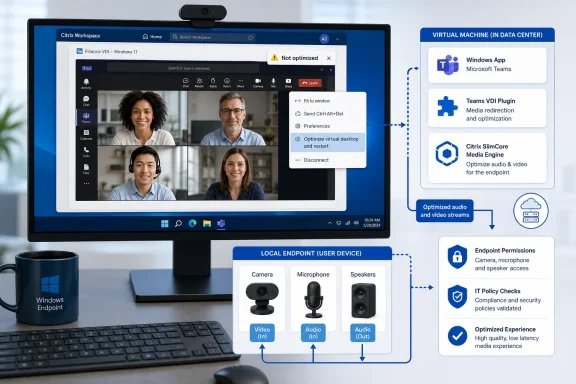 The real fix is usually on the endpoint
Per Microsoft’s Teams VDI documentation, optimization depends on a local plugin and media engine rather than Teams alone inside the virtual machine. For Azure Virtual Desktop and Windows 365, the endpoint needs a supported Windows App client; Microsoft lists Windows App for Windows version 2.0.360.0 or later as the current minimum and recommends the latest release. Windows 365 gallery images are normally preconfigured, but custom images require the relevant Teams optimization setup.Citrix environments need more attention. Current supported Citrix Workspace releases include the 2402 LTSR branch and later supported Current Release builds, while supported Virtual Delivery Agent versions include 2203, 2402 and 2507 LTSR branches. Citrix Workspace can install the Teams VDI plugin, but an administrator must also ensure its virtual-channel policy allows the Teams channels.
Teams error code 2000 is especially useful here. Microsoft identifies it as a missing or unloaded endpoint plugin, not a generic Teams sign-in or chat failure. In that situation, reinstalling Teams in the virtual desktop is unlikely to solve the underlying problem.
Permissions and policy blocks can also stop optimization
Guiding Tech recommends checking microphone and camera access on the physical Windows PC rather than solely in the remote session. That remains sensible, but modern Teams VDI optimization also installs a local Microsoft Teams VDI Optimizer component. Microsoft says the SlimCore-based media engine maps locally connected microphones, cameras, speakers and location services into the virtual session.For managed endpoints, admins should check whether AppLocker, Windows Defender Application Control, Group Policy, or MSIX deployment restrictions are preventing the SlimCore packages from installing. Microsoft also warns that restrictive Conditional Access policies using strict location enforcement can cause repeated sign-ins or failed calls because the optimized client evaluates the endpoint’s IP address, rather than the VM host’s IP.
A practical checklist is:
- Restart Teams using its VDI optimization command.
- Update Teams, Windows App or Citrix Workspace, and the VDI platform components.
- Confirm the Teams VDI plugin is installed and loaded on the local endpoint.
- Verify camera and microphone permissions on the endpoint.
- Review Citrix channel allow lists and endpoint application-control policies.
References
- Primary source: Guiding Tech
Published: 2026-07-14T01:30:00+00:00
What to Do When Teams Won’t Optimize - Guiding Tech
Teams won’t optimize on your virtual desktop? We’ve got a few fixes for you to try and get everything running smoothly.www.guidingtech.com
