

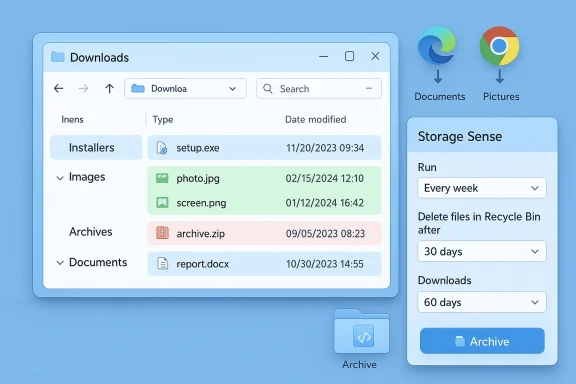
I turned my Downloads folder from a permanent graveyard of forgotten installers and screenshots into a predictable, self-cleaning staging area using three built‑in Windows tools that most people overlook: File Explorer’s grouping & filters, Storage Sense, and deliberate download-location settings in browsers and apps. The result is not a one‑off cleanup: it’s a low‑friction system where clutter is either routed to a proper home or removed on a safe schedule, so the Downloads folder does exactly what it should — hold stuff temporarily, not forever.
For many Windows users, Downloads becomes the default storage for every impulse save: installs, PDFs, screenshots, ZIPs, and quick exports. That’s understandable — default browser behavior plus one-click saves add up. But the folder’s purpose is a staging area: a place to decide what’s worth keeping and where it belongs. Windows ships with tools to make that decision process visible, repeatable, and automatic — no third‑party cleaners required.
This article walks through each built‑in feature, explains why it works, shows safe configuration choices, and offers an optional PowerShell automation for people who want a bit more control. Where appropriate, I verify behavior against Microsoft documentation and community best practice threads so you can configure everything with confidence.
Important caveats from Microsoft’s docs:
Example PowerShell script (move — not delete — files older than 90 days to C:\Users\<you>\Downloads\Archive):
How to schedule:
If you want, start conservative: make the folder easy to read, leave Storage Sense off for Downloads at first, and change browser settings so you’re always asked where to save. Once you see how little you actually need to keep in Downloads, you can relax the controls or automate more aggressively. The end result is the same: less time cleaning, fewer surprises, and a Downloads folder that disappears from your mental load.
Source: How-To Geek I finally automated my messy downloads folder with these 3 "hidden" Windows features
 Background
For many Windows users, Downloads becomes the default storage for every impulse save: installs, PDFs, screenshots, ZIPs, and quick exports. That’s understandable — default browser behavior plus one-click saves add up. But the folder’s purpose is a staging area: a place to decide what’s worth keeping and where it belongs. Windows ships with tools to make that decision process visible, repeatable, and automatic — no third‑party cleaners required.This article walks through each built‑in feature, explains why it works, shows safe configuration choices, and offers an optional PowerShell automation for people who want a bit more control. Where appropriate, I verify behavior against Microsoft documentation and community best practice threads so you can configure everything with confidence.
Overview: the three built-in features that actually automate Downloads
- File Explorer grouping, sorting and search filters — surface the obvious junk so you can triage quickly.
- Storage Sense — let Windows purge truly old, unused downloads on a schedule you control.
- Per‑app / browser download-location settings — stop clutter before it arrives by asking where to save or routing downloads to logical folders.
Make cleanup obvious with File Explorer’s built-in filters
Why this matters
Automation without visibility bites you when it deletes something you didn’t intend to lose. Before you let Windows touch files automatically, make the mess visible so cleanup choices are easy and low risk. File Explorer’s grouping, sorting, and search filters are simple, fast, and built into every Windows install.Quick setup: group by Type, sort by Date modified
- Open your Downloads folder in File Explorer.
- Use the Sort menu and select Date modified so the newest files appear at the top.
- Right‑click an empty area in the folder, choose Group by → Type.
- Use the search box for fine filters (examples:
kind:=application,ext:.zip,date:<=01/01/2025).
Pro tips
- Use the Details view with the Date modified and Size columns visible to find large, old installers quickly.
- Save a custom view for Downloads so the grouping/sorting sticks for future sessions.
- Combine
kind:filters with date ranges to find “applications older than X days” before deleting.
Use Storage Sense to purge old files on a schedule (safely)
What Storage Sense does and what it won’t do
Storage Sense is a built‑in Windows feature that can automatically free up drive space by deleting temporary files, emptying the Recycle Bin after a set interval, and — optionally — cleaning out the Downloads folder when files haven’t been used for a configurable period. By default, Storage Sense is off and will not touch Downloads unless you explicitly enable that option. That behavior and the configuration options are documented by Microsoft.Important caveats from Microsoft’s docs:
- Storage Sense runs on the system drive (usually C
 only.
only. - Downloads and cloud content aren’t touched unless you opt into those settings.
- Files marked “Always keep on this device” (OneDrive) are exempt.
- Storage Sense requires the user to be signed in and online to run.
Why Storage Sense is safe when configured conservatively
The biggest fear is that Windows will delete something you still need. You avoid that by choosing conservative thresholds — for example, only removing downloads that haven’t been opened for 60 days or more. That converts Storage Sense from a mysterious shredder into an enforcement of a rule you probably already wanted: Downloads is a temporary staging area, not permanent storage.Step‑by‑step: turn on Storage Sense and configure it
- Open Settings → System → Storage.
- Turn Storage Sense to On.
- Click Storage Sense (or Configure Storage Sense or run it now) to set preferences.
- Under Run Storage Sense, choose a cadence: Every week is a good middle ground; Every month is more conservative.
- Set Delete files in my Recycle Bin if they have been there for over — 30 days is reasonable.
- For Downloads, pick Delete files in my Downloads folder if they haven't been opened for more than and choose 60 days (or Never if you’re not ready to let it touch Downloads).
- Optionally, disable Downloads cleanup initially and let Storage Sense handle Recycle Bin and temp files only while you test behavior.
Monitoring and rollback
- Storage Sense logs are not surfaced as a single deletion report, so when you enable it, test with a conservative threshold and review Downloads for several weeks.
- If something important disappears, use File History / backups or file recovery tools to retrieve it. Always keep important files backed up outside Downloads (e.g., Documents folder + cloud backup).
Stop files from piling up in the first place: redirect downloads
Browser settings: ask where to save or pick a per‑type folder
Most browsers default to saving to Downloads. Changing that is a 30‑second fix that eliminates much of the problem at the source.- Microsoft Edge: Settings → Downloads → change Location or toggle Ask where to save each file before downloading. Microsoft documents these options in its support pages.
- Google Chrome: Settings → Downloads → toggle Ask where to save each file before downloading or set a new default. How‑To guides and testing articles cover this exact step and the UX quirks to watch for.
Other apps: change default save locations
Third‑party screenshot tools, PDF printers, and file converters often default to Downloads. Take 30 seconds to change those apps’ output folder to a logical destination:- Screenshots → Pictures or a dated “Screenshots” folder.
- PDF printer exports → Documents → Project name.
- One‑off tools → a temporary INBOX folder that you empty weekly.
Workflow: make the conscious save decision
When prompted for a save location, have rules:- Is this a permanent document? Save to Documents/Project.
- Is this an image I might sort? Save to Pictures/Screenshots.
- Is this an installer/utility to run now? Save to Downloads\Installers (or save to a temp INBOX and delete after install).
Optional: PowerShell scheduled task to archive old downloads (for power users)
If you want more control than Storage Sense offers (for example, move older files to an Archive folder rather than delete them), a short PowerShell script scheduled with Task Scheduler is a safe, reversible approach. Community forum threads and PowerShell examples show this pattern is common among users automating folder maintenance.Example PowerShell script (move — not delete — files older than 90 days to C:\Users\<you>\Downloads\Archive):
Code:
$Source = "$env:USERPROFILE\Downloads"
$Archive = "$Source\Archive"
$Days = 90

if (-not (Test-Path $Archive)) { New-Item -Path $Archive -ItemType Directory | Out-Null }

Get-ChildItem -Path $Source -File -Recurse |
  Where-Object { $_.LastWriteTime -lt (Get-Date).AddDays(-$Days) -and $_.DirectoryName -ne $Archive } |
  ForEach-Object {
    $dest = Join-Path -Path $Archive -ChildPath $_.Name
    Move-Item -Path $_.FullName -Destination $dest -Force
}- Open Task Scheduler → Create Task.
- Set trigger (e.g., weekly).
- Action: Start a program → Program/script:
powershell→ Add arguments:-ExecutionPolicy Bypass -File "C:\Path\to\script.ps1". - Test the task with a short
-Daysvalue (e.g., 2) before letting it run on longer intervals.
OneDrive and Files On‑Demand: another angle to reduce local clutter
If you use OneDrive with Files On‑Demand enabled, Windows can make inactive files online‑only, reducing local disk usage without deleting content. Storage Sense can cooperate with OneDrive to automatically toggle local availability for files not opened in a set number of days. Microsoft documents how Storage Sense and OneDrive interplay, and notes that OneDrive files marked “Always keep on this device” are exempt. If cloud sync is part of your workflow, configure Files On‑Demand plus Storage Sense conservatively to avoid accidental offline deletions.Safety, limitations, and common pitfalls
- Storage Sense only runs on the system drive (C. If you moved Downloads to another partition, Storage Sense won’t manage that location. Microsoft documents this limitation explicitly.
- Browser “ask where to save” doesn’t always behave perfectly across installs or profiles. Community reports show occasional UX bugs where Chrome won’t prompt until you clear certain automatic‑open settings — so test your browser after toggling the option.
- If you rely only on Storage Sense, be aware it doesn’t provide a per‑file deletion log. For sensitive or critical files, maintain a backup strategy outside Downloads.
- Highly conservative recommendation: start with Storage Sense not touching Downloads and let it manage Recycle Bin and temporary files only. After a month of confidence, enable Downloads cleanup at 60+ days.
Example conservative configuration (recommended, low risk)
- Storage Sense: On.
- Run: Every week.
- Recycle Bin: delete after 30 days.
- Downloads: delete files not opened for 60 days (or leave Downloads off for the first month until you’re comfortable).
- Browser(s): enable Ask where to save each file before downloading for Edge/Chrome. Route long‑term files to Documents/Pictures/Project folders.
- File Explorer: Group by Type, sort by Date modified, and save the view for Downloads so triage is fast.
- Optional PowerShell scheduled task: move files older than 90 days into Downloads\Archive rather than delete.
Why this approach beats third‑party cleaners and manual sprints
- Built‑in tools are tightly integrated with Windows and are less likely to conflict with system updates. Microsoft documents Storage Sense’s behavior and options; that transparency reduces surprises.
- Visibility-first workflow prevents accidental deletions: you make the hard decisions quickly because Explorer surfaces the obvious junk.
- Conservative automation (move vs delete, 60–90 day windows) provides a safety net and an easy rollback path. Community scripts demonstrate how to extend cleanup safely when you’re ready.
Final checklist and 10‑minute setup guide
- Open File Explorer → Downloads. Group by Type, sort by Date modified. (2 minutes)
- Open Settings → System → Storage → Storage Sense. Turn it On and configure: run weekly, Recycle Bin 30 days, Downloads Never (initially). (3 minutes)
- In your browser(s), enable Ask where to save each file before downloading or set an explicit default per category. (2 minutes)
- Create a simple PowerShell script to move old files to Downloads\Archive and test it manually (optional; 3–10 minutes). Use Task Scheduler only after you’ve tested. (optional)
- Monitor Downloads for a month; if behavior is as expected, enable Downloads cleanup in Storage Sense at 60 days. (ongoing)
Conclusion
A messy Downloads folder is behavioral, not technical. Windows already provides three robust, built‑in levers to change that behavior: make the mess visible with File Explorer filters, let Storage Sense enforce a gentle expiry policy, and stop the mess at the source by changing browser and app save locations. Together they turn Downloads back into a staging area rather than a personal archive — and you don’t need third‑party software to do it.If you want, start conservative: make the folder easy to read, leave Storage Sense off for Downloads at first, and change browser settings so you’re always asked where to save. Once you see how little you actually need to keep in Downloads, you can relax the controls or automate more aggressively. The end result is the same: less time cleaning, fewer surprises, and a Downloads folder that disappears from your mental load.
Source: How-To Geek I finally automated my messy downloads folder with these 3 "hidden" Windows features
