Microsoft 365 Copilot Mobile: Auto Uploads to OneDrive Raise Privacy Risks

  • Thread Author
Microsoft’s mobile Microsoft 365 Copilot update that swaps the old document viewer for an AI‑first, chat‑centred workflow is now colliding with real world expectations — and, according to multiple user reports and one recent Windows Latest investigation, that collision can result in local files being routed into OneDrive and Copilot for analysis before you even see the document. This is not just a UX regression; it raises immediate privacy, security, and enterprise governance questions that every Windows and mobile user — and every IT admin — should understand right now.

Smartphone uploads a document to a secure, encrypted cloud.Background / Overview​

Microsoft began repositioning the consolidated mobile Office experience as an AI‑first surface in 2025 when the classic “Microsoft 365”/“Office Hub” mobile viewer was rebranded and refocused under the Copilot name. The official Microsoft transition notice confirms the rebrand and the timing of the app’s renaming to “Microsoft 365 Copilot.”
By late 2025 Microsoft signalled a design intent: the mobile Copilot app would be a preview‑first, chat‑centred hub for searching, summarizing and prompting AI help about files, while robust editing and file management would be handed off to the standalone Word, Excel, PowerPoint, and OneDrive apps. Microsoft’s support documentation explains this change and the practical impact for mobile users: Copilot will surface previews and let users ask questions from the preview, but editing and full file browsing is routed to the dedicated apps.
That strategic pivot makes sense from Microsoft’s product point of view — they want Copilot to be the company’s reasoning layer across services. But when product changes touch basic flows like “open a document from WhatsApp” or “tap a .docx attachment,” the implementation details matter enormously. The central complaint being raised by end users and recently highlighted by Windows Latest is that, on mobile, the Copilot preview flow can automatically upload local attachments to the cloud (OneDrive) and process them with Copilot — without the clear, visible consent steps many users expect. Windows Latest’s hands‑on anecdote describes a .docx opened from WhatsApp that was routed into Copilot and uploaded to OneDrive rather than opening locally. That report is consistent with multiple community observations about the new preview‑first behaviour. However, Microsoft’s public documentation describes the new in‑app preview and edit‑handoff but stops short of describing the exact technical path for local files opened from other apps; Microsoft’s message centre items and support pages clarify the product intent but do not publish an explicit “we will auto‑upload local attachments to OneDrive” policy in simple affirmative language.
Because this behaviour touches data residency, retention and enterprise data loss prevention (DLP), it’s important to unpick exactly what Microsoft has published, what users are observing, and which claims are still only partially verified.

Timeline: How we got here​

The rebrand and the Copilot pivot​

  • The app formerly known as “Office Hub” was rebranded into the consolidated Microsoft 365 mobile app and later rebranded again as Microsoft 365 Copilot; the official transition and naming started to roll out in early 2025. Microsoft’s support site documents the app rename and how the Copilot capabilities are surfaced to subscribers.

Preview‑first UX and edit handoff (September–October 2025)​

  • During late summer and early autumn 2025 Microsoft pushed a preview‑first mobile experience: Copilot became the home screen for many users, and editing for Word/Excel/PowerPoint moved to the standalone apps. Community reporting and Microsoft Message Center posts describe this change as a deliberate move to make Copilot the primary interaction point for file preview and AI queries.

Early 2026: Copilot chat file handling changes and message center updates​

  • Microsoft’s Message Center entries around the start of 2026 show the company rolling out changes in how files are opened in Copilot chat (for the web-based Copilot Chat experience) and adding file preview/processing behaviours. A Message Center bulletin (MC1225199) described an update that opens Word/Excel/PowerPoint files inside Copilot Chat to streamline viewing, rolling out in early February 2026. That bulletin clarifies scope (web Copilot chat) but echoes the broader product direction: open files inside the Copilot surface.

What Microsoft has published (what’s verified)​

  • The Microsoft 365 Copilot app is intentionally being converted into a preview‑first, AI‑first hub on mobile. When users open certain Office file types inside the Copilot mobile app, Copilot displays an in‑context preview and enables chat queries about the document. Editing is redirected to the standalone Word/Excel/PowerPoint apps, and OneDrive is the recommended location for full file browsing. These behaviour changes are documented on Microsoft’s support pages.
  • Microsoft documents the Copilot file upload and retention model for the Copilot service: files you explicitly upload to Copilot are stored for a limited retention window (support page references an 18‑month window in consumer Copilot docs) and Microsoft states uploaded files are not used to train their models. That policy and the supported file types (PDF, DOCX, XLSX, PPTX and others) are also published. These facts are important when evaluating the privacy surface of any flow that routes a local file into Copilot.
  • Microsoft has provided Message Center notices to tenants and admins describing where the new file preview flows will appear and when they will roll out. Those notices are the authoritative source for timing and administrative impact.

What user reports (and Windows Latest) say — and what is still unverified​

  • Multiple users and the Windows Latest article report that when the Microsoft 365 Copilot mobile app is set as the default viewer (Android or iOS), opening a local attachment (for example, a .docx from WhatsApp) no longer launches a local viewer. Instead, the file is handed to Copilot: Copilot shows a chat with a summary prompt, and the file appears to be uploaded to OneDrive for Copilot processing. Windows Latest’s hands‑on experience claims the app auto‑uploads local files to OneDrive before the user can simply read them locally. That user reproduction is the core allegation.
  • Microsoft’s public documentation confirms the new preview and chat behaviour, but it does not explicitly publish a short, unequivocal sentence such as “opening a local file from another app will automatically upload the file to your OneDrive.” Because of that omission, the claim that the mobile Copilot app universally auto‑uploads local files when used as the default viewer remains partially user‑reported rather than fully verified from Microsoft’s developer or policy texts. In practice, however, the observable behaviour described by Windows Latest matches the product’s strategic design (preview + Copilot processing + OneDrive as the cloud surface for file actions), which makes the claim plausible.
  • There are community reports and Microsoft Q&A threads showing scan and sync issues with Copilot mobile and OneDrive, where scans generated in-app can remain stuck in a Copilot folder with “sync pending.” That thread demonstrates two things: first, the Copilot mobile app already has tight integration with OneDrive for scanned documents; second, the integration is not flawless and can fail to upload or sync. Those real‑world sync failures reinforce the UX and data governance risks if the app is automatically moving files into the cloud.
  • Summary: Microsoft has documented the shift to a Copilot preview model and the Copilot service’s file handling policy, and Microsoft’s Message Center documents show file‑open flows changing in Copilot Chat. Community testing and reporting — including the Windows Latest piece — show that, on mobile, the path from “tap local .docx” to “see content” may now include an upload and Copilot processing step. The exact semantics and consent mechanics for that upload (when it occurs, whether it is optional, and what the UI consent looks like across all versions and device states) appear to be ambiguous in public Microsoft documentation and are therefore a practical compliance and privacy concern.

Why this matters: privacy, security and enterprise risk​

When a local file is automatically routed into a cloud analysis pipeline — be it Microsoft’s Copilot or any other cloud LLM service — three broad risk categories are immediately implicated:
  • Visibility and consent: Users expect to know when a local file leaves their device. Automatic uploads that occur as a side effect of “opening” a file subvert that expectation and can expose sensitive information (personal data, PHI, IP) to cloud processing before explicit user approval.
  • Data governance and DLP: Corporate and education tenants commonly enforce DLP policies that restrict cloud uploads or require specific storage locations. If a mobile viewer transparently uploads a file to OneDrive (or otherwise processes it in Copilot) without triggering or respecting a tenant’s DLP controls, organisations face policy violations and compliance exposure. Microsoft’s admin controls for Copilot exist but the interaction surface between client UX decisions and server‑side policy enforcement is complex and often brittle.
  • Retention and secondary use concerns: Microsoft publishes retention limits for Copilot uploads and states that uploaded files are not used to train models. Even so, the mere act of uploading a document to a cloud account may be unacceptable in regulated industries or cross‑border data scenarios, and users need certainty about retention, access logs, and deletion semantics. Microsoft’s support documentation gives some of this detail for Copilot uploads, but administrators should validate retention windows and audit logs for their tenant.
  • Failure modes and usability: The Windows Latest hands‑on example highlights a practical nuisance: when the upload fails or Copilot misidentifies the content, users can be left unable to read the file in the app’s preview or access it via the chat references — effectively losing a simple reading workflow behind an AI gate. That degradation of the basic “open and read” function is a significant regression in core usability.

Practical checks: how to reproduce and what to look for​

If you want to test whether your mobile device will upload local attachments into Copilot/OneDrive when you open them, follow these steps in a controlled, non‑sensitive context:
  • Make sure the Microsoft 365 Copilot mobile app is installed and signed in with your account.
  • Save a non‑sensitive test file (.docx, .pdf) locally on your phone (for example, a file received via messaging).
  • Configure your system so Microsoft 365 Copilot is the default viewer for that file type, or open the attachment and choose Microsoft 365 Copilot when prompted.
  • Watch the in‑app prompts carefully and look for any notices such as “Open with Copilot chat,” “Upload to OneDrive for Copilot,” or visible upload progress indicators.
  • After the action, inspect your OneDrive account and the Copilot app’s Search/References tabs for new uploads. Also check the device notification area for sync activity.
If uploads occur automatically, replicate the test in a corporate account versus a personal account to see if tenant configuration or admin settings alter the behaviour. Community posts suggest that files already present in OneDrive open predictably in the app; the surprising behaviour occurs when files are only local.

How users can protect themselves (short‑term mitigations)​

If you’re uncomfortable with an app automatically uploading attachments into OneDrive or Copilot, here are immediate actions you can take:
  • Don’t set Microsoft 365 Copilot as the default viewer. On Android and iOS you can select the standalone Office apps (Word, Excel, PowerPoint) or a local viewer app as the default. This preserves a local open‑file flow and avoids Copilot’s preview path.
  • Use standalone Office apps or the OneDrive app. Open local attachments in Word/Excel/PowerPoint mobile apps or upload manually to OneDrive using the OneDrive app if you want cloud processing under your control.
  • Remove or restrict the Copilot mobile app. If you don’t use Copilot on mobile, uninstall the Microsoft 365 Copilot app or sign out so it can’t act as a default handler. For iOS, review the “Open with” menu when tapping attachments; for Android, change default app associations.
  • Be conservative with sensitive attachments. Until you confirm the app behaviour, avoid opening or allowing automatic opens of attachments containing PII, PHI, financial data, or other regulated material from messaging apps.
  • Monitor OneDrive for unexpected uploads. If you suspect a file has been uploaded, check the OneDrive app’s recent uploads and the Copilot app Search/References section for new items. Community threads show that failed uploads may not appear reliably, so a manual check is essential.

How IT admins and security teams should respond​

This is a governance problem as much as a UX one. IT teams should take a few deliberate steps:
  • Inventory and test: Encourage a small pilot group to test the Copilot mobile behaviour in a controlled tenant and document the results. Capture logs, OneDrive activity, and any app prompts shown to users.
  • Review Copilot/DLP policies: Confirm whether your DLP rules, Conditional Access policies and Intune profiles block or flag uploads initiated by the Copilot app. If Copilot introduces uncontrolled file flows, you may need to restrict Copilot features for mobile endpoints. Microsoft provides admin controls for Copilot features in Copilot Studio and the admin centre; use them to enforce policy.
  • Use MDM to manage apps and defaults: With Microsoft Intune or other MDM solutions you can prevent the Copilot app from being installed, block it from running, or control which apps can be set as default viewers on enrolled endpoints.
  • Update training and support materials: Communicate to end users how the Copilot experience works, the difference between preview and edit modes, and the corporate policy on cloud uploads. Provide step‑by‑step guidance to open attachments in the standalone apps.
  • Escalate compliance questions to Microsoft: If your tenant has specific compliance/regulatory obligations, raise a formal support case with Microsoft to clarify how Copilot mobile handles local files, where uploads are stored, retention windows, and audit logging. Microsoft’s Message Center entries and support docs are helpful, but enterprise legal and compliance teams may require more granular commitments.

UX and product analysis: strengths, weaknesses and developer tradeoffs​

Strengths​

  • The pivot to an AI‑first Copilot hub is aligned with Microsoft’s broader strategy of making the assistant the company’s central reasoning surface across productivity apps. This can meaningfully reduce context switching: the same Copilot session can surface relevant files, summarise them, and produce starter drafts you can export into Word/PowerPoint. For many users, that is a powerful productivity boost. Early previews of Copilot connectors and export features show real utility.
  • The architecture lets Copilot create downloadable artifacts (Word/Excel/PowerPoint/PDF) directly from chat outputs and surface consolidated summaries quickly — a modern productivity affordance that fits many short‑form workflows.

Weaknesses and risks​

  • The mobile UX decision to prioritise Copilot chat over the classic viewer makes a single, simple action — “open a file to read it” — dependent on cloud processing in some cases. That regressively complicates what used to be a basic local interaction.
  • The lack of an unequivocal, widely visible consent screen that states “this file will be uploaded to OneDrive and processed by Copilot” is the policy and UX failure that fuels the present controversy. Microsoft documents the big picture, but the product’s micro‑interactions across OSes and app versions appear inconsistent enough that users perceive a surprising automatic upload behaviour.
  • For organisations with strict data governance, this architectural choice increases the attack surface and compliance complexity. Automatic or opaque uploads can violate DLP, breach contractual obligations, and complicate incident response.

Recommendations (concise action list)​

  • For end users:
  • Remove Microsoft 365 Copilot as the default file viewer.
  • Open attachments in Word/Excel/PowerPoint or the OneDrive app when you need cloud processing under control.
  • Uninstall or sign out of Copilot mobile if you do not need AI previews.
  • For IT admins:
  • Pilot the Copilot mobile experience under a test tenant and log OneDrive and Copilot activity for typical mobile flows.
  • Use MDM/Intune to block or restrict Copilot mobile installs or to enforce default app policies on company‑managed devices.
  • Update DLP and Conditional Access rules to account for Copilot’s file‑processing surfaces; escalate to Microsoft for tenant‑specific clarifications where required.
  • Provide training and clear documentation to users about the new preview‑first flows and approved workflows for regulated data.
  • For Microsoft (product teams and policy):
  • Add explicit, in‑context consent screens when a local file will be uploaded to OneDrive/Copilot, and surface the intended retention and access scope.
  • Provide a publicly documented, machine‑readable policy mapping (device UX → OneDrive upload → Copilot processing) for enterprise customers.
  • Add clearer tenant controls that prevent Copilot from uploading files on mobile in environments with strict data residency or regulatory needs.

Verdict: pragmatic balance between innovation and control​

Microsoft’s move to make Copilot the default hub for discovery and summarization on mobile is understandable: AI summarization reduces friction for many modern tasks. The danger comes when a convenience feature becomes a default that changes the security and privacy posture of everyday actions without clear, consistent consent and without a seamless admin control plane.
We have three verified facts that matter:
  • Microsoft has intentionally redesigned the Microsoft 365 mobile app into a Copilot‑centric, preview‑first experience and is redirecting editing flows into dedicated Office apps.
  • Microsoft documents Copilot’s file upload and retention policies: files uploaded into Copilot are retained under stated limits and are not used for training. Administrators should validate these policies against their legal needs.
  • Message Center bulletins confirm Copilot Chat file‑open changes are rolling out, and community tests show this new behaviour is already in the wild — including reports that local attachments may be routed into Copilot/OneDrive during the open flow. Microsoft’s public documentation does not, however, explicitly describe every local‑to‑cloud upload trigger, which leaves room for ambiguity and surprise.
That middle point — the practical ambiguity — is the real problem. When an app’s default behaviour starts moving files invisibly into the cloud, the safe path for cautious users and security teams is to assume uploads may happen and to act accordingly: use the standalone editors, restrict defaults with MDM, and treat any unconfirmed automatic upload behaviour as a possible data governance event until Microsoft provides stronger, clearer documentation and cross‑platform consent UI.

Microsoft’s Copilot strategy is compelling. The assistant can genuinely speed up work. But the success of any platform pivot depends not only on what the AI can do, but on the trust and control it leaves in users’ hands. Right now the balance is uneven on mobile: powerful features exist, but the guardrails, consent nudges and admin controls need to be clearer and more predictable. Until that clarity arrives, prudent users and IT teams should treat the mobile Copilot document flow as a feature that must be actively managed — not a default they should rely on.

Source: Windows Latest Microsoft 365 Copilot for Android or iOS auto-sends files to AI & OneDrive before you even realise it, instead of opening normally

 

Windows 11 can be tightened for privacy without turning your PC into an offline paperweight, but doing it safely requires knowing what each tweak changes, which telemetry is removable, and where trade‑offs create security risks. The practical checklist published by an in‑house Windows expert—covering everything from switching to a local account and disabling optional telemetry to uninstalling OneDrive, Copilot, and Windows Recall—captures most of the straightforward, user‑level changes you should consider when tightening privacy on a consumer Windows 11 machine. s 11 ships with numerous cloud integrations and diagnostic pipelines enabled by default. Those conveniences provide features like cross‑device sync, recovery options, on‑device AI, and better troubleshooting for Microsoft—but they also expand the amount of metadata and content that potentially leaves your device. This article walks through the most impactful privacy tweaks, verifies key technical claims against official documentation and independent reporting, and offers practical, risk‑aware guidance so you can choose the right balance between privacy and security.

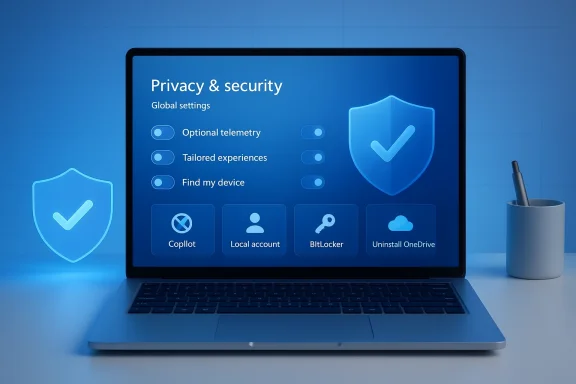
Laptop screen shows Privacy & security settings with toggles and shield icons.Background: Why Windows 11 needs a privacy checklist​

Windows 11 was designed for a connected world: many features improve when a Microsoft account, OneDrive, or cloud‑powered services are in use. That connectivity means default settings intentionally favor synchronization, telemetry and cloud‑first recovery mechanisms—features many users value, but that are privacy concerns for others. Understanding how features behave (what they send, what they store, and under what control points you can turn them off) is the starting point for a safe, private configuration. Independent articles and Microsoft documentation consistently emphasize that some data flows are required for the OS to be supported, while others are optional and controllable.

1) Device Encryption vs. BitLocker: the trade‑off you must understand​

What happens when Windows encrypts by default​

Windows 11 includes two related concepts: Device encryption (an automatic, streamlined experience in Home) and BitLocker (the full feature set available on Pro and Enterprise). On systems where Device encryption is available and active, Windows can automatically back up the recovery key to the user’s Microsoft account or the organization’s Entra ID. That backup makes recovery easy, but it also means an encrypted drive’s recovery key is stored off‑device. Microsoft’s documentation and reporting confirm this behavior and detail where recovery keys can be found and managed.

Practical implications​

  • Benefit: Automatic encryption protects data at rest with no action required.
  • Privacy trade‑off: The recovery key may be stored in a Microsoft account by default, creating a cloud copy tied to your identity.
  • Control: On Windows 11 Pro, BitLocker allows saving recovery keys locally or to external media; Home devices using Device encryption generally back up the key to the Microsoft account unless you take different actions.

What to do​

  • If you require both strong local control and encryption, upgrade to Windows 11 Pro (if you’re on Home) and use BitLocker with a locally stored recovery key or an enterprise key escrow.
  • If you disable Device encryption on a Home device, replace it with an alternative encryption solution rather than leaving data unencrypted. Disabling encryption without replacing it increases risk if the device is lost or stolen. Manufacturer and Microsoft guidance shows how to turn the feature on and off from Settings.

2) Find my device: convenience vs. location data sharing​

Find my device sends approximate location details to Microsoft when enabled for devices signed into a Microsoft account. The feature is helpful if a laptop is lost or stolen, but it’s also a location‑reporting mechanism you can turn off. Microsoft’s support page explains how to manage Find my device and the limitations (it requires a Microsoft account and administrative access on the device).
Recommendation: Turn it off on devices you don’t need to locate remotely, or leave it enabled on devices you carry and would want to recover if lost—understanding the trade‑off first.

3) Telemetry and Diagnostic Data: reduce optional signals, but don’t expect a vacuum​

What telemetry you can stop​

Windows separates telemetry into required (basic diagnostic signals) and optional (richer diagnostics, feature usage, and inking/typing improvement data). The Settings → Privacy & security → Diagnostic & feedback pane exposes toggles for sending optional diagnostic data, tailored experiences, and feedback frequency. Turning off optional diagnostics reduces the quantity of data shared, and the tailored experiences toggle prevents Microsoft from using diagnostics for personalization.

What telemetry you cannot fully remove​

Required diagnostic data and some telemetry used to keep Windows updated and secure are not removable from consumer devices. If your goal is to eliminate telemetry entirely, Windows is not the right platform unless you accept offline operation or specialized distributions.
Practical advice:
  • Turn off "Send optional diagnostic data" and "Tailored experiences".
  • Use the "Delete diagnostic data" option to erase local stored diagnostics where available.
  • Understand that enterprise environments (managed devices) may enforce different settings.

4) Activity tracking, advertising ID, and suggested content​

Windows tracks some on‑device activity for personalized recommendations, advertising ID usage, and Start/menu suggestions. You can disable:
  • Advertising ID,
  • tracking of app launches for Start/search improvement,
  • suggested content in Settings and Start.
Turning these off reduces personalization and ad‑targeting potential on the device, with no security downside other than losing personalized suggestions. These toggles are located under Privacy & security → General and Personalization → Device usage / Start.

5) Location access: fine‑grain control​

Windows allows two approaches:
  • Turn off Location Services completely (global block).
  • Leave Location Services on but selectively disable per‑app access or prevent desktop apps from using it.
Recommendation: For privacy‑minded users, prefer per‑app controls—disable location only for apps that don’t need it, and keep essential tools (maps, weather) on where needed. Settings → Privacy & security → Location exposes these options.

6) Search highlights and cloud search: stop suggestions and cloud results​

Search highlights and cloud search (searching your Microsoft/work accounts and showing web‑driven highlights) are on by default for many users. You can disable:
  • Show search highlights from Settings → Privacy & security → Search,
  • Cloud account search results (Search my accounts toggles) so Search focuses on local files only.
Independent how‑to guides and Microsoft docs outline the exact steps to toggle these—turning them off reduces what is shared with cloud services and prevents suggestions and trend highlights from appearing.

7) Use a local account when you want minimal cloud sync​

Switching from a Microsoft account to a local account prevents cross‑device sync of preferences, OneDrive auto‑sign‑on, and related cloud backups. The Windows Settings workflow makes it simple to convert an account to local while preserving existing files, but remember:
  • A Microsoft account offers easier recovery and syncing.
  • A local account removes many cloud integrations but increases responsibility for backups and password management.
This is one of the highest‑impact privacy moves with a clear, predictable trade‑off.

8) OneDrive: remove the deeply integrated cloud sync​

OneDrive is tightly integrated into Windows 11 and will sync certain folders automatically if you sign in with a Microsoft account. If you want files to remain strictly local, uninstall OneDrive after ensuring all files are downloaded locally and that you’ve removed any cloud copies you don’t want retained. Settings → Apps → Installed apps lets you remove OneDrive; Microsoft’s guidance and community how‑tos recommend confirming local copies before uninstalling.
Practical checklist before removal:
  • In OneDrive settings, trigger "Download all files" or verify local copies.
  • Confirm the OneDrive folder contains local files.
  • Uninstall via Settings → Apps.

9) Copilot and other AI features: optional, but increasingly baked in​

Copilot connects to Microsoft’s cloud AI services. Microsoft has gradually exposed ways for administrators to remove Copilot from managed devices under strict conditions, and news outlets report that uninstallability depends on factors like edition, whether Copilot was preinstalled or launched in the last 28 days, and whether Microsoft 365 Copilot is present. For consumers, Copilot remains optional but may be integrated in ways that require extra effort to remove completely. If you use Edge, disable Copilot integrations in the browser to reduce cloud signals.
Caveat: Enterprise and managed environments may offer more control for admins than the Home/Pro consumer experience does. If Copilot is a concern, pay attention to Insider preview notes and Group Policy additions that gradually broaden administrative removal options.

10) Windows Recall: what it is and how to disable it​

Windows Recall is an indexing/AI feature that captures snapshots of on‑device activity to enable searching your past content. Although Microsoft describes Recall as functioning locally, the notion of an automatically maintained activity index is a privacy consideration for many users. You can remove Recall components via Turn Windows features on or off (clear the Recall entry) to fully uninstall its components if it’s present on your build. Independent reporting and settings screenshots confirm this path on systems where Recall is an optional component.

11) Windows Backup, sync, and automatic restoration​

Windows Backup has two layers:
  • File sync via OneDrive.
  • Configuration and preference sync (apps and settings) tied to a Microsoft account.
If you want to prevent lists of installed apps and settings from being mirrored to the cloud, Settings → Accounts → Windows Backup offers toggles to turn off "Remember my apps" and "Remember my preferences". On local accounts these cloud backups do not occur. Disabling these options reduces what metadata is uploaded and retained in the Microsoft account.

12) Updates and Delivery Optimization: privacy-friendly control without skipping patches​

Updates are essential for security. Disabling updates entirely is not a recommended privacy strategy. Instead:
  • Turn off Delivery Optimization’s peer‑to‑peer sharing to prevent your device from uploading update pieces to other PCs on the Internet. Settings → Windows Update → Advanced options → Delivery Optimization provides an "Allow downloads from other PCs" toggle and more controls. Microsoft explicitly documents Delivery Optimization and how to restrict it to local network only or turn uploads off.
  • If you need more control over updy or bandwidth reasons, use Group Policy (Pro/Enterprise) or Registry (Home) to change update behavior—but do not leave the system without timely security patches.
Recommendation: Disable Delivery Optimization uploads and leave Windows Update enabled; if you must download updates manually, accept the security trade‑off and schedule manual checks regularly.

13) Microsoft Edge telemetry: reduce browser‑side collection​

Edge sync and telemetry can send browsing history, favorites, and usage metadata to your Microsoft account if you sign into the browser. To reduce this:
  • In Edge Settings → Privacy, search, and services: disable "Help improve Microsoft products by sending the results from search on the web" and the setting that allows Microsoft to save browsing activity for personalization.
  • Remove or sign out of your Microsoft profile in Edge if you don’t want browser data tied to your account.
This reduces cloud‑based personalization, but if you depend on sync across devices for bookmarks and passwords, expect a loss of convenience.

14) Removal of preinstalled apps and nonessential services: a cautious cleanup​

Many users run third‑party debloat tools or PowerShell scripts to remove built‑in apps and services. These can be useful for privacy but carry risks:
  • Removing components like Copilot or Recall via supported Settings or Windows Features is safer than forcibly deleting system packages.
  • Community tools exist to strip AI surfaces and telemetry, but they may break system updates or support paths.
If you use third‑party removal tools, create a full disk backup first and prefer reversible methods (disable before uninstalling). Community forums and threads supply scripts and experiences, but vet tools carefully before running them on production machines.

Step‑by‑step safe hardening plan (recommended order)​

  • Backup first: create a full system image and export important files. Always assume any system changes can misbehave.
  • Audit: open Settings → Privacy & security and walk through General, Location, Camera, Microphone, Activity history, and Search permissions.
  • Turn off optional diagnostics: Settings → Diagnostic & feedback → turn off "Send optional diagnostic data" and "Tailored experiences".
  • Control sync: Settings → Accounts → Windows Backup → turn off "Remember my apps" and "Remember my preferences".
  • OneDrive: ensure local copies and uninstall OneDrive if you don’t want cloud synchronization.
  • Device encryption: decide whether to keep encryption. If you disable Device encryption, enable another encryption solution (BitLocker with local recovery key or a trusted third‑party tool).
  • Delivery Optimization: disable “Allow downloads from other PCs” to prevent uploads to other devices.
  • Search and AI: turn off Search highlights, cloud search, and disable Copilot/Recall if you prefer.
  • Edge: disable Edge telemetry and sign out of your Microsoft profile if you don’t need sync.
  • Test: restart and verify that essential workflows still work. If something breaks, use your backup to recover.

Critical analysis — strengths, risks, and caveats​

Strengths of these tweaks​

  • Tangible reduction of data exfiltration: Disabling optional telemetry, activity tracking, cloud search, and OneDrive meaningfully reduces what Microsoft receives from the device.
  • User control over personalization: Turning off tailored experiences and search highlights removes product suggestions and local recommendations.
  • Granular options: Windows 11 provides fine‑grained toggles for location, microphone, camera, and per‑app permission control—useful for targeted privacy without disabling critical features.

Risks and trade‑offs​

  • Security vs. privacy tension: Disabling Device encryption or automatic updates to avoid cloud interactions can lower privacy exposure but simultaneously increase the risk of data theft or compromise. Strongly prefer alternatives (e.g., BitLocker with locally‑stored keys) rather than simply turning off encryption.
  • Feature breakage: Some services expect cloud integration; disabling account sync, OneDrive, or telemetry can degrade recovery, troubleshooting, or personalization features.
  • Incomplete removal of AI surfaces: Uninstalling the Copilot app may not remove all AI‑driven integrations; enterprise Group Policy changes and preview builds are progressively expanding controls, but complete removal at the OS level is not always straightforward yet.
  • Managed devices caveats: If your PC is managed by an organization, many of these settings may be enforced by policy and cannot be changed locally.

Unverifiable or rapidly changing claims (flagged)​

  • Some claims about default behavior (e.g., whether Device encryption will be enabled automatically on all new devices or clean installs) have evolved during Windows 11 feature updates and may differ by build or OEM. Reported changes (for example, in 24H2 or later releases) show Microsoft shifting prerequisites and defaults—these items should be verified against your device’s build and OEM guidance before acting. If you need absolute certainty, check your system build and Microsoft’s official guidance for that build.

Guidance for power users and admins​

  • Use Group Policy (gpedit.msc) to enforce privacy settings centrally on Pro/Enterprise devices: you can configure automatic updates, search highlights, Copilot removal policies (where supported), and telemetry limits.
  • For Windows Home devices, Registry edits can accomplish many changes, but this is riskier. Always export the keys you modify and create a restore point or full image before changing the registry.
  • Consider a layered privacy approach: OS hardening + browser privacy mode + DNS filtering or local Pi‑hole for network‑level ad/tracking blocking + use of reputable endpoint encryption.

Final verdict​

You cannot make Windows 11 completely private and still enjoy its full modern feature set; however, you can reduce exposure to a practical minimum. The checklist of 14 tweaks—switch to a local account, reduce telemetry, remove or disable services like OneDrive, Copilot, Recall, turn off cloud search and search highlights, and restrict update sharing—covers the most effective, user‑accessible controls. When applied thoughtfully and with attention to the security trade‑offs (especially around encryption and updates), these changes deliver a meaningful privacy gain without crippling usability. The technical claims behind the adjustments are grounded in Microsoft’s documentation and corroborated by reputable technical reporting; where removal options are partial or conditional, we highlight those limitations so you know what to expect.

Quick reference: the essentials to flip today​

  • Turn off optional diagnostics and tailored experiences.
  • Disable advertising ID and activity tracking.
  • Turn off Search highlights and cloud account search.
  • Disable Delivery Optimization uploads.
  • Uninstall or disable OneDrive after confirming local copies.
  • Consider switching to a local account for minimal cloud sync.
  • If privacy requires it, replace Device encryption backup to Microsoft with BitLocker (Pro) or a third‑party solution; do not leave the drive unencrypted.
  • If Copilot or Recall concerns you, remove or disable the features using the supported Settings, Windows Features, or Group Policy methods available for your edition/build.

Making Windows 11 more private is a series of deliberate choices: which convenience features are worth trading for data minimization, and which protections should be preserved. With careful backups, incremental changes, and clear awareness of the security trade‑offs, you can significantly reduce Microsoft‑bound telemetry and cloud interactions while keeping your PC usable and secure.

Source: Windows Central https://www.windowscentral.com/micr...tomization-to-increase-privacy-on-windows-11/
 

Microsoft’s OneDrive for macOS is finally shedding its “ported” skin and adopting a truly native look and feel — a rebuild that replaces legacy dialogs and a clunky menu‑bar panel with a SwiftUI‑based Activity Center, Liquid Glass visuals, native macOS dialogs, and improved accessibility and thumbnail previews for media.

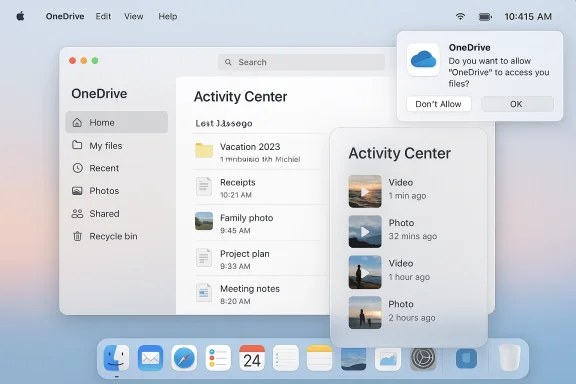
macOS desktop showing OneDrive windows, activity center lists, and a file access permission prompt.Background​

For years, Microsoft has maintained OneDrive clients across Windows, iOS, Android, and macOS. On the Mac, OneDrive delivered essential features — Finder integration, Files On‑Demand, selective sync and enterprise controls — but the UX often felt like a first‑class Windows app that had been transplanted rather than an app that “belonged” on macOS. That mismatch made small frictions visible: inconsistent dialogs, mismatched animations, and a menu‑bar activity panel that stood out visually.
Apple’s own visual direction has shifted substantially since WWDC 2025 with the introduction of the Liquid Glass design language in macOS Tahoe (macOS 26). That update introduced translucent, refractive UI materials and new system APIs that reward apps built using Apple’s frameworks. For developers, the long‑term path to a native Mac feel is now unmistakably through Apple’s modern UI stack — chiefly SwiftUI and the updated Human Interface Guidelines.
Microsoft’s recent Insider rollout for OneDrive — build 26.017 — is the clearest sign yet that the company is answering that call. The update replaces the old Activity Center (the small panel that appears from the menu bar icon) and swaps in platform‑native dialogs and controls, while adopting Liquid Glass styling where macOS supports it. Insiders are seeing the experience update automatically; production release timing has not been finalized.

What changed in the OneDrive upgrade​

Rebuilt Activity Center (SwiftUI + Liquid Glass)​

  • The OneDrive Activity Center has been rewritten in SwiftUI, aligning its structure with modern macOS development practices.
  • Visuals now support Apple’s Liquid Glass material when running on macOS 26 (Tahoe), which gives the Activity Center translucency, layered depth, and system‑native shadows and highlights.
  • The activity feed now shows media thumbnails for images and videos, helping users quickly identify transfers without opening Finder or the OneDrive web UI.
SwiftUI provides a declarative UI model that simplifies animation, state management, and theming on Apple platforms. For OneDrive, the payoff is clearer: smoother transitions, tighter integration with system accessibility services, and a panel that no longer looks like an out‑of‑place guest window. That matters for any app that lives in the menu bar, where visual economy and quick glanceability are critical.

Native dialogs and OS components​

OneDrive now uses native macOS dialog boxes for confirmations, account interactions, and file actions. Those dialogs look and behave like other Mac dialogs (menu placement, keyboard focus, animations, and system text rendering), which reduces the “cross‑platform jolt” when users switch between apps. Microsoft also highlights improved responsiveness — the Activity Center should feel “snappier” to interact with.

Accessibility and keyboard support​

Microsoft calls out VoiceOver support and Full Keyboard Access, which are table stakes for a native Mac app and are easier to implement correctly when you use Apple’s UI tooling. These improvements make the client more reliable for users who depend on assistive technologies.

Rollout and release notes​

The UI changes are currently shipping to OneDrive Insiders in build 26.017 and will automatically update in the background for enrolled machines. Microsoft’s release notes list the build in the 26.x channel and indicate it is being rolled out to preview rings first; production ring timing is separate and may lag the Insider experience by several weeks. Administrators should watch release notes and update policies before broad deployment.

Why the change matters (and to whom)​

For everyday users: subtle but meaningful polish​

Most casual users won’t write home about a new Activity Center, but they will notice when:
  • dialog boxes behave the way macOS users expect (keyboard shortcuts, button order, focus);
  • menu‑bar panels have smoother animations and more readable typography;
  • thumbnails let them spot transfers without opening another window.
These are modest changes on the surface, but they contribute to a less distracting workflow. For people who switch between macOS and Windows daily, a native OneDrive reduces cognitive load; the app simply behaves like other Mac apps.

For power users and creatives: practical improvements​

Media thumbnails in the activity feed and faster Activity Center responsiveness are real productivity gains for power users who routinely sync large numbers of photos, videos, or design assets. Quick visual confirmation of a file’s sync status can avoid needless Finder navigation and reduce the “did it upload?” uncertainty that trips up collaborative workflows.

For IT and admins: predictability and supportability​

From an IT perspective, a client that uses platform conventions is simpler to document and to support. Native dialogs better respect macOS permission flows and credential storage expectations. That reduces support tickets tied to inconsistent behavior and keeps corporate device management smoother when policies and MDM constraints interact with the OS. The staged Insider rollout also gives admins a predictable preview window.

Technical analysis: benefits and potential trade‑offs​

Benefits of migrating to SwiftUI and native macOS components​

  • Better visual cohesion: Apps built with SwiftUI adopt system fonts, animations, and accessibility by default; they look like they belong on the platform.
  • Simpler maintenance for macOS‑specific code paths: Developers can target macOS features directly instead of patching cross‑platform UI layers.
  • Access to new system effects: Liquid Glass and system materials are easier to adopt and maintain when you use Apple’s modern frameworks.
  • Improved accessibility: Native controls are generally better supported by VoiceOver and system keyboard navigation.

Trade‑offs and risks​

  • SwiftUI is still evolving: While SwiftUI simplifies many patterns, it has known limitations on macOS for very complex or highly optimized views. Large, image‑heavy grids or deeply nested, custom controls can sometimes perform worse than well‑tuned AppKit code. Microsoft’s decision to use SwiftUI likely reflects an engineering trade‑off: faster iteration and better integration vs. the occasional edge‑case performance tuning that AppKit gives. Organizations should test the new client on representative hardware before mass deployment.
  • Feature parity risk: Any major rewrite carries the danger of temporarily losing niche features or subtle behaviors that power users rely on. Microsoft will likely iterate, but admins and long‑time users should validate that mission‑critical functionality (selective sync rules, corporate sign‑in behaviors, and files‑on‑demand semantics) continues to work exactly the same. If your workflows depend on edge behaviors, validate them in the Insider or staged deployment.
  • OS dependency: Visual Liquid Glass effects are only available on macOS 26 (Tahoe) and later. Users on older macOS versions won’t see the same visuals and may not get the full “native” experience. That disparity can create inconsistent user expectations inside mixed fleets. Apple’s Liquid Glass is a system‑level design language introduced in 2025 and not every Mac in managed fleets will be on that release.

Will users really notice?​

Short answer: yes — but mostly in small, cumulative ways.
Many users judge an app by how unobtrusive it is. Native apps avoid friction: keyboard focus works as expected, dialogs use the standard button ordering and semantics, and animations feel “right.” Those things are rarely headline material but they add up. In usability testing, small polish improvements often translate directly to lower support calls and fewer interruptions to flow — especially important in file sync scenarios where timing and visibility matter.
But there are degrees of noticeability:
  • Power Mac users and designers will notice immediately — they expect apps to feel Mac‑first.
  • Enterprise admins and IT pros will appreciate the reduced support surface and clearer accessibility support.
  • Casual users will mostly notice improved visuals only when they happen to open the Activity Center or encounter a dialog box during a sync event.
If the metric is “will more downloads spike or will users write celebratory threads?” — probably not. If the metric is “will day‑to‑day friction drop for Mac users of OneDrive?” — the answer is yes, in subtle but measurable ways.

What to watch for next​

  • Staged rollout timing: The update is in the Insider ring (build 26.017). Watch Microsoft’s OneDrive release notes and admin channels for the production ring date and deferred ring timing; enterprises should plan pilot deployments accordingly.
  • Performance reports: Expect a handful of threads and bug reports from early adopters focused on corner cases where SwiftUI rendering may cause lag on older Intel Macs or where deeply customized Finder integrations are involved. Microsoft will likely follow with fixes and possible AppKit fallbacks for problematic views.
  • Feature parity checks: Validate that Files On‑Demand, selective sync policies, and MDM controls behave as before. Any drift here is worth escalating early.
  • Accessibility verification: Confirm VoiceOver interactions and full keyboard navigation in your environment — these changes are positive, but real‑world testing is essential for compliance with accessibility standards.

Practical advice: for end users and IT teams​

For end users who care about "native" feel​

  • Try the Insider build if you’re comfortable with preview software — it’s the fastest way to see the new UI.
  • If you prefer stability, wait for the mainstream production release and read the release notes.
  • If Liquid Glass visuals bother you (some users prefer higher contrast), macOS Tahoe offers accessibility options and there are terminal workarounds and system preferences that reduce or disable the Liquid Glass material. Evaluate whether you want the new look before you chase fixes.

For IT administrators​

  • Add build 26.017 to a pilot group first and validate policies (SSO, MDM, conditional access).
  • Create test cases for selective sync, Files On‑Demand, and any scripted installs or configuration management steps you use.
  • Monitor telemetry for CPU, memory, and disk I/O spikes on representative devices; collect user feedback on perceived responsiveness.
  • Hold off on pushing to all users until you confirm no regressions exist in enterprise workflows.

Bigger picture: platform‑first design and the cross‑platform playbook​

Microsoft’s move is notable for what it says about cross‑platform discipline. For years the company has balanced feature parity with platform parity: shipping consistent features across Windows, macOS, iOS, and Android while sometimes compromising on platform conventions. This update signals a more platform‑first approach for macOS — building with Apple frameworks to take advantage of the platform’s strengths rather than skimming across platforms with a common UI layer.
That matters beyond OneDrive. If Microsoft successfully demonstrates that Mac users reward native polish with better engagement and fewer support tickets, other Microsoft apps may follow. A pattern where flagship services behave as first‑class citizens on their host OS helps Microsoft maintain credibility with cross‑platform professionals and enterprise customers who use heterogeneous fleets.

Caveats and unverifiable areas​

  • Some early reports and previews reference macOS 26 and Liquid Glass compatibility as a hard dependency for the full visual effect. While Apple did ship Liquid Glass in macOS Tahoe and many outlets confirm the material exists, the degree to which every Mac will render effects identically depends on hardware, OS settings, and future Apple refinements. Treat the Liquid Glass dependency as probable but verify in your environment.
  • Performance characteristics of SwiftUI builds on macOS vary by app complexity and machine. Public developer feedback shows both significant gains in development velocity and occasional performance pain points for very large lists or bespoke controls. Microsoft’s testing will surface these — but in mission‑critical deployments, perform your own stress tests.

Conclusion​

Microsoft’s OneDrive refresh for macOS is more than a cosmetic facelift — it’s a deliberate engineering and design choice that accepts Apple’s platform conventions and tooling rather than abstracting away from them. For Mac users, the differences are subtle but meaningful: native dialogs, SwiftUI animations, Liquid Glass styling when available, thumbnail previews, and improved accessibility make OneDrive feel less like a port and more like a Mac app.
Will every user notice? Not at first glance. But over weeks of daily use the update promises fewer small frictions, fewer surprising behaviors, and a more consistent experience with the rest of macOS. For enterprises and power users, the change is worth testing and validating now; for casual users, the upgrade will quietly make work feel a little smoother.


Source: Windows Central OneDrive finally looks native on macOS — will users notice?
 

Back
Top