

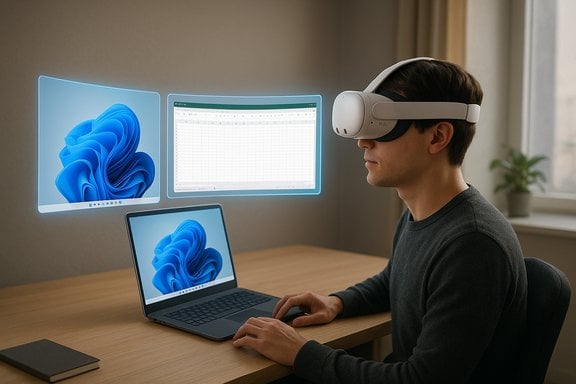
Microsoft and Meta have quietly made it possible to use a Meta Quest headset as a multi‑monitor extension for a Windows 11 PC without third‑party apps, and the result is a surprisingly practical, if still preview‑grade, way to create a large virtual workspace.
Mixed Reality Link is a Microsoft‑developed Windows 11 app that streams your desktop into a paired Meta Quest 3 or Quest 3S headset, letting you position one to three high‑resolution virtual monitors in front of you. The setup is designed to be fast: install Mixed Reality Link from the Microsoft Store on your PC, enable the headset’s “Pair to PC with Microsoft Mixed Reality Link” option, then look at your keyboard to trigger a pairing prompt. Once paired, your Windows desktop appears as floating windows (and additional virtual monitors) inside the headset. This article explains what Mixed Reality Link does, which hardware and network conditions matter, a step‑by‑step setup, practical tips for troubleshooting, how it compares to existing options, and the security, privacy, and usability trade‑offs you should consider before adopting it as part of your workflow.
If your priority is simple, occasional extra screen space for office work, Mixed Reality Link is an excellent first experiment. If you require low‑latency gaming, advanced streaming controls, or are operating in a locked‑down enterprise environment without IT support, stick with established tools or coordinate a controlled pilot. Verify your Quest OS presence of the pairing toggle, confirm your PC meets Microsoft’s published requirements, and test the solution in your real network environment before relying on it for long sessions.
Mixed Reality Link turns a consumer headset into an immediately useful productivity tool for Windows users willing to accept preview‑stage polish. It’s an important step toward mainstream spatial computing on Windows — one that’s practical today for many workflows, and likely to improve rapidly as Microsoft and Meta iterate on the experience.
Source: How-To Geek Windows 11 Can Now Extend Your Desktop to a Meta Quest Headset
 Overview
Mixed Reality Link is a Microsoft‑developed Windows 11 app that streams your desktop into a paired Meta Quest 3 or Quest 3S headset, letting you position one to three high‑resolution virtual monitors in front of you. The setup is designed to be fast: install Mixed Reality Link from the Microsoft Store on your PC, enable the headset’s “Pair to PC with Microsoft Mixed Reality Link” option, then look at your keyboard to trigger a pairing prompt. Once paired, your Windows desktop appears as floating windows (and additional virtual monitors) inside the headset. This article explains what Mixed Reality Link does, which hardware and network conditions matter, a step‑by‑step setup, practical tips for troubleshooting, how it compares to existing options, and the security, privacy, and usability trade‑offs you should consider before adopting it as part of your workflow.Background / Why this matters
Microsoft has increasingly shifted to a software‑first approach for spatial computing rather than building more proprietary headsets. Pairing Windows 11 with a widely available consumer headset creates a low‑cost entry point to a spatial desktop: for many users, a $300‑range Quest 3 plus a Windows 11 PC yields a multi‑monitor virtual workstation at a fraction of the price of dedicated mixed‑reality hardware. The joint approach also aligns with Microsoft’s strategy to support both local PCs and Windows 365 Cloud PCs as rendering endpoints. At the same time, this isn’t a native version of Windows running inside the headset — Mixed Reality Link streams a rendered desktop from a PC or cloud instance to the headset. That matters for performance expectations and compatibility: heavy workloads still rely on the source PC or cloud PC for compute.What Mixed Reality Link actually does
- Streams a Windows 11 desktop (local or Windows 365 Cloud PC) into a Meta Quest 3 / Quest 3S headset.
- Supports up to three independent virtual monitors in the headset’s mixed‑reality space.
- Uses passthrough so your physical keyboard and surroundings are visible while interacting with virtual displays.
- Is designed for productivity and desktop apps, not for replacing VR game streaming or running native VR applications. For VR gaming you’ll still want Steam Link, the Virtual Desktop app, or other gaming‑focused tools.
Minimum and recommended requirements (verified)
Microsoft’s official documentation lists the minimum and recommended PC requirements for the Windows 11 PC that runs the Mixed Reality Link app. Key verified points include:- Operating system: Windows 11 Version 22H2 or newer on the PC.
- Headset: Meta Quest 3 or Meta Quest 3S (Mixed Reality Link was introduced alongside a Quest OS update). Some reporting around initial rollouts cites an in‑headset experimental option introduced with a v72 OS update; there are scattered reports of the menu item arriving at different OS versions depending on region/rollout, so check your headset Settings > Advanced for the toggle. If you don’t see the option, make sure your Quest OS is up to date.
- Networking: Both PC and headset must be on the same local network (Ethernet for the PC or 5GHz Wi‑Fi; 6GHz is recommended where available). Microsoft lists Wi‑Fi 802.11ac (Wi‑Fi 5) minimum and 802.11ax/6E recommended, with strong signal strength encouraged. Specific open inbound ports: TCP 8264, TCP 8265, UDP 8266.
- Graphics / CPU: Minimum integrated / discrete GPU classes are listed (Intel 8th‑gen + UHD 620 or better, AMD Ryzen 3000 integrated or newer, NVIDIA GTX 9xx series or newer, AMD Radeon RX 5000 series or newer). ARM support for Snapdragon X series is listed in Microsoft’s guidance as well, reflecting growing support for Windows on Arm in this scenario.
Step‑by‑step: Set up Mixed Reality Link (practical how‑to)
- On your Windows 11 PC, open Microsoft Store and install Mixed Reality Link (Preview). Make sure Windows 11 is updated to at least 22H2. Leave the PC unlocked while you pair.
- On your Quest 3 / Quest 3S: put the headset on, open the universal menu (press the Meta button), open Quick Settings (clock icon), go to Settings → Advanced, and enable Pair to PC with Mixed Reality Link (this may be labeled experimental while the feature is rolling out). If you don’t see it, update the headset OS and check again.
- With the PC unlocked and the app running, look at your PC keyboard while wearing the headset. A floating pairing prompt should appear above the keyboard — select it to begin pairing. If that fails, open the headset’s Remote Desktop app and choose Add a new device, or on Windows press Windows + Y to show a QR code and scan it in the headset.
- Accept the pairing prompt on both devices and follow on‑screen instructions. After pairing, use the headset’s Remote Desktop Quick Settings or simply look at the keyboard and press the floating Connect button to re‑establish the session.
Troubleshooting and known issues
Microsoft’s support guidance and early previews surface a few recurring issues and recommended workarounds:- If the pairing toggle is missing or greyed out, ensure the headset OS is fully updated, the Windows app is installed, and both devices are on the same network. Some users reported the option appearing after a reboot or a staged rollout; if problems persist, file feedback through Microsoft’s support flow.
- If you cannot initially connect, try pressing Alt+Shift+W on the PC to launch a diagnostic and validate a QR pairing flow, or press Windows+Y to surface the QR code pairing option. Export logs via the app for deeper troubleshooting if needed.
- Known preview quirks include occasional audio routing issues (audio playing on both headset and PC), some notifications not appearing during Teams calls, and unexpected connection interruptions for certain key combinations. These are consistent with preview‑label behavior and may be addressed in subsequent updates. Treat claims of “clear text and low latency” as vendor promises to verify in your environment; network and GPU differences will change the experience materially.
- Network‑related pixelation or lag is usually a Wi‑Fi bandwidth or signal problem. If possible, put the PC on Ethernet and the headset on a high‑quality 5GHz/6GHz router, or test with both devices on a high‑quality 6GHz network where available. Microsoft publishes recommended signal levels and channel widths in support documentation.
Real‑world performance expectations
Mixed Reality Link is targeted at productivity tasks: document editing, multiple web pages, spreadsheets, remote terminals, and general app windows. Expect the following:- Text readability: When the stream settings and network are good, text is readable for typical productivity workloads. However, very small UI elements and subpixel‑fine detail can still be clearer on a native physical monitor. Test your most text‑dense apps before committing to long writing sessions.
- Latency: Latency depends on network strength and source PC performance. With recommended networking (Gigabit/Ethernet on PC + high‑quality 5/6GHz Wi‑Fi for headset) and a capable GPU, latency should be low enough for standard office tasks, but not identical to a wired monitor. For interactive gaming or fast mouse‑driven tasks, dedicated VR game streaming solutions still perform better.
- Battery and comfort: Quest headsets are still limited by headset battery and comfort for prolonged office use; many users report better results using a power/backup battery or taking regular breaks for longer sessions.
How it compares with Virtual Desktop, Steam Link, and other alternatives
- Virtual Desktop (third‑party): A mature, feature‑rich paid app with extensive video/audio/encoding controls, broad headset and PC compatibility, and options optimized for gaming and streaming. Virtual Desktop still offers more fine‑grained performance tuning than Mixed Reality Link.
- Meta Quest Link / Air Link / Steam Link: These are established Meta/Steam solutions optimized for VR gaming and often used to stream VR titles from PC to headset. They focus on native VR rendering rather than streaming a traditional Windows desktop in mixed reality. For game streaming and lower latency in VR titles, these remain the tools of choice.
- Mixed Reality Link (Microsoft): The key advantages are that it is developed by Microsoft and is streamlined for a plug‑and‑play desktop‑in‑VR experience with minimal configuration. It integrates with Windows 365 and aims to be a simple productivity‑first path into spatial computing. If you only need extra virtual monitor real estate for office tasks and want a free, Microsoft‑supported solution, it’s the logical first stop.
Security, privacy, and enterprise considerations
- The app streams your desktop frames over the local network to the headset. When used in enterprise environments, confirm corporate policy around remote desktop streaming and local device pairing, and consider the risk of exposing windows or notifications in a headset that might be shared or worn in public spaces.
- Microsoft lists required inbound ports (TCP 8264, TCP 8265, UDP 8266). For enterprise networks with strict firewall rules, you’ll need network admin cooperation to open these ports or to test inside a permitted VLAN.
- Bluetooth peripherals and passthrough mean physical inputs are visible inside the headset — ensure that sensitive keyboard input or camera/passthrough behavior is acceptable for your privacy posture. The headset’s passthrough is a convenience for keyboard visibility, but it also means the headset is actively scanning and rendering a view of your desk.
Tips for getting a reliable session
- Use Ethernet on the PC and a 5GHz or 6GHz Wi‑Fi SSID for the headset on the same subnet — this consistently delivers the best experience. Microsoft recommends 6GHz where available.
- Run the PC app as an administrator if you encounter permission issues, and keep the PC unlocked during pairing attempts.
- If pairing fails or the floating prompt doesn’t appear, try the Windows + Y QR code method, or initiate pairing via the headset’s Remote Desktop app and add the PC manually. Logging and diagnostic tools are available in the Windows app to export logs for troubleshooting.
- Close heavy background tasks (large video encoders, multiple browsers with many tabs) while testing to get a baseline for latency and quality before you fine‑tune.
Risks and limitations
- Preview maturity: The feature is still in public preview for many users, so expect bugs and occasional regressions. Known issues include audio routing oddities and call/notification inconsistencies in some communication apps.
- Not a VR gaming replacement: Mixed Reality Link is not intended for native VR applications or performance‑sensitive games — it’s optimized for desktop productivity. For VR gaming, continue to use game‑focused streaming solutions.
- Hardware variability: Experience depends heavily on GPU drivers, Windows build, and router quality. Arm‑based Windows on Arm support is improving, but outcomes vary by device model and driver maturity. Test on your hardware before adopting it for mission‑critical workflows.
- Deployment complexity in corporate environments: Firewall rules, managed endpoints, and device policies may block or complicate pairing and streaming. Plan a pilot and involve IT early.
Practical use cases that work well today
- Developers and analysts who need extra vertical or horizontal screen space for terminals, logs, and documentation.
- Designers and content creators who want a large reference canvas without physically adding monitors.
- Remote workers who travel and want a portable multi‑monitor option (bearing in mind reliance on local Wi‑Fi).
- Presenters who want a private view of content while sharing a different screen in a meeting (test carefully for app‑specific behavior).
Final assessment — should you try it?
For Windows enthusiasts and productivity users curious about spatial computing, Mixed Reality Link is the most accessible, Microsoft‑supported route to a virtual multi‑monitor setup. It’s free, quick to set up on supported hardware, and requires far less configuration than some third‑party alternatives. However, it remains a preview experience with real world caveats: network sensitivity, driver variability, and occasional UX bugs.If your priority is simple, occasional extra screen space for office work, Mixed Reality Link is an excellent first experiment. If you require low‑latency gaming, advanced streaming controls, or are operating in a locked‑down enterprise environment without IT support, stick with established tools or coordinate a controlled pilot. Verify your Quest OS presence of the pairing toggle, confirm your PC meets Microsoft’s published requirements, and test the solution in your real network environment before relying on it for long sessions.
Quick checklist before you begin
- PC: Windows 11 22H2 or newer, Mixed Reality Link installed and running.
- Headset: Meta Quest 3 or Quest 3S, headset OS up to date; enable Pair to PC in Advanced settings.
- Network: Same local network; Ethernet for PC recommended; 5GHz (6GHz recommended) for headset. Open inbound ports 8264/TCP, 8265/TCP, 8266/UDP if required by your network.
- Pairing: Look at keyboard to trigger prompt, or use Windows+Y QR pairing or Remote Desktop → Add a new device.
Mixed Reality Link turns a consumer headset into an immediately useful productivity tool for Windows users willing to accept preview‑stage polish. It’s an important step toward mainstream spatial computing on Windows — one that’s practical today for many workflows, and likely to improve rapidly as Microsoft and Meta iterate on the experience.
Source: How-To Geek Windows 11 Can Now Extend Your Desktop to a Meta Quest Headset
