

OneDrive folder backup on Windows 11 can be turned off from the OneDrive taskbar icon by opening Settings, choosing Sync and backup, selecting Manage backup, and stopping backup for Desktop, Documents, and Pictures after first making cloud-only files available offline. That single sentence is the fix, but it understates the problem. The frustration is not that Microsoft offers folder backup; it is that Windows increasingly treats cloud redirection as the default state of a personal computer. For anyone setting up a new laptop and expecting local folders to behave like local folders, OneDrive’s “helpfulness” can feel less like backup and more like a quiet relocation.
The feature at the center of the confusion is known in Microsoft’s enterprise documentation as Known Folder Move, and in consumer-facing OneDrive settings as folder backup. It targets the three folders Windows users are most likely to treat as personal territory: Desktop, Documents, and Pictures. Once enabled, those folders are redirected into the user’s OneDrive directory and synchronized to Microsoft’s cloud.
That sounds tidy when described from the perspective of disaster recovery. A failed SSD, a stolen laptop, or a botched reinstall becomes less catastrophic if the contents of those folders are already sitting in OneDrive. Microsoft can credibly argue that many ordinary users never make backups at all, and that automatic protection saves people from themselves.
But the user experience has a different emotional texture. You open File Explorer on a new Windows 11 machine and discover green checkmarks across the Desktop, a cloud icon in the notification area, and folder paths that no longer match what years of Windows muscle memory told you to expect. Nothing has necessarily vanished, but the machine no longer feels entirely yours.
That distinction matters. Backup is supposed to create a second copy. Redirection changes where the primary working copy appears to live. Microsoft blurs that line because the consumer benefit is real, but so is the lock-in effect.
That is the part that irritates power users and confuses everyone else. A feature that moves the effective home of Documents, Desktop, and Pictures should not be introduced as ambience. It should be a crisp choice with plain consequences: store these folders only on this PC, or sync them to OneDrive.
Microsoft has reportedly adjusted some of this setup messaging in newer Windows 11 releases, including version 25H2, where users may see clearer language in some account-addition flows. But the central criticism remains: the path of least resistance still points toward OneDrive. The user who clicks through setup quickly can still discover the decision only after the sync icons arrive.
For WindowsForum readers, this is a familiar pattern. Microsoft rarely needs to remove choice outright when it can make the default choice feel procedural, recommended, or already made. The company’s cloud strategy is not hidden; it is expressed through defaults.
The quota pressure is where the feature starts to feel less like a public service. A user who never intended to use OneDrive may suddenly receive storage warnings or upgrade prompts because Windows decided that three core folders belonged in the cloud. Microsoft 365 subscribers get a much more coherent version of this experience, typically with 1TB of OneDrive storage attached to the account. Free-tier users get the teaser version, and the teaser can fill almost immediately.
The storage pool is also not as psychologically simple as “OneDrive files.” Microsoft’s consumer storage accounting ties cloud storage to OneDrive content and can also involve Outlook.com attachments and Microsoft account storage behavior. A user who thinks of email and PC files as separate things may find the quota model surprisingly intertwined.
That is the commercial tension Microsoft would rather not foreground. Folder backup is genuinely useful, but it also creates a funnel. The feature protects data, normalizes OneDrive as the default file layer, and makes Microsoft 365 look like the obvious escape hatch when 5GB becomes absurd.
That design is called Files On-Demand, and it is clever when used knowingly. It lets a small SSD browse a large cloud library without storing everything locally. It also creates a dangerous illusion for users who equate “visible in File Explorer” with “present on my disk.”
The practical consequence is unpleasant. If you copy an online-only placeholder to an external drive using the wrong tool or under the wrong assumptions, you may not be copying the real file content you thought you were preserving. Some backup workflows handle cloud files correctly; others can preserve placeholders, metadata, or unusable shells rather than the full original data.
This is why the advice to right-click affected folders and choose “Always keep on this device” is not a nicety. It is the step that forces OneDrive to hydrate cloud-only files back onto the local machine. Before disconnecting folder backup, you want Windows to hold the actual files, not just signposts to files.
Before doing that, open File Explorer, go to the OneDrive versions of Desktop, Documents, and Pictures, right-click the folders or their contents, and choose “Always keep on this device.” Wait for the sync status to settle. This is the part that feels slow and unnecessary, but it is cheaper than discovering later that your local machine no longer has full copies of files you assumed were already there.
After folder backup is stopped, do not assume Windows has restored your old folder layout. In many cases, the contents remain under the OneDrive path, usually something like
That is the step Microsoft should surface more aggressively. Stopping backup halts future syncing for those known folders; it does not necessarily put everything back where you expected it to be. If your goal is to return to a local-first setup, you must manually move the contents back to the corresponding local folders.
Do not begin by deleting OneDrive folders in frustration. Do not uninstall OneDrive before confirming where the files actually are. Do not rely on the navigation pane alone, because its friendly labels can conceal the underlying path change that caused the confusion in the first place.
The better habit is to inspect paths directly. Right-click a folder, open Properties, and look at the Location field. If Documents resolves to a OneDrive path, you are still dealing with a redirected known folder, not the plain local folder you may have expected.
Once your files are back where you want them, you can decide whether to keep OneDrive installed for ad hoc use, unlink the PC from the account, or remove the client entirely. Those are separate choices. The urgent job is not ideological purity; it is making sure your files are both real and where you think they are.
The problem is that backup should be trustworthy, and trust depends on predictability. When a user expects
Microsoft also knows that once data lives in OneDrive, other Microsoft services become stickier. Office apps save there comfortably. Windows search and Recent files surface cloud-backed items. A future PC signed into the same account can appear to resurrect a user’s old working environment with little effort.
That ecosystem convenience is powerful. It is also why consent needs to be explicit. The more valuable the integration, the more important it is that the user knowingly chooses it.
But enterprise deployment also exposes the seriousness of the mechanism. Microsoft provides policies to silently move known folders, prevent users from redirecting them back, control sync behavior, and govern Files On-Demand. In other words, this is not a cosmetic feature. It is infrastructure.
That is why the consumer version deserves more respect for the user’s attention. A redirection powerful enough for IT departments to plan around should not feel like a surprise decoration on a new laptop’s Desktop. If Microsoft wants local Windows folders to become cloud-backed folders, it should say so in language ordinary people can understand.
The irony is that sysadmins may be better equipped to appreciate OneDrive backup than consumers, precisely because they know what is being changed. They can test, document, and support the transition. Home users get the same conceptual shift as a setup default.
For free-tier users, the calculation is harsher. Five gigabytes is too small to absorb modern personal folders without constant pruning. If you already use another cloud provider, an external backup drive, a NAS, or dedicated imaging software, OneDrive folder backup may duplicate effort while adding path confusion.
Security-minded users have another concern: cloud backup changes the threat model. Files stored only locally are vulnerable to local hardware loss; files synced to the cloud are exposed to account compromise, cloud retention behavior, accidental propagation of deletions, and legal or administrative access questions. That does not make OneDrive unsafe, but it means the word “backup” is not a complete risk analysis.
The best answer is not “everyone should turn it off.” The best answer is that Windows should not make the decision feel already settled before the user has seen the tradeoffs.
The screen should say that OneDrive free storage is 5GB. It should say that the folders will be stored under the OneDrive path. It should say that files may become online-only depending on settings and storage conditions. It should say that stopping backup later may require moving files back manually.
That would not stop most mainstream users from choosing cloud backup. Many would still accept the recommendation, especially if Microsoft explains the protection against device failure. But those users would at least understand the bargain.
Windows has always carried defaults that shape behavior. The difference now is that defaults can move personal data into subscription-adjacent services. The old Microsoft bundled browsers and media players; the modern Microsoft bundles cloud dependency.
Here is the practical sequence worth remembering:
Microsoft is not wrong that Windows users need better backups, but it is wrong to treat file-location surprise as an acceptable side effect of cloud safety. OneDrive folder backup is valuable when it is chosen, understood, and properly funded with enough storage; it is alienating when it arrives as a fait accompli on a new PC. The future of Windows will almost certainly be more cloud-attached, not less, which makes the lesson sharper: the more Microsoft wants the PC to behave like an endpoint for services, the more carefully it must preserve the user’s sense that their files, folders, and choices still belong to them.
 Microsoft Has Turned Backup Into the Default Geography of Windows
The feature at the center of the confusion is known in Microsoft’s enterprise documentation as Known Folder Move, and in consumer-facing OneDrive settings as folder backup. It targets the three folders Windows users are most likely to treat as personal territory: Desktop, Documents, and Pictures. Once enabled, those folders are redirected into the user’s OneDrive directory and synchronized to Microsoft’s cloud.That sounds tidy when described from the perspective of disaster recovery. A failed SSD, a stolen laptop, or a botched reinstall becomes less catastrophic if the contents of those folders are already sitting in OneDrive. Microsoft can credibly argue that many ordinary users never make backups at all, and that automatic protection saves people from themselves.
But the user experience has a different emotional texture. You open File Explorer on a new Windows 11 machine and discover green checkmarks across the Desktop, a cloud icon in the notification area, and folder paths that no longer match what years of Windows muscle memory told you to expect. Nothing has necessarily vanished, but the machine no longer feels entirely yours.
That distinction matters. Backup is supposed to create a second copy. Redirection changes where the primary working copy appears to live. Microsoft blurs that line because the consumer benefit is real, but so is the lock-in effect.
The Prompt Problem Is Really a Consent Problem
The controversy around OneDrive folder backup is not just about a toggle buried in settings. It is about the way Windows 11 setup has evolved around Microsoft account sign-in, online services, and defaults that favor cloud attachment. During a fresh Windows setup while connected to the internet and signed into a Microsoft account, OneDrive folder backup may be enabled as part of the out-of-box experience rather than as a clearly separated decision.That is the part that irritates power users and confuses everyone else. A feature that moves the effective home of Documents, Desktop, and Pictures should not be introduced as ambience. It should be a crisp choice with plain consequences: store these folders only on this PC, or sync them to OneDrive.
Microsoft has reportedly adjusted some of this setup messaging in newer Windows 11 releases, including version 25H2, where users may see clearer language in some account-addition flows. But the central criticism remains: the path of least resistance still points toward OneDrive. The user who clicks through setup quickly can still discover the decision only after the sync icons arrive.
For WindowsForum readers, this is a familiar pattern. Microsoft rarely needs to remove choice outright when it can make the default choice feel procedural, recommended, or already made. The company’s cloud strategy is not hidden; it is expressed through defaults.
Five Gigabytes Makes the Strategy Feel Smaller Than the Pitch
OneDrive’s free tier includes 5GB of cloud storage for a personal Microsoft account. That figure is technically useful for a small set of documents, but it is wildly mismatched to the reality of modern personal folders. A Desktop full of screenshots, a Documents folder with PDFs and exports, and a Pictures folder containing phone imports can exceed 5GB before the user understands why OneDrive is complaining.The quota pressure is where the feature starts to feel less like a public service. A user who never intended to use OneDrive may suddenly receive storage warnings or upgrade prompts because Windows decided that three core folders belonged in the cloud. Microsoft 365 subscribers get a much more coherent version of this experience, typically with 1TB of OneDrive storage attached to the account. Free-tier users get the teaser version, and the teaser can fill almost immediately.
The storage pool is also not as psychologically simple as “OneDrive files.” Microsoft’s consumer storage accounting ties cloud storage to OneDrive content and can also involve Outlook.com attachments and Microsoft account storage behavior. A user who thinks of email and PC files as separate things may find the quota model surprisingly intertwined.
That is the commercial tension Microsoft would rather not foreground. Folder backup is genuinely useful, but it also creates a funnel. The feature protects data, normalizes OneDrive as the default file layer, and makes Microsoft 365 look like the obvious escape hatch when 5GB becomes absurd.
The Green Checkmark Is Not the Same as a Backup Plan
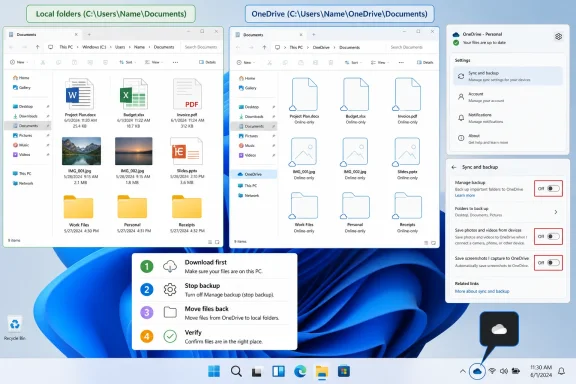
OneDrive’s File Explorer icons are meant to explain file state, but they often become a second source of confusion. A solid green checkmark means the file is present locally and synced to the cloud. A cloud outline means the item is online-only: visible in File Explorer, but not actually stored as a full local file until opened or explicitly downloaded.That design is called Files On-Demand, and it is clever when used knowingly. It lets a small SSD browse a large cloud library without storing everything locally. It also creates a dangerous illusion for users who equate “visible in File Explorer” with “present on my disk.”
The practical consequence is unpleasant. If you copy an online-only placeholder to an external drive using the wrong tool or under the wrong assumptions, you may not be copying the real file content you thought you were preserving. Some backup workflows handle cloud files correctly; others can preserve placeholders, metadata, or unusable shells rather than the full original data.
This is why the advice to right-click affected folders and choose “Always keep on this device” is not a nicety. It is the step that forces OneDrive to hydrate cloud-only files back onto the local machine. Before disconnecting folder backup, you want Windows to hold the actual files, not just signposts to files.
Turning It Off Is Easy; Undoing the Redirection Is the Real Work
The mechanical process is straightforward. Click the OneDrive cloud icon in the system tray, open the gear menu, choose Settings, go to Sync and backup, open Manage backup, and stop backup for Desktop, Documents, and Pictures. Repeat the stop action for each folder OneDrive is protecting.Before doing that, open File Explorer, go to the OneDrive versions of Desktop, Documents, and Pictures, right-click the folders or their contents, and choose “Always keep on this device.” Wait for the sync status to settle. This is the part that feels slow and unnecessary, but it is cheaper than discovering later that your local machine no longer has full copies of files you assumed were already there.
After folder backup is stopped, do not assume Windows has restored your old folder layout. In many cases, the contents remain under the OneDrive path, usually something like
C:\Users\YourName\OneDrive\Desktop, C:\Users\YourName\OneDrive\Documents, and C:\Users\YourName\OneDrive\Pictures. The familiar local locations under C:\Users\YourName\ may exist but be empty.That is the step Microsoft should surface more aggressively. Stopping backup halts future syncing for those known folders; it does not necessarily put everything back where you expected it to be. If your goal is to return to a local-first setup, you must manually move the contents back to the corresponding local folders.
The Safe Exit Is Boring, Which Is Exactly Why It Works
A cautious shutdown of OneDrive folder backup has three stages. First, make sure every cloud-only file is downloaded locally. Second, stop backup from OneDrive’s Manage backup panel. Third, move the contents from the OneDrive folders back to the local user-profile folders.Do not begin by deleting OneDrive folders in frustration. Do not uninstall OneDrive before confirming where the files actually are. Do not rely on the navigation pane alone, because its friendly labels can conceal the underlying path change that caused the confusion in the first place.
The better habit is to inspect paths directly. Right-click a folder, open Properties, and look at the Location field. If Documents resolves to a OneDrive path, you are still dealing with a redirected known folder, not the plain local folder you may have expected.
Once your files are back where you want them, you can decide whether to keep OneDrive installed for ad hoc use, unlink the PC from the account, or remove the client entirely. Those are separate choices. The urgent job is not ideological purity; it is making sure your files are both real and where you think they are.
Microsoft’s Best Defense Is Also Its Biggest Indictment
The case for folder backup is strongest with the least technical users. People lose laptops, suffer drive failures, spill coffee, and forget where they saved tax documents. If Windows silently saves those people from a total loss, Microsoft can point to real-world rescues that matter more than forum outrage.The problem is that backup should be trustworthy, and trust depends on predictability. When a user expects
C:\Users\Name\Documents and gets C:\Users\Name\OneDrive\Documents, the product has traded disaster protection for conceptual instability. The files are safer in one sense and more confusing in another.Microsoft also knows that once data lives in OneDrive, other Microsoft services become stickier. Office apps save there comfortably. Windows search and Recent files surface cloud-backed items. A future PC signed into the same account can appear to resurrect a user’s old working environment with little effort.
That ecosystem convenience is powerful. It is also why consent needs to be explicit. The more valuable the integration, the more important it is that the user knowingly chooses it.
Enterprise IT Sees the Same Feature Through a Different Lens
In managed environments, Known Folder Move can be a gift. Administrators can silently redirect Desktop, Documents, and Pictures to OneDrive for Business, apply retention and compliance policies, protect against local disk failure, and reduce the pain of device replacement. With the right licensing, governance, bandwidth planning, and user communication, it is a rational endpoint-management strategy.But enterprise deployment also exposes the seriousness of the mechanism. Microsoft provides policies to silently move known folders, prevent users from redirecting them back, control sync behavior, and govern Files On-Demand. In other words, this is not a cosmetic feature. It is infrastructure.
That is why the consumer version deserves more respect for the user’s attention. A redirection powerful enough for IT departments to plan around should not feel like a surprise decoration on a new laptop’s Desktop. If Microsoft wants local Windows folders to become cloud-backed folders, it should say so in language ordinary people can understand.
The irony is that sysadmins may be better equipped to appreciate OneDrive backup than consumers, precisely because they know what is being changed. They can test, document, and support the transition. Home users get the same conceptual shift as a setup default.
The Right Choice Depends on the Storage Plan and the Temperament of the User
For Microsoft 365 subscribers, leaving folder backup on can be sensible. The 1TB allowance changes the economics, and the convenience of seeing familiar folders follow you across PCs is real. If you regularly move between machines, work inside Office apps, and trust Microsoft as your cloud provider, OneDrive folder backup can disappear into the background in the best way.For free-tier users, the calculation is harsher. Five gigabytes is too small to absorb modern personal folders without constant pruning. If you already use another cloud provider, an external backup drive, a NAS, or dedicated imaging software, OneDrive folder backup may duplicate effort while adding path confusion.
Security-minded users have another concern: cloud backup changes the threat model. Files stored only locally are vulnerable to local hardware loss; files synced to the cloud are exposed to account compromise, cloud retention behavior, accidental propagation of deletions, and legal or administrative access questions. That does not make OneDrive unsafe, but it means the word “backup” is not a complete risk analysis.
The best answer is not “everyone should turn it off.” The best answer is that Windows should not make the decision feel already settled before the user has seen the tradeoffs.
The Windows 11 Setup Screen Needs a Real Fork in the Road
Microsoft could fix much of the resentment with a better setup choice. Not a dark pattern. Not a sentence buried under a “recommended” button. A real fork: “Save Desktop, Documents, and Pictures only on this PC” or “Back them up to OneDrive.”The screen should say that OneDrive free storage is 5GB. It should say that the folders will be stored under the OneDrive path. It should say that files may become online-only depending on settings and storage conditions. It should say that stopping backup later may require moving files back manually.
That would not stop most mainstream users from choosing cloud backup. Many would still accept the recommendation, especially if Microsoft explains the protection against device failure. But those users would at least understand the bargain.
Windows has always carried defaults that shape behavior. The difference now is that defaults can move personal data into subscription-adjacent services. The old Microsoft bundled browsers and media players; the modern Microsoft bundles cloud dependency.
The Escape Hatch for a OneDrive-First Windows Install
If you have just set up Windows 11 and OneDrive folder backup has already taken over, the priority is to avoid panic and avoid destructive cleanup. The files are usually not gone. They are usually inside the OneDrive folder, represented through redirected known folders and File Explorer status icons.Here is the practical sequence worth remembering:
- Open OneDrive settings from the taskbar cloud icon and check Sync and backup, then Manage backup, to see which known folders are currently protected.
- Before stopping backup, right-click the affected folders or their contents and choose “Always keep on this device” so online-only files are downloaded.
- Stop backup separately for Desktop, Documents, and Pictures rather than assuming one switch handles every folder.
- After backup is stopped, inspect the OneDrive folder path and manually move files back to
C:\Users\YourName\Desktop,C:\Users\YourName\Documents, andC:\Users\YourName\Picturesif you want a local-first layout. - Confirm your real backup plan afterward, because disabling OneDrive folder backup removes one layer of protection rather than creating a new one.
Microsoft is not wrong that Windows users need better backups, but it is wrong to treat file-location surprise as an acceptable side effect of cloud safety. OneDrive folder backup is valuable when it is chosen, understood, and properly funded with enough storage; it is alienating when it arrives as a fait accompli on a new PC. The future of Windows will almost certainly be more cloud-attached, not less, which makes the lesson sharper: the more Microsoft wants the PC to behave like an endpoint for services, the more carefully it must preserve the user’s sense that their files, folders, and choices still belong to them.
References
- Primary source: DigitBin
Published: 2026-06-24T09:52:17.377516
OneDrive Folder Backup on Windows 11: How to Turn It Off
OneDrive on Windows 11 quietly moved my Desktop, Documents, and files to the cloud. Here is what OneDrive folder backup does, why it matters, and how to undo it.www.digitbin.com - Related coverage: tomshardware.com
Microsoft now forces automatic OneDrive backups — feature enabled during clean Windows installs, users surprised with desktop icons and files | Tom's Hardware
You WILL get your files backed up and synced.www.tomshardware.com - Related coverage: techspot.com
Microsoft is pushing OneDrive backups and integration in new Windows 11 setup by default | TechSpot
Microsoft recently changed the Windows 11 installation process, turning on OneDrive data synchronization by default without providing users an opt-out dialog. The "feature" is enabled during the...www.techspot.com - Official source: microsoft.com
How to Back Up Your Files in Windows 11 | Microsoft Windows
Enjoy peace of mind and extra security when you back up your files. Learn how easy it is to back up your files and preferences in Windows.www.microsoft.com
- Related coverage: tweaktown.com
Windows 11 now automatically enables OneDrive folder backup for fresh installs
Microsoft is now automatically turning on OneDrive backups on fresh Windows 11 installs, and you can probably guess how this going to go down. www.tweaktown.com
- Official source: answers.microsoft.com
How to stop onedrive from backing up personal folders, i turned it off in the settings - Microsoft Q&A
hi all, i have followed these steps to turn off one drive backup: Open OneDrive on your computer and click on the "Settings" icon in the taskbar. Click on the "Backup" tab. Under "Folders to back up," click on…answers.microsoft.com
- Related coverage: techstory.in
Microsoft Automatically Activates OneDrive Folder Backup for Windows 11 Users - TechStory
Recently, Microsoft quietly updated Windows 11 to automatically activate the OneDrive folder backup feature for users setting up new systems connected to the internet and signed into a Microsoft account.techstory.in - Related coverage: office-watch.com
Your Outlook.com Emails Could Kill Your OneDrive Storage—Here’s Why
Microsoft has quietly changed how storage is handled in Outlook.com: email attachments now count against your OneDrive quota. For users on free Outlook.com accooffice-watch.com
- Related coverage: computerworld.com
Microsoft OneDrive cheat sheet: Using OneDrive in Windows – Computerworld
If you have Windows 10 or 11, you have OneDrive. With this quick guide, you can learn how to sync, back up, and share files in OneDrive with built-in Windows tools. www.computerworld.com
- Related coverage: windowscentral.com
Is OneDrive deleting your files on Windows 11? | Windows Central
Microsoft’s OneDrive mess has users panicking over “lost” files. Here’s what’s really going on.www.windowscentral.com - Related coverage: techradar.com
Ouch! Microsoft admits Windows 11's OneDrive syncing could be slowing down your PC | TechRadar
Sluggish performance in Windows 11? Sideline OneDrive to check if it helps, Microsoft suggestswww.techradar.com - Official source: adoption.microsoft.com
