
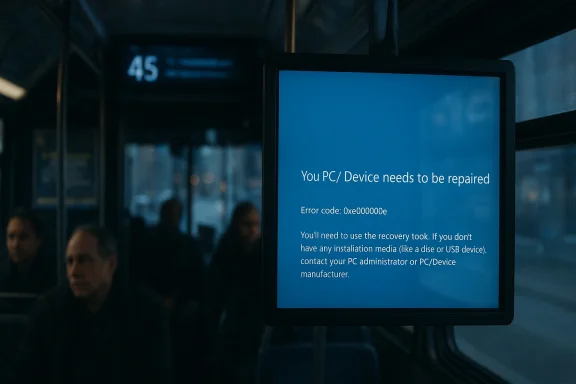
A Nottingham bus displaying an upside‑down Windows recovery screen — warning passengers that “Your PC/Device needs to be repaired” with an Error code: 0xc000000e — is more than a momentary internet meme; it’s a useful case study in the brittle realities of modern digital signage, the trade‑offs operators make when they standardize on general‑purpose operating systems, and how recent Windows features attempt to blunt public embarrassment without fixing systemic reliability problems.
Public‑facing digital displays — from bus interior route boards and rail departure screens to retail video walls — are frequently driven by small, low‑cost PCs. Historically, many operators choose Windows because it’s familiar to IT staff, supports a wide range of third‑party signage software, and integrates with device management tools. That convenience comes with consequences: a full Windows boot stack exposes display systems to the same boot‑time failures and recovery screens that desktop PCs suffer, including the Recovery screen that shows the 0xc000000e error when a required boot device or Boot Configuration Data entry is missing or inaccessible. Microsoft’s own support channels and vendor notes document 0xc000000e as a generic “required device isn’t connected or can’t be accessed” error tied to boot loader or BCD problems.
At the same time, Microsoft has begun to acknowledge the humiliation factor of public BSODs and noticeable error dialogs. In late 2025 the company introduced a Windows “Digital Signage mode” intended for non‑interactive public displays: the mode deliberately limits how long an error screen (including a BSOD or recovery dialog) remains visible, blanking the output after a short interval to avoid prolonged public exposure. This is a face‑saving measure for operators that still run full Windows installs on visible displays, but it is not a reliability fix — it simply hides the evidence. Multiple industry outlets covered the feature when Microsoft announced it at Ignite 2025.
Microsoft documentation and vendor support notes provide standard troubleshooting steps — using recovery media, rebuilding BCD, checking disk health, or performing a clean reinstall — but those are not realistic options for a driver or a passenger on a moving vehicle.
Microsoft’s Digital Signage mode is a pragmatic response to the social problem of public BSODs: it hides the embarrassment after a short window, but it doesn’t reduce the likelihood of the crash itself. True resilience requires better hardware, disciplined update practices, effective device management, and — where feasible — leaner, single‑purpose appliances engineered for vehicle environments.
Operators who treat in‑vehicle displays as first‑class managed endpoints — with hardened boot paths, industrial components, remote diagnostics, and sensible update policies — will see far fewer “bork” moments. For everyone else, the occasional upside‑down Recovery screen will continue to be a reminder that the smallest visible failings often point to bigger, easily avoidable operational gaps.
Source: theregister.com This bus is heading for Windows Recovery – upside down
 Background / Overview
Public‑facing digital displays — from bus interior route boards and rail departure screens to retail video walls — are frequently driven by small, low‑cost PCs. Historically, many operators choose Windows because it’s familiar to IT staff, supports a wide range of third‑party signage software, and integrates with device management tools. That convenience comes with consequences: a full Windows boot stack exposes display systems to the same boot‑time failures and recovery screens that desktop PCs suffer, including the Recovery screen that shows the 0xc000000e error when a required boot device or Boot Configuration Data entry is missing or inaccessible. Microsoft’s own support channels and vendor notes document 0xc000000e as a generic “required device isn’t connected or can’t be accessed” error tied to boot loader or BCD problems.At the same time, Microsoft has begun to acknowledge the humiliation factor of public BSODs and noticeable error dialogs. In late 2025 the company introduced a Windows “Digital Signage mode” intended for non‑interactive public displays: the mode deliberately limits how long an error screen (including a BSOD or recovery dialog) remains visible, blanking the output after a short interval to avoid prolonged public exposure. This is a face‑saving measure for operators that still run full Windows installs on visible displays, but it is not a reliability fix — it simply hides the evidence. Multiple industry outlets covered the feature when Microsoft announced it at Ignite 2025.
What the Nottingham bus image tells us
The visible facts
- The screen shows a Windows recovery dialog instead of route data, with the canonical “Your PC/Device needs to be repaired” text and error code 0xc000000e.
- The image is upside down — either because the photographed screen is a reflection, the display was physically rotated, or the display driver / signage software incorrectly oriented the output.
- The error text and code are consistent with Windows 10/11 recovery UI language and the generic BCD/boot device error that appears during OS boot failures.
What we can reliably infer
- The display unit is running some build of Windows (or a Windows image that still contains the recovery environment UI). The presence of a Recovery screen with that exact wording is a strong indicator.
- The error code 0xc000000e points at a boot‑time issue: missing or inaccessible boot files, a corrupted Boot Configuration Data store, or a missing storage device. On small signage PCs those symptoms commonly trace back to a failing eMMC/SSD, a loose cable, filesystem corruption after power cut, or a recent update that changed partitioning or drive IDs. That said, the precise root cause for the bus device cannot be determined from the photograph alone without access to the device logs.
What we cannot (and should not) claim
- We cannot confirm whether the orientation is a mounted hardware error, a software rotation setting, or simply a reflection in a window; orientation settings are trivially adjustable in software or via GPU drivers, so the upside‑down appearance is plausibly accidental, not symptomatic of deeper system failure. For example, community help threads routinely show that inverted displays are often fixed via display orientation options (or keyboard shortcuts) rather than hardware changes.
The technical anatomy: why 0xc000000e appears and why it matters on moving vehicles
Error code 0xc000000e is a catch‑all Windows Recovery code indicating that the OS loader could not find or access a required device or file during early boot — commonly the bootloader (winload.efi/winload.exe), or entries in the Boot Configuration Data (BCD) store. On signage hardware the same failure modes that affect laptops and desktops apply:- Storage device failure or partial failure (eMMC/SSD wear‑out, failing SATA/NVMe).
- Corrupted BCD entries (file system corruption, interrupted updates).
- Mismatched device identifiers after reimaging or partition changes.
- Firmware/UEFI misconfiguration (boot order changed, secure boot mismatches).
- File system damage from abrupt power loss or improper shutdown.
Microsoft documentation and vendor support notes provide standard troubleshooting steps — using recovery media, rebuilding BCD, checking disk health, or performing a clean reinstall — but those are not realistic options for a driver or a passenger on a moving vehicle.
Why orientation and reflections matter (and why they’re easy to fix)
The photograph’s upside‑down appearance is notable because it highlights two different problems operators face: imagery legibility and system manageability.- Hardware mounting and cable routing can require displays to be installed at odd angles; operators sometimes rely on display reflections to produce readable signage, which explains why a reflection might be flipped. This is common in cramped bus interiors.
- Software rotation is typically trivial: most graphics drivers and signage applications offer an orientation setting, and Windows itself exposes a Display Orientation control. Keyboard shortcuts and simple settings can correct inverted displays quickly. Community troubleshooting archives document exactly such fixes, demonstrating that orientation issues are usually the easiest to address in the field.
The management tradeoffs: why operators still pick Windows
Operators lean on Windows for several pragmatic reasons:- Familiarity: IT teams know Windows tooling, drivers, and troubleshooting paradigms.
- Application ecosystem: Many commercial signage suites are built for Windows and rely on familiar frameworks such as .NET, Chromium Embedded Frameworks, or Windows APIs.
- Management toolchain: Windows devices integrate with enterprise management systems like Microsoft Intune, Group Policy, and common remote‑monitoring stacks.
- Peripheral support: Touchscreens, ticket printers, camera integrations, and specialized sensors often have better‑supported Windows drivers.
Risks and consequences of a public Recovery/BSOD on transport displays
An upside‑down Recovery screen on a bus might be funny on social media, but operators must consider real consequences:- Passenger confusion and missed stops: If route/stop data is replaced by a Recovery dialog, passengers can miss their stops or fail to board correctly — a safety and service quality problem.
- Accessibility failures: Audio announcements and visual cues are often synchronized with on‑screen content. A crashed UI may break assistive functionality for riders with visual or hearing impairments.
- Reputational damage: Public failures get photographed and shared; for brands and transit agencies that matters.
- Security and privacy surface: A misconfigured display that exposes system dialogs could, in some rare cases, reveal administrative prompts or local file names that leak sensitive information about maintenance practices.
- Operational overhead: Frequent in‑vehicle visits for reboots or reimaging increase operating costs.
Practical mitigation: what transit operators should do today
Operators can take pragmatic steps to reduce display failures and the public fallout:- Use purpose‑built signage mode or kiosk images. If running Windows, enable the OS’s Digital Signage or Kiosk modes to minimize visible error dialogs; Digital Signage mode in Windows 11 limits visible errors to short intervals and blanks the screen after a configured timeout. That reduces public exposure while keeping logs for admins.
- Harden the boot path:
- Use read‑only OS partitions for the signage image or adopt an image that boots into a single signed app (kiosk).
- Protect BCD and boot partitions; use an MBR/UEFI configuration that minimizes likelihood of accidental reordering.
- Prefer robust storage: select industrial‑grade eMMC or automotive‑rated NVMe with power‑loss protection and adequate write endurance.
- Add a watchdog and auto‑recovery policy: a hardware or firmware watchdog can automatically reboot a hung application into a known‑good state. Combine with networked watchdog editors (device management) that can trigger remote reimage only after safe diagnostics.
- Ensure clean power: fit stabilizers or vehicle‑grade DC‑DC power conditioners; intermittent power is a major cause of file system damage.
- Use remote management: enroll signage devices in a central MDM with remote logging, health telemetry, and remote recovery operations (e.g., remote reinstallation or cloud rebuild). Microsoft’s Intune and similar MDMs support remote wipe/reimage and can reduce the need for on‑site visits.
- Apply staged updates: test updates in a fleet‑representative pilot before pushing across an entire vehicle fleet; avoid automatic feature upgrades that can change partitioning or drivers unexpectedly.
- Keep an emergency contingency: a simple fallback image on a spare partition that boots into a read‑only “emergency content” presentation is short to implement and prevents blank screens.
Step‑by‑step for frontline staff (what a driver or inspector can do safely)
- Report the fault through the standard incident channel with the device ID and vehicle number — capture a photo and timestamp.
- If the device permits a safe soft reboot button (some signage boxes have a physical reset), use that before attempting anything invasive.
- Do not attempt to attach recovery media or USB drives in public areas; that can trigger warranty or security violations.
- If the display shows only an orientation mistake (upside‑down image), try the locked user controls on the device (some signage UIs allow authorized staff to flip orientation remotely). If not possible, schedule a depot visit for software orientation fix — in many Windows environments orientation is a simple setting change. Community guidance shows that inverted displays are commonly solved by changing display orientation or using a driver setting.
- Escalate to depot IT for full diagnostics: check event logs, run S.M.A.R.T. diagnostics on the storage device, inspect for recent updates, and verify BCD integrity.
Alternatives to full Windows installs
For organizations building large fleets of displays, alternative architectures reduce complexity:- Purpose‑built signage appliances: small Linux‑based appliances with single‑purpose signage stacks have a smaller attack surface and generally faster cold‑boot reliability.
- Embedded OS images: Windows IoT or locked down Linux appliances that boot directly into the signage application with a minimal userspace and read‑only root can drastically reduce mid‑life software rot.
- Cloud‑rendered content with thin clients: where network reliability allows, thin clients simply render streamed frames; crashes affect only the client, and the server can switch streams transparently.
- Containerized signage apps with atomic updates and snapshot rollback: containerization and immutable OS approaches (e.g., OSTree‑like patterns) make rollbacks safer after faulty updates.
Critical analysis: strengths, weaknesses, and the PR patch
Strengths- Windows still offers the broadest ecosystem for signage software, peripheral drivers, and centralized management tools. For fleets already invested in Microsoft device management, Windows remains an operationally sensible choice.
- Recent Windows features, such as Digital Signage mode, explicitly acknowledge the unique needs of public displays and give operators another configuration lever to manage public exposure. These moves are pragmatic when full replacements are unrealistic.
- Using a general‑purpose OS for publicly visible, mission‑critical displays inherits every bug, update hazard, and boot fragility of desktop platforms. That makes field reliability harder and increases maintenance costs.
- Cosmetic fixes (auto‑blanking a BSOD) can mask a deeper reliability issue and create a false sense of security; operators might hide failures rather than fix root causes.
- Updates and background maintenance remain a thorn: automated update behavior can trigger reboots at inopportune times or change boot layouts, producing exactly the sort of Recovery errors seen in the Nottingham photo. Vendor notes and community reports confirm update/restore scenarios triggering 0xc000000e and related recovery loops.
Recommendations for transit agencies and operators (practical checklist)
- Audit installed devices and inventory model, OS build, and storage media make/version.
- For any device running a full desktop OS, implement remote telemetry and automated health checks (disk health, boot times, application hang detection).
- Enable Digital Signage or Kiosk modes where possible, but pair those settings with robust logging and alerting to ensure failures are noticed even when not visible to the public.
- Mandate industrial‑grade storage and power conditioning for on‑vehicle units.
- Pilot alternate lightweight stacks for new procurements (Linux appliances or purpose‑built signage players) and compare total cost of ownership versus Windows endpoints over three to five years.
- Build a staged update process with pilot vehicles, automated rollback strategies, and no automatic feature‑upgrades for in‑service vehicles.
Conclusion
The upside‑down Windows Recovery screen on a Nottingham bus is a small, funny image — until you unpack the decisions that led to it. It exposes the tension between operational convenience and robustness: Windows offers a fast path to deploy richly capable displays, but it also brings desktop fragility into public spaces where power quirks, vibration, and intermittent maintenance are the norm.Microsoft’s Digital Signage mode is a pragmatic response to the social problem of public BSODs: it hides the embarrassment after a short window, but it doesn’t reduce the likelihood of the crash itself. True resilience requires better hardware, disciplined update practices, effective device management, and — where feasible — leaner, single‑purpose appliances engineered for vehicle environments.
Operators who treat in‑vehicle displays as first‑class managed endpoints — with hardened boot paths, industrial components, remote diagnostics, and sensible update policies — will see far fewer “bork” moments. For everyone else, the occasional upside‑down Recovery screen will continue to be a reminder that the smallest visible failings often point to bigger, easily avoidable operational gaps.
Source: theregister.com This bus is heading for Windows Recovery – upside down
