

Windows Reliability Monitor is one of those rare built-in Windows tools that feels almost too useful for something Microsoft quietly left in the box for years. It turns crash reports, failed updates, and app failures into a simple stability timeline that even non-technical users can read, which is exactly why it often gets overlooked until a machine starts behaving badly. For anyone who has ever stared at Event Viewer and felt lost in a wall of codes, Reliability Monitor is the friendlier way to see what actually went wrong and when. It is not magic, but it is often the fastest way to turn “my PC is acting weird” into a real troubleshooting lead.
Windows has always had a split personality when it comes to diagnostics. On one side, it offers highly technical logs, dumps, and event channels that are powerful but intimidating. On the other, it occasionally hides an elegant, plain-language tool that does the same job for ordinary users, and Reliability Monitor is one of the best examples of that design philosophy.
The feature dates back to Windows Vista, when Microsoft began packaging more consumer-friendly health reporting into the operating system. That matters because Vista was also the era when Windows was trying to recover from a reputation for opaque failures and confusing error handling. Reliability Monitor fit the moment perfectly: it made system instability visible, chronological, and easy to interpret.
What makes the tool unusually valuable is that it does not merely show the last crash. It builds a historical picture of a machine’s health over time. That means a driver problem from three weeks ago, a failed Windows Update from last night, or a piece of software that quietly keeps crashing in the background can all show up in the same graph. In practical terms, it gives users a way to correlate “my laptop started restarting after a game update” with a specific event rather than a vague suspicion.
There is also a broader lesson here about the evolution of Windows troubleshooting. Microsoft has long had deep diagnostic infrastructure, but its most useful tools are not always the most visible ones. Reliability Monitor sits in that awkward but familiar space where the feature is built-in, powerful, and genuinely helpful, yet still unknown to many people who could benefit from it most.
The MakeUseOf piece that sparked this discussion captures that contrast well: the author ran into unexplained crashes, background app failures, and an Event Viewer experience that felt like reading ancient code. Reliability Monitor offered a much more approachable alternative, showing a Stability Index and a visual record of failures that made the issue easier to grasp. That user experience difference is the real story.
The tool helps separate noise from patterns. That is useful not only for fixing a machine, but for understanding whether a problem is truly hardware-related, software-related, or tied to a recent change. When a system’s stability line suddenly drops after a specific update or install, the clue is often more important than the crash itself.
That distinction matters. Many users begin troubleshooting by jumping straight into the most technical tools available, only to get stuck in details too early. Reliability Monitor helps them establish a timeline first, which is often the missing ingredient. Once the timeline is clear, the deeper tools become much easier to use.
The WindowsForum archives show that experienced users have long recommended pairing crash evidence with simpler diagnostic methods. In older support threads, community members routinely suggest looking at minidumps, Event Viewer, and related logs to identify the root cause of blue screens and app crashes. Reliability Monitor fits neatly into that workflow as the bridge between “something is wrong” and “here is the exact technical clue.”
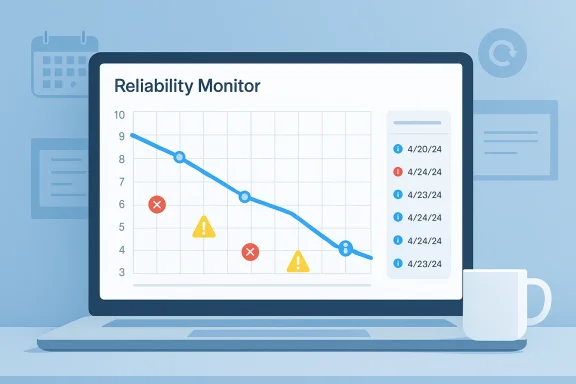
Reliability Monitor changes the user experience by highlighting the events that matter most. A red critical failure stands out immediately, while yellow warnings and blue information markers let you separate serious instability from routine system activity. That visual hierarchy is what makes the tool accessible.
In practice, the graph helps answer questions like these:
It also supports a more disciplined troubleshooting process. Rather than chasing every warning, you can focus on the moments when the index dropped, then inspect the exact events attached to those dates.
The tool can be opened in a couple of ways, and both are easy enough to remember. The Run dialog method is the fastest if you already know the command, while the Search menu route is better for users who prefer a descriptive label rather than a shortcut. Either way, the point is the same: the utility is available on demand, immediately, and without extra setup.
The MakeUseOf guide highlights the most direct command,
That is also why it has remained useful for so long. The feature may be old, but the principle behind it is timeless: if you want users to diagnose real problems, give them something they can actually open quickly.
The top half of the window is the timeline. The bottom half expands whatever day you click, showing the events associated with that date. This separation is the trick: the graph gives you the pattern, and the event list gives you the specifics. Once users understand that, the whole tool becomes much less intimidating.
The MakeUseOf article explains the icons in straightforward terms: a red X marks critical events, a yellow triangle indicates non-fatal errors, and a blue information icon marks routine activity. That classification is what makes Reliability Monitor useful for ordinary troubleshooting, because it turns a pile of logs into categories you can actually act on.
Critical events are typically the ones that deserve immediate attention. They may include a crashed app, a blue screen, or even hardware-related failure. Warnings often point to failed installs or updates, which may not break the machine outright but can indicate an unstable configuration.
If the stability graph drops the same day a GPU driver is updated, that is a clue worth investigating. If the chart declines steadily after several app installs, that suggests a broader software conflict rather than a one-off glitch.
That makes the tool valuable even when the system seems “fine.” Many users only notice their PC is struggling after performance is already degraded. Reliability Monitor can expose the early signs before the issue escalates.
Reliability Monitor is effective because it documents the machine continuously rather than reactively. That gives you context. If an app has been restarting in the background for a week, the tool may surface that pattern before the failure becomes visible enough to notice manually.
That is especially relevant for systems used for gaming, content creation, and multitasking. Those workloads tend to stress drivers, overlays, power delivery, storage, and memory more aggressively than casual desktop use. When a system restarts during a heavy gaming session, as described in the article, the problem may not be the game itself but the chain reaction it exposes. Reliability Monitor helps narrow the window.
That is why a user should not ignore the lower-priority events just because the machine still boots. Reliability problems are often cumulative, and a series of “minor” events can become a major one later.
Over time, those little failures can make a PC feel sluggish, unreliable, and hard to trust. Reliability Monitor is useful precisely because it surfaces these quieter forms of dysfunction before they become obvious to the naked eye.
The reason it endured is that it solved a real user problem. Windows had plenty of logs, but not enough explanation. Reliability Monitor added a layer of interpretation without taking away the underlying data. That balance is hard to get right, and Microsoft largely did.
The WindowsForum community’s long history of support threads shows just how common crash analysis has been across Windows generations. Users have been asking how to save minidumps, interpret crash data, and deal with BSODs for years, and experienced members often point them toward system logs, dump analysis, and repair tools. Reliability Monitor sits right alongside those efforts as the human-readable layer that makes the rest of the evidence easier to use.
Its age may actually help its credibility. The fact that it has existed across multiple Windows releases suggests that Microsoft has found ongoing value in the model. Users do not need to care that it was born in Vista; they only need to care that it still works.
That obscurity has a downside. The fewer people know about it, the more likely they are to skip it and go straight to ad hoc fixes, guessing, or expensive third-party tools. That is a waste of time, and often the reason simple issues become prolonged ones.
Consumers want fewer steps, fewer downloads, and fewer mysteries. If Windows can show them why the machine restarted or which update failed, that saves time and reduces stress. It also makes them less dependent on internet searches for every problem.
Enterprises care about scale, repeatability, and support cost. A tool like Reliability Monitor can help help-desk teams quickly identify common failure patterns across a fleet, especially when problems cluster around a patch cycle or driver rollout. It also pairs well with the broader Windows management ecosystem because it is already part of the OS rather than an extra product to license and maintain.
That saves effort in several ways:
It also helps users feel less at the mercy of Windows. Instead of accepting a restart or app failure as unexplained bad luck, they can inspect the timeline and form a hypothesis. That can be empowering even before a fix is found.
The key insight is that “native” and “sufficient” are not always the same thing. For many users, though, they are close enough to make third-party utilities unnecessary.
The opportunity here is not just fixing one PC, but changing how users approach system instability. The tool can become a habit, not just an emergency response.
It also reduces “tool fatigue.” Many users already have too many utilities on their machines, and adding another one for basic diagnostics is often unnecessary. Native tools simplify that ecosystem.
There is also a danger of false confidence. Because the interface is friendly, users may assume it gives the full answer when it is really just the starting point. If the problem is hardware-related or buried deep in a driver stack, the timeline is informative but not definitive.
That means Reliability Monitor should be treated as the first mile of diagnosis, not the last. It is a map, not the destination.
Without that context, the chart becomes a history lesson rather than a troubleshooting tool. The best results come when users pair the graph with a mental timeline of their own changes.
The bigger lesson is that Windows often contains exactly the kind of tools users ask third-party developers to build. Sometimes the best answer is already inside the OS, just under a label most people never search for. Reliability Monitor is a good reminder to look there first before reaching for another download.
Windows does not always need a new app to solve a problem; sometimes it only needs users to discover the one already sitting there. Reliability Monitor earns that rare praise because it takes the chaos of crashes, failures, and updates and turns them into a story you can actually read. And for a lot of Windows users, that story is the first real step toward fixing the machine.
Source: MakeUseOf I found Windows' built-in crash history tool — it goes back years and I had no idea it existed
 Overview
Windows has always had a split personality when it comes to diagnostics. On one side, it offers highly technical logs, dumps, and event channels that are powerful but intimidating. On the other, it occasionally hides an elegant, plain-language tool that does the same job for ordinary users, and Reliability Monitor is one of the best examples of that design philosophy.The feature dates back to Windows Vista, when Microsoft began packaging more consumer-friendly health reporting into the operating system. That matters because Vista was also the era when Windows was trying to recover from a reputation for opaque failures and confusing error handling. Reliability Monitor fit the moment perfectly: it made system instability visible, chronological, and easy to interpret.
What makes the tool unusually valuable is that it does not merely show the last crash. It builds a historical picture of a machine’s health over time. That means a driver problem from three weeks ago, a failed Windows Update from last night, or a piece of software that quietly keeps crashing in the background can all show up in the same graph. In practical terms, it gives users a way to correlate “my laptop started restarting after a game update” with a specific event rather than a vague suspicion.
There is also a broader lesson here about the evolution of Windows troubleshooting. Microsoft has long had deep diagnostic infrastructure, but its most useful tools are not always the most visible ones. Reliability Monitor sits in that awkward but familiar space where the feature is built-in, powerful, and genuinely helpful, yet still unknown to many people who could benefit from it most.
The MakeUseOf piece that sparked this discussion captures that contrast well: the author ran into unexplained crashes, background app failures, and an Event Viewer experience that felt like reading ancient code. Reliability Monitor offered a much more approachable alternative, showing a Stability Index and a visual record of failures that made the issue easier to grasp. That user experience difference is the real story.
Why it resonates now
Reliability Monitor is especially relevant in an era where PCs are layered with drivers, overlays, launchers, security tools, RGB utilities, telemetry clients, and game-related software. Any of those can introduce instability, and many failures do not look dramatic at first. A tray app may crash and restart silently, an update may partially fail, or a driver issue may create a performance dip long before the actual blue screen appears.The tool helps separate noise from patterns. That is useful not only for fixing a machine, but for understanding whether a problem is truly hardware-related, software-related, or tied to a recent change. When a system’s stability line suddenly drops after a specific update or install, the clue is often more important than the crash itself.
- It turns raw failure data into a visual trend.
- It keeps a historical record instead of only the latest event.
- It helps users connect crashes to specific days or changes.
- It reduces dependence on cryptic Event Viewer codes.
- It often surfaces silent or background failures that users never notice.
How Reliability Monitor Fits into Windows Troubleshooting
Reliability Monitor exists in a sweet spot between simple health dashboards and full forensic logging. It is not meant to replace Event Viewer, minidumps, or driver analysis tools. Instead, it gives you a fast triage layer: what happened, when, and whether the system’s behavior has been trending better or worse.That distinction matters. Many users begin troubleshooting by jumping straight into the most technical tools available, only to get stuck in details too early. Reliability Monitor helps them establish a timeline first, which is often the missing ingredient. Once the timeline is clear, the deeper tools become much easier to use.
The WindowsForum archives show that experienced users have long recommended pairing crash evidence with simpler diagnostic methods. In older support threads, community members routinely suggest looking at minidumps, Event Viewer, and related logs to identify the root cause of blue screens and app crashes. Reliability Monitor fits neatly into that workflow as the bridge between “something is wrong” and “here is the exact technical clue.”
A better first stop than Event Viewer
Event Viewer is powerful, but it is also a classic example of Windows exposing engineering detail without much interpretation. For technical users, that is fine. For everyone else, it can feel like a wall of unrelated entries, IDs, and warnings that are hard to prioritize.Reliability Monitor changes the user experience by highlighting the events that matter most. A red critical failure stands out immediately, while yellow warnings and blue information markers let you separate serious instability from routine system activity. That visual hierarchy is what makes the tool accessible.
What the graph actually tells you
The Stability Index is the centerpiece of the feature. It gives the system a score on a one-to-ten scale, with the graph usually trending downward when failures increase and upward when the machine is stable. That score is not a perfect scientific metric, but it is an excellent troubleshooting shorthand.In practice, the graph helps answer questions like these:
- Did the problem begin after a driver update?
- Is one app crashing repeatedly, or is the whole system unstable?
- Did a Windows update coincide with the first signs of trouble?
- Are the failures isolated, or do they cluster around certain days?
Why a simple index is powerful
There is a reason users respond well to a score-based system. People can intuitively understand “10 is good, 4 is bad” even if they do not understand kernel drivers or error codes. That lowers the barrier to diagnosing a machine that feels off but has not yet reached catastrophic failure.It also supports a more disciplined troubleshooting process. Rather than chasing every warning, you can focus on the moments when the index dropped, then inspect the exact events attached to those dates.
- Critical failures often show up as red X markers.
- Non-fatal issues often appear as yellow warnings.
- Informational events help establish context without implying damage.
- Day-by-day and week-by-week views make trends easier to spot.
How to Open It Quickly
One of the best things about Reliability Monitor is that you do not need to install anything to use it. It is already part of Windows, which means the quickest path to diagnosis is also the least complicated. That is a surprisingly important detail, because many users assume they need third-party utilities before Windows can tell them what went wrong.The tool can be opened in a couple of ways, and both are easy enough to remember. The Run dialog method is the fastest if you already know the command, while the Search menu route is better for users who prefer a descriptive label rather than a shortcut. Either way, the point is the same: the utility is available on demand, immediately, and without extra setup.
The MakeUseOf guide highlights the most direct command,
perfmon /rel, which launches the Reliability Monitor window right away. There is also a search-based method using the phrase “View reliability history.” That dual access matters because it lowers the chance that the tool remains hidden simply because users do not know the name of the command. According to the article, the interface then begins calculating the system’s stability history and presents it in graph form.The two fastest entry points
If you are trying to remember it under pressure, the Windows key plus R route is the one to commit to memory. The command is short, and it bypasses menus entirely. For users who prefer not to memorize shell commands, Windows search is more approachable and still gets to the same destination quickly.- Press Windows + R.
- Type
perfmon /rel. - Press Enter.
- Or search for “View reliability history.”
- Open the result and inspect the graph.
Why this simplicity matters
Troubleshooting works best when the first step is frictionless. If a tool requires too many clicks, too much jargon, or a separate download, many users never get far enough to benefit from it. Reliability Monitor succeeds because it feels like a built-in control panel item rather than a specialist utility.That is also why it has remained useful for so long. The feature may be old, but the principle behind it is timeless: if you want users to diagnose real problems, give them something they can actually open quickly.
Reading the Chart Without Getting Lost
The first time you open Reliability Monitor, the graph may look busier than expected. That is normal, especially on systems that have seen a lot of installs, updates, driver changes, and application launches. The important thing is not to treat every icon as a crisis.The top half of the window is the timeline. The bottom half expands whatever day you click, showing the events associated with that date. This separation is the trick: the graph gives you the pattern, and the event list gives you the specifics. Once users understand that, the whole tool becomes much less intimidating.
The MakeUseOf article explains the icons in straightforward terms: a red X marks critical events, a yellow triangle indicates non-fatal errors, and a blue information icon marks routine activity. That classification is what makes Reliability Monitor useful for ordinary troubleshooting, because it turns a pile of logs into categories you can actually act on.
The red X, yellow triangle, and blue i
The icon system is more than cosmetic. It signals the severity of the event at a glance, which helps users prioritize. If a machine has five informational entries and one critical failure, the right response is obvious.Critical events are typically the ones that deserve immediate attention. They may include a crashed app, a blue screen, or even hardware-related failure. Warnings often point to failed installs or updates, which may not break the machine outright but can indicate an unstable configuration.
Why timing matters more than the icon alone
A single red X does not necessarily explain a recurring issue. What matters is whether the X appears after a specific update, driver change, or new application install. That timeline is where the tool becomes genuinely powerful.If the stability graph drops the same day a GPU driver is updated, that is a clue worth investigating. If the chart declines steadily after several app installs, that suggests a broader software conflict rather than a one-off glitch.
Silent failures are the hidden prize
One of the most useful things about Reliability Monitor is that it can reveal problems users never consciously saw. A background app may crash and restart, an installer may fail quietly, or Windows may record a repeated warning before a visible symptom appears.That makes the tool valuable even when the system seems “fine.” Many users only notice their PC is struggling after performance is already degraded. Reliability Monitor can expose the early signs before the issue escalates.
- It catches problems that never trigger obvious pop-ups.
- It shows repeated failures that may otherwise look random.
- It helps identify whether one app is the source of instability.
- It provides dates you can match against changes.
Why It Catches What Users Miss
A lot of PC troubleshooting fails because users only notice the loudest symptom. A crash is obvious. A silent background app restart is not. A failed update may be easy to ignore until the next reboot or until the system starts misbehaving in a way that seems unrelated.Reliability Monitor is effective because it documents the machine continuously rather than reactively. That gives you context. If an app has been restarting in the background for a week, the tool may surface that pattern before the failure becomes visible enough to notice manually.
That is especially relevant for systems used for gaming, content creation, and multitasking. Those workloads tend to stress drivers, overlays, power delivery, storage, and memory more aggressively than casual desktop use. When a system restarts during a heavy gaming session, as described in the article, the problem may not be the game itself but the chain reaction it exposes. Reliability Monitor helps narrow the window.
Silent errors are still meaningful
Not every error is dramatic, but many still matter. An install failure can leave behind broken components. A driver warning can hint at version mismatches. A background crash may point to an unstable service or utility that keeps trying to relaunch itself.That is why a user should not ignore the lower-priority events just because the machine still boots. Reliability problems are often cumulative, and a series of “minor” events can become a major one later.
The hidden cost of background instability
Background instability has real consequences even when the desktop looks normal. A tray app that crashes repeatedly may consume resources, trigger retries, or leave configuration state in a bad condition. An updater that partially fails can create confusion during later patching.Over time, those little failures can make a PC feel sluggish, unreliable, and hard to trust. Reliability Monitor is useful precisely because it surfaces these quieter forms of dysfunction before they become obvious to the naked eye.
Why power users still benefit
It would be easy to assume this is only for beginners, but that would miss the point. Power users benefit too, especially when they need a quick history before diving into dumps or hardware analysis. Reliability Monitor is often the fastest way to decide whether to investigate software, drivers, or hardware first.- It shortens the path from symptom to suspect.
- It complements deeper diagnostic tools rather than replacing them.
- It helps confirm whether a crash was isolated or recurring.
- It makes it easier to spot the effect of recent updates.
The Historical Importance of Vista-Era Diagnostics
Reliability Monitor is a reminder that some of Windows’ best ideas arrived during an era that many users have mixed feelings about. Windows Vista introduced several concepts that later became much more appreciated once Windows matured around them. The reliability timeline is one of those ideas: smart in concept, underrated in practice, and still relevant years later.The reason it endured is that it solved a real user problem. Windows had plenty of logs, but not enough explanation. Reliability Monitor added a layer of interpretation without taking away the underlying data. That balance is hard to get right, and Microsoft largely did.
The WindowsForum community’s long history of support threads shows just how common crash analysis has been across Windows generations. Users have been asking how to save minidumps, interpret crash data, and deal with BSODs for years, and experienced members often point them toward system logs, dump analysis, and repair tools. Reliability Monitor sits right alongside those efforts as the human-readable layer that makes the rest of the evidence easier to use.
Why old tools sometimes outlast new trends
There is a tendency in tech to assume that old equals obsolete. That is not always true. Some tools survive because they solve a problem cleanly, and Reliability Monitor is one of them.Its age may actually help its credibility. The fact that it has existed across multiple Windows releases suggests that Microsoft has found ongoing value in the model. Users do not need to care that it was born in Vista; they only need to care that it still works.
The neglected interface problem
The tool’s obscurity is part of the story. Microsoft has historically suffered from what might be called the “hidden gem” problem: useful tools that are never highlighted at the right moment. Reliability Monitor is one of the best examples because it is both practical and easy to understand once found.That obscurity has a downside. The fewer people know about it, the more likely they are to skip it and go straight to ad hoc fixes, guessing, or expensive third-party tools. That is a waste of time, and often the reason simple issues become prolonged ones.
Enterprise and Consumer Impact Are Not the Same
For home users, Reliability Monitor is mostly about convenience and clarity. For enterprises, it is about standardization and support efficiency. The same tool serves both audiences, but the value proposition is different in each case.Consumers want fewer steps, fewer downloads, and fewer mysteries. If Windows can show them why the machine restarted or which update failed, that saves time and reduces stress. It also makes them less dependent on internet searches for every problem.
Enterprises care about scale, repeatability, and support cost. A tool like Reliability Monitor can help help-desk teams quickly identify common failure patterns across a fleet, especially when problems cluster around a patch cycle or driver rollout. It also pairs well with the broader Windows management ecosystem because it is already part of the OS rather than an extra product to license and maintain.
Why IT teams should care
When a company manages hundreds or thousands of endpoints, every minute spent diagnosing one machine adds up. A support agent who can quickly check a user’s stability history has a better chance of identifying whether a problem is local or systemic.That saves effort in several ways:
- It reduces needless escalation.
- It helps distinguish user error from platform instability.
- It can reveal bad updates before they spread broadly.
- It gives support teams a shared baseline for incident review.
- It can reduce dependence on informal troubleshooting habits.
Why consumers benefit even more emotionally
For home users, the biggest win may be psychological. A clear chart is less intimidating than scattered logs, and that matters when someone is already frustrated by crashes. The tool gives them a sense of control.It also helps users feel less at the mercy of Windows. Instead of accepting a restart or app failure as unexplained bad luck, they can inspect the timeline and form a hypothesis. That can be empowering even before a fix is found.
The limits of built-in convenience
Built-in tools are not a complete answer, of course. Enterprises may still need specialized fleet telemetry, advanced SIEM integration, or custom diagnostics. But Reliability Monitor is still useful as a first-pass view, and that alone makes it valuable.The key insight is that “native” and “sufficient” are not always the same thing. For many users, though, they are close enough to make third-party utilities unnecessary.
Strengths and Opportunities
Reliability Monitor’s biggest advantage is that it turns a messy troubleshooting problem into something visually legible. It gives users a historic view instead of a single snapshot, and that matters because crashes often make sense only when you see the events that led up to them. It is also a reminder that Windows already includes tools many people assume require extra software.The opportunity here is not just fixing one PC, but changing how users approach system instability. The tool can become a habit, not just an emergency response.
- Easy access through a simple command or search phrase.
- Clear visual timeline that surfaces trends over time.
- Lower learning curve than Event Viewer.
- Good for silent failures that otherwise go unnoticed.
- Useful after updates when new problems begin.
- Helpful for gaming PCs where driver and hardware stress are common.
- No installation required, which makes it instantly available.
Why the built-in approach wins
The strongest benefit is that it is already there. Users do not need to install, configure, or trust a separate vendor before they can begin diagnosing problems. That removes friction and encourages faster action.It also reduces “tool fatigue.” Many users already have too many utilities on their machines, and adding another one for basic diagnostics is often unnecessary. Native tools simplify that ecosystem.
Risks and Concerns
The main risk with Reliability Monitor is not that it is bad, but that users may overread it. The tool is excellent for spotting patterns, yet it does not prove causation on its own. A crash appearing after an update does not automatically mean the update caused the crash, only that the timing deserves investigation.There is also a danger of false confidence. Because the interface is friendly, users may assume it gives the full answer when it is really just the starting point. If the problem is hardware-related or buried deep in a driver stack, the timeline is informative but not definitive.
- Correlation is not causation.
- Hardware faults may require deeper tools.
- Not every warning is important.
- Some failures need dump analysis to confirm.
- Older history can be noisy on busy systems.
- Users may ignore Event Viewer and minidumps after getting a partial answer.
- The tool can be misread if you focus only on the score, not the dates.
The danger of superficial diagnosis
A simple graph is attractive because it feels decisive. But troubleshooting rarely ends with a chart. If a machine is crashing under gaming load, the answer could still be a bad driver, overheating, unstable RAM, storage errors, or power delivery issues.That means Reliability Monitor should be treated as the first mile of diagnosis, not the last. It is a map, not the destination.
Why context still matters
One more concern is that users may ignore what changed on the system around the same time. A failed event is only meaningful when paired with context: new software, a Windows update, a BIOS change, a GPU driver roll-back, or a peripheral addition.Without that context, the chart becomes a history lesson rather than a troubleshooting tool. The best results come when users pair the graph with a mental timeline of their own changes.
Looking Ahead
Reliability Monitor will probably never become the flashy Windows feature people talk about at launch events, and that is fine. Its value comes from being quietly useful, not trendy. In a world where operating systems increasingly bury diagnostics behind layers of design polish, having a plain, old-fashioned stability timeline still feels refreshingly practical.The bigger lesson is that Windows often contains exactly the kind of tools users ask third-party developers to build. Sometimes the best answer is already inside the OS, just under a label most people never search for. Reliability Monitor is a good reminder to look there first before reaching for another download.
What to watch next
- Whether Microsoft surfaces the tool more prominently in future Windows versions.
- How AI-assisted troubleshooting might one day interpret the same reliability data.
- Whether more users adopt built-in tools instead of third-party crash viewers.
- How well the feature keeps pace with modern driver and app ecosystems.
- Whether enterprise admins use it more systematically as part of support workflows.
Windows does not always need a new app to solve a problem; sometimes it only needs users to discover the one already sitting there. Reliability Monitor earns that rare praise because it takes the chaos of crashes, failures, and updates and turns them into a story you can actually read. And for a lot of Windows users, that story is the first real step toward fixing the machine.
Source: MakeUseOf I found Windows' built-in crash history tool — it goes back years and I had no idea it existed
