

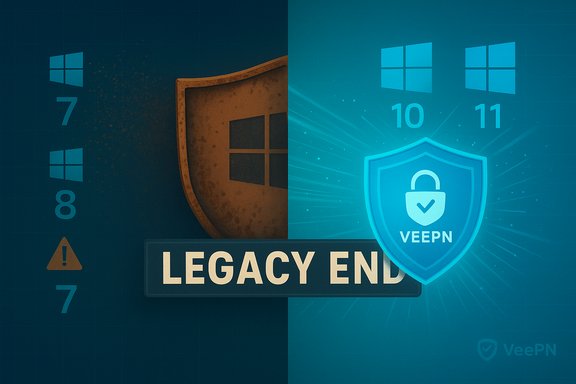
VeePN has announced it will stop shipping updates and feature patches for legacy Windows versions — specifically Windows 7, Windows 8, and Windows 8.1 — a change the company says is intended to strengthen user security and free its engineers to adopt modern VPN frameworks and protections.
VeePN’s official post makes the decision explicit: the company will continue active development and updates for Windows 10 and Windows 11, while users running Windows 7, 8, or 8.1 will be able to continue using an existing app but will no longer receive ongoing updates, security fixes, or new features from the vendor. This move follows an industry-wide pattern: major software vendors are steadily trimming support for older OSes as those systems miss security patches and lack APIs necessary for modern networking and telemetry features. Microsoft’s lifecycle calendar shows that Windows 7 support ended in January 2020 and Windows 8.1 support ended on January 10, 2023 — factors that vendors cite when dropping compatibility. VeePN’s public guidance also lists practical alternatives for users who cannot upgrade immediately, including installing an older VeePN client, configuring OpenVPN or WireGuard manually, using browser extensions, or provisioning VPN protection on a home router to cover legacy machines.
VeePN’s decision to end updates for Windows 7, 8, and 8.1 is a clear signal of where the VPN and security market is headed: vendors will favor supported platforms where modern protections can be delivered reliably. The announcement is reasonable from a security‑engineering viewpoint and offers pragmatic alternatives, but the practical burden of migration and the short‑term exposure it creates for legacy devices remain real — and require decisive action from users and IT admins alike.
Source: TechNadu VeePN Ends Support for Legacy Windows Versions - Here’s What Users Should Know
 Background / Overview
VeePN’s official post makes the decision explicit: the company will continue active development and updates for Windows 10 and Windows 11, while users running Windows 7, 8, or 8.1 will be able to continue using an existing app but will no longer receive ongoing updates, security fixes, or new features from the vendor. This move follows an industry-wide pattern: major software vendors are steadily trimming support for older OSes as those systems miss security patches and lack APIs necessary for modern networking and telemetry features. Microsoft’s lifecycle calendar shows that Windows 7 support ended in January 2020 and Windows 8.1 support ended on January 10, 2023 — factors that vendors cite when dropping compatibility. VeePN’s public guidance also lists practical alternatives for users who cannot upgrade immediately, including installing an older VeePN client, configuring OpenVPN or WireGuard manually, using browser extensions, or provisioning VPN protection on a home router to cover legacy machines. Why VeePN made this call
Security and platform limitations
VeePN frames the decision primarily as a security imperative. Modern VPN features — fast, kernel‑friendly protocols like WireGuard, multi‑hop (double VPN) routing, integrated threat‑blocking, and system‑level kill switches — rely on APIs and security features Microsoft introduced in later Windows releases. Legacy Windows builds simply do not receive the operating‑system patches and platform primitives required to implement these protections safely and reliably at scale. Stopping support for outdated OS versions allows the vendor to focus engineering resources on delivering higher‑value security features for supported platforms.Maintenance cost and QA complexity
Supporting old OS versions multiplies QA, support, and test-matrix costs. Each legacy environment requires backported fixes, special‑case workarounds, and extra help‑desk time — resources VeePN says it prefers to redeploy toward performance, stability and newer privacy technologies. This is a common commercial calculus for small and mid‑sized security vendors: maintaining compatibility with unsupported OSes scales poorly and can reduce the speed of security responses for current platforms.The Microsoft lifecycle context
Vendors are rarely acting in a vacuum here: Microsoft’s official lifecycle pages and support notices provide concrete dates when consumer OS releases stop receiving security updates. Windows 7’s mainstream support ended January 14, 2020; Windows 8 mainstream support was curtailed earlier, and Windows 8.1 reached end‑of‑support on January 10, 2023. Those timelines mean large user populations are already sitting on systems without vendor security patches — a major liability for any security product that must assume a secure base platform.What’s affected — supported and unsupported Windows versions
- Windows 11 — fully supported by VeePN.
- Windows 10 — fully supported by VeePN (note: Windows 10 itself has a Microsoft end‑of‑support lifecycle; plan migrations accordingly).
- Windows 8.1 — no longer supported for VeePN updates.
- Windows 8 — no longer supported for VeePN updates.
- Windows 7 — no longer supported for VeePN updates.
What VeePN recommends (options for users on legacy Windows)
VeePN lists several alternatives for users who cannot immediately upgrade the operating system; these present tradeoffs between security, convenience and coverage.- Use an older VeePN client: reinstall the last legacy Windows build. This preserves basic VPN functionality but means no more feature or performance updates. VeePN notes essential updates may still be available in limited form for those legacy clients, but the protection surface is shrinking.
- Manual protocol configuration (recommended for advanced users): set up OpenVPN or WireGuard manually on the device. WireGuard delivers the best performance on modern hardware, but manual installation requires some networking expertise. VeePN’s help pages document manual configuration and legacy installers for older Windows builds.
- Browser extensions: install VeePN’s browser extension for Chrome, Firefox or Edge. Extensions protect browser traffic only (not system‑wide), so they’re useful for web browsing but do not secure background apps, email clients, RDP sessions, or other system services.
- Router‑level VPN: configure the home router to route outbound traffic through a VeePN server. This covers every device on the home LAN, including legacy PCs, TVs and game consoles — but requires a router that supports third‑party VPN clients (or flashing with OpenWrt/DD‑WRT) and may require higher technical familiarity.
- Migrate to mobile / other devices: VeePN points out its iOS and Android apps remain supported, meaning users can still protect mobile traffic even if an older PC is not updated. This is a stopgap, not a complete fix.
Practical migration and mitigation steps — a checklist
Whether you’re an individual user, a small‑business owner, or IT admin, the recommendations below turn VeePN’s guidance into actionable workstreams.- Inventory: list every machine running Windows 7/8/8.1 and record which ones actually need to remain on that OS (legacy apps, hardware tie‑ins).
- Prioritize: mark production systems (business critical) and high‑risk devices (internet‑facing RDP/FTP, machines used on public Wi‑Fi).
- Backup: create full disk images / file backups before any upgrade or migration. Keep recovery media and store backups offline.
- Upgrade where possible: test an in‑place upgrade to Windows 10 or 11 in a virtual machine or spare machine before rolling it out broadly. If hardware prevents upgrade, evaluate whether a hardware refresh is more cost‑effective than protracted mitigation.
- For devices that cannot be upgraded immediately:
- Move them to an isolated VLAN or separate SSID to segment their network traffic.
- Apply a router‑level VPN to provide egress protection, or use a reputable third‑party VPN client configured manually (OpenVPN/WireGuard).
- Harden the legacy installation: ensure third‑party browser and apps are updated; enable local firewall rules and disable unneeded services; remove admin rights for daily users.
- Monitor: keep an eye on logs and behavior for signs of compromise, and ensure offline recovery media is up to date.
- Plan a timeline: set a hard date by which all endpoints must be upgraded or retired; patch windows and support lifecycles move quickly and should be treated as non‑negotiable.
How to manually configure WireGuard/OpenVPN (concise guide)
Manual protocol configuration is a common and effective workaround when a vendor stops providing updated native clients. The high‑level steps below are platform‑agnostic; consult VeePN’s help articles or support for provider‑specific configuration files.- Obtain credentials and configuration files: log in to your VeePN account and download the OpenVPN (.ovpn) or WireGuard (.conf) profiles for the desired server locations.
- Install client software: on Windows, use the official OpenVPN client or the WireGuard Windows app (from the project or Microsoft Store). Verify checksums on downloaded installers.
- Import profile: open the client, import the configuration file and add the credentials (if not embedded). For WireGuard, create a new tunnel and paste the .conf contents.
- Test connection: connect to a nearby server and run an IP check and DNS leak test to confirm traffic egress is through the VPN.
- Auto‑start and kill switch: enable auto‑start and configure the client to block network traffic on disconnect (if available) to reduce leak risk. Some manual setups require Windows firewall rules to mimic a kill switch.
- Validate app behavior: ensure your critical apps function as expected and that no corporate SSO or multi‑factor flows are broken by routing.
Router‑based VPN: coverage vs control
Installing VeePN on a Wi‑Fi router secures all devices behind that router, including legacy PCs and IoT devices that can’t run a modern VPN client. Advantages and tradeoffs:- Benefits:
- Single point of protection for every device on the LAN.
- No need to touch each legacy PC.
- Useful when devices must stay on unsupported OSes for operational reasons.
- Drawbacks:
- Performance depends on the router’s CPU — consumer routers may bottleneck high throughput, especially for WireGuard/OpenVPN.
- Troubleshooting becomes centralized; if the router VPN connection fails, every device loses VPN egress.
- Some services may break because they expect direct IP addresses (e.g., geofenced streaming, device pairing).
- Trust shifts to the device running the router firmware; ensure it’s secured, patched and, if possible, uses manufacturer‑supported VPN clients or reputable third‑party firmware.
Risks of staying on unsupported Windows versions
Remaining on Windows 7/8/8.1 after a vendor like VeePN withdraws active updates multiplies risk vectors:- No OS security patches: new vulnerabilities discovered in modern browsers, networking stacks or kernel components will not be patched by Microsoft for those OSes, leaving the system a high‑risk endpoint.
- VPN features unavailable: modern protections such as system‑level threat blocking, kernel QoS/packet filtering, and seamless WireGuard integration will be unavailable or only partially functional.
- Compatibility and stability issues: newer apps and encrypted transport stacks may rely on OS features not backported to legacy releases, producing intermittent failures or degraded performance.
- Compliance exposure: for businesses, running unsupported OSes can violate regulatory requirements (PCI, HIPAA, GDPR guidance in some contexts) or nullify insurance clauses that require supported patch levels.
- Attack surface concentration: attackers increasingly target legacy builds because they offer predictable, unpatched vectors; running such systems in mixed environments increases lateral movement risk.
What this means for different user types
Home users
- Best path: upgrade to Windows 10/11 if the hardware supports it; otherwise, consider a new device. In the short term, use a router VPN or browser extension but accept the limits of those approaches.
Power users and tinkerers
- Best path: install WireGuard or OpenVPN manually, test for leaks, and consider running a VM with a supported OS for any security‑sensitive work. Maintain strong host hardening (firewall, EDR where possible).
Small businesses and IT teams
- Best path: inventory legacy endpoints, plan phased upgrades, or enroll eligible machines in vendor Extended Security Updates (if available and cost‑effective). Isolate legacy endpoints on separate VLANs and use router or gateway VPNs to minimize exposure.
Enterprises
- Best path: follow formal asset lifecycle procedures — retire unsupported machines, enforce minimal supported configurations, and use managed VPN gateways or Zero Trust solutions rather than relying on client‑side workarounds.
Critical analysis — strengths of VeePN’s approach and where risk remains
Strengths:- Security‑first rationale: By prioritizing modern platforms, VeePN can adopt faster protocols, improve threat prevention, and reduce the maintenance burden that slows response time on current systems. This should translate into better protection for the majority of users on supported OSes.
- Clear options: VeePN published practical alternatives (legacy client, manual protocols, router install, extensions), giving users multiple mitigation paths while they transition.
- Legacy user fallout: Some users — especially those with older hardware or mission‑critical legacy applications — will be unable to upgrade quickly. For them, the absence of vendor updates increases the attack surface and creates operational headaches.
- Partial coverage solutions: Browser extensions and legacy clients do not equal full system protection. Users relying solely on lightweight extensions may have a false sense of security.
- Support burden shifted to end users: Manual WireGuard/OpenVPN setups and router configurations require technical skill; many users will need third‑party assistance or paid help to implement robust mitigations.
Final recommendations
- Treat the VeePN announcement as a migration trigger, not a suggestion. If you use VeePN on a legacy Windows machine, plan a migration or mitigation path in the next 30–90 days.
- If you can upgrade hardware or OS, do so and install the latest VeePN client to reclaim modern VPN features and security improvements. Microsoft’s lifecycle guidance is an important scheduling constraint here.
- If you cannot upgrade immediately, adopt an interim strategy: isolate the legacy device on its own network segment, route its traffic through a router‑level VPN, and restrict administrative use. Treat browser extensions as convenience tools, not full replacements for system‑wide protection.
- For businesses, formalize a cutover plan with inventory, prioritized upgrades, and a budget for ESUs or replacement hardware where necessary. Document the mitigation steps and timeline for auditors and security stakeholders.
VeePN’s decision to end updates for Windows 7, 8, and 8.1 is a clear signal of where the VPN and security market is headed: vendors will favor supported platforms where modern protections can be delivered reliably. The announcement is reasonable from a security‑engineering viewpoint and offers pragmatic alternatives, but the practical burden of migration and the short‑term exposure it creates for legacy devices remain real — and require decisive action from users and IT admins alike.
Source: TechNadu VeePN Ends Support for Legacy Windows Versions - Here’s What Users Should Know
