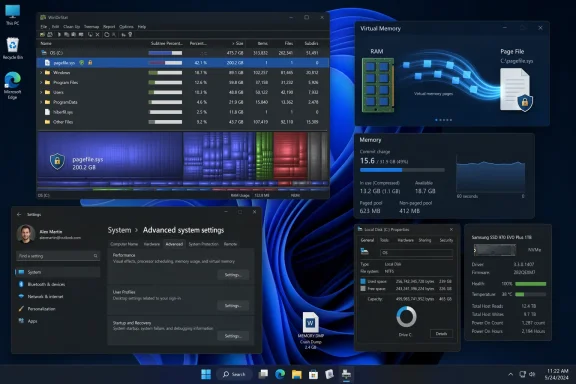
Windows often hides its biggest storage problems in plain sight, and pagefile.sys is one of the best examples. It can look like dead weight when a disk analyzer shows it consuming tens or even hundreds of gigabytes, but this file is part of how Windows manages memory, crash recovery, and system stability. The instinct to delete it is understandable; the consequences can range from degraded performance to a system that is much harder to debug after a crash. Microsoft’s own documentation makes clear that the page file is tied to virtual memory behavior and crash-dump requirements, not just a convenient cache you can toss aside.
The modern Windows memory model is built around the idea that virtual memory is always in play, even when your installed RAM seems ample. When applications and system processes need more commit space than physical memory alone can provide, Windows pages less-active memory out to a file on disk, traditionally pagefile.sys. Microsoft describes this as a core part of memory management, with the page file serving as storage for paged-out memory on one or more partitions.
That design is not an accident or an old compatibility relic. It allows Windows to keep active work responsive while preserving the state of inactive pages, which is why a browser with many tabs, a virtual machine, a photo editor, or a memory-heavy game can still coexist with background services. In practical terms, the page file helps Windows promise more memory to running software than the RAM sticks alone can physically hold. Microsoft notes that page file sizing depends on both installed RAM and the peak commit requirements of the system, which is why there is no universal perfect number.
For most users, the file is invisible and intentionally protected. Windows hides protected operating system files because the operating system expects them to stay put, and pagefile.sys is among the most important of those files. A disk utility may flag it as a giant hog, but size alone does not make it disposable. Microsoft’s guidance is blunt on this point: the presence and size of the page file are tied to workload and system configuration, not merely to how much empty space you wish you had.
Historically, the conventional rule of thumb was to size pagefile.sys at about 1.5 times installed RAM, and that advice still appears in Microsoft guidance as a starting point rather than a law. Modern systems complicate that old formula because crash-dump settings, commit spikes, and large-memory workloads can all change the number dramatically. That is why a Windows PC with 16 GB of RAM may show a fairly modest page file one day and a surprisingly large one the next.
The MakeUseOf article that prompted this discussion gets the user-facing advice mostly right: pagefile.sys is not junk, and deleting it is usually a bad idea. But the more important story is why the file grows, when it can grow too much, and what users should actually do instead. That nuance matters because a “hidden file cleanup” mindset can lead people to disable a safety mechanism that Windows relies on for stability and diagnostics.
This is why disabling the page file can be misleading on a machine that seems to have “enough” RAM. You may not notice a problem until a game, editor, browser, or virtualization stack crosses a threshold and Windows has nowhere to satisfy a new memory request. At that point, crashes or application failures can arrive suddenly, not gradually. Microsoft’s docs emphasize that pagefile sizing should reflect actual workload peaks, not just average behavior.
The key point is that pagefile.sys is not an optional junk drawer. It is part of how Windows makes memory allocation predictable under stress, and that predictability is one reason desktop Windows remains stable across wildly different hardware configurations. Without it, the machine’s behavior becomes much less forgiving of transient spikes and memory leaks.
This also explains why a file may appear to balloon after a specific project, update, or troubleshooting session. The page file can expand to meet a peak demand, then remain large until Windows or the user adjusts it later. In other words, a huge pagefile.sys is often a record of stress, not proof of malware or corruption.
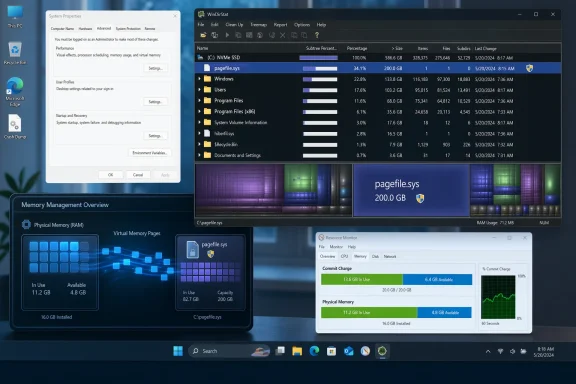
Still, there is a line between large because necessary and large because suspicious. A page file in the 200 GB to 300 GB range is not typical for everyday consumer use, and it deserves attention. That does not mean deletion is the answer; it means the underlying cause should be investigated first.
This is not a corner case for enterprise support teams or developers. It is a practical necessity when diagnosing blue screens, driver failures, or intermittent instability. Without adequate dump support, you can lose the evidence you need to identify the real cause of a crash. Microsoft’s troubleshooting guidance repeatedly links page file sizing with the ability to generate meaningful dumps.
The takeaway is simple: the file is doing more than “holding idle RAM.” It is also part of Windows’ forensic toolkit. A system that crashes without a useful dump can be far more expensive to troubleshoot than the storage space you thought you saved.
This matters even on machines with plenty of RAM. Windows itself, browsers, game launchers, antivirus tools, and other utilities can all create a combined footprint that suddenly becomes larger than expected. A single tab explosion or app update can tip the balance, and when there is no page file, the system has no spillover buffer. That is when “I have enough RAM” turns into “why did everything just freeze?”
The issue is not only performance. Windows also uses the page file to support certain crash-dump scenarios, so removing it can weaken your ability to diagnose the next failure. That tradeoff is easy to ignore until a serious bug check occurs and you discover the evidence is missing.
A bad third-party “optimizer” can also distort page-file behavior by forcing extreme settings. So can administrative changes made in haste, especially on systems that were tuned for a benchmark rather than daily use. The key clue is mismatch: if the size far exceeds what your workload would justify, something changed.
For a machine with 16 GB of RAM, the old 1.5x guideline would suggest a broad range around 24 GB, but Microsoft is careful to frame that as a starting point rather than a universal target. In practice, the right size depends on peak commit, dump policy, and the kinds of apps you run. That makes measured adjustment better than simplistic shrinkage.
The consumer risk is overconfidence. A machine with 32 GB or 64 GB of RAM can still run into memory pressure if the user loads enough browser tabs, cloud apps, games, and launchers at once. The page file is the safety net that keeps those spikes from turning into avoidable failures.
That means page-file policy can affect supportability. A poorly sized file may save disk space today but cost hours of forensic work after a production outage. In enterprise environments, the ability to recover evidence is often more valuable than a few dozen gigabytes of reclaimed storage.
What may change is the way users and administrators think about it. Instead of viewing it as a relic from low-RAM days, more people may start treating it as part of a broader reliability stack that includes memory management, recovery, and telemetry for failure analysis. That shift would be healthy, because it replaces cleanup folklore with operational understanding.
Source: MakeUseOf Windows has another giant hidden file — but this one you should probably leave alone
 Background
The modern Windows memory model is built around the idea that virtual memory is always in play, even when your installed RAM seems ample. When applications and system processes need more commit space than physical memory alone can provide, Windows pages less-active memory out to a file on disk, traditionally pagefile.sys. Microsoft describes this as a core part of memory management, with the page file serving as storage for paged-out memory on one or more partitions.That design is not an accident or an old compatibility relic. It allows Windows to keep active work responsive while preserving the state of inactive pages, which is why a browser with many tabs, a virtual machine, a photo editor, or a memory-heavy game can still coexist with background services. In practical terms, the page file helps Windows promise more memory to running software than the RAM sticks alone can physically hold. Microsoft notes that page file sizing depends on both installed RAM and the peak commit requirements of the system, which is why there is no universal perfect number.
For most users, the file is invisible and intentionally protected. Windows hides protected operating system files because the operating system expects them to stay put, and pagefile.sys is among the most important of those files. A disk utility may flag it as a giant hog, but size alone does not make it disposable. Microsoft’s guidance is blunt on this point: the presence and size of the page file are tied to workload and system configuration, not merely to how much empty space you wish you had.
Historically, the conventional rule of thumb was to size pagefile.sys at about 1.5 times installed RAM, and that advice still appears in Microsoft guidance as a starting point rather than a law. Modern systems complicate that old formula because crash-dump settings, commit spikes, and large-memory workloads can all change the number dramatically. That is why a Windows PC with 16 GB of RAM may show a fairly modest page file one day and a surprisingly large one the next.
The MakeUseOf article that prompted this discussion gets the user-facing advice mostly right: pagefile.sys is not junk, and deleting it is usually a bad idea. But the more important story is why the file grows, when it can grow too much, and what users should actually do instead. That nuance matters because a “hidden file cleanup” mindset can lead people to disable a safety mechanism that Windows relies on for stability and diagnostics.
What Pagefile.sys Actually Does
At its simplest, pagefile.sys is Windows’ pressure valve for memory. When RAM fills up, Windows can move inactive memory pages to disk so the operating system can continue giving foreground tasks the space they need. That keeps the system from immediately collapsing under load when usage spikes beyond physical memory.Commit Charge and Why It Matters
A lot of users think in terms of “free RAM,” but Windows thinks in terms of commit charge and backing store. Task Manager’s committed memory readout reflects how much memory Windows has promised to back with either RAM or a page file. If that commit limit is too low because the page file is missing or tiny, the system can refuse allocations even when the PC still appears to have headroom.This is why disabling the page file can be misleading on a machine that seems to have “enough” RAM. You may not notice a problem until a game, editor, browser, or virtualization stack crosses a threshold and Windows has nowhere to satisfy a new memory request. At that point, crashes or application failures can arrive suddenly, not gradually. Microsoft’s docs emphasize that pagefile sizing should reflect actual workload peaks, not just average behavior.
The key point is that pagefile.sys is not an optional junk drawer. It is part of how Windows makes memory allocation predictable under stress, and that predictability is one reason desktop Windows remains stable across wildly different hardware configurations. Without it, the machine’s behavior becomes much less forgiving of transient spikes and memory leaks.
Why Windows Uses Disk at All
Disk is obviously slower than RAM, but it is also much larger and much cheaper per gigabyte. Windows is using pagefile.sys as a tradeoff: it accepts slower access for inactive data so it can preserve working set performance for the tasks that actually need low latency. That tradeoff is most visible on SSD-based systems, where paging is still slower than RAM but less punishing than it once was on hard drives.- RAM is the fast working area.
- Pagefile.sys is the spillover area for inactive pages.
- Commit charge determines whether Windows can keep promising new memory.
- Paging protects responsiveness when usage bursts past physical RAM.
Why It Can Be So Large
The article correctly notes that pagefile.sys can grow much larger than the familiar rule-of-thumb sizing because Windows is reacting to demand, not preserving a fixed vanity metric. A machine with heavy multitasking, virtual machines, creative workloads, or dozens of browser tabs can generate large commit spikes. In those situations, the page file expands so Windows can honor memory requests without failing them outright.System-Managed Sizing Is Dynamic
By default, Windows uses system managed size, which means the operating system decides how big the page file should be based on the machine’s conditions. That is often the right answer because it lets Windows adapt to workload changes without user intervention. Microsoft’s guidance explicitly states that page file sizing is unique to each system and cannot be generalized cleanly.This also explains why a file may appear to balloon after a specific project, update, or troubleshooting session. The page file can expand to meet a peak demand, then remain large until Windows or the user adjusts it later. In other words, a huge pagefile.sys is often a record of stress, not proof of malware or corruption.
Still, there is a line between large because necessary and large because suspicious. A page file in the 200 GB to 300 GB range is not typical for everyday consumer use, and it deserves attention. That does not mean deletion is the answer; it means the underlying cause should be investigated first.
Crash Dumps Can Force It Larger
One of the least understood reasons pagefile.sys can become larger is crash-dump support. Microsoft says that if you want certain crash dumps, a page file or dedicated dump file must exist and be large enough to support that dump type. For complete memory dumps, the page file on the boot volume needs enough capacity to back the dump process, and automatic memory dump behavior can adjust sizing to help ensure that requirement is met.This is not a corner case for enterprise support teams or developers. It is a practical necessity when diagnosing blue screens, driver failures, or intermittent instability. Without adequate dump support, you can lose the evidence you need to identify the real cause of a crash. Microsoft’s troubleshooting guidance repeatedly links page file sizing with the ability to generate meaningful dumps.
The takeaway is simple: the file is doing more than “holding idle RAM.” It is also part of Windows’ forensic toolkit. A system that crashes without a useful dump can be far more expensive to troubleshoot than the storage space you thought you saved.
Why Deleting It Is a Bad Idea
Deleting pagefile.sys may sound like an easy storage win, but in practice it removes a core stabilization layer from Windows memory management. If the file is absent and a workload exceeds RAM, Windows has fewer options and may fail allocations that would otherwise have been handled gracefully. Microsoft’s own documentation treats the page file as a standard component of memory management, not a disposable cache.What Happens When Memory Runs Tight
If you disable the page file and your system reaches physical memory limits, the first symptom may not be a dramatic blue screen. More often, applications become sluggish, refuse to open large files, or crash when they cannot obtain additional memory. Memory leaks and background growth make this especially risky because users often do not notice the buildup until it is too late.This matters even on machines with plenty of RAM. Windows itself, browsers, game launchers, antivirus tools, and other utilities can all create a combined footprint that suddenly becomes larger than expected. A single tab explosion or app update can tip the balance, and when there is no page file, the system has no spillover buffer. That is when “I have enough RAM” turns into “why did everything just freeze?”
The issue is not only performance. Windows also uses the page file to support certain crash-dump scenarios, so removing it can weaken your ability to diagnose the next failure. That tradeoff is easy to ignore until a serious bug check occurs and you discover the evidence is missing.
Why Windows Protects the File
Windows does not let users casually delete pagefile.sys because the file is typically in use and integral to the running system. Even if you manage to remove it offline, Windows will recreate it on boot if virtual memory is enabled. To truly remove it, you must disable the page file entirely, which is a configuration change with consequences rather than a cleanup trick.- Deleting it in File Explorer is blocked.
- Removing it offline does not solve the underlying setting.
- Disabling it entirely is the risky step, not the deletion itself.
- Crash-dump capability can be reduced or lost.
How to Tell When the Size Is Abnormal
Not every large pagefile.sys is a problem, but not every large pagefile.sys is healthy, either. Microsoft stresses that page file sizing is workload-specific, so the right question is whether the file reflects a legitimate need or an outlier. On a consumer desktop, a 200 GB or 300 GB page file usually deserves scrutiny, especially if the machine is not running memory-intensive tasks.Signs It May Be Too Large
If the file grew after a one-time workload, a crash-dump setting change, or a system tweak, that may be normal. If it keeps expanding with no obvious explanation, the cause may be a runaway process, a misconfiguration, or software that is consuming commit memory aggressively. The MakeUseOf article is right to suggest scanning for malware when the number looks implausible.A bad third-party “optimizer” can also distort page-file behavior by forcing extreme settings. So can administrative changes made in haste, especially on systems that were tuned for a benchmark rather than daily use. The key clue is mismatch: if the size far exceeds what your workload would justify, something changed.
When a Big File Is Still Normal
A high-memory workstation is a different story. Large datasets, virtual machines, professional media tools, and development environments can genuinely need more commit headroom than a casual laptop. In those cases, a page file that looks oversized on paper may be entirely appropriate once the system’s real workload is considered.- Virtualization can spike commit charge quickly.
- Content creation apps can cache aggressively.
- Browser tab counts can be deceptively expensive.
- Background tools can keep memory reserved for longer than users expect.
- Crash-dump settings can increase minimum size requirements.
What You Should Do Instead
If pagefile.sys is consuming too much space, the fix is usually management, not removal. Windows lets you keep the page file within a custom range, which can preserve stability while preventing runaway growth. That is the safer path for anyone who wants to reclaim storage without breaking memory behavior.Resize, Don’t Eliminate
Microsoft’s guidance supports treating page-file size as a system-specific setting. You can allow Windows to manage it automatically, which is the best choice for most users, or you can set a custom minimum and maximum if you have a clear reason to do so. The goal is to cap unnecessary expansion while still leaving enough room for your typical workload and any required dump files.For a machine with 16 GB of RAM, the old 1.5x guideline would suggest a broad range around 24 GB, but Microsoft is careful to frame that as a starting point rather than a universal target. In practice, the right size depends on peak commit, dump policy, and the kinds of apps you run. That makes measured adjustment better than simplistic shrinkage.
A Practical Adjustment Workflow
If you decide to intervene, the process should be orderly rather than experimental. Check whether Windows is already managing the file well, determine whether the size ballooned because of a one-off workload, and review whether crash-dump settings require a larger page file. Only then should you set a custom cap.- Confirm the current page-file setting in Virtual memory.
- Check whether the machine recently ran memory-heavy tasks.
- Review crash-dump requirements for the system.
- Scan for malware or configuration tools if the size looks suspicious.
- Set a sensible upper limit only if the cause is understood.
Enterprise vs Consumer Impact
The page file matters differently depending on who is using the machine. On consumer systems, the main issues are responsiveness, storage pressure, and avoiding unnecessary tinkering. On enterprise systems, the page file often intersects with crash analysis, driver triage, and workload predictability, which makes policy decisions more consequential.Consumer Users
Most home users should let Windows manage pagefile.sys unless they have a concrete reason not to. The default behavior is designed to balance ordinary applications, browser usage, and occasional peaks without forcing users to micromanage memory. If the file looks huge, the first response should be to understand why it expanded before making changes.The consumer risk is overconfidence. A machine with 32 GB or 64 GB of RAM can still run into memory pressure if the user loads enough browser tabs, cloud apps, games, and launchers at once. The page file is the safety net that keeps those spikes from turning into avoidable failures.
Enterprise and IT Operations
For IT teams, pagefile.sys is not just a performance setting. It is a diagnostic enabler, especially when a system needs a complete or kernel memory dump after a failure. Microsoft’s documentation is explicit that dump creation depends on enough page-file or dedicated-dump capacity on the boot volume.That means page-file policy can affect supportability. A poorly sized file may save disk space today but cost hours of forensic work after a production outage. In enterprise environments, the ability to recover evidence is often more valuable than a few dozen gigabytes of reclaimed storage.
- Consumer priority: stability and simplicity.
- Enterprise priority: diagnostics and predictable recovery.
- Developer priority: reproducible crash behavior.
- Power-user priority: preventing runaway growth without disabling safety nets.
Strengths and Opportunities
The strongest argument for pagefile.sys is that it quietly preserves stability while giving Windows enough flexibility to absorb real-world usage spikes. It is also one of the few system components that directly supports both performance continuity and crash forensics, which makes it more valuable than it first appears. The opportunity for users is not to erase it, but to understand it well enough to tune it responsibly when needed.- Automatic resilience when memory use spikes unexpectedly.
- Better multitasking under mixed workloads.
- Crash-dump support for postmortem troubleshooting.
- Flexible sizing that adapts to different hardware and tasks.
- Safer defaults for users who do not want to micromanage memory.
- Predictable behavior across a wide range of Windows PCs.
- A tunable cap when the file grows beyond practical needs.
Risks and Concerns
The main risk is that users see a huge hidden file and assume it is junk. That misunderstanding can lead to disabling the page file, cutting crash-dump support, and creating instability that is harder to diagnose later. Another risk is misreading a legitimately large file as evidence of malware or corruption when the real cause is simply a demanding workload.- App crashes when memory demand exceeds RAM.
- Blue screens that are harder to analyze without dump support.
- Allocation failures in memory-intensive workloads.
- Misdiagnosis of normal expansion as malicious activity.
- Over-aggressive tuning by optimization tools.
- Storage pressure on small drives if the file is left unchecked.
- False confidence that more RAM alone makes the page file unnecessary.
Looking Ahead
As Windows systems continue to ship with more RAM, faster SSDs, and more memory-hungry software, the page file will probably remain necessary even if users interact with it less often. Better hardware does not eliminate commit spikes, crash-dump requirements, or the need for a fallback when applications misbehave. In that sense, pagefile.sys is likely to stay one of those boring but essential Windows mechanisms that most people only notice when something goes wrong.What may change is the way users and administrators think about it. Instead of viewing it as a relic from low-RAM days, more people may start treating it as part of a broader reliability stack that includes memory management, recovery, and telemetry for failure analysis. That shift would be healthy, because it replaces cleanup folklore with operational understanding.
- Expect continued reliance on system-managed sizing for most users.
- Expect more attention to crash-dump compatibility on supportable systems.
- Expect better SSD-era performance, but not the end of paging.
- Expect power users to keep asking for custom caps rather than deletions.
- Expect small drives to keep creating tension between storage and stability.
Source: MakeUseOf Windows has another giant hidden file — but this one you should probably leave alone