

MakeUseOf’s cheeky experiment—installing a Windows 11-style launcher on an Android phone—is more than a novelty: it’s a useful case study in how far Android’s customization model can push a mobile device’s identity, what it can convincingly emulate, and where the approach breaks down in the real world.
Customization has long been Android’s signature strength: launchers, icon packs, widgets and deep system tweaks let users remap the feel of their phones. The MakeUseOf piece tested Win 11 Launcher (by developer Spark Planet), a Play Store launcher that attempts to reproduce Windows 11’s visual language — Start menu, taskbar, File Explorer, Action Center and tile-style app icons — on a smartphone homescreen. The review found the styling surprisingly faithful in many respects while also calling out the friction points that come with shoehorning a desktop metaphor into a small, touch-first device.
Two facts worth verifying before we dig deeper:
But the fidelity is cosmetic, not functional. The underlying platform remains Android, and that creates consistent, predictable mismatches:
Conclusion: the novelty of “turning” your Android into Windows 11 is real and entertaining, and Win 11 Launcher demonstrates a polished, accessible way to achieve that aesthetic. The trade-offs — intrusive ads, functional mismatches and privacy considerations — are equally real. Decide which matters more: the thrill of visual mimicry, or the predictable utility of official integration.
Source: MakeUseOf I can't explain why I thought it was a good idea, but I turned my Android into Windows 11
 Background / Overview
Customization has long been Android’s signature strength: launchers, icon packs, widgets and deep system tweaks let users remap the feel of their phones. The MakeUseOf piece tested Win 11 Launcher (by developer Spark Planet), a Play Store launcher that attempts to reproduce Windows 11’s visual language — Start menu, taskbar, File Explorer, Action Center and tile-style app icons — on a smartphone homescreen. The review found the styling surprisingly faithful in many respects while also calling out the friction points that come with shoehorning a desktop metaphor into a small, touch-first device.Two facts worth verifying before we dig deeper:
- The launcher is distributed through the Google Play storefront by Spark Planet and shows millions of installs and tens of thousands of reviews.
- Microsoft’s Phone Link (Link to Windows) feature provides an officially supported way to integrate Android phones with Windows 11 — including, increasingly, File Explorer integration — and remains a safer alternative if your goal is cross-device continuity rather than a full aesthetic transformation.
What Win 11 Launcher promises — and what it actually does
A desktop in your pocket: feature snapshot
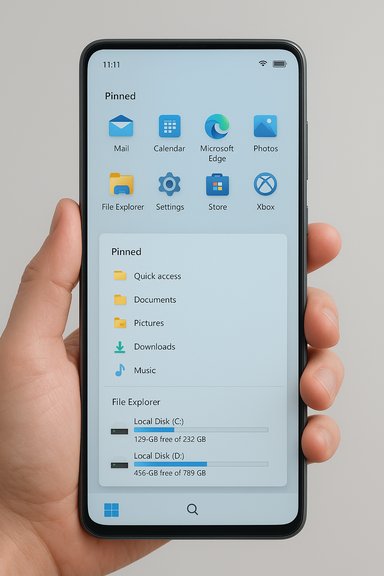
Win 11 Launcher aims to deliver a recognizably Windows-like UX on Android. Important elements highlighted by the MakeUseOf reviewer include:- Windows-style Start menu with pinned apps, scrollable app list and search.
- Taskbar pinned to the bottom of the screen, with quick-access folders on the left and system icons on the right.
- File Explorer UI that mimics Windows’ left-hand Quick Access / drive view and a main pane.
- Action Center that surfaces quick toggles and notifications from a bottom-right corner control.
- Tile-style app icons and configurable themes designed to look like Windows tiles.
How faithful is the emulation?
Stylistically, the launcher scores high marks. The Start menu, taskbar, and tile motifs are convincing and the overall layout gives a desktop-like feeling. The File Explorer UI reproduces the visual layout with Quick Access, local drives and a ribbon-like contextual menu that surfaces file operations on long-press — details the reviewer praised as “spot on.”But the fidelity is cosmetic, not functional. The underlying platform remains Android, and that creates consistent, predictable mismatches:
- App behavior, permission models, and storage layouts are Android-native, not Windows. The launcher’s “Pictures” folder view may surface app-specific directories instead of a unified camera roll. In the MakeUseOf test, images were accessible under Local Disk > DCIM > Camera, not via the launcher’s Pictures shortcut.
- Windows metaphors such as drives, system properties, and true multi-window desktop multitasking cannot be faithfully reproduced without deeper system-level changes or virtualization. Users should not expect the launcher to run desktop binaries or change Android’s underlying APIs.
Monetization and the ad problem: the real UX friction
MakeUseOf’s reviewer repeatedly flagged the frequency and intrusiveness of ads: full-screen interstitials with countdown timers, appearing after common actions. For a launcher — which is used dozens of times per day — that level of advertising degrades the fundamental experience. The app follows a common mobile-first monetization strategy: a free, ad-supported base with an in-app purchase to remove ads (the reviewer described the ad-removal as an inexpensive paywall). Play Store meta-data confirms in-app purchases are present and lists both Win 11 Launcher and a Pro variant, but storefront pages do not always show a single fixed “remove ads” price globally; prices vary by region and over time. Readers should treat any specific price point mentioned in casual reviews as potentially time-sensitive and verify it themselves before buying. Why this matters: a launcher replaces a phone’s primary navigation surface. Excessive ads here are worse than in a social feed because they interrupt core device interactions (opening apps, reading notifications, browsing files).The File Explorer illusion: clever detail, practical limits
The MakeUseOf hands-on praised the File Explorer’s visual accuracy and the presence of expected operations — cut, copy, paste, rename — and even networking options (LAN/FTP, though premium-locked). Those additions are thoughtful and demonstrate attention to detail. But two technical limits are unavoidable:- Android’s storage model differs from Windows’ drive-letter model; many app directories are sandboxed and not exposed to third-party launchers the way desktop drives are. The launcher maps Android folders into a Windows-like hierarchy, but the mapping is translation, not a native change to Android’s file system.
- Network access features (LAN/FTP) in many mobile apps rely on Android’s file provider APIs or third-party implementations; their presence is useful but often gated behind premium paywalls and can be inconsistent across devices and OEM ROMs.
Alternatives to “turning” Android into Windows
There are several distinct strategies depending on what you want: the look of Windows, native cross-device integration, or the ability to actually run Windows software on mobile hardware.1) Cosmetic makeover (what Win 11 Launcher does)
- Pros: Fast, reversible, lightweight.
- Cons: Cosmetic only; can introduce ads; may require accessibility permissions.
2) Official integration (Phone Link / Link to Windows)
- Pros: Official, secure, feature-rich (notifications, calls, photos, File Explorer integration); no UI takeover of your phone.
- Cons: Requires pairing and Microsoft account; limited to supported Android versions and OEMs for some advanced features.
3) Emulation / virtualization (run Windows apps on Android)
- Tools like Winlator/UTM-style virtualization attempt to run x86/x64 or ARM Windows apps via emulation or virtualization on Android.
- Pros: Can run desktop apps in a sandbox.
- Cons: Heavy on resources, often experimental, fiddly device-specific setup and poor battery/thermal behavior.
4) Native Windows on phone experiments (Project Renegade / WOA)
- Community projects (Project Renegade and related efforts) have pushed Windows 11 ARM onto select Snapdragon phones by reworking boot flows and drivers. These are pure tinkering projects: fascinating but high-risk and device-specific. Early adopters have reported touch quirks, thermal stress and partial functionality. This is not a consumer solution.
5) Remote desktop
- Pros: Best compatibility for actual Windows apps and workflows; no changes to phone.
- Cons: Requires a host PC to be online; depends on network latency.
Security, privacy and maintenance concerns
Custom launchers are powerful because they require accessibility or extensive permissions to perform global actions. That creates two important considerations:- Permissions scope: Many launchers ask for accessibility or “display over other apps” permissions. Those capabilities can be misused if an app is malicious. Install from Google Play and inspect reviews, but also audit permissions and the developer’s track record. Spark Planet is a visible Play Store publisher with millions of installs, which reduces some risk but does not eliminate it.
- Ad networks and telemetry: Free apps commonly monetize through ad SDKs and analytics. MakeUseOf’s reviewer experienced frequent, full-screen ads — that pattern implies active ad SDKs which may collect behavioral signals. Users who care about privacy should weigh whether the trade-off is acceptable.
- Sideloading and third‑party APKs: Some retro launchers or experimental desktop-UI ports distribute via personal websites or APK aggregators. Sideloading increases supply-chain risk; verify signatures and prefer Play Store builds. Community projects like retro Windows XP launchers have at times been distributed outside the Play Store, and that introduces additional security considerations.
How to try this safely — a practical checklist
If you’re curious and want to experiment, follow this conservative, practical sequence:- Back up your device: use Google Backup, third‑party backup apps, or at minimum back up photos and critical data.
- Test on a secondary device if possible: launchers are low-risk, but if you’re experimenting with emulators or OS ports, use expendable hardware.
- Inspect Play Store metadata: verify developer name (Spark Planet), review counts and active install numbers.
- Install, open and grant minimal permissions first: explore the UI and only grant additional permissions if required for specific features.
- If ads are unbearable, verify the in‑app purchase option inside the app (price varies by region). Avoid entering payment info elsewhere.
- For heavy operations (network file shares, FTP) prefer trusted tools or Microsoft Phone Link rather than unvetted FTP clients.
- Monitor battery and thermal behavior for unexpected heat or drain — emulation and heavy UI redraws can stress CPUs and reduce device longevity.
Deeper technical verification — what the records show
- Play Store and third‑party app repositories confirm Spark Planet’s Win 11 Launcher is a mainstream Play Store title with millions of installs and many reviews — it’s not a tiny sideloaded novelty. That explains the polish the MakeUseOf reviewer saw and explains why some functionality (themes, easy install) works fluidly for many users.
- Microsoft’s official documentation and Windows Insider posts confirm that true file-level integration between Android phones and Windows 11 File Explorer is an actively supported, non‑launcher solution (Link to Windows / Phone Link). That path gives real file access from Windows without transforming the phone UI. If your motivation is to access phone files from Windows, use the official route.
- Community projects such as Project Renegade exist and have made remarkable progress in booting Windows 11 on selected Snapdragon phones by reworking UEFI boot flows. These are fascinating for enthusiasts but are device-specific, unstable, and not recommended for regular users because of risks like bricking, overheating, and incomplete driver support (touch, audio). These efforts demonstrate it’s technically possible in some circumstances, but the user experience is experimental and far from a consumer product.
Strengths and weaknesses — a balanced verdict
Strengths
- Visual fidelity: Win 11 Launcher nails the Windows look well enough to deliver a convincing desktop-like aesthetic on a phone. The Start menu and tile metaphors are implemented with care.
- Feature touches: Ribbon-style file operations, LAN/FTP toggles (even if premium), and tile shortcuts show the developer invested in more than a superficial skin.
- Accessibility of experimentation: Because it’s a Play Store app, users can try it without flashing ROMs or rooting devices.
Weaknesses / Risks
- Ad monetization inside the launcher is a poor UX choice: Persistent, full-screen ads in a launcher quickly become intolerable and defeat the point of simplifying your environment.
- False equivalence: Appearance does not equal function. Users expecting Windows-level file semantics or the ability to run desktop apps will be disappointed.
- Privacy & permission risks: Launchers require broad permissions; combined with ad SDKs, that can increase telemetry surface area.
- Device fragmentation: OEM variations and Android version differences mean behavior will vary widely; the developer’s “works on my phone” may not hold for all users.
What this says about the future of mobile and desktop convergence
Two trends are visible in parallel:- The nostalgia / aesthetics market — users enjoy surface-level transformations. Projects that faithfully recreate macOS, Windows XP, Windows 7 or Windows 11 aesthetics on Android will continue to have an audience. These are largely safe, reversible experiments if distributed through the Play Store.
- The deeper technical convergence — community efforts and increasing ARM adoption show technical paths toward running full desktop OSes on mobile hardware. Microsoft’s own investments in ARM-aware versions of Windows and richer device link features indicate the company sees cross-device continuity as strategic. But the gap between “looks like Windows” and “is Windows” remains substantial, and for good reasons (security, drivers, thermal management).
Final recommendation
- If you want the look of Windows on Android and you accept limited utility: try Win 11 Launcher as a playful experiment. Test it briefly, and if ads are unacceptable, consider the in‑app purchase — but confirm the price inside the Play Store for your region before paying.
- If your goal is functionality — file access, running Android apps from Windows, answering calls/texts on PC — use Microsoft Phone Link / Link to Windows. It is the supported, secure route and is actively evolving.
- If you’re a tinkerer interested in actually running Windows on phone hardware, treat projects like Project Renegade as lab experiments for spare hardware only. They are fascinating technical feats but come with meaningful risk and incomplete support.
Conclusion: the novelty of “turning” your Android into Windows 11 is real and entertaining, and Win 11 Launcher demonstrates a polished, accessible way to achieve that aesthetic. The trade-offs — intrusive ads, functional mismatches and privacy considerations — are equally real. Decide which matters more: the thrill of visual mimicry, or the predictable utility of official integration.
Source: MakeUseOf I can't explain why I thought it was a good idea, but I turned my Android into Windows 11
