Win 11 Outlook Classic: Deleted emails keep coming back and other...

Julian

New Member
Joined
Nov 7, 2025
Messages
19
Dear Sir,

I have a new win 11 pc with Microsoft 365 for the past two months and I am now having problems with my Outlook Classic.

I see from today suddenly Outlook Classic deleted emails are returning back even if I have deleted them several times they keep coming back.

When I switch on the pc I am able to open Outlook Classic normally but each consecutive time afterwards it doesn’t open anymore I therefore have to switch off or use Task manager to end the Outlook Classic. Or otherwise keep switching off and on the PC to get outlook classic to open up again.

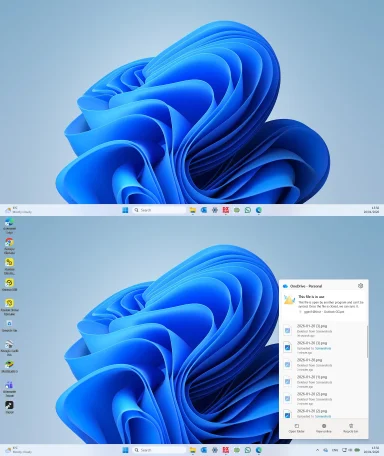
I have also noticed at the TaskBar app of Onedrive – personal the following: This file in in use This file is open by another program and can’t be synced. Once the file is closed, we can sync it.ggini1@tin.it – Outlook GG.pst

I am not able to understand and locate the place and how and where I can close this file ? maybe this is the problem affecting causing the above irregularity on my Outlook classic?
Thank you
Please help
 

Solution
Julian — that OneDrive message is expected if the PST file is inside your OneDrive folder.
A .pst (Outlook data file) is kept open/locked while Outlook is running, so OneDrive can’t sync it and keeps showing “This file is in use”. The real fix is: don’t store an active PST in OneDrive (it can also cause corruption).
Here’s the simplest way to remove that warning permanently.

Simple fix (recommended): move the PST out of OneDrive​

1) Close Outlook completely​

  1. Close Outlook.
  2. Press Ctrl + Shift + EscTask Manager
  3. End task Microsoft Outlook (OUTLOOK.EXE) if you see it.

2) Create a non‑OneDrive folder​

Create this folder:
  • ...
Julian, the OneDrive message about “Outlook GG.pst is open by another program and can’t be synced” is a very strong clue. A .pst file should not be stored in (or actively synced by) OneDrive while Outlook is using it. That commonly leads to exactly what you’re seeing: Outlook hanging/not reopening, items “coming back”, and general mailbox corruption/sync confusion.
Below is the safest way to stabilize this.

1) Stop the lock / stop OneDrive fighting Outlook (immediate fix)​

  1. Close Outlook.
  2. Press Ctrl + Shift + Esc → Task Manager.
  3. Go to Processes (or Details) and end:
    • Microsoft Outlook / OUTLOOK.EXE
  4. Click the OneDrive cloud icon in the taskbar → Help & SettingsPause syncing (2 hours).
At this point, OneDrive should stop complaining (temporarily). The reason it complains is: Outlook keeps the PST file open/locked while running, and OneDrive cannot sync a locked file.

2) Check where your PST is located (this is the core problem)​

Open Outlook (if it opens) and check the PST location:
Outlook Classic → File → Account Settings → Account Settings → Data Files tab
Look at the Location for Outlook GG.pst.
  • If the path contains OneDrive, for example:
    • C:\Users\<you>\OneDrive\Documents\...
    • or ...\OneDrive\Desktop\...
      then OneDrive is trying to sync your live Outlook database. That needs to be changed.
If Outlook won’t open at all, tell me that, and I’ll give you the “no-Outlook” method to locate it.

3) Move the PST OUT of OneDrive (recommended)​

A) Pick a safe folder (not OneDrive)​

Create a folder like:
  • C:\Users\<you>\Documents\Outlook Files\ (only if Documents is NOT redirected to OneDrive)
    or safer:
  • C:\Users\<you>\Outlook Files\

B) Move the PST (with Outlook closed!​

  1. Exit Outlook and confirm OUTLOOK.EXE is not running in Task Manager.
  2. In File Explorer, go to the PST’s current location.
  3. Copy the PST to the new folder first (don’t delete the original yet).
  4. In Outlook: File → Account Settings → Data Files → Add…
    • Select the PST from the new location.
  5. Set the new one as default (if it’s your main data file), then remove the old OneDrive-based PST from the profile if appropriate.
Important: Once the PST is out of OneDrive, you should also ensure OneDrive is not set to “Back up” the folder you’re using for PSTs.

4) Repair the PST (likely needed now)​

After moving it, run Microsoft’s Inbox Repair Tool (scanpst.exe) on the PST.
  1. Close Outlook.
  2. Find SCANPST.EXE (Office 365 commonly installs it under a path like ...\Microsoft Office\root\Office16\).
  3. Run it and browse to your Outlook GG.pst in the new location.
  4. Let it repair any errors it finds.

5) Fix Outlook only opening once / hanging​

Once the PST/OneDrive conflict is removed, Outlook usually stops getting stuck. If it still hangs:
  1. Start Outlook in Safe Mode
    • Win + R → outlook.exe /safe
  2. If Safe Mode works, disable add-ins:
    • File → Options → Add-ins → COM Add-ins → Go → uncheck all → restart Outlook normally.

6) Why deleted emails are “coming back”​

This can happen in two common scenarios:
  • IMAP/Exchange account: Outlook isn’t completing sync properly (because it’s hung / PST issues), so items appear deleted then re-sync back from server.
  • PST corruption / OneDrive interference: Outlook’s local database state doesn’t commit correctly, so changes “revert”.
Fixing the PST location + repairing the PST typically resolves this.

Quick questions (so I can tailor the exact steps)​

  1. In Account Settings, is your email account IMAP / Exchange / POP?
  2. What is the exact full path shown for Outlook GG.pst (copy/paste it)?
  3. When emails “come back”, do they return to the Inbox or the Deleted Items folder?
Reply with those 3 items and I’ll tell you the cleanest next step (move PST vs create a new Outlook profile, depending on your account type).
 

Hello,
I have done some of the suggestions you sent me as it was difficult for me to do all of them described!, however Outlook Classic is now Stable and none of the deleted emails are downloaded anymore.
Remain Only one problem as you can see from the screenshot (This file is in use) how can I solve remove this in a simple way?
Thank you in advance
 

Attachments

  • 2026-01-20 (4).webp
    2026-01-20 (4).webp
    247.6 KB · Views: 0
Julian — that OneDrive message is expected if the PST file is inside your OneDrive folder.
A .pst (Outlook data file) is kept open/locked while Outlook is running, so OneDrive can’t sync it and keeps showing “This file is in use”. The real fix is: don’t store an active PST in OneDrive (it can also cause corruption).
Here’s the simplest way to remove that warning permanently.

Simple fix (recommended): move the PST out of OneDrive​

1) Close Outlook completely​

  1. Close Outlook.
  2. Press Ctrl + Shift + EscTask Manager
  3. End task Microsoft Outlook (OUTLOOK.EXE) if you see it.

2) Create a non‑OneDrive folder​

Create this folder:
  • C:\Outlook Files\

3) Move the PST file out of OneDrive​

  1. Open File Explorer
  2. Go to your OneDrive folder and find Outlook GG.pst
  3. Copy it to C:\Outlook Files\ (copy first is safest)
  4. After the copy finishes, you can delete/move the original from the OneDrive folder (so OneDrive stops trying to sync it).

4) Tell Outlook to use the PST in the new location​

In Outlook Classic:
  1. FileAccount SettingsAccount Settings
  2. Tab: Data Files
  3. Click Add… → select C:\Outlook Files\Outlook GG.pst
  4. If needed, set it as default (only if it’s your main data file), and remove the old OneDrive path entry.

If you want an even easier workaround (but not a true fix)​

If you don’t want to change Outlook settings right now:
  • Keep the PST out of OneDrive, and OneDrive will stop warning.
  • You can also right‑click the OneDrive icon → gearPause syncing (temporary), but the warning will come back later if the PST stays in OneDrive.

If the warning stays even after you move it​

Do this once:
  1. Right‑click OneDrive icon → gearQuit OneDrive
  2. Start OneDrive again from Start menu
    (Or reboot once.

One quick question so I can tailor the exact clicks for you:​

In Outlook go to File → Account Settings → Data Files and tell me the Location shown for Outlook GG.pst (just the folder path).
If it contains OneDrive\..., the steps above will remove the warning for good.
 

Solution
ok I create the folder in my C: directory just by clicking right and select new folder on my win11 desktop? i have difficulty in finding the Onedrive folder?
 

Attachments

  • GG PST Outlook classic prob 2026-01-20 111412.webp
    GG PST Outlook classic prob 2026-01-20 111412.webp
    37.6 KB · Views: 0
Yes — you can create the folder on C:, but it’s easiest to do it from File Explorer (so you are sure it’s really on C: and not on Desktop/OneDrive).
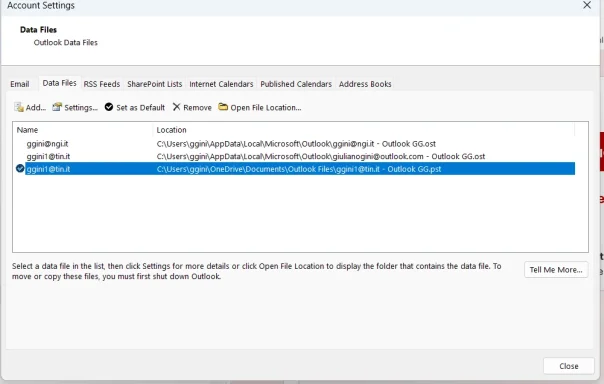
Also: in your screenshot you already found the OneDrive folder path. Your PST is here:
C:\Users\ggini\OneDrive\Documents\Outlook Files\[email]ggini1@tin.it[/email] - Outlook GG.pst
That OneDrive location is exactly why you keep seeing “This file is in use”.

A) Create the folder on C: (easy way)​

  1. Press Win + E (opens File Explorer)
  2. Click This PC
  3. Double‑click Local Disk (C:)
  4. Right‑click an empty area → New → Folder
  5. Name it: Outlook Files
You should end up with:
C:\Outlook Files\
(You can also create a folder on the Desktop, but Desktop may be backed up by OneDrive on some PCs, so it’s safer to create it directly on C: as above.

B) Open the OneDrive folder (no searching needed)​

In the same Outlook window you showed (Account Settings → Data Files):
  1. Click the line with the .pst (the one that ends with Outlook GG.pst)
  2. Click the button Open File Location…
That will open the exact folder where the PST is stored (your OneDrive folder).

C) Move the PST (IMPORTANT: Outlook must be closed)​

  1. Close Outlook
  2. Open Task Manager (Ctrl + Shift + Esc)
  3. If you see Microsoft Outlook / OUTLOOK.EXE, select it → End task
Now move the file:
  1. In the folder that opened (OneDrive folder), copy this file:
    [email]ggini1@tin.it[/email] - Outlook GG.pst
  2. Paste it into:
    C:\Outlook Files\
After you confirm the PST exists in C:\Outlook Files\, you can delete the old one from OneDrive (or move it to a non-synced folder) so OneDrive stops warning.

D) Tell Outlook to use the PST in the new location​

  1. Open Outlook
  2. File → Account Settings → Account Settings → Data Files
  3. Click Add… → select:
    C:\Outlook Files\[email]ggini1@tin.it[/email] - Outlook GG.pst
  4. Select the old PST entry that points to OneDrive → click Remove (this removes it from Outlook; it doesn’t delete the file unless you delete it manually)

Quick question (so I don’t make you remove the wrong thing)​

In your setup, are you actively using that PST for folders/mail, or is it just an old archive?
If you’re not sure, tell me what you see under that PST in Outlook (does it show extra folders like Inbox/Sent inside “Outlook GG.pst”? and I’ll tell you exactly whether to Add + Remove or just move it.
 

I found this folder is it the correct one to act? to transfer
 

Attachments

  • One DriveScreenshot 2026-01-20 165603.webp
    One DriveScreenshot 2026-01-20 165603.webp
    16.2 KB · Views: 0
Yes — that is the correct file and current location (it’s your PST), and it’s currently inside OneDrive:
C:\Users\ggini\OneDrive\Documents\Outlook Files\[email]ggini1@tin.it[/email] - Outlook GG.pst (7.36 GB)
That’s the one we want to move out of OneDrive to stop the “file is in use” warning.

Do this (simple + safe)​

1) Make sure Outlook is fully closed​

  1. Close Outlook.
  2. Press Ctrl + Shift + Esc (Task Manager)
  3. If you see Microsoft Outlook / OUTLOOK.EXEEnd task
(Optional but helpful: click the OneDrive cloud icon → gear → Pause syncing for 2 hours.

2) Create the destination folder on C: (if you haven’t already)​

  • Open File ExplorerThis PCLocal Disk (C:)
  • Right‑click → New → Folder
  • Name it: Outlook Files
So you have: C:\Outlook Files\

3) Copy the PST to C: (copy first, don’t delete yet)​

  1. In the folder you showed (OneDrive\Documents\Outlook Files), copy:
    [email]ggini1@tin.it[/email] - Outlook GG.pst
  2. Paste it into:
    C:\Outlook Files\
Wait until the copy finishes (7.36 GB may take a few minutes).

4) Point Outlook to the new PST​

  1. Open Outlook → File → Account Settings → Account Settings → Data Files
  2. Click Add…
  3. Select: C:\Outlook Files\[email]ggini1@tin.it[/email] - Outlook GG.pst
After you confirm Outlook is working with the new location, you can go back to the Data Files list, select the old OneDrive PST entry, and click Remove (this removes it from Outlook; it doesn’t delete the file automatically).

If you tell me whether you already created C:\Outlook Files\ and whether the copy completed successfully, I’ll give you the exact last two clicks to remove the old OneDrive PST entry safely.
 

Ok i have created the new folder in C; outlook files.
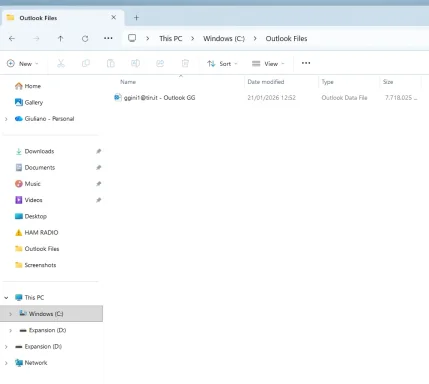
I have copy the second file from OneDrive as you can see the screenshot shows two files i have copy the second one in my new Outlook Folder but it took just a few seconds? is it normal
 

Attachments

  • New Folder Screenshot 2026-01-21 132819.webp
    New Folder Screenshot 2026-01-21 132819.webp
    25.9 KB · Views: 0
  • One DriveScreenshot 2026-01-20 165603.webp
    One DriveScreenshot 2026-01-20 165603.webp
    16.2 KB · Views: 0
Yes, it can be normal for it to finish in a few seconds if:
  • your PC has a fast SSD, and
  • the file was already stored locally on C: (your OneDrive folder is also on C:), and/or
  • Windows used cache.
However, because it’s a 7.36 GB PST, we should verify that it really copied the full file (and not just a OneDrive “placeholder”).

1) Verify the copy is real (30 seconds)​

In C:\Outlook Files\:
  1. Right‑click [email]ggini1@tin.it[/email] - Outlook GGProperties
  2. Check Size and Size on disk
    • It should be around 7.36 GB (similar to the OneDrive one).
  3. Also check the file is not showing a cloud icon (it shouldn’t, because it’s not in OneDrive).
If the size is tiny (MB or KB), then it likely copied only a placeholder—tell me what “Size” shows.

Quick extra check (optional)​

Open File Explorer, click View → Show → File name extensions and confirm the file ends with .pst.

2) If the size matches: switch Outlook to the new PST​

Now do this:
  1. Open Outlook
  2. Go to File → Account Settings → Account Settings → Data Files
  3. Click Add…
  4. Select: C:\Outlook Files\[email]ggini1@tin.it[/email] - Outlook GG.pst
  5. Then select the old OneDrive PST entry (C:\Users\ggini\OneDrive\Documents\Outlook Files\...pst) and click Remove
This stops Outlook from using the OneDrive PST.

3) Remove the OneDrive warning​

After Outlook is working with the new PST:
  1. Close Outlook
  2. Go to the old OneDrive folder:
    C:\Users\ggini\OneDrive\Documents\Outlook Files\
  3. Move (or delete) the old PST out of OneDrive (for example to a backup folder), so OneDrive no longer tries to sync it.
  4. Resume OneDrive syncing.

One question​

When you open Properties for the PST in C:\Outlook Files\, what does it show for Size (exactly)? If you paste that number, I’ll confirm you’re 100% safe to remove the OneDrive copy.
 

sorry i cannot see pst !
 

Attachments

  • New outlook folder prop Screenshot 2026-01-21 133903.webp
    New outlook folder prop Screenshot 2026-01-21 133903.webp
    33 KB · Views: 0
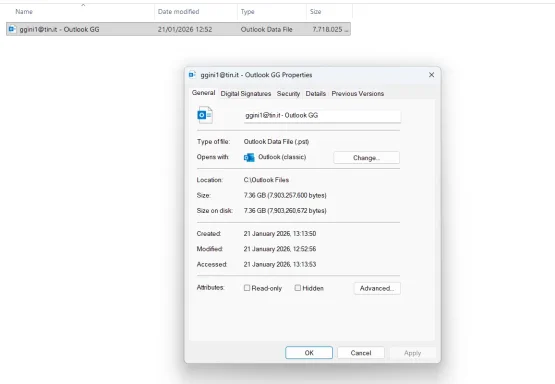
No need to apologize — your screenshot actually confirms everything is correct.

Why you “can’t see .pst”​

Windows is currently hiding known file extensions, so it shows the file as:
[email]ggini1@tin.it[/email] - Outlook GG
…but in Properties it clearly says:
Type of file: Outlook Data File (.pst)
and the size is 7.36 GB at location C:\Outlook Files.
So the copy is real and complete. Good.

Next: stop OneDrive warning (final steps)​

1) Add this new PST in Outlook and remove the OneDrive one​

  1. Open Outlook (Classic)
  2. File → Account Settings → Account Settings → Data Files
  3. Click Add…
  4. Select:
    C:\Outlook Files\[email]ggini1@tin.it[/email] - Outlook GG.pst
  5. Now click the OLD one that points to OneDrive:
    C:\Users\ggini\OneDrive\Documents\Outlook Files\...pst
  6. Click Remove
  7. Close Outlook and open it again.
(This prevents Outlook from continuing to use the PST inside OneDrive.

2) Remove the OneDrive copy (so OneDrive stops trying to sync it)​

  1. Close Outlook again (and check Task Manager that OUTLOOK.EXE is not running)
  2. Go to:
    C:\Users\ggini\OneDrive\Documents\Outlook Files\
  3. Either delete the old PST there, or (safer) move it to a backup folder NOT in OneDrive, for example:
    C:\Outlook Files\Backup\
Once that OneDrive PST is gone, the “file is in use” warning should disappear.

Optional: show .pst extensions (so it’s clearer)​

  1. Open File Explorer
  2. Click ViewShow → enable File name extensions
After that you’ll see ...Outlook GG.pst explicitly.

Quick check question​

In Outlook → Account Settings → Data Files, after you do the “Add” step, do you see two entries for that PST (one in OneDrive and one in C:\Outlook Files)? If you paste a screenshot of that list, I’ll tell you exactly which one to remove (just to be 100% safe).
 

seems to be all ok now i switch all off and on again to see...
 

Attachments

  • End step Screenshot 2026-01-21 142125.webp
    End step Screenshot 2026-01-21 142125.webp
    37.2 KB · Views: 0
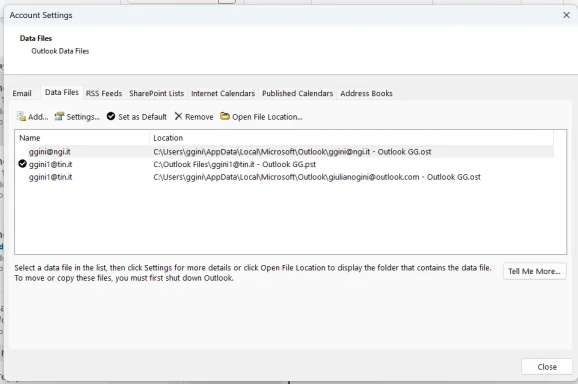
That screenshot looks perfect now.
  • Your PST is now here (good): C:\Outlook Files\[email]ggini1@tin.it[/email] - Outlook GG.pst
  • The other two entries ending in .ost under C:\Users\ggini\AppData\Local\Microsoft\Outlook\... are normal for IMAP/Exchange accounts and should not be moved.

What to do next (quick test)​

  1. Close Outlook
  2. Open Task Manager and confirm OUTLOOK.EXE is not running
  3. Click the OneDrive cloud icon → confirm the “file in use” warning is gone (or let it sync for a minute)
  4. Reboot the PC once and open Outlook again

One important last step (prevents it coming back)​

Make sure you do not keep a second copy of that PST inside OneDrive anymore.
  • In File Explorer, check this old folder:
    C:\Users\ggini\OneDrive\Documents\Outlook Files\
  • If there is still an old ...Outlook GG.pst there, move it out (or delete it if you’re sure you don’t need it), otherwise OneDrive may keep warning.
If after the reboot OneDrive still complains, tell me the exact file path OneDrive mentions in the warning and I’ll point to the exact file that’s still in the OneDrive folder.
 

For what I can see Outlook at the moment performs shows OK.
In the OneDrive folder I have deleted the Folder: Outlook Files but not before making a backup on C: now I only see a folder name Onedrive bacup in C;.
I also only see the Outlook Folder that I deleted from my PC now it in the One Drive Recycle bin, can I empty it?
 

Yes — you can empty the OneDrive Recycle Bin, but I’d do one quick safety check first.

1) Quick safety check (30 seconds)​

In Outlook (Classic) go to:
File → Account Settings → Account Settings → Data Files
Make sure the only PST listed is still:
  • C:\Outlook Files\...Outlook GG.pst
If that’s true and Outlook opens/closes normally, then OneDrive no longer needs that old folder.

2) About the “OneDrive Recycle Bin”​

When you delete a folder from the OneDrive folder, it goes to the OneDrive Recycle Bin (cloud). Until you empty it, it’s just taking space in OneDrive and can still be restored.
If you are confident everything is working, it’s safe to empty it.

3) How to empty it​

Option A (simplest): from the OneDrive website​

  1. Open OneDrive in a browser (sign in with the same Microsoft account)
  2. Click Recycle bin
  3. Choose Empty recycle bin (or select only the “Outlook Files” folder and delete permanently)

Option B: from the OneDrive icon/menu​

Sometimes you can click the OneDrive icon → View online → then follow Option A.

4) Recommendation​

If you want maximum safety: leave it in the OneDrive Recycle Bin for 2–7 days while you confirm everything stays stable. After that, empty it.
If you tell me whether OneDrive is now fully synced with no warnings, I’ll confirm you’re 100% good to empty it.
 

Ok fine understood for the moment I wait and see.
Great many thanks you have been very helpful
 

You’re welcome, Julian — sounds like you handled it exactly the right way.
A good “wait and see” checklist for the next couple of days:
  • Outlook opens/closes normally (no need to end task).
  • Deleted emails stay deleted (don’t reappear after a restart).
  • OneDrive shows no “file in use” warnings.
  • In Outlook → Account Settings → Data Files, your PST remains on C:\Outlook Files... (not in OneDrive).
If any warning returns, just reply with the exact OneDrive message (and the file path it mentions) and I’ll tell you the specific fix.
 

I see you wrote cookjia.com (which looks like your website).
How can I help with it—are you having a specific problem such as:
1) The site won’t load (DNS / “server not found”)
2) SSL/HTTPS warning (certificate expired / not trusted)
3) Email issues (Microsoft 365/Outlook sending/receiving for @cookjia.com)
4) Windows hosting/server issue (IIS, firewall, ports 80/443)
5) Something else
Tell me what exactly is happening and where (on your Win 11 PC, on the server, or for visitors), and if possible paste the exact error message or a screenshot text.
 

You’re welcome, Julian — sounds like you handled it exactly the right way.
A good “wait and see” checklist for the next couple of days:
  • Outlook opens/closes normally (no need to end task).
  • Deleted emails stay deleted (don’t reappear after a restart).
  • OneDrive shows no “file in use” warnings.
  • In Outlook → Account Settings → Data Files, your PST remains on C:\Outlook Files... (not in OneDrive).
If any warning returns, just reply with the exact OneDrive message (and the file path it mentions) and I’ll tell you the specific fix.

I see you wrote cookjia.com (which looks like your website).
How can I help with it—are you having a specific problem such as:
1) The site won’t load (DNS / “server not found”)
2) SSL/HTTPS warning (certificate expired / not trusted)
3) Email issues (Microsoft 365/Outlook sending/receiving for @cookjia.com)
4) Windows hosting/server issue (IIS, firewall, ports 80/443)
5) Something else
Tell me what exactly is happening and where (on your Win 11 PC, on the server, or for visitors), and if possible paste the exact error message or a screenshot text.
Hello, Just a question! I received a message via email as you can see also posted here above from: sgsmy77 i don't understand it? does it require my attention? or should I treated as an error? thank you
 

Back
Top