

Win11Debloat’s refresh is a practical answer for Windows 11 power users who want the Tiny11 Builder’s results without wiping and reinstalling: it can remove inbox apps (including Microsoft Edge and OneDrive), turn off a broad set of telemetry hooks, and script many UI and privacy changes in-place on Windows 11 Version 25H2 — but that convenience comes with trade-offs you must understand before running anything on a daily-driver machine.
Windows 11 Version 25H2 continues the product direction of pushing more inbox apps, WebView2-based content, and AI surfaces into core areas of the OS. That creates friction for users who want a quiet, privacy-respecting desktop: preinstalled inbox apps, OneDrive/Edge behaviors, Copilot/Bing integration and layered telemetry are the recurring complaints. Community projects have taken two broad approaches: build a fresh, lean installer (Tiny11-style) or apply scripted in-place cleans (Win11Debloat-style). Both attempt to achieve the same goal — remove telemetry and cruft and restore a simpler desktop — but they do that at different points in the lifecycle of the OS.
Tiny11’s builder workflow is designed around offline servicing of an official Microsoft ISO: it removes provisioned packages, injects unattended answers to avoid forced Microsoft Account (MSA) sign-in during OOBE, and recompresses the image to produce a much smaller, serviceable ISO. That is the most deterministic way to “de-enshittify” Windows, but it requires a clean install and some build-time resources.
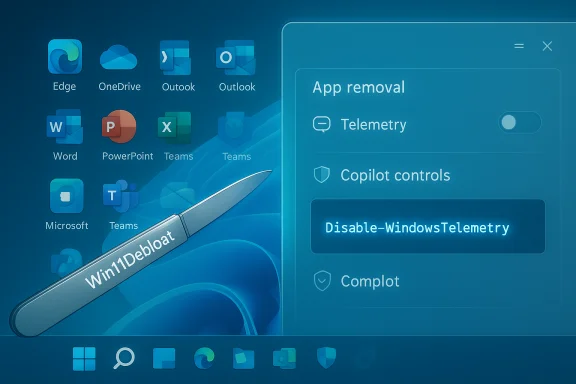
Win11Debloat aims to get most of the same benefits without reinstalling. It’s a PowerShell script that offers three high-level modes — Default, Custom, and App removal — and a long list of options to remove apps, disable telemetry, and tweak search/Copilot/Bing behavior. Recent changes to the tool’s distribution and execution have simplified running it on modern 25H2 systems: you can now fetch and run the script from an elevated Terminal session in a single command instead of pre-adjusting execution policy and downloading ZIPs manually.
That said, these are unofficial modifications. They work because they exploit documented servicing APIs and PowerShell capabilities, but Microsoft’s servicing pipeline and update cadence are a moving target: expect to re-validate and reapply changes after major updates, and always test before deploying at scale. If long-term maintainability is the priority, build a tested Tiny11-style image for deployment and use Win11Debloat as a maintenance tool for existing endpoints.
Win11Debloat is not a magic bullet — it’s a technician’s scalpel. Use it with proper preparation, backups, and conservative choices, and it will return a cleaner, less noisy Windows 11 25H2 experience without the disruption of a reinstall. For the absolute cleanest, most serviceable result, however, nothing currently replaces a carefully built Tiny11 image used with Rufus and tested with your application and driver stack.
Source: Thurrott.com De-Enshittifing Windows 11 Version 25H2: Win11Debloat
 Background
Windows 11 Version 25H2 continues the product direction of pushing more inbox apps, WebView2-based content, and AI surfaces into core areas of the OS. That creates friction for users who want a quiet, privacy-respecting desktop: preinstalled inbox apps, OneDrive/Edge behaviors, Copilot/Bing integration and layered telemetry are the recurring complaints. Community projects have taken two broad approaches: build a fresh, lean installer (Tiny11-style) or apply scripted in-place cleans (Win11Debloat-style). Both attempt to achieve the same goal — remove telemetry and cruft and restore a simpler desktop — but they do that at different points in the lifecycle of the OS.Tiny11’s builder workflow is designed around offline servicing of an official Microsoft ISO: it removes provisioned packages, injects unattended answers to avoid forced Microsoft Account (MSA) sign-in during OOBE, and recompresses the image to produce a much smaller, serviceable ISO. That is the most deterministic way to “de-enshittify” Windows, but it requires a clean install and some build-time resources.
Win11Debloat aims to get most of the same benefits without reinstalling. It’s a PowerShell script that offers three high-level modes — Default, Custom, and App removal — and a long list of options to remove apps, disable telemetry, and tweak search/Copilot/Bing behavior. Recent changes to the tool’s distribution and execution have simplified running it on modern 25H2 systems: you can now fetch and run the script from an elevated Terminal session in a single command instead of pre-adjusting execution policy and downloading ZIPs manually.
What Win11Debloat actually does
High-level capabilities
Win11Debloat’s public-facing feature set centers on a few core capabilities:- App removal — batch uninstalls of inbox UWP/Win32 packages and provisioned apps for new accounts. This includes options to remove Microsoft Edge and Microsoft OneDrive.
- Telemetry and tracking — scripts to disable many telemetry/diagnostic channels, advertising ID, tailored experiences and related scheduled tasks.
- Search, Bing, Copilot controls — options to disable or strip Bing integration from search, disable Cortana/Recall, and reduce Copilot surfaces where possible.
- Other tweaks — registry and scheduled-task changes, uninstall or disable of provisioned apps, and convenience toggles to limit Update behavior or remove tips and suggestions.
Modes explained
- Default mode — a safe-ish profile that removes obvious consumer cruft and applies a limited set of privacy tweaks.
- Custom mode — interactive, granular selection of exactly what to remove and what to keep (this is where the tool shines for power users who know which packages matter). Custom mode includes the app-removal UI but steps through additional privacy and feature toggles.
- App removal — a UI that lists all removable apps and lets you filter to “installed only,” then tick what to remove (recommended for uninstalling Edge/OneDrive specifically).
How it’s executed now
Historically, running community PowerShell debloat scripts required changing the system execution policy. Recent iterations simplify the experience: open Terminal (Admin) and run a one-line command that downloads and executes the script in memory — it removes the manual step of permanently changing PowerShell execution policies. That lowers friction and reduces the need to place the script on disk before running. Still, the script runs with administrative privileges and makes system-level changes, so treat it like any other privileged tool.How Win11Debloat compares to Tiny11 (clean install) and complementary tools
Tiny11 vs Win11Debloat — the practical difference
- Tiny11 (clean-image approach)
- Pros: Deterministic output, small ISO, removes the provisioned app pipeline so new user profiles don’t rehydrate bloat, can inject OOBE changes (local account), and yields a consistently smaller install footprint. It uses Microsoft’s DISM tooling so it’s using supported servicing APIs — albeit in an unsupported workflow for end users.
- Cons: Requires a full reinstall; build time and RAM/CPU during compression can be high; more disruptive for daily users.
- Win11Debloat (in-place script)
- Pros: No reinstall required; fast (minutes to under an hour in many cases); granular, reversible (to some extent) changes; good for users who want to salvage an existing machine.
- Cons: Less deterministic — some provisioning artifacts or protected components may survive or be reintroduced by updates; certain removals (Edge, OneDrive) interact with protected components and update code paths that can be brittle over time.
Complementary utilities you’ll see in enthusiast playbooks
- Rufus — used to write custom ISOs and to create Windows install media that bypasses forced MSA sign-in and hardware checks (Rufus supports writing unattended or modified ISOs). It’s typically used with Tiny11-generated ISOs rather than with in-place scripts.
- MSEdgeDirect — a small utility/workflow that substitutes Edge’s WebView/OpenWith behavior so external features and widgets open in your default browser instead of Edge. Handy to regain browser choice across system surfaces.
- ExplorerPatcher — fixes or replaces parts of the File Explorer and taskbar behavior that community builds find regressed in modern Windows 11 builds; it’s used to restore performance and reliability in File Explorer.
Strengths and practical wins
- Speed and convenience: Running Win11Debloat’s Custom mode lets you selectively remove a long list of inbox apps and telemetry items in a single session. That’s a huge productivity win for technicians or power users maintaining many machines where full reinstall is impractical.
- Granular control: The Custom mode’s step-through behavior means you don’t have to blindly apply a one-size-fits-all profile. You can keep what you need and remove what you don’t.
- Lower disruption than reinstalling: No backup/restore of applications or full reinstallation required — valuable for users with complex app stacks.
- Reclaim privacy and performance quickly: Telemetry and consumer telemetry pathways are large, and disabling them produces visible gains (fewer background tasks, reduced network chatter).
Risks, caveats, and scenarios that can go wrong
- Windows Update and feature updates can reintroduce components: Provisioned packages and feature updates sometimes reinstall inbox apps or reset settings. Win11Debloat addresses many of these surface issues, but the behavior of Windows updates is a moving target. Expect to re-run cleanup scripts after major feature updates or OEM restores. This is a common problem with in-place debloats vs. a clean image that removes provisioned packages.
- Edge and OneDrive are protected and evolving components: Microsoft has hardened parts of Edge and OneDrive to prevent removal or to force reinstall behavior under certain update paths. Removing them can break dependent features or be reverted by later updates; on some machines Edge is tightly entangled with WebView2 surfaces that other apps rely on. Treat removal of these components as a potentially brittle choice.
- Unsupported modifications: Both Tiny11 and Win11Debloat operate outside official Microsoft-supported workflows for end-user customization. That means you may void certain warranty expectations, run into supportability problems, or encounter enterprise compliance issues if deployed at scale. For production fleets, formal testing and approval are necessary.
- Potential loss of functionality: Aggressive removals (e.g., Copilot, Recall, extensive WinSxS pruning) can affect updateability, diagnostics, or UI features you might later miss — particularly on laptops where OneDrive, Phone Link or other inbox apps were relied upon for OEM features.
- Security surface and false economy: Some scripts offer toggles that limit Windows Update to “security-only” or disable Defender/UAC — these increase the risk profile. Removing telemetry does not equal removing all remote attack surfaces. Any reduction in automatic update behavior should be carefully considered against your threat model.
Recommended, cautious workflow to de-enshittify a 25H2 machine in-place
- Backup first. Create a full system image (Clonezilla, Macrium Reflect, or built-in System Image), or at minimum create a restore point and export critical data. This is non-negotiable.
- Test in a disposable VM or secondary drive. Run Win11Debloat there first to observe side effects and discover what you’ll need to re-enable. This mirrors the defensive strategy used by technicians.
- Update the system fully via Windows Update. Be on the latest cumulative updates for your 25H2 build so you don’t fight a patch mid-debloat.
- Open Terminal as Administrator and fetch/run Win11Debloat in a controlled way. Prefer Custom mode:
- Start with App removal and uninstall only what you know you don’t need (Edge/OneDrive if you have alternatives).
- Move through telemetry/privacy toggles conservatively (disable Advertising ID, Tailored Experiences, set Feedback frequency to “Never”).
- Avoid toggles that disable Defender/UAC unless you have a robust replacement plan.
- Reboot and validate primary scenarios: networking, VPN, device drivers, File Explorer, printing, and any OEM utilities.
- Install MSEdgeDirect (or equivalent) if you need system surfaces to open your default browser instead of Edge. Install ExplorerPatcher only if you detect performance/regression issues in File Explorer. Both utilities are small and reversible, but treat them as additional modifications to test.
- Monitor for a week and re-run quick checks after any cumulative update. Keep your system image handy for rollback if an update causes reintroduction of removed components or breaks key functionality.
Enterprise & legal considerations
- Do not mass-deploy community scripts untested. Enterprises must validate behavior across hardware types, drivers, and management stacks. Some removals could conflict with telemetry-based monitoring or MDM policy reporting.
- Licensing and OEM recovery: Modifying or redistributing modified Windows images, or permanently removing OEM-provisioned software, can trigger warranty or recovery-image problems in certain OEM scenarios. Tiny11 preserves Microsoft-supplied code paths by using Microsoft tooling, but institutional deployment still requires legal review.
- Auditability: For organizations with compliance requirements, logging every change and maintaining a documented rollback path is mandatory; keep copies of scripts and change logs to show what was modified.
When to prefer Tiny11 (clean install) over Win11Debloat
- You want a fully deterministic, repeatable image for deployment with zero baggage for new accounts and a smaller on-disk footprint.
- You’re provisioning low-spec or legacy hardware and want to remove provisioning at the image level (so new profiles don’t rehydrate junk).
- You have the bandwidth to reinstall and the desire for a single-image solution across multiple machines.
Final analysis: the balance between control and stability
Win11Debloat provides a powerful, pragmatic path to decluttering Windows 11 25H2 without reinstalling. It reproduces many of Tiny11’s benefits — uninstalling inbox apps, disabling telemetry, and reining in Copilot/Bing behaviors — but it cannot change the provisioning baked into the original image and so is inherently less deterministic than a clean-image approach. For most enthusiast and technician scenarios, the combined playbook — run Win11Debloat, apply targeted utilities like MSEdgeDirect and ExplorerPatcher, and reserve Tiny11+Rufus for machines you can clean-install — gives the best balance between convenience and long-term control.That said, these are unofficial modifications. They work because they exploit documented servicing APIs and PowerShell capabilities, but Microsoft’s servicing pipeline and update cadence are a moving target: expect to re-validate and reapply changes after major updates, and always test before deploying at scale. If long-term maintainability is the priority, build a tested Tiny11-style image for deployment and use Win11Debloat as a maintenance tool for existing endpoints.
Win11Debloat is not a magic bullet — it’s a technician’s scalpel. Use it with proper preparation, backups, and conservative choices, and it will return a cleaner, less noisy Windows 11 25H2 experience without the disruption of a reinstall. For the absolute cleanest, most serviceable result, however, nothing currently replaces a carefully built Tiny11 image used with Rufus and tested with your application and driver stack.
Source: Thurrott.com De-Enshittifing Windows 11 Version 25H2: Win11Debloat
