

HP’s 2026 Tech Takes guide explains how Windows 10 and Windows 11 users can rotate or flip a PC screen through Display settings, Intel-specific keyboard shortcuts, GPU control panels, external-monitor setup, and Rotation lock on convertible laptops without extra software. The practical lesson is bigger than the how-to: screen rotation in Windows looks like one setting, but it is really a handshake among Windows, the graphics driver, the monitor, and sometimes a motion sensor. That is why the fix for an upside-down display may be a two-click Settings change on one PC and a driver-panel or sensor problem on another. For admins and power users, HP’s guide is useful precisely because it treats rotation not as a gimmick, but as a small display-control feature with surprisingly many failure modes.
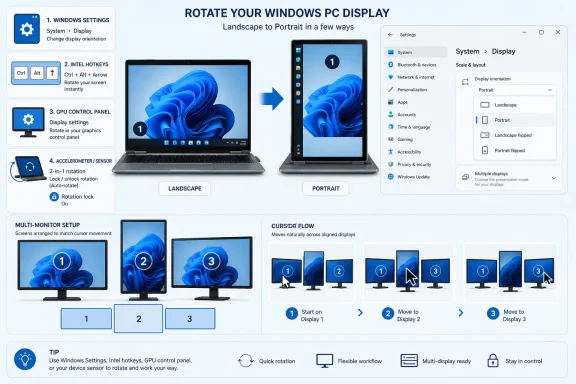
The cleanest path remains the one Microsoft has trained Windows users to expect: right-click the desktop, open Display settings, scroll to Scale and layout, and change the Display orientation dropdown. HP’s guide says the dropdown offers four choices: Landscape, Portrait, Landscape (flipped), and Portrait (flipped). On both Windows 10 and Windows 11, that is the baseline method because it does not depend on extra utilities or vendor-specific software.
The important detail is that Windows gives users a safety net. If the wrong orientation is chosen and the desktop becomes unreadable, Windows automatically reverts after 15 seconds unless the user confirms the change. That small countdown is the difference between a harmless experiment and a help-desk call from someone staring at a sideways login screen.
The normal path also reflects how modern display work actually happens. Portrait monitors are no longer exotic; they are used for code, documents, news feeds, financial spreadsheets, social media work, and mobile-first design. Rotation has become a productivity setting, not just a prank triggered by an accidental keyboard shortcut.
But HP’s guide also exposes the architectural truth behind the button. Windows provides the common interface, yet actual rotation depends on graphics capabilities, driver behavior, monitor selection, and in some mobile systems, sensor support. That is why the same instruction can behave differently on a desktop with an NVIDIA card, an Intel laptop, an AMD system, a docking-station setup, or a 2-in-1 convertible.
The reason this matters is that software rotation and physical rotation are separate actions. Windows can rotate the image output, but if the monitor itself has not been physically turned, portrait mode simply makes the desktop sideways. Conversely, turning a monitor vertically without changing Windows orientation leaves the panel physically correct and the image wrong.
HP’s advice is strongest when it treats those two halves together. A modern monitor may include pivot support in its stand, but not all stands do. Some monitors include an auto-rotate feature that detects orientation, but most still require manual settings in Windows or the monitor’s own controls. A user buying a monitor for vertical work should check the specifications, not assume that any screen can physically rotate just because Windows can rotate the picture.
This is where many quick guides under-explain the problem. They show the Windows dropdown and stop there. HP’s version goes further by pointing out that the user may also need to select the right display, use the monitor’s stand correctly, inspect the on-screen display menu, and adjust layout afterward.
On supported Intel graphics systems with hot keys enabled, the shortcuts are straightforward. Ctrl + Alt + Up Arrow returns the display to normal landscape. Ctrl + Alt + Right Arrow rotates to portrait. Ctrl + Alt + Down Arrow flips the display 180 degrees upside down. Ctrl + Alt + Left Arrow rotates portrait to the other side.
For users who have accidentally flipped a screen, Ctrl + Alt + Up Arrow is the rescue command worth remembering. But for IT teams, the more useful memory is the negative case: if those shortcuts do nothing, that is not necessarily a Windows fault. The system may be using NVIDIA or AMD graphics, the Intel hot-key feature may be disabled, or the display output may not be driven by Intel graphics in the first place.
HP says Intel hot keys can be checked in Intel Graphics Command Centre by going to System, then Hot Keys, and enabling System Hot Keys. That is a driver utility path, not a Windows Settings path. Intel’s own support material similarly steers users toward Windows Display Settings or Intel graphics tooling for rotation, reinforcing the idea that the shortcut layer belongs to the graphics stack.
This becomes especially relevant on laptops with hybrid graphics. A machine may contain Intel integrated graphics and a discrete GPU, but the active display path determines which controls work. HP’s guide avoids overpromising here: if a laptop uses NVIDIA or AMD graphics as the primary output, users should use Display settings or the GPU control panel instead.
The broader lesson is that Windows shortcuts are not all created equal. Some are operating-system behaviors; others are driver hooks that can be added, removed, disabled, or superseded. Rotation hot keys fall into the second category, which is why help-desk scripts should not treat them as universal.
For Intel systems, HP gives the path as Intel Graphics Command Centre, then Display, then the specific display, then Rotation. For NVIDIA, the path is NVIDIA Control Panel, Display, then Rotate display. For AMD, the path is AMD Software: Adrenalin Edition, Display, then Rotation. The naming differs, but the logic is the same: identify the display, choose the orientation, and apply the change.
Microsoft’s own support guidance emphasizes Windows Settings as the general-purpose route, while NVIDIA and AMD support material preserve vendor-level display controls for cases where their software is the right place to manage the GPU output. That split is not a contradiction. It is the Windows display ecosystem doing what it has done for decades: the OS exposes the common setting, and vendor tools expose additional controls closer to the hardware.
The risk for ordinary users is duplication. A user may change orientation in Windows, then look in a GPU panel and see a separate layout or scaling control. They may fix rotation but introduce stretched output because resolution or scaling does not match the new orientation. HP’s troubleshooting section accounts for this by advising users to adjust resolution to match the new orientation and change scaling settings under Scale and layout if content appears distorted.
For admins, this is also where driver currency matters. HP says a greyed-out Display orientation option may indicate an outdated GPU driver, and suggests updating through Device Manager or the manufacturer’s website. It also notes that some very basic GPUs may not support software rotation. Those are not glamorous fixes, but they are exactly the sort of mundane compatibility checks that prevent wasted time.
The right hierarchy is simple: start with Windows Display settings, fall back to the GPU control panel when Windows does not expose the control or the output behaves oddly, and then look at driver health if neither route works. That order keeps the user from diving into vendor utilities before exhausting the simplest and safest option.
The phrase “select the external monitor” is not incidental. Windows treats displays independently, and changing the wrong screen is one of the easiest mistakes in a multi-monitor setup. HP specifically says to confirm the monitor is selected in Display settings before changing orientation. In the display arrangement view, monitors are numbered, and the user must click the specific monitor intended for rotation.
Physical rotation is the other half of the work. Many modern monitors include a pivot function on their stand, but many do not. Some ultra-wide or gaming monitors may also have limited rotation options, whether because of stand design, panel size, cable clearance, or firmware behavior. A monitor built for high-refresh gaming is not automatically a good portrait-mode productivity panel.
HP also points users to the monitor’s on-screen display, or OSD, menu for pivot or rotation settings. That matters because some monitors have their own internal orientation or auto-rotation features. Others simply report a display to Windows and leave all rotation to the operating system. In a corporate environment with mixed monitor fleets, those differences become support variables.
The cleanest setup is a monitor with a proper pivot stand, a cable path that does not bind when rotated, and Windows orientation set to match the physical position. Anything less can work, but it increases friction. A VESA-mounted display may rotate beautifully; a fixed-stand ultra-wide may not. A productivity monitor may advertise pivot support; a gaming monitor may prioritize refresh rate and ergonomics in landscape.
This is why “Can Windows rotate my monitor?” is the wrong first question. Windows can rotate the signal. The better question is whether the physical display, stand, GPU driver, and workspace support a rotated workflow without turning everyday use into a compromise.
The workflow is specific. Open Display settings, click the monitor you want to rotate, using the numbered display arrangement, and change the Display orientation for that display only. After rotation, drag the monitor icons so they match the physical layout: align tops, bottoms, or corners so cursor movement between screens feels natural. HP says to click Apply to save the arrangement.
That Apply step is not administrative trivia. In multi-monitor setups, orientation and position are related but not identical. A display can be correctly rotated to portrait and still be virtually misaligned, producing cursor jumps that make the setup feel wrong. If the portrait monitor’s top edge is physically level with the landscape monitor’s top edge, the Windows arrangement should reflect that. If the portrait monitor is centered beside a larger display, the icon should be centered accordingly.
This becomes more important as vertical monitors become common in developer and analyst workstations. A coder may keep documentation or logs on a portrait panel while writing code on a landscape monitor. A finance user may keep a long spreadsheet or market feed on one display and communication tools on another. A content creator may preview vertical social formats while editing on a standard screen.
The productivity promise of rotation depends on small spatial details. The screen may be vertical, but the workspace is still horizontal. Getting the monitor order, alignment, scale, and resolution right is what turns portrait mode from a novelty into a daily tool.
On devices that support it, Rotation lock prevents the screen from rotating automatically when the device moves. HP gives two ways to manage it. The first is the quick-settings path: press Windows + A to open the Action Centre, called Notification Centre in Windows 11, and click the Rotation lock tile to toggle it on or off. The second is Settings, then System, then Display, where Rotation lock can also be toggled on or off.
The hardware dependency is the key. HP says auto-rotation depends on an accelerometer that supports rotation. If the Rotation lock option is missing, the device likely does not support auto-rotation, which is typical of standard laptops without hinges designed for tablet mode. That is not a missing Windows feature so much as absent hardware.
Microsoft’s sensor documentation backs the underlying model: Windows can use sensor-class hardware, including accelerometer-based orientation data, when the device exposes the right sensor stack. In practical terms, the software cannot infer tablet-like rotation from a normal clamshell hinge. It needs compatible hardware and drivers.
HP’s troubleshooting path follows that logic. If auto-rotation does not work on a 2-in-1 laptop, confirm the device has an accelerometer that supports rotation, update sensor drivers through Device Manager under Sensors, and toggle Rotation lock off and on again to reset behavior. That is a very different path from fixing a desktop monitor because the failure domain is different.
For IT departments standardizing on convertible laptops, this is worth documenting. A user complaint that “rotation is broken” may mean the manual Display orientation dropdown is unavailable, an Intel hot key is disabled, Rotation lock is enabled, or sensor drivers are misbehaving. Those are four different problems wearing the same symptom.
If the Display orientation option is greyed out, HP says the GPU driver may be outdated, the GPU may be too basic to support software rotation, or the user should try the GPU control panel instead. That is a graphics capability problem. The fix is not to hunt for a keyboard shortcut; it is to check drivers and vendor controls.
If keyboard shortcuts do nothing, the problem is narrower. Ctrl + Alt + Arrow shortcuts require Intel graphics with hot keys enabled. On NVIDIA or AMD systems, HP says users should use Display settings or the GPU control panel. If a third-party tool has disabled or captured the shortcuts, that can also explain the failure.
If an external monitor will not rotate, HP says to confirm the correct monitor is selected in Display settings before changing orientation. It also warns that some ultra-wide or gaming monitors may have limited rotation options and recommends checking the monitor’s OSD menu for pivot or rotation settings. That puts the likely fault at the boundary between Windows, the monitor, and the physical stand.
If the screen rotates but content appears distorted, HP recommends adjusting resolution to match the new orientation, changing scaling settings under Scale and layout, and restarting the computer if display drivers are behaving unexpectedly. This is the case where rotation succeeded but presentation quality failed. The desktop is pointing the right way; the pixels and scaling are not.
If auto-rotation does not work on a 2-in-1 laptop, the issue moves into sensors. Confirm the accelerometer, update sensor drivers through Device Manager under Sensors, and toggle Rotation lock off and on again. In other words, do not reinstall the GPU driver when the missing component is the orientation sensor.
This layered approach matters because it prevents the two classic support mistakes: treating every rotation issue as a Windows Settings problem, or treating every missing shortcut as a broken keyboard command. Rotation crosses OS settings, GPU drivers, monitor firmware, physical ergonomics, and sensor hardware. The correct fix depends on which layer owns the failure.
HP’s framing is broader than a generic Windows tip because it accounts for laptops, monitors, 2-in-1s, GPU utilities, and troubleshooting. That makes sense for an OEM whose customers may be using productivity notebooks, gaming systems, creative workstations, or external displays from the same brand family. A Spectre-style convertible, a ZBook-class workstation, an OMEN gaming setup, and a standard office monitor can all encounter “screen rotation” as a user request, but the underlying path may differ.
The Thailand-specific retail links also hint at another reality: support content is globalized, localized, and often reused across regions. The technical steps must be stable enough to serve a broad Windows audience, even when the commercial destination varies. In this case, the steps are mostly Windows- and driver-level instructions that travel well.
Still, users should read the buying advice with appropriate skepticism. A monitor being “modern” does not guarantee pivot support. A laptop being premium does not necessarily mean it behaves like a tablet. A gaming monitor may be excellent in landscape and awkward in portrait. The right purchasing question is not whether a device is new, but whether its stand, hinge, sensor stack, display driver, and intended use support the rotation workflow the buyer wants.
That is where HP’s guide becomes accidentally strategic. It is not just telling users how to rotate a screen they already own. It is teaching them which device capabilities to look for next time.
That fragmentation is not necessarily a failure. It is the cost of the Windows hardware ecosystem being broad enough to cover clamshell laptops, convertibles, gaming desktops, workstation GPUs, docking stations, budget monitors, and multi-display command centers. A tightly controlled platform could make rotation feel more uniform; Windows instead supports a much wider range of hardware and leaves some of the complexity visible.
For users, the winning strategy is to stop treating rotation as a single magic command. Start with Windows Display settings because that is the most reliable and broadly applicable method. Move to Intel, NVIDIA, or AMD controls when the display path demands it. Treat Rotation lock as a convertible-device feature. Treat external monitors as physical hardware first and software targets second.
For IT professionals, the lesson is even more concrete. A rotation issue should be triaged by device class: desktop monitor, laptop internal panel, hybrid-GPU laptop, external display, or 2-in-1 convertible. Once the device class is clear, the likely fix narrows quickly. That is the difference between a five-minute support interaction and a driver-reinstall detour.
The best support documentation for this feature should therefore include both the quick answer and the diagnostic map. HP’s guide does that better than most lightweight how-tos because it names the driver dependency, the multi-monitor selection problem, the 15-second rollback, the physical pivot requirement, and the sensor requirement for auto-rotation.
 Windows Makes Rotation Look Simple, Until the Stack Gets Involved
The cleanest path remains the one Microsoft has trained Windows users to expect: right-click the desktop, open Display settings, scroll to Scale and layout, and change the Display orientation dropdown. HP’s guide says the dropdown offers four choices: Landscape, Portrait, Landscape (flipped), and Portrait (flipped). On both Windows 10 and Windows 11, that is the baseline method because it does not depend on extra utilities or vendor-specific software.The important detail is that Windows gives users a safety net. If the wrong orientation is chosen and the desktop becomes unreadable, Windows automatically reverts after 15 seconds unless the user confirms the change. That small countdown is the difference between a harmless experiment and a help-desk call from someone staring at a sideways login screen.
The normal path also reflects how modern display work actually happens. Portrait monitors are no longer exotic; they are used for code, documents, news feeds, financial spreadsheets, social media work, and mobile-first design. Rotation has become a productivity setting, not just a prank triggered by an accidental keyboard shortcut.
But HP’s guide also exposes the architectural truth behind the button. Windows provides the common interface, yet actual rotation depends on graphics capabilities, driver behavior, monitor selection, and in some mobile systems, sensor support. That is why the same instruction can behave differently on a desktop with an NVIDIA card, an Intel laptop, an AMD system, a docking-station setup, or a 2-in-1 convertible.
The Four Orientation Choices Are Really Four Workflows
The Display orientation dropdown sounds self-explanatory, but each option corresponds to a different physical or practical setup. Landscape is the normal horizontal desktop. Portrait rotates the screen 90 degrees clockwise for vertical use. Landscape (flipped) turns the display 180 degrees, which is usually useful only for correcting a mistakenly inverted screen or supporting unusual mounting. Portrait (flipped) rotates the screen 90 degrees counter-clockwise, matching a monitor turned the other way.| Orientation option | What it does | Common use | Practical caution |
|---|---|---|---|
| Landscape | Normal horizontal view | Standard laptop and monitor use | Best default if the display looks wrong |
| Portrait | Rotates 90 degrees clockwise | Coding, reading, long documents | Works best when the monitor is physically vertical |
| Landscape (flipped) | Rotates 180 degrees | Fixing or using an upside-down mount | Can be disorienting if selected accidentally |
| Portrait (flipped) | Rotates 90 degrees counter-clockwise | Vertical monitor turned the opposite way | Cursor movement may need display realignment |
HP’s advice is strongest when it treats those two halves together. A modern monitor may include pivot support in its stand, but not all stands do. Some monitors include an auto-rotate feature that detects orientation, but most still require manual settings in Windows or the monitor’s own controls. A user buying a monitor for vertical work should check the specifications, not assume that any screen can physically rotate just because Windows can rotate the picture.
This is where many quick guides under-explain the problem. They show the Windows dropdown and stop there. HP’s version goes further by pointing out that the user may also need to select the right display, use the monitor’s stand correctly, inspect the on-screen display menu, and adjust layout afterward.
The Keyboard Shortcut Is Intel’s Convenience, Not Windows’ Promise
The most persistent myth about screen rotation is that Ctrl + Alt + Arrow is a Windows shortcut. HP’s guide states the important correction plainly: keyboard shortcuts for rotation are a feature of the Intel graphics driver, not Windows itself. That distinction matters because it explains why the shortcut works on one machine, fails silently on another, and disappears entirely on a third.On supported Intel graphics systems with hot keys enabled, the shortcuts are straightforward. Ctrl + Alt + Up Arrow returns the display to normal landscape. Ctrl + Alt + Right Arrow rotates to portrait. Ctrl + Alt + Down Arrow flips the display 180 degrees upside down. Ctrl + Alt + Left Arrow rotates portrait to the other side.
For users who have accidentally flipped a screen, Ctrl + Alt + Up Arrow is the rescue command worth remembering. But for IT teams, the more useful memory is the negative case: if those shortcuts do nothing, that is not necessarily a Windows fault. The system may be using NVIDIA or AMD graphics, the Intel hot-key feature may be disabled, or the display output may not be driven by Intel graphics in the first place.
HP says Intel hot keys can be checked in Intel Graphics Command Centre by going to System, then Hot Keys, and enabling System Hot Keys. That is a driver utility path, not a Windows Settings path. Intel’s own support material similarly steers users toward Windows Display Settings or Intel graphics tooling for rotation, reinforcing the idea that the shortcut layer belongs to the graphics stack.
This becomes especially relevant on laptops with hybrid graphics. A machine may contain Intel integrated graphics and a discrete GPU, but the active display path determines which controls work. HP’s guide avoids overpromising here: if a laptop uses NVIDIA or AMD graphics as the primary output, users should use Display settings or the GPU control panel instead.
The broader lesson is that Windows shortcuts are not all created equal. Some are operating-system behaviors; others are driver hooks that can be added, removed, disabled, or superseded. Rotation hot keys fall into the second category, which is why help-desk scripts should not treat them as universal.
GPU Control Panels Are the Escape Hatch When Windows Is Not Enough
HP’s third method sends users to the graphics vendor’s own control panel. That may seem redundant when Windows already has a Display orientation dropdown, but it remains important for edge cases: multi-GPU systems, stubborn external displays, unusual scaling behavior, or missing Windows options.For Intel systems, HP gives the path as Intel Graphics Command Centre, then Display, then the specific display, then Rotation. For NVIDIA, the path is NVIDIA Control Panel, Display, then Rotate display. For AMD, the path is AMD Software: Adrenalin Edition, Display, then Rotation. The naming differs, but the logic is the same: identify the display, choose the orientation, and apply the change.
Microsoft’s own support guidance emphasizes Windows Settings as the general-purpose route, while NVIDIA and AMD support material preserve vendor-level display controls for cases where their software is the right place to manage the GPU output. That split is not a contradiction. It is the Windows display ecosystem doing what it has done for decades: the OS exposes the common setting, and vendor tools expose additional controls closer to the hardware.
The risk for ordinary users is duplication. A user may change orientation in Windows, then look in a GPU panel and see a separate layout or scaling control. They may fix rotation but introduce stretched output because resolution or scaling does not match the new orientation. HP’s troubleshooting section accounts for this by advising users to adjust resolution to match the new orientation and change scaling settings under Scale and layout if content appears distorted.
For admins, this is also where driver currency matters. HP says a greyed-out Display orientation option may indicate an outdated GPU driver, and suggests updating through Device Manager or the manufacturer’s website. It also notes that some very basic GPUs may not support software rotation. Those are not glamorous fixes, but they are exactly the sort of mundane compatibility checks that prevent wasted time.
The right hierarchy is simple: start with Windows Display settings, fall back to the GPU control panel when Windows does not expose the control or the output behaves oddly, and then look at driver health if neither route works. That order keeps the user from diving into vendor utilities before exhausting the simplest and safest option.
External Monitors Turn Rotation Into a Hardware Question
External displays complicate rotation because they introduce a second question: can the monitor physically match the software orientation? HP’s guide is clear that an external monitor can be rotated in software through Windows by using the same method as the internal display: right-click the desktop, open Display settings, select the external monitor, and change Display orientation.The phrase “select the external monitor” is not incidental. Windows treats displays independently, and changing the wrong screen is one of the easiest mistakes in a multi-monitor setup. HP specifically says to confirm the monitor is selected in Display settings before changing orientation. In the display arrangement view, monitors are numbered, and the user must click the specific monitor intended for rotation.
Physical rotation is the other half of the work. Many modern monitors include a pivot function on their stand, but many do not. Some ultra-wide or gaming monitors may also have limited rotation options, whether because of stand design, panel size, cable clearance, or firmware behavior. A monitor built for high-refresh gaming is not automatically a good portrait-mode productivity panel.
HP also points users to the monitor’s on-screen display, or OSD, menu for pivot or rotation settings. That matters because some monitors have their own internal orientation or auto-rotation features. Others simply report a display to Windows and leave all rotation to the operating system. In a corporate environment with mixed monitor fleets, those differences become support variables.
The cleanest setup is a monitor with a proper pivot stand, a cable path that does not bind when rotated, and Windows orientation set to match the physical position. Anything less can work, but it increases friction. A VESA-mounted display may rotate beautifully; a fixed-stand ultra-wide may not. A productivity monitor may advertise pivot support; a gaming monitor may prioritize refresh rate and ergonomics in landscape.
This is why “Can Windows rotate my monitor?” is the wrong first question. Windows can rotate the signal. The better question is whether the physical display, stand, GPU driver, and workspace support a rotated workflow without turning everyday use into a compromise.
Multi-Monitor Rotation Is Per-Display, But Cursor Physics Still Matter
HP’s multi-monitor guidance captures the part many users discover only after rotating a screen: Windows treats each display independently, but the cursor still travels through the virtual layout. If the arrangement does not match the physical desk, moving the mouse between displays can feel broken even when the orientation setting is technically correct.The workflow is specific. Open Display settings, click the monitor you want to rotate, using the numbered display arrangement, and change the Display orientation for that display only. After rotation, drag the monitor icons so they match the physical layout: align tops, bottoms, or corners so cursor movement between screens feels natural. HP says to click Apply to save the arrangement.
That Apply step is not administrative trivia. In multi-monitor setups, orientation and position are related but not identical. A display can be correctly rotated to portrait and still be virtually misaligned, producing cursor jumps that make the setup feel wrong. If the portrait monitor’s top edge is physically level with the landscape monitor’s top edge, the Windows arrangement should reflect that. If the portrait monitor is centered beside a larger display, the icon should be centered accordingly.
This becomes more important as vertical monitors become common in developer and analyst workstations. A coder may keep documentation or logs on a portrait panel while writing code on a landscape monitor. A finance user may keep a long spreadsheet or market feed on one display and communication tools on another. A content creator may preview vertical social formats while editing on a standard screen.
The productivity promise of rotation depends on small spatial details. The screen may be vertical, but the workspace is still horizontal. Getting the monitor order, alignment, scale, and resolution right is what turns portrait mode from a novelty into a daily tool.
Rotation Lock Belongs to Convertibles, Not Ordinary Laptops
The most confusing part of screen rotation on Windows is Rotation lock, because many users expect it to exist everywhere. HP’s guide explains the boundary: convertible and 2-in-1 laptops often include automatic screen rotation, similar to phones and tablets, while standard laptops typically do not.On devices that support it, Rotation lock prevents the screen from rotating automatically when the device moves. HP gives two ways to manage it. The first is the quick-settings path: press Windows + A to open the Action Centre, called Notification Centre in Windows 11, and click the Rotation lock tile to toggle it on or off. The second is Settings, then System, then Display, where Rotation lock can also be toggled on or off.
The hardware dependency is the key. HP says auto-rotation depends on an accelerometer that supports rotation. If the Rotation lock option is missing, the device likely does not support auto-rotation, which is typical of standard laptops without hinges designed for tablet mode. That is not a missing Windows feature so much as absent hardware.
Microsoft’s sensor documentation backs the underlying model: Windows can use sensor-class hardware, including accelerometer-based orientation data, when the device exposes the right sensor stack. In practical terms, the software cannot infer tablet-like rotation from a normal clamshell hinge. It needs compatible hardware and drivers.
HP’s troubleshooting path follows that logic. If auto-rotation does not work on a 2-in-1 laptop, confirm the device has an accelerometer that supports rotation, update sensor drivers through Device Manager under Sensors, and toggle Rotation lock off and on again to reset behavior. That is a very different path from fixing a desktop monitor because the failure domain is different.
For IT departments standardizing on convertible laptops, this is worth documenting. A user complaint that “rotation is broken” may mean the manual Display orientation dropdown is unavailable, an Intel hot key is disabled, Rotation lock is enabled, or sensor drivers are misbehaving. Those are four different problems wearing the same symptom.
The Best Troubleshooting Starts by Asking Which Layer Failed
HP’s guide is most useful when rotation stops being a feature and becomes a diagnostic tree. The common failures look similar to users, but they point to different layers of the Windows display stack.If the Display orientation option is greyed out, HP says the GPU driver may be outdated, the GPU may be too basic to support software rotation, or the user should try the GPU control panel instead. That is a graphics capability problem. The fix is not to hunt for a keyboard shortcut; it is to check drivers and vendor controls.
If keyboard shortcuts do nothing, the problem is narrower. Ctrl + Alt + Arrow shortcuts require Intel graphics with hot keys enabled. On NVIDIA or AMD systems, HP says users should use Display settings or the GPU control panel. If a third-party tool has disabled or captured the shortcuts, that can also explain the failure.
If an external monitor will not rotate, HP says to confirm the correct monitor is selected in Display settings before changing orientation. It also warns that some ultra-wide or gaming monitors may have limited rotation options and recommends checking the monitor’s OSD menu for pivot or rotation settings. That puts the likely fault at the boundary between Windows, the monitor, and the physical stand.
If the screen rotates but content appears distorted, HP recommends adjusting resolution to match the new orientation, changing scaling settings under Scale and layout, and restarting the computer if display drivers are behaving unexpectedly. This is the case where rotation succeeded but presentation quality failed. The desktop is pointing the right way; the pixels and scaling are not.
If auto-rotation does not work on a 2-in-1 laptop, the issue moves into sensors. Confirm the accelerometer, update sensor drivers through Device Manager under Sensors, and toggle Rotation lock off and on again. In other words, do not reinstall the GPU driver when the missing component is the orientation sensor.
This layered approach matters because it prevents the two classic support mistakes: treating every rotation issue as a Windows Settings problem, or treating every missing shortcut as a broken keyboard command. Rotation crosses OS settings, GPU drivers, monitor firmware, physical ergonomics, and sensor hardware. The correct fix depends on which layer owns the failure.
Action checklist for admins
- Standardize the first fix: right-click the desktop, open Display settings, select the correct numbered monitor, and change Display orientation.
- Document the four supported orientations: Landscape, Portrait, Landscape (flipped), and Portrait (flipped).
- Remind users that Windows reverts an unconfirmed orientation change after 15 seconds.
- Treat Ctrl + Alt + Arrow rotation as Intel-driver behavior, not a universal Windows shortcut.
- For Intel systems, check Intel Graphics Command Centre under System > Hot Keys > Enable System Hot Keys.
- For vendor-specific cases, use Intel Graphics Command Centre > Display > Rotation, NVIDIA Control Panel > Display > Rotate display, or AMD Software: Adrenalin Edition > Display > Rotation.
- For 2-in-1 auto-rotation issues, verify accelerometer support and update sensor drivers through Device Manager > Sensors.
- For external monitors, confirm the selected display, inspect pivot support, and check the monitor OSD menu before blaming Windows.
HP’s Commercial Context Does Not Make the Advice Less Useful
The source guide is published by HP Tech Takes and closes by pointing readers toward HP laptops and monitors, including the OmniBook, OMEN, Spectre, and ZBook ranges, as well as HP laptop and monitor shopping pages for Thailand. That commercial context is obvious, but it does not undercut the technical value of the walkthrough. If anything, it reflects why OEMs care about explaining this feature: display behavior is part of the device experience they sell.HP’s framing is broader than a generic Windows tip because it accounts for laptops, monitors, 2-in-1s, GPU utilities, and troubleshooting. That makes sense for an OEM whose customers may be using productivity notebooks, gaming systems, creative workstations, or external displays from the same brand family. A Spectre-style convertible, a ZBook-class workstation, an OMEN gaming setup, and a standard office monitor can all encounter “screen rotation” as a user request, but the underlying path may differ.
The Thailand-specific retail links also hint at another reality: support content is globalized, localized, and often reused across regions. The technical steps must be stable enough to serve a broad Windows audience, even when the commercial destination varies. In this case, the steps are mostly Windows- and driver-level instructions that travel well.
Still, users should read the buying advice with appropriate skepticism. A monitor being “modern” does not guarantee pivot support. A laptop being premium does not necessarily mean it behaves like a tablet. A gaming monitor may be excellent in landscape and awkward in portrait. The right purchasing question is not whether a device is new, but whether its stand, hinge, sensor stack, display driver, and intended use support the rotation workflow the buyer wants.
That is where HP’s guide becomes accidentally strategic. It is not just telling users how to rotate a screen they already own. It is teaching them which device capabilities to look for next time.
A Small Setting Shows How Fragmented the Windows PC Still Is
Screen rotation is one of those features that makes Windows look simple from the top and messy underneath. The Settings app offers a single dropdown. The driver may offer a separate control. Intel may provide hot keys. NVIDIA and AMD may expect users to manage rotation through their own utilities. A 2-in-1 may depend on an accelerometer. A monitor may or may not pivot. An ultra-wide display may resist the whole idea.That fragmentation is not necessarily a failure. It is the cost of the Windows hardware ecosystem being broad enough to cover clamshell laptops, convertibles, gaming desktops, workstation GPUs, docking stations, budget monitors, and multi-display command centers. A tightly controlled platform could make rotation feel more uniform; Windows instead supports a much wider range of hardware and leaves some of the complexity visible.
For users, the winning strategy is to stop treating rotation as a single magic command. Start with Windows Display settings because that is the most reliable and broadly applicable method. Move to Intel, NVIDIA, or AMD controls when the display path demands it. Treat Rotation lock as a convertible-device feature. Treat external monitors as physical hardware first and software targets second.
For IT professionals, the lesson is even more concrete. A rotation issue should be triaged by device class: desktop monitor, laptop internal panel, hybrid-GPU laptop, external display, or 2-in-1 convertible. Once the device class is clear, the likely fix narrows quickly. That is the difference between a five-minute support interaction and a driver-reinstall detour.
The best support documentation for this feature should therefore include both the quick answer and the diagnostic map. HP’s guide does that better than most lightweight how-tos because it names the driver dependency, the multi-monitor selection problem, the 15-second rollback, the physical pivot requirement, and the sensor requirement for auto-rotation.
What Actually Matters Before You Turn the Screen
The practical rule is simple: rotate deliberately, confirm carefully, and troubleshoot by layer. HP’s guide is useful because it does not pretend every PC behaves the same way, even though the basic Windows path is shared across Windows 10 and Windows 11.- The safest universal method is Display settings > Scale and layout > Display orientation.
- The four Windows choices are Landscape, Portrait, Landscape (flipped), and Portrait (flipped).
- Windows gives users a 15-second automatic revert if the new orientation is not confirmed.
- Ctrl + Alt + Arrow rotation is Intel graphics-driver behavior, not a Windows guarantee.
- External monitors need both software orientation and, for true portrait use, physical pivot support.
- Auto-rotation on 2-in-1 laptops depends on accelerometer hardware and sensor drivers.
References
- Primary source: HP
Published: 2026-07-08T21:10:18.480585
How to Rotate or Flip Your PC Screen on Windows 10 and 11 < Blog - HP.com Thailand
Learn how to rotate or flip your PC screen in Windows using Display Settings, keyboard shortcuts, or GPU control panels, plus what to do if it doesn't work.www.hp.com - Official source: support.microsoft.com
Change your screen resolution and layout in Windows | Microsoft Support
Learn how to improve the clarity of text and images displayed on your screen by changing the screen resolution, scale and layout of your monitor.support.microsoft.com - Related coverage: stackoverflow.com
graphics - Rotating Screen with Ctrl + Alt + Arrow Hotkey Stopped Working - Stack Overflow
I've always used the Ctrl + Alt + Arrow Hotkey to rotate my screen but it suddenly stopped working (maybe because of some inter update).
Whenever I try using the hotkey and Intel Graphics Command C...stackoverflow.com
- Related coverage: tomshardware.com
How to Rotate Your Display in Windows 11 or 10 | Tom's Hardware
Change from landscape orientation to portrait and back.www.tomshardware.com - Related coverage: techyorker.com
How to Flip or Rotate Screen on a Windows 10 Computer - TechYorker
Screen rotation in Windows 10 controls how the entire display is oriented relative to your physical screen. Instead of always viewing content… techyorker.com
- Related coverage: windowscentral.com
How to set up multiple monitors on Windows 11 and Windows 10 | Windows Central
On Windows 10, you can use these tips to configure a multi-monitor setup, whether you're using a laptop, desktop, or a powerful workstation.www.windowscentral.com
- Related coverage: laptopmag.com
How to rotate the screen in Windows 10 or Windows 11 | Laptop Mag
If you find your desktop has suddenly flipped onto its side (portrait mode), here's how to rotate the screen in Windows 10.www.laptopmag.com - Official source: learn.microsoft.com
How to fix screen rotation - Microsoft Q&A
Almost every time I open my laptop the screen is flipped, and I cannot turn on rotation lock so that it doesn't fliplearn.microsoft.com - Related coverage: nvidia.com
- Related coverage: techbloat.com
How to FIX Rotation Lock Greyed Out in Windows 11 - TechBloat
Steps to Resolve Greyed Out Rotation Lock in Windows 11 www.techbloat.com
- Related coverage: download.nvidia.com
- Related coverage: http.download.nvidia.com
