

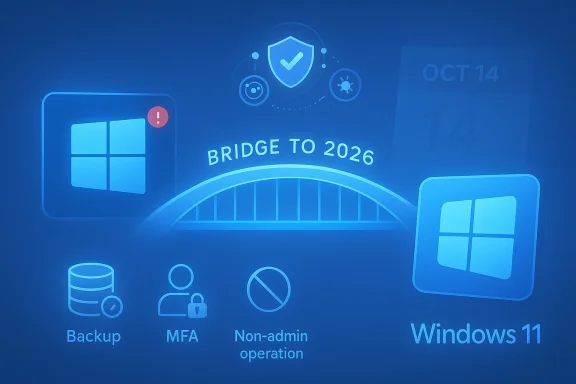
If you’re still running Windows 10, don’t assume the worst — but don’t assume comfort, either. Microsoft formally ended mainstream support on October 14, 2025, leaving millions of PCs without routine OS security patches; consumers can buy a one‑year bridge via the Extended Security Updates (ESU) program or rely on continued Microsoft Defender threat intelligence updates, but these are temporary stopgaps, not permanent fixes.
Windows 10 remains widely used, but the vendor safety net has changed. Microsoft’s public lifecycle for Windows 10 closed on October 14, 2025; after that date the company stopped shipping regular security and feature updates to the general consumer channel. For consumers who need time to migrate, Microsoft offered a consumer ESU for eligible devices that delivers security‑only updates for a limited period (the consumer ESU covers eligible Windows 10, version 22H2 devices through October 13, 2026). Separately, Microsoft committed to continuing Microsoft Defender Antivirus definition and cloud intelligence updates for Windows 10 for a further window through at least October 2028 — but those Defender updates do not replace OS patches.
This matters because the greatest practical risk after end of support is unpatched platform vulnerabilities — once researchers or adversaries discover a kernel, driver, or system library bug, a lack of vendor patches means defenders must rely on mitigations rather than fixes. The result: keep your PC, but change how you defend it.
A practical migration timeline:
Source: PCMag UK Using Windows 10? Do This Now to Lower Your Risk of Being Hacked
 Background / Overview
Windows 10 remains widely used, but the vendor safety net has changed. Microsoft’s public lifecycle for Windows 10 closed on October 14, 2025; after that date the company stopped shipping regular security and feature updates to the general consumer channel. For consumers who need time to migrate, Microsoft offered a consumer ESU for eligible devices that delivers security‑only updates for a limited period (the consumer ESU covers eligible Windows 10, version 22H2 devices through October 13, 2026). Separately, Microsoft committed to continuing Microsoft Defender Antivirus definition and cloud intelligence updates for Windows 10 for a further window through at least October 2028 — but those Defender updates do not replace OS patches.This matters because the greatest practical risk after end of support is unpatched platform vulnerabilities — once researchers or adversaries discover a kernel, driver, or system library bug, a lack of vendor patches means defenders must rely on mitigations rather than fixes. The result: keep your PC, but change how you defend it.
What “End of Support” Actually Means for Your PC
Windows 10 continuing to boot and run isn’t the same thing as being supported. Here’s what changes immediately and over time:- No more routine security patches for the OS after October 14, 2025 unless you’re on an ESU or another paid program. That includes fixes for newly discovered vulnerabilities in the kernel, drivers, and system libraries.
- Microsoft technical support is no longer provided for Windows 10 consumer devices through standard channels. If you need official troubleshooting from Microsoft, that option is gone.
- Microsoft Defender receives signature and cloud‑driven updates beyond the OS lifecyle window, but those updates do not patch OS flaws — they help detect and block malware using current threat intelligence. Treat Defender’s continued updates as a critical layer, not a cure for missing OS patches.
- Compatibility will erode: new apps, developer toolchains, and hardware drivers will increasingly favor Windows 11. Over time, vendors will stop testing for or shipping drivers for older OS builds, which can leave you without support for new peripherals and software.
Microsoft’s Bridges: ESU and Defender — What They Cover (and What They Don’t)
Microsoft’s consumer ESU and extended Defender updates are the two pragmatic bridges Microsoft provided. Here are the central mechanics and caveats:- Consumer ESU (one‑year bridge): Microsoft offered a consumer ESU for eligible Windows 10 (22H2) devices that extends security updates through October 13, 2026. Enrollment had prerequisites — for example, devices must be fully patched to the latest 22H2 build and the account used to enroll must have Administrator privileges. ESU is explicitly a migration aid, not a long‑term support program: it provides security updates only, and does not include feature updates, non‑security fixes, or routine technical support.
- Cost and enrollment nuances: For consumers, Microsoft made ESU available as a modestly priced one‑time option (reports indicated a consumer fee around $30), while businesses faced higher, multi‑year pricing that ratchets up per year. Businesses could buy ESU for multiple years (with increasing costs), but consumers were generally offered the single one‑year window as the primary option. Enrollment paths and exact requirements (local account vs Microsoft account, Backup and account syncing prerequisites, or Microsoft Rewards point purchases) were noted in public reporting and Microsoft messaging, but these details mattered for whether a given PC qualified.
- Microsoft Defender Antivirus updates through 2028: Microsoft committed to keeping Defender’s signatures and cloud intelligence feeds current on Windows 10 through at least October 2028. That means malware detection capability continues to improve, but Defender cannot repair or rearchitect an unpatched kernel or driver flaw; it only detects and attempts to block malicious activity. Use it as an important layer within a broader defense‑in‑depth strategy.
Is Staying on Windows 10 Risky? A Practical Risk Model
Risk is contextual — but here’s a pragmatic breakdown:- For a light‑use home PC that rarely handles sensitive accounts and sits behind a modern router with Defender enabled and good hygiene, staying on Windows 10 temporarily is manageable if you harden the device and limit exposure. Defender updates still provide substantial protection against commodity malware.
- For any device that touches sensitive information — work data, healthcare, or financial systems — EOS should trigger an immediate migration plan. Hardening can reduce risk, but you cannot indefinitely treat an unsupported OS as a secure platform. ESU only buys time; full support requires platform updates (i.e., moving to Windows 11 or another supported OS).
- For networks with mixed OS versions, unsupported Windows 10 machines become beachheads for lateral movement. Attackers exploit unpatched machines to move across a network, so a single unsupported endpoint can expose the whole environment.
Immediate Actions: A 14‑Point Hardening Checklist You Can Do Today
Below is a prioritized, actionable checklist to lower your immediate risk. Apply these now — don’t wait.- Verify your Windows 10 build (aim to be on 22H2) and install any outstanding updates, then reboot. ESU enrollment required fully updated 22H2 systems.
- Check ESU eligibility and enroll if you need time to migrate; remember ESU is a one‑year bridge for consumers. If ESU is not an option, plan migration now.
- Keep Microsoft Defender enabled and verify it is receiving definition updates; treat it as a central detection layer, not a platform patch. Consider supplementing Defender with a reputable third‑party suite if you want additional exploit‑firewall or behavior‑based protections.
- Turn on Multi‑Factor Authentication (MFA) for every account that supports it — Microsoft account, email, banking, work services. Passwords alone are a weak link.
- Operate day‑to‑day from a non‑admin account; reserve the local Administrator account for software installs or maintenance only. This limits the reach of successful malware.
- Back up immediately (local + offline external drive and a cloud copy if desired). Verify restores. Backups are your best defense against ransomware and catastrophic data loss.
- Disable or tightly restrict remote services (RDP, SMB, remote administration) on machines that don’t need them; if RDP is necessary, place it behind VPN and MFA. Block RDP at the router and host firewall for home networks unless you have a secure gateway.
- Enable Windows Exploit Protection, Core Isolation, and Smart App Control where supported by your hardware. These settings raise the bar against exploit chains that rely on OS weaknesses.
- Harden your home/office router: change default admin passwords, keep firmware updated, enable WPA3 or at least WPA2 with a strong passphrase, and disable WPS.
- Use a VPN on public Wi‑Fi and consider DNS filtering (reputable DNS providers can block known malicious domains). This reduces exposure to phishing and drive‑by downloads.
- Audit installed software and remove unused or unsupported applications; update browsers, Java, Flash remnants, Adobe Reader, and other frequent exploitation targets.
- Use a password manager and create strong, unique passwords for every account. Replace reused or weak credentials immediately.
- Enable BitLocker or device encryption where available — protect data at rest in case of theft. Record recovery keys securely offline.
- Consider isolating high‑risk tasks (torrenting, unknown downloads, or sensitive banking) to separate virtual machines or a dedicated, hardened device. This limits cross‑contamination.
Advanced Hardening for Power Users and Tech‑savvy Readers
If you manage multiple systems or want to push harder, the following techniques help close gaps that unpatched OS code leaves open:- Use the Sysinternals toolkit (Process Explorer, Autoruns, ProcMon, TCPView, Sysmon) for targeted threat hunting and to detect persistence mechanisms. These tools expose hidden processes, startup items, and suspicious network connections. Learn the baseline behavior of your machine before changing detection thresholds.
- Deploy behavioral EDR (Endpoint Detection and Response) solutions where possible — they are more effective at detecting exploit chains and lateral movement than traditional signature‑only AV. For home use, consider consumer suites that include behavior‑based exploit mitigation.
- Harden logging and retention: enable event logging for process creation, network authentication, and remote access events, and periodically review logs or ship them to a centralized collector if you manage many machines. This improves detection and incident response capabilities.
- Consider application isolation strategies: Windows Sandbox (on supported SKUs) or light virtual machines for risky tasks; these provide ephemeral environments that reduce persistent compromise risk.
When Hardening Isn’t Enough: Signals You Should Migrate Immediately
Hardened Windows 10 is a reasonable short‑term stance, but certain conditions should trigger urgent migration:- Your PC handles sensitive regulated data (healthcare, finance, regulated intellectual property). ESU is insufficient for compliance in many frameworks.
- Your software vendors explicitly stop supporting Windows 10 (e.g., developer tools, enterprise apps, or security products you rely on). Lack of vendor support reduces your options.
- You discover a high‑severity, actively exploited vulnerability whose mitigations are incomplete without a vendor patch. In that case, isolation or migration is the only long‑term fix.
The ESU Decision: Buy Time or Buy Problems?
ESU can be the rational — and responsible — choice when you need a controlled migration window. Use these rules of thumb:- Use ESU if you need 6–12 months to test upgrades, validate legacy app compatibility, or budget new hardware. Treat ESU as a bridge to migration, not an extension of life.
- If you’re a business, compare multi‑year ESU costs and operational complexity against investing in hardware refresh and staff time. Enterprises often pay more for ESU year‑over‑year; the price advantage of rapid migration frequently outweighs continued ESU costs.
- If your PC fails Windows 11 hardware checks (TPM, CPU, or other requirements) and you cannot upgrade in a controlled way, ESU plus strict hardening reduces immediate risk — but plan for hardware replacement on a sensible timeline to avoid accumulating security debt.
Compatibility, Market Momentum, and the Migration Timeline
Windows 11 adoption crossed a tipping point in mid‑2025, with market trackers reporting Windows 11 overtaking Windows 10 in install share — a trend that accelerates vendor support decisions. That adoption curve pressures software and hardware vendors to optimize for the newer OS, which is why compatibility erosion matters in practice: drivers, peripherals, and cutting‑edge apps will be designed and tested primarily for Windows 11 over time. Plan migration proactively rather than reactively.A practical migration timeline:
- Immediate (0–14 days): Backup, enable MFA, verify Defender/AV, disable exposed services, check ESU eligibility.
- Near term (30–90 days): Enroll in ESU if needed, inventory apps and drivers for Windows 11 compatibility, test upgrades on non‑critical hardware or VMs.
- Medium term (3–12 months): Upgrade supported devices to Windows 11 during controlled maintenance windows; budget and schedule replacements for incompatible hardware.
- Ongoing: Maintain layered security, logging, and an automated patch cadence for supported platforms. Monitor vendor advisories and CVE feeds for emergent threats.
Final Assessment: Strengths, Weaknesses, and the Practical Trade‑Offs
Strengths of the “stay and harden” approach:- No immediate hardware purchase required.
- ESU (if eligible) supplies a narrow extension for security updates while you plan migration.
- Continued Defender signature updates reduce risk from commodity malware when paired with good hygiene.
- Unsupported OS code can be discovered and exploited; without vendor patches, mitigation is always imperfect. Attackers will target the weakest link.
- Compatibility erosion will make new peripherals and apps harder to use over time; this is an operational headache that often forces upgrades on inconvenient timelines.
- ESU is a finite resource; for consumers it’s a one‑year bridge and for businesses a progressively expensive stopgap. Don’t treat ESU as a permanent license to defer migration.
- Exact enrollment mechanics, promotional pricing, or short‑term changes are subject to updates from Microsoft and retail channels; verify current enrollment steps for your machine. Some outlets reported alternative ways to qualify (Microsoft account linking, rewards points), but those details changed during rollout and should be validated for your specific case. Treat these procedural details as verifiable at the time you act, not as immutable facts.
Conclusion: A Realistic, Actionable Plan
Here’s the single simplest, highest‑value strategy you can follow right now:- Back up and verify your backups. (Do this first.)
- Enable MFA and operate daily as a non‑admin.
- Keep Microsoft Defender updated and consider adding a reputable security suite that offers exploit mitigation and behavior detection.
- Enroll in ESU if you qualify and you need time; otherwise, commit to a migration schedule (upgrade or hardware refresh) on a 3–12 month timeline.
Source: PCMag UK Using Windows 10? Do This Now to Lower Your Risk of Being Hacked
