Windows 10 End of Support Sparks Linux Migration: AI, Subscriptions, and Hardware Gateways

  • Thread Author
When a mainstream OS vendor starts to pivot around always‑on AI, subscription features, and hardware‑gated experiences at the same time millions of users face an end‑of‑life deadline, the question stops being hypothetical: will some of those users walk away? Recent rumor cycles and product moves around Copilot, Copilot+ PCs, and the roll‑out dynamics for the post‑Windows‑10 era have crystallized an answer for many: yes—some users will switch, and a nontrivial slice of them will seriously consider desktop Linux as the alternative. The forces pushing them toward Linux are practical, not ideological: privacy concerns, monetization fatigue, and hardware longevity intersect with Linux’s improved usability, better gaming compatibility, and broad device support in ways that make migration less painful than it would have been five years ago. .com]

A futuristic tech collage with Windows at sunset, a TPM 2.0 shield, Linux’s Tux, and dev dashboards.Background / Overview​

Microsoft’s public posture for the Windows client line has shifted clearly toward AI integration. Copilot is now a cross‑platform offering woven into Windows 11, Microsoft 365, and Edge, and Microsoft has previewed segmented hardware tiers called Copilot+ PCs that promise local, accelerated AI experiences. At the same time, Windows 10 reached its official end of support in October 2025 and Microsoft offered a paid Extended Security Updates (ESU) path for holdouts—effectively creating an inflection point for large populations of desktop users. Those realities—AI as a platform hook, paid ESU as a stopgap, and the emergence of hardwpremium features—are the key ingredients in the current migration thesis.
These trends are being watched against a backdrop of rising Linux desktop usage: web‑traffic tracking firms showed Linux desktop share nudging above the 4% mark in recent reports, the highest measured level in many years. Whether you treat those numbignal or a headline, the takeaway is the same—Linux is more visible and more capable on the desktop than it was a few years ago, and that matters when a sizeable cohort begins to look for alternatives.

Why this moment feels different: three structural pressures​

1) AI integration is becoming a platform lever, not just a feature​

Microsoft’s AI strategy has moved beyond optional add‑ons. Copilot shows up inside the OS shell, file managers, and the browser; Copilot+ PCs promise on‑device summarization, context awareness, and memory‑style features designed to speed workflows. For many users that’s a clear win: AI that reduces friction and automates routine work is compelling. For others, the model of an always‑present assistant with deep system hooks raises two problems.
  • Privacy and telemetry: deeper integration increases the surface area for data collection, and for a subset of users, the tradeoff of convenience versus data visibility is unacceptable.
  • Control and opt‑in design: when an OS nudges or makes AI features central to its UX, the default becomes the de facto product. Users who prefer a quieter, less opinionated desktop can feel boxed out.
The Recall controversy—Microsoft’s paused and redesigned screenshot‑based memory feature—was a practical demonstration of these tensions. The original approach drew rapid criticism from privacy and security researchers; Microsoft dela, clarified opt‑in controls, and redesigned telemetry and retention mechanics. That episode is instructive because it shows Microsoft iterating toward stronger privacy controls under pressure—but it also signaled how intrusive system‑level AI could feel when proposed as a default capability.

2) Monetization and the desktop as a service channel​

Windows has increasingly been used as a surface for services—subscriptions, upsells, and promotional UI experiments in Insider builds have tested “recommendations” and promotional placements in the Start menu and elsewhere. For many mainstream and enterprise users, that shift is not just cosmetic: it changes the expected cost profile and the perceived relationship between vendor and user. When a platform nudges repeatedly to buy cloud storage, a premium AI assistant subscription, or tighter Microsoft account entanglement, it reshapes the total cost of ownership.
Linux distributions generally present an opion: no ads by default, no mandatory subscription, and a grant‑and‑audit model for enterprise support that can be far more predictable. For cost‑sensitive households, schools, and nonprofits, that predictability matters. The calculus—avoid subscriptions and promotional noise by switching to a modern, user‑friendly distribution—is straightforward in many contexts.

3) Hardware gating and lifecycle pressures​

Windows 11’s move to require TPM 2.0 and newer CPU features already forced a large number of machines into a “replace or patch” decision tree. Enterprise audits found many devices failing compatibility checks, complicating refresh cycles and budgets. If Microsoft ties headline Windows features—particularly local AI acceleration—to NPUs (neural processing units) or other dedicated silicon, the practical effect is a new tiering of experiences: older hardware continues to run, but the most visible, marketed features become hardware gated.
For users who want to keep older machines in service, Linux is the obvious win: its kernel, drivers, and desktop choices allow for much longer usable lifespans, and lironments can revive decade‑old laptops. That matters for organizations where stretching refresh cycles by two or three years isn’t a choice but a budget necessity. Lansweeper’s Windows 11 compatibility audits and other enterprise surveys documented how hardware checks became a real cost driver during prior upgrade cycles.

The Windows 10 exit: a catalyst, not the only cause​

Microsoft’s official lifecycle calendar made the moment unavoidable: Windows 10 reached end of support on October 14, 2025. Microsoft also offered consumer and enterprise Extended Security Updates (ESU) to buy time; for consumers, ESU options were presented with caveats—some enrollment paths required a Microsoft account and a short‑term subscription or one‑year extension—making the decision about whether to pay, upgrade, or migrate more pointed. That decision window pushed many hobbyists, administrators, and IT teams to evaluate alternatives with realistic timeframes.
The EOL moment does not automatically cause a migration tsunami; most mainstream, enterprise, and home users will still upgrade to a supported Windows or replace hardware. But it does create a fork in the road for a meaningful minority: pay for ESU, accept a Windows upgrade path (and its potential AI/monetization tradeoffs), or look for an alternative. When alternatives are viable, the presence of an EOL deadline accelerates adoption curves—something evident in historic platform shifts.

Linux today: real improvements that matter​

The old objections to Linux on the desktop are weaker now, thanks to three concurrent advances.
  • Application distribution and sandboxing: Flatpak and Snap made cross‑distro packaging feasible and reduced the dependency headaches that once prevented mainstream app support. These systems also make it easier for upstream vendors to ship desktop apps to many distributions without bespoke packages.
  • Gaming compatibility: Proton—Valve’s WINE‑based compatibility layer—has dramatically expanded the quantity and quality of Windows games that run well on Linux, and Valve’s Steam Deck gave those efforts a consumer anchor. Proton releases and Steam Deck verification campaigns have turned previously difficult gaming transitions into routine compatibility checks, and many high‑profile titles a Proton with minimal tinkering. For gamers weighing a switch, the “can I play X?” question is far less decisive than it used to be.
  • Polished desktop environments and UX maturity: KDE Plasma, GNOME, and several distribution spins (Ubuntu LTS, Zorin OS, Pop!_OS, Linux Mint) have invested heavily in onboarding, settings simplicity, and defaults that look familiar to users migrating from Windows. The availability of long‑term support releases (for example, Ubuntu LTS with five years of maintenance) reduces the perceived risk of switching.
Taken together, these advances mean the friction cost for switching to Linux is materially lower than it was five years ago. For many users—students, teachers, small business owners, and privacy‑conscious consumers—that threshold is the only thing that matters.

Practical migration paths: what most people will do​

Switching an OS is rarely an all‑or‑nothing project. The realistic, low‑risk progression that savvy users take looks like this:
  • Boot from a live USB and test hardware: Wi‑Fi, printers, webcam, and any specialized devices.
  • Try a dual‑boot setup or repurpose an older machine as a Linux test device.
  • Identify cross‑platform tools and workflows: browser‑based apps, IMAP or Exchans, LibreOffice for office files, VS Code or JetBrains IDEs for developers.
  • For gamers, consult community databases (ProtonDB/Steam Deck verification) and test specific titles on a live USB or spare drive.
  • For enterprise or regulated environments, consider LTS distributions with commercial support contracts where needed.
This path minimizes risk: you can evaluate device compatibility, check licensing and VPN/enterprise tool support, and perform staged migration one machine at a time. Plenty of organizations and home users followed this exact sequence during Windows 10’s earlier lifecycle transitions.

Strengths and weaknesses: a balanced assessment​

Strengths of the migration case toward Linux​

  • Control and privacy: Linux distros overwhelmingly default to privacy‑first configurations—limited telemetry, transparent code, and easy auditing for organizations.
  • Lower total cost of ownership: no forced subscriptions, no promoted upsells, and the ability to extend device life are compelling for budget‑sensitive buyers.
  • Better hardware lifecycles: lightweight desktops and broad driver support revive old machines and delay refresh budgets.
  • Gaming and app compatibility are no longer theoretical: Proton, combined with native porting, has closed a large part of the gap for many mainstream games and apps.

Risks and gaps in the migration case​

  • Specialized professional software: Adobe Creative Cloud, some industry‑specific CAD/CAM applications, and a handful of enterprise VPN or security agents still lack first‑class support on Linux. For professionals who rely on these tools, the costs of migration can still be prohibitive.
  • Anti‑cheat and DRM challenges in gaming: some multiplayer titles with kernel‑level anti‑cheat integrations remain incompatible or require workarounds, limiting a complete migration for competitive gamers.
  • Enterprise inertia and management tooling: Active Directory, SCCM/Intune integrations, and centralized management require different approaches on Linux; while MDM solutions exist, migrating entire fleets is nontrivial.
  • Perception and training: end‑user training and support models still lag Windows in many organizations; community support is strong, but structured internal helpdesks must adjust.
Because of these gaps, expect a segmental migration: power users, privacy advocates, cost‑conscious households, and a rising number of hobbyist gamers are the most likely cohorts to switch first. Full fleet migrations in enterprises will remain conservative and paced.

What vendors and IT teams should watch for​

  • Hardware tiers and feature gating: monitor whether Microsoft increasingly reserves feature sets (e.g., local large‑model inference, Recall‑style features) to NPUs or Copilot+ certified devices. If vendor messaging moves from “optional AI” to “best experience on X hardware,” plan a compatibility audit. Lansweeper and similar tools can speed that analysis.
  • ESU enrollment requirements and account entanglement: some ESU enrollment paths require Microsoft account linkage or specific enrollment steps. For organizations or individuals who want to avoid cloud identity ties, that could be a decisive factor.
  • Application gaps: map mission‑critical apps against Linux compatibility matrices today—use ProtonDB for games and vendor pages or containerization strategies for niche applications.
  • Support options: if considering a migration, budget for commercial support from Canonical, Red Hat, or other vendors for critical production systems. Their offerings close many enterprise gaps without forcing a return to Windows.

Migration playbook: recommended steps for users and admins​

  • For home users and enthusiasts:
  • Start with a live USB. Test everything that matters: Wi‑Fi, media playback, printers, and the most used applications.
  • Use distributions aimed at Windows switchers if you want the lowest friction: Zorin OS, Linux Mint, Ubuntu LTS, or Pop!_OS.
  • If gaming matters, check ProtonDB and test your library; for Steam users the recent Proton and Steam client improvements significantly increase playability.
  • For small businesses and schools:
  • Pilot on repurposed hardware to validate management workflows, VPN support, and printing.
  • Standardize on an LTS distro for predictable update cadence and easier remote management.
  • Consider hybrid fleets: keep critical Windows‑only systems while rolling more disposable workstation classes to Linux to save refresh budget.
  • For enterprise IT:
  • Inventory your fleet for NPU, TPM, and CPU compatibility to understand upgrade costs and feature access.
  • Run a compatibility matrix for bespoke apps and security controls; where gaps exiization or application delivery from secured VDI images.
  • Model costs for ESU, hardware refresh, and potential Linux migration with total cost of ownership comparisons over a 3‑ to 5‑year window. Lansweeper audits and Microsoft lifecycle notices are essential inputs here.

What to watch next: the tipping points​

There are three concrete tipping points that would materially accelerate Linux adoption:
  • Microsoft formally ties large swaths of the headline user experience—or clear performance differentials—to Copilot+ hardware NPUs and requires those NPUs for essential tasks rather than optional enhancements.
  • The in‑OS promotional model gets more aggressive or more deeply embedded into core workflows, increasing subscription friction for mainstream users.
  • Major application vendors either commit to Linux clients or make web‑first versions good enough that migration becomes trivial.
If any two of those things happen in a concentrated timeframe, expect measurable migratioet share changes will remain gradual—Windows’ installed base is enormous—but the slope of change matters. Small, persistent defections across tens of millions of users add up quickly relative to the historical base for Linux on the desktop.

Conclusion: a new equilibrium, not a revolution—yet​

Windows remains the dominant desktop platform, but the calculus holding users in place is shifting. The convergence of AI as a product lever, monetization through services, and hardware‑driven feature gating has created a credible migration pathway for a meaningful minority of users. Desktop Linux’s improvements in app distribution, gaming compatibility via Proton, and polished desktop distributions have reduced the friction for switching at precisely the moment when some Windows users are being nudged to make a decision.
Expect a steady migration that looks like cautious pilots, dual‑boots, and gradual repurposing of older devices—rather than a mass exodus overnight. For journalists, IT managers, and everyday users the important takeaway is simple: this moment is the first time in years where choosing Linux is neither a pure hobbyist decision nor a costly gamble. It is a pragmatic alternative that deserves honest evaluation when your Windows upgrade choices carry privacy implications, recurring costs, or hardware replacement bills.
End of article.

Source: findarticles.com Windows 12 Rumors Spark Shift Toward Linux
 

The little image that reads “I hate Windows 11 so much” and was uploaded to Know Your Meme on March 14, 2026 has done something more useful than provoke a chuckle — it distilled a years‑long, multilayered user backlash into a single, sharable artifact that explains why so many people still feel punished by Microsoft’s vision for the PC. (knowyourmeme.com)

A computer monitor displays large text saying “I hate Windows 11 so much” with a red warning triangle.Background / Overview​

Windows 11 launched in late 2021 with a glossy redesign, rounded corners and a promise of modernization. What followed was not only a product lifecycle but a cultural narrative: debates over hardware requirements (TPM 2.0, Secure Boot, newer CPUs), UI decisions that removed or hid long‑standing customization options, and a stream of high‑visibility updates that occasionally introduced regressions or breakages. The result is a user base that’s equal parts resigned, amused and angry — and that emotion is what fuels memes, greentext jokes and viral image posts across Reddit, KnowYourMeme and other communities.
The meme captured on Know Your Meme is a direct upload of a Reddit post — the platform and timing matter because the image is not a standalone viral object but part of a conversation that spans forums, social networks and technical support threads. The photo’s metadata (uploaded Mar 14, 2026 at 10:20AM EDT) confirms its provenance as a Reddit import on that date, turning ephemeral forum frustration into a document of meme culture. (knowyourmeme.com)

Why a short meme matters: the anatomy of a viral complaint​

Short, declarative captions — “I hate Windows 11 so much” — function like social shorthand. They encapsulate complicated grievances into one line and invite amplification. That’s the meme’s job: to translate a multifaceted product dispute into a feeling with which others immediately identify.
  • The image posted on Know Your Meme is minimalistic and easily reposted, which accelerates memetic spread. (knowyourmeme.com)
  • The same sentiment shows up again and again in forum threads and Reddit posts where users catalog specific technical grievances and design regressions. These longer posts supply the “why” while the meme supplies the “mood.”
Memes like this do two practical things for communities: they give frustrated users an outlet, and they create a visible signal that vendors and journalists notice. That signal can amplify attention to real technical problems or product choices that otherwise would be buried in scattered support threads.

The technical roots of the anger​

To understand why the meme resonates, you need to look under the hood. Several decisions by Microsoft created friction points that compound over time.

1) Hardware and upgrade policy: TPM 2.0 and compatibility headaches​

Windows 11 introduced a much stricter minimum platform baseline than Windows 10. TPM 2.0 and UEFI Secure Boot became emphasized parts of Microsoft’s “secure by default” stance, but the messaging and enforcement left many users feeling locked out of the upgrade path. That perceived gatekeeping produced understandable resentment among users with otherwise perfectly functional machines. Reworks to installation bypasses and tightening of unofficial workarounds only fed the narrative that Microsoft was deliberately cutting older hardware off.

2) The taskbar and the personalization tax​

Windows customization has long been a differentiator for power users; Windows 11’s early releases restricted taskbar placement, removed certain right‑click behaviors and limited customization hooks. Users who’d spent decades tuning their workflow suddenly found menus restructured, right‑click options nested behind “more options,” and familiar shortcuts missing. The loss of muscle‑memory features inflamed day‑to‑day productivity and is one of the most commonly cited reasons for vocal dislike.

3) Default nudges and account friction​

The shift to a stronger Microsoft Account integration in the Out‑Of‑Box‑Experience (OOBE) for Home editions, and visible prompts for Copilot or other Microsoft services, created a perception that Windows 11 prioritized Microsoft’s services over the user’s local control. Even when the prompts are optional, the sudden prominence of cloud‑first flows feels like pressure to some users — enough that many memes lampoon the idea of losing control with a single accidental keystroke.

4) Updates, regressions and the lived experience​

Cumulative updates are the lifeblood of modern operating systems, but when they break things — Auto HDR crashes, audio regressions, or even BitLocker and WinRE interactions — user trust erodes quickly. News reports and community threads documented multiple incidents where a specific update caused functional regressions; that pattern reinforces the meme’s underlying claim: Windows 11 feels brittle to many users.

Meme mechanics: greentext, brevity and believable absurdity​

The type of humor used to mock Windows 11 often takes the form of greentext or short, escalating narratives that are obviously satirical yet feel plausible. A recurring example — the “I upgraded to Windows 11 by accidentally pressing spacebar on startup” joke — is deliberately absurd, but it succeeds because it rests on a kernel of truth: Windows updates and upgrade prompts can be confusing and prominent UI elements can be mistakenly activated. That cognitive plausibility makes the joke hurt in a satisfying way.
Two points to underline:
  • The literal claim that pressing spacebar during boot upgrades your machine is false and should be taken as satire, not instruction.
  • The meme’s believability comes from real UX design choices — big CTA buttons, ambiguous prompts and the occasional opaque progress screens. When users are already anxious about updates and security, small interface ambiguities turn into culturally resonant jokes.

Voices from the forums: complaints, workarounds, and resignation​

Community discussion threads reveal how the meme emerges from lived experience. Long, detailed posts on enthusiast forums catalog concrete annoyances — loss of Start menu flexibility, extra steps to create desktop shortcuts, diminished thumbnail reliability for creatives, and more. Those complaints are not just griping; they are use‑case details that explain why a short meme resonates with a broad audience.
At the same time, threads show a bricolage of fixes and compromises:
  • Third‑party tools like Start11, ExplorerPatcher and Stardock’s Fences are repeatedly recommended to restore lost behavior.
  • Some users advise rolling back updates, pausing Windows Update, or using virtual machines to experiment without risking production setups.
  • A subset of users has moved to Linux distributions (Zorin, AnduinOS) or alternative shells (Seelen UI) when customization and control are priorities. These migrations are often partial — VM‑based testing first, then full switch for some.
The forums make clear that the meme is not just a punchline; it’s shorthand for specific, recurring problems and the workarounds community members live with.

Where Microsoft has caved, and where it’s dug in​

The push‑and‑pull between Microsoft’s product decisions and community reaction has produced some visible corrections. For example, Microsoft experimented with simplifying the taskbar system tray, then abandoned that change following tester complaints — a rare, explicit rollback tied to negative feedback. That reversal is a sign that, in some areas, vocal user response still moves the product roadmap.
At the same time, Microsoft has been firm on security requirements like TPM 2.0, reiterating that modern platform security is not negotiable for its vision of a safer Windows. That firmness explains both the frustration and the rationale: security baseline decisions can alienate users who feel their hardware is still useful even if it lacks new features. Reporting shows Microsoft’s stance has been repeatedly restated rather than quietly reversed.

The human cost and creative outlet​

It’s easy to reduce a meme to a tech gripe, but the cultural function is broader. Memes provide catharsis and community bonding. When a designer laments that thumbnails no longer render correctly, or a parent is bewildered by an upgrade prompt on a laptop that “just worked yesterday,” a two‑second image that says “I hate Windows 11 so much” allows them to vent with thousands of strangers at once.
That mass venting also becomes a feedback loop:
  • The meme gets shared, people with similar frustrations see it and feel validated.
  • More validation produces more aggregated complaints that journalists and even product teams notice.
  • That attention can force fixes, small policy clarifications, or simply more prominent documentation and tooling for those who want to alter defaults.
In short, the meme is cultural signal and social glue at once — a negative KPI that nonetheless maps to meaningful user experience data.

Practical mitigation: what power users and admins actually do​

If you’re reading the meme and thinking “that’s me,” here’s a pragmatic checklist to reduce friction and regain control. These are community‑tested approaches drawn from forum threads and user reports; adopt what fits your risk tolerance and environment.
  • Backup first. Create a full image or at least a full file backup before major upgrades or cumulative updates. Relying on cloud sync alone is not the same as an image backup.
  • Pause or defer updates on machines you rely on for work. Use controlled update rings or group policy where possible.
  • Use a VM to test major updates before deploying them to primary hardware. Virtual machines let you evaluate regressions without risking your main workflow.
  • Consider third‑party shells carefully: ExplorerPatcher, Start11 and Stardock’s Fences restore many legacy behaviors. They’re widely used but are unsupported by Microsoft — that trade‑off matters in regulated or enterprise contexts.
  • If you need Windows 10‑like behavior at scale, evaluate commercial tooling and formal management policies rather than per‑machine hacks. Centralized management reduces variability and surprise updates.
  • For the adventurous: try Linux in a VM first (Zorin, AnduinOS) or use compatibility layers like Wine for specific apps. Full migration is a major project; plan it like a migration, not a weekend experiment.
These steps won’t make the meme go away, but they dampen the daily frictions that make people reach for the one‑line complaint.

Risks and trade‑offs of the community’s responses​

The community’s countermeasures are not risk‑free. Restoring “classic” behavior with unsupported patches can expose systems to stability or security issues if the underlying OS expects a different UI model. Tightening or loosening update policies has operational consequences for security posture. And moves like downgrading to Windows 10 or switching to Linux carry compatibility, support and training costs that must be considered.
Be explicit about three risks:
  • Security risk: Bypassing updates or using unsupported installers to avoid hardware checks may open vulnerability windows. Microsoft’s platform requirements aim to reduce exploitation vectors, and for organizations that prioritize compliance, those requirements are meaningful.
  • Supportability risk: Third‑party shell replacements are developed by small teams; when a major OS update arrives, those projects can temporarily break, leaving users with inconsistent experiences.
  • Migration cost: Moving to Linux alleviates some UX frustrations but introduces application compatibility and training overhead. For many, Linux is a long‑term commitment rather than a quick fix.
Callouts like these are why many IT pros in forums recommend a cautious, test‑first approach — mirror the production environment in a sandbox, document rollback plans, and communicate change windows to end users clearly.

What the meme should make Microsoft care about​

Memes are not a replacement for telemetry or customer interviews, but they are a loud form of qualitative feedback. Here are four things the meme — and the communities behind it — are asking, explicitly or implicitly:
  • Respect long‑standing productivity workflows. Users aren’t nostalgic for the sake of nostalgia; they’re defending productivity patterns that have measurable value.
  • Communicate hardware and upgrade policies more clearly and humanly. Technical rationales are valid, but they must be paired with pragmatic guidance for users with older machines.
  • Give enterprise and power users a better path to preserve workflows, with supported tools and clear guidance rather than a third‑party cottage industry doing the heavy lifting.
  • Make sure updates are safer and better signposted; the cost of a broken update is trust, and trust is harder to patch than an OS bug. Regional case studies of broken updates (Auto HDR crashes, BitLocker recovery issues) show how a single bad update can seed enduring memes and outrage.
When Microsoft has listened, it moved — for example, shelving a contested system tray redesign — showing that vocal, technically literate communities still have influence.

The meme’s final purpose: a pressure valve and a scoreboard​

“I hate Windows 11 so much” is the sort of meme that reads like a petty complaint on the surface and doubles as a scoreboard underneath. The rage and humor tell product teams which parts of the user experience people notice first and resent most. The meme converts countless microcomplaints into a single, amplifiable metric: intensity of user sentiment.
For readers and admins, the takeaways are practical:
  • Treat the meme as a symptom, not the disease. Diagnose the specific features and workflows causing pain.
  • Use the community knowledge base, but apply it conservatively and test changes before broad rollout.
  • Recognize that product teams are balancing competing priorities — security, cloud integration, and modernization — and that trade‑offs can and will produce short‑term dissatisfaction even when long‑term goals are defensible.

Conclusion​

A small image uploaded to Know Your Meme on March 14, 2026 did more than capture a joke: it crystallized a broad set of grievances about Windows 11 into a tiny, transportable unit of culture. Behind that line are technical decisions — TPM enforcement, taskbar redesign, account nudges, and update regressions — that created real, measurable friction for millions of users. The meme is the loud, shorthand language users use to say: we noticed; this matters; please fix it. (knowyourmeme.com)
Memes will continue to be a useful early‑warning system for product teams and a cathartic outlet for users. For anyone who sees the joke and nods, the practical route forward is clear: back up your data, test updates, consider supported third‑party tools where necessary, and voice your specific pain points in places product teams and journalists still read — because the signal beneath the meme is precisely what ultimately moves product decisions.

Source: Know Your Meme I hate windows 11 so much | /r/memes
 

Installing Windows 11 is far less mystical than it sounds — with the right preparation and tools, the process is a straightforward sequence of checks, backups and a few clicks. The basic how‑to published recently by K24 Digital breaks the task into easy, practical steps — confirm hardware compatibility, back up your data, create installation media, boot from USB, choose upgrade or clean install, and finish the out‑of‑box setup — and that's a solid roadmap for most users. This feature expands that walk‑through into a single, journalist‑grade guide: I’ll verify the key technical requirements, explain each step in actionable detail, highlight important gotchas (especially around TPM, Secure Boot and unsupported hardware), and give alternatives and troubleshooting advice so you can finish the job safely and confidently.

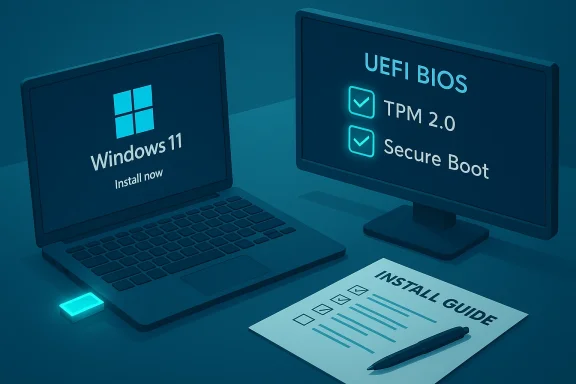
Windows 11 install on a laptop with a UEFI BIOS TPM 2.0 and Secure Boot checklist.Background / Overview​

Windows 11 introduced tighter hardware checks compared with Windows 10 to enable stronger built‑in security features such as Secure Boot and Trusted Platform Module (TPM) 2.0. Those checks matter because they change which machines can get a supported installation through Microsoft’s official routes. Microsoft publishes the Windows 11 minimum system requirements and recommends using the PC Health Check tool to confirm compatibility before upgrading.
At the same time, the Windows community has produced practical guides and utilities to create installation media and, in some cases, install Windows 11 on machines that do not meet Microsoft’s published requirements. Community threads and tutorials on creating bootable media, clean installs and troubleshooting remain useful references for real‑world scenarios.
Below you’ll find both the simple, step‑by‑step procedure for a typical install and an expanded technical explanation for users who want to understand the why behind each step.

What you should verify first: system requirements and readiness​

Before you touch anything, confirm your machine meets the Windows 11 requirements. Microsoft’s published minimums are the baseline for a supported installation:
  • Processor: 1 GHz or faster with 2 or more cores on a compatible 64‑bit processor or SoC
  • RAM: 4 GB minimum
  • Storage: 64 GB or more available
  • System firmware: UEFI with Secure Boot capability
  • TPM: Trusted Platform Module (TPM) version 2.0
  • Graphics: DirectX 12 or later with WDDM 2.0 driver
  • Display: >9" diagonal, 720p minimum resolution
  • Internet: Required for out‑of‑box setup for certain editions (Home/Pro) and for updating.
Two quick, reliable checks:
  • Run the official PC Health Check app to confirm compatibility quickly and get guidance. The app reports whether your PC “meets Windows 11” and calls out specific blockers (TPM, Secure Boot, CPU).
  • Inspect your UEFI/BIOS to ensure TPM and Secure Boot are enabled if your hardware supports them. Many install failures are simply misconfigured firmware.
If you find a blocker, don’t panic — later sections explain common fixes, alternatives and the risks of bypassing requirements.

Prepare: backup and housekeeping (don’t skip this)​

Before any OS work, back up everything you care about. Installation can — and sometimes will — remove existing data.
Why backup matters:
  • Upgrades can fail or be interrupted by hardware or software incompatibilities.
  • Clean installs erase the system drive by design.
  • A backup ensures you can recover documents, photos and licenses without hassle.
Recommended backup options:
  • Full image backup to an external drive (keeps exact system state).
  • Copy personal folders (Documents, Pictures, Desktop, Downloads) to an external drive or trusted cloud storage.
  • Export browser bookmarks and copy application installers/activation keys for any paid software.
Make a short checklist:
  • Verify external backup completed and test that important files open.
  • Note license keys and reinstallers for critical applications.
  • Ensure you have at least an 8 GB (preferably 16 GB) USB stick for media creation.

How to create installation media (two recommended methods)​

There are two mainstream, trustworthy ways to create a Windows 11 installer USB drive:
  • Method A — Microsoft Media Creation Tool (official, simplest)
  • Method B — Windows 11 ISO + Rufus (more flexible, useful for advanced scenarios)

Method A: Microsoft Media Creation Tool (recommended)​

The Media Creation Tool downloads the correct Windows 11 build and writes it to a USB drive in one guided flow. For most users this is the easiest path.
Steps summary:
  • On a working PC, download the Media Creation Tool from Microsoft and run it. The tool is labelled “Create installation media for Windows.”
  • Accept prompts, choose language and edition, insert a blank USB drive (8 GB+), and let the tool create the bootable media.
  • When complete, safely eject the drive. The USB now boots to the Windows installer.
Why choose this method:
  • Official Microsoft tool: minimal decisions, fewer errors.
  • Guaranteed to match Microsoft’s expected installer format for supported installs.

Method B: Download ISO + Rufus (flexible; for special cases)​

Rufus is a widely used utility for creating bootable USB drives from ISO files. Besides making standard bootable drives, certain Rufus releases provide options that affect how the Windows installer enforces (or bypasses) some checks at boot — this is why Rufus is popular for older or unusual hardware. However, bypassing requirements carries risks and can produce unsupported systems. See the risk discussion later.
Rufus workflow (high level):
  • Download the official Windows 11 ISO from Microsoft (choose the x64 ISO).
  • Run Rufus, select the ISO, choose the target USB, and pick the partition scheme (GPT for UEFI).
  • If you are creating media for a mainstream, supported install, use Rufus with default “Standard Windows Installation” settings. If you need special behaviour (e.g., creating media for an unsupported PC), Rufus historically offered an Extended or bypass option in certain releases; check Rufus’ documentation and release notes for the exact behaviour of your version. The GUI options have changed across Rufus versions — read the built‑in help.
Rufus is powerful, but because some of its bypass features remove Microsoft’s install checks, use it only if you understand the implications. We’ll cover risks below.

Booting from the USB: UEFI, Secure Boot and the boot menu​

Once your USB installer is ready, you must boot from it:
  • Insert the USB drive into the target PC.
  • Enter the firmware boot menu (common keys: F2, F12, ESC, DEL — vendor dependent) and choose the USB device as the boot source. If you don’t see the USB device, confirm:
  • The system is set to boot in UEFI mode (Windows 11 expects UEFI).
  • Secure Boot is enabled if your USB media targets a Secure Boot environment. On some systems with legacy/CSM enabled, switching to UEFI fixed the problem.
If the system refuses to boot the installer or shows compatibility errors right at the start, the cause is usually TPM, Secure Boot or CPU compatibility settings; revisit your firmware settings or the PC Health Check output.

The installer walk‑through (step‑by‑step)​

When you boot the installer, Windows setup walks you through a small set of initial choices. Here’s what to expect and how to answer:
  • Language, time and keyboard layout — choose as appropriate and continue.
  • Click Install Now when prompted. If performing an upgrade from Windows 10, you may be asked whether to keep personal files and apps; choose “Upgrade” to preserve them. For a fresh start choose “Custom: Install Windows only (advanced).”
  • Partition selection: For a clean install, select the system drive and format it (this deletes everything on the partition). For upgrades choose the existing Windows partition to preserve files/apps where supported.
  • The setup copies files and installs features/drivers; your PC will restart multiple times. This is normal. On many machines a typical install completes in 15–30 minutes, but times vary widely with CPU, disk speed and whether you’re upgrading or doing a clean install. Treat the time estimate as a practical guideline, not a guarantee.
During setup you may be asked to sign in with a Microsoft account (Windows 11 Home enforces this) and choose privacy settings. You can create a local account in certain scenarios (offline install or workarounds) — more on that in the privacy and workaround sections.

Upgrade vs. Clean install — when to choose which​

  • Upgrade (In‑place): Keeps apps, settings and files. Choose this if you want the least disruption and your current Windows 10 install is healthy. Use Microsoft’s Installation Assistant for an in‑place upgrade.
  • Clean install (Custom): Best for troubleshooting, removing bloatware or starting afresh. Requires reinstalling applications and restoring data from backup.
If you’re unsure, a clean install on a freshly imaged backup or spare drive is the safest experiment — you can always migrate data later.

Troubleshooting common installation pain points​

Problem: “This PC doesn’t meet minimum requirements” error
  • Confirm TPM 2.0 and Secure Boot in UEFI. Many motherboards ship with TPM disabled in firmware or as a discrete module; enabling it often resolves the error. Consult your motherboard vendor for firmware options.
Problem: Installer stops, returns boot errors, or BSOD during install
  • Recreate the USB installer with the Media Creation Tool (official) and use a different USB port or drive. Check UEFI vs Legacy boot mode. If errors persist, test RAM and storage for faults.
Problem: You need to preserve data but Windows Update won’t offer the upgrade
  • Create official installation media and choose the in‑place upgrade path by running setup.exe from the USB within Windows, or use the Windows 11 Installation Assistant to attempt an upgrade that preserves files.

Unsupported hardware: can you and should you bypass checks?​

Short answer: technically yes in many cases, but it’s not recommended for every user.
The facts:
  • Microsoft documents that installing Windows 11 on devices that don’t meet minimum requirements results in unsupported status. Unsupported devices may not receive updates and Microsoft disclaims support for them. If you proceed, you assume risk for compatibility, reliability and security.
  • Community tools (notably Rufus) and registry‑edit workarounds exist to bypass TPM/CPU/Secure Boot checks. Rufus has documented behaviour where media created to boot bypasses some checks during the installation sequence; the precise options and UI wording have changed across Rufus releases, so verify the version and read its release notes.
Why this matters:
  • TPM and Secure Boot are not arbitrary hurdles — they enable hardware‑rooted protections that matter for BitLocker, measured boot and certain platform mitigations. Bypassing them may leave your system more exposed or incompatible with future updates.
If you decide to proceed with a bypass for an older system:
  • Understand you may need to accept not receiving optional updates or be required to reinstall later.
  • Keep an extra offline backup image in case you need to revert.
  • Prefer a solution that creates a clean, bootable installer rather than running setup.exe from within Windows when bypassing checks — community guidance and Rufus’ own FAQ explain why bypassed checks apply only when booting from the created media.

Post‑installation: first actions and checks​

Once installation finishes and you’re at the Windows 11 desktop:
  • Run Windows Update immediately to grab the latest drivers and security patches. This step often resolves device driver gaps left by the base installer.
  • Reinstall essential apps and restore your data from backups.
  • Check Device Manager for any missing drivers and download vendor drivers (chipset, GPU, network) directly if needed.
  • Turn on BitLocker if you need full‑disk encryption — but note that BitLocker integrates best with TPM‑capable systems. If you installed on unsupported hardware (TPM bypass), read the BitLocker guidance before enabling.

Privacy and Microsoft account considerations​

Windows 11 Home typically requires internet connectivity and a Microsoft account during the initial setup. There are documented workarounds (offline setup tricks, dev console or third‑party instructions) to create a local account during or immediately after setup, and utilities like Rufus do not change account enforcement when doing an in‑place upgrade — some of these steps are undocumented and can change between builds. Use caution if you must stay offline or local for privacy reasons, and keep in mind Microsoft may change setup behaviour in updates.

Alternatives to installing on your primary machine​

If you just want to test Windows 11 or avoid touching your daily system, consider:
  • Virtual machine (Hyper‑V, VirtualBox) — lets you run Windows 11 safely without changing hardware. For Hyper‑V, use Generation 2 VMs with UEFI and allocate 4 GB and ~64 GB of disk. Community guides walk through Hyper‑V installs step by step.
  • Secondary partition or spare drive — install Windows 11 to a secondary SSD to preserve your current OS.
  • Stay on Windows 10 (supported until Oct 14, 2025 for many editions) — for devices that can’t meet Windows 11’s security model, staying on a patched Windows 10 build (while supported) is a valid choice. Microsoft has communicated the lifecycle clearly; plan migrations when support timelines near.

Practical checklist: a one‑page summary before you begin​

  • [ ] Confirm PC Health Check says “Meets Windows 11.”
  • [ ] Backup all important files and create a full system image if possible.
  • [ ] Prepare a 8 GB (16 GB recommended) USB drive.
  • [ ] Create media using Media Creation Tool (recommended) or ISO + Rufus (advanced).
  • [ ] Verify UEFI is enabled and Secure Boot + TPM are turned on if supported.
  • [ ] Decide: Upgrade (preserve apps) or Clean install (fresh start).
  • [ ] Keep driver installers for network/GPU handy on a separate USB in case the installer can’t fetch drivers.
  • [ ] After install, run Windows Update and check Device Manager for missing drivers.

Final analysis: strengths, trade‑offs and risks​

Windows 11 brings a cleaner interface, modernized UX and stronger hardware‑rooted security when the underlying firmware and TPM support it. Those platform gains are real for users on supported hardware. Microsoft’s official tools (PC Health Check, Media Creation Tool, Installation Assistant) simplify compatibility checks and media creation for the majority of users.
That said, the stricter minimums created friction for many existing PCs. The community’s response — tutorials, Rufus features and registry workarounds — has been robust, but these paths trade off official support and long‑term update guarantees. If security and support are priorities (for example, a work laptop or a system containing sensitive data), prefer a supported install or updated hardware. If you choose to experiment on older hardware, do so on a secondary machine, keep backups, and accept the possibility that updates or drivers may not behave as expected.

Conclusion​

Installing Windows 11 is a short sequence of well‑defined steps when you prepare properly: verify compatibility, back up your data, create official installation media, boot and run the installer. Microsoft’s official guidance and tools make the process approachable for most people, and community tools like Rufus provide flexibility for advanced users — but they also introduce new risk vectors when used to bypass platform protections such as TPM and Secure Boot. Follow the checklist, prefer the official Media Creation Tool for mainstream installs, and avoid unsupported workarounds on critical systems. When in doubt, test on a spare drive or in a VM, and keep a verified backup so you can always return to a known good state.

Source: K24 Digital How to install Windows 11 in easy steps
 

Back
Top