

Microsoft’s brief clarification this week — that it is not ending support for certain Windows 10 SKUs despite a prominent “Your version of Windows has reached the end of support” notification appearing in Windows Update — should calm IT teams and home users who saw the message and assumed their devices were suddenly orphaned.
Microsoft set October 14, 2025 as the formal end-of-support date for mainstream Windows 10 servicing, and the company shipped the final broadly distributed cumulative update for consumer and commercial branches in that October Patch Tuesday release. That bundle, delivered under KB5066791, was the last scheduled monthly cumulative update for most Windows 10 mainstream channels prior to the ESU (Extended Security Updates) bridge and other carve-outs the company published to ease migration.
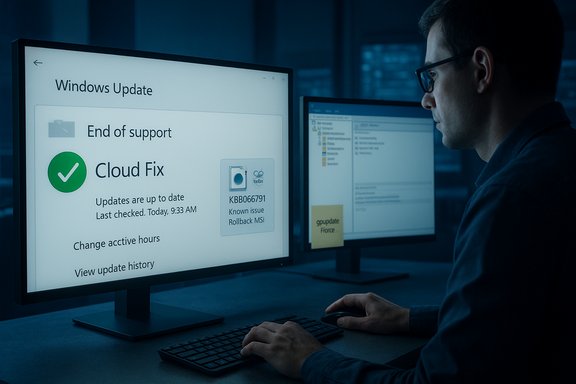
When Microsoft published the October updates many systems that are still entitled to updates — including devices enrolled in the Extended Security Updates (ESU) program and machines running supported LTSC (Long-Term Servicing Channel) builds — began reporting a “reached the end of support” banner on the Windows Update settings page. That UI message was widely reported by customers and IT pros, and it caused a wave of alarm among administrators running LTSC and IoT Enterprise editions that remain supported for years beyond the mainstream cutoff.
Microsoft has since confirmed the notification was being displayed incorrectly on some still-supported editions and has pushed a fix path. The core facts administrators need to carry forward are simple:
To receive the cloud configuration update your device must meet a few conditions:
The erroneous “end of support” notification was an avoidable scare, but the vendor’s quick two-track remediation (cloud fix + KIR for managed environments) limited operational damage. Still, the episode should be a wake-up call: modern OS servicing increasingly depends on cloud flags and CSP connectivity, and organizations that assume update behavior is static — or that block vendor dynamic updates — will find themselves needing manual interventions more often. Prioritize inventory accuracy, validate entitlement, and keep a tested KIR deployment process in your toolkit to handle unexpected update-era regressions without panic.
Source: Neowin Microsoft clarifies it is not actually ending support for many Windows 10 PCs
 Background
Microsoft set October 14, 2025 as the formal end-of-support date for mainstream Windows 10 servicing, and the company shipped the final broadly distributed cumulative update for consumer and commercial branches in that October Patch Tuesday release. That bundle, delivered under KB5066791, was the last scheduled monthly cumulative update for most Windows 10 mainstream channels prior to the ESU (Extended Security Updates) bridge and other carve-outs the company published to ease migration.When Microsoft published the October updates many systems that are still entitled to updates — including devices enrolled in the Extended Security Updates (ESU) program and machines running supported LTSC (Long-Term Servicing Channel) builds — began reporting a “reached the end of support” banner on the Windows Update settings page. That UI message was widely reported by customers and IT pros, and it caused a wave of alarm among administrators running LTSC and IoT Enterprise editions that remain supported for years beyond the mainstream cutoff.
Microsoft has since confirmed the notification was being displayed incorrectly on some still-supported editions and has pushed a fix path. The core facts administrators need to carry forward are simple:
- Windows 10 mainstream servicing stopped on October 14, 2025 for unenrolled devices; that is a planned lifecycle event.
- Devices correctly enrolled in ESU, and supported LTSC/IOT Enterprise editions, are still covered according to their published lifecycle dates.
- A cosmetic/diagnostic UI bug in the October update rollout incorrectly flagged some supported installations as “end of support.”
- Microsoft issued remedial fixes via a cloud configuration update and published a Known Issue Rollback (KIR) Group Policy package for managed environments.
What happened: the notification, the scope, and immediate fixes
The erroneous message and which systems were affected
Shortly after the October Patch Tuesday rollout, many administrators and end users noticed a message on the Windows Update page stating “Your version of Windows has reached the end of support.” In a subset of cases that message appeared on devices that are still entitled to security updates, including:- Windows 10, version 22H2 (Pro, Education, Enterprise) devices that are correctly enrolled in Extended Security Updates (ESU) and configured with an ESU product key.
- Windows 10 Enterprise LTSC 2021.
- Windows 10 IoT Enterprise LTSC 2021.
How Microsoft fixed it (short-term vs. long-term)
Microsoft applied a cloud configuration update that removes the incorrect “end of support” banner for most consumer and managed devices. For enterprise environments that block cloud configuration changes, or for disconnected systems, Microsoft additionally released a Known Issue Rollback (KIR) policy that administrators can deploy to suppress the erroneous UI flag until a permanent back-end fix is installed.To receive the cloud configuration update your device must meet a few conditions:
- Be connected to the internet.
- Have downloads from the OneSettings CSP (Configuration Service Provider) enabled.
- Allow Windows Update processes through local firewall policy (do not block required services).
- Not block dynamic updates or the mechanisms Microsoft uses to deliver diagnostic/feature flags.
The Known Issue Rollback (KIR): what admins must know
Microsoft’s temporary remediation for managed environments is a Group Policy package labeled in relation to KB5066791 (the October cumulative). The KIR is deployed as an administrative template/MSI that adds a policy entry under Administrative Templates. The published guidance says administrators should:- Install the KIR policy MSI supplied by Microsoft for KB5066791 251020_20401.
- Locate the policy under Computer Configuration → Administrative Templates → KB5066791 251020_20401 Known Issue Rollback.
- Set the policy value for the KIR to Disabled (this counterintuitive step is how Microsoft disables the problematic change while leaving the rest of the update in place).
- Reboot the device to apply the change.
Why this matters: technical and operational implications
Short-term consequences
- Unnecessary panic and support load. The message prompted end users and help desks to escalate hundreds — if not thousands — of tickets unnecessarily, diverting IT resources from higher-risk tasks such as verifying ESU enrollment and applying platform mitigations.
- Potential for misguided upgrades. Some users assumed their machines were no longer supported and began aggressive upgrade plans or device replacements they didn’t need, increasing cost and operational complexity.
- Visibility into patch plumbing. The incident exposed how modern servicing relies on a spectrum of cloud-driven flags, CSP settings, and dynamic updates; locked-down environments that block those channels experience degraded UX or delayed fixes.
Long-term risks
- Trust erosion. Displaying incorrect lifecycle information from the vendor undermines confidence in the update channel. In sensitive environments (healthcare, government, regulated industries) a false EoL indicator can create compliance confusion and auditing issues.
- Automation pitfalls. Organizations that depend on automated inventory or compliance tools tied to Windows Update diagnostics might register false positives and trigger automated remediation workflows, causing needless remediation effort.
- Operational fallout for LTSC/IOT customers. LTSC customers often choose that edition precisely for predictable, long-term servicing. An incorrect “end of support” flag on those machines strikes at the core value proposition and risks contractual disputes or customer dissatisfaction.
What administrators should do now — a practical checklist
Immediate triage (first 24 hours)
- Confirm ESU enrollment and product key validity. Use your usual inventory tools to verify that devices reporting EoL are actually enrolled and have the ESU product key installed.
- Check Windows Update history. Look for KB5066791 or companion updates — do not uninstall the cumulative update unless you have a tested rollback plan.
- Reconnect machines to Microsoft update endpoints or ensure OneSettings CSP downloads are not blocked by GPO or third-party tools.
- Temporarily redirect support traffic. Update help desk scripts to note this is a display issue rather than immediate loss of updates for ESU/LTSC systems.
Deploy the Microsoft-provided KIR when necessary
- Download and install the KB5066791 251020_20401 Known Issue Rollback MSI from Microsoft’s enterprise deployment resources.
- Import the administrative template into Group Policy Central Store if desired.
- Set the policy entry KB5066791 251020_20401 Known Issue Rollback to Disabled under Computer Configuration → Administrative Templates.
- Force a Group Policy update (gpupdate /force) and reboot affected machines.
- Validate that the Windows Update page no longer shows the erroneous message.
Longer-term steps (next 1–4 weeks)
- Monitor the Windows Release Health / Windows Update health dashboard for Microsoft’s permanent fix status and removal of the KIR necessity.
- Audit firewall and CSP policies that may have prevented the cloud configuration update from being applied.
- Record lessons learned: add a process to triage vendor lifecycle messages before triggering mass upgrades or device replacements.
- Communicate with downstream stakeholders and customers; provide reassurance that supported LTSC/IoT/ESU systems remain covered and provide timelines for the permanent fix.
Workarounds, caveats and unverifiable tweaks
A few community-posted workarounds appeared after the incident — for example, some administrators reported that removing the local appraiser/appcompat cache folder or briefly uninstalling the cumulative update removed the message on isolated machines. Those approaches are anecdotal and not officially supported by Microsoft, and they may introduce other side effects.- Such third-party or community workarounds should be treated as unverifiable until they are confirmed by vendor documentation or tested in an isolated lab. Do not use risky file deletions or unsupported rollbacks on production machines without full backups and a recovery plan.
- The KIR and cloud configuration update published by Microsoft are the supported remediation paths; organizations should prefer those.
Why Microsoft’s response matters: strengths and weaknesses
Notable strengths
- Rapid triage and remediation. Microsoft pushed a cloud configuration update quickly and published an enterprise KIR to restore normal UX in locked-down environments. That combination — an automatic cloud fix for general devices plus a Group Policy option for managed fleets — is the correct dual-path approach for a mixed ecosystem.
- Targeted rollback. The KIR mechanism allows Microsoft to neutralize a discrete regression without undoing the rest of an update. This reduces collateral damage and preserves critical Oct. security fixes.
- Transparency of intent. The vendor publicly acknowledged the erroneous message, explained the scope of impact, and provided operational guidance to administrators on how to remediate.
Potential weaknesses and risks
- The incident underscores the fragility of modern update UX. Relying on telemetry, cloud flags, and CSPs introduces more moving parts that can fail or yield false-positive lifecycle signals.
- Communication friction for regulated customers. Administrators in highly controlled environments may not have had a clear path to receive the cloud fix, and the Group Policy route — while provided — requires manual test and deployment overhead.
- Perception problem. Even a short-lived banner that wrongly claims “end of support” can generate outsized fear and downstream costs as organizations accelerate upgrade budgets or contract with third parties unnecessarily.
Communication advice for IT teams
- Provide a short, clear message to end users and stakeholders: the message was erroneous for certain supported Windows 10 editions and Microsoft has provided fixes; their machines that are correctly enrolled remain supported.
- Publish a status page entry explaining whether the cloud fix has reached your fleet and what actions, if any, your end users should follow.
- For compliance and audit teams, document the incident as a temporary vendor UI regression with remediation steps taken and the proof points (policy applied, reboot completed, dashboard status).
A reminder about what “end of support” actually means
It’s important to separate the lifecycle milestone (Windows 10 mainstream end-of-support) from the cosmetic UI regression that triggered this briefing. When Microsoft marks an OS as end-of-support:- OS-level security and quality updates stop for unenrolled mainstream SKUs.
- Extended Security Updates (ESU) can provide a time-limited security-only patch stream for properly enrolled devices.
- Application-layer protections — such as Microsoft Defender security intelligence updates — may continue for a longer window and are an important mitigation layer but they do not replace OS-level patching.
- LTSC and IoT Enterprise editions have distinct lifecycle calendars that can extend beyond mainstream dates; the UI bug that appeared in October did not change those published lifecycle end dates.
Practical final recommendations
- Verify your inventory and ESU entitlement status first. Accurate facts prevent unnecessary device replacements and budget shocks.
- If you manage devices with strict firewall/CSP rules, deploy the Microsoft KIR as the supported mitigation and test in a pilot OU before broad rollout.
- Maintain an incident playbook for vendor lifecycle or update-channel misreporting: include steps to validate the error, check vendor dashboards, and apply KIRs or other supported fixes.
- Treat Microsoft Defender updates and application-level patches as mitigations, not substitutes, for OS patching when designing long-term security posture.
- Monitor the vendor’s release health dashboard and update your internal documentation when Microsoft announces the permanent fix.
The erroneous “end of support” notification was an avoidable scare, but the vendor’s quick two-track remediation (cloud fix + KIR for managed environments) limited operational damage. Still, the episode should be a wake-up call: modern OS servicing increasingly depends on cloud flags and CSP connectivity, and organizations that assume update behavior is static — or that block vendor dynamic updates — will find themselves needing manual interventions more often. Prioritize inventory accuracy, validate entitlement, and keep a tested KIR deployment process in your toolkit to handle unexpected update-era regressions without panic.
Source: Neowin Microsoft clarifies it is not actually ending support for many Windows 10 PCs
