

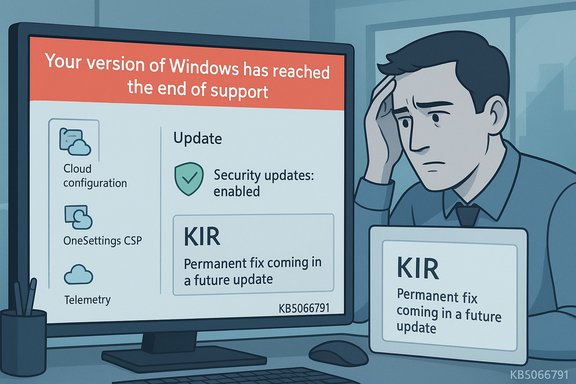
Microsoft has acknowledged a display bug that causes the Settings > Windows Update page to show a misleading banner — “Your version of Windows has reached the end of support” — after installing the October 14, 2025 cumulative update KB5066791, and it has published short‑ and mid‑term remedies while promising a permanent correction in an upcoming update.
Windows 10’s October 14, 2025 Patch Tuesday shipped the cumulative update identified as KB5066791, advancing supported 22H2 systems to build 19045.6456 (21H2 equivalents advanced to 19044.6456). That release was the last broadly distributed monthly cumulative update for mainstream Windows 10; Microsoft and the industry have framed it as the final free Patch Tuesday rollup for unenrolled devices. Within hours and days of deployment, some systems — notably Windows 10, version 22H2 (Pro, Education, Enterprise) devices enrolled in Extended Security Updates (ESU), plus Windows 10 Enterprise LTSC 2021 and Windows 10 IoT Enterprise LTSC 2021 in certain configurations — began showing the prominent “end of support” message inside Settings even though those machines remained entitled to security updates. Microsoft confirmed this was a UI/diagnostic display error and not a revocation of ESU or LTSC support. This problem created immediate confusion: administrators and help desks reported spikes in tickets and some organizations began emergency audits to prove continued coverage. Microsoft published remediation guidance that includes an automatic cloud configuration correction for most devices, an enterprise-grade Known Issue Rollback (KIR) distributed as a Group Policy-enabled package for locked-down environments, and a promise that a permanent fix will be rolled into a forthcoming Windows update.
Administrators should use authoritative verification (ESU license checks, build numbers, Azure entitlement) rather than UI banners to determine support status, apply Microsoft’s supported remediation (cloud fix or KIR) where needed, and treat community workarounds as last‑resort, unsupported steps. Watch Microsoft’s Release Health for the permanent fix and update your support scripts now to reduce unnecessary ticket escalations.
Microsoft’s handling so far demonstrates quick triage and dual delivery channels for remediation, but the episode should be a prompt for organizations to audit how they detect and act on vendor lifecycle signals: make licensing evidence and update delivery telemetry the ground truth, not momentary UX banners.
Source: Windows Report Microsoft: Windows 10 Settings Falsely Shows An “End of Support” Alert After Installing KB5066791
 Background / Overview
Windows 10’s October 14, 2025 Patch Tuesday shipped the cumulative update identified as KB5066791, advancing supported 22H2 systems to build 19045.6456 (21H2 equivalents advanced to 19044.6456). That release was the last broadly distributed monthly cumulative update for mainstream Windows 10; Microsoft and the industry have framed it as the final free Patch Tuesday rollup for unenrolled devices. Within hours and days of deployment, some systems — notably Windows 10, version 22H2 (Pro, Education, Enterprise) devices enrolled in Extended Security Updates (ESU), plus Windows 10 Enterprise LTSC 2021 and Windows 10 IoT Enterprise LTSC 2021 in certain configurations — began showing the prominent “end of support” message inside Settings even though those machines remained entitled to security updates. Microsoft confirmed this was a UI/diagnostic display error and not a revocation of ESU or LTSC support. This problem created immediate confusion: administrators and help desks reported spikes in tickets and some organizations began emergency audits to prove continued coverage. Microsoft published remediation guidance that includes an automatic cloud configuration correction for most devices, an enterprise-grade Known Issue Rollback (KIR) distributed as a Group Policy-enabled package for locked-down environments, and a promise that a permanent fix will be rolled into a forthcoming Windows update. What went wrong: the visible symptoms and the likely cause
The symptom set
- The Settings → Windows Update page displays: “Your version of Windows has reached the end of support” on devices that should still be supported (ESU enrolled or supported LTSC SKUs).
- Affected devices otherwise continue to receive security updates when correctly configured (ESU keys active or Azure/Cloud‑enabled VMs). The banner is cosmetic but alarming.
How this probably happened (technical hypothesis)
Microsoft’s rollout relies on a mix of locally installed update metadata, cloud configuration flags delivered via management channels (OneSettings/Configuration Service Provider), and diagnostic signals to determine which in‑box messaging to show. The prevailing explanation — reflected in Microsoft’s release notes and confirmed by its Release Health communications — is that a display metadata or server‑side diagnostic flag was set or misinterpreted for a subset of supported SKUs after KB5066791 installed, triggering a false end‑of‑support indicator. This is a presentation/diagnostic error rather than a change in entitlement. Community telemetry and Microsoft Q&A threads also point to dependency on the OneSettings CSP, telemetry/configuration endpoints and dynamic flags that some environments block for security or compliance reasons. When those endpoints are blocked, devices may not receive the cloud correction and so retain the incorrect message until an alternative mitigation is applied. Event logs and community reports referenced Event ID patterns and appcompat/appraiser caches as places where the UI state can be influenced — though those community workarounds remain anecdotal and unofficial.Who’s affected — the precise scope
Microsoft’s acknowledgement and in‑field reporting narrow the impact to:- Windows 10, version 22H2 — Pro, Education and Enterprise — when enrolled in the Extended Security Updates (ESU) program.
- Windows 10 Enterprise LTSC 2021 and IoT Enterprise LTSC 2021 in some deployments.
- Potentially some Azure-hosted Virtual Machines and Cloud PCs where ESU entitlement is automatic but the Settings page still displays the banner until the cloud fix propagates.
Microsoft’s remediation paths — immediate, managed, and permanent
1) Automatic cloud configuration update (recommended for typical devices)
Microsoft pushed a cloud configuration update intended to remove the incorrect banner automatically for devices that meet certain connectivity and policy conditions. To receive this automatic correction the device normally must:- Be connected to the internet.
- Allow OneSettings / OneSettings CSP downloads.
- Not block the Windows Update endpoints or dynamic update mechanisms with strict firewall or network rules.
2) Known Issue Rollback (KIR) distributed for enterprise environments
For environments that block cloud configuration changes, Microsoft published a Known Issue Rollback (KIR) package specifically tied to the October update. The package name referenced by Microsoft and in advisory materials is “KB5066791 251020_20401 Known Issue Rollback” and it is delivered as an MSI/Group Policy administrative template. Admins can deploy and configure the policy to suppress the incorrect message without uninstalling KB5066791. The basic steps are:- Download the KIR MSI from Microsoft’s enterprise deployment resources.
- Import the administrative template into the Group Policy Central Store if desired.
- Set the policy entry KB5066791 251020_20401 Known Issue Rollback to Disabled under Computer Configuration → Administrative Templates (this setting disables the erroneous banner).
- Force a Group Policy refresh (gpupdate /force) and restart affected devices to apply the change.
3) Permanent fix in a future Windows update
Microsoft has stated a permanent fix will be included in an upcoming Windows update so the temporary KIR or cloud correction will no longer be necessary once that quality update ships. Microsoft has not published a public date for that permanent correction beyond indicating it will appear in a future servicing release; organizations should monitor Microsoft’s Windows Release Health and the KB listing for the specific build that contains the fix.Practical verification and diagnostic commands
Before and after applying fixes, administrators should verify ESU / support status using authoritative signals rather than the Settings banner alone.- Check installed update history for KB5066791: Settings → Update & Security → View update history. Confirm the OS build is 19045.6456 (22H2) or 19044.6456 (21H2).
- Confirm ESU licensing (commercial ESU): run slmgr.vbs /dlv in an elevated command prompt to display licensing and ESU entitlement details.
- For Azure VMs, verify that the VM is configured to receive updates and that Azure’s ESU entitlement rules apply (Azure VMs are automatically enabled for ESU when eligible).
- Review Event Viewer logs for Windows Update and any Event IDs associated with Windows Update client/applicability checks (community reports referenced Event ID 624 as a potential indicator in some contexts, but exact Event IDs may vary by environment).
Step-by-step mitigation checklist for IT administrators
- Triage: Confirm the device’s edition and build (Settings → System → About). Verify KB5066791 is present.
- Verify entitlement: Run slmgr.vbs /dlv for ESU keys or validate Azure VM ESU settings for cloud VMs.
- If devices are connected to Microsoft endpoints and not tightly locked down, allow 24–72 hours for the cloud configuration update to propagate and clear the banner automatically. Ensure OneSettings CSP downloads are not blocked by GPO or firewall rules.
- For isolated or air‑gapped systems, or for rapid remediation at scale, deploy Microsoft’s KIR (KB5066791 251020_20401 Known Issue Rollback) via Group Policy. Apply the policy, run gpupdate /force, and reboot the endpoints.
- Update support and help desk scripts: tell users that “the banner indicates a UI diagnostic issue and does not revoke ESU or LTSC entitlements. We are validating and applying Microsoft’s remediation now.”
- Monitor Microsoft’s Release Health and the Windows Update health dashboard for the permanent fix and for any follow‑on guidance.
Strengths in Microsoft’s response — what worked
- Rapid triage and dual-path remediation: Microsoft’s combined approach — an automatic cloud configuration fix for general environments and a KIR for locked-down enterprise fleets — addresses the two dominant operational models simultaneously and reduces the risk of forcing rollback of security fixes. This is the appropriate immediate trade‑off: fix the UI problem without undoing October’s security rollups.
- Targeted rollback mechanism (KIR): Known Issue Rollback is a mature tool for neutralizing a specific regression without rescinding or uninstalling the entire cumulative update, which preserves security while addressing collateral UX issues.
- Clear communication to reduce panic: Microsoft’s Release Health notes and the guidance to contact enterprise support (when needed) helped calm immediate concerns for administrators checking entitlement status.
Risks and wider implications — why this matters beyond a banner
- Perception and trust erosion. Even a short-lived “end of support” banner on devices that are still entitled to updates can cause outsized alarm, compel unnecessary migrations, and create procurement or compliance churn. For customers who chose LTSC for long-term predictability, an erroneous EoL signal undermines confidence in vendor servicing transparency.
- Operational noise: Help desks and security teams may be diverted to triage and audit machines unnecessarily, pulling scarce resources away from higher‑risk tasks such as addressing actual vulnerabilities or securing internet‑exposed endpoints.
- Automation pitfalls: Organizations that tie automated compliance gates to Windows Update UI indicators could see false positives trigger scheduled remediation workflows — for example, blocking software distribution or initiating forced upgrades — producing costly side effects.
- Patch plumbing fragility: Reliance on cloud flags, OneSettings CSP, and dynamic update metadata means locked‑down or offline systems are more likely to be left with stale or incorrect UI state. This incident highlights how modern servicing depends on a broader surface area beyond the Windows Update binary itself.
Community reports and anecdotal workarounds — handle with caution
Community forums and threads reported several ad hoc approaches — for example, removing local appraiser/appcompat cache folders, toggling telemetry/Connected User Experiences and Telemetry (DiagTrack), or temporarily uninstalling KB5066791 — that in a few isolated test cases cleared the banner. These workarounds are anecdotal and not supported by Microsoft; they can have side effects and risk destabilizing systems. Prefer the supported cloud correction or the KIR instead.Communication templates for help desks and management
- Short user-facing message (concise): “The ‘end of support’ banner you see in Settings is a display error affecting some Windows 10 installations after October updates. If your device is enrolled in Extended Security Updates or running a supported LTSC release, updates will continue. We are applying Microsoft’s remediation now.”
- IT/Security notification (technical): “KB5066791 introduced a UI diagnostic regression causing incorrect EoS messaging in Settings for some ESU/LTSC devices. Microsoft dispatched a cloud configuration fix and a KIR (KB5066791 251020_20401) for managed environments. We will first allow the cloud correction to propagate and deploy the KIR via Group Policy for any devices behind restrictive firewalls or WSUS-only chains. Do not uninstall KB5066791; it contains the October security rollups.”
What to watch next
- Monitor Microsoft’s Windows Release Health / Windows Update health dashboard for the entry that indicates the permanent fix has shipped and the KIR is retired. Microsoft’s KB and Release Health pages remain the authoritative place to verify the final remediation build number.
- Validate that ESU‑enrolled devices (or Azure VMs that should receive ESU automatically) show continued update delivery after remediation. For Azure VMs, confirm that the VM is configured to receive update servicing and that Azure’s documented free ESU for eligible VMs is in effect.
- Track downstream automation and compliance tooling for false alarms triggered by the banner and adjust rules to rely on authoritative licensing/telemetry rather than in‑product messaging until the permanent fix is confirmed.
Final assessment
The KB5066791 “end of support” banner is a high-visibility but non‑functional regression: it is a display and diagnostic issue rather than a halt of security servicing for properly entitled systems. Microsoft’s response—an automated cloud correction for general devices plus a Known Issue Rollback for managed, locked‑down environments—is the correct, pragmatic approach to limit user panic while preserving the October security rollup. That said, the incident exposes the fragility of modern update UX and the operational risks of cloud‑driven diagnostic flags in environments that intentionally limit external connectivity.Administrators should use authoritative verification (ESU license checks, build numbers, Azure entitlement) rather than UI banners to determine support status, apply Microsoft’s supported remediation (cloud fix or KIR) where needed, and treat community workarounds as last‑resort, unsupported steps. Watch Microsoft’s Release Health for the permanent fix and update your support scripts now to reduce unnecessary ticket escalations.
Microsoft’s handling so far demonstrates quick triage and dual delivery channels for remediation, but the episode should be a prompt for organizations to audit how they detect and act on vendor lifecycle signals: make licensing evidence and update delivery telemetry the ground truth, not momentary UX banners.
Source: Windows Report Microsoft: Windows 10 Settings Falsely Shows An “End of Support” Alert After Installing KB5066791
