• Thread Author
Windows 10’s era of free, vendor-supplied security updates ended with a clear calendar cut‑off on October 14, 2025, and Microsoft’s replacement path is a time‑boxed, security‑only Extended Security Updates (ESU) program that shifts the burden — and in many cases the cost — of staying protected onto users and organizations.

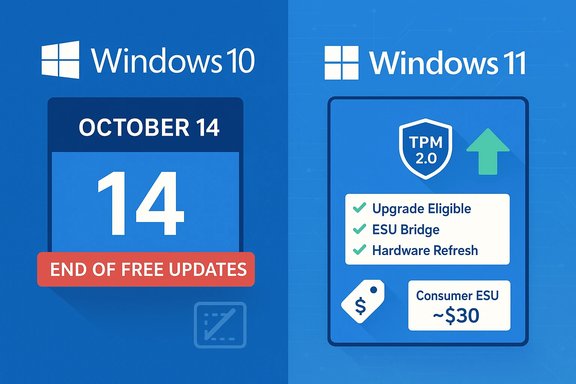
Side-by-side Windows 10 vs Windows 11 infographic highlighting end of free updates and TPM 2.0 upgrade.Background​

Microsoft published a firm lifecycle timeline for Windows 10 that culminated in the end of mainstream servicing on October 14, 2025. After that date, ordinary Windows 10 installations stopped receiving the standard monthly cumulative security and quality updates that users have relied on since the platform’s launch. Microsoft offered a limited consumer ESU path that delivers security‑only fixes for a short, one‑year window — effectively October 15, 2025 through October 13, 2026 — and commercial ESU options are available with multi‑year tiers for organizations.
This change is policy‑driven rather than technical: Windows 10 machines will continue to boot and run installed applications, but newly discovered kernel, driver, and platform vulnerabilities found after the cutoff will not receive routine Microsoft patches on unenrolled devices. That distinction — “still works” versus “still protected” — is the critical consumer and IT planning point.

What Microsoft actually announced​

Dates and scope​

  • End of mainstream support (consumer & general Windows 10 editions): October 14, 2025. After this date Microsoft ceased providing free monthly OS security updates for unenrolled consumer devices.
  • Consumer ESU coverage window: October 15, 2025 → October 13, 2026. Consumer ESU provides Critical and Important security fixes only; no feature updates, no general quality fixes, and no standard technical support.
  • Enterprise ESU: available through volume licensing for up to three additional years with tiered pricing intended to incentivize migration.

Consumer ESU mechanics and price signals​

Microsoft introduced a consumer‑facing ESU route that can be accessed in several ways: by linking a device to a Microsoft Account with sync/backup enabled, by redeeming Microsoft Rewards points, or by purchasing an ESU license (widely reported at roughly $30 per device for the one‑year consumer option). Enterprise pricing escalates annually and is sold through volume licensing channels. The consumer ESU is purposely narrow: security‑only fixes, time‑boxed, and intended as a migration runway rather than a permanent support model.

What continues and what does not​

Microsoft preserved some application‑layer protections on separate schedules — for example, Microsoft Defender signature updates and some Microsoft 365 app security servicing windows — but these are not substitutes for OS‑level patching. Defender definition updates can help detect known malware, and Microsoft 365 Apps may receive security fixes on their own timetable; neither fixes kernel or driver vulnerabilities introduced in the OS itself. Microsoft’s documentation and reporting note that Defender signature updates and select Microsoft 365 app servicing continue beyond Windows 10’s OS lifecycle on separate timetables.

Why Microsoft is doing this — the rationale​

Microsoft’s public rationale is twofold: technical and strategic. From a technical standpoint, newer security primitives in Windows 11 (for example, virtualization‑based security enhancements, stronger driver signing models, and hardware‑rooted trust like TPM 2.0) require ongoing engineering, testing, and validation that become increasingly costly to backport across a broad span of legacy hardware and drivers. Maintaining indefinite OS servicing for older platform configurations raises engineering complexity and weakens the vendor’s ability to design forward.
Strategically, the move aligns with Microsoft’s push to accelerate adoption of Windows 11 and its associated hardware ecosystem — including “Copilot+ PC” messaging and newer silicon optimizations. The ESU program’s pricing and time‑boxing also act as an economic nudge: pay for a temporary safety valve or accelerate hardware refresh and migration to the supported platform. That incentive structure is intentionally visible in the tiered enterprise pricing and the limited consumer window.

Practical implications for users and IT teams​

Increased attack surface and the “forever‑day” problem​

When vendor patches stop, the risk model changes. Security researchers routinely show that once a patch exists for a supported OS version, attackers can patch‑diff to discover vulnerabilities affecting older, unpatched versions — a technique that can turn vendor fixes for new OSes into a roadmap for exploits against legacy systems. This produces long‑lived “forever‑day” windows where a vulnerability remains exploitable on unpatched machines. The attacker economics are brutal: without vendor patches, exploitation scales rapidly with commodity tooling.

Compliance, liability, and operational risk​

Organizations subject to regulatory standards or industry compliance regimes face immediate questions: can you certify, audit, or justify production workloads on an OS that no longer receives vendor patches? Many compliance frameworks require supported, patched software. Running Windows 10 unenrolled in ESU can create audit findings, higher cyber‑insurance premiums, and potential legal exposure in the event of a breach.

Software and driver compatibility drift​

As third‑party vendors concentrate testing and certification efforts on supported Windows versions, older OS releases increasingly suffer from compatibility drift. Over months and years, device drivers, security agents, and some applications may stop being validated or receive degraded support, increasing operational friction for retained Windows 10 endpoints.

Environmental and equity concerns​

The transition has social consequences: many users run Windows 10 on older hardware that cannot meet Windows 11’s minimum requirements (TPM 2.0, Secure Boot, compatible 64‑bit CPU, and baseline memory/storage). For those users, the choices are costly: buy new hardware, pay for ESU, or accept elevated security risk. Consumer groups and advocates highlighted the disproportionate impact on lower‑income households, schools, and small nonprofits when a broadly used OS leaves the free patching ecosystem.

Windows 11 upgrade requirements — the compatibility gate​

Microsoft’s Windows 11 system requirements remain the gate that determines whether an in‑place upgrade is feasible:
  • Processor: compatible 64‑bit CPU, 1 GHz or faster with two or more cores
  • Memory: minimum 4 GB RAM
  • Storage: minimum 64 GB available storage
  • System firmware: UEFI with Secure Boot capable
  • TPM: Trusted Platform Module (TPM) version 2.0
  • Graphics: DirectX 12 compatible with WDDM 2.0 driver
These baseline checks mean a non‑trivial portion of Windows 10 devices cannot take the free Windows 11 upgrade without hardware changes. That reality explains, in part, the demand for ESU and the heated public debate about hardware churn.

Options: concrete choices and trade‑offs​

For individuals and small organizations, five defensible paths exist. Each has clear benefits and limitations.
  • Upgrade eligible PCs to Windows 11
  • Benefits: continued free vendor patching, access to Windows 11 security features, integration with Microsoft’s modern stack.
  • Limitations: hardware checks, driver readiness, possible user experience changes.
  • Enroll in Consumer ESU (one‑year bridge)
  • Benefits: continued delivery of Critical and Important security updates for the enrolled device(s); buys migration time.
  • Limitations: security‑only, no feature or quality updates, minimal technical support, time‑boxed and not a long‑term solution. Cost for many users is roughly $30/year per device (or free via specific Microsoft Account/rewards routes in some regions).
  • Purchase new Windows 11‑capable hardware (refresh)
  • Benefits: long‑term vendor support and access to latest features and hardware security primitives.
  • Limitations: up‑front expense, e‑waste concerns, procurement lead times.
  • Migrate to alternative OSes or thin clients (Linux distributions, ChromeOS Flex, or Cloud PC)
  • Benefits: extend usable life of older hardware or offload to cloud-hosted desktops. Can be cost‑effective for specific workloads.
  • Limitations: application compatibility gaps (legacy Windows apps), user retraining, and potential integration headaches.
  • Continue on Windows 10 without vendor patches (risk‑managed)
  • Benefits: zero immediate cost and preserves extant setups.
  • Limitations: rising cyber risk, compliance issues, eventual incompatibility with new software and drivers — not recommended for internet‑connected or mission‑critical devices.

A practical migration checklist (step‑by‑step)​

  • Inventory: Create a complete inventory of all endpoints, their current Windows 10 build (ideally 22H2), hardware specs, and business criticality.
  • Assess Windows 11 eligibility: Use PC Health Check or vendor tools to test TPM, Secure Boot, CPU, RAM and storage requirements. Flag ineligible devices for separate treatment.
  • Prioritize: Rank devices by risk exposure and business-criticality — client‑facing, internet‑connected endpoints come first.
  • Choose a path for each device: upgrade, ESU, replace, migrate to Linux/Cloud, or retire. Document the rationale.
  • Backup and test: Before any OS migration, verify backups and run pilot upgrades on representative hardware to validate drivers and applications.
  • Harden retained Windows 10 endpoints: If ESU or retention is chosen, deploy strong endpoint protection, network segmentation, EDR tools, and strict privilege management. Treat retained Windows 10 machines as temporary enclaves.
  • Plan for decommissioning: Set firm timelines to avoid technical debt — ESU should be a runway, not a permanent landing.

Cost and procurement considerations​

  • Consumer ESU: widely reported around $30 per device for the one‑year consumer purchase, though free enrollment routes exist when a Microsoft Account with sync or a Microsoft Rewards redemption is available. This is a short‑term cost and not intended as an indefinite service.
  • Enterprise ESU: tiered, per‑device pricing that rises each renewal year; for many organizations it becomes more economical to accelerate hardware refresh than to rely on multi‑year ESU purchases.
  • Hardware refresh: compare the total cost of ownership for replacement machines (procurement, deployment, disposal) against ESU pricing and the operational costs of managing legacy endpoints. For many small businesses, a staged refresh of critical devices first is the optimal compromise.

Risks, caveats and unverifiable claims to watch​

  • Install base estimates: industry estimates of the remaining Windows 10 install base vary widely; figures like “~550 million corporate PCs” have circulated but should be treated as estimates rather than precise counts. Use organizational inventories and vendor telemetry where possible rather than headline numbers when planning.
  • Workarounds and unsanctioned tricks: community‑reported tricks to continue receiving updates or to bypass upgrade gates occasionally surface, but their reliability, legality, and security implications are mixed. Such methods can expose devices to unexpected instability or violate licensing terms; treat them as high‑risk and verify before testing in controlled environments.
  • Regional variations and concessions: Microsoft made specific accommodations in some regions (for example, EEA residents) and adjusted enrollment mechanics over time. Local rules or special programs may alter the free vs paid enrollment options; always consult your Microsoft account/portal and the official enrollment flow for precise, region‑specific details.

Technical hardening for retained Windows 10 systems​

If a device must remain on Windows 10 (temporary ESU or an unavoidable legacy workload), treat it as a high‑risk asset and apply layered compensations:
  • Strong endpoint detection and response (EDR) and centralized logging.
  • Strict network segmentation and least‑privilege access for users.
  • Application allow‑listing and removal of unnecessary services.
  • Up‑to‑date third‑party security agents that continue to support Windows 10.
  • Regular offline backups and tested recovery plans.
  • Limited or no administrative internet access for retained endpoints.
These mitigations reduce risk but do not replace vendor patches for kernel or driver vulnerabilities; they buy time and reduce likelihood of successful exploitation while migration proceeds.

The broader context: product strategy, user trust, and sustainability​

Microsoft’s lifecycle strategy for Windows 10 is consistent with a long‑standing vendor pattern: software reaches an end of mainstream servicing and users are encouraged to migrate to supported platforms. That model is technically defensible but socially fraught: when a popular OS reaches EOL while still widely used, the resulting migration pressure has economic, environmental, and equity dimensions. The consumer ESU is a pragmatic concession — a short, paid runway — but it leaves open difficult questions about hardware churn, e‑waste, and how to support users on older devices without forcing immediate replacement.
For IT leaders, the moment is a test of planning discipline: treat ESU as an explicit, time‑limited resource to reduce transition pain, not as a deferral strategy. For consumers, the decision matrix is simpler but still consequential: if your PC is Windows 11 eligible and important to daily use, upgrading sooner rather than later retains free vendor protection; if not, weigh the short ESU cost against the cost of new hardware or alternative platforms.

Final verdict and recommended priorities​

Windows 10’s October 14, 2025 end of free vendor updates is a real and enforceable limit: the platform moved from “supported” to “legacy” from Microsoft’s servicing perspective, and the company supplied a narrowly scoped consumer ESU as a migration runway. For most readers, a pragmatic prioritization is:
  • Inventory devices and check Windows 11 eligibility immediately.
  • Upgrade eligible and high‑value machines to Windows 11 after pilot testing.
  • Use consumer ESU only as a controlled, one‑year bridge for ineligible or mission‑critical devices — enroll early and plan the endpoint’s migration or replacement before ESU expires.
  • Harden and isolate any retained Windows 10 endpoints with strong EDR, segmentation, and monitoring.
  • Evaluate sustainable alternatives (refurbished Windows 11 hardware, Linux distributions, or cloud desktops) where replacement is either impractical or costly.
This moment is an inflection point: it rewards preparation and penalizes procrastination. Treat ESU as what it is — insurance for a short runway — and commit to a clear migration timeline that balances security, cost, and sustainability. The practical facts are immutable; the choice now is how to act on them.

(Verified: key dates, ESU window, and consumer costs are reflected in Microsoft lifecycle reporting and corroborated across multiple contemporary industry reports and community archives used to prepare this feature.

Source: Mashable https://mashable.com/article/window...-is-only-getting-one-major-update-each-year/]
 

Windows 10 is no longer in Microsoft’s free support lifecycle — the company stopped routine security, feature and technical updates for the mainstream Windows 10 servicing stream on October 14, 2025 — but the platform continues to run in 2026 with a narrow, time‑limited safety net for eligible devices.

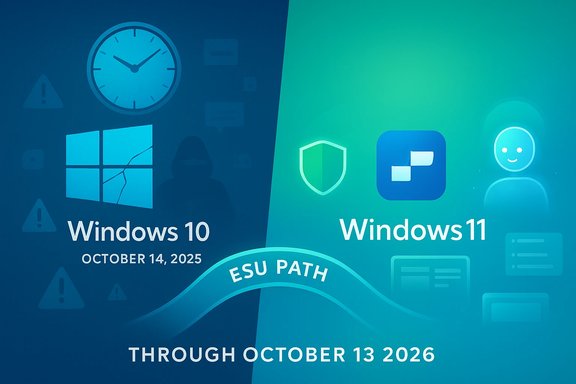
Split-screen graphic of Windows 10 (left) and Windows 11 (right) with an ESU Path banner and end dates.Overview​

Microsoft set a hard calendar cutoff: October 14, 2025 is the official end‑of‑support date for mainstream Windows 10 editions. That change means routine OS security patches, monthly cumulative quality updates, feature rollouts and standard Microsoft technical support ended for non‑enrolled Windows 10 machines on that date. To ease the transition, Microsoft created a narrowly scoped consumer Extended Security Updates (ESU) program that provides security‑only fixes for eligible Windows 10, version 22H2 devices through October 13, 2026. Enrollment is open but conditional; details and eligibility requirements are spelled out on Microsoft’s ESU pages. This article gives an authoritative, practical breakdown of what ended, what still works, the ESU lifeline, upgrade and mitigation options, how Windows 11 and Microsoft’s AI push change the calculus, and a clear migration plan for readers who are deciding what to do in 2026.

Background: exactly what the lifecycle change means​

Windows lifecycle milestones are precise: when Microsoft declares an end of support the company stops shipping the usual maintenance streams that keep an OS safe and current. For Windows 10 the concrete consequences are:
  • No routine OS security updates for standard (unenrolled) Windows 10 installations after October 14, 2025. That includes kernel, driver and platform fixes normally delivered through Windows Update.
  • No feature or quality updates — Windows 10 will not receive new features or broad quality rollups after the cutoff.
  • No standard Microsoft consumer technical support for Windows 10 issues through normal channels for non‑ESU devices.
Microsoft’s public guidance is explicit: a Windows 10 PC will still boot and run after the date, but the safety net provided by monthly OS‑level patches is removed unless the device is covered by ESU or other special arrangements.

The ESU lifeline explained: who can get patches, how, and for how long​

The Extended Security Updates program is the official, time‑boxed bridge for Windows 10 customers who need more time to migrate. The consumer ESU and enterprise ESU have different mechanics and scope, but the essentials for home and small business users are:
  • Coverage window (consumer ESU): Security‑only updates for eligible Windows 10, version 22H2 devices through October 13, 2026.
  • What ESU provides: Critical and Important security updates only (as defined by Microsoft’s security teams). It does not include feature updates, non‑security quality fixes, or full technical support.
  • Enrollment options for consumers: Microsoft published three practical paths:
  • Free route by signing in and remaining signed in with a Microsoft Account on the device (the device must be eligible and up to date).
  • Redeem Microsoft Rewards points (regionally available).
  • A one‑time paid purchase (list price was commonly reported around $30 USD or local equivalent) if you prefer to keep a local account.
Important practical caveats: enrollment requires the device to be on Windows 10 version 22H2 and to have the latest servicing stack and cumulative updates installed first; the free path is tied to an active Microsoft Account login, and Microsoft enforces conditions if you stop signing in.

What still works in 2026 — and what’s only temporary​

A Windows 10 PC in early 2026 will typically still do everything it did a year earlier: boot, run legacy apps, access the web and use productivity tools. But support and compatibility are changing in measurable ways.
What continues to work and be supported for a time
  • The operating system will boot and run on compatible hardware; apps and games generally continue to work for the near term.
  • Browsers and WebView runtimes: Microsoft has publicly committed to continue Microsoft Edge and the WebView2 Runtime updates on Windows 10 22H2 until at least October 2028. Major cross‑platform browsers (Firefox, Chrome) have also indicated plans to support Windows 10 beyond 2025. That reduces immediate browser‑level risk for a while, but it is not a substitute for OS patches.
  • Microsoft 365 (Office) app servicing: Microsoft extended security updates for Microsoft 365 Apps on Windows 10 through October 10, 2028, even though Office’s mainstream support aligns differently; these layered protections mitigate some app‑level risks but don’t fix OS kernel vulnerabilities.
What will degrade over time
  • Driver and hardware compatibility will increasingly target Windows 11 and later drivers; vendors will prioritize testing and optimizations for supported platforms.
  • New app versions — particularly performance‑sensitive, AI‑accelerated or Copilot‑integrated software — will be engineered for Windows 11 first and may drop Windows 10 support in future releases.
  • Security posture: OS‑level vulnerabilities discovered after the October 2025 cutoff will remain unpatched on unenrolled Windows 10 systems, making them increasingly attractive targets for automated attacks, ransomware, and credential theft.
Put simply: many everyday tasks will keep functioning in 2026, but the risk curve for internet‑connected Windows 10 systems rises month by month unless you are receiving ESU patches or isolating the device.

Why Microsoft is pushing users toward Windows 11 (and AI PCs)​

Microsoft’s platform strategy has shifted decisively toward Windows 11 as the primary vehicle for modern security features, on‑device AI and tighter hardware integration. The company markets new experiences — branded as Copilot and Copilot+ PC features — that are optimized for Windows 11 and recent silicon with neural processing units (NPUs). Key drivers behind the push:
  • Security and modern hardware: Windows 11’s baseline requirements (TPM 2.0, Secure Boot and supported 64‑bit CPUs) are designed to enable hardware‑backed protections that make exploitation harder. Microsoft positions these as mandatory pillars for a secure, AI‑ready platform.
  • AI integration and features: Copilot experiences (voice wake words, image understanding, system‑aware assistance) are being developed as integrated features of Windows 11 and newer hardware families; while some Copilot functionality was previewed for Windows 10, the full set of AI experiences and the Copilot+ performance tier are Windows 11–centric.
  • Ecosystem incentives: Microsoft and silicon partners are designing performance, battery and AI workloads for a new wave of Copilot+ devices; keeping Windows 10 long‑term would require parallel investment from vendors, which is not Microsoft’s roadmap.
This is not only marketing — it changes the practical support horizon for new features and optimizations. Windows 10 will be kept viable for a transition period, but long‑term investment and prioritization are on Windows 11.

Options in 2026 — practical, ranked choices​

Every Windows 10 owner in 2026 faces a decision. Here are the realistic paths with clear pros and cons.
  • Upgrade to Windows 11 (recommended when possible)
  • Best for: devices that meet Windows 11 hardware requirements and owners who want ongoing security, feature updates and Copilot integration.
  • Benefits: continued security patches, access to Copilot and other AI features, performance optimizations and future compatibility.
  • Caveats: some older devices will fail the hardware checks (TPM/Secure Boot/CPU); drivers and peripherals should be validated in advance.
  • Enroll in consumer ESU (short‑term bridge)
  • Best for: users who need more time to migrate, retain legacy software compatibility, or can’t buy new hardware immediately.
  • Benefits: security‑only updates through October 13, 2026; relatively low cost for consumers and a free enrollment route via Microsoft Account for eligible devices.
  • Caveats: ESU is explicitly temporary, enrollment has prerequisites (Windows 10 22H2, latest updates) and the free route requires staying signed in with a Microsoft Account.
  • Buy a new Windows 11 PC (recommended if your device fails requirements)
  • Best for: machines that can’t meet Windows 11 requirements or when you want immediate access to Copilot+ hardware optimizations.
  • Benefits: modern security, better battery life and AI acceleration; simpler long‑term maintenance.
  • Caveats: upfront cost; need to migrate data and possibly replace peripherals.
  • Keep Windows 10 indefinitely (not recommended for internet‑connected primary PCs)
  • Best for: offline, dedicated legacy machines (air‑gapped lab systems, hardware control boxes) where risk is acceptable and tightly contained.
  • Risks: no OS patches, growing attack surface, potential loss of app and driver support, insurance and compliance issues for businesses.
  • Switch OS (Linux, ChromeOS Flex)
  • Best for: older hardware that fails Windows 11 checks but is still serviceable for web, email and productivity via web apps.
  • Benefits: long‑term security updates on supported Linux distributions or ChromeOS Flex; low cost.
  • Caveats: compatibility issues with Windows‑only apps; learning curve for some users.

Security reality: what “still working” does not mean​

A Windows 10 PC that boots and runs in 2026 is not the same as a secure, supported endpoint. The most important technical point is simple and non‑negotiable:
  • Without vendor OS patches, new platform vulnerabilities remain unpatched. That is the root cause of the increased attack surface and is why national CERTs, security teams and independent researchers treat end‑of‑support events as high‑priority migration triggers.
Compensating controls (useful but incomplete)
  • Modern endpoint protections (Microsoft Defender’s security intelligence updates, reputable third‑party AV) reduce some risks but cannot patch kernel or driver defects. Microsoft will continue Defender definition updates and some application‑layer servicing for a time, but these are not replacements for OS patches.
  • Network segmentation, strict browser hardening, multifactor authentication, and limiting admin privileges can lower exposure, but they increase operational overhead and are imperfect.

Real‑world compatibility and app support in 2026​

  • Microsoft Edge and WebView2 will continue to be updated on Windows 10 until at least October 2028, which preserves a modern browsing environment for longer than the OS lifecycle itself. That helps reduce certain immediate attack vectors that rely on outdated browser code.
  • Third‑party browsers such as Firefox and Chrome have also committed to continued support past October 2025, though independent vendors can change course at any time. Firefox has already posted guidance indicating continued support for Windows 10 in the near term.
  • Microsoft 365 Apps will receive security updates on Windows 10 through October 10, 2028; however, functional feature updates and new Office experiences will be Windows 11‑first, and performance/reliability optimizations will likely favor the newer OS.
Bottom line: browsers and common productivity apps are not an immediate blocker to staying on Windows 10 for short periods, but long‑term compatibility and feature parity will converge on Windows 11.

Copilot and AI: what Windows 10 can and cannot get​

Microsoft rolled Copilot to Windows 10 in preview form for select Home and Pro devices in 2023 and continued to expand Copilot features across Windows 10 and Windows 11, but the full Copilot experience and Copilot+ hardware optimizations are centered on Windows 11. Some Copilot features (voice wake words, vision integrations, system‑aware multimodal assistance) are being introduced primarily on Windows 11 and new Copilot+ devices; preview pieces and limited deployments landed on Windows 10 earlier, but expect limitations and slower feature delivery on Windows 10. If Copilot capability is a core requirement (for developer productivity, heavy AI assistance, or advanced accessibility features), Windows 11 will provide the most complete and current experience.

Migration checklist — a practical 30‑60‑90 day plan for readers in 2026​

Follow these prioritized steps to move from risk to resilience.
  • Inventory (Days 1–7)
  • Identify all Windows 10 devices, OS build (ensure they are on version 22H2 if you plan to use ESU) and whether they meet Windows 11 hardware checks (PC Health Check).
  • Back up everything (Days 1–7)
  • Full image and file backups (local + cloud). Test restore. Use Windows Backup or third‑party imaging tools.
  • Decide a primary path (Days 7–21)
  • If device passes Windows 11 checks: schedule upgrades and user training.
  • If not and you need more time: enroll in consumer ESU immediately (ensure device is 22H2 and fully patched first).
  • Harden interim devices (Days 7–30)
  • Ensure Microsoft Defender is up to date, enable firewall policies, disable RDP where possible, enforce least‑privilege, apply browser hardening and MFA. Segment legacy devices off the primary network.
  • Migrate or replace (Days 30–90)
  • Prioritize critical endpoints for replacement or upgrade. Validate drivers and application compatibility in a pilot before mass rollout. Consider Cloud PC or virtual desktop options for legacy application continuity.
  • After ESU (post‑Oct 13, 2026) contingency planning
  • If any systems remain on Windows 10 beyond ESU, plan to isolate them, restrict internet access and accept that security risk will be materially higher.

Strengths, limitations and risks — critical analysis​

Strengths of Microsoft’s approach
  • The ESU program gives a clear, narrowly scoped bridge that reduces immediate risk while organizations and consumers migrate. It is pragmatic and provides multiple enrollment paths for households.
  • Microsoft’s continued servicing of Edge/WebView2 and Microsoft 365 Apps through 2028 reduces certain application‑layer exposure and buys breathing room for compatibility testing.
Limitations and trade‑offs
  • Time‑limited coverage: ESU is explicitly a one‑year consumer bridge; it is not a long‑term support strategy. Relying on ESU beyond its window forces repeated buying of stopgaps or risky continuations.
  • Privacy and account trade‑offs: The free ESU route requires a Microsoft Account sign‑in; that may be unacceptable to users who insist on local‑only accounts or who have privacy concerns. The paid route preserves local accounts, but it costs extra.
Real risks for users who delay
  • Exploit risk grows over time: Attackers focus on unpatched populations; the lack of vendor OS patches creates a persistent and attractive target. This is not theoretical — historical incidents show how quickly unpatched vulnerabilities are weaponized at scale.
  • Compatibility drift: Driver, firmware and application vendors will prioritize supported platforms — meaning broken experiences, missing features or failed updates over time.
Unverifiable or variable claims to treat cautiously
  • Estimates of the precise Windows 10 installed base (hundreds of millions) vary between analyst shops and fluctuate; cite numbers only with clear attribution. Population figures are useful context but are not fixed facts and should not be used as the sole basis for an individual’s migration timing.

Final verdict: what to do in 2026​

Windows 10 had a long, successful run — but in 2026 it is a transition‑era platform, not a long‑term safety option for internet‑connected, primary systems. The pragmatic paths:
  • If your PC supports Windows 11: upgrade. It’s the simplest way to stay on a fully supported platform and to get the modern security and AI features Microsoft is shipping.
  • If your PC does not meet Windows 11 requirements: enroll in consumer ESU if you need time, or plan to buy replacement hardware; consider Linux/ChromeOS Flex for older machines used mainly for web and lightweight tasks.
  • If you choose to remain on Windows 10 without ESU, do so only for isolated, offline or narrowly provisioned systems and accept the growing security and compatibility risks. Harden aggressively and limit exposure.
The clock set by Microsoft is unambiguous: October 14, 2025 marks the end of mainstream updates; consumer ESU runs through October 13, 2026; layered protections (Edge/WebView2 and Microsoft 365 Apps) will continue longer into 2028. Treat ESU as a migration bridge, not a destination.
Windows 10 will remain functional in 2026, but its safety and long‑term viability depend entirely on the choices you make now: upgrade, enroll, replace or isolate. The shortest path to continued protection is simple — get to a supported OS or a managed environment — because modern threats and AI‑driven features will continue to center on Windows 11 and new Copilot+ hardware.

Source: thewincentral.com Windows 10 Support Timeline: What You Need to Know in 2026 - WinCentral
 

A Department of Veterans Affairs watchdog has issued an urgent advisory flagging potential patient safety risks from the VA’s early adoption of chat‑style generative AI tools in clinical workflows, while at the same time China’s Alibaba is pushing its consumer Qwen AI app deeper into commerce and travel—an industry pivot that highlights how quickly conversational models are moving from drafting assistance to task‑completing agents.

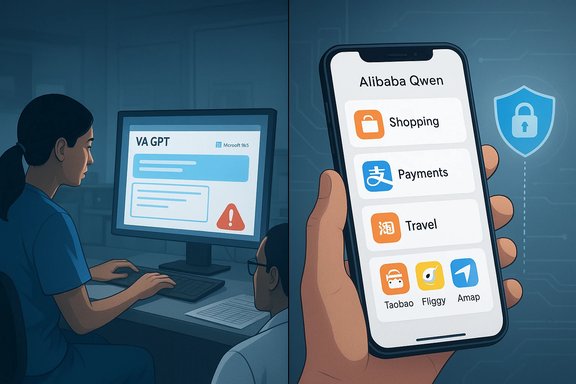
Split-screen: AI work on a computer and Alibaba Qwen apps on a smartphone.Background​

Generative AI systems—Large Language Models (LLMs) like VA GPT, Microsoft 365 Copilot Chat, and consumer apps such as Alibaba’s Qwen—are now embedded across enterprise and consumer stacks. They are used for drafting, summarization, triage, search, and now, in some cases, direct task execution (booking travel, ordering groceries, or populating electronic health records). The technology’s promise is real: reduced clinician paperwork, faster customer journeys, and hands‑free convenience. But the speed of adoption has outpaced formal, domain‑specific safety governance in several high‑stakes areas, notably healthcare. The VA Office of Inspector General (OIG) issued a short Preliminary Result Advisory Memorandum (PRAM) calling attention to potential harms from two chat‑style tools deployed for clinical use inside the Veterans Health Administration (VHA): the agency’s internal VA GPT and Microsoft 365 Copilot Chat. The OIG’s core concern is that adoption occurred without standardized safety processes, clinical patient‑safety involvement, or a formal mechanism to identify and track AI‑specific risks—gaps that could allow hallucinations, omissions, or privacy leaks to affect diagnosis, treatment, and medical records. On the commercial side, Alibaba’s Qwen app received a major upgrade that integrates in‑chat shopping, payments, and travel bookings, turning the assistant into an agentic system designed to complete multi‑step tasks across the Alibaba ecosystem (Taobao, Alipay, Fliggy, Amap). This mirrors efforts by U.S. cloud and AI leaders—Microsoft, Alphabet, and OpenAI—to expand assistants from conversational helpers into action‑oriented agents that can transact on behalf of users. That shift raises distinct product, regulatory, and security questions.

VA watchdog advisory: what it actually says​

The core findings in plain language​

  • The VA OIG concluded the VHA’s use of generative chat tools is a potential patient safety risk because there is no standardized, formal process for identifying, tracking, and resolving AI‑related hazards in clinical deployments.
  • The audit focused on two chat tools: VA GPT (a VA‑built generative tool) and Microsoft 365 Copilot Chat (provided centrally to staff). Both were being used to summarize clinical interactions and to draft content that could be copied into Veterans’ electronic health records.
  • The OIG noted published research showing generative systems can omit or fabricate details at low but meaningful rates (studies cited estimate error rates in documentation summarization in the range of about 1–3% in specific tests), and that such errors in clinical notes can delay diagnoses or lead to incorrect treatment steps.

Governance shortcomings the OIG highlighted​

  • No formal coordination with the VA’s National Center for Patient Safety before fielding chat tools.
  • Lack of a feedback loop or a standardized reporting mechanism to detect patterns of AI error or to trigger corrective action.
  • An informal structure driving AI adoption that left safety oversight fragmented across AI program leadership and clinical safety bodies.
These are not abstract criticisms. The OIG’s advisory deliberately emphasizes process and accountability: when AI outputs are allowed to enter patient records or inform decisions, organizations need auditable controls, clinical verification steps, and documented safety cases—not only productivity pilots.

Why the VA advisory matters to IT teams and clinicians​

Immediate practical risks​

  • Record integrity: Copying AI‑generated summaries into the legal medical record without clinician verification raises the risk that errors—wrong medications, omitted allergies, or mischaracterized symptoms—become permanent entries. Even rare hallucinations matter when scale multiplies exposure.
  • Clinical decision impact: Summaries and documentation feed downstream decision systems (order sets, risk scores, alerts). An incorrect summary can cascade into an inappropriate intervention or missed flag for escalation.
  • Privacy and data governance: The OIG flagged concerns around how clinical inputs are handled—what is logged, who can access transcripts or model logs, and whether the systems adhere to appropriate data‑loss‑prevention (DLP) and health‑data protections.

Operational and legal exposure​

  • Hospitals and federal agencies operate under clinical safety frameworks and legal standards: if AI‑assisted documentation contributes to harm, questions of liability, disclosure, and regulatory compliance quickly arise. The OIG’s call for formal mechanisms is partly a signal that legal and safety teams must be involved up front.

Critical analysis: strengths, blind spots, and trade‑offs​

Notable strengths of AI in clinical workflows​

  • Time savings: Many clinicians report measurable time reclaimed from documentation tasks—pilot data for enterprise assistants (including VA GPT) show substantial per‑user time savings when used properly, helping fight clinician burnout. When AI is used as a drafting aid with clinician verification, the productivity wins are real.
  • Accessibility and clarity: AI can translate medical jargon for patient education, produce quick summaries for handoffs, and standardize administrative communication—functional benefits that improve throughput and patient experience when governed.

Real dangers and failure modes​

  • Hallucination and omission: LLMs can invent plausible but false details or omit critical facts. In documentation tasks, even low error rates can produce dangerous false records at scale. The OIG explicitly cites these risks.
  • Overtrust and automation bias: Clinicians may implicitly trust polished outputs, especially when under time pressure; that overtrust can lead to insufficient vetting. The human oversight model must be enforced, not assumed.
  • Governance gap: Deploying tools without clinical safety sign‑off—or without clear audit trails, model versioning, and retrievability—creates blind spots when incidents occur. The OIG warned that the VA lacked a standardized mechanism to manage these risks.

Systemic trade‑offs​

The choice organizations face is rarely binary (adopt vs. avoid). Instead, it’s a set of governance design decisions:
  • Allow broad access now and accept verification overhead later.
  • Restrict access and roll out incrementally with robust monitoring.
  • Build bespoke, clinically‑tuned models with heavy validation (more costly and slower), or adopt first‑party enterprise offerings with contractual safety assurances.
The VA’s OIG clearly favors option 2 or 3 for clinical use cases: safety first, staged adoption, and documented auditability.

Concrete, actionable recommendations (for VA, health systems, and IT leaders)​

Short term (30–90 days)​

  • Institute a mandatory clinician verification rule: no AI output may be entered into the legal medical record without explicit human sign‑off. Log verifier identity and timestamp.
  • Lock high‑risk topics (dosing, diagnosis, emergent triage) into conservative refusal behavior or retrieval‑constrained modes that point clinicians to canonical sources.
  • Enable prompt and response logging with model version metadata and immutable snapshotting for incident reconstruction.

Medium term (3–12 months)​

  • Build a formal AI‑safety governance board that includes clinical safety leads, legal counsel, privacy officers, procurement, and IT. Require clinical safety sign‑off before any clinical AI pilot scales.
  • Require third‑party safety audits and red‑team testing for any tool that touches patient data or influences treatment decisions.
  • Negotiate vendor contracts with explicit non‑training clauses (no secondary use of patient data without consent) and exportable logs for audits.

Technical controls and monitoring​

  • Use DLP at endpoints to prevent sensitive health data from being pasted into consumer AI services.
  • Implement role‑based access and tiered AI modes: admin drafting vs. clinician‑only clinical modes with stricter defaults.
  • Routinely test deployed assistants with adversarial prompts and keep a published safety metrics dashboard (error rates by task, correction rates, refusal rates).

Alibaba’s Qwen upgrade: what changed and why it matters​

The product move​

Alibaba’s Qwen App update integrates core platform services—Taobao (commerce), Alipay (payments), Fliggy (travel)—directly into the conversational interface so users can complete tasks without switching apps. The company describes the move as shifting from conversational AI to systems that act—agentic AI capable of orchestrating multi‑step workflows. Public testing has started in China.

How this follows Microsoft and Alphabet​

U.S. tech firms have been pushing similar patterns: enabling assistants to complete purchases or book services via partner integrations, or surfacing “Instant Checkout” flows. Alibaba’s advantage is vertical integration: an in‑house commerce, payments, and travel ecosystem gives it a lower friction path to convert intent into transactions. The strategic aim is clear—move beyond chat into commerce as a service.

Product benefits and user experience gains​

  • Single‑step completion reduces friction and cognitive overhead for users: ask for dinner and have the assistant place the order and pay.
  • Native integrations let the assistant present verified inventory, pricing, and availability, limiting the retrieval‑noise problem of web‑search‑based assistants.

Risks and regulatory issues with agentic consumer AI​

The commercial model poses a different but significant set of risks:
  • Transactional security: Integrating payments and bookings increases attack surface—phishing or unauthorized transactions become higher‑stakes if agents are compromised or misdirected.
  • Privacy and data sharing: Moving intent to completion requires access to user profiles, payment tokens, and location data—raising consent and data‑use questions, especially for cross‑border or international users.
  • Consumer protection: When an assistant misbooks travel or orders the wrong item, how are refunds, chargebacks, and liability handled? Regulatory regimes are still catching up to agentic assistants that act on user behalf.
Alibaba’s integration strategy will likely invite regulatory scrutiny—particularly around payments, consumer rights, and cross‑border data flows—just as Western firms have faced questions about third‑party integrations and checkout flows.

Comparing the two stories: a common thread​

Both the VA advisory and Alibaba’s product pivot underscore a central dynamic of 2026’s AI landscape: the gap between capability and governance. Whether the assistant is entering a patient note or charging a credit card, the technology is moving from “answers” to actions. That step increases both value and risk.
  • In healthcare, the cost of an incorrect action is human safety. Clinical governance must therefore be conservative, auditable, and clinically led.
  • In commerce, the cost is financial and reputational—but widespread consumer adoption means harms scale quickly and regulators will intervene to protect buyers.
Both domains call for a layered approach: product controls, human workflows, legal safety nets, and continuous monitoring.

What vendors and platform owners should do next​

  • Publish clear safety mode defaults and refusal behaviors for high‑risk queries (medical, legal, financial).
  • Expose machine‑readable provenance (what sources were used), model version metadata, and immutable logs for any output that enters legal records or completes transactions.
  • Offer enterprise contracts that include non‑training clauses for regulated data and provide exportable logs for customer audits.
  • Build third‑party red‑team evaluation programs and publish summary safety metrics that buyers can use in procurement decision‑making.

Caveats and items requiring caution​

  • Not every claim about error rates or exact adoption numbers is equally verifiable; some press summaries draw on internal datasets or preliminary studies. Where precise percentages are quoted, readers should look for the underlying methods and full datasets. The OIG PRAM itself was short and advisory in nature; it flags risk and process deficiencies rather than describing specific patient‑level incidents.
  • LLM behavior changes over time with model updates and tuned deployments. Safety assessments are snapshots; continuous monitoring and re‑validation are necessary.

Practical checklist for Windows‑centric IT managers and clinicians​

  • Inventory all AI touchpoints in the organization (Copilot, embedded assistants, third‑party chat tools).
  • Classify each touchpoint by risk: informational, administrative, clinical decision‑support, or transactional.
  • Enforce DLP and endpoint policies that prevent uncontrolled pasting of protected health information (PHI) into public AI services.
  • Require named clinician sign‑off and timestamping for any AI‑generated content that enters medical records.
  • Pilot with conservative defaults, measure real verification costs (not just perceived time saved), and publish safety KPIs.

Conclusion​

The VA OIG’s advisory is a timely reminder: capability without clinical governance is a hazard when AI systems touch patient care. The technology’s potential to reduce clinician paperwork and improve access is not in doubt—but so too are the risks of hallucination, omission, and privacy exposure when tools are deployed without formal safety processes and auditability. At the same time, Alibaba’s Qwen pivot shows the other face of the AI coin—commercial players racing to convert conversational intent into completed tasks. That transition promises huge user convenience and new business models, but it also expands attack surfaces, regulatory questions, and consumer‑protection obligations. The right path forward is not rejection but responsible governance: staged rollouts, clinician and safety‑team involvement for health use cases, contractual and technical safeguards for regulated data, and transparent safety metrics for public accountability. The OIG’s warning should be read as a practical call to action: put the paperwork and the oversight in place before the presses roll.

Source: Task & Purpose https://taskandpurpose.com/military...GA5aLyeGe-l5if31mIzKVvYupGgWVn1qpV6Yr-j5tA==]
 

Microsoft’s recent messaging about a “free Windows update” for 2026 needs translation: what landed in January is not a mass feature upgrade but a time‑boxed security lifeline for eligible Windows 10 devices — delivered through the consumer Extended Security Updates (ESU) program, seeded platform maintenance (notably Secure Boot certificate refreshes), and a targeted January cumulative (KB5073724) that patches a large set of vulnerabilities for ESU‑enrolled systems. This combination has been widely framed as a “free update” in headlines, but the reality is narrower, conditional, and explicitly temporary.

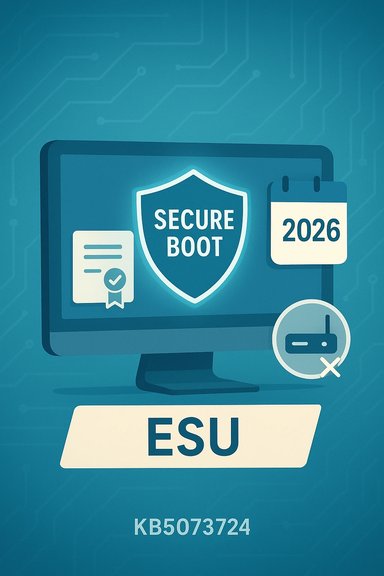
Secure Boot shield shown on a monitor with ESU and a 2026 calendar.Background / Overview​

Windows 10 reached its formal end of mainstream consumer support on October 14, 2025. That date marked the end of routine feature updates, monthly cumulative security rollups, and general technical assistance for consumer editions unless a device was enrolled in an extension pathway. Microsoft responded with a one‑year consumer Extended Security Updates (ESU) program that provides security‑only updates for eligible Windows 10 devices through October 13, 2026. Enrollment for the consumer ESU includes free and paid paths and is surfaced to eligible PCs through a Windows Update “Enroll now” experience. This phase‑out created two overlapping programs that explain recent coverage and updates:
  • A consumer ESU program that is time‑limited and security‑only (no new features, no broad quality updates, and no full technical support).
  • Targeted platform maintenance work — notably Secure Boot certificate updates and servicing stack updates — designed to preserve boot‑time trust and update reliability across devices through mid‑2026 and beyond.
The combination—ESU enrollment options plus platform certificates and incremental cumulative updates—creates the appearance of a free “Windows update” for holdouts, but the offering is a bridge to migration, not a continuing maintenance contract.

What Microsoft actually shipped in January 2026​

KB5073724: the January 2026 cumulative for ESU devices​

On January 13, 2026 Microsoft released the cumulative ESU update identified as KB5073724 (advancing Windows 10 22H2 to build 19045.6809 and 21H2 to 19044.6809). The official release notes show three practical, high‑priority elements in the package:
  • Removal of legacy in‑box modem drivers (agrsm64.sys / agrsm.sys / smserl64.sys / smserial.sys) that have long been unsupported and carried historic vulnerabilities.
  • Inclusion of device‑targeting metadata and staged logic to safely deliver new Secure Boot certificates for eligible devices.
  • An update to the Windows‑packaged WinSqlite3.dll to address false positives in some security products.
Multiple independent outlets confirmed the update’s rollout to ESU‑enrolled machines and noted that KB5073724 appears only when devices are eligible and enrolled in ESU. The package is a security and reliability rollup; it is not a consumer feature update in the Windows 11 sense.

January 2026 Patch Tuesday: broad security fixes​

Microsoft’s January 2026 security release addressed a large set of vulnerabilities across Windows and other Microsoft products. Multiple reputable trackers and incident response teams reported that the monthly Patch Tuesday fixed roughly 112 CVEs — including multiple zero‑day flaws and at least one actively exploited vulnerability in the wild (Desktop Window Manager, CVE‑2026‑20805). Security agencies and industry analysts flagged the release as urgent for many environments. Security bulletin highlights from January 2026:
  • Total CVEs addressed: ~112 (counts vary slightly by vendor when third‑party component fixes are folded in).
  • Actively exploited flaw: CVE‑2026‑20805 (Desktop Window Manager information disclosure).
  • Notable systemic impact: Secure Boot certificate expiration work and removal of legacy modem drivers that could otherwise cause later boot‑chain trust problems.
Because some vendors and trackers classify and aggregate CVEs differently, category counts (e.g., number of Elevation‑of‑Privilege vs Information‑Disclosure cases) vary across reports. Where precision matters, consult Microsoft’s Security Update Guide and the specific KB release notes referenced by Microsoft’s update pages.

The “free” part: how consumer ESU enrollment works​

Microsoft provided three consumer paths to receive ESU entitlement for eligible Windows 10 devices through October 13, 2026:
  • Free path: Sign in to the eligible PC with a Microsoft Account (MSA) and enable Windows Backup / settings sync. This ties the ESU entitlement to the MSA at no additional cash cost.
  • Rewards path: Redeem 1,000 Microsoft Rewards points on the Microsoft account used to sign into Windows.
  • Paid path: One‑time purchase (commonly reported around $30 USD, regional pricing and taxes may vary), which allows maintaining a local account without ongoing cloud‑sync obligations.
Important technical prerequisites:
  • Device must be running Windows 10, version 22H2 (consumer ESU eligibility is limited to that final servicing branch).
  • Devices must have required servicing‑stack updates installed (Microsoft rolled a set of preparatory SSUs and out‑of‑band fixes on the run‑up to ESU).
  • Enrollment is surfaced via a staged “Enroll now” wizard under Settings → Update & Security → Windows Update for eligible devices; the rollout is phased so the wizard might not appear immediately on all machines.
These enrollment mechanics explain why headlines calling January updates a “free Windows update” are potentially misleading: many users can indeed receive ESU updates at no cash cost, but the entitlement is conditional on enrollment choices and device eligibility. The free route explicitly trades an account link and settings sync for the no‑cost entitlement; privacy‑conscious users may prefer the paid route to avoid cloud binding.

Market context: Windows 10 still widespread​

Despite Microsoft’s push to Windows 11, Windows 10 remains a major part of the desktop landscape. StatCounter data for late 2025 show a near split between Windows 11 and Windows 10, with Windows 11 passing the 50% mark in some months but Windows 10 rebounding in others. Different regions show markedly different adoption curves — North America and South America adopted Windows 11 faster than Europe and parts of Asia. This fragmentation is a practical driver behind Microsoft’s consumer ESU choice; millions of devices simply cannot or will not upgrade immediately because of hardware constraints, organizational policies, or user preference. Why this matters for readers: Windows 10’s continuing market share means a substantial global installed base needs a secure migration path. Microsoft’s one‑year ESU, paired with certificate maintenance, is a pragmatic response to that reality — but it is deliberately short.

Technical analysis: Secure Boot certificates, driver removals, and risk vectors​

Secure Boot certificate renewal — why it’s urgent​

A standout element of the January ESU cumulative is the roll‑out of updated Secure Boot certificates. Many devices rely on vendor firmware and certificate chains that were originally signed with certificates issued in the early 2010s. Some of those certificates are scheduled to expire in mid‑2026, and if certificates aren’t updated systems could:
  • Stop trusting newly signed boot components, leading to boot failures or inability to load updated boot components.
  • Lose trust with anti‑cheat or low‑level security stacks that depend on secure boot trust chains.
  • Face increased complexity when installing future updates if the trust chain cannot be validated.
Microsoft’s approach is staged device‑targeting: updates include metadata and rollout logic that only applies replacement certificates after devices demonstrate successful update signals. That lowers risk, but devices with very old firmware or uncooperative OEMs might still require manual firmware updates or vendor action to remain fully protected. For IT teams, validating OEM firmware support and planning firmware update windows is now a critical task.

Legacy modem driver removal — a quiet but important cleanup​

KB5073724 removes several legacy modem drivers that have been a recurring source of vulnerability flags. For most modern users this will be harmless. For legacy hardware (medical devices, embedded kit, or specialized industrial gear) it could break connectivity. Organizations that rely on older modem hardware should inventory affected systems and test compatibility before broad ESU installations.

Vulnerability landscape in January 2026​

Multiple respected trackers and CERTs reported that the January 2026 release fixed roughly 112 Microsoft CVEs, including three zero‑days and at least one actively exploited bug. Category counts (Elevation‑of‑Privilege, Remote‑Code‑Execution, Information‑Disclosure, Spoofing) differ slightly among reporters due to how third‑party components are counted, but the overall message is consistent: this was a high‑priority month that merits rapid patching for eligible devices. Security agencies have added some of the addressed CVEs to their known‑exploited lists and set remediation timelines for enterprise customers. Cautionary note: exact per‑category counts reported in some outlets (for example, “57 Elevation of Privilege, 22 Information Disclosure, 5 Spoofing”) vary by aggregator. Where precise counts are mission‑critical, consult Microsoft’s Security Update Guide and the KB release notes for the authoritative breakdown.

Practical guidance: what Windows 10 users should do now​

  • Confirm your OS and version. Open Settings → System → About or run winver to verify you’re on Windows 10, version 22H2.
  • Install all pending Windows Updates and Servicing Stack Updates (SSUs). Microsoft packaged several preparatory SSUs in late 2025 to ensure enrollment reliability; these are prerequisites for ESU enrollment.
  • Decide an ESU path: free via Microsoft Account + Windows Backup sync, redeem Microsoft Rewards points, or a one‑time paid purchase if you prefer a local account.
  • Back up before enrollment. Create a system image or full data backup before changing enrollment or installing major cumulative ESU rollups.
  • For IT teams: inventory firmware and drivers, confirm OEM firmware updates for Secure Boot certificate support, and plan a firmware‑upgrade window before mass rollout. Test ESU enrollment and KB5073724 on a sample of hardware images before wide deployment.
  • Prioritize patching for actively exploited CVEs and high‑risk servers and endpoints; follow guidance from national CERTs and Microsoft’s security advisories.

Strengths of Microsoft’s approach — and what it gets right​

  • Pragmatism: The consumer ESU program recognizes the real world of heterogeneous hardware and provides a short‑term security bridge for households and small businesses that cannot upgrade immediately.
  • Conditional free paths: Offering a free enrollment path via Microsoft Account / Windows Backup minimizes friction for many users and increases overall security coverage without imposing a broad paid tax.
  • Platform foresight: Proactive Secure Boot certificate replacement avoids a systemic risk that would have affected many devices simultaneously later in 2026.
  • Transparent, time‑boxed policy: By making ESU explicitly one year (through October 13, 2026) Microsoft reduces indefinite expectations and nudges migration planning.

Risks, trade‑offs, and unresolved questions​

  • Privacy and account trade‑offs: The free ESU route requires linking a device to a Microsoft Account and syncing settings — an immediate trade‑off for privacy‑minded users who prefer local accounts. Although a paid path exists, the default free narrative may push device owners toward cloud linking they would otherwise avoid.
  • Firmware dependencies: Secure Boot certificate replacement relies on device firmware cooperation. Older OEM firmware or devices from vendors that have stopped issuing firmware updates could fail to receive the necessary trust chain updates automatically, potentially requiring manual vendor intervention.
  • Perception vs reality: Headlines that describe the rollout as a “free Windows update” risk creating unrealistic expectations. ESU is security‑only; it does not restore full platform support or supply new productivity features. Misunderstanding this could leave users exposed when they believe they have ongoing, feature‑level support.
  • Operational debt: Relying on ESU as a long‑term strategy introduces technical debt. IT teams delaying migration will face concentrated upgrade and procurement cycles later, which are often costlier than steady migration planning.
  • Regional differences and EEA carve‑outs: Some regional accommodations (for example in the European Economic Area) change reauthentication or telemetry expectations; these variations add complexity for globally distributed users and organizations.

Myth‑busting: common misunderstandings​

  • Myth: “This is a full free Windows 11‑style feature update for all Windows 10 users.”
  • Reality: The January release and the ESU program provide security‑only updates for eligible Windows 10 devices through October 13, 2026. It is not a mass feature upgrade.
  • Myth: “If I enroll in ESU I get long‑term Microsoft support.”
  • Reality: ESU is explicitly one year for consumers and does not include broad technical support or feature updates. Treat it as a bridge to migration.
  • Myth: “All Windows 10 devices will automatically get Secure Boot certificates updated.”
  • Reality: Microsoft stages certificate updates with device‑targeting logic; some older firmware will require OEM updates or manual intervention. Validate OEM support for affected devices.

How reporters and site headlines went wrong (and what to watch)​

A number of third‑party outlets and social posts condensed the story into attention‑grabbing headlines that suggested Microsoft was reversing course and delivering a new free OS update in 2026. Those headlines drew on three separate truths or signals — the free ESU enrollment path, the January cumulative ESU rollout (KB5073724) and the Windows 11 Canary/26H1 platform branch work — but fused them in ways that confused function with form. Careful reading of Microsoft’s published support pages and KB notes shows the distinction: security entitlement + platform maintenance ≠ new consumer feature update. Readers and IT pros should watch Microsoft’s official Windows support and ESU pages for any changes and follow the Security Update Guide for authoritative CVE and patch details. If a headline seems to promise an OS‑level feature gift, verify whether the item described is a security entitlement, a feature branch, or simply a Canary/Insider artifact.

Conclusion​

January 2026’s Windows activity represents disciplined lifecycle management rather than a policy reversal. Microsoft has delivered a time‑boxed consumer ESU program, seeded platform updates to maintain boot‑chain trust, and shipped a first ESU cumulative (KB5073724) that addresses serious vulnerabilities and removes long‑deprecated drivers. For many home users, that means a pragmatic, low‑friction way to buy time — sometimes at no cash cost — while planning migration to Windows 11 or replacement hardware.
This is an opportunity to act responsibly: check your version (Windows 10, version 22H2), install required servicing updates, decide whether to enroll in ESU (and which path you prefer), and for organizations to validate firmware and driver readiness before broad deployment. The free enrollment angle is real, but it is conditional and temporary; framing it accurately matters for security planning, privacy expectations, and migration budgets.

Source: filmogaz.com Microsoft Announces Free Windows Update Debuting in 2026
 

Back
Top