

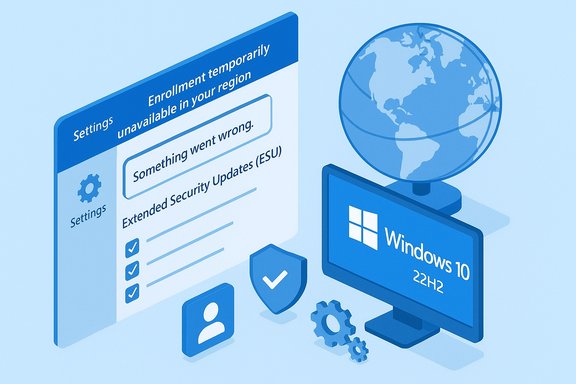
Microsoft’s consumer Extended Security Updates (ESU) for Windows 10 have been rolling out as promised, but a meaningful minority of users are finding they can’t enroll — seeing either a blunt “Enrollment for Windows 10 Extended Security Updates is temporarily unavailable in your region” notice or a non‑diagnostic “Something went wrong” error that blocks the process entirely.
Microsoft set a firm end‑of‑support date for consumer editions of Windows 10: security and quality updates stopped on October 14, 2025. To give consumers a time‑boxed safety net, Microsoft introduced a one‑year consumer ESU program that provides security‑only updates through October 13, 2026 for eligible devices. The program is deliberately narrow — it supplies only critical and important security fixes (no feature updates or general support) and is tied to a Microsoft Account (MSA) for enrollment. The consumer ESU rollout uses an on‑device enrollment wizard surfaced in Settings → Update & Security → Windows Update. Microsoft shipped preparatory servicing‑stack and cumulative updates in mid‑2025 (notably the August 2025 cumulative rollup frequently referenced as KB5063709) that are required for the enrollment UI and to fix early enrollment bugs. Eligibility is narrow: devices must be running Windows 10, version 22H2 (Home, Pro, Pro Education, Workstation) and have the latest cumulative and SSU patches installed.
There are three consumer enrollment paths:
Windows 10’s consumer ESU is a narrowly scoped, time‑boxed lifeline — useful, but conditional. The rollout stumbles and opaque errors are frustrating and unnecessary, but they are largely explainable: a mixture of phased regional enablement, prerequisite update dependencies, account/device classification rules, and some avoidable backend hitches. For most users the path to resolution is straightforward: update, sign in with the right account, and retry the enrollment flow; for the stubborn minority, the documented eligibility re‑evaluation and, if necessary, an in‑place refresh usually does the trick. If you cannot resolve the issue quickly, treat the situation as urgent: ESU is temporary and the safest long‑term move is to migrate to a supported platform or upgrade hardware where feasible.
Source: TechRadar https://www.techradar.com/computing...y-that-might-be-and-what-you-can-do-about-it/
 Background / Overview
Microsoft set a firm end‑of‑support date for consumer editions of Windows 10: security and quality updates stopped on October 14, 2025. To give consumers a time‑boxed safety net, Microsoft introduced a one‑year consumer ESU program that provides security‑only updates through October 13, 2026 for eligible devices. The program is deliberately narrow — it supplies only critical and important security fixes (no feature updates or general support) and is tied to a Microsoft Account (MSA) for enrollment. The consumer ESU rollout uses an on‑device enrollment wizard surfaced in Settings → Update & Security → Windows Update. Microsoft shipped preparatory servicing‑stack and cumulative updates in mid‑2025 (notably the August 2025 cumulative rollup frequently referenced as KB5063709) that are required for the enrollment UI and to fix early enrollment bugs. Eligibility is narrow: devices must be running Windows 10, version 22H2 (Home, Pro, Pro Education, Workstation) and have the latest cumulative and SSU patches installed.There are three consumer enrollment paths:
- Free route: sign in with a Microsoft Account and enable Windows Backup / settings sync to OneDrive (this links the entitlement to your MSA).
- Microsoft Rewards route: redeem 1,000 Microsoft Rewards points.
- Paid route: one‑time purchase (Microsoft published ~$30 USD as a benchmark; regional pricing and tax may vary).
What users are seeing: two frustrating error patterns
Two distinct failure modes are reported widely across community threads and Microsoft’s own Q&A forum:- Region / phased rollout message: when clicking Enroll now some systems return an explicit message such as “Enrollment for Windows 10 Extended Security Updates is temporarily unavailable in your region.” This is typically a rollout gating message rather than a license denial, but it gives no clear ETA. Reports indicate this message has been common in parts of Europe as Microsoft applied EEA‑specific adjustments before broad availability.
- Generic failure: the enrollment flow appears but stalls with an unhelpful error such as “Something went wrong” or “Oops, something went wrong. It was probably our fault. Please try again.” This one is worse because it gives no hint whether the problem is network, account, telemetry, or server side — and retrying often yields the same result. Microsoft Q&A threads and community logs show this behavior across multiple locales.
Why this happens: the technical and policy picture
Several different causes — some by design and some due to bugs or configuration — explain the enrollment failures.1) Phased regional rollout and EEA concessions
Microsoft intentionally rolled the consumer ESU offering out in waves; regional market factors and regulatory concessions in the European Economic Area (EEA) altered the free enrollment path for some users. That mixture of staged enabling and region‑specific behavior explains many “temporarily unavailable in your region” reports. If you see this banner it commonly means the backend switch that enables enrollment for your locale hasn’t been flipped yet.2) Prerequisite updates and OS build requirements
The enrollment wizard depends on a set of preparatory servicing‑stack and cumulative updates. Devices not on Windows 10 22H2 or missing the required cumulative updates (community posts and Microsoft notes highlight KB5063709 among the important updates) will not get the enrollment UI or will fail eligibility checks. In some cases installing the missing patches and rebooting will surface the enrollment option.3) Account and device classification (consumer vs. managed)
Consumer ESU enrollment is explicitly tied to a Microsoft Account (MSA) and is not intended for domain‑joined, MDM‑managed, or enterprise‑licensed machines. Community troubleshooting suggests Windows sometimes misidentifies a home PC as a work/education device (for example, if a work/school account was previously configured on the machine or if the device is Entra/Azure AD or domain‑joined). When that misclassification happens, the consumer enrollment flow refuses to continue — often without a clear explanatory message.4) Telemetry, feature flags and backend eligibility checks
The ESU enrollment logic performs an online eligibility evaluation. That evaluation relies on Windows feature management and certain telemetry paths (Connected User Experiences and Telemetry, DiagTrack) being enabled. Community and Microsoft forum guidance documents a local feature‑flag override (registry override ID 4011992206) and a built‑in consumer tool (ClipESUConsumer.exe) that forces an eligibility recheck; both are used as troubleshooting steps to prompt the enrollment UI. These are not universal fixes, but they illustrate that the flow depends on multiple moving parts beyond simply clicking a button.5) Backend errors and transient authentication issues
The unhelpful “Something went wrong” errors often show up when the enrollment attempt reaches Microsoft’s authentication or enrollment services and encounters an internal failure (session/STS problems, throttling, or service outages). Community threads show that sometimes the error resolves on its own after a short interval; other times it persists until a hotfix or an in‑place repair is applied. Microsoft’s Q&A threads identify network, credential store, or third‑party firewall interference as occasional contributors.Step‑by‑step troubleshooting: what to try (ordered, with cautions)
If you can’t enroll, follow this prioritized checklist. Each step is short and safe; back up before doing anything riskier such as a full in‑place upgrade or registry edits.- Confirm eligibility and prerequisites (first, and most important)
- Check Windows version: Settings → System → About → confirm Windows 10, version 22H2.
- Run Windows Update: install all pending updates (servicing stack updates and cumulative updates). The August 2025 cumulative (KB5063709) fixed earlier enrollment bugs for many users.
- Use a Microsoft Account with admin privileges
- Ensure you are signed into the device with an adult Microsoft Account (MSA) that has local administrator rights. Child/family accounts or restricted accounts can be blocked from enrolling. If you used a local account, switch to an MSA for the enrollment attempt.
- Wait and re‑attempt if you see the regional message
- If the UI reports enrollment is temporarily unavailable in your region, verify prerequisites and then allow time (the rollout is staged). Users in the EEA reported ECAs being enabled later but within a short window. Re‑check Windows Update over the next 24–72 hours.
- Try the Settings link route
- Some users have found that clicking the direct link on Microsoft’s end‑of‑support portal (which opens the system Settings page) works more reliably than trying to trigger enrollment solely via Windows Update. Ensure your system is fully updated before trying this route. Community posts report success with this trick.
- Force an eligibility re‑evaluation (advanced but documented)
- Run an elevated Command Prompt and execute: cmd /c ClipESUConsumer.exe -evaluateEligibility. Then reboot and check Windows Update. This forces the local ESU eligibility tool to contact Microsoft’s endpoints and can produce the enrollment UI when prerequisites are met. Community and Microsoft support responses document this sequence. Caution: only run this as an administrator and after you’ve backed up.
- Check for managed device markers and remove them if appropriate
- Confirm the device is not domain‑joined, not enrolled in MDM/Intune, and not using a work/school account as the primary sign‑in. If a work account was previously added, remove it and any leftover organizational profiles, then reboot and retry the enrollment. Misidentification as a work device is a frequently cited cause of the generic failure path.
- If nothing else works: perform an in‑place repair / upgrade to 22H2 build
- Community troubleshooting and Microsoft advisory posts show that some stuck states resolve after an in‑place upgrade of Windows 10 22H2 using the Media Creation Tool (this refreshes system files and reapplies required servicing updates). This step is more invasive: make a full image backup first, ensure all critical files are copied off the system, and be prepared to reinstall apps or drivers if something goes wrong. Several users report success with this approach when less invasive measures failed.
- If you can enroll but later lose access: check the MSA sign‑in cadence
- Microsoft has noted that some free ESU entitlements tied to an MSA require periodic sign‑in or re‑authentication; prolonged absence of the MSA from the device (a rolling 60‑day window, as reported in community summaries) can disrupt the free enrollment path. If you rely on the free method, keep your MSA active on the device.
When to wait, when to escalate, and what you risk by waiting
- Wait when: your machine shows the region‑gating message, you’re missing a prerequisite update, or you’re in a country Microsoft has said will be enabled shortly. The staged rollout is the most common cause of non‑enrollment and often resolves in a matter of days.
- Escalate when: you meet every prerequisite, you’re signed in with an adult MSA admin, you have a stable network connection, and enrollment still fails with the generic “Something went wrong” error after repeated attempts or the ClipESUConsumer step. In those cases, contact Microsoft support and open a ticket; cite your Windows build, installed cumulative updates (KB numbers), and any registry override attempts you’ve made. Microsoft Q&A threads show engineers referencing the same checks.
- Risk of waiting: if you can’t enroll and remain unpatched, your machine will not receive Microsoft’s October/November 2025+ security rollups until enrollment completes. That exposes you to newly disclosed and actively exploited vulnerabilities. While a short delay is unlikely to result in immediate compromise for careful users, researchers warn that once Patch Tuesday publishes fixes publicly, exploitation accelerates — making timely vendor patches important. If you cannot get ESU and your device can accept Windows 11, upgrading is the safest long‑term option.
Privacy, account trade‑offs and the cost equation
The free consumer ESU route is attractive but not cost‑free in terms of privacy: it requires enabling Windows Backup / settings sync to OneDrive on most devices (EEA rules are looser in some respects). That means some device configuration metadata is stored in Microsoft cloud services and an MSA is required. If you’re privacy‑sensitive, the alternative is the paid one‑time purchase (reported benchmark ~$30 USD) or redeeming Microsoft Rewards points where available — both avoid enabling broad cloud settings sync if you prefer. Regional pricing, the availability of the Rewards option, and the exact privacy tradeoffs differ by market, so weigh your preferences.Practical decision guide — upgrade, enroll, or migrate away?
- If your PC meets Windows 11 system requirements and your driver ecosystem is supported, upgrade to Windows 11 for the long term (it restores full vendor security and feature updates).
- If you cannot upgrade (TPM, CPU, or vendor limits) and you need vendor patches for another year, prioritize ESU enrollment. If enrollment is failing, follow the troubleshooting checklist above; if you remain blocked, consider the paid option or migrating critical workloads off the PC.
- If you are highly privacy‑sensitive and don’t want to link an MSA or use OneDrive, plan either to use the paid ESU route (if available in your region) or migrate to another supported platform (Linux distributions, Chrome OS Flex, or new hardware).
What vendors and power users are doing (and what to expect next)
- Microsoft has patched several enrollment bugs and continues to adjust the regional rollout, but community threads show intermittent backend authentication issues remain for some users. Many of those threads include Microsoft staff replies that recommend the prerequisite update sequence, ClipESUConsumer checks, and in‑place repairs when necessary. Expect more stability as the staged rollout completes and supporting server infrastructure scales.
- Power users and support pros have published step scripts to automate the eligibility recheck and to query registry keys that reveal ESU evaluation results (for example, checking keys under HKCU\SOFTWARE\Microsoft\Windows NT\CurrentVersion\Windows\ConsumerESU). Those checks are helpful for diagnosing why an enrollment attempt failed, but they should be used only by experienced users or admins after backing up.
Final verdict: practical advice for Windows 10 holdouts
- Don’t delay the basics: confirm Windows 10 22H2, install all pending updates (including the servicing‑stack and August 2025 cumulative that fixed many enrollment problems), and sign in with an adult Microsoft Account that has local admin rights. These three steps resolve the majority of visibility or eligibility problems.
- If you see regional unavailability, verify prerequisites and wait — this is more often a staged rollout gating than a policy denial. If you see the generic “Something went wrong” error, attempt the ClipESUConsumer eligibility check, verify the device isn’t managed, and, if required and you’re comfortable, perform an in‑place repair/upgrade to refresh system files. Keep backups at every stage.
- If you still can’t enroll and you cannot or will not upgrade to Windows 11, consider the paid ESU route or migrate critical apps/data to a supported platform — the security risk of remaining unpatched grows over time and is non‑trivial once public fixes are published.
- Finally, if you successfully enroll, keep that Microsoft Account active on the device and be mindful that Microsoft may require periodic re‑authentication to maintain the free entitlement. Losing that link could interrupt ESU delivery.
Windows 10’s consumer ESU is a narrowly scoped, time‑boxed lifeline — useful, but conditional. The rollout stumbles and opaque errors are frustrating and unnecessary, but they are largely explainable: a mixture of phased regional enablement, prerequisite update dependencies, account/device classification rules, and some avoidable backend hitches. For most users the path to resolution is straightforward: update, sign in with the right account, and retry the enrollment flow; for the stubborn minority, the documented eligibility re‑evaluation and, if necessary, an in‑place refresh usually does the trick. If you cannot resolve the issue quickly, treat the situation as urgent: ESU is temporary and the safest long‑term move is to migrate to a supported platform or upgrade hardware where feasible.
Source: TechRadar https://www.techradar.com/computing...y-that-might-be-and-what-you-can-do-about-it/
