

Microsoft’s product-page cheerleading and bargain‑bin deals have made one promise loud and clear: you can turn a Windows 10 Home PC into a much more capable machine by upgrading to Windows 10 Pro — and sometimes for a tiny fraction of the MSRP. But between feature lists, upgrade mechanics, and a thriving gray market for product keys, deciding whether and how to upgrade needs a clear-eyed, practical guide. This article explains what Pro actually gives you, which features are most valuable to different users, how to upgrade safely and cheaply, and which shortcuts are dangerous or legally risky.
If your machine came with Windows 10 Home and you do anything beyond casual web browsing and streaming, Windows 10 Pro offers real capabilities that can measurably improve security, manageability, virtualization and remote access. Key additions include BitLocker full-disk encryption, Windows Sandbox for safe app testing, Hyper‑V virtualization, Remote Desktop (host support), and the Group Policy Editor for centralized configuration. These features are not cosmetic: they change what the PC can do for developers, security-minded users, small businesses and power users. A tech deals writeup recently argued that upgrading is “worthwhile” and promoted discount keys that make the economics hard to resist.
But there are tradeoffs:
Upgrading your edition is less a technical hurdle than a licensing and planning decision. If the Pro features will materially change how you use your PC — for security, development, or administration — the upgrade is justified. Just don’t let a headline sale or single low price replace due diligence: the cheapest license can end up being the most expensive lesson.
Source: BetaNews Why you need to upgrade to Windows 10 Pro and how to do it on the cheap!
 Overview: why Pro matters (short answer)
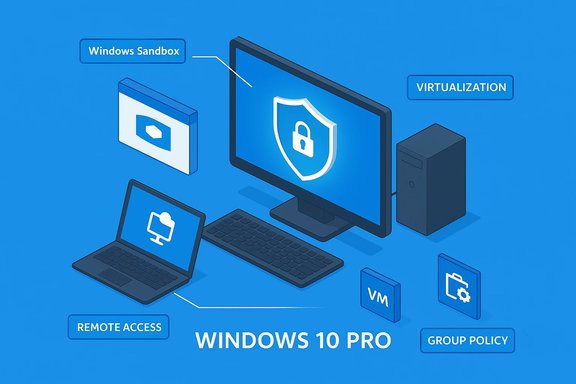
If your machine came with Windows 10 Home and you do anything beyond casual web browsing and streaming, Windows 10 Pro offers real capabilities that can measurably improve security, manageability, virtualization and remote access. Key additions include BitLocker full-disk encryption, Windows Sandbox for safe app testing, Hyper‑V virtualization, Remote Desktop (host support), and the Group Policy Editor for centralized configuration. These features are not cosmetic: they change what the PC can do for developers, security-minded users, small businesses and power users. A tech deals writeup recently argued that upgrading is “worthwhile” and promoted discount keys that make the economics hard to resist.Background: Home vs Pro — what Microsoft reserves for Pro
Windows editions segment features so Microsoft can target different audiences. In plain terms:- Windows 10 Home: designed for typical consumers — email, media, casual gaming, office apps.
- Windows 10 Pro: intended for power users and small businesses — encryption, virtualization, domain join, update-control, and advanced management.
What Pro adds (quick feature list)
- BitLocker — full-disk encryption and enterprise-level data protection.
- Windows Sandbox — disposable, isolated Windows instance for testing untrusted apps.
- Hyper‑V — built-in hypervisor to run VMs (requires appropriate CPU support).
- Remote Desktop (host) — allows your PC to accept incoming RDP sessions (Home can be a client but not a host).
- Group Policy Editor (gpedit.msc) — centralized settings control that Home lacks.
- Windows Update for Business / deferral controls — greater control over when feature and quality updates apply via Group Policy, MDM or Windows Update for Business policies.
- Assigned Access / Kiosk mode — lock a device to a single app for customer-facing scenarios.
Deep dive: the most valuable Pro features explained
BitLocker — real disk encryption, not just a buzzword
BitLocker provides full-volume encryption of system and data drives and integrates with TPM hardware for secure key storage. It protects data from offline attacks (for example, if a laptop is stolen). BitLocker can also be used without a TPM by configuring a USB startup key, but Microsoft recommends TPM-based use for stronger integrity checks. The official BitLocker FAQ explains these details and how BitLocker behaves during firmware updates or memory dumps. If protecting sensitive data is a priority, BitLocker is a meaningful upgrade.Windows Sandbox — disposable testing with low friction
Windows Sandbox is a lightweight, temporary virtualized Windows environment that launches in seconds and discards everything when closed. It’s ideal for testing downloads, installers, or casual malware analysis without committing to a full VM. Sandbox requires a Pro/Enterprise/Education edition and hardware virtualization (VT‑x/AMD‑V), plus modest RAM and disk resources. Microsoft documents the prerequisites and the recommended configuration.Hyper‑V — native virtualization for labs and testing
Hyper‑V lets you build VMs on the host without third‑party hypervisors. It requires a 64‑bit Pro/Enterprise/Education OS, a CPU with SLAT (Second Level Address Translation), and hardware virtualization support. For developers, IT pros, and tinkerers, Hyper‑V is a game changer: spin up test images, run nested VMs, and isolate services without extra software. Microsoft’s Hyper‑V docs list exact CPU and memory requirements.Remote Desktop — true host capability
Windows Home includes the Remote Desktop client, but cannot host incoming RDP sessions. Only Pro and higher editions can act as a host. That matters if you want to connect to your home PC from a laptop or mobile device without third‑party tools. Microsoft’s documentation and community guidance confirm that the built‑in RDP host is a Pro/Enterprise/Education feature.Group Policy Editor — control without registry hacks
Group Policy provides a structured interface to hundreds of system settings. Home lacks gpedit.msc, forcing users to edit the registry directly for many tweaks — error prone and unsupported. Pro makes advanced configuration manageable and auditable. Numerous Microsoft and community documents explain that gpedit is not shipped with Home, and the supported way to get it is to upgrade.Update control — reduce surprise reboots and manage rollout
Windows 10 Pro enables administrators to use Windows Update for Business and Group Policy to defer feature updates (up to the policy limits) and pause quality updates. Settings have changed over Windows 10 releases — Microsoft moved some controls out of the Settings UI and into Group Policy for Pro devices — but the policy-based controls remain powerful. For example, policy can defer feature updates up to 365 days and quality updates up to 30 days; pause controls also exist for temporary holds. This level of control is crucial for minimizing downtime in production environments.The economics: official price vs actual deals (and the risk tradeoff)
On paper, Microsoft’s retail pricing for Windows 10/11 Pro hovers near the $199 range for a full license and $99 for Home→Pro upgrades in the Microsoft Store historically; prices vary by region and time. That high sticker price explains the vibrant secondary market for discounted keys. A promotional write‑up recently advertised a $39.99 key and pitched it as a bargain upgrade — a tempting number for many users.But there are tradeoffs:
- Authorized retail (FPP) keys are transferable and supported by Microsoft. They cost more but are low‑risk.
- OEM keys are usually tied to a specific device (motherboard) and do not transfer.
- Volume license or gray‑market keys are often the source of steep discounts; they may activate initially but carry long‑term revocation risk and no Microsoft support.
How to upgrade safely — step‑by‑step (official, supported path)
If you decide to upgrade, follow the supported path to minimize risk and preserve activation sanity.- Confirm your Windows edition and activation status: Start → Settings → System → Activation. You must have an activated Home install to do an in‑place upgrade using a product key.
- Back up everything. Always create a full file backup and, if possible, a disk image. Things usually go smoothly but you should prepare for rollbacks.
- Choose your key source:
- Prefer a retail key bought from Microsoft or an authorized reseller (higher upfront cost, lower risk).
- If you have an existing retail Pro key, reuse it.
- Avoid third‑party “lifetime” deals unless you verified the vendor and license channel.
- Upgrade in Settings:
- Windows 10: Settings → Update & Security → Activation → Change product key → enter 25‑character Pro key → Next. The system will download Professional features and reboot.
- Windows 11: Settings → System → Activation → Change product key (the same steps apply).
- Verify activation: Settings → System → Activation should show the Pro edition and an Activated state. If you changed hardware (motherboard), use the Activation Troubleshooter and reassign via the Microsoft account linked to your digital license.
A checklist for buying a cheap key (make it a forensic purchase)
If budget constraints make gray‑market keys attractive, follow this conservative checklist to reduce risk:- Ask the seller to explicitly state Retail, OEM, or Volume channel. Retail (FPP) is safest.
- Verify refund & replacement policy that covers non‑working or revoked keys.
- Pay with a method that supports dispute resolution (credit card, PayPal).
- Keep the order email, receipt, and any seller assurances. Document the transaction.
- Test the key on a non‑critical machine or VM first if possible.
- Confirm that the download is the official Microsoft ISO/installer — never run third‑party “activators.”
Technical caveats and compatibility — what to check before you buy
Upgrading the edition is one thing; ensuring the feature you want actually runs on your hardware is another.- TPM and BitLocker: BitLocker works without TPM using a USB key, but TPM integration is strongly recommended for best results. Check TPM presence in Device Security → Security processor on Windows Security.
- Hyper‑V and Sandbox: your CPU must support virtualization and SLAT; virtualization must be enabled in BIOS/UEFI. Windows Sandbox requires at least 4 GB RAM (8 GB recommended), an AMD64/x64 CPU (or ARM64 for specific Windows 11 builds), and virtualization enabled. Check systeminfo for the “Hyper‑V Requirements” lines.
- Remote Desktop: Pro enables the PC to be a host; ensure network and firewall settings permit your intended connections and that your ISP and router configuration support remote access scenarios (NAT, dynamic DNS, port forwarding or VPN as needed).
- Group Policy options: Many update‑deferral and business policies are only modifiable via gpedit.msc or MDM. If you rely on those controls, confirm you’re comfortable using Group Policy or an MDM solution.
Practical scenarios: who should upgrade, and who should not
Upgrade if:
- You regularly work with sensitive data or travel with a laptop (BitLocker is essential).
- You build or test software, use VMs, or want fast disposable test environments (Hyper‑V and Sandbox).
- You need to host your PC for remote access via built‑in RDP.
- You manage small fleets and want Group Policy/Update for Business controls.
Don’t bother if:
- Your usage is primarily media streaming, social media, casual web browsing, and light office apps. Home covers these needs.
- You’re unwilling to accept the cost or risk of gray‑market keys and don’t need the advanced features.
- Your hardware doesn’t meet virtualization or security requirements and you’re not planning upgrades.
Worst case scenarios and how to recover
- Key revoked: If a gray‑market key is blocked, you’ll see Windows report as “not genuine” or “not activated.” First, contact the seller and request refund. If that fails, use your payment provider to dispute. If you have backups, you can restore a pre‑upgrade image while you resolve the dispute.
- Hardware change breaks activation: Link your Microsoft account to your digital license and use the Activation Troubleshooter to reassign the license after a motherboard swap. Microsoft documents the reactivation flow.
- Feature doesn’t work due to hardware: If Hyper‑V or Sandbox fails, check BIOS virtualization settings and confirm SLAT support; if unsupported, a clean rollback to Home may be simpler than chasing driver or firmware hacks.
Final verdict — a pragmatic recommendation
Upgrading to Windows 10 Pro (or Windows 11 Pro, for newer machines) is worth it when the Pro features are tools you will use: BitLocker for secure endpoints, Hyper‑V/Sandbox for testing, Remote Desktop host for remote access, or Group Policy/Update controls for reliable maintenance. The upgrade itself is technically simple: a supported product key or a Store upgrade completes a non‑destructive in‑place edition change. Official Microsoft documentation walks through the supported steps and recovery options. However, there’s a crucial non‑technical dimension: license provenance matters. Bargain keys that cut the price by 80–95 percent often come with caveats that won’t appear on the checkout page until after activation fails. For mission‑critical machines and business environments, buy through official or authorized channels. For single‑user home setups where the risk is acceptable, a carefully vetted discount may be an option — but only after you’ve confirmed the seller’s license type and refund policy. Multiple community analyses and vendor‑watch threads document recurring problems with ultra‑cheap keys and advise caution.Quick reference: safe, budget, and fastest paths
- Safest: Buy directly from Microsoft or an authorized reseller (retail/FPP). Full support, transferable, no surprises.
- Budget but cautious: Use manufacturer OEM upgrade bundles at time of purchase, or buy from reputable resellers who explicitly sell retail keys with refunds.
- Fastest (but riskier): Third‑party discount sites — verify license channel (retail vs OEM vs volume), refund windows, and seller reputation before paying. Preserve receipts and test activation on a non‑critical machine first.
Upgrading your edition is less a technical hurdle than a licensing and planning decision. If the Pro features will materially change how you use your PC — for security, development, or administration — the upgrade is justified. Just don’t let a headline sale or single low price replace due diligence: the cheapest license can end up being the most expensive lesson.
Source: BetaNews Why you need to upgrade to Windows 10 Pro and how to do it on the cheap!
