

Techworm has published a Windows 11 and Windows 10 rollback guide for users hit by bad updates, outlining Microsoft-supported ways to remove recent patches through Settings, Control Panel, Command Prompt, Windows Recovery Environment, and DISM when normal uninstall options fail or a PC will not boot.
The advice is familiar to most admins, but useful because Windows update removal is no longer a single-path job. Some updates appear in the Settings app. Some are better handled through classic Control Panel views. Others require command-line tools, and some cumulative update packages cannot be removed with the older WUSA method at all.
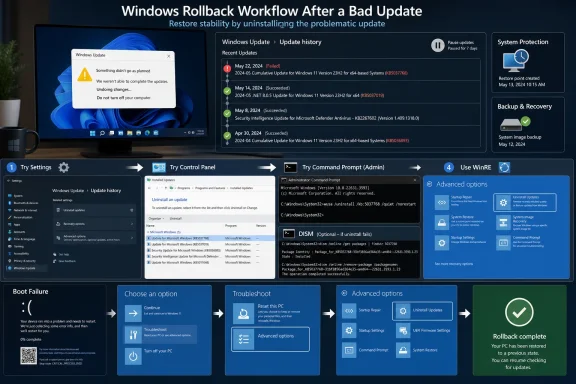
For a working system, the first stop is still Settings > Windows Update > Update history > Uninstall updates on Windows 11, or Settings > Update & Security > Windows Update > View update history on Windows 10.
The same uninstall list can also be reached from the old Control Panel path by running
Microsoft’s own support guidance says uninstalling a recent Windows update is a valid troubleshooting step when the update is causing errors or other problems. That does not mean every update can be removed, or that every post-update problem is actually caused by the update.
Before removing anything, note the KB number, check Microsoft’s release notes for known issues, and create a restore point if the system is stable enough.
The “Number” is the KB number without the “KB” prefix. Admins can find recent hotfixes with PowerShell:
That method is useful for targeted removals, but it has limits. Microsoft has bundled some Servicing Stack Updates with Latest Cumulative Updates, and Microsoft’s own update notes have previously warned that WUSA may not uninstall the LCU from a combined SSU/LCU package because the servicing stack portion is not removable.
In those cases, DISM may be required. The rough process is to list packages, identify the package identity for the relevant KB, and remove it with:
That is an admin-level repair step, not a casual tweak. Removing the wrong package can make recovery harder.
That is the safer first move for boot failures because it does not require signing in, launching Settings, or guessing at package names from a damaged desktop session.
If WinRE cannot remove the update, the next steps are standard recovery work: Startup Repair, System Restore if available, Safe Mode testing, or offline servicing with DISM by an experienced admin.
Users should also avoid blaming every new crash or slowdown on the latest patch. Driver conflicts, corrupted system files, antivirus hooks, incompatible apps, and marginal hardware can all surface after an update because system files and drivers changed around them.
A practical troubleshooting order is: confirm the KB and install date, check Microsoft’s release notes, update device drivers if the problem points to hardware, run SFC or DISM health checks if corruption is suspected, then uninstall the update only if the timing and symptoms line up.
For Windows 10 users, there is also a larger deadline in the background: free security updates ended on October 14, 2025, unless the device is covered by an extended update option, so repeated rollback problems may be a sign to plan a migration rather than keep fighting the patch cycle.
The advice is familiar to most admins, but useful because Windows update removal is no longer a single-path job. Some updates appear in the Settings app. Some are better handled through classic Control Panel views. Others require command-line tools, and some cumulative update packages cannot be removed with the older WUSA method at all.
 Start with the normal uninstall path
For a working system, the first stop is still Settings > Windows Update > Update history > Uninstall updates on Windows 11, or Settings > Update & Security > Windows Update > View update history on Windows 10.The same uninstall list can also be reached from the old Control Panel path by running
appwiz.cpl and choosing View installed updates. From there, users should sort by installation date, match the update to the start of the problem, and remove the suspect KB.Microsoft’s own support guidance says uninstalling a recent Windows update is a valid troubleshooting step when the update is causing errors or other problems. That does not mean every update can be removed, or that every post-update problem is actually caused by the update.
Before removing anything, note the KB number, check Microsoft’s release notes for known issues, and create a restore point if the system is stable enough.
When Settings is not enough
If the graphical uninstall path fails, Techworm points users to Windows Update Standalone Installer from an elevated Command Prompt:wusa /uninstall /kb:NumberThe “Number” is the KB number without the “KB” prefix. Admins can find recent hotfixes with PowerShell:
Get-HotFix | Select-Object HotFixID, InstalledOn, Description | Sort-Object InstalledOn -DescendingThat method is useful for targeted removals, but it has limits. Microsoft has bundled some Servicing Stack Updates with Latest Cumulative Updates, and Microsoft’s own update notes have previously warned that WUSA may not uninstall the LCU from a combined SSU/LCU package because the servicing stack portion is not removable.
In those cases, DISM may be required. The rough process is to list packages, identify the package identity for the relevant KB, and remove it with:
dism /online /remove-package /packagename:<PackageIdentity>That is an admin-level repair step, not a casual tweak. Removing the wrong package can make recovery harder.
If the PC will not boot
For machines that fail after an update, the relevant path is Windows Recovery Environment. After repeated failed starts, Windows should offer Troubleshoot > Advanced options > Uninstall Updates, where users can remove either the latest quality update or the latest feature update.That is the safer first move for boot failures because it does not require signing in, launching Settings, or guessing at package names from a damaged desktop session.
If WinRE cannot remove the update, the next steps are standard recovery work: Startup Repair, System Restore if available, Safe Mode testing, or offline servicing with DISM by an experienced admin.
Pause before Windows puts it back
The guide also recommends pausing Windows Update after removal so the same patch is not immediately reinstalled. That matters on consumer Windows systems, where update deferral controls are limited compared with managed business environments.Users should also avoid blaming every new crash or slowdown on the latest patch. Driver conflicts, corrupted system files, antivirus hooks, incompatible apps, and marginal hardware can all surface after an update because system files and drivers changed around them.
A practical troubleshooting order is: confirm the KB and install date, check Microsoft’s release notes, update device drivers if the problem points to hardware, run SFC or DISM health checks if corruption is suspected, then uninstall the update only if the timing and symptoms line up.
For Windows 10 users, there is also a larger deadline in the background: free security updates ended on October 14, 2025, unless the device is covered by an extended update option, so repeated rollback problems may be a sign to plan a migration rather than keep fighting the patch cycle.
References
- Primary source: TechWorm
Published: 2026-07-08T08:22:09.110132
Loading…
www.techworm.net - Official source: support.microsoft.com
Loading…
support.microsoft.com - Related coverage: techbloat.com
Loading…
www.techbloat.com - Related coverage: techyorker.com
Loading…
techyorker.com - Official source: techcommunity.microsoft.com
Loading…
techcommunity.microsoft.com - Related coverage: techbaked.com
Loading…
techbaked.com