

Microsoft’s 2025 Windows 11 updates read less like a single blockbuster release and more like a year-long series of practical, AI‑first refinements that changed how people actually use their PCs — from smarter, visual Copilot helpers to real recovery tools for when updates go wrong. The roundup below distills a dozen standout features highlighted in a recent industry piece and validates, verifies, and critiques each item with reporting from Microsoft and independent outlets.
Windows 11’s 2025 story was defined by two parallel moves: Microsoft pushing Copilot and agentic AI into the desktop experience, and shipping smaller, targeted quality-of-life improvements across the OS. That strategy meant the annual 25H2 package wasn’t a blockbuster of new UI paradigms; instead, Microsoft delivered a steady stream of capabilities via the Store, Insider channels, and staged updates — some available only on Copilot+ hardware with a Neural Processing Unit (NPU). This hardware tier is explicitly designed to run larger local models (Microsoft defines Copilot+ NPUs at roughly 40+ TOPS) and unlock lower-latency, privacy-focused on‑device AI. The rest of this article examines the 12 features called out in that industry piece, verifies the key claims with Microsoft and independent reporting, and offers practical analysis on value, caveats, and enterprise implications.
Source: PCMag The Best of Windows 11 in 2025: See the 12 New Features I Liked Most
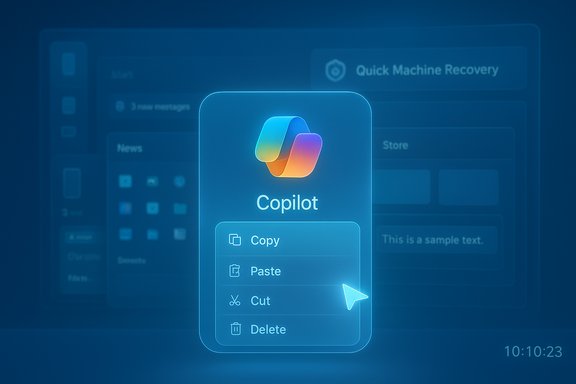 Background / Overview
Windows 11’s 2025 story was defined by two parallel moves: Microsoft pushing Copilot and agentic AI into the desktop experience, and shipping smaller, targeted quality-of-life improvements across the OS. That strategy meant the annual 25H2 package wasn’t a blockbuster of new UI paradigms; instead, Microsoft delivered a steady stream of capabilities via the Store, Insider channels, and staged updates — some available only on Copilot+ hardware with a Neural Processing Unit (NPU). This hardware tier is explicitly designed to run larger local models (Microsoft defines Copilot+ NPUs at roughly 40+ TOPS) and unlock lower-latency, privacy-focused on‑device AI. The rest of this article examines the 12 features called out in that industry piece, verifies the key claims with Microsoft and independent reporting, and offers practical analysis on value, caveats, and enterprise implications.1) Copilot Vision with Highlights
What it is
Copilot Vision lets Copilot “see” selected windows or screen regions, then guide you with natural language and visual cues. The Highlights subfeature overlays a large pointer or highlight on the UI to show the exact place to click or the control to change — effectively turning a text AI into an interactive coach. Microsoft documents the rollout and how to enable sharing through the Copilot app.Why it matters
This turns abstract instruction into concrete action: rather than describing which menu item to use, Copilot can point to it. That’s especially helpful for complex, multi‑step apps (video editors, pro creative apps) and for less technical users troubleshooting settings.Risks and limits
- The feature is opt‑in, but screen-sharing raises privacy concerns; the session model and explicit stop controls mitigate risks, yet admins should review policy and disclosure requirements in shared environments.
- Accuracy depends on UI stability across apps; legacy or heavily customized enterprise apps may not respond predictably.
2) Mobile Sidebar (Start menu + Phone Link integration)
What it is
A collapsible mobile sidebar in the Start menu surfaces phone battery, messages, calls, photos, and quick file transfer via Phone Link integration. On supported Android phones it can present folders and allow drag‑and‑drop file sends directly from Start. Microsoft and multiple Windows outlets confirm the Start menu’s new mobile‑sidebar toggle and Phone Link integration.Why it matters
Putting phone controls into the Start menu reduces context switches and consolidates cross‑device workflows. For users who regularly move content between phone and PC, this is a meaningful friction reduction.Risks and limits
- iPhone support remains more limited than Android due to platform constraints — expect better Android parity for file browsing and deep integration.
- Enterprises should consider data‑leakage implications when exposing phone contents to corporate PCs.
3) Copilot Wake Word — “Hey Copilot!”
What it is
Voice wake‑word support allows hands‑free Copilot activation with “Hey Copilot.” Microsoft’s rollout started with Insiders and then broadened; on‑device wake‑word detection uses a local buffer and requires an internet connection for query processing. Microsoft’s Windows and Insider blogs detail opt‑in setup and behavior.Why it matters
Hands‑free Copilot makes conversational workflows natural on the PC — helpful in cooking, meetings, or quick lookups without touching keyboard or mouse. The quality of voice tends to be high and replicates a modern assistant experience.Risks and limits
- Privacy mechanics: the wake-word detection runs locally but subsequent audio is processed in the cloud; admin policies and user disclosures should be clear for corporate machines.
- The feature requires the Copilot app and may be gated by region/language support initially.
4) Quick Machine Recovery (QMR)
What it is
Quick Machine Recovery is a resiliency feature that triggers when a PC cannot boot; the recovery environment reaches Microsoft servers, attempts to identify a remediation, and can download and apply a fix (or apply Known Issue Rollbacks) with minimal or no user intervention. Microsoft announced QMR as part of the Windows Resiliency Initiative after large‑scale incidents; vendor and security outlets have documented previews and guidance.Why it matters
QMR directly addresses the nightmare of a widespread buggy update or driver failure that leaves machines unbootable. For IT admins, the ability to remotely apply targeted fixes reduces downtime and the logistical burden of physical access.Risks and limits
- QMR depends on online recovery resources and Microsoft’s repair catalog. Hardware failures or root‑cause issues outside the scope of known fixes will still require manual repair.
- Enterprises should confirm how QMR is controlled by policy (enable/disable, telemetry, log uploads) to match compliance needs.
5) Search Files with Copilot (Natural‑language file search / Semantic Indexing)
What it is
Windows Search evolved with semantic indexing and on‑device models on Copilot+ PCs to support natural‑language file queries. You can describe a file (“the spreadsheet with the Q2 invoices and my name in it”) and get relevant results even without the exact filename. The Verge, Microsoft, and other outlets tracked the AI search experiments and staged rollout.Why it matters
This reduces time spent remembering filenames and improves discoverability across local and (eventually) cloud locations such as OneDrive. For power users and knowledge workers, better search is a huge productivity multiplier.Risks and limits
- On‑device capabilities are strongest on Copilot+ NPUs; non‑NPU machines may get limited versions or cloud‑backed features.
- Indexing choices and privacy settings matter: admins and users should carefully configure what folders get indexed.
6) Paint: Layers, .paint project files, and AI image generation
What it is
Paint has grown from a basic raster editor to a layered tool with per‑layer controls and a .paint project format that preserves layers between sessions. Microsoft’s Windows App SDK features and Insider announcements also document integrated AI image generation APIs (Stable Diffusion / Foundry‑based), enabling text‑to‑image and generative fill workflows. Independent reporting and Insider notes corroborate the new project file support and AI capabilities.Why it matters
For hobbyists and casual creators, Paint’s layers and project save eliminate the need for a Photoshop subscription for simple multi‑layer workflows. On Copilot+ machines the local NPU can accelerate generative features and keep sensitive imagery local.Risks and limits
- Paint remains a lightweight editor; professionals needing advanced color management, channels, or non‑destructive transforms will still prefer dedicated tools.
- AI image generation introduces copyright and content‑policy considerations that users should understand before publishing outputs.
7) The Many Windows Accessibility Upgrades
What it is
Microsoft shipped a suite of accessibility improvements: better voice interactions (custom dictionaries, adjusted action delays, Parkinson’s‑friendly recognition), Live Transcription, richer image descriptions in Narrator, and a Screen Curtain mode for private narration. Many of these capabilities are enhanced on Copilot+ devices where on‑device models provide lower latency and offline operation. Microsoft’s accessibility recap and Insider notes verify the changes.Why it matters
These are practical, real‑world improvements for people with disabilities. Richer image descriptions, for example, make charts and infographics accessible without waiting for author‑provided alt text; Screen Curtain offers privacy for public use cases.Risks and limits
- Some premium accessibility features leverage cloud services for best accuracy; offline functioning varies by device and model availability.
- Organizations must validate compliance needs (FERPA, HIPAA) when using transcription and description features in regulated contexts.
8) A Stronger Microsoft Store: AI Hub, More Big Names, and Themes
What it is
The Microsoft Store received a UX refresh, an AI Hub to surface AI apps, improved personalized recommendations, and new themed content sections. Microsoft’s year‑end Store blog lists new arrivals (Noteastic, Adobe Premiere Elements in the Store, Fortnite, and others) and the AI Hub rollout; press coverage corroborates the push to make the Store a primary distribution channel.Why it matters
A healthier Store benefits users (simpler installs, central updates) and admins (Intune/Store for Business deployment scenarios). The AI Hub helps users navigate the growing field of agent and generation apps.Risks and limits
- Developer participation remains uneven across regions and app categories.
- The Store’s history of inconsistent policy enforcement means administrators and privacy‑conscious users should vet high‑value apps carefully.
9) Notepad: Formatting, Tabs, and Copilot Integration
What it is
Notepad shed its plain‑text minimalism and gained basic formatting (bold, italic, Markdown preview), tabs with autosave, links, and integrated Copilot actions such as Summarize and Rewrite. These features rolled out in Insider builds and through staged app updates. Coverage from PureInfotech, TechPowerUp, and other outlets confirmed the changes and Copilot hooks.Why it matters
Notepad remains the fastest thing that opens; these enhancements let it handle lightweight drafting, quick rewrites, and short‑form tasks without opening a larger editor. For many users this replaces a cloud‑backed AI note flow with a local, fast tool.Risks and limits
- Feature creep risks diluting Notepad’s original purpose for users who prefer a minimal scratchpad.
- AI features may require a Microsoft account or subscription credits for heavy use.
10) Security Improvements: AI SmartScreen, Agent Protections, and Hotpatching
What it is
Microsoft upgraded Defender and SmartScreen with AI‑driven detections (e.g., Edge’s scareware blocker), added AI agent protection tooling in Defender to inventory and govern deployed agents, and expanded Hotpatch/restart‑free patching for enterprise devices to reduce forced reboots. Microsoft security blogs and third‑party coverage document agent protections and hotpatch availability for Enterprise.Why it matters
- AI detection helps identify novel scams and evasive phishing pages.
- Agent protections address a fast‑growing attack surface as organizations deploy more autonomous agents.
- Hotpatching reduces downtime and continuity risk for enterprises.
Risks and limits
- No single defensive measure is foolproof; organizations must maintain layered security posture and continuous monitoring.
- Hotpatch availability is primarily for Enterprise-managed environments with Intune/Autopatch; small businesses and consumers may not benefit equally.
11) Xbox Full Screen Mode (FSE) for Handhelds and Broader PC Preview
What it is
The Full Screen Experience (FSE) is a console‑style, controller‑first UI that can boot a Windows handheld directly into the Xbox app and reduce background processes for gaming. It launched with the ROG Xbox Ally, and Microsoft expanded FSE to other handhelds and previewed it for laptops and tablets. Xbox press notes and gaming outlets cover the staged rollout and toggles.Why it matters
For handheld gamers who want a console‑like experience and better battery/performance tradeoffs, FSE reduces friction and tailors the Windows stack to gaming scenarios.Risks and limits
- FSE is an alternate shell; some desktop services and app workflows behave differently in that mode.
- Gamers should test specific titles and overlays (Discord, overlays) to confirm compatibility.
12) Seconds in the Taskbar Clock
What it is
A subtle but practical change: an option to display seconds in the system‑tray clock (or in the Notification Center) for precise timing needs. After community pressure and Insider testing, Microsoft restored an opt‑in seconds display in updates during 2025; guides and coverage document how to enable it and the preview KBs that brought parity back to multi‑monitor setups.Why it matters
This is a small UX win for anyone who times short intervals (meetings, tests, or simple experiments) and for multi‑monitor users who need consistent clock behavior across screens.Risks and limits
- Showing seconds increases minor CPU wake events and modestly affects battery life on laptops; Windows notes the power trade‑off in the setting description.
Cross‑cutting analysis: Strengths, tradeoffs, and enterprise concerns
- Strengths
- Microsoft’s 2025 updates delivered practical wins: improved discoverability (search), recoverability (QMR), and accessibility (Narrator updates). The strategy of staged rollouts and Copilot+ hardware lets Microsoft iterate quickly and distribute advanced AI where hardware supports low‑latency on‑device models.
- The Microsoft Store improvements and the arrival of larger apps add real value for users who want centralized, secure app management.
- Tradeoffs and risks
- Hardware bifurcation: features gated to Copilot+ PCs (40+ TOPS NPUs) create a two‑tier Windows experience. That’s positive for capability but risks fragmentation and longer waits for mainstream devices. Independent press and Microsoft confirm the gating strategy; admins should plan for mixed fleets.
- Privacy and governance: vision features, wake‑word audio flow, and Recall‑style snapshots are powerful but require clear consent, data‑handling rules, and controls for regulated environments. Microsoft’s docs emphasize opt‑in design, but organizations should still validate settings and contracts.
- Cloud vs on‑device inference: while NPUs enable offline or private inference, several features still rely on cloud models for best results — expect a mixture of on‑device and cloud processing and plan networks and identity accordingly.
Practical recommendations
- Evaluate Copilot+ value proposition before purchasing: if your workflows expect heavy on‑device AI (semantic search, offline summarization, image generation), Copilot+ devices are worth testing.
- Pilot Quick Machine Recovery in a controlled test pool: QMR is a clear win for resilience but needs policy decisions (log uploads, repair scope) before broad enablement.
- Audit Copilot/vision settings and train users: visibility into when screen sharing, transcription, or wake‑word activation occurs reduces support tickets and privacy incidents.
- Review Hotpatch eligibility for enterprise fleets and align with patch policies: restart‑free patching reduces downtime but has prerequisites and management requirements.
- Treat Store‑distributed apps the same as external software: vet permissions and update policies, and use Intune or store business controls when possible.
What’s next for Windows?
Microsoft’s trajectory is clear: Windows will continue to embed AI into core workflows — conversational assistants, vision helpers, and agentic automations — while balancing user control and enterprise manageability. Whether Windows 12 appears or not, the platform is evolving into an “AI PC” ecosystem with staged hardware and software differentiation. Expect more agent governance tooling, deeper Copilot integrations, and broader FSE and gaming optimizations as Microsoft iterates through Insider feedback and enterprise pilots.Conclusion
2025’s Windows 11 updates weren’t defined by one headline feature but by a consistent push to make the OS smarter, more resilient, and more accessible. From Copilot Vision that points where to click to Quick Machine Recovery that helps repair unbootable PCs, the year’s work represents meaningful progress for everyday users and IT teams. The hardware bifurcation around Copilot+ NPUs and the privacy questions that come with richer screen and voice features are the clearest challenges ahead — but when weighed against the productivity and resiliency gains, the updates make a persuasive case that Windows is becoming a more capable, context-aware platform for the next era of computing.Source: PCMag The Best of Windows 11 in 2025: See the 12 New Features I Liked Most
