

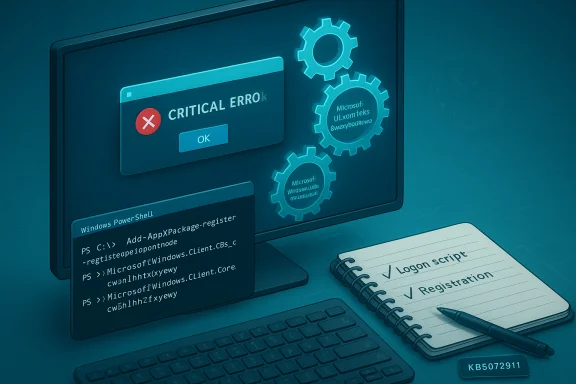
Microsoft has officially acknowledged a serious provisioning regression in Windows 11 that can leave the desktop crippled — Start Menu failing with “critical error,” Taskbar missing, File Explorer crashing or refusing to launch, and Settings silently failing — and the vendor’s short-term remedy is a set of manual package re‑registration steps and logon scripts while a permanent patch is developed.
Since mid‑2025 Microsoft began delivering cumulative updates that modularize portions of the Windows shell into updatable AppX/XAML packages. That modular delivery model allows Microsoft to update UI components faster, but it adds a registration step during servicing that must complete before interactive shell processes initialize. Microsoft’s support article KB5072911 confirms that, when a Windows 11 version 24H2 device is provisioned with any monthly cumulative update released on or after the July 2025 rollup (community tracking: KB5062553), certain XAML packages may not register in time for the first interactive logon — creating a timing (race) condition that prevents Start Menu, Taskbar, File Explorer, Settings and other XAML‑backed UI from initializing correctly. This is not merely a cosmetic failure. The affected packages named by Microsoft include:
The regression is a classic ordering/timing race:
The incident highlights the operational hazards that accompany modular servicing at scale. Organizations that treat updates as invisible infrastructure events will feel the pain first; those that stage updates, test provisioning flows and maintain robust rollback or orchestration controls will weather the issue more easily. Until Microsoft issues a permanent fix, careful staging, the temporary re‑registration and synchronous logon script mitigations, and conservative deployment policies remain the most reliable defenses.
Conclusion: the problem is real, Microsoft has acknowledged it, and documented mitigations exist — but the ideal fix is a vendor patch that eliminates the registration race at the servicing layer. In the interim, IT teams must act defensively: validate images, apply Microsoft’s logon script where necessary, stage updates tightly, and prepare help‑desk runbooks to recover affected endpoints quickly.
Source: TechWorm Microsoft Windows 11’s Latest Bug Knocks Out Start Menu, File Explorer
 Background / Overview
Since mid‑2025 Microsoft began delivering cumulative updates that modularize portions of the Windows shell into updatable AppX/XAML packages. That modular delivery model allows Microsoft to update UI components faster, but it adds a registration step during servicing that must complete before interactive shell processes initialize. Microsoft’s support article KB5072911 confirms that, when a Windows 11 version 24H2 device is provisioned with any monthly cumulative update released on or after the July 2025 rollup (community tracking: KB5062553), certain XAML packages may not register in time for the first interactive logon — creating a timing (race) condition that prevents Start Menu, Taskbar, File Explorer, Settings and other XAML‑backed UI from initializing correctly. This is not merely a cosmetic failure. The affected packages named by Microsoft include:- MicrosoftWindows.Client.CBS_cw5n1h2txyewy
- Microsoft.UI.Xaml.CBS_8wekyb3d8bbwe
- MicrosoftWindows.Client.Core_cw5n1h2txyewy
Timeline: how this unfolded
- July 8, 2025 — Microsoft shipped the monthly cumulative rollup commonly tracked as KB5062553 for Windows 11 24H2; community reports later associated this servicing wave with the emergence of shell and XAML initialization issues.
- Over the subsequent months administrators and users reported Start Menu crashes, missing taskbar windows, Explorer crashes and other XAML view failures — especially during provisioning scenarios and in non‑persistent VDI images. Multiple community threads and enterprise help‑desk reports reproduced the pattern and traced it back to the July servicing cycle.
- November 2025 — Microsoft published support article KB5072911 to formally acknowledge the problem, describe the technical cause (XAML package registration timing), and publish temporary mitigations (manual re‑registration and a synchronous logon script). Microsoft states a resolution is being worked on but does not supply a permanent fix or an ETA in the KB.
What exactly breaks — symptom checklist
The class of failures documented in KB5072911 is broad because it affects the OS components that host XAML UI. Common, high‑visibility symptoms reported and documented include:- Start Menu fails to open or shows “critical error” dialogs.
- Taskbar is missing or blank even though explorer.exe appears in Task Manager.
- File Explorer (explorer.exe) crashes, hangs, or fails to display folder content.
- System Settings (Start → Settings → System) silently fails to launch.
- ShellHost.exe / StartMenuExperienceHost crashes during XAML view initialization.
- Applications that embed XAML islands or rely on the XAML runtime may also fail to initialize their UI.
Who is affected — scope and risk profile
- Windows 11, version 24H2: Microsoft’s KB explicitly targets devices provisioned with cumulative updates released on or after July 2025 (starting with KB5062553). The advisory is written for 24H2 devices.
- Windows 11, version 25H2: Several independent outlets and community reports note that 25H2 shares the same core components and therefore can also be affected. Enterprises running 25H2 should assume risk parity and test for the same symptoms during provisioning workflows. This cross‑branch exposure is expected because later feature updates are often delivered as enablement packages atop the same platform binaries. Note: the degree of risk for any specific 25H2 image depends on how packages are provisioned in that environment; confirm by testing before broad rollout.
- Non‑persistent environments (VDI, instant‑clone pools, Cloud PC): These are the highest‑risk environments because AppX/XAML packages are often installed or registered at each user logon; the registration race therefore can appear on every sign‑in. Microsoft explicitly calls out non‑persistent OS installations as a scenario where the failure occurs for every logon.
- Newly provisioned devices: Devices that run a cumulative update as part of provisioning and immediately proceed into the first interactive logon are at elevated risk because there is little time for asynchronous registration to finish before shell processes start.
Why this happens — the technical anatomy
Windows’ shell is increasingly modular. Rather than shipping everything inside a monolithic explorer.exe binary, Microsoft delivers many user‑facing components as updatable AppX/XAML packages. During a servicing cycle (LCU/SSU), these packages are replaced on disk and must then be registered into the active user session so COM/XAML activation can resolve types and instantiate UI elements.The regression is a classic ordering/timing race:
- Service replaces XAML/AppX packages on disk.
- The OS must register those packages into the interactive session (this registration step can be asynchronous and is subject to processing delays).
- Explorer.exe, StartMenuExperienceHost, ShellHost/SiHost or other shell processes start and attempt XAML activation. If those activation calls arrive before package registration completes, activation fails and the UI either throws runtime errors or renders nothing — producing the “critical error”, blank taskbar, or Explorer crashes described above.
Microsoft’s official response and mitigations
Microsoft’s KB5072911 acknowledges the issue and provides two primary mitigation approaches:- Manual re‑registration (for persistent devices): Run Add‑AppxPackage registration commands in an elevated PowerShell session to register each missing package, then restart SiHost.exe so Immersive Shell reloads the registered packages. The commands Microsoft published are:
Add-AppxPackage -Register -Path 'C:\Windows\SystemApps\MicrosoftWindows.Client.CBS_cw5n1h2txyewy\appxmanifest.xml' -DisableDevelopmentMode
Add-AppxPackage -Register -Path 'C:\Windows\SystemApps\Microsoft.UI.Xaml.CBS_8wekyb3d8bbwe\appxmanifest.xml' -DisableDevelopmentMode
Add-AppxPackage -Register -Path 'C:\Windows\SystemApps\MicrosoftWindows.Client.Core_cw5n1h2txyewy\appxmanifest.xml' -DisableDevelopmentMode. - Synchronous logon script (for non‑persistent VDI/Cloud PCs): A batch wrapper that runs PowerShell Add‑AppxPackage registration calls synchronously during logon, before explorer.exe is allowed to launch. Microsoft’s sample uses powershell.exe -ExecutionPolicy Bypass -Command "Add-AppxPackage -Register -Path '<path>' -DisableDevelopmentMode" wrapped in a @echo off batch file to ensure the registration completes before the shell starts. Microsoft notes this prevents explorer.exe from starting prematurely and thus prevents the race from occurring.
Step‑by‑step: safe application of Microsoft’s temporary workarounds
The commands below appear in Microsoft’s KB and are reproduced here for clarity; they must be run with administrative privileges and in test environments first.- Test in a lab image, not production. Confirm that the affected files exist at the paths Microsoft lists: C:\Windows\SystemApps[package_folder]\appxmanifest.xml. If the manifest is missing, do not attempt registration and open an admin troubleshooting case.
- On a persistent desktop (one that retains app registrations), open PowerShell as Administrator and run:
1. Add-AppxPackage -Register -Path 'C:\Windows\SystemApps\MicrosoftWindows.Client.CBS_cw5n1h2txyewy\appxmanifest.xml' -DisableDevelopmentMode
2. Add-AppxPackage -Register -Path 'C:\Windows\SystemApps\Microsoft.UI.Xaml.CBS_8wekyb3d8bbwe\appxmanifest.xml' -DisableDevelopmentMode
3. Add-AppxPackage -Register -Path 'C:\Windows\SystemApps\MicrosoftWindows.Client.Core_cw5n1h2txyewy\appxmanifest.xml' -DisableDevelopmentMode
After those commands complete, restart the Shell Infrastructure Host (SiHost.exe) or sign out and sign back in so the shell picks up the newly registered packages. - In non‑persistent VDI farms, package the three Add‑AppxPackage commands into a synchronous logon script that runs before explorer.exe launches. Microsoft’s sample batch wrapper runs the PowerShell commands with -ExecutionPolicy Bypass to ensure the commands run uninterrupted; test script behavior thoroughly because the ExecutionPolicy Bypass flag weakens script execution safeguards.
- Monitor event logs and shell behavior after applying these steps. If issues persist or if package manifests are absent/corrupted, escalate to Microsoft Support with diagnostic logs and image details.
- Running Add‑AppxPackage incorrectly can alter package registrations; always test on a non‑production image first.
- Use the minimum privileges required and avoid indiscriminate ExecutionPolicy Bypass unless managed and audited.
- Reboot or restart SiHost only after verifying package re‑registration completes successfully.
Enterprise remediation checklist (recommended)
- Pause mass deployment of cumulative updates to provisioning/VDI images until the fix is released, or stage rollout in a canary group. Lab validation should include first‑logon scenarios and non‑persistent image tests.
- If immediate rollout is required, implement the synchronous logon script Microsoft provides and ensure logging and alerting for failed registration attempts.
- Use WSUS / SCCM / Microsoft Endpoint Configuration Manager to hold updates for provisioning images until validation succeeds. Document and track KBs applied to production images.
- Communicate with service desk: provide triage steps (check Task Manager for explorer.exe, attempt SiHost restart, attempt registration commands if safe) and triage scripts to gather logs for escalation.
- For critical users, consider provisioning with the latest known-good image (pre‑July cumulative) or rollback the LCU from the image (note: removing combined SSU+LCU packages often requires DISM / Remove‑Package; consult Microsoft’s KB for removal guidance).
Critical analysis — strengths, risks and what this means for Microsoft’s servicing model
Strengths:- Microsoft’s modular approach to shell components has clear advantages: smaller, targeted updates for UI elements, faster iteration and security fixes without requiring full OS feature updates. In principle, this is a modern way to maintain a complex platform.
- The update→register→start sequence introduces an operational dependency on timely package registration. When that sequence fails, the resulting symptom set is disproportionately visible because it affects the primary desktop control surface. This makes the risk to provisioning and VDI workflows systemic rather than isolated.
- The delay between first community reports (post‑July) and Microsoft’s formal advisory (published in November) widened the impact window for enterprises that provisioned at scale during that interval. That delay also increased help‑desk load and undermined confidence in update safety for some administrators.
- Temporary mitigations require administrative effort — synchronous logon scripts, custom orchestration in VDI farms, or manual re‑registration — which is operationally expensive and potentially fragile if not managed as part of a controlled change process.
- Microsoft’s recommended logon script uses powershell.exe -ExecutionPolicy Bypass. While practical, ExecutionPolicy Bypass disables one of Windows’ scripting controls and should be used only in tightly controlled environments with robust auditing. Enterprises should use signed logon scripts and device configuration controls where possible.
- For many organizations, the incident reinforces the need for staged update rollouts and robust pre‑provisioning verification. It also raises questions about how modularization testing is conducted across provisioning edge cases (non‑persistent VDI, instant clone pools, cloud‑based provisioning). Achieving the speed benefits of modular updates requires stronger end‑to‑end validation of registration ordering in real‑world provisioning scenarios.
Practical Q&A (concise)
- Can end users fix this by themselves?
- For persistent, single‑user PCs: advanced users can run the Add‑AppxPackage registration commands in an elevated PowerShell session and restart SiHost as described in Microsoft’s KB. However, this requires admin rights and should be tested first.
- Is there a permanent fix or patch available now?
- As of Microsoft’s publication of KB5072911, Microsoft is working on a resolution but has not published a permanent fix or ETA. Keep an eye on Microsoft’s support channels for a formal patch.
- Should organizations uninstall KB5062553 or subsequent LCUs?
- Uninstalling LCUs may be possible using DISM/Remove‑Package or wusa /uninstall where supported; but removing combined SSU+LCU packages is non‑trivial and may not always be feasible. Enterprises should follow Microsoft guidance for LCU removal and validate the consequences in lab images.
- Is 25H2 definitely affected?
- Microsoft’s KB is explicitly targeted at 24H2. Multiple independent reports note that 25H2 shares the same underlying platform so it may exhibit the same failure modes; therefore test 25H2 provisioning images as if they are potentially affected. This statement is corroborated by independent outlets and community testing.
Recommendations — what administrators and knowledgeable users should do now
- Immediate: If provisioning/VDI workflows are in use, implement the synchronous logon script mitigation and test thoroughly in a canary pool before broad rollout.
- Short term: Pause or stage deployment of cumulative updates to new images until the fix is available; use WSUS/Configuration Manager to control distribution.
- Operational: Update runbooks for help‑desk triage to include the re‑registration steps and SiHost restart, and preload diagnostic capture scripts to collect event logs quickly for escalation.
- Security posture: Avoid using ExecutionPolicy Bypass in unmanaged contexts; sign and centrally manage any logon scripts and monitor script execution.
- Longer term: Reassess imaging and provisioning validation to include first logon XAML activation tests, and coordinate with Microsoft support for a permanent patch timetable.
Final assessment
The provisioning regression Microsoft documented in KB5072911 is a high‑impact but narrowly understood class of failure: not corrupt files, not a malware campaign, but a timing/race condition that trips when modular XAML/AppX packages are updated and their registration lags behind shell process startup. Microsoft’s published mitigations are practical and actionable, but they shift the burden to administrators — particularly those running non‑persistent VDI or large provisioning pipelines.The incident highlights the operational hazards that accompany modular servicing at scale. Organizations that treat updates as invisible infrastructure events will feel the pain first; those that stage updates, test provisioning flows and maintain robust rollback or orchestration controls will weather the issue more easily. Until Microsoft issues a permanent fix, careful staging, the temporary re‑registration and synchronous logon script mitigations, and conservative deployment policies remain the most reliable defenses.
Conclusion: the problem is real, Microsoft has acknowledged it, and documented mitigations exist — but the ideal fix is a vendor patch that eliminates the registration race at the servicing layer. In the interim, IT teams must act defensively: validate images, apply Microsoft’s logon script where necessary, stage updates tightly, and prepare help‑desk runbooks to recover affected endpoints quickly.
Source: TechWorm Microsoft Windows 11’s Latest Bug Knocks Out Start Menu, File Explorer
