

Verdict: pilot Windows 11 26H1 Multi-App Camera on eligible new hardware, but do not migrate an existing Windows 11 24H2 or 25H2 kiosk fleet solely to obtain it. The important change in Release Preview build 28000.2333 is centralized Group Policy control over Multi-App Camera and Basic Camera modes—not merely the ability to share a webcam between applications.
Administrators testing build 28000.2333 can configure the feature through Group Policy:
Multi-App Camera allows multiple applications to consume one camera stream simultaneously. Microsoft first introduced the capability in Windows 11 Dev build 26120.2702 on December 13, 2024, initially presenting it as an advanced camera option and highlighting an accessibility scenario in which video could reach both a sign-language interpreter and an audience.
That original capability was useful, but a user-facing setting alone was not enough for many managed environments. A kiosk, reception terminal, telehealth station, training-room PC, or shared collaboration endpoint should not depend on each local user selecting and preserving the correct camera mode.
Build 28000.2333 changes the deployment discussion because administrators can now choose between two operating modes centrally. Multi-App Camera supports simultaneous access, while Basic Camera provides simplified functionality for troubleshooting or improving stability when a camera is not working correctly.
The policy creates a consistent control point across managed devices. It also gives support teams a defined fallback: if a camera or application combination behaves poorly with shared access, IT can test Basic Camera mode instead of relying on users to locate an advanced setting.
Earlier WindowsForum coverage followed Multi-App Camera through its preview development, including its initial positioning for Windows 11 24H2 and the accessibility and flexibility promised by the Insider implementation. The sharper enterprise story now is that camera behavior can become an administrative decision rather than an endpoint preference.
Multi-app kiosk, implemented through Assigned Access, creates a restricted-user experience in which designated applications are available to the kiosk account. It is supported on Windows 11 Pro, Enterprise, Education, IoT Enterprise, and LTSC variants. Multi-App Camera, by contrast, determines whether more than one permitted application can access the same camera stream.
Administrators therefore need both parts of the design:
The verified release information does not provide a compatibility matrix, supported-camera list, or application-specific results. IT teams should treat those omissions as testing requirements rather than assume universal interoperability.
An organization cannot treat 26H1 like a conventional feature update that can be approved for an installed fleet through its existing rollout rings. Microsoft’s own IT guidance says 24H2 and 25H2 remain the recommended releases for enterprise deployment, while 26H1 may be adopted selectively with new hardware.
The sensible deployment boundary is therefore the hardware purchase. If an organization is already evaluating a new 26H1 device for a reception area, accessible service point, training room, or shared communications station, Multi-App Camera belongs in the acceptance tests. If the existing equipment is functioning on 24H2 or 25H2, shared camera access alone is not a sufficient reason to replace or reimage it.
This also corrects some of the expectations created during the feature’s earlier preview cycle. Multi-App Camera appeared while WindowsForum and other Windows watchers were tracking 24H2-era Insider builds, including build 26120.1542 and its camera-streaming preview. Its presence in those builds did not make 26H1 a normal upgrade destination for existing 24H2 systems.
The test should answer several concrete questions. Do both approved applications obtain the stream in either launch order? Does the camera remain available after one application closes? Does the restricted account retain the intended experience after restart? Can support staff restore usable operation by applying Basic Camera mode?
IT should also test the administrative boundary. The purpose of Group Policy control is to prevent camera behavior from becoming an inconsistent local choice, so the pilot should verify that the managed configuration remains authoritative throughout the device lifecycle.
Basic Camera deserves deliberate testing rather than being treated as a footnote. Microsoft describes it as simplified camera functionality useful for troubleshooting or improving stability. For a kiosk whose primary requirement is predictable single-application capture, Basic Camera may be the more appropriate managed setting even when Multi-App Camera is available.
There is also a release-channel caveat. Microsoft documented the policy in Release Preview build 28000.2333 on June 12, 2026. The available facts do not establish a later broadly deployed production build containing the policy, so administrators should verify its presence on the exact 26H1 image and update level supplied with a candidate device.
For installed 24H2 and 25H2 fleets, the answer remains wait rather than migrate for this feature. Continue operating those devices on their supported release, monitor where Microsoft brings equivalent management controls next, and evaluate Multi-App Camera when a normal hardware refresh or supported Windows servicing path makes it available.
The next meaningful milestone is not another demonstration of two applications displaying the same video. It is confirmation that Configure Camera Options has reached the production builds and hardware combinations enterprises can actually standardize—without turning a camera convenience into an unsupported fleet migration.
Administrators testing build 28000.2333 can configure the feature through Group Policy:
- Open the Local Group Policy Editor or the corresponding domain Group Policy Object.
- Navigate to
Computer Configuration > Administrative Templates > Windows Components > Camera. - Open
Configure Camera Options. - Configure the policy to select Multi-App Camera mode or Basic Camera mode.
- Apply the policy to a limited pilot group containing the actual camera models, applications, and restricted-user configurations intended for deployment.
- Confirm that simultaneous camera access works as expected before expanding the policy beyond the pilot.
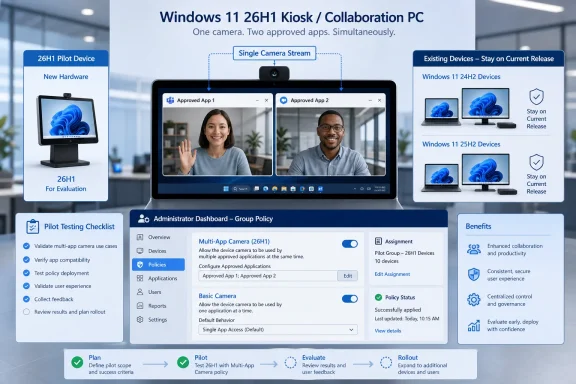 Central Policy Is the Operational Upgrade
Multi-App Camera allows multiple applications to consume one camera stream simultaneously. Microsoft first introduced the capability in Windows 11 Dev build 26120.2702 on December 13, 2024, initially presenting it as an advanced camera option and highlighting an accessibility scenario in which video could reach both a sign-language interpreter and an audience.That original capability was useful, but a user-facing setting alone was not enough for many managed environments. A kiosk, reception terminal, telehealth station, training-room PC, or shared collaboration endpoint should not depend on each local user selecting and preserving the correct camera mode.
Build 28000.2333 changes the deployment discussion because administrators can now choose between two operating modes centrally. Multi-App Camera supports simultaneous access, while Basic Camera provides simplified functionality for troubleshooting or improving stability when a camera is not working correctly.
The policy creates a consistent control point across managed devices. It also gives support teams a defined fallback: if a camera or application combination behaves poorly with shared access, IT can test Basic Camera mode instead of relying on users to locate an advanced setting.
Earlier WindowsForum coverage followed Multi-App Camera through its preview development, including its initial positioning for Windows 11 24H2 and the accessibility and flexibility promised by the Insider implementation. The sharper enterprise story now is that camera behavior can become an administrative decision rather than an endpoint preference.
A Kiosk Configuration Does Not Automatically Share Its Camera
Multi-App Camera and Windows multi-app kiosk mode solve different problems. Turning on one does not configure the other.Multi-app kiosk, implemented through Assigned Access, creates a restricted-user experience in which designated applications are available to the kiosk account. It is supported on Windows 11 Pro, Enterprise, Education, IoT Enterprise, and LTSC variants. Multi-App Camera, by contrast, determines whether more than one permitted application can access the same camera stream.
Administrators therefore need both parts of the design:
- Assigned Access must permit and expose the applications required by the kiosk workflow.
- Configure Camera Options must select the camera behavior appropriate for those applications.
- The pilot must verify the complete application, camera, policy, and restricted-user combination.
The verified release information does not provide a compatibility matrix, supported-camera list, or application-specific results. IT teams should treat those omissions as testing requirements rather than assume universal interoperability.
Windows 11 26H1 Is Not a Fleet Upgrade Path
Microsoft says Windows 11 26H1 is intended for new devices and is not offered as an in-place update from Windows 11 24H2 or 25H2. That makes a feature-driven migration plan impractical for most existing kiosk and meeting-room estates.An organization cannot treat 26H1 like a conventional feature update that can be approved for an installed fleet through its existing rollout rings. Microsoft’s own IT guidance says 24H2 and 25H2 remain the recommended releases for enterprise deployment, while 26H1 may be adopted selectively with new hardware.
The sensible deployment boundary is therefore the hardware purchase. If an organization is already evaluating a new 26H1 device for a reception area, accessible service point, training room, or shared communications station, Multi-App Camera belongs in the acceptance tests. If the existing equipment is functioning on 24H2 or 25H2, shared camera access alone is not a sufficient reason to replace or reimage it.
This also corrects some of the expectations created during the feature’s earlier preview cycle. Multi-App Camera appeared while WindowsForum and other Windows watchers were tracking 24H2-era Insider builds, including build 26120.1542 and its camera-streaming preview. Its presence in those builds did not make 26H1 a normal upgrade destination for existing 24H2 systems.
The Pilot Must Reproduce the Real Workload
A useful pilot needs more than opening two generic applications and confirming that both display video. Administrators should reproduce the intended session from sign-in through sign-out, using the production camera model and the same Assigned Access configuration planned for deployment.The test should answer several concrete questions. Do both approved applications obtain the stream in either launch order? Does the camera remain available after one application closes? Does the restricted account retain the intended experience after restart? Can support staff restore usable operation by applying Basic Camera mode?
IT should also test the administrative boundary. The purpose of Group Policy control is to prevent camera behavior from becoming an inconsistent local choice, so the pilot should verify that the managed configuration remains authoritative throughout the device lifecycle.
Basic Camera deserves deliberate testing rather than being treated as a footnote. Microsoft describes it as simplified camera functionality useful for troubleshooting or improving stability. For a kiosk whose primary requirement is predictable single-application capture, Basic Camera may be the more appropriate managed setting even when Multi-App Camera is available.
There is also a release-channel caveat. Microsoft documented the policy in Release Preview build 28000.2333 on June 12, 2026. The available facts do not establish a later broadly deployed production build containing the policy, so administrators should verify its presence on the exact 26H1 image and update level supplied with a candidate device.
Deployment Should Follow the Device, Not the Feature
For new 26H1 collaboration hardware, the policy is worth validating now because it addresses a real management gap. Central selection of Multi-App Camera can support workflows where two approved applications genuinely need the same webcam, while Basic Camera offers a centrally selected troubleshooting or stability mode.For installed 24H2 and 25H2 fleets, the answer remains wait rather than migrate for this feature. Continue operating those devices on their supported release, monitor where Microsoft brings equivalent management controls next, and evaluate Multi-App Camera when a normal hardware refresh or supported Windows servicing path makes it available.
The next meaningful milestone is not another demonstration of two applications displaying the same video. It is confirmation that Configure Camera Options has reached the production builds and hardware combinations enterprises can actually standardize—without turning a camera convenience into an unsupported fleet migration.
References
- Primary source: learn.microsoft.com
Camera release notes - Windows Insider Program | Microsoft Learn
Release notes for Camera app updates in Windows Insider builds.learn.microsoft.com - Independent coverage: support.microsoft.com
Manage app permissions for a camera in Windows | Microsoft Support
Manage app permissions for a camera in Windows.support.microsoft.com - Independent coverage: blogs.windows.com
- Independent coverage: elevenforum.com
Enable or Disable Multiple Apps to Use Camera in Windows 11 | Windows 11 Forum
This tutorial will show you how to turn on or off allowing multiple apps to use camera at the same time for your account or all users in Windows 11...www.elevenforum.com - Independent coverage: techcommunity.microsoft.com
- Primary source: WindowsForum
Windows 11 24H2 Update: Features Multi-App Camera Access for Enhanced Streaming | Windows Forum
In a significant update for Windows 11 users, the anticipated 24H2 release will introduce the ability for multiple applications to access the camera...windowsforum.com
