

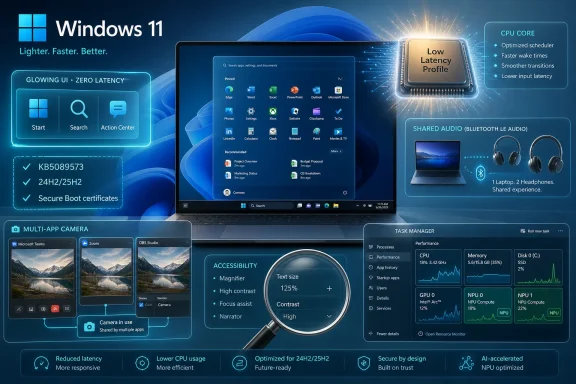
Microsoft released KB5089573 on May 26, 2026, as an optional preview cumulative update for Windows 11 versions 24H2 and 25H2, bringing builds 26100.8524 and 26200.8524 with faster shell interactions, Shared Audio, Multi-App Camera support, accessibility improvements, and servicing fixes. The update is not merely another grab bag of Windows maintenance notes. It is Microsoft trying to prove that Windows 11 can feel less heavy without asking users to buy a new PC, reinstall the OS, or wait for a marketing-branded successor. The real story is not one feature; it is the company admitting, feature by feature, that responsiveness has become a product problem.
For years, Windows users have complained about a strange contradiction: the hardware kept getting faster, while the operating system often felt less immediate. A modern Windows 11 machine can have performance cores, efficiency cores, NVMe storage, fast memory, and a GPU with enough compute to embarrass yesterday’s workstations, yet the Start menu could still hesitate like it was negotiating with a committee.
KB5089573 is interesting because it attacks that perception directly. Microsoft’s official phrasing is cautious, saying the update accelerates app launch and core shell experiences such as Start, Search, and Action Center. The enthusiast shorthand is more pointed: the Low Latency Profile briefly raises CPU frequency during interactive tasks so Windows feels quicker at the exact moment the user is waiting.
That distinction matters. Benchmark charts reward sustained throughput, but user satisfaction often turns on sub-second delays. Opening a menu, invoking Search, switching input surfaces, launching a small app, or pulling up quick controls are not glamorous workloads, yet they are the rituals that make an operating system feel either alive or sluggish.
This is where KB5089573 fits into the broader Windows K2 narrative. Whether K2 is understood as a formal initiative or a shorthand for Microsoft’s renewed focus on fundamentals, the direction is clear. Windows 11 is being tuned less like a platform brochure and more like a daily object that has to win back trust one click at a time.
This is not magic, and it is not a replacement for deeper cleanup. If an application is poorly coded, if a driver is misbehaving, or if a background process is chewing through resources, a brief frequency boost will not turn a clunker into a race car. But it can shave off the hesitation that users notice most.
The more uncomfortable truth is that Microsoft would not need to sell this as a notable improvement if Windows 11 had consistently felt crisp in the first place. A short CPU burst is a sensible engineering tactic, but it is also a confession that Windows’ default interaction latency has not always matched the expectations set by modern hardware.
That is why the feature has drawn both enthusiasm and skepticism. Enthusiasts like anything that makes the OS feel faster without registry hacks or third-party utilities. Skeptics worry that Microsoft is papering over bloat by throwing clock speed at the problem. Both reactions are reasonable, because Windows 11’s reputation was not damaged by one bad menu animation; it was damaged by years of small delays accumulating into a mood.
The best reading is that Low Latency Profile is a pragmatic first move, not a final answer. It improves the moment of interaction, which is where users feel pain. But Microsoft still has to keep reducing the amount of work Windows performs when no one asked it to do anything.
Microsoft’s own rollout language matters here. Some features are delivered through gradual rollout, meaning two machines on the same build may not expose the same new behavior at the same time. That is increasingly normal for Windows, but it remains frustrating for users who install an update after reading about a new feature and then cannot find the switch.
For home users, the decision is simple enough. If you enjoy early features and can tolerate occasional weirdness, KB5089573 is worth considering. If your PC is mission-critical, or if you have a fragile driver stack, waiting for the next security update is the more conservative path.
For IT departments, optional preview updates are often more useful as reconnaissance than deployment targets. They reveal what Microsoft is about to push broadly. They also give administrators time to test camera behavior, Bluetooth LE Audio compatibility, Secure Boot certificate handling, USB dock reliability, and Windows Hello sign-in changes before those improvements arrive through a more ordinary update channel.
The preview label does not make KB5089573 unimportant. It makes it a warning shot. Microsoft is telling the Windows ecosystem what assumptions are about to change.
KB5089573 begins changing that with Shared Audio for Windows 11, using Bluetooth LE Audio broadcast technology. The feature allows audio from one Windows 11 PC to be shared with two supported, paired, and connected devices. In practice, that could mean watching a movie on a plane with two headphones, reviewing a training video with a colleague, or letting two students work from the same laptop without broadcasting sound to a room.
The catch is hardware. Shared Audio depends on Bluetooth LE Audio support on the PC and the listening devices. That means many existing headphones, earbuds, and laptops will not benefit immediately, even after the update installs correctly. This is less a universal feature drop than the beginning of a capability that will become more common as hardware refreshes.
Still, the importance is larger than the first wave of compatible devices. Windows has often lagged consumer platforms in making everyday sharing scenarios feel effortless. Shared Audio is Microsoft acknowledging that PCs are not always solitary productivity boxes. They are entertainment screens, classroom tools, travel companions, and accessibility devices.
For administrators, the feature also carries policy implications. Audio sharing may be harmless in a living room and undesirable in a controlled workplace. As with many modern Windows conveniences, the consumer win arrives with enterprise questions attached.
KB5089573 changes that by allowing multiple applications to access the camera stream at the same time. This is the kind of fix that feels small until it intersects with real work. A presenter can be in a meeting while recording locally. A support technician can troubleshoot camera output without forcing the user to close the conferencing app. A creator can compose a stream without treating every camera client as a rival.
Microsoft is also adding Basic Camera mode, a simplified camera configuration intended for troubleshooting or stability. That matters because camera problems are rarely elegant. They involve drivers, privacy permissions, firmware, app frameworks, USB behavior, virtual camera layers, and sometimes security software. A fallback mode gives users and support desks a simpler baseline when the camera stack becomes too clever for its own good.
Enterprise policy support is the quiet sign that Microsoft understands the risk. Administrators can control Multi-App Camera and Basic Camera behavior through Group Policy under Windows camera configuration. That matters in regulated environments where camera access is not merely a usability feature but a governance issue.
This is the pattern running through KB5089573: Microsoft is making Windows more flexible, but the flexibility has to be manageable. The consumer story is convenience. The enterprise story is whether that convenience can be audited, constrained, and explained.
Those changes do not produce the same headline energy as CPU boosts or shared Bluetooth audio. But they matter because accessibility tools live or die by predictability. A screen reader user does not need a surprise. A low-vision user does not need a clever interface that forgets to announce state changes.
The phrase “permitted protected content” is also important. Modern operating systems increasingly fence off sensitive or rights-managed content, sometimes with good security reasons and sometimes with clumsy side effects. If accessibility tools cannot operate inside those boundaries where allowed, protection becomes exclusion.
Windows has a long and uneven accessibility history, but it remains a platform used by schools, governments, large companies, and home users with very different needs. Improvements to Magnifier are not merely kindness. They are part of whether Windows remains viable as a general-purpose operating system rather than a platform optimized only for the median user.
This sounds niche until one remembers where Windows hardware is headed. Copilot+ PCs, on-device AI features, image processing, semantic search, background effects, and developer frameworks all depend on making local compute more visible. If AI workloads are going to run on the client, users and administrators need to see what is running, where it is running, and whether it is consuming resources.
Task Manager has always been more than a diagnostic utility. It is the place Windows users go when they suspect the machine is lying to them. CPU pegged? Check Task Manager. Fans screaming? Check Task Manager. Battery draining? Check Task Manager. If NPUs become meaningful compute devices, hiding them behind marketing language would be a mistake.
The update also adds an optional Isolation column to show which apps are running in an AppContainer. That is a security-minded improvement, and it sits nicely beside the NPU work. Modern Windows is full of invisible boundaries: containers, brokers, sandboxing, protected processes, virtualized security, and AI acceleration paths. Task Manager is slowly being asked to explain all of it without becoming unreadable.
That is a difficult balance. Too little detail makes Windows feel opaque. Too much detail makes it hostile. KB5089573 nudges Task Manager toward the future without completely overwhelming the present.
This is not the sort of thing that should be handled with panic. Microsoft says devices that have not yet received newer certificates will continue to start and operate normally, and standard Windows updates will continue to install. But the certificate timeline is exactly the kind of infrastructure issue that can become a support nightmare if organizations treat it as background noise.
Secure Boot sits at the uneasy intersection of firmware, operating system servicing, hardware identity, update trust, and enterprise policy. When it works, users barely know it exists. When it fails, it can strand machines in ways that are difficult for ordinary users to understand and miserable for support desks to triage.
KB5089573 also introduces policy controls related to limiting Secure Boot service data sent to Microsoft. That will matter to organizations following restricted traffic baselines or attempting to reduce outbound telemetry. It is a reminder that even security servicing has privacy and compliance dimensions.
For enthusiasts, the Secure Boot language may feel like fine print. For administrators, it should read like a calendar reminder written in red ink. If your fleet includes older devices, custom images, unusual firmware states, or tightly restricted update policies, now is the time to understand certificate readiness rather than discover it during a future boot problem.
This is a classic Windows servicing problem: the failure happens far below the layer where normal users think about updates. They click install, the progress bar advances, the machine reboots, and then a cryptic error appears. The underlying cause may be a cramped EFI partition created years earlier by an OEM image, an old deployment process, or an earlier OS layout decision.
The fact that an optional preview update contains a fix for this speaks to how cumulative updates now function. They are not simply feature vehicles. They are the repair mechanism for the repair mechanism. A bad update experience gets folded into the next update, which then must install successfully on the same systems that just had trouble.
For administrators, this should reinforce an old lesson: partition layout is not dead infrastructure. The EFI System Partition, recovery partition, and servicing stack all still matter. Windows may look cloud-managed at the top and AI-branded at the edges, but it still depends on disk geometry decisions that can outlive multiple OS versions.
For home users, the practical advice is more modest. If KB5089573 appears and installs normally, there is probably nothing to do. If Windows Update has recently failed with 0x800f0922, this preview update may be relevant, though users should still avoid random partition surgery unless they know exactly what they are changing.
None of these is individually transformative. Together, they look like a company working through a backlog of paper cuts. That is exactly what Windows 11 needs.
The operating system’s problem has rarely been that it lacks big-ticket features. It has widgets, Copilot-era AI hooks, virtualization-based security, advanced windowing, gaming features, a modern Store strategy, and a rolling update model. The problem is that users often experience Windows through annoyances: a dock monitor that fails to wake, a wallpaper that reverts, a sign-in method that behaves inconsistently, a search box that cannot find what it should, or a Store download that fails without useful explanation.
KB5089573’s smaller fixes make the K2 argument more credible because they aim at lived experience rather than launch-event spectacle. The Windows community has grown tired of being told about transformation while still wrestling with Explorer glitches and inconsistent settings surfaces. A boring reliability fix can be more persuasive than another AI button.
The risk is that Microsoft cannot market boring fixes without turning them into another promise. Users do not want a campaign about fundamentals. They want fundamentals to stop breaking.
But optimism should not become amnesia. Windows 11’s responsiveness complaints were not invented by commentators looking for drama. They came from users who installed the OS on capable machines and found that the interface did not always feel proportionate to the hardware. Microsoft deserves credit for improving that, but not for noticing it late.
The Low Latency Profile in particular should be judged carefully. If it makes Start, Search, Action Center, and app launches feel faster with negligible impact on battery life, thermals, and fan behavior, it is a win. If it becomes a way to hide heavier background behavior by spiking clocks more often, users will notice eventually.
There is also the matter of rollout opacity. Gradual rollout is sensible from an engineering and telemetry standpoint, but it makes Windows harder to reason about. A user may install KB5089573 and not see Shared Audio. Another may get the camera controls but not the performance changes immediately. A third may be on the right build but the wrong hardware.
That is modern Windows in miniature: more dynamic, more serviceable, more capable, and less legible. Microsoft’s challenge is not just to ship improvements. It is to make users understand what changed, why it changed, and whether their machine actually received the thing everyone is discussing.
The next fight is not whether Windows can add features. It obviously can. The fight is whether Microsoft can make those features feel coherent rather than bolted on. Shared Audio should not feel like a novelty hidden behind hardware caveats. Multi-App Camera should not become another permission mystery. NPU reporting should not become another confusing Task Manager column users ignore. Low Latency Profile should not become a meme about boosting the CPU to open a menu.
The company’s advantage is that it controls the platform stack deeply enough to solve problems other vendors can only work around. Its disadvantage is that the stack is so old, broad, and partner-dependent that every solution lands unevenly. That is why KB5089573 is encouraging and humbling at the same time.
For WindowsForum readers, the update is worth watching because it touches the exact areas enthusiasts complain about and administrators support. It is not just about whether a benchmark improves. It is about whether Windows starts feeling less like a machine dragging its history behind it.
 Microsoft Finally Treats Responsiveness as a Feature
For years, Windows users have complained about a strange contradiction: the hardware kept getting faster, while the operating system often felt less immediate. A modern Windows 11 machine can have performance cores, efficiency cores, NVMe storage, fast memory, and a GPU with enough compute to embarrass yesterday’s workstations, yet the Start menu could still hesitate like it was negotiating with a committee.KB5089573 is interesting because it attacks that perception directly. Microsoft’s official phrasing is cautious, saying the update accelerates app launch and core shell experiences such as Start, Search, and Action Center. The enthusiast shorthand is more pointed: the Low Latency Profile briefly raises CPU frequency during interactive tasks so Windows feels quicker at the exact moment the user is waiting.
That distinction matters. Benchmark charts reward sustained throughput, but user satisfaction often turns on sub-second delays. Opening a menu, invoking Search, switching input surfaces, launching a small app, or pulling up quick controls are not glamorous workloads, yet they are the rituals that make an operating system feel either alive or sluggish.
This is where KB5089573 fits into the broader Windows K2 narrative. Whether K2 is understood as a formal initiative or a shorthand for Microsoft’s renewed focus on fundamentals, the direction is clear. Windows 11 is being tuned less like a platform brochure and more like a daily object that has to win back trust one click at a time.
The Low Latency Profile Is a Small Trick With a Large Confession
The Low Latency Profile sounds almost too simple: when the user opens an app or triggers a core shell action, Windows gives the CPU a short burst of urgency. Instead of waiting for ordinary power management behavior to scale up clocks, the system leans forward for a moment. The result should be faster visual response, especially in places like Start, Search, Action Center, and app launch paths.This is not magic, and it is not a replacement for deeper cleanup. If an application is poorly coded, if a driver is misbehaving, or if a background process is chewing through resources, a brief frequency boost will not turn a clunker into a race car. But it can shave off the hesitation that users notice most.
The more uncomfortable truth is that Microsoft would not need to sell this as a notable improvement if Windows 11 had consistently felt crisp in the first place. A short CPU burst is a sensible engineering tactic, but it is also a confession that Windows’ default interaction latency has not always matched the expectations set by modern hardware.
That is why the feature has drawn both enthusiasm and skepticism. Enthusiasts like anything that makes the OS feel faster without registry hacks or third-party utilities. Skeptics worry that Microsoft is papering over bloat by throwing clock speed at the problem. Both reactions are reasonable, because Windows 11’s reputation was not damaged by one bad menu animation; it was damaged by years of small delays accumulating into a mood.
The best reading is that Low Latency Profile is a pragmatic first move, not a final answer. It improves the moment of interaction, which is where users feel pain. But Microsoft still has to keep reducing the amount of work Windows performs when no one asked it to do anything.
Optional Preview Means Early Access, Not a Victory Lap
KB5089573 is an optional preview update, which should immediately shape how power users and administrators think about it. Preview cumulative updates are production-quality in Microsoft’s terminology, but they are not Patch Tuesday security releases in the ordinary sense. They are a look at what is coming, with the familiar caveat that availability and feature enablement may vary by device.Microsoft’s own rollout language matters here. Some features are delivered through gradual rollout, meaning two machines on the same build may not expose the same new behavior at the same time. That is increasingly normal for Windows, but it remains frustrating for users who install an update after reading about a new feature and then cannot find the switch.
For home users, the decision is simple enough. If you enjoy early features and can tolerate occasional weirdness, KB5089573 is worth considering. If your PC is mission-critical, or if you have a fragile driver stack, waiting for the next security update is the more conservative path.
For IT departments, optional preview updates are often more useful as reconnaissance than deployment targets. They reveal what Microsoft is about to push broadly. They also give administrators time to test camera behavior, Bluetooth LE Audio compatibility, Secure Boot certificate handling, USB dock reliability, and Windows Hello sign-in changes before those improvements arrive through a more ordinary update channel.
The preview label does not make KB5089573 unimportant. It makes it a warning shot. Microsoft is telling the Windows ecosystem what assumptions are about to change.
Shared Audio Brings Windows Up to a Very Modern Baseline
Shared Audio is one of those features that feels obvious the moment it arrives. Two people should be able to listen to the same PC audio through two sets of headphones. Phones and tablets helped normalize that expectation, while Windows users were often left with speakers, dongles, splitters, or the ancient ritual of sharing one earbud.KB5089573 begins changing that with Shared Audio for Windows 11, using Bluetooth LE Audio broadcast technology. The feature allows audio from one Windows 11 PC to be shared with two supported, paired, and connected devices. In practice, that could mean watching a movie on a plane with two headphones, reviewing a training video with a colleague, or letting two students work from the same laptop without broadcasting sound to a room.
The catch is hardware. Shared Audio depends on Bluetooth LE Audio support on the PC and the listening devices. That means many existing headphones, earbuds, and laptops will not benefit immediately, even after the update installs correctly. This is less a universal feature drop than the beginning of a capability that will become more common as hardware refreshes.
Still, the importance is larger than the first wave of compatible devices. Windows has often lagged consumer platforms in making everyday sharing scenarios feel effortless. Shared Audio is Microsoft acknowledging that PCs are not always solitary productivity boxes. They are entertainment screens, classroom tools, travel companions, and accessibility devices.
For administrators, the feature also carries policy implications. Audio sharing may be harmless in a living room and undesirable in a controlled workplace. As with many modern Windows conveniences, the consumer win arrives with enterprise questions attached.
Multi-App Camera Ends a Limitation Users Stopped Forgiving
The new Multi-App Camera support is more than a convenience feature. It removes a long-standing Windows annoyance: the first app to claim the camera often blocked other apps from using it. Anyone who has juggled Teams, Zoom, OBS, the Camera app, a browser-based test page, or remote support software has probably met the resulting error message.KB5089573 changes that by allowing multiple applications to access the camera stream at the same time. This is the kind of fix that feels small until it intersects with real work. A presenter can be in a meeting while recording locally. A support technician can troubleshoot camera output without forcing the user to close the conferencing app. A creator can compose a stream without treating every camera client as a rival.
Microsoft is also adding Basic Camera mode, a simplified camera configuration intended for troubleshooting or stability. That matters because camera problems are rarely elegant. They involve drivers, privacy permissions, firmware, app frameworks, USB behavior, virtual camera layers, and sometimes security software. A fallback mode gives users and support desks a simpler baseline when the camera stack becomes too clever for its own good.
Enterprise policy support is the quiet sign that Microsoft understands the risk. Administrators can control Multi-App Camera and Basic Camera behavior through Group Policy under Windows camera configuration. That matters in regulated environments where camera access is not merely a usability feature but a governance issue.
This is the pattern running through KB5089573: Microsoft is making Windows more flexible, but the flexibility has to be manageable. The consumer story is convenience. The enterprise story is whether that convenience can be audited, constrained, and explained.
Accessibility Improvements Are Not Side Notes
The Magnifier changes in KB5089573 deserve more attention than they will probably get. Microsoft says Magnifier now provides clearer and more consistent announcements when used with a screen reader, including feedback when zooming, changing views, toggling color inversion, or turning the tool on and off. It also supports magnification of permitted protected content and improves smoothness in lens mode.Those changes do not produce the same headline energy as CPU boosts or shared Bluetooth audio. But they matter because accessibility tools live or die by predictability. A screen reader user does not need a surprise. A low-vision user does not need a clever interface that forgets to announce state changes.
The phrase “permitted protected content” is also important. Modern operating systems increasingly fence off sensitive or rights-managed content, sometimes with good security reasons and sometimes with clumsy side effects. If accessibility tools cannot operate inside those boundaries where allowed, protection becomes exclusion.
Windows has a long and uneven accessibility history, but it remains a platform used by schools, governments, large companies, and home users with very different needs. Improvements to Magnifier are not merely kindness. They are part of whether Windows remains viable as a general-purpose operating system rather than a platform optimized only for the median user.
Task Manager Starts Preparing for the NPU Era
KB5089573 also improves Task Manager visibility into neural processing unit activity on PCs that have an NPU. New optional NPU and NPU Engine columns appear in process-related views, while dedicated and shared NPU memory columns appear on the Details page. Neural engines that are part of a GPU also show up more clearly on the Performance page.This sounds niche until one remembers where Windows hardware is headed. Copilot+ PCs, on-device AI features, image processing, semantic search, background effects, and developer frameworks all depend on making local compute more visible. If AI workloads are going to run on the client, users and administrators need to see what is running, where it is running, and whether it is consuming resources.
Task Manager has always been more than a diagnostic utility. It is the place Windows users go when they suspect the machine is lying to them. CPU pegged? Check Task Manager. Fans screaming? Check Task Manager. Battery draining? Check Task Manager. If NPUs become meaningful compute devices, hiding them behind marketing language would be a mistake.
The update also adds an optional Isolation column to show which apps are running in an AppContainer. That is a security-minded improvement, and it sits nicely beside the NPU work. Modern Windows is full of invisible boundaries: containers, brokers, sandboxing, protected processes, virtualized security, and AI acceleration paths. Task Manager is slowly being asked to explain all of it without becoming unreadable.
That is a difficult balance. Too little detail makes Windows feel opaque. Too much detail makes it hostile. KB5089573 nudges Task Manager toward the future without completely overwhelming the present.
The Secure Boot Work Is the Part Nobody Should Ignore
The least flashy part of KB5089573 may be among the most consequential: Secure Boot certificate preparation. Microsoft warns that Secure Boot certificates used by most Windows devices are set to expire starting in June 2026. The company has been updating certificates on consumer and non-managed business devices, and KB5089573 includes additional targeting data to expand coverage for devices eligible to receive new certificates automatically.This is not the sort of thing that should be handled with panic. Microsoft says devices that have not yet received newer certificates will continue to start and operate normally, and standard Windows updates will continue to install. But the certificate timeline is exactly the kind of infrastructure issue that can become a support nightmare if organizations treat it as background noise.
Secure Boot sits at the uneasy intersection of firmware, operating system servicing, hardware identity, update trust, and enterprise policy. When it works, users barely know it exists. When it fails, it can strand machines in ways that are difficult for ordinary users to understand and miserable for support desks to triage.
KB5089573 also introduces policy controls related to limiting Secure Boot service data sent to Microsoft. That will matter to organizations following restricted traffic baselines or attempting to reduce outbound telemetry. It is a reminder that even security servicing has privacy and compliance dimensions.
For enthusiasts, the Secure Boot language may feel like fine print. For administrators, it should read like a calendar reminder written in red ink. If your fleet includes older devices, custom images, unusual firmware states, or tightly restricted update policies, now is the time to understand certificate readiness rather than discover it during a future boot problem.
The Servicing Fix Shows Why the EFI Partition Still Haunts Windows
KB5089573 also addresses an installation issue where some devices could fail with error 0x800f0922 when the EFI System Partition had very limited free space, particularly around 10 MB or less. This issue was associated with the May 2026 security update KB5089549. Microsoft’s update notes say KB5089573 resolves that installation failure.This is a classic Windows servicing problem: the failure happens far below the layer where normal users think about updates. They click install, the progress bar advances, the machine reboots, and then a cryptic error appears. The underlying cause may be a cramped EFI partition created years earlier by an OEM image, an old deployment process, or an earlier OS layout decision.
The fact that an optional preview update contains a fix for this speaks to how cumulative updates now function. They are not simply feature vehicles. They are the repair mechanism for the repair mechanism. A bad update experience gets folded into the next update, which then must install successfully on the same systems that just had trouble.
For administrators, this should reinforce an old lesson: partition layout is not dead infrastructure. The EFI System Partition, recovery partition, and servicing stack all still matter. Windows may look cloud-managed at the top and AI-branded at the edges, but it still depends on disk geometry decisions that can outlive multiple OS versions.
For home users, the practical advice is more modest. If KB5089573 appears and installs normally, there is probably nothing to do. If Windows Update has recently failed with 0x800f0922, this preview update may be relevant, though users should still avoid random partition surgery unless they know exactly what they are changing.
The Smaller Fixes Make the K2 Argument More Believable
A striking thing about KB5089573 is how many of its improvements are not headline features. Windows Hello gets performance improvements after Modern Standby and better sign-in behavior. USB4 dock displays should light up more reliably after standby. The USB3 stack gets additional recovery measures. Sensors and HID input receive power-hygiene improvements. Clipboard history, touch keyboard reliability, desktop shortcut loading, Task Scheduler column persistence, Microsoft Store download behavior, and personalization reliability all get attention.None of these is individually transformative. Together, they look like a company working through a backlog of paper cuts. That is exactly what Windows 11 needs.
The operating system’s problem has rarely been that it lacks big-ticket features. It has widgets, Copilot-era AI hooks, virtualization-based security, advanced windowing, gaming features, a modern Store strategy, and a rolling update model. The problem is that users often experience Windows through annoyances: a dock monitor that fails to wake, a wallpaper that reverts, a sign-in method that behaves inconsistently, a search box that cannot find what it should, or a Store download that fails without useful explanation.
KB5089573’s smaller fixes make the K2 argument more credible because they aim at lived experience rather than launch-event spectacle. The Windows community has grown tired of being told about transformation while still wrestling with Explorer glitches and inconsistent settings surfaces. A boring reliability fix can be more persuasive than another AI button.
The risk is that Microsoft cannot market boring fixes without turning them into another promise. Users do not want a campaign about fundamentals. They want fundamentals to stop breaking.
Where Enthusiasts Should Be Optimistic and Where They Should Stay Suspicious
There is a genuinely positive story in KB5089573. Windows 11 should feel snappier in common interactions. Shared Audio modernizes a basic media-sharing scenario. Multi-App Camera fixes a limitation that made less sense every year. Task Manager becomes more useful for the coming AI hardware era. Accessibility and USB reliability improvements address real daily friction.But optimism should not become amnesia. Windows 11’s responsiveness complaints were not invented by commentators looking for drama. They came from users who installed the OS on capable machines and found that the interface did not always feel proportionate to the hardware. Microsoft deserves credit for improving that, but not for noticing it late.
The Low Latency Profile in particular should be judged carefully. If it makes Start, Search, Action Center, and app launches feel faster with negligible impact on battery life, thermals, and fan behavior, it is a win. If it becomes a way to hide heavier background behavior by spiking clocks more often, users will notice eventually.
There is also the matter of rollout opacity. Gradual rollout is sensible from an engineering and telemetry standpoint, but it makes Windows harder to reason about. A user may install KB5089573 and not see Shared Audio. Another may get the camera controls but not the performance changes immediately. A third may be on the right build but the wrong hardware.
That is modern Windows in miniature: more dynamic, more serviceable, more capable, and less legible. Microsoft’s challenge is not just to ship improvements. It is to make users understand what changed, why it changed, and whether their machine actually received the thing everyone is discussing.
The June Preview Draws a Map for the Next Windows Fight
KB5089573 is best understood as a map of Microsoft’s priorities for Windows 11 in 2026. The company is pushing performance perception, hardware sharing, AI-era observability, accessibility, update reliability, and firmware-rooted security maintenance at the same time. That is a lot of surface area for one cumulative update, but it also reflects the sprawling reality of Windows.The next fight is not whether Windows can add features. It obviously can. The fight is whether Microsoft can make those features feel coherent rather than bolted on. Shared Audio should not feel like a novelty hidden behind hardware caveats. Multi-App Camera should not become another permission mystery. NPU reporting should not become another confusing Task Manager column users ignore. Low Latency Profile should not become a meme about boosting the CPU to open a menu.
The company’s advantage is that it controls the platform stack deeply enough to solve problems other vendors can only work around. Its disadvantage is that the stack is so old, broad, and partner-dependent that every solution lands unevenly. That is why KB5089573 is encouraging and humbling at the same time.
For WindowsForum readers, the update is worth watching because it touches the exact areas enthusiasts complain about and administrators support. It is not just about whether a benchmark improves. It is about whether Windows starts feeling less like a machine dragging its history behind it.
The Fixes That Matter Are the Ones Users Will Feel Before They Can Name
KB5089573’s importance is practical, not ceremonial. It is an optional preview now, but its changes preview the Windows experience Microsoft wants to normalize over the next update cycle. Users and administrators should read it less as a feature list and more as a direction of travel.- KB5089573 applies to Windows 11 versions 24H2 and 25H2 and moves systems to OS builds 26100.8524 and 26200.8524.
- The Low Latency Profile is intended to make app launches and shell surfaces such as Start, Search, and Action Center respond faster during everyday interaction.
- Shared Audio requires Bluetooth LE Audio-compatible hardware, so many users will not see the full benefit until their PC and headphones support the right stack.
- Multi-App Camera support removes a long-standing one-app camera limitation and gives administrators policy controls for managed environments.
- The update includes important servicing work around Secure Boot certificate rollout and a fix for installation failures tied to cramped EFI System Partitions.
- The smaller reliability improvements across Windows Hello, USB, input, personalization, accessibility, and Task Manager may matter more over time than the headline features.
References
- Primary source: Guiding Tech
Published: Sat, 20 Jun 2026 08:13:43 GMT
Low Latency Profile and Other Changes With Update KB5089573 - Guiding Tech
A new Windows update, KB5089573, has brought a lot of exciting features to users. We take a look at what the best are.www.guidingtech.com
- Related coverage: pccentral.net
Windows 11 update KB5089573 adds shared audio and performance boosts
Windows 11 KB5089573 update adds shared audio via Bluetooth LE Audio, NPU tracking in Task Manager, multi-app camera support, and general performance improvements for builds 26200.8524 and 26100.8524.pccentral.net - Related coverage: windowscentral.com
Microsoft rolls out Windows 11 KB5089573 update that makes your PC genuinely faster and more responsive | Windows Central
Windows 11 update KB5089573 is now generally available as Microsoft's non-security preview update for May, and is packing genuinely notable performance improvements.www.windowscentral.com - Related coverage: notebookcheck.net
Windows 11 update KB5089573: Shared audio & partition fix - Notebookcheck News
Microsoft's KB5089573 preview adds Shared Audio and NPU tracking to Windows 11, while flagging an EFI partition install failure on older OEM hardware. www.notebookcheck.net
- Related coverage: windowspower.de
Windows 11 Update KB5089573 - Windows wird schneller
Windows 11 Update KB5089573 bringt den Low Latency Profile für bis zu 70 % schnellere App-Starts, Shared Audio und Multi-Kamera. Fehler 0x800f0922?www.windowspower.de - Related coverage: technobaboy.com
Windows 11 KB5089573 update brings performance and stability updates - Technobaboy
Windows 11 KB5089573 update adds Low Latency Profile, Shared Audio, and camera fixes for better performance.www.technobaboy.com
- Related coverage: pureinfotech.com
KB5094126 (build 26200.8655) for Windows 11 drops as part of the June 2026 update - Pureinfotech
KB5094126 (build 26200.8655) for Windows 11 brings Shared Audio, NPU tracking in Task Manager, and faster app launch improvements for 25H2 and 24H2. pureinfotech.com
- Related coverage: gizmoindo.com
Windows 11 KB5089573 Adds Shared Audio but Warns on Boot Partition Space
Windows 11 update KB5089573 introduces shared Bluetooth audio and multi-app camera use but highlights issues for devices with limited boot partition space.gizmoindo.com - Related coverage: windowsforum.com
Windows 11 KB5089573 Low Latency Profile: Faster Start, Search, and Action Center | Windows Forum
Microsoft released the optional Windows 11 KB5089573 preview update on May 26, 2026, for Windows 11 24H2 and 25H2 systems, bringing a phased performance...windowsforum.com - Related coverage: windowsreport.com
Windows 11 KB5089573 Optional Preview Update Brings Shared Audio and NPU Monitoring
Microsoft released KB5089573 for Windows 11 with Shared Audio, Magnifier upgrades, improved NPU monitoring in Task Manager, and more. windowsreport.com
- Related coverage: digitbin.com
Windows 11 Low Latency Profile: Faster App Launches in June 2026
Windows 11 Low Latency Profile boosts CPU to max frequency for 1 to 3 seconds when you launch apps or open the Start menu. It rolls out in June 2026.www.digitbin.com - Related coverage: techradar.com
Microsoft's rumored 'Low Latency Profile' CPU trick could make Windows 11's menus and apps load up to 70% faster | TechRadar
A brief turbo mode for apps and menuswww.techradar.com - Related coverage: tomshardware.com
Microsoft staunchly defends its new 'Low Latency Profile' for Windows 11 after community backlash — says every other OS already boosts CPU speeds for quicker load times | Tom's Hardware
The quest to fix Windows 11 is a bumpy one.www.tomshardware.com - Related coverage: ncacpa.org
