

Windows 11’s next major labeled release—26H2—is shaping up to be less a radical reinstallation and more a decisive step down Microsoft’s AI-first path: an enablement-package milestone that pushes Copilot deeper into everyday places like the taskbar and File Explorer, modernizes long-neglected UI touchpoints such as Run, and tightens security and telemetry tooling with components from the Sysinternals suite. Early previews reveal a clear design intent: make AI feel native, optional, and contextual—while keeping rollout complexity and enterprise controls front of mind.
Windows 11 26H2 is being delivered as an enablement package, not a full platform reinstall. That distinction matters: an enablement package flips feature flags to activate functionality already present in the OS kernel and servicing stack, which keeps the install small and the transition quick—closer to a cumulative update than a classic feature upgrade. Microsoft used the same model for 25H2, and the pattern continues for 26H2. This is confirmed in the Insider previews and the update metadata spotted in Windows Update for recent Dev Channel builds.
Because it’s an enablement package, functional elements of 26H2 are already being shipped to many machines in cumulative updates targeted at version 25H2 and earlier Insider builds. The official visibility for consumers will be the familiar fall window—late September through early October—when Microsoft typically surfaces “H2” updates. That scheduling appears consistent across multiple outlets covering the Dev Channel rollouts. Still, until Microsoft declares a firm availability date, that timeframe should be treated as a historically likely window rather than a hard promise.
Why this matters: Run is a power-user staple. Modernizing it without breaking keyboard-first workflows is a UI challenge Microsoft appears to approach conservatively—both versions coexist as options in previews, and the updated dialog focuses on discoverability rather than removing functionality.
Practical note: WebView2-based features frequently trade off memory for rapid development and compatibility, so resource-conscious environments may want to keep an eye on memory usage and battery impact.
This integration is notable: Sysinternals has historically been an external suite used by admins and incident responders. Folding System Monitor into the OS exposes powerful observability to a broader audience but also potentially raises attack-surface considerations (ensuring logs are protected, ensuring the monitor itself can’t be abused). Enterprises will need to control who can enable or read these logs.
Caveat: The term “agentic” invites talk of autonomous behavior. Microsoft’s previews emphasize human-in-the-loop consent, but the reality of integrating automated agents into the shell raises nuanced governance, privacy, and security questions that enterprises and regulators will press on.
The update’s success will hinge on three things:
For readers who want to experiment: enroll a non-critical device in the Insider channels, test Copilot inside Explorer, and run targeted compatibility checks. For admins: start planning policy updates now and treat 26H2 as an opportunity to refresh your Windows baseline and security stack.
Windows 11 26H2 is not the final form of Microsoft’s vision for an AI-native OS—but it’s the clearest, most practical expression yet of that vision in day‑to‑day PC workflows.
Source: PCWorld Windows 11 26H2 is coming: Meet all the new features
 Background: what 26H2 actually is (and isn’t)
Windows 11 26H2 is being delivered as an enablement package, not a full platform reinstall. That distinction matters: an enablement package flips feature flags to activate functionality already present in the OS kernel and servicing stack, which keeps the install small and the transition quick—closer to a cumulative update than a classic feature upgrade. Microsoft used the same model for 25H2, and the pattern continues for 26H2. This is confirmed in the Insider previews and the update metadata spotted in Windows Update for recent Dev Channel builds.Because it’s an enablement package, functional elements of 26H2 are already being shipped to many machines in cumulative updates targeted at version 25H2 and earlier Insider builds. The official visibility for consumers will be the familiar fall window—late September through early October—when Microsoft typically surfaces “H2” updates. That scheduling appears consistent across multiple outlets covering the Dev Channel rollouts. Still, until Microsoft declares a firm availability date, that timeframe should be treated as a historically likely window rather than a hard promise.
Support reset and lifecycle implications
One practical reason enterprises care about the version number is the support clock. When Microsoft moves a device to a new version identifier—25H2, 26H2, and so on—the device becomes eligible for a fresh support timeline. For recent H2 releases, consumer SKUs received roughly 24 months of servicing while Enterprise/Education SKUs got 36 months. That support-pattern appears to be retained going into 26H2, which makes the update relevant for IT planning and device lifecycle decisions. Cross-referencing the 25H2 documentation and Windows Central’s coverage confirms this support model is now Microsoft’s established practice.What’s new, feature by feature
Below I break down the most consequential changes visible in the builds and previews, explain how they work, and offer a reality check on what to expect at scale.Ask Copilot: taskbar search reimagined
- What it is: An optional replacement for the classic taskbar search UI that surfaces a compact “Ask Copilot” interface. It uses the existing Windows Search index for speed and local results but layers Copilot’s natural-language interpretation on top. The feature is opt-in and configurable via taskbar personalization settings.
- How it behaves: Instead of a simple text box returning a ranked list, Ask Copilot interprets intent and can link queries to system settings (for example, “dim my screen” or “open display settings”) and to apps or files. The interface avoids Bing-style ad popups in initial previews and is intentionally lightweight. Microsoft’s approach is to keep local index fidelity while applying Copilot’s contextual reasoning.
- What’s coming: Future expansions described in preview notes include file and image uploads and Copilot Vision-style multimodal interactions that can ingest content from open applications. Importantly, Copilot will not access local files unless they are explicitly shared with it; privacy controls and explicit file transfers remain central to Microsoft’s UX. That said, the level of on-device processing versus cloud processing remains a hardware- and subscription- dependent variable—expect feature gating across Copilot Free, Microsoft 365 Copilot, and Copilot+ tiers.
- Practical takeaways: For end users, Ask Copilot can accelerate simple tasks and reduce menu-hunting. For IT, opt-in defaults and admin controls should limit unexpected telematics. However, the deeper the assistant integrates into shell surfaces, the more important clear enterprise policies and telemetry transparency become.
File Explorer: nested contexts, Copilot panel, and dark Properties
- Reworked context menus: Microsoft is consolidating hundreds of right‑click actions into grouped, nested menus. Common tasks like compressing files, copying paths, or rotating images are now found under contextual groups such as “Manage file.” OneDrive and cloud actions are separated into their own zone to reduce clutter. Previews show the menus are more hierarchical by design but still expose certain commands multiple times (for example, “Ask Copilot,” “Edit in Paint,” and third‑party shell verbs).
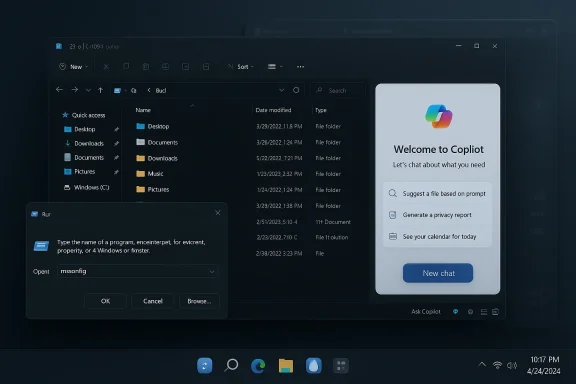
- Copilot inside Explorer: The most important UX change is a dockable Copilot pane that sits beside the details/preview area and can be detached into its own window. Unlike the current workflow of “send to Copilot app,” this model lets Copilot operate directly against the file system—summarizing, suggesting actions, or running dialog-based workflows against folders and files. Early builds indicate Copilot can be used to batch rename, create summaries of document sets, or propose cleanup actions. This shifts Copilot from an isolated chat surface into an active Explorer companion.
- Dark Properties and preload: Microsoft is testing a dark theme for the Properties pane and background preloading for Explorer to speed startup. Background preloading can be disabled via folder options if memory or taskbar responsiveness is a concern.
- Practical takeaways: The Explorer Copilot promises genuine productivity wins for repetitive file tasks. But it also amplifies the importance of access controls—Copilot’s in‑Explorer operations must respect file permissions, OneDrive sync states, and enterprise DLP policies. Admin tooling that lets organizations disable Explorer Copilot or restrict its access to network or cloud locations will be crucial.
Run: decades-old dialog, now WinUI and Mica
The venerable Run box is getting a modern WinUI reincarnation: larger input field, Mica background, and an inline command overview that surfaces matching apps and icons as you type. The updated Run is optional and lives in the Advanced system settings; enabling it hides the classic dialog. Microsoft is also experimenting with a dark mode for the legacy Run to keep compatibility for users who prefer the old behavior.Why this matters: Run is a power-user staple. Modernizing it without breaking keyboard-first workflows is a UI challenge Microsoft appears to approach conservatively—both versions coexist as options in previews, and the updated dialog focuses on discoverability rather than removing functionality.
Notification center agenda and Outlook integration
The old agenda view is back inside the notification center, now integrated with Outlook so that, after signing in, your appointments sync and appear in the Win+N calendar flyout. The implementation uses WebView2 and has been reported to add a significant runtime memory footprint (over 100MB in some previews). The view offers meeting join controls and real-time appointment updates, plus a Copilot button for contextual assistance.Practical note: WebView2-based features frequently trade off memory for rapid development and compatibility, so resource-conscious environments may want to keep an eye on memory usage and battery impact.
Sysinternals System Monitor: built-in observability
Microsoft is bundling Sysinternals System Monitor (Procmon-style logging) as an optional Windows feature in 26H2. The tool records system events for threat detection and troubleshooting, stores them in the Windows event database, and supports filtering via configuration files. Activation is optional, can be configured through Windows Features or the command line, and reportedly doesn’t require a reboot.This integration is notable: Sysinternals has historically been an external suite used by admins and incident responders. Folding System Monitor into the OS exposes powerful observability to a broader audience but also potentially raises attack-surface considerations (ensuring logs are protected, ensuring the monitor itself can’t be abused). Enterprises will need to control who can enable or read these logs.
Camera control, Emoji 16, and accessibility additions
26H2 previews show expanded camera settings—pan and tilt controls for compatible hardware are surfaced under Settings > Bluetooth & devices. Microsoft is also shipping Emoji 16.0 updates and incremental accessibility improvements, including better File Explorer tooltips and the expansion of Voice Access to more languages. These are incremental but useful refinements that reflect attention to everyday polish.Gaming mode: an Xbox-style full-screen interface
An optional full-screen gaming mode presents a controller-first dashboard based on Xbox apps and reduces nonessential background tasks to prioritize performance and battery life. It’s toggled from Gaming settings and activates after a restart; you can return to the desktop with the Windows key. Microsoft’s intent is to reduce friction for controller-led gaming while reserving the desktop experience for productivity. Early tests suggest tangible resource savings, but as always, your mileage will vary based on game, GPU, and drivers.Agentic AI: automations and long-running agents
One of the most forward-looking additions is an experimental “agentic” pane inside AI settings. These agents can perform automated tasks—organizing files, scheduling, sending emails—when explicitly enabled. They’re opt-in and designed to run tasks with user oversight rather than autonomously. The functionality remains experimental and gated behind explicit consent.Caveat: The term “agentic” invites talk of autonomous behavior. Microsoft’s previews emphasize human-in-the-loop consent, but the reality of integrating automated agents into the shell raises nuanced governance, privacy, and security questions that enterprises and regulators will press on.
Cross-verification and where claims are solid (or thin)
I validated the headline claims in multiple places:- PCWorld’s feature write-up provides the most complete single-story summary of the UX and timing. Its reporting on Ask Copilot, Explorer integration, Run UI, and Sysinternals integration matches the behavior seen in Dev Channel builds.
- WindowsLatest captured the early Windows Update references that first surfaced “26H2” in system metadata and confirmed the enablement-package delivery mechanism and the build-series (26300.x) associated with previews. That evidence supports the release model described by PCWorld.
- Windows Central and assorted preview trackers confirm the support-reset model (24 months for consumer SKUs, 36 months for Enterprise/Education), which aligns with Microsoft’s approach for 25H2 and remains the most credible expectation for 26H2.
- Specific rollout dates: While late September–early October is the historically consistent window for H2 releases, Microsoft has not posted an official public release date for 26H2. Treat timing as likely but not confirmed until Microsoft’s announcement.
- Feature availability by SKU and hardware: Microsoft increasingly gates advanced Copilot features behind Copilot+ hardware or Microsoft 365 subscriptions. The exact behavior (on‑device processing vs cloud) and availability per SKU remain variable across builds and dependent on Microsoft’s product decisions. Claims about universal availability should be considered provisional.
- Memory footprint and performance impacts: early previews indicate WebView2-based agenda consumes “over 100MB” in some cases. Memory metrics will change with optimizations; treat numbers as indicative rather than final.
Strengths: where Microsoft gets this right
- Native, optional AI: Microsoft’s opt‑in model for Ask Copilot and agentic features respects user control. By making the Copilot integrations optional and tied to explicit file sharing and settings, Microsoft reduces the risk of unintentional data exposure while making new workflows available. This is the correct approach for broad consumer and enterprise acceptance.
- Incremental delivery and enablement packaging: The enablement-package approach minimizes installation friction and makes versioning predictable for admins. It’s a pragmatic balance between delivering functionality and preserving device uptime and manageability.
- Practical productivity wins: In‑Explorer Copilot, grouped context menus, and a modernized Run dialog are exactly the kind of friction-reducing changes that help both power users and mainstream audiences. These are not gimmicks; they remove real friction in common scenarios.
- Enterprise observability: Including Sysinternals System Monitor as an optional feature gives IT teams deeper, system-leveorcing external tools—useful for incident response and threat hunting when properly managed.
Risks and unanswered questions
- Data governance and telemetry: The deeper Copilot nests into core shell surfaces, the more crucial it becomes for Microsoft to provide transparent, auditable controls over what data is sent to cloud services, how long logs persist, and what admin overrides exist. Early previews show opt-in choices, but enterprise policy maturity will determine whether Copilot is safe for regulated environments.
- Hardware and subscription gating: Microsoft’s tiered Copilot strategy (free, Microsoft 365 Copilot, Copilot+ hardware) risks fragmenting the user experience. Some of the most polished on-device experiences will likely be limited to Copilot+ hardware or paid tiers—leaving many users with partial functionality. That raises fairness and technical support issues for businesses and consumers.
- Performance footprints and background services: WebView2-based integrations and preloaded Explorer instances improve responsiveness but increase memory usage. On low-end devices or battery‑sensitive laptops, these tradeoffs may be consequential. Microsoft must tune these behaviors and give users clear controls to disable preload or WebView-heavy widgets.
- Agentic automation safety: Agentic features introduce automation that can act on user data. Even with human-in-the-loop controls, automations will need strict sandboxing and audit trails to limit unintended actions or data leaks—especially on managed machines. The security model for agents is not yet fully described in public previews.
How this affects different audiences
Consumers and hobbyists
Expect small but noticeable quality-of-life improvements: smarter search, fewer cluttered context menus, and a nicer Run dialog. If you’re curious about AI, try Ask Copilot in a sandboxed way—it’s optional and reversible. Keep an eye on memory usage if you enable the new agenda or Explorer preloading on low‑spec machines.Power users and enthusiasts
The modernized Run dialog and deeper Explorer tooling are welcome. Power users should watch how Copilot integrates with shell verb hooks and third‑party extensions—some older shell extensions may misbehave with nested menus and a dockable Copilot pane. Back up custom explorer tweaks and be ready to update shell utilities. Community threads show some regressions in early builds that Microsoft is actively fixing.IT administrators and enterprise security teams
Treat 26H2 as a planning milestone for lifecycle anablement package model means updates should be quick, but the new Copilot surface and integrated Sysinternals functionality require revisiting:- Audit Copilot data flows and DLP policy applicability.
- Confirm whether Sysinternals System Monitor is allowed in production images and who can enable it.
- Update endpoint configuration baselines to account for new features (agenda WebView2 memory, Explorer preload, agentic toggles).
- Test application compatibility—particularly for apps that interact with the shell or rely on exact Explorer behavior.
Deployment and testing checklist
- Build a 26H2 test image in your lab using current Dev/Beta channel bits to exercise Copilot in Explorer, the new Run UI, and Sysinternals monitor.
- Validate third‑party shell extensions and backup utilities against nested context menus.
- Test memory and battery impact on representative low- and mid-tier devices with WebView2-based agenda and Explorer preloading enabled.
- Lock down Copilot and agentic features through group policies or MDM if you need to enforce data governance.
- Update documentation and training for helpdesk teams—Copilot interactions in File Explorer will create new support scenarios (for example, Copilot-suggested file moves or batch edits).
Final verdict: evolutionary, not revolutionary—yet strategically important
Windows 11 26H2 reads as an evolutionary milestone with strategic intent: Microsoft is not trying to rewrite the OS foundation here; it’s shifting where and how intelligence is exposed. By rolling AI into core touchpoints—taskbar search, File Explorer, and the notification center—Microsoft makes Copilot unavoidable in common workflows without forcing it on users or admins. The enablement-package delivery keeps the update manageable while the integrated Sysinternals tooling signals a renewed focus on transparency and enterprise readiness.The update’s success will hinge on three things:
- Clear, granular controls for data flow and telemetry.
- Reasonable gating that doesn’t strand users behind hardware paywalls.
- Rigorous performance tuning so that WebView2 and background preload don’t penalize battery life or low-end devices.
For readers who want to experiment: enroll a non-critical device in the Insider channels, test Copilot inside Explorer, and run targeted compatibility checks. For admins: start planning policy updates now and treat 26H2 as an opportunity to refresh your Windows baseline and security stack.
Windows 11 26H2 is not the final form of Microsoft’s vision for an AI-native OS—but it’s the clearest, most practical expression yet of that vision in day‑to‑day PC workflows.
Source: PCWorld Windows 11 26H2 is coming: Meet all the new features
