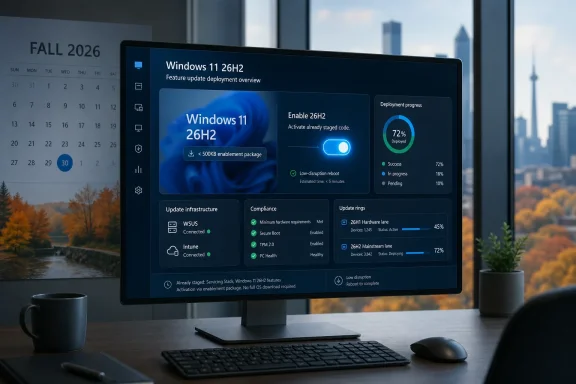
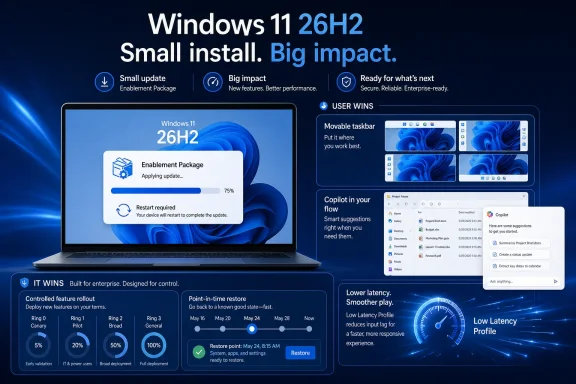
Microsoft announced on June 19, 2026 that Windows 11 version 26H2 is now available to Windows Insiders in the Experimental channel, alongside new Beta and Experimental builds, with the release delivered as an enablement package for systems sharing the 24H2/25H2 servicing lineage. That is the plain update; the more interesting story is that Microsoft is again trying to make a “major” Windows release feel operationally minor. For enthusiasts, that means a fast jump and a new version number. For IT, it means the annual Windows ritual is becoming less about installation drama and more about platform lineage, eligibility, and risk management.
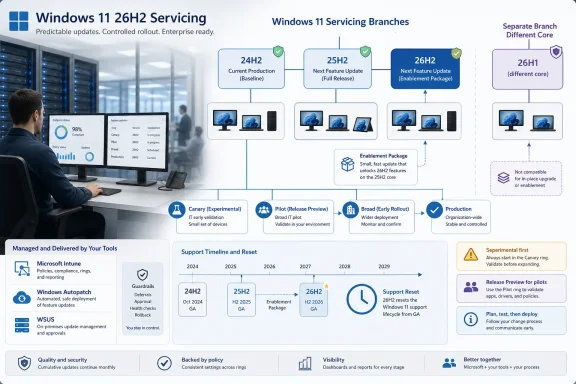
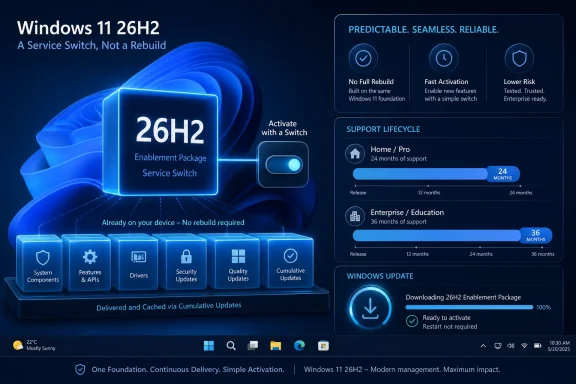
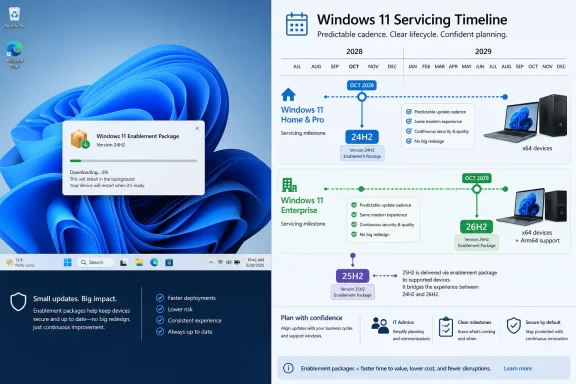
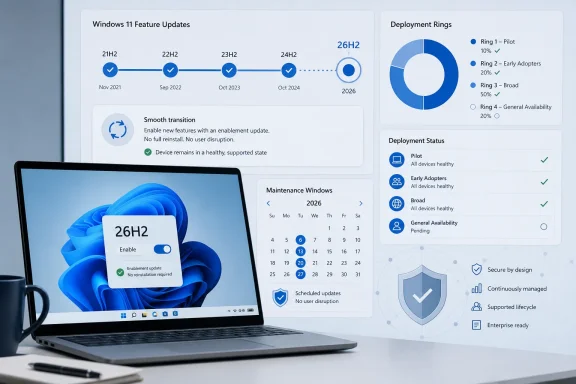
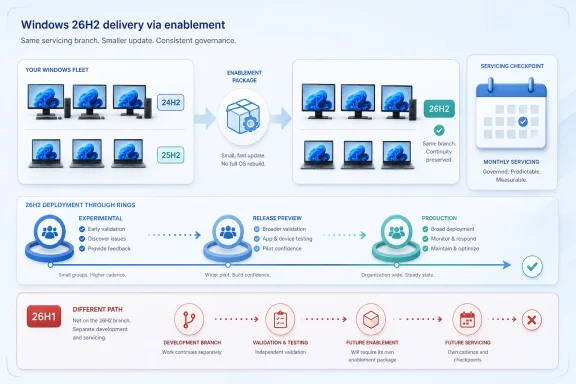
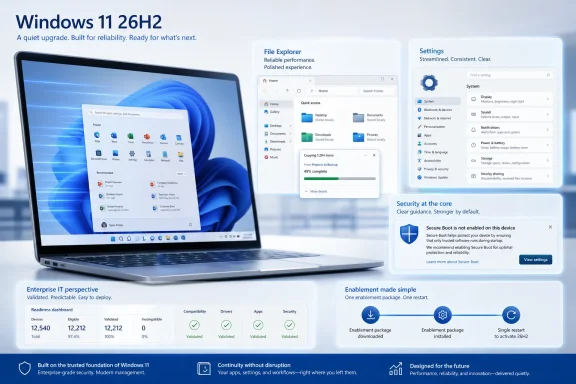
Windows 11 version 26H2 is being positioned as the second-half annual feature update in Microsoft’s standard cadence, not as a one-off engineering detour or a surprise platform reset. The company says 26H2 shares the same servicing branch as Windows 11 versions 24H2 and 25H2, which is why the upgrade can be turned on through an enablement package, or eKB.
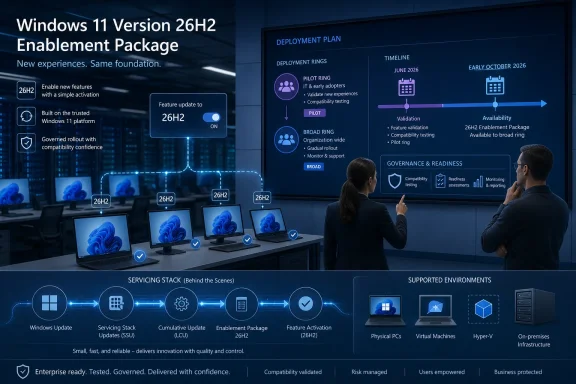
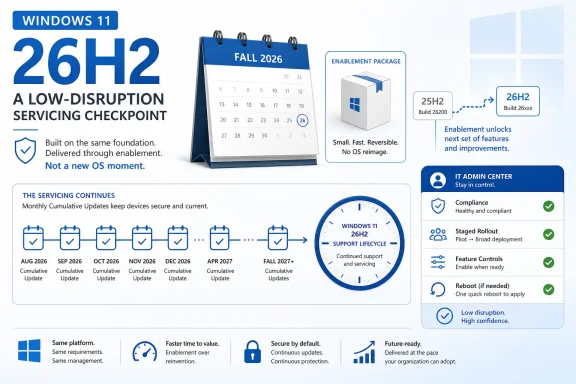
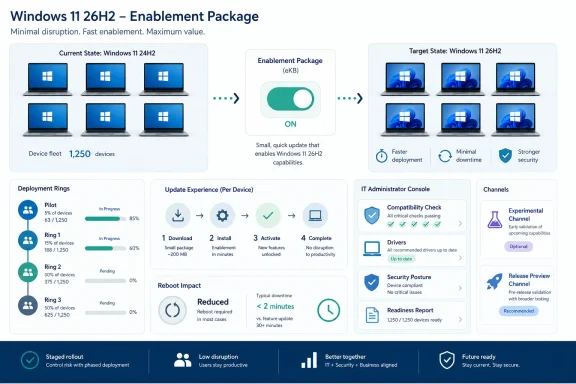
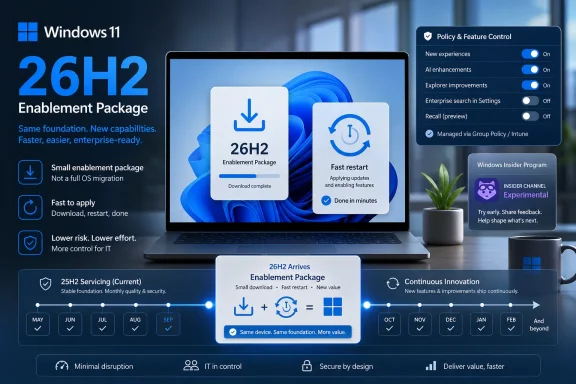
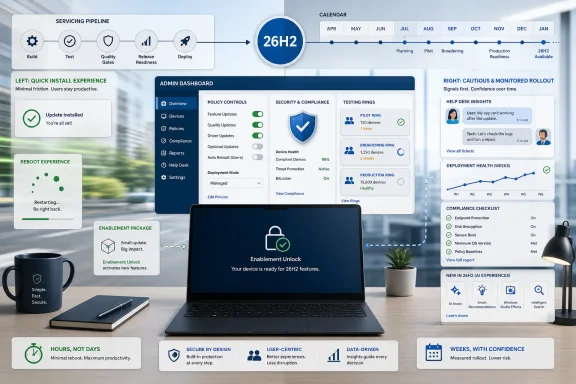
That matters because an enablement package is less a traditional feature upgrade than a switch-flip over already-serviced code. The bits are largely aligned before the version number changes, which allows Microsoft to promise the kind of “single restart” experience that Windows administrators have learned to associate with smaller monthly updates rather than full OS replacements.
This is Microsoft’s preferred Windows story now: keep the platform moving, but make the movement feel boring. After years in which Windows feature updates could be synonymous with weekend maintenance windows, driver roulette, and help-desk spikes, the company is selling predictability as the feature.
But predictability has a catch. It depends on being on the right branch in the first place.
For IT departments, this approach changes the nature of testing. Instead of treating 26H2 as a giant new payload arriving all at once, administrators should treat the months leading up to it as part of the release process. If 24H2, 25H2, and 26H2 share the same servicing branch, then cumulative update quality, policy behavior, driver compatibility, and app readiness are already the real proving ground.
That is good news only if organizations have been paying attention. A fast enablement package is still capable of exposing dormant changes, policy interactions, or application assumptions that have been sitting underneath the surface. The reboot may be short; the validation cycle should not be.
Microsoft wants the upgrade to feel familiar, fast, and reliable. The responsible enterprise translation is: familiar enough to automate, fast enough not to fear, but still important enough to pilot.
The channel mechanics are also part of the story. Beta users who want to move to Experimental can do so from Settings > Windows Update > Windows Insider Program, and Microsoft says they can move back to Beta without a full reinstall. That is a deliberately low-friction pathway, and it makes sense during a channel transition where Microsoft is trying to herd testers toward the right rings without making them wipe machines.
For non-Insiders who want to preview 26H2, Microsoft’s instruction is more transitional: register for the Windows Insider Program and select the Dev channel while it is transitioning to Experimental. Once that transition is complete, Experimental becomes the named preview channel for 26H2.
The result is a slightly messy map with a clear destination. Microsoft is renaming and realigning its Insider pathways while also launching the next annual Windows release into one of them. That may be sensible from Redmond’s perspective, but it still asks users to understand the difference between product version, build series, channel name, and servicing branch.
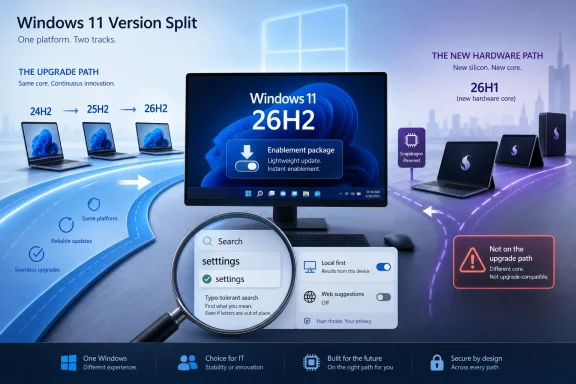
That sentence deserves more attention than the build numbers. Windows 11 version 26H1 has been described as scoped for new devices that came to market in early 2026 rather than as a conventional in-place feature update for existing 24H2 or 25H2 systems. Microsoft’s latest Insider note reinforces that 26H1 is not simply “the thing before 26H2.”
In normal consumer logic, 26H1 sounds like the predecessor to 26H2. In Microsoft servicing logic, it is a different branch with a different purpose. That disconnect is exactly the kind of naming trap that causes confusion in support forums, fleet inventories, and upgrade-planning spreadsheets.
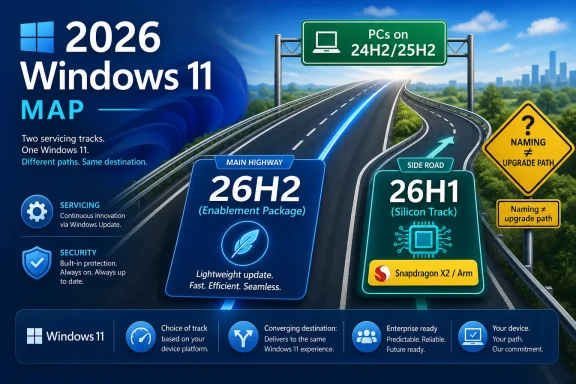
The practical implication is straightforward: do not assume Windows version numbers form a single staircase. In this cycle, 26H1 and 26H2 are more like neighboring corridors. One may be newer in name order, but that does not mean it is the direct path for the other.
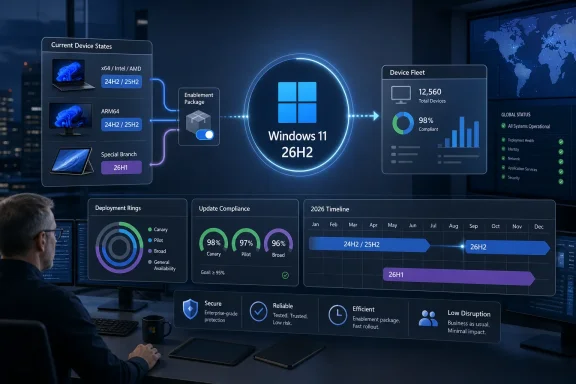
For systems on 26H1-specific tracks, Microsoft is also releasing Beta build 28020.2308 and Experimental build 28120.2315. Meanwhile, the Experimental Future Platforms track, including the Canary 29600 series, gets build 29613.1000.
That is a lot of numbers for a single Insider announcement. It also reflects a Windows organization that is no longer pretending there is one linear preview rail. There are production-adjacent builds, experimental builds, 26H1-core builds, and future-platform builds all moving at once.
For enthusiasts, that fragmentation is part of the fun. For administrators, it is a warning to stop thinking of “Insider build” as a meaningful category by itself. The channel, version, branch, and build series all matter, and they matter more when Microsoft is using similar labels for technically distinct paths.
The company can call 26H2 a major second-half update while delivering it through a lightweight enablement package. That is not necessarily contradictory. A release can be “major” for support lifecycle, policy baselines, feature availability, and branding while still being mechanically small on disk.
The risk is that the word “major” becomes less useful to ordinary users. If a version update installs quickly and shares a servicing branch with its predecessor, many people will reasonably ask what changed. Microsoft’s answer will likely live in a mix of enterprise readiness guidance, feature flags, security defaults, AI-era shell work, and policy refinements rather than a single obvious Start menu moment.
That is the modern Windows bargain. Fewer fireworks, more controlled rollout. Less drama at upgrade time, more ambiguity about when a feature actually arrived.
But the operational convenience should not tempt IT teams into treating 26H2 as a routine monthly patch. Version changes can reset support timelines, affect compliance reporting, alter policy defaults, introduce new management surfaces, and change which issues Microsoft will prioritize. Even when the payload is modest, the governance implications are real.
Inventory is the first job. Organizations need to know which devices are on 24H2, 25H2, 26H1, and Insider branches, because those labels now imply different upgrade paths. A fleet that looks modern on paper may still contain devices that cannot follow the 26H2 route.
The second job is ring discipline. The enablement package model rewards administrators who already maintain pilot groups, staged rollouts, rollback criteria, and telemetry review. It punishes those who discover their branch topology only after users start seeing a new version string.
That is sensible, but it also reveals the burden Microsoft has created. A user can be in Beta, move to Experimental, preview 26H2, move back to Beta, or be on a 26H1-specific build track that does not lead to 26H2. Another user can be in a Canary-associated Future Platforms series that is not meant to map neatly to the next consumer feature update at all.
None of this is impossible to understand. Windows enthusiasts understand worse things before breakfast. But the audience for Insider builds has broadened from hobbyists to developers, admins, OEM partners, and power users who use preview machines as early-warning systems.
For that audience, naming clarity is not cosmetic. It determines whether a test result means “this app has a 26H2 problem,” “this driver has a future-platform problem,” or “this machine is on the wrong branch entirely.”
The enablement package approach is Microsoft’s way of hiding that complexity from the user. It says: yes, Windows is changing under you, but the visible act of upgrading should not feel like surgery. That is a defensible goal and, when it works, a major improvement over the disruption-heavy upgrade model of the past.
Still, boring upgrades require disciplined engineering. If users experience a version jump as quick and safe nine times, the tenth failure will feel like a betrayal precisely because the process was marketed as low-risk. The eKB model raises expectations as much as it lowers friction.
Microsoft therefore has two jobs with 26H2. It must deliver the fast servicing experience it promises, and it must explain the branch exceptions clearly enough that users do not mistake a blocked path for a broken update.
The 26H1 exception is especially relevant for OEMs. A version created for new early-2026 devices and based on a different core suggests Microsoft is using Windows versioning to manage hardware platform transitions without forcing the entire installed base onto that branch. That may be technically rational, but it increases the burden on ecosystem partners to test against multiple contemporary Windows cores.
Developers should also resist the temptation to test only the most exciting build number. Future Platforms builds are valuable for seeing where Microsoft may be headed, but they are not substitutes for 26H2 validation. Likewise, 26H1 testing does not automatically answer 26H2 questions.
The Windows ecosystem has always had fragmentation. What is different now is that Microsoft is more openly exposing that fragmentation through public channels and version names. The upside is transparency. The downside is that everyone has to read the labels more carefully.
The danger comes when curious users join Insider channels without understanding what they are volunteering for. Experimental builds are not general-purpose stability guarantees. They are preview software meant to surface problems before broader rollout, and the channel name is more honest about that than “Dev” ever was.
Microsoft’s claim that Beta users can move to Experimental and back without a full reinstall lowers the barrier, but it should not erase caution. A no-wipe channel switch is not the same as a no-risk channel switch. Backup discipline, restore planning, and a willingness to tolerate broken features remain part of the Insider tax.
That said, the Experimental channel is exactly where Windows enthusiasts will want to watch this cycle. It is where the 26H2 identity becomes visible first, and it is where Microsoft’s claims about servicing continuity will meet real hardware, real drivers, and real user impatience.
A few concrete points should shape how readers interpret the release:
 Microsoft’s Next Windows Release Is a Version Number With a Strategy Attached
Windows 11 version 26H2 is being positioned as the second-half annual feature update in Microsoft’s standard cadence, not as a one-off engineering detour or a surprise platform reset. The company says 26H2 shares the same servicing branch as Windows 11 versions 24H2 and 25H2, which is why the upgrade can be turned on through an enablement package, or eKB.That matters because an enablement package is less a traditional feature upgrade than a switch-flip over already-serviced code. The bits are largely aligned before the version number changes, which allows Microsoft to promise the kind of “single restart” experience that Windows administrators have learned to associate with smaller monthly updates rather than full OS replacements.
This is Microsoft’s preferred Windows story now: keep the platform moving, but make the movement feel boring. After years in which Windows feature updates could be synonymous with weekend maintenance windows, driver roulette, and help-desk spikes, the company is selling predictability as the feature.
But predictability has a catch. It depends on being on the right branch in the first place.
The eKB Model Turns Windows Upgrades Into Servicing Politics
The enablement package is the quiet centerpiece of this announcement. Microsoft used the same broad idea in previous Windows cycles: ship code in cumulative updates, then enable the new release identity when the time is right. It is technically elegant because it compresses the visible upgrade event into something closer to a regular servicing transaction.For IT departments, this approach changes the nature of testing. Instead of treating 26H2 as a giant new payload arriving all at once, administrators should treat the months leading up to it as part of the release process. If 24H2, 25H2, and 26H2 share the same servicing branch, then cumulative update quality, policy behavior, driver compatibility, and app readiness are already the real proving ground.
That is good news only if organizations have been paying attention. A fast enablement package is still capable of exposing dormant changes, policy interactions, or application assumptions that have been sitting underneath the surface. The reboot may be short; the validation cycle should not be.
Microsoft wants the upgrade to feel familiar, fast, and reliable. The responsible enterprise translation is: familiar enough to automate, fast enough not to fear, but still important enough to pilot.
Experimental Becomes the First Public Stage for 26H2
The most visible change for Insiders is simple. Devices already enrolled in the Experimental channel will begin seeing their versioning updated to Windows 11 version 26H2 in Settings, under System > About, and in winver. That gives Microsoft a controlled public proving ground before the update reaches broader availability.The channel mechanics are also part of the story. Beta users who want to move to Experimental can do so from Settings > Windows Update > Windows Insider Program, and Microsoft says they can move back to Beta without a full reinstall. That is a deliberately low-friction pathway, and it makes sense during a channel transition where Microsoft is trying to herd testers toward the right rings without making them wipe machines.
For non-Insiders who want to preview 26H2, Microsoft’s instruction is more transitional: register for the Windows Insider Program and select the Dev channel while it is transitioning to Experimental. Once that transition is complete, Experimental becomes the named preview channel for 26H2.
The result is a slightly messy map with a clear destination. Microsoft is renaming and realigning its Insider pathways while also launching the next annual Windows release into one of them. That may be sensible from Redmond’s perspective, but it still asks users to understand the difference between product version, build series, channel name, and servicing branch.
The 26H1 Split Is the Line Microsoft Does Not Want Blurred
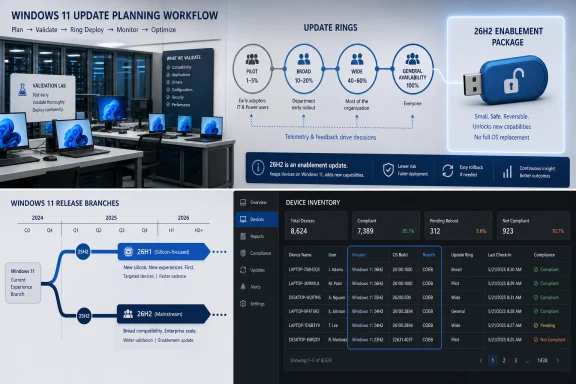
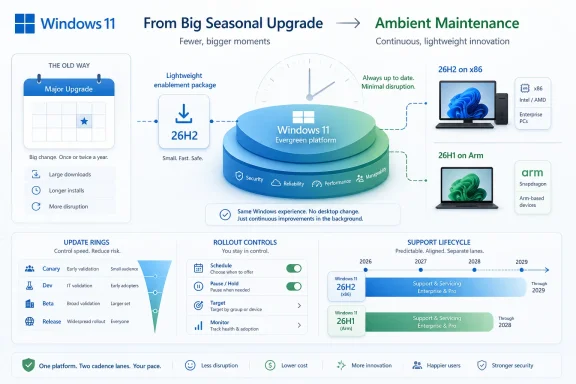
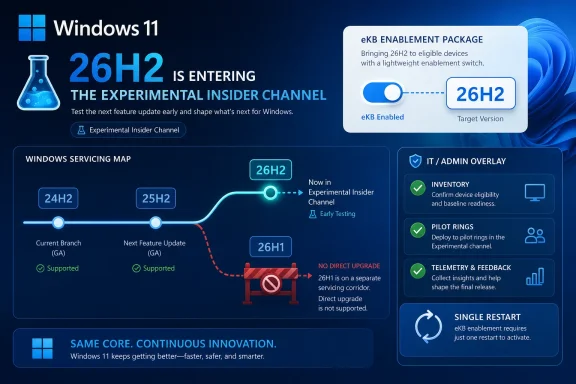
The most important caveat in the announcement is not about 26H2 at all. Microsoft says devices running Windows 11 version 26H1 will not be able to update to 26H2. Instead, those systems will have a path to a future Windows release because 26H1 is based on a different Windows core than 24H2, 25H2, and 26H2.That sentence deserves more attention than the build numbers. Windows 11 version 26H1 has been described as scoped for new devices that came to market in early 2026 rather than as a conventional in-place feature update for existing 24H2 or 25H2 systems. Microsoft’s latest Insider note reinforces that 26H1 is not simply “the thing before 26H2.”
In normal consumer logic, 26H1 sounds like the predecessor to 26H2. In Microsoft servicing logic, it is a different branch with a different purpose. That disconnect is exactly the kind of naming trap that causes confusion in support forums, fleet inventories, and upgrade-planning spreadsheets.
The practical implication is straightforward: do not assume Windows version numbers form a single staircase. In this cycle, 26H1 and 26H2 are more like neighboring corridors. One may be newer in name order, but that does not mean it is the direct path for the other.
The Build Numbers Tell a Story of Parallel Windows Futures
Microsoft’s June 19 release wave includes several builds, and the lineup shows how many tracks Windows development is currently running at once. The standard Beta channel receives build 26220.8690. The standard Experimental channel receives build 26300.8697, now associated with the 26H2 preview path.For systems on 26H1-specific tracks, Microsoft is also releasing Beta build 28020.2308 and Experimental build 28120.2315. Meanwhile, the Experimental Future Platforms track, including the Canary 29600 series, gets build 29613.1000.
That is a lot of numbers for a single Insider announcement. It also reflects a Windows organization that is no longer pretending there is one linear preview rail. There are production-adjacent builds, experimental builds, 26H1-core builds, and future-platform builds all moving at once.
For enthusiasts, that fragmentation is part of the fun. For administrators, it is a warning to stop thinking of “Insider build” as a meaningful category by itself. The channel, version, branch, and build series all matter, and they matter more when Microsoft is using similar labels for technically distinct paths.
Annual Cadence Now Means Less Spectacle and More Accounting
Windows 11’s annual feature update cadence has always been a compromise between the old Windows-as-a-product era and the newer Windows-as-a-service model. Microsoft wants the marketing and lifecycle clarity of yearly releases, but it also wants the operational smoothness of cumulative servicing. Version 26H2 is a textbook example of that compromise.The company can call 26H2 a major second-half update while delivering it through a lightweight enablement package. That is not necessarily contradictory. A release can be “major” for support lifecycle, policy baselines, feature availability, and branding while still being mechanically small on disk.
The risk is that the word “major” becomes less useful to ordinary users. If a version update installs quickly and shares a servicing branch with its predecessor, many people will reasonably ask what changed. Microsoft’s answer will likely live in a mix of enterprise readiness guidance, feature flags, security defaults, AI-era shell work, and policy refinements rather than a single obvious Start menu moment.
That is the modern Windows bargain. Fewer fireworks, more controlled rollout. Less drama at upgrade time, more ambiguity about when a feature actually arrived.
IT Should Treat the Small Upgrade as a Big Governance Event
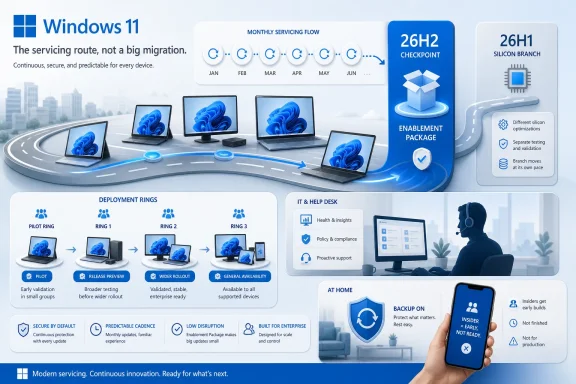
The single-restart pitch is attractive, especially for organizations that still carry scar tissue from older Windows feature upgrades. A smaller deployment event means less bandwidth pressure, less user disruption, and fewer opportunities for installation failure. It also makes phased deployment easier to justify.But the operational convenience should not tempt IT teams into treating 26H2 as a routine monthly patch. Version changes can reset support timelines, affect compliance reporting, alter policy defaults, introduce new management surfaces, and change which issues Microsoft will prioritize. Even when the payload is modest, the governance implications are real.
Inventory is the first job. Organizations need to know which devices are on 24H2, 25H2, 26H1, and Insider branches, because those labels now imply different upgrade paths. A fleet that looks modern on paper may still contain devices that cannot follow the 26H2 route.
The second job is ring discipline. The enablement package model rewards administrators who already maintain pilot groups, staged rollouts, rollback criteria, and telemetry review. It punishes those who discover their branch topology only after users start seeing a new version string.
The Insider Channel Transition Is a Usability Test for Microsoft Itself
Microsoft’s channel transition from Dev toward Experimental is not just housekeeping. It is a test of whether the company can communicate Windows preview status without requiring users to decode internal engineering taxonomy. The June 19 post tries to help by pointing Insiders to release notes based on the new channel system even if they have not moved yet.That is sensible, but it also reveals the burden Microsoft has created. A user can be in Beta, move to Experimental, preview 26H2, move back to Beta, or be on a 26H1-specific build track that does not lead to 26H2. Another user can be in a Canary-associated Future Platforms series that is not meant to map neatly to the next consumer feature update at all.
None of this is impossible to understand. Windows enthusiasts understand worse things before breakfast. But the audience for Insider builds has broadened from hobbyists to developers, admins, OEM partners, and power users who use preview machines as early-warning systems.
For that audience, naming clarity is not cosmetic. It determines whether a test result means “this app has a 26H2 problem,” “this driver has a future-platform problem,” or “this machine is on the wrong branch entirely.”
The Real Upgrade Is Microsoft’s Attempt to Make Windows Boring Again
There is a broader industry story beneath the Insider mechanics. Microsoft is trying to make Windows upgrades uneventful at precisely the moment Windows itself is becoming more complicated. AI features, new silicon targets, security hardening, cloud management, and device-specific platform work all pull the OS in different directions.The enablement package approach is Microsoft’s way of hiding that complexity from the user. It says: yes, Windows is changing under you, but the visible act of upgrading should not feel like surgery. That is a defensible goal and, when it works, a major improvement over the disruption-heavy upgrade model of the past.
Still, boring upgrades require disciplined engineering. If users experience a version jump as quick and safe nine times, the tenth failure will feel like a betrayal precisely because the process was marketed as low-risk. The eKB model raises expectations as much as it lowers friction.
Microsoft therefore has two jobs with 26H2. It must deliver the fast servicing experience it promises, and it must explain the branch exceptions clearly enough that users do not mistake a blocked path for a broken update.
The 26H2 Preview Is Also a Message to OEMs and Developers
The timing of 26H2’s Experimental debut gives hardware vendors and software developers an early signal. If the annual second-half update is now visible in Insider channels, the compatibility clock has started. Driver teams, endpoint security vendors, VPN providers, virtualization platforms, and line-of-business application owners should be paying attention now rather than waiting for general availability.The 26H1 exception is especially relevant for OEMs. A version created for new early-2026 devices and based on a different core suggests Microsoft is using Windows versioning to manage hardware platform transitions without forcing the entire installed base onto that branch. That may be technically rational, but it increases the burden on ecosystem partners to test against multiple contemporary Windows cores.
Developers should also resist the temptation to test only the most exciting build number. Future Platforms builds are valuable for seeing where Microsoft may be headed, but they are not substitutes for 26H2 validation. Likewise, 26H1 testing does not automatically answer 26H2 questions.
The Windows ecosystem has always had fragmentation. What is different now is that Microsoft is more openly exposing that fragmentation through public channels and version names. The upside is transparency. The downside is that everyone has to read the labels more carefully.
Home Users Get the Easy Part, Unless They Chase the Edge
For ordinary Windows users, the 26H2 news is mostly reassuring. If a PC is on the mainstream 24H2 or 25H2 lineage and eventually receives 26H2 through normal servicing, the upgrade should be fast and familiar. The user-facing promise is not a new installation marathon but a quick version transition.The danger comes when curious users join Insider channels without understanding what they are volunteering for. Experimental builds are not general-purpose stability guarantees. They are preview software meant to surface problems before broader rollout, and the channel name is more honest about that than “Dev” ever was.
Microsoft’s claim that Beta users can move to Experimental and back without a full reinstall lowers the barrier, but it should not erase caution. A no-wipe channel switch is not the same as a no-risk channel switch. Backup discipline, restore planning, and a willingness to tolerate broken features remain part of the Insider tax.
That said, the Experimental channel is exactly where Windows enthusiasts will want to watch this cycle. It is where the 26H2 identity becomes visible first, and it is where Microsoft’s claims about servicing continuity will meet real hardware, real drivers, and real user impatience.
The Fine Print Is the Feature This Time
The June 19 announcement is not a fireworks show. It is a servicing map, and the map is the news. Windows 11 version 26H2 is important less because it arrives with a dramatic public feature list and more because it shows how Microsoft wants annual Windows updates to work in 2026.A few concrete points should shape how readers interpret the release:
- Windows 11 version 26H2 is now entering the Experimental channel as Microsoft’s second-half annual Windows 11 feature update for 2026.
- Systems on the 24H2 and 25H2 servicing lineage should see 26H2 as an enablement-package style transition rather than a traditional full feature upgrade.
- Devices running Windows 11 version 26H1 are not on the direct 26H2 upgrade path because Microsoft says they are based on a different Windows core.
- Beta users can move to Experimental from Windows Update settings to preview 26H2, and Microsoft says they can move back to Beta without reinstalling Windows.
- The June 19 Insider wave includes separate build tracks for standard Beta, standard Experimental, 26H1 Beta and Experimental, and Future Platforms builds.
- IT teams should treat the fast install experience as a deployment advantage, not as permission to skip branch inventory, pilot rings, or application validation.
References
- Primary source: Microsoft - Windows Insiders Blog
Published: Fri, 19 Jun 2026 17:07:42 +0000
Announcing new builds for 19 June 2026, version 26H2 for Experimental
Hello Windows Insiders, We have new releases today with builds across Beta and Experimental, including Windows 11, version 26H2 for Experimental. Windows 11, version 26H2 Windows 11, version 26H2 represents our yearly second halfblogs.windows.com