Microsoft has moved Windows 11 Insider testing toward version 26H2 in late June 2026, with Experimental builds now showing the new release label while testers also receive taskbar, accessibility, Settings, update, and personalization refinements across multiple preview channels. That is not the same as a consumer launch, and it is not yet a promise of a dramatic feature update. It is, however, the clearest sign that Microsoft’s next annual Windows 11 train has left the depot. The interesting story is not that Windows 11 is getting another version number; it is that Microsoft appears to be betting on a quieter, more serviceable Windows.
The visible switch from 25H2 to 26H2 in Settings and
That distinction matters for Windows enthusiasts because Insider version numbers have become both signal and noise. A new
For administrators, that is probably good news. The nightmare version of Windows development is one where every annual release invalidates assumptions, breaks management scripts, and turns endpoint fleets into compatibility experiments. The less glamorous version is one where Microsoft ships smaller deltas through enablement-style mechanisms, broadens testing over time, and keeps the platform’s bones stable.
That does not mean there is no risk. Insider channels exist precisely because the work is unfinished, and the Experimental channel is not a polite waiting room for mainstream users. But the early 26H2 evidence suggests Microsoft is prioritizing the operating system’s connective tissue: Settings organization, accessibility controls, update behavior, taskbar density, and the dozens of frictions that make Windows feel either considered or careless.
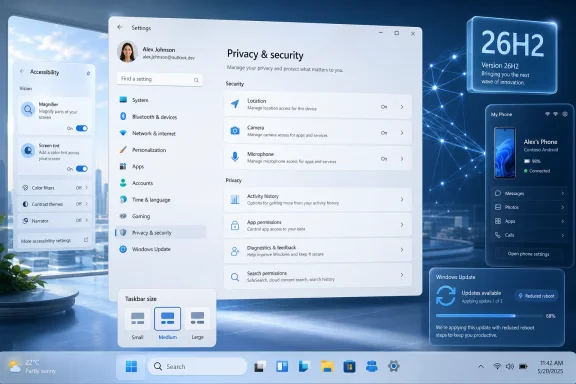
The most telling items are not the features that will trend on social media. They are the sort of improvements that show up after months of daily use: a taskbar that can be made physically smaller, a Privacy & security page that groups controls more logically, a Mobile Devices area that continues Microsoft’s push toward phone-PC continuity, and a Screen tint feature aimed at users who spend entire workdays staring at oversaturated panels.
This is the kind of Windows work that usually receives less attention than AI branding or Start menu redesigns, but it is also the work that determines whether users trust an operating system. A platform that adds clever features while leaving old annoyances untouched starts to feel like a landlord renovating the lobby while ignoring the plumbing. These builds suggest Microsoft knows Windows 11 still needs more basic polish.
The catch is that polish has to be consistent. Windows 11’s reputation problem has never been only that it lacks features; it is that the shell, Settings app, context menus, taskbar, and bundled experiences have often evolved at different speeds. When Microsoft improves one surface while leaving another half-modernized, users notice the seams.
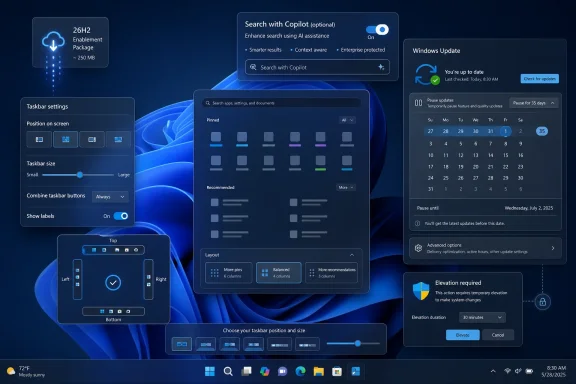
A smaller taskbar option does not restore every lost Windows 10 affordance. It does, however, acknowledge that desktop ergonomics are not one-size-fits-all. A 13-inch laptop, a 27-inch monitor, a touch-first convertible, and a multi-monitor developer workstation do not benefit from the same taskbar footprint.
The important nuance in the new setting is that it appears more direct than earlier “small icons” behavior. Users should not need to infer that icon scaling and taskbar height are entangled in obscure ways. A setting called “Taskbar size” is plain English, and plain English is underrated in Windows configuration.
This also shows the value of slow reversal. Microsoft rarely announces that it overcorrected. Instead, the company tends to reintroduce configurability through new wording, new Settings pages, and incremental Insider changes. The end result may satisfy users, but the path is unmistakably Microsoft: never say retreat when “refinement” will do.
The detail that Screen tint and Color Filters are mutually exclusive is worth watching. It suggests Microsoft is still trying to balance multiple display transformation systems that may overlap technically or visually. For users who already rely on Color Filters for accessibility, Screen tint may not be a simple additive improvement.
The Magnifier changes are similarly mundane in the best possible way. Allowing users to type a precise zoom percentage and choose from more preset zoom levels removes needless clicking and makes the tool feel less like a legacy utility. Accessibility tools succeed when they reduce negotiation between the user and the interface.
There is a broader pattern here. Windows accessibility improvements are no longer merely compliance features buried in a corner of Control Panel. They are increasingly part of the operating system’s competitive identity, especially as PCs become more diverse in display technology, form factor, and workplace use. Microsoft has spent years arguing that Windows should adapt to users; accessibility is where that slogan becomes testable.
A new header with entry points into Windows Security and at-a-glance information for sensitive capabilities such as location, camera, and microphone access is the right instinct. Privacy settings are not useful if users cannot understand what is active, what is allowed, and where the consequences live. Grouping controls into sections such as personal information, communication, file access, and system access could make the page more legible.
But Microsoft’s privacy challenge is not just layout. It is trust. Users have grown wary of settings that appear to promise control while nudging them toward cloud features, web results, account integration, or Microsoft services.
That is why the reported Windows Search option to disable web and Microsoft Store results would be more than a housekeeping tweak if it arrives broadly. Search is one of the most sensitive pieces of the desktop because it sits at the boundary between local intent and online service. When a user searches for an app or file, they are not necessarily asking for a shopping, web, or recommendation experience.
The best version of Windows Search is boringly obedient. It finds what is on the machine, respects the user’s scope, and does not reinterpret every keystroke as a chance to promote an ecosystem. If Microsoft is moving toward clearer separation between local and web-backed search results, that is a welcome correction.
The updated Mobile Devices page appears to make configuration and management more central within Settings. That matters because phone integration has historically felt scattered across apps, account prompts, Bluetooth flows, and notification permissions. If the PC is going to act as a companion hub, the user needs one place to understand the relationship.
There is a consumer benefit here, but the enterprise angle is more complicated. Personal phones attached to corporate PCs raise questions about data boundaries, message visibility, screenshots, photos, and unmanaged devices. Microsoft can make the experience convenient, but IT departments will still want clear policy controls.
The deeper point is that Windows is becoming less of a standalone desktop environment and more of an endpoint in a personal device mesh. That is strategically sensible. It also means that Settings, privacy controls, and identity boundaries have to become clearer, not merely prettier.
Microsoft has spent years trying to make Windows Update less disruptive through active hours, faster restart phases, smaller packages, better orchestration, and more predictable servicing. The reason this remains difficult is that Windows carries decades of compatibility expectations. Drivers, system files, security components, and third-party integrations make “just update without rebooting” much easier to say than to deliver.
Still, every reduction in reboot frequency matters. For home users, it means fewer broken work sessions and fewer update surprises. For IT administrators, it can mean better compliance without as much user resentment, especially when maintenance windows are tight and endpoint uptime matters.
The trick is credibility. Microsoft cannot merely say updates require fewer restarts; users must experience fewer restarts. If the Future Platforms work leads to one-reboot monthly maintenance in more cases, it could do more for Windows satisfaction than a dozen promotional features.
Experimental builds moving to 26H2 tell one story. Future Platforms builds carrying Screen tint, update reboot work, Magnifier improvements, and broader system refinements tell another. Beta builds receiving some overlapping changes complicate the picture further, because features can move across channels in ways that do not map neatly to public release timing.
This is not necessarily bad engineering. In fact, it may be the only sane way to develop Windows at current scale. Microsoft needs to test platform-level work separately from near-term servicing changes while also validating features against different hardware and user populations.
The communication problem is that normal users interpret channels as a ladder: Beta, Dev, Canary, Experimental, or whatever the naming of the moment suggests. Microsoft often treats them more like parallel workbenches. A feature appearing in one channel does not guarantee it is closer to release than a feature in another, and a version label does not always mean the underlying code is exclusive to that version.
For WindowsForum readers, the practical rule is simple: do not treat Insider builds as release notes for your production machine. Treat them as evidence of direction. The direction in late June is toward 26H2 branding, more Settings consolidation, more desktop customization, and accessibility refinements that may arrive on different schedules.
That matters for expectations. A user waiting for 26H2 because they expect a dramatic upgrade may be disappointed. A sysadmin dreading 26H2 because they expect a disruptive migration may be relieved. Both reactions come from the same misunderstanding: that the version number alone tells the whole story.
Microsoft’s modern Windows cadence increasingly separates code availability from feature activation. Some changes are present but dormant. Some are staged. Some are controlled by rollout mechanisms. Some arrive first for Insiders, then for optional previews, then for cumulative updates, and only later become associated in public memory with a named annual release.
This model gives Microsoft flexibility, but it also makes Windows feel slippery. Users ask, “Do I have the new feature?” and the honest answer may depend on build number, channel, region, hardware, account type, rollout status, and server-side flags. That is not a satisfying consumer story.
For administrators, though, the model can be useful if Microsoft documents it clearly and provides reliable controls. Smaller enablement packages and shared servicing baselines can reduce deployment pain. The price is that IT teams need to watch feature exposure more carefully, because “same version” and “same experience” are not always synonyms.
Likewise, the switch in the emoji panel’s GIF provider from Tenor to GIPHY may improve browsing and sharing, but it is not a platform-defining moment. It is a service substitution inside a small surface of the shell. Users will notice if search results get better, worse, faster, or more culturally relevant; they will not care much about the vendor name unless something breaks.
The lesson is that Windows development contains many layers of significance. Some changes are product strategy. Some are user-experience debt payment. Some are vendor plumbing. Some are cosmetic alignment. A good Insider recap should not flatten them into one pile.
The late-June builds are strongest when Microsoft is solving user-facing irritations with direct controls. Smaller taskbar. Better Magnifier zoom. Screen tint. Clearer privacy categories. Potentially less noisy search. Those are the changes that make Windows feel more accountable to the person using it.
The Experimental channel name should be taken literally. It is not a badge of bravery; it is a warning label. The builds exist so Microsoft can find problems before they reach the broader Windows population, and testers should assume that their feedback is part of the product pipeline.
Home enthusiasts can usually absorb that risk on a secondary machine. IT professionals cannot treat these builds as deployment candidates merely because they look polished in screenshots. The right approach is lab hardware, virtual machines where appropriate, clean rollback plans, and a strong separation between curiosity and production.
There is also a subtler risk: feature drift. When Microsoft tests overlapping changes across multiple channels, documentation and user reports can become confusing. One tester may have Screen tint, another may not. One machine may show 26H2 in
That ambiguity is manageable for Insiders, but it becomes corrosive if it reaches mainstream users. Windows already has enough “why does my PC not match the screenshot?” moments. Microsoft should use this cycle not only to refine features, but to refine rollout clarity.
That does not mean Microsoft is abandoning its design goals. It means the company may be learning where rigidity hurt adoption. A smaller taskbar does not ruin Windows 11’s identity. A better Privacy & security page does not undermine cloud integration. A local-search toggle does not prevent Microsoft from offering web results to users who want them.
The best operating systems become opinionated defaults with respectful escape hatches. Windows has always had to serve too many constituencies to survive as a locked-down appliance. Gamers, developers, accountants, accessibility users, students, field workers, and domain-joined enterprise machines all arrive with different demands.
If 26H2 becomes the release that sands down Windows 11’s sharper edges, it may be more important than a flashier update. Not because it changes what Windows is, but because it makes Windows easier to live with. That is a different kind of ambition, and arguably the one Windows needs most.
 Microsoft’s 26H2 Marker Is a Road Sign, Not a Ribbon Cutting
The visible switch from 25H2 to 26H2 in Settings and winver is the kind of change that looks trivial until you remember how Windows is now built. Microsoft is no longer treating every annual update as a grand architectural break. Increasingly, the version number marks the point at which a wave of work is organized, enabled, and supported, rather than the moment a completely new operating system arrives.That distinction matters for Windows enthusiasts because Insider version numbers have become both signal and noise. A new
H2 label tells testers which development stream they are on, but it does not automatically mean a new kernel personality, a new shell philosophy, or a Windows 12-style reset. In this case, reporting around the builds indicates that 25H2 and 26H2 share much of the same core plumbing, which makes the visible label more of a servicing milestone than a clean-room generation.For administrators, that is probably good news. The nightmare version of Windows development is one where every annual release invalidates assumptions, breaks management scripts, and turns endpoint fleets into compatibility experiments. The less glamorous version is one where Microsoft ships smaller deltas through enablement-style mechanisms, broadens testing over time, and keeps the platform’s bones stable.
That does not mean there is no risk. Insider channels exist precisely because the work is unfinished, and the Experimental channel is not a polite waiting room for mainstream users. But the early 26H2 evidence suggests Microsoft is prioritizing the operating system’s connective tissue: Settings organization, accessibility controls, update behavior, taskbar density, and the dozens of frictions that make Windows feel either considered or careless.
The Big Windows Update Is Getting Smaller, and That Is the Point
Windows users have been trained to expect “big update” to mean visible novelty. A redesigned Start menu, a Copilot surface, a new app, or a major File Explorer change makes for easier marketing and louder arguments. The June Insider builds are quieter than that, and the quietness is the news.The most telling items are not the features that will trend on social media. They are the sort of improvements that show up after months of daily use: a taskbar that can be made physically smaller, a Privacy & security page that groups controls more logically, a Mobile Devices area that continues Microsoft’s push toward phone-PC continuity, and a Screen tint feature aimed at users who spend entire workdays staring at oversaturated panels.
This is the kind of Windows work that usually receives less attention than AI branding or Start menu redesigns, but it is also the work that determines whether users trust an operating system. A platform that adds clever features while leaving old annoyances untouched starts to feel like a landlord renovating the lobby while ignoring the plumbing. These builds suggest Microsoft knows Windows 11 still needs more basic polish.
The catch is that polish has to be consistent. Windows 11’s reputation problem has never been only that it lacks features; it is that the shell, Settings app, context menus, taskbar, and bundled experiences have often evolved at different speeds. When Microsoft improves one surface while leaving another half-modernized, users notice the seams.
The Taskbar Finally Gets a Little More Humble
The new dedicated “Taskbar size” setting is a small concession with a long tail. Windows 11 launched with a taskbar that was cleaner than Windows 10’s in some respects but more rigid in others, and that rigidity became a symbol of Microsoft’s willingness to trade configurability for design control. Users who wanted density, vertical placement, or familiar compact behaviors were often told, in effect, to get used to it.A smaller taskbar option does not restore every lost Windows 10 affordance. It does, however, acknowledge that desktop ergonomics are not one-size-fits-all. A 13-inch laptop, a 27-inch monitor, a touch-first convertible, and a multi-monitor developer workstation do not benefit from the same taskbar footprint.
The important nuance in the new setting is that it appears more direct than earlier “small icons” behavior. Users should not need to infer that icon scaling and taskbar height are entangled in obscure ways. A setting called “Taskbar size” is plain English, and plain English is underrated in Windows configuration.
This also shows the value of slow reversal. Microsoft rarely announces that it overcorrected. Instead, the company tends to reintroduce configurability through new wording, new Settings pages, and incremental Insider changes. The end result may satisfy users, but the path is unmistakably Microsoft: never say retreat when “refinement” will do.
Accessibility Is Becoming a Mainstream Windows Feature, Not a Side Room
Screen tint is one of the more interesting additions because it sits between accessibility, comfort, and display personalization. Unlike Night Light, which is associated with evening use and blue-light reduction, Screen tint applies a broader color overlay intended to reduce strain from brightness, saturation, or uncomfortable color intensity. That is a practical feature for users with visual sensitivity, but also for anyone working long days on harsh displays.The detail that Screen tint and Color Filters are mutually exclusive is worth watching. It suggests Microsoft is still trying to balance multiple display transformation systems that may overlap technically or visually. For users who already rely on Color Filters for accessibility, Screen tint may not be a simple additive improvement.
The Magnifier changes are similarly mundane in the best possible way. Allowing users to type a precise zoom percentage and choose from more preset zoom levels removes needless clicking and makes the tool feel less like a legacy utility. Accessibility tools succeed when they reduce negotiation between the user and the interface.
There is a broader pattern here. Windows accessibility improvements are no longer merely compliance features buried in a corner of Control Panel. They are increasingly part of the operating system’s competitive identity, especially as PCs become more diverse in display technology, form factor, and workplace use. Microsoft has spent years arguing that Windows should adapt to users; accessibility is where that slogan becomes testable.
Settings Is Still Being Rebuilt in Public
The Privacy & security redesign is another reminder that the Settings app remains one of Windows 11’s longest-running construction zones. Microsoft has spent years moving functionality out of Control Panel, reorganizing categories, and trying to make Windows configuration feel less like an archaeological dig. The work is necessary, but the transition has often felt uneven.A new header with entry points into Windows Security and at-a-glance information for sensitive capabilities such as location, camera, and microphone access is the right instinct. Privacy settings are not useful if users cannot understand what is active, what is allowed, and where the consequences live. Grouping controls into sections such as personal information, communication, file access, and system access could make the page more legible.
But Microsoft’s privacy challenge is not just layout. It is trust. Users have grown wary of settings that appear to promise control while nudging them toward cloud features, web results, account integration, or Microsoft services.
That is why the reported Windows Search option to disable web and Microsoft Store results would be more than a housekeeping tweak if it arrives broadly. Search is one of the most sensitive pieces of the desktop because it sits at the boundary between local intent and online service. When a user searches for an app or file, they are not necessarily asking for a shopping, web, or recommendation experience.
The best version of Windows Search is boringly obedient. It finds what is on the machine, respects the user’s scope, and does not reinterpret every keystroke as a chance to promote an ecosystem. If Microsoft is moving toward clearer separation between local and web-backed search results, that is a welcome correction.
Phone Integration Keeps Moving From Novelty to Assumption
The Mobile Devices changes in the Beta and Experimental streams continue another long-running Windows strategy: making the PC less isolated from the phone. Microsoft lost the smartphone platform war, but it never stopped trying to make Windows the place where phone activity becomes manageable. Phone Link, cross-device notifications, mobile photo access, and device management all fit that post-Windows Phone reality.The updated Mobile Devices page appears to make configuration and management more central within Settings. That matters because phone integration has historically felt scattered across apps, account prompts, Bluetooth flows, and notification permissions. If the PC is going to act as a companion hub, the user needs one place to understand the relationship.
There is a consumer benefit here, but the enterprise angle is more complicated. Personal phones attached to corporate PCs raise questions about data boundaries, message visibility, screenshots, photos, and unmanaged devices. Microsoft can make the experience convenient, but IT departments will still want clear policy controls.
The deeper point is that Windows is becoming less of a standalone desktop environment and more of an endpoint in a personal device mesh. That is strategically sensible. It also means that Settings, privacy controls, and identity boundaries have to become clearer, not merely prettier.
Reduced Reboots Would Be the Most Important Feature Nobody Brags About
Among the Future Platforms work, reduced reboot requirements for Windows Update may be the most consequential if it survives the trip to stable releases in a meaningful form. Few things shape user attitudes toward Windows more than update interruption. A new visual feature can delight a subset of users; a badly timed reboot can irritate everyone.Microsoft has spent years trying to make Windows Update less disruptive through active hours, faster restart phases, smaller packages, better orchestration, and more predictable servicing. The reason this remains difficult is that Windows carries decades of compatibility expectations. Drivers, system files, security components, and third-party integrations make “just update without rebooting” much easier to say than to deliver.
Still, every reduction in reboot frequency matters. For home users, it means fewer broken work sessions and fewer update surprises. For IT administrators, it can mean better compliance without as much user resentment, especially when maintenance windows are tight and endpoint uptime matters.
The trick is credibility. Microsoft cannot merely say updates require fewer restarts; users must experience fewer restarts. If the Future Platforms work leads to one-reboot monthly maintenance in more cases, it could do more for Windows satisfaction than a dozen promotional features.
Microsoft’s Insider Maze Now Has a Purpose, Even If It Still Needs a Map
The June recap spans Experimental, Beta, and Future Platforms builds, which is enough to make even seasoned Windows watchers pause. Microsoft’s Insider Program has become a layered system of release validation, platform exploration, enablement testing, and feature staging. That is rational inside Microsoft, but not always legible outside it.Experimental builds moving to 26H2 tell one story. Future Platforms builds carrying Screen tint, update reboot work, Magnifier improvements, and broader system refinements tell another. Beta builds receiving some overlapping changes complicate the picture further, because features can move across channels in ways that do not map neatly to public release timing.
This is not necessarily bad engineering. In fact, it may be the only sane way to develop Windows at current scale. Microsoft needs to test platform-level work separately from near-term servicing changes while also validating features against different hardware and user populations.
The communication problem is that normal users interpret channels as a ladder: Beta, Dev, Canary, Experimental, or whatever the naming of the moment suggests. Microsoft often treats them more like parallel workbenches. A feature appearing in one channel does not guarantee it is closer to release than a feature in another, and a version label does not always mean the underlying code is exclusive to that version.
For WindowsForum readers, the practical rule is simple: do not treat Insider builds as release notes for your production machine. Treat them as evidence of direction. The direction in late June is toward 26H2 branding, more Settings consolidation, more desktop customization, and accessibility refinements that may arrive on different schedules.
The 26H2 Story Is Really a 25H2 Story Too
The relationship between 25H2 and 26H2 is the quiet complication underneath the whole update. If the two releases share core files and many features can flow between them, then the traditional idea of “the next Windows version” becomes fuzzier. Users may see 26H2 branding as a hard boundary, while Microsoft may treat it as a support and enablement boundary.That matters for expectations. A user waiting for 26H2 because they expect a dramatic upgrade may be disappointed. A sysadmin dreading 26H2 because they expect a disruptive migration may be relieved. Both reactions come from the same misunderstanding: that the version number alone tells the whole story.
Microsoft’s modern Windows cadence increasingly separates code availability from feature activation. Some changes are present but dormant. Some are staged. Some are controlled by rollout mechanisms. Some arrive first for Insiders, then for optional previews, then for cumulative updates, and only later become associated in public memory with a named annual release.
This model gives Microsoft flexibility, but it also makes Windows feel slippery. Users ask, “Do I have the new feature?” and the honest answer may depend on build number, channel, region, hardware, account type, rollout status, and server-side flags. That is not a satisfying consumer story.
For administrators, though, the model can be useful if Microsoft documents it clearly and provides reliable controls. Smaller enablement packages and shared servicing baselines can reduce deployment pain. The price is that IT teams need to watch feature exposure more carefully, because “same version” and “same experience” are not always synonyms.
The Branding Tells Us Less Than the Behavior
The minor XBOX mode rebrand in Settings is a useful example of how not all visible changes carry equal weight. Branding capitalization may matter to Microsoft’s marketing teams and to consistency across gaming properties, but it is not the reason Windows users will care about these builds. The more important gaming questions remain performance, latency, driver stability, Game Bar usefulness, HDR reliability, and handheld PC ergonomics.Likewise, the switch in the emoji panel’s GIF provider from Tenor to GIPHY may improve browsing and sharing, but it is not a platform-defining moment. It is a service substitution inside a small surface of the shell. Users will notice if search results get better, worse, faster, or more culturally relevant; they will not care much about the vendor name unless something breaks.
The lesson is that Windows development contains many layers of significance. Some changes are product strategy. Some are user-experience debt payment. Some are vendor plumbing. Some are cosmetic alignment. A good Insider recap should not flatten them into one pile.
The late-June builds are strongest when Microsoft is solving user-facing irritations with direct controls. Smaller taskbar. Better Magnifier zoom. Screen tint. Clearer privacy categories. Potentially less noisy search. Those are the changes that make Windows feel more accountable to the person using it.
The Risk Is That Quiet Improvements Arrive With Quiet Instability
There is a temptation to describe this wave as safe because the features are incremental. That would be a mistake. Small features can still break workflows, and Insider builds can carry regressions far outside the headline changes. A taskbar tweak can affect shell reliability. A display overlay can interact oddly with color management, HDR, remote desktop sessions, or accessibility filters. Update servicing experiments can expose edge cases in drivers and enterprise tooling.The Experimental channel name should be taken literally. It is not a badge of bravery; it is a warning label. The builds exist so Microsoft can find problems before they reach the broader Windows population, and testers should assume that their feedback is part of the product pipeline.
Home enthusiasts can usually absorb that risk on a secondary machine. IT professionals cannot treat these builds as deployment candidates merely because they look polished in screenshots. The right approach is lab hardware, virtual machines where appropriate, clean rollback plans, and a strong separation between curiosity and production.
There is also a subtler risk: feature drift. When Microsoft tests overlapping changes across multiple channels, documentation and user reports can become confusing. One tester may have Screen tint, another may not. One machine may show 26H2 in
winver, another may still show 25H2 in an Insider program surface. One setting may be present but not fully wired up.That ambiguity is manageable for Insiders, but it becomes corrosive if it reaches mainstream users. Windows already has enough “why does my PC not match the screenshot?” moments. Microsoft should use this cycle not only to refine features, but to refine rollout clarity.
The June Builds Point to a More Adult Windows 11
The strongest interpretation of these builds is that Windows 11 is maturing out of its launch-era defensiveness. Early Windows 11 often felt like a product trying to prove its design language: centered taskbar, simplified menus, rounded surfaces, new Settings flows, and tighter aesthetic control. The next phase appears more willing to admit that users need knobs.That does not mean Microsoft is abandoning its design goals. It means the company may be learning where rigidity hurt adoption. A smaller taskbar does not ruin Windows 11’s identity. A better Privacy & security page does not undermine cloud integration. A local-search toggle does not prevent Microsoft from offering web results to users who want them.
The best operating systems become opinionated defaults with respectful escape hatches. Windows has always had to serve too many constituencies to survive as a locked-down appliance. Gamers, developers, accountants, accessibility users, students, field workers, and domain-joined enterprise machines all arrive with different demands.
If 26H2 becomes the release that sands down Windows 11’s sharper edges, it may be more important than a flashier update. Not because it changes what Windows is, but because it makes Windows easier to live with. That is a different kind of ambition, and arguably the one Windows needs most.
The Builds Worth Watching Are the Ones That Reduce Friction
The late-June Insider wave is not a revolution, but it gives a useful preview of Microsoft’s current priorities. The company is moving the 26H2 train into view while using multiple channels to test improvements that make Windows less visually rigid, less disruptive, and more accommodating.- Windows 11 version 26H2 is now visible in Experimental build branding, but that does not mean a finished public release has arrived.
- The shared foundation between recent Windows 11 release streams suggests 26H2 may be more evolutionary than disruptive.
- The new taskbar size setting is a small but meaningful concession to users who want denser desktop layouts.
- Screen tint and Magnifier improvements show accessibility continuing to move into the mainstream Windows experience.
- Settings changes around Privacy & security and Mobile Devices point to Microsoft’s ongoing effort to make configuration less fragmented.
- Reduced reboot requirements for Windows Update could become the most important practical improvement if Microsoft can deliver it reliably.
References
- Primary source: Windows Central
Published: Tue, 30 Jun 2026 13:06:24 GMT
Windows 11 just took its first major step toward version 26H2, and Insiders can already test 9 features shaping Microsoft’s next big update | Windows Central
Windows 11 Insider builds close out June with the first 26H2 changes, a redesigned Privacy settings page, and more desktop customization.www.windowscentral.com - Related coverage: allthings.how
Windows 11 Build 29617 Brings One Monthly Restart and Screen Tint (Future Platforms)
The Experimental (Future Platforms) flight bundles fewer reboots, a new Screen tint overlay, and sharper Magnifier zoom controls.allthings.how - Related coverage: technine.be
Windows 11 Insider Experimental Preview Build 26300.8697 – TechNine
Share this post:Share this post:technine.be - Related coverage: windowsblogitalia.com
Download e novità di Windows 11 Insider Preview Build 26300.8697
Microsoft ha rilasciato Windows 11 Insider Preview Build 26300.8697 ai Windows Insider che hanno scelto il canale Canary. www.windowsblogitalia.com
- Related coverage: windowsforum.com
Windows 11 Insider Builds: 26H2 Flag Arrives in Experimental, Reliability Fixes Land | Windows Forum
Microsoft released Windows 11 Insider Experimental Preview Build 26300.8697 and Beta Preview Build 26220.8690 on June 19, 2026, giving Experimental Channel...windowsforum.com - Related coverage: windowsreport.com
New Windows 11 Experimental Build Improves File Explorer, Taskbar, Start Menu & More
Windows 11 Experimental Build 26300.8697 moves testers to version 26H2, fixes Hypervisor crashes, and improves File Explorer, Start, Taskbar, and Settings. windowsreport.com
- Related coverage: basic-tutorials.com
Windows 11: New Options for Taskbar Size in the Insider Program - Basic Tutorials
Windows 11 is getting a dedicated setting for taskbar size in the Insider Program. Here's what the new option does and who can test it now.basic-tutorials.com - Related coverage: windowslatest.com
I tested Windows 11 June 2026 Updates: Here's everything new, improved, and fixed
Windows 11 June 2026 Patch Tuesday update brings Low Latency Profile, Shared Audio, Multi-App Camera, NPU tracking, and Secure Boot updates. www.windowslatest.com
- Related coverage: digitaltrends.com
Windows 11 is getting a new Screen Tint mode, and your eyes might thank Microsoft - Digital Trends
Microsoft is testing a new Screen Tint accessibility feature in Windows 11 that helps reduce eye strain with customizable color overlays.www.digitaltrends.com