

Windows Backup in Windows 11 saves OneDrive-synced user folders, a list of installed apps, and selected preferences to a Microsoft account, but it does not create a full local backup, clone installed programs, or provide an on-demand whole-PC restore after setup. That gap between the product name and the product behavior is not a footnote; it is the entire story. Microsoft has built a useful migration assistant and dressed it in disaster-recovery clothing. Users who trust the label more than the fine print are likely to discover the distinction at precisely the wrong moment.
The modern Windows Backup experience lives in a place that sounds reassuring: Settings, Accounts, Windows backup. It also appears as a standalone Windows Backup app, which gives the whole thing the shape of a familiar safety feature. But under the surface, the feature is less a backup system than a profile-portability system for Microsoft-account Windows users.
That is not inherently bad. A clean Windows install that remembers your wallpaper, Start layout, language choices, accessibility preferences, Wi-Fi profiles, passwords, and app list is a genuinely nicer experience than starting from zero. Anyone who has rebuilt a Windows machine by hand knows how much time disappears into small irritations.
The problem is that backup is one of those words users do not parse narrowly. To most people, it means “if this machine dies, I can get my stuff back.” To sysadmins, it usually means recoverability, versioning, scope, retention, media separation, and testable restore paths. Windows Backup, as presented to consumers, sits awkwardly between those worlds: helpful enough to be worth enabling, incomplete enough to be dangerous if misunderstood.
Microsoft’s own framing leans into the migration story. The company describes Windows Backup as a way to take files, most settings, and apps to a new Windows 11 PC, with restore occurring when the user signs in during initial device setup. That is a new-PC experience first and a recovery strategy only in the loosest consumer-marketing sense.
Those distinctions matter because each one fails differently. OneDrive folder backup is file sync, not a complete snapshot. The app list is a pointer to what you had installed, not a package archive. Preferences are settings state, not system state.
The most defensible part of the feature is the OneDrive piece. If your Desktop, Documents, Pictures, Music, and Videos folders are redirected into OneDrive, files in those locations can follow you across devices. For many mainstream users, those folders are where the important material lives: tax PDFs, schoolwork, family photos, exported screenshots, downloaded forms, and the mess that accumulates on the desktop.
But Windows has always allowed users and applications to scatter data elsewhere. A developer might keep repositories under
“Remember my apps” is the more misleading toggle because it sounds like software recovery. It is not. Windows can remember the list of installed applications so the new PC can present or help restore that app footprint, but desktop programs are not simply moved over as working software.
That distinction is especially important for classic Win32 applications. Many still depend on installers, drivers, services, licensing components, registry entries, plug-ins, local databases, or files stored under ProgramData and AppData. A list of names is useful during rebuild, but it is not the same as having the applications, configurations, and data ready to run.
That timing makes sense from Microsoft’s design perspective. The company wants Windows to feel familiar as soon as a user lands on the desktop. Restore is part of provisioning, not a utility you open six weeks later after deciding the new PC feels wrong.
For ordinary users, though, that is a trap. People are trained to click through setup screens quickly because those screens are full of privacy prompts, account nudges, advertising toggles, and regional choices. They do not always know, in that moment, whether the old device profile is the right one, whether OneDrive has finished syncing, or whether they want to restore from a previous machine at all.
Once the machine is set up, there is no ordinary consumer-facing “restore my Windows Backup now” button that recreates the full setup-time experience on demand. Your OneDrive files remain accessible because they are just cloud-synced files. But the coordinated return of apps, settings, and preferences belongs to setup.
That design choice reveals what the feature is optimized for. It is meant to smooth the transition from an old PC to a new PC, not to give users a reversible time machine. That is a major difference, and Microsoft should say it with the same force it uses to promote the convenience.
But OneDrive is not a neutral backup vault. It is a sync platform with backup-like features, quota constraints, and behavior that depends on where files are stored. If a file is outside the protected folders, Windows Backup does not protect it simply because it is emotionally important.
Storage limits are another practical constraint. A free Microsoft account includes a small amount of cloud storage, and modern photo libraries, phone exports, Outlook archives, video clips, and game captures can exhaust that quickly. Once the quota is full, the comforting green check marks and cloud icons stop being a comprehensive safety signal.
Sync also cuts both ways. If a user deletes a synced file, corrupts it, overwrites it, or allows ransomware to encrypt files before protection mechanisms intervene, the cloud copy may reflect that damage. OneDrive has versioning and recovery capabilities, but those are separate safety nets with their own limits. They should not be confused with an offline backup drive sitting disconnected in a drawer.
The best reading of Windows Backup’s file component is this: Microsoft is backing up the places Microsoft expects mainstream users to put files. That is a reasonable assumption for a migration feature. It is a poor assumption for a disaster-recovery plan.
Microsoft Store apps are better suited to this model because they are tied to accounts, packages, and a managed installation channel. Even there, app data and service sign-ins may not return in the way users expect. For traditional desktop applications, the restore path is more manual.
That means the applications most likely to matter to power users are often the least fully covered. CAD tools, DAWs, development environments, VPN clients, printer utilities, device-control suites, line-of-business software, security tools, and licensed professional applications can all require deliberate reinstall work. Some need activation keys. Some require vendor portals. Some require drivers or kernel components. Some store crucial configuration outside the neat places Windows Backup watches.
There is also a subtle support problem here. If the restore experience shows an icon or app entry, users may believe the software has been restored even when it is only a placeholder or reinstall path. That saves discovery time, but it can also create false confidence.
A true system image is ugly by comparison. It is not cloud-slick. It does not care about your Start menu aesthetic. But if built and tested properly, it captures the operating system, installed software, configuration, boot structure, and local data as a recoverable whole. Windows Backup is nowhere near that category, and it should not be judged as if it were.
For organizations, Microsoft’s direction is more explicit: preserve user settings and Microsoft Store app configurations so device transitions are faster and less disruptive. Administrators can configure policies, backups can run on a schedule, and restore can be integrated into OOBE or first sign-in on supported Windows 11 builds and joined-device scenarios.
That is a more honest fit. In enterprise IT, device replacement is already a provisioning workflow. The operating system is often disposable, applications come from Intune, Configuration Manager, Store, winget, or vendor deployment systems, and user files should already live in OneDrive for Business, SharePoint, redirected folders, or another managed storage layer.
Even there, Microsoft’s feature is not a universal backup product. It is a state-transfer mechanism for specific Windows settings and app references. A mature IT department will still need endpoint backup where required, configuration management, compliance retention, SaaS data protection, and tested recovery playbooks.
The irony is that enterprises may understand Windows Backup more accurately than consumers because they already think in layers. Consumers are the ones most likely to see a friendly app called Windows Backup and assume the machine is covered.
Microsoft has never fully reconciled the old local-backup world with the new cloud-account world. Instead, it has layered them. The modern Settings app pushes users toward OneDrive and account sync, while legacy Control Panel tools linger for people who know where to look.
File History is still the better built-in answer for one common problem: “I changed or deleted a file and want an older copy from my external drive.” It can save versioned copies of personal files to another drive or network location. It is local, understandable, and not dependent on catching the right prompt during device setup.
But File History also feels neglected. It is hidden in the old Control Panel and no longer occupies the prominent place it once did in Windows’ consumer backup story. That sends a signal, intentional or not, that Microsoft would rather steer users into OneDrive than educate them about local versioned backups.
Then there is imaging. The old Windows 7-era system image tooling has survived far longer than anyone would design from scratch today, but it is not where Microsoft’s energy is. For full-machine recovery, many experienced users have moved to dedicated products such as Macrium Reflect, Veeam Agent for Microsoft Windows, Acronis, or other imaging and endpoint backup tools.
A sensible personal backup strategy still follows the old 3-2-1 logic: multiple copies, more than one kind of media, and at least one copy away from the machine. Windows Backup can contribute to the cloud copy for standard user folders. It cannot satisfy the whole model by itself.
For everyday mistakes, File History or another versioned-file backup remains useful. It protects against the small disasters that happen more often than total drive failure: accidental deletion, bad edits, overwritten documents, and “I need the version from last Thursday.” Those are not glamorous recovery scenarios, but they are the ones users actually encounter.
For catastrophic failure, a full image or endpoint backup is the difference between rebuilding and restoring. If a boot drive dies, a good image lets you replace the drive and put the machine back as it was. Without one, Windows Backup may give you your wallpaper, a list of remembered apps, and a long evening of reinstalling software.
The final layer is testing. A backup you have never restored is a theory. That is true whether the tool comes from Microsoft, a third party, an enterprise backup vendor, or a script you wrote yourself. The only backup plan that deserves confidence is the one whose restore process you have actually rehearsed.
That “almost careful” user is common. Windows encourages personalization and local flexibility, but its modern backup interface assumes a narrow, cloud-friendly profile model. The gap between those two realities is where data loss lives.
Power users have their own version of the same risk. They may know perfectly well that OneDrive is syncing known folders, but they underestimate how much application data and project state lives elsewhere. Virtual machines, local databases, SSH keys, package caches, build artifacts, game libraries, plug-in folders, and custom application profiles are easy to miss until a restore exposes the hole.
Small businesses are in an even more awkward position. A sole proprietor or five-person office may be using consumer Microsoft accounts, unmanaged PCs, and ad hoc storage habits while believing Windows Backup provides business continuity. It does not. For that environment, the absence of a tested local and off-site backup plan is not a technical oversight; it is an operational risk.
Microsoft is not wrong to simplify backup for mainstream users. The old model, where every user was expected to understand drive letters, libraries, external disks, restore media, and image chains, failed plenty of people too. But simplification becomes harmful when the interface hides the boundary between convenience and recoverability.
The name “Windows Backup” borrows trust from decades of backup language. It suggests comprehensiveness. It suggests safety. It suggests that the user can come back later, press restore, and reverse a disaster.
Microsoft’s small print is more careful than the product name. The company notes that apps may need to be reinstalled manually, that restore requires signing in during initial setup with the same Microsoft account, and that OneDrive storage limits apply. But ordinary users do not build mental models from footnotes. They build them from names, toggles, and the rough meaning of words.
This is a recurring pattern in modern Windows. Microsoft often builds account-centered convenience features that work well inside the intended lane, then presents them with broad language that invites overconfidence. The feature is not useless. The marketing perimeter is too wide.
A better Windows Backup screen would be explicit about scope before users need to learn it elsewhere. It would say which folders are protected and which are not. It would distinguish “app list” from “installed apps.” It would warn that the full restore prompt appears during setup. It would offer a plain audit view: here is what will come back, here is what will not, here is what requires another backup method.
The app list could be clearer too. Instead of “Remember my apps” as the headline concept, Windows could say “Save my app list for reinstall.” That one phrasing change would prevent a lot of false assumptions. Users might still be annoyed when they have to reinstall desktop programs, but they would not be surprised.
Restore timing deserves the same treatment. If the coordinated restore is only available during new-device setup, the Windows Backup app should say so in large, unavoidable text. It should also provide a checklist users can export or view later so they know what to expect before resetting a PC.
Microsoft could also bridge the gap between cloud sync and local backup. A modern Settings page could point users toward File History, external drives, recovery media, and third-party imaging concepts without burying them in Control Panel archaeology. Windows does not need to include the world’s best imaging product to explain that Windows Backup is not one.
The company has done this kind of user-safety framing elsewhere. Windows Security does not merely say “you are safe” and stop there; it breaks protection into categories. Backup deserves the same honesty because backup failure is often invisible until recovery day.
The practical lessons are not complicated, but they are easy to skip because the feature’s name makes them feel unnecessary.
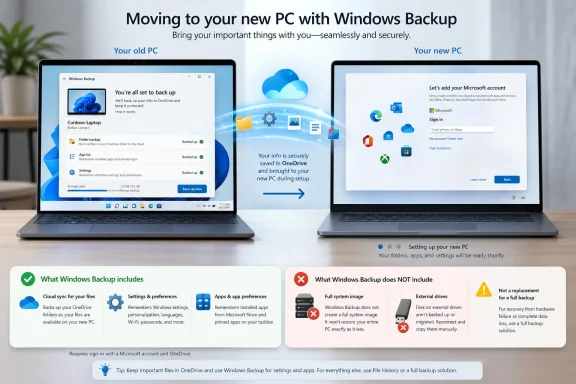 Microsoft’s Backup Button Is Really a Migration Button
The modern Windows Backup experience lives in a place that sounds reassuring: Settings, Accounts, Windows backup. It also appears as a standalone Windows Backup app, which gives the whole thing the shape of a familiar safety feature. But under the surface, the feature is less a backup system than a profile-portability system for Microsoft-account Windows users.That is not inherently bad. A clean Windows install that remembers your wallpaper, Start layout, language choices, accessibility preferences, Wi-Fi profiles, passwords, and app list is a genuinely nicer experience than starting from zero. Anyone who has rebuilt a Windows machine by hand knows how much time disappears into small irritations.
The problem is that backup is one of those words users do not parse narrowly. To most people, it means “if this machine dies, I can get my stuff back.” To sysadmins, it usually means recoverability, versioning, scope, retention, media separation, and testable restore paths. Windows Backup, as presented to consumers, sits awkwardly between those worlds: helpful enough to be worth enabling, incomplete enough to be dangerous if misunderstood.
Microsoft’s own framing leans into the migration story. The company describes Windows Backup as a way to take files, most settings, and apps to a new Windows 11 PC, with restore occurring when the user signs in during initial device setup. That is a new-PC experience first and a recovery strategy only in the loosest consumer-marketing sense.
The Toggle Stack Hides Three Different Jobs
The Windows Backup screen looks like a single system, but it is really a bundle of separate mechanisms. OneDrive folder backup handles files in known folders. “Remember my apps” preserves an installed-app list. “Remember my preferences” syncs categories of Windows settings and credentials.Those distinctions matter because each one fails differently. OneDrive folder backup is file sync, not a complete snapshot. The app list is a pointer to what you had installed, not a package archive. Preferences are settings state, not system state.
The most defensible part of the feature is the OneDrive piece. If your Desktop, Documents, Pictures, Music, and Videos folders are redirected into OneDrive, files in those locations can follow you across devices. For many mainstream users, those folders are where the important material lives: tax PDFs, schoolwork, family photos, exported screenshots, downloaded forms, and the mess that accumulates on the desktop.
But Windows has always allowed users and applications to scatter data elsewhere. A developer might keep repositories under
C:\Code. A photographer might keep a library on a second internal SSD. A gamer may have saves or mods outside the standard profile folders. An accountant may keep archived client data in a custom root folder because an old application expects it there. Windows Backup does not magically discover and protect those locations.“Remember my apps” is the more misleading toggle because it sounds like software recovery. It is not. Windows can remember the list of installed applications so the new PC can present or help restore that app footprint, but desktop programs are not simply moved over as working software.
That distinction is especially important for classic Win32 applications. Many still depend on installers, drivers, services, licensing components, registry entries, plug-ins, local databases, or files stored under ProgramData and AppData. A list of names is useful during rebuild, but it is not the same as having the applications, configurations, and data ready to run.
The Restore Moment Comes Before Most Users Understand the Stakes
The restore path is where Windows Backup becomes most brittle as a user-facing promise. The meaningful restore experience happens during the out-of-box experience, the first-run setup flow after a new or reset PC is being configured. Sign in with the same Microsoft account, choose the old device profile, and Windows can bring back the pieces it knows about.That timing makes sense from Microsoft’s design perspective. The company wants Windows to feel familiar as soon as a user lands on the desktop. Restore is part of provisioning, not a utility you open six weeks later after deciding the new PC feels wrong.
For ordinary users, though, that is a trap. People are trained to click through setup screens quickly because those screens are full of privacy prompts, account nudges, advertising toggles, and regional choices. They do not always know, in that moment, whether the old device profile is the right one, whether OneDrive has finished syncing, or whether they want to restore from a previous machine at all.
Once the machine is set up, there is no ordinary consumer-facing “restore my Windows Backup now” button that recreates the full setup-time experience on demand. Your OneDrive files remain accessible because they are just cloud-synced files. But the coordinated return of apps, settings, and preferences belongs to setup.
That design choice reveals what the feature is optimized for. It is meant to smooth the transition from an old PC to a new PC, not to give users a reversible time machine. That is a major difference, and Microsoft should say it with the same force it uses to promote the convenience.
OneDrive Is Not a Substitute for Knowing Where Your Data Lives
OneDrive folder backup is often the part of Windows Backup that saves people from themselves. A laptop dies, a replacement arrives, the user signs in, and the desktop starts repopulating. For a large percentage of home users, that alone can prevent a catastrophe.But OneDrive is not a neutral backup vault. It is a sync platform with backup-like features, quota constraints, and behavior that depends on where files are stored. If a file is outside the protected folders, Windows Backup does not protect it simply because it is emotionally important.
Storage limits are another practical constraint. A free Microsoft account includes a small amount of cloud storage, and modern photo libraries, phone exports, Outlook archives, video clips, and game captures can exhaust that quickly. Once the quota is full, the comforting green check marks and cloud icons stop being a comprehensive safety signal.
Sync also cuts both ways. If a user deletes a synced file, corrupts it, overwrites it, or allows ransomware to encrypt files before protection mechanisms intervene, the cloud copy may reflect that damage. OneDrive has versioning and recovery capabilities, but those are separate safety nets with their own limits. They should not be confused with an offline backup drive sitting disconnected in a drawer.
The best reading of Windows Backup’s file component is this: Microsoft is backing up the places Microsoft expects mainstream users to put files. That is a reasonable assumption for a migration feature. It is a poor assumption for a disaster-recovery plan.
The App List Is a Breadcrumb Trail, Not a Rescue Image
Software recovery is where expectations become most inflated. Users see “Remember my apps” and reasonably imagine that their applications will come back. In reality, Windows remembers enough to help reconstruct the application set, not enough to guarantee a working environment.Microsoft Store apps are better suited to this model because they are tied to accounts, packages, and a managed installation channel. Even there, app data and service sign-ins may not return in the way users expect. For traditional desktop applications, the restore path is more manual.
That means the applications most likely to matter to power users are often the least fully covered. CAD tools, DAWs, development environments, VPN clients, printer utilities, device-control suites, line-of-business software, security tools, and licensed professional applications can all require deliberate reinstall work. Some need activation keys. Some require vendor portals. Some require drivers or kernel components. Some store crucial configuration outside the neat places Windows Backup watches.
There is also a subtle support problem here. If the restore experience shows an icon or app entry, users may believe the software has been restored even when it is only a placeholder or reinstall path. That saves discovery time, but it can also create false confidence.
A true system image is ugly by comparison. It is not cloud-slick. It does not care about your Start menu aesthetic. But if built and tested properly, it captures the operating system, installed software, configuration, boot structure, and local data as a recoverable whole. Windows Backup is nowhere near that category, and it should not be judged as if it were.
Microsoft’s Consumer and Enterprise Stories Are Starting to Diverge
The consumer Windows Backup story is tied to the Microsoft account and the new-device setup experience. In managed environments, Microsoft has been building a related but distinct Windows Backup for Organizations story around Entra ID, policy, and device provisioning. That distinction matters because many of the people most concerned about backup semantics are not home users at all.For organizations, Microsoft’s direction is more explicit: preserve user settings and Microsoft Store app configurations so device transitions are faster and less disruptive. Administrators can configure policies, backups can run on a schedule, and restore can be integrated into OOBE or first sign-in on supported Windows 11 builds and joined-device scenarios.
That is a more honest fit. In enterprise IT, device replacement is already a provisioning workflow. The operating system is often disposable, applications come from Intune, Configuration Manager, Store, winget, or vendor deployment systems, and user files should already live in OneDrive for Business, SharePoint, redirected folders, or another managed storage layer.
Even there, Microsoft’s feature is not a universal backup product. It is a state-transfer mechanism for specific Windows settings and app references. A mature IT department will still need endpoint backup where required, configuration management, compliance retention, SaaS data protection, and tested recovery playbooks.
The irony is that enterprises may understand Windows Backup more accurately than consumers because they already think in layers. Consumers are the ones most likely to see a friendly app called Windows Backup and assume the machine is covered.
The Ghosts of Windows Backup Past Still Haunt the Control Panel
Part of the confusion comes from Windows’ long and messy backup history. The operating system has carried multiple backup and recovery features with overlapping names, uneven maintenance, and shifting visibility. File History remains available. “Backup and Restore (Windows 7)” still exists in Windows 11, even though its name practically warns users they have wandered into a museum.Microsoft has never fully reconciled the old local-backup world with the new cloud-account world. Instead, it has layered them. The modern Settings app pushes users toward OneDrive and account sync, while legacy Control Panel tools linger for people who know where to look.
File History is still the better built-in answer for one common problem: “I changed or deleted a file and want an older copy from my external drive.” It can save versioned copies of personal files to another drive or network location. It is local, understandable, and not dependent on catching the right prompt during device setup.
But File History also feels neglected. It is hidden in the old Control Panel and no longer occupies the prominent place it once did in Windows’ consumer backup story. That sends a signal, intentional or not, that Microsoft would rather steer users into OneDrive than educate them about local versioned backups.
Then there is imaging. The old Windows 7-era system image tooling has survived far longer than anyone would design from scratch today, but it is not where Microsoft’s energy is. For full-machine recovery, many experienced users have moved to dedicated products such as Macrium Reflect, Veeam Agent for Microsoft Windows, Acronis, or other imaging and endpoint backup tools.
The Right Backup Plan Is Boring Because It Has Layers
The safest way to use Windows Backup is to stop treating it as the plan and start treating it as one layer of the plan. Its job is to make a fresh Windows machine feel familiar quickly. That is valuable. It just should not be asked to do the work of a file-versioning system, an offline backup, and a bare-metal recovery image.A sensible personal backup strategy still follows the old 3-2-1 logic: multiple copies, more than one kind of media, and at least one copy away from the machine. Windows Backup can contribute to the cloud copy for standard user folders. It cannot satisfy the whole model by itself.
For everyday mistakes, File History or another versioned-file backup remains useful. It protects against the small disasters that happen more often than total drive failure: accidental deletion, bad edits, overwritten documents, and “I need the version from last Thursday.” Those are not glamorous recovery scenarios, but they are the ones users actually encounter.
For catastrophic failure, a full image or endpoint backup is the difference between rebuilding and restoring. If a boot drive dies, a good image lets you replace the drive and put the machine back as it was. Without one, Windows Backup may give you your wallpaper, a list of remembered apps, and a long evening of reinstalling software.
The final layer is testing. A backup you have never restored is a theory. That is true whether the tool comes from Microsoft, a third party, an enterprise backup vendor, or a script you wrote yourself. The only backup plan that deserves confidence is the one whose restore process you have actually rehearsed.
The Users Most at Risk Are the Ones Who Are Almost Careful
The people most likely to be burned by Windows Backup are not necessarily careless users. They are often the users who did something responsible, saw reassuring status text, and believed Windows had the rest handled. They turned on OneDrive folder backup. They enabled the toggles. They clicked “Back up.” Then they stored an important archive outside the protected folders and forgot about it.That “almost careful” user is common. Windows encourages personalization and local flexibility, but its modern backup interface assumes a narrow, cloud-friendly profile model. The gap between those two realities is where data loss lives.
Power users have their own version of the same risk. They may know perfectly well that OneDrive is syncing known folders, but they underestimate how much application data and project state lives elsewhere. Virtual machines, local databases, SSH keys, package caches, build artifacts, game libraries, plug-in folders, and custom application profiles are easy to miss until a restore exposes the hole.
Small businesses are in an even more awkward position. A sole proprietor or five-person office may be using consumer Microsoft accounts, unmanaged PCs, and ad hoc storage habits while believing Windows Backup provides business continuity. It does not. For that environment, the absence of a tested local and off-site backup plan is not a technical oversight; it is an operational risk.
Microsoft is not wrong to simplify backup for mainstream users. The old model, where every user was expected to understand drive letters, libraries, external disks, restore media, and image chains, failed plenty of people too. But simplification becomes harmful when the interface hides the boundary between convenience and recoverability.
The Name Is Doing Too Much Work
The central problem is branding. If Microsoft called this feature “Windows Transfer” or “Windows Profile Restore,” expectations would be clearer. Users would understand that it helps a new PC resemble the old one. They would be less likely to mistake it for full-machine protection.The name “Windows Backup” borrows trust from decades of backup language. It suggests comprehensiveness. It suggests safety. It suggests that the user can come back later, press restore, and reverse a disaster.
Microsoft’s small print is more careful than the product name. The company notes that apps may need to be reinstalled manually, that restore requires signing in during initial setup with the same Microsoft account, and that OneDrive storage limits apply. But ordinary users do not build mental models from footnotes. They build them from names, toggles, and the rough meaning of words.
This is a recurring pattern in modern Windows. Microsoft often builds account-centered convenience features that work well inside the intended lane, then presents them with broad language that invites overconfidence. The feature is not useless. The marketing perimeter is too wide.
A better Windows Backup screen would be explicit about scope before users need to learn it elsewhere. It would say which folders are protected and which are not. It would distinguish “app list” from “installed apps.” It would warn that the full restore prompt appears during setup. It would offer a plain audit view: here is what will come back, here is what will not, here is what requires another backup method.
A More Honest Backup Screen Would Change User Behavior
The fix is not only educational. Microsoft could make the product itself safer by showing users the blind spots. Windows already knows enough about common storage locations to provide a warning when large user-created folders sit outside OneDrive-protected locations. It could flag folders under the profile root that are not included, or at least explain that only selected known folders are covered.The app list could be clearer too. Instead of “Remember my apps” as the headline concept, Windows could say “Save my app list for reinstall.” That one phrasing change would prevent a lot of false assumptions. Users might still be annoyed when they have to reinstall desktop programs, but they would not be surprised.
Restore timing deserves the same treatment. If the coordinated restore is only available during new-device setup, the Windows Backup app should say so in large, unavoidable text. It should also provide a checklist users can export or view later so they know what to expect before resetting a PC.
Microsoft could also bridge the gap between cloud sync and local backup. A modern Settings page could point users toward File History, external drives, recovery media, and third-party imaging concepts without burying them in Control Panel archaeology. Windows does not need to include the world’s best imaging product to explain that Windows Backup is not one.
The company has done this kind of user-safety framing elsewhere. Windows Security does not merely say “you are safe” and stop there; it breaks protection into categories. Backup deserves the same honesty because backup failure is often invisible until recovery day.
The Windows Backup Fine Print Belongs on the Front Page
Windows Backup is worth enabling, but only after users understand its real perimeter. Read as a migration feature, it is convenient and increasingly important as Windows 10-era machines age out and users move to Windows 11 hardware. Read as a complete backup feature, it is a liability wrapped in a friendly interface.The practical lessons are not complicated, but they are easy to skip because the feature’s name makes them feel unnecessary.
- Windows Backup protects selected OneDrive-synced folders, selected preferences, credentials, and an app list, not a complete copy of the PC.
- Files stored outside Desktop, Documents, Pictures, Music, Videos, and other protected OneDrive locations need a separate backup plan.
- The app toggle preserves a list for restoration or reinstall help; it does not guarantee that desktop programs and their data return ready to run.
- The most important restore experience happens during initial Windows setup or supported provisioning flows, not from a universal restore button on the desktop.
- File History or another versioned-file backup remains useful for everyday mistakes, especially when stored on external or network media.
- A full disk image or endpoint backup is still the right answer for dead drives, botched upgrades, and bare-metal recovery.
References
- Primary source: TweakTown
Published: 2026-06-17T14:23:12.254866
I read the Windows Backup app screen carefully, and it does not back up what most people think
Windows Backup syncs folders, app lists, and settings to OneDrive but misses key data, so you need a real backup plan beyond Microsoft's tool. www.tweaktown.com
- Official source: support.microsoft.com
Backup and restore with File History - Microsoft Support
Learn how to configure File History and how to recover files and folders that have been deleted or accidentally changed.support.microsoft.com - Official source: learn.microsoft.com
Windows Backup for Organizations Overview | Microsoft Learn
Learn how to configure devices to use Windows Backup for Organizations.learn.microsoft.com - Official source: microsoft.com
Windows Backup: How to Back Up Files to Transfer Between Devices | Microsoft
Explore seamless data transfer solutions between Windows PCs from Microsoft. Learn how to effortlessly transfer your data between devices with Windows Backup.www.microsoft.com - Related coverage: guidingtech.com
How to Use File History to Backup and Restore Files on Windows 11 - Guiding Tech
Back up and restore your important files with ease by learning how to use File History on Windows 11.www.guidingtech.com
- Related coverage: windowscentral.com
How to use File History on Windows 11 | Windows Central
On Windows 11, you can still use File History to create a backup of your files to protect your data from accidental deletion, editing, and damage. Here's how.www.windowscentral.com
- Related coverage: techradar.com
Microsoft expands Windows backup to include restore at first sign-in | TechRadar
Backup feature adds new 'second chance' options for adminswww.techradar.com - Related coverage: wpls.aegvision.com
- Related coverage: scscc.club
