

Microsoft has quietly updated Windows 11’s taskbar battery indicator so it finally tells you useful information at a glance: the icon is now color-aware and you can choose to show an exact battery percentage in the system tray. This isn’t a flashy new AI feature or a hardware tweak — it’s a small user-interface change that solves a perennial annoyance for laptop users and arrives as part of Microsoft’s November Patch Tuesday roll‑out, with earlier access for Insiders and power users who want to enable it manually.
Battery indicators are one of those tiny pieces of UI that matter a lot in everyday computing. For years Windows showed a simple monochrome icon that required hovering or clicking to get an accurate readout, which made quick battery checks clumsy and increased “battery anxiety” for mobile users. Microsoft has been iterating on quick‑access controls across Windows 11 — Quick Settings, the system tray, Power & battery settings — and the new battery icon is a pragmatic extension of that work. Early testing and community discussion began in Insider channels earlier this year, where the colored icon and percentage option were visible in Dev/Beta test builds long before the broad November rollout.
The value here is simple: a pragmatic UX improvement that reduces friction for mobile users. It doesn’t materially change battery management policies or energy optimization features, but it improves transparency — which is often the most useful change for day‑to‑day behavior.
If you’ve already received the update, enable the percentage in Settings > System > Power & battery and enjoy the clearer battery readouts. If your device hasn’t received it yet, check Windows Update after Nov. 11 and consult your IT team if you’re on a managed device. The change is small, but for anyone who’s ever misjudged how much battery remains, it’s a welcome improvement.
Source: Forbes Windows 11 Delivers Subtle But Useful Battery Tweak — How To Get It
 Background
Battery indicators are one of those tiny pieces of UI that matter a lot in everyday computing. For years Windows showed a simple monochrome icon that required hovering or clicking to get an accurate readout, which made quick battery checks clumsy and increased “battery anxiety” for mobile users. Microsoft has been iterating on quick‑access controls across Windows 11 — Quick Settings, the system tray, Power & battery settings — and the new battery icon is a pragmatic extension of that work. Early testing and community discussion began in Insider channels earlier this year, where the colored icon and percentage option were visible in Dev/Beta test builds long before the broad November rollout.What’s changing (the facts)
- The taskbar battery icon now displays colors that correspond to key power states: green for charging/healthy, yellow for energy‑saving / low battery (commonly below ~20%), and red for critically low battery. These colors appear not only in the system tray but also in Quick Settings and in some instances within Settings; Microsoft has indicated plans to extend the visual language further in future builds.
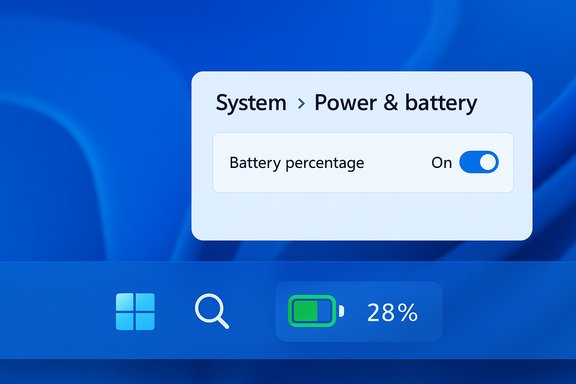
- There is a new Battery percentage option you can toggle (Settings > System > Power & battery) so the exact numeric percentage shows next to the icon in the taskbar, eliminating the need to hover or open a panel to get a precise reading. This is a user‑opted toggle rather than an always‑on change.
- The change is shipping with Microsoft’s normal cumulative update cycle and has been scheduled for the November Patch Tuesday release; Insiders and testers saw it earlier in preview builds (Dev/Beta and Release Preview channels), and some users enabled it via optional preview packages or third‑party tooling during testing. Expect staged rollout patterns: not every device will get it simultaneously.
Why this matters — quick UX and accessibility wins
Small UI changes can have outsized practical benefits. The new indicator does three useful things:- Faster comprehension: Color encodes state faster than shape or tiny bars, so a glance tells you “charging / low / critical” without need for a second look. This matters in meetings, transit, or any brief glance scenario.
- Exact planning: A visible percentage removes guesswork; knowing you’re at 28% versus “maybe 30%” changes whether you’ll risk starting a long task. The toggle avoids clutter for users who prefer minimalism while serving those who want precise info.
- Accessibility considerations: Color plus numeric percentage benefits many users, but color alone can be an issue for color‑blind users. The percentage option is therefore an important companion to the colored icon (and Microsoft continues to surface power status in more accessible text in Settings).
How to get the new indicator: rollout paths and immediate options
There are three realistic ways to obtain the new battery display depending on your tolerance for pre‑release software:- Install the official Patch Tuesday cumulative update (stable rollout)
- Microsoft scheduled the visual change as part of the November 11, 2025 Patch Tuesday set of updates for supported Windows 11 channels. Devices on current public builds should receive the update via Windows Update as Microsoft completes its staged deployment. Check Settings > Windows Update to see availability.
- Use the Windows Insider Program (early access)
- The colored battery icon and the percentage toggle were available to Windows Insiders in Dev/Beta/Release Preview channels earlier in 2025. If you’re comfortable testing preview builds, joining the Insider program and switching to the appropriate channel will make the feature available sooner — at the cost of running non‑final builds.
- (Power users) Enable the icon with ViVeTool or optional preview packages
- During early testing some users activated the feature manually using ViVeTool command flags or optional Microsoft preview packages. For example, specific Insider build toggles were enabled by commands listed in early reports; those commands were required only in preview builds and should be used with caution. If you go this route, back up your system and understand this is an advanced, unsupported tweak.
- Open Settings (Win + I).
- Go to System > Power & battery.
- Under the battery section, flip Battery percentage to On.
The change takes effect immediately; you do not usually need to reboot. If the option is missing, see troubleshooting below.
Verified technical notes and crosschecks
- The design and colors were confirmed by multiple independent outlets that covered the Insider rollouts and the November update. Both The Verge and Windows Central independently reported the color mapping (green = charging/good, yellow = energy saver/low, red = critical) and the presence of a toggle to show percentage in Settings. These independent confirmations provide a consistent picture of the feature across outlets.
- The Settings path — Settings > System > Power & battery — and the existence of a toggle to show percentage are corroborated by user guides and IT‑oriented writeups. If you don’t see the option, this could be due to staged rollout, policy restrictions in managed environments, or being on an unsupported build.
- Insider build identifiers and ViVeTool enablement flags circulated in the Insider community for early testers. Those build numbers and flags were documented in several community threads and technical writeups; they were not required for the public Patch Tuesday release and are relevant only for preview builds and experimental activation. Use of ViVeTool is a manual, unsupported path.
Troubleshooting: if you don’t see the toggle
If the battery percentage toggle or the colored icon isn’t present after installing updates, try the following steps in order:- Confirm your Windows build and update status (Settings > Windows Update). Staged rollouts mean your device might not see the change immediately.
- Verify the device is a battery‑powered system (laptops, tablets, Surface devices). Desktop PCs without batteries won’t show battery UI elements.
- Restart Explorer or sign out / sign back in. Small UI updates sometimes need an explorer refresh to appear.
- Check for management policies. Enterprise devices can have settings hidden by group policy or MDM; administrators can restrict visibility of System > Power & battery controls in managed environments. If you see no option, consult your IT admin.
- If you used ViVeTool or other tools in the past, undo any persistent flags and reboot; manual flags can conflict with staged rollouts on later builds.
Risks, caveats, and enterprise considerations
- Staged rollouts and fragmentation: Microsoft uses gradual deployment and A/B testing. That can lead to inconsistent experiences across machines and business fleets for days or weeks after Patch Tuesday. Enterprises should test updates on a representative subset before broad deployment.
- Managed devices and policy locks: In corporate environments, registry or AD/Microsoft Endpoint Manager policies can hide or disable the “Battery percentage” toggle; administrators may need to approve or push the change centrally. Organizations that lock Settings will prevent end users from toggling the new display.
- Accessibility: relying solely on color introduces potential issues for color‑blind users. Microsoft’s inclusion of the numeric percentage helps mitigate this, but IT teams responsible for accessibility should confirm that the new design meets internal accessibility guidelines.
- ViVeTool and manual enabling: While tempting for enthusiasts, enabling experimental features with third‑party tools carries risk. ViVeTool toggles can leave behind settings, may require specific preview builds, and sometimes interfere with normal update behavior. Back up data and avoid manual toggles on production machines.
Practical comparison: how Windows 11’s tweak stacks up
Other platforms have long exposed precise battery information and easily readable indicators. macOS and many mobile OS variants (iOS, Android) combine color cues, percentage displays, and persistent status indications. This Windows change is best read as Microsoft catching up in terms of immediate readability rather than introducing a new paradigm.The value here is simple: a pragmatic UX improvement that reduces friction for mobile users. It doesn’t materially change battery management policies or energy optimization features, but it improves transparency — which is often the most useful change for day‑to‑day behavior.
Recommendations: what to do next
- Home users: If you want a cleaner battery experience without risking stability, wait for the stable Patch Tuesday install (Nov 11, 2025) and then enable the percentage toggle in Settings > System > Power & battery.
- Enthusiasts and power users: If you want it now and are comfortable with preview builds, join Windows Insider (Dev/Beta) or enable the feature manually with ViVeTool only on non‑critical machines. Document any manual toggles so you can revert them before moving to production builds.
- IT admins: Test the update in a controlled ring and confirm there are no conflicts with endpoint management policies. If you prefer uniform rollouts, hold the update until your testing validates compatibility with imaging, security tools, and accessibility requirements. Consider communications to end users about the new toggle and any changes in Helpdesk troubleshooting scripts.
Critical analysis — strengths and potential downsides
Strengths- The update fixes a friction point that affects millions of daily interactions with Windows devices. It’s a high‑impact, low‑risk UI improvement.
- The optional percentage toggle balances minimalism and precision; users who dislike clutter are not forced into a numeric readout.
- The change aligns Windows with modern cross‑device expectations for readable battery status.
- Staged deployment and Insider variances can create inconsistent behaviour across a user base, complicating support and documentation in larger organizations.
- Excess reliance on color without clear textual fallback can be problematic for accessibility; the percentage solves most use cases, but UI designers should continue to test for color‑blind scenarios.
- Manual enabling methods used by early adopters (ViVeTool, preview packages) come with support and stability risks — not recommended for production machines.
Final verdict
This update is a textbook example of sensible, user‑focused iteration: it takes a tiny part of the interface that many people interact with dozens of times a day and makes it meaningfully better. The change won’t revolutionize Windows, but it will reduce small daily frictions that add up over time. For administrators and cautious users, the standard Patch Tuesday path on November 11, 2025, is the recommended approach. For enthusiasts who want the feature early, Insider builds and advanced toggles offer options, but they come with the usual preview‑channel caveats.If you’ve already received the update, enable the percentage in Settings > System > Power & battery and enjoy the clearer battery readouts. If your device hasn’t received it yet, check Windows Update after Nov. 11 and consult your IT team if you’re on a managed device. The change is small, but for anyone who’s ever misjudged how much battery remains, it’s a welcome improvement.
Source: Forbes Windows 11 Delivers Subtle But Useful Battery Tweak — How To Get It
