

Microsoft’s latest Windows 11 Experimental build is attracting attention for more than the features listed in the official changelog. Build 26300.8289, released on April 24, 2026, is officially about Windows Update controls, Insider channel movement, print driver preparation, Start menu click detection, and a handful of fixes. But testers and Windows watchers have also found several unannounced interface changes inside the build, including early work on a movable taskbar, a redesigned Run dialog, a refreshed login animation, and a more convenient unit selector for resizing storage volumes. Microsoft’s own release notes confirm that this build belongs to the new Experimental path and that some features in these preview builds may change, be removed, or never ship outside the Insider Program.
The timing of these discoveries is important. Microsoft is in the middle of reorganizing the Windows Insider Program, moving many Dev Channel users toward the new Experimental channel and refreshing how features are tested before they reach broader Windows 11 releases. The company says the transition is being rolled out in phases, and users who do not yet see the new Insider interface can enable it from Settings > Windows Update > Windows Insider Program > Feature flags.
That new channel structure helps explain why build 26300.8289 contains more than the official announcement highlights. Experimental builds are intended to expose early, incomplete, or still-changing Windows work to a subset of testers. They can include features that are not ready for regular Insiders, features that require flags, and features that are visible only in a partial or debugging state.
That appears to be exactly what is happening here. The four hidden features are not polished launch announcements. They are signals. They show what Microsoft is testing internally, what pain points it may be prioritizing, and which long-standing parts of Windows 11 are finally being revisited.
The most notable of those changes is also the one users have been asking about since Windows 11 first launched: the return of a movable taskbar.
For many users, that was not a minor cosmetic limitation. People with ultrawide monitors, vertical monitors, tablet-style setups, or long-standing desktop habits often prefer a side-mounted or top-mounted taskbar. Others used a left or right taskbar to preserve vertical screen space, especially on laptops where vertical pixels are more valuable than horizontal pixels.
Build 26300.8289 now includes early support for taskbar repositioning. The feature is not presented as a finished Settings option yet. Instead, new entries appear in the taskbar context menu that allow the bar to be moved to the top, left, or right of the screen. Windows Central reports that the integration is still buggy and that side docking does not currently work properly, while the visible context menu options appear to be debugging controls rather than the final user-facing design.
Even in this rough state, the change matters. It suggests Microsoft is no longer treating the bottom-only taskbar as a permanent design decision. The company appears to be actively rebuilding at least part of the taskbar experience to support more flexible positioning.
If this reaches public Windows 11 releases, it would reverse one of the most criticized omissions in the operating system. Since 2021, many users have relied on third-party tools, registry workarounds, or replacement shells to regain old taskbar behavior. A native implementation would be safer, cleaner, and more reliable than depending on unsupported modifications that can break after monthly updates.
Still, users should be cautious about expectations. Hidden features in Experimental builds are not promises. Microsoft may test the movable taskbar for months, redesign how it is exposed, limit it to certain layouts, or remove it entirely if quality issues remain. The current implementation being unfinished is not surprising. Moving the taskbar is more complicated than simply changing its screen position. It affects Start menu placement, notification area layout, flyouts, search, widgets, animations, accessibility, touch behavior, and multi-monitor behavior.
That is likely why this feature is appearing quietly rather than being announced as ready for testing. Microsoft needs to make sure that every taskbar-dependent surface behaves correctly when the bar moves away from the bottom edge.
On a widescreen monitor, a left or right taskbar can use otherwise underutilized horizontal space. On a laptop, a top taskbar can keep window controls and system controls closer together. On a vertical monitor, bottom docking can feel inefficient. For accessibility needs, muscle memory and pointer travel distance can matter as much as aesthetics.
Windows has historically been valued because it lets people adapt the desktop to their habits. Windows 11’s original taskbar was cleaner and more modern, but also more restrictive. Bringing back taskbar movement would fit with a broader trend in recent Windows 11 preview builds: Microsoft has been revisiting decisions that simplified the interface at launch but frustrated power users over time.
If the feature reaches stable builds, the final location for it will likely be in Settings rather than a right-click debugging menu. Windows Central notes that the current menu entries are not expected to be the final product and that taskbar settings would be the logical place for the finished controls.
That would also be more consistent with Windows 11’s design approach. Microsoft has spent years moving older control surfaces into Settings, and a taskbar placement selector would make more sense alongside existing taskbar alignment, behavior, and system tray options.
The Run box is one of the oldest and most familiar Windows utilities. Press Windows + R, type a command, executable name, file path, folder path, or system tool, and Windows opens it. It is simple, fast, and deeply embedded in the workflows of administrators, developers, support technicians, and power users.
It has also looked old for a very long time.
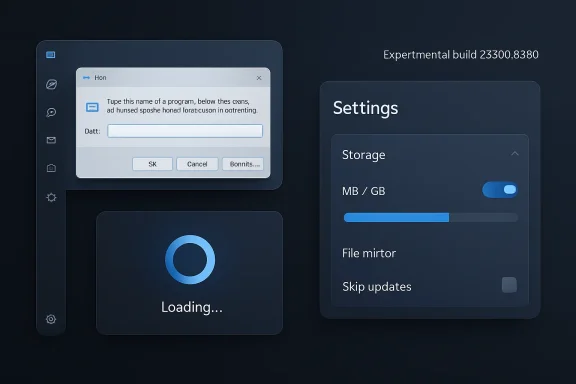
In build 26300.8289, Microsoft is testing a modern Run interface that follows Windows 11’s Fluent Design language. The new design uses rounded corners, cleaner spacing, semi-transparent visual elements, support for light and dark themes, and a larger text field. As users type, the interface can show recent commands and surface matching apps and paths. Windows Central describes it as the first major upgrade to the Run experience in roughly three decades.
That is a major shift for a dialog that has mostly survived across Windows versions with only modest visual updates. The current Run box is functional, but it feels disconnected from the rest of Windows 11. It still resembles a legacy Win32-era component rather than a modern system surface.
The new design appears intended to keep the speed of Run while adding helpful discovery. Recent commands are useful because Run is often repetitive: users launch the same tools again and again, such as
The key challenge will be preserving what makes Run valuable. Run is popular because it is immediate. If the new interface becomes slower, heavier, or cluttered, it could frustrate the exact users who rely on it most. Microsoft appears aware of that risk, because the redesigned Run dialog is expected to be optional.
That is the right approach for a utility like Run. Unlike a consumer-facing app, Run is a muscle-memory tool. A visual redesign may be welcome, but users who depend on it for speed and predictability should have a transition path.
The optional model also fits the broader Insider Program changes. Microsoft is adding more direct control over experimental experiences through feature flags. That helps reduce a common Insider frustration: reading about a feature, installing the right build, and then discovering that the feature is not available on that specific device. Microsoft says Experimental users will be able to enable or disable certain features through the Feature flags page, though not every hidden or internal experiment will necessarily appear there.
If the modern Run dialog ships, it could become part of a broader modernization of older Windows components. Microsoft has already updated many system surfaces over the Windows 11 era, but plenty of small dialogs and utilities still carry older interface patterns. Run is one of the most recognizable holdouts.
A better Run dialog also has room to become more useful without becoming bloated. Recent commands, search suggestions, path completion, and better dark mode support are sensible additions. The danger would be turning it into another search panel or assistant surface. Run should remain Run: fast, keyboard-first, predictable, and lightweight.
Windows 11 currently uses animated dots in several system transition states. Build 26300.8289 includes a new solid spinning indicator that more closely matches the animation used during boot. The goal appears to be consistency. Marcus Ash, who leads Windows design and research at Microsoft, reportedly said the change is meant to create more consistency across most use cases that involve spinning indicators.
This is not the kind of feature that changes how people work, but it contributes to how polished the operating system feels. Windows has long had a mixture of old and new animations, dialogs, icons, and loading states. Some inconsistencies are harmless, while others make the system feel unfinished.
A consistent loading animation across boot, login, restart, shutdown, and sign-out helps make the system feel more unified. It also gives Microsoft one visual language for waiting states rather than several slightly different ones.
The change may seem minor compared with taskbar movement or a redesigned Run dialog, but Windows is full of these transitional moments. Users see them when applying updates, switching users, restarting after driver changes, shutting down at the end of the day, or signing back in after a crash. Consistency in those moments makes the system feel less like a collection of legacy pieces and more like one coherent product.
It also matters for accessibility and recognition. A familiar, consistent progress indicator helps users understand that the system is still working. If animations differ across similar states, users may wonder whether something has gone wrong. A unified spinner is a subtle but useful signal.
That sounds simple because it is. It is also the kind of improvement Windows still needs in many places.
Storage management often exposes sizes in megabytes even when users think in gigabytes or terabytes. If someone wants to resize a partition to 200 GB, forcing them to calculate or enter the value in megabytes adds unnecessary friction. Power users can do the math, but they should not have to. Less technical users may hesitate or make mistakes.
The new toggle makes the resizing process more readable. Instead of mentally converting values, users can work in the unit that matches their task. For modern storage drives, gigabytes are usually the more natural unit. A Windows installation, recovery partition, game library, virtual machine disk, or media volume is rarely planned in megabytes.
This improvement fits into Microsoft’s long-running effort to move disk and volume management from legacy tools into the Settings app. The classic Disk Management console remains powerful, but it is old and not especially friendly. The modern Disks & volumes page is more approachable, but it needs to expose enough practical controls to replace common legacy workflows. A unit selector is a small step in that direction.
It also reduces risk. Partition resizing is not something users do casually. A clearer interface can help prevent mistakes, especially when users are shrinking or extending volumes around recovery partitions, dual-boot installations, or secondary drives.
Those changes address another long-running Windows complaint: updates can feel mandatory at inconvenient moments. The out-of-box experience change is particularly important for new PCs. Previously, users setting up a device could be pulled into update installation during setup, potentially adding a long delay before they reached the desktop. Giving users the ability to skip some updates during setup makes the first-run experience more flexible.
The option to extend update pauses repeatedly is also notable. Windows Update pause limits have often been criticized by users who want more control over when changes reach their devices. A more flexible pause model could be useful for people traveling, working on deadline, troubleshooting a driver issue, or waiting to confirm that a new update is stable.
Keeping shutdown and restart options available without forcing an update is another quality-of-life improvement. Users often want to shut down a laptop quickly, restart for troubleshooting, or power off before travel without beginning an update cycle. Always available non-update power options give them that choice.
Together, these official Windows Update changes and the hidden interface experiments point in the same direction: Microsoft is trying to make Windows feel less rigid. It is giving users more control over updates, more potential control over the taskbar, and more modern interfaces for older tools.
The build also improves detection of clicks at the leftmost edge of the taskbar when taskbar icons are left aligned. That should make it easier to invoke the Start menu in that layout, especially for users who prefer a more traditional Windows alignment rather than centered icons.
Microsoft also removed an unexpected error that appeared when opening Group Policy Editor in recent Insider flights. That fix matters mainly for administrators and advanced users, but it is exactly the kind of rough edge that Insider builds are supposed to expose before broader release.
There is also a font-related update. Microsoft says Times New Roman has been updated to improve support for combining diacritical marks across Greek and Cyrillic Unicode ranges. That is not a mainstream headline feature, but it matters for localization, publishing, accessibility, academic work, and anyone using languages where correct mark positioning is essential.
These smaller changes are easy to overlook, but they show the range of work happening in a single Insider build. Windows development is not only about visible UI features. It also involves drivers, fonts, setup behavior, administrative tools, and subtle input improvements.
That is normal for Experimental builds, but it can be confusing. A user may install build 26300.8289 and not see the movable taskbar options. Another may see the redesigned Run dialog. Another may only see the officially announced Windows Update changes. Controlled rollouts, feature flags, device eligibility, region, and internal testing groups can all affect what appears.
Microsoft’s own reminder for this build is clear: features and experiences included in these builds may never be released, may change over time, may be removed, or may be replaced. Preview builds are not product commitments. They are testing grounds.
That is especially true for the movable taskbar. Because the implementation is early and buggy, users should not assume it is close to shipping. The same applies to the new Run dialog. It appears much more complete than the taskbar work, but optional UI redesigns can still change significantly before release.
For users who are not comfortable with bugs, the Experimental channel is not the right place to be. These builds can include unfinished features and regressions. They are meant for people who want to test, provide feedback, and tolerate instability.
The taskbar has been one of the most controversial parts of Windows 11 since launch. Many users liked the cleaner look, but disliked the loss of flexibility. Restoring movement would show Microsoft is willing to revisit early Windows 11 design trade-offs.
The Run dialog is a legacy tool that many advanced users touch every day. Modernizing it without removing its speed would be a rare example of improving an old component while respecting why people still use it.
The login animation is a polish change, but Windows 11 still suffers from visual inconsistency across older and newer system surfaces. A unified spinner helps reduce that fragmentation.
The storage unit toggle is a practical settings improvement. It does not need marketing. It simply makes a common task easier to understand.
Together, these changes suggest that Microsoft is working on Windows 11 from both ends: headline usability complaints and tiny quality-of-life improvements. That combination is more meaningful than a single flashy feature.
Still, users should remain cautious. Windows has seen many experimental features appear, disappear, return in different form, or ship years later. A hidden feature in one build is evidence of active development, not a guarantee.
The movable taskbar is the best example. Its presence is encouraging, but its current state sounds far from finished. Side docking reportedly does not yet work correctly, and the current controls appear to be temporary debugging entries. That means Microsoft is probably still solving fundamental layout and reliability problems.
The redesigned Run dialog looks closer to something that could ship, particularly because it already has a planned Settings toggle. But even there, Microsoft will need feedback on performance, keyboard behavior, suggestions, history, privacy, and whether the new UI interferes with the simplicity of the old dialog.
The storage toggle is likely the least risky of the group. It is small, contained, and easy to understand. The login animation is similarly low risk, though even animations can change before release.
For Windows enthusiasts already in the Insider Program, build 26300.8289 is worth watching. It may be one of the first signs of how the new Experimental channel will operate in practice: official feature flags, visible platform work, and unfinished features appearing before Microsoft is ready to announce them broadly.
For businesses and managed environments, the message is different. These changes should be treated as early signals, not deployment plans. The Windows Update controls may eventually matter for setup and maintenance workflows, but hidden UI features are not ready for planning until Microsoft documents them more formally.
For power users frustrated by Windows 11’s reduced customization, the movable taskbar is the headline. It does not solve every taskbar complaint, but it suggests Microsoft may be reopening a door that many assumed was closed.
Build 26300.8289 is interesting because it touches all of those areas. It gives users more official control over updates. It hints at restoring taskbar flexibility. It modernizes a decades-old dialog. It polishes system animations. It improves a storage management workflow. None of those changes alone transforms Windows 11, but together they make the operating system feel more responsive to feedback.
The Experimental channel gives Microsoft a place to test that work earlier and more visibly. If used well, it could reduce the gap between what Windows enthusiasts discover through unofficial tools and what Microsoft openly acknowledges. If Microsoft pairs that with clear feature flags and honest release notes, the Insider Program could become more useful for both testers and the Windows team.
For now, build 26300.8289 should be viewed as a preview of possibilities. The four hidden features are real enough to be seen, but not final enough to be trusted. The movable taskbar may change. The Run dialog may evolve. The spinner may be adjusted. The storage toggle may quietly become standard.
What matters most is the direction. Microsoft appears to be revisiting some of the places where Windows 11 has felt too fixed, too old, or too inconsistent. If these experiments survive testing, future Windows 11 builds could feel both more modern and more flexible than the version users have today.
Source: gHacks Windows 11 Reveals 4 Hidden Features in the Latest Experimental Build - gHacks Tech News
 The Experimental channel is already doing what its name suggests
The timing of these discoveries is important. Microsoft is in the middle of reorganizing the Windows Insider Program, moving many Dev Channel users toward the new Experimental channel and refreshing how features are tested before they reach broader Windows 11 releases. The company says the transition is being rolled out in phases, and users who do not yet see the new Insider interface can enable it from Settings > Windows Update > Windows Insider Program > Feature flags.That new channel structure helps explain why build 26300.8289 contains more than the official announcement highlights. Experimental builds are intended to expose early, incomplete, or still-changing Windows work to a subset of testers. They can include features that are not ready for regular Insiders, features that require flags, and features that are visible only in a partial or debugging state.
That appears to be exactly what is happening here. The four hidden features are not polished launch announcements. They are signals. They show what Microsoft is testing internally, what pain points it may be prioritizing, and which long-standing parts of Windows 11 are finally being revisited.
The most notable of those changes is also the one users have been asking about since Windows 11 first launched: the return of a movable taskbar.
The movable taskbar may finally be coming back
When Windows 11 arrived, Microsoft rebuilt the taskbar and removed several customization options that had existed for years. One of the most visible losses was the ability to dock the taskbar to the top, left, or right side of the display. Windows 11 users could align icons to the left, but the bar itself remained fixed at the bottom.For many users, that was not a minor cosmetic limitation. People with ultrawide monitors, vertical monitors, tablet-style setups, or long-standing desktop habits often prefer a side-mounted or top-mounted taskbar. Others used a left or right taskbar to preserve vertical screen space, especially on laptops where vertical pixels are more valuable than horizontal pixels.
Build 26300.8289 now includes early support for taskbar repositioning. The feature is not presented as a finished Settings option yet. Instead, new entries appear in the taskbar context menu that allow the bar to be moved to the top, left, or right of the screen. Windows Central reports that the integration is still buggy and that side docking does not currently work properly, while the visible context menu options appear to be debugging controls rather than the final user-facing design.
Even in this rough state, the change matters. It suggests Microsoft is no longer treating the bottom-only taskbar as a permanent design decision. The company appears to be actively rebuilding at least part of the taskbar experience to support more flexible positioning.
If this reaches public Windows 11 releases, it would reverse one of the most criticized omissions in the operating system. Since 2021, many users have relied on third-party tools, registry workarounds, or replacement shells to regain old taskbar behavior. A native implementation would be safer, cleaner, and more reliable than depending on unsupported modifications that can break after monthly updates.
Still, users should be cautious about expectations. Hidden features in Experimental builds are not promises. Microsoft may test the movable taskbar for months, redesign how it is exposed, limit it to certain layouts, or remove it entirely if quality issues remain. The current implementation being unfinished is not surprising. Moving the taskbar is more complicated than simply changing its screen position. It affects Start menu placement, notification area layout, flyouts, search, widgets, animations, accessibility, touch behavior, and multi-monitor behavior.
That is likely why this feature is appearing quietly rather than being announced as ready for testing. Microsoft needs to make sure that every taskbar-dependent surface behaves correctly when the bar moves away from the bottom edge.
Why taskbar placement is more than nostalgia
The demand for a movable taskbar is sometimes framed as nostalgia for older versions of Windows, but the issue is more practical than sentimental. Desktop workflows have changed since Windows 10. Many users now work across multiple monitors, vertical displays, docking stations, remote desktops, and large ultrawide panels. A fixed bottom taskbar is simple, but it is not always the best layout.On a widescreen monitor, a left or right taskbar can use otherwise underutilized horizontal space. On a laptop, a top taskbar can keep window controls and system controls closer together. On a vertical monitor, bottom docking can feel inefficient. For accessibility needs, muscle memory and pointer travel distance can matter as much as aesthetics.
Windows has historically been valued because it lets people adapt the desktop to their habits. Windows 11’s original taskbar was cleaner and more modern, but also more restrictive. Bringing back taskbar movement would fit with a broader trend in recent Windows 11 preview builds: Microsoft has been revisiting decisions that simplified the interface at launch but frustrated power users over time.
If the feature reaches stable builds, the final location for it will likely be in Settings rather than a right-click debugging menu. Windows Central notes that the current menu entries are not expected to be the final product and that taskbar settings would be the logical place for the finished controls.
That would also be more consistent with Windows 11’s design approach. Microsoft has spent years moving older control surfaces into Settings, and a taskbar placement selector would make more sense alongside existing taskbar alignment, behavior, and system tray options.
The Run dialog is finally getting a modern design
The second hidden change is a redesigned Run dialog. This is another small-looking feature with outsized historical significance.The Run box is one of the oldest and most familiar Windows utilities. Press Windows + R, type a command, executable name, file path, folder path, or system tool, and Windows opens it. It is simple, fast, and deeply embedded in the workflows of administrators, developers, support technicians, and power users.
It has also looked old for a very long time.
In build 26300.8289, Microsoft is testing a modern Run interface that follows Windows 11’s Fluent Design language. The new design uses rounded corners, cleaner spacing, semi-transparent visual elements, support for light and dark themes, and a larger text field. As users type, the interface can show recent commands and surface matching apps and paths. Windows Central describes it as the first major upgrade to the Run experience in roughly three decades.
That is a major shift for a dialog that has mostly survived across Windows versions with only modest visual updates. The current Run box is functional, but it feels disconnected from the rest of Windows 11. It still resembles a legacy Win32-era component rather than a modern system surface.
The new design appears intended to keep the speed of Run while adding helpful discovery. Recent commands are useful because Run is often repetitive: users launch the same tools again and again, such as
cmd, powershell, regedit, services.msc, msconfig, devmgmt.msc, or a frequently used folder path. Matching apps and paths could make Run more forgiving, reducing the need to remember exact commands.The key challenge will be preserving what makes Run valuable. Run is popular because it is immediate. If the new interface becomes slower, heavier, or cluttered, it could frustrate the exact users who rely on it most. Microsoft appears aware of that risk, because the redesigned Run dialog is expected to be optional.
The new Run dialog is expected to be optional
According to the current implementation, Microsoft plans to expose the modern Run dialog through Settings > System > Advanced with a dedicated Run dialog toggle. In build 26300.8289, the redesigned experience is reportedly available in the Experimental channel without needing to manually turn on that setting, but the presence of a toggle suggests Microsoft does not intend to force the new design immediately on every user.That is the right approach for a utility like Run. Unlike a consumer-facing app, Run is a muscle-memory tool. A visual redesign may be welcome, but users who depend on it for speed and predictability should have a transition path.
The optional model also fits the broader Insider Program changes. Microsoft is adding more direct control over experimental experiences through feature flags. That helps reduce a common Insider frustration: reading about a feature, installing the right build, and then discovering that the feature is not available on that specific device. Microsoft says Experimental users will be able to enable or disable certain features through the Feature flags page, though not every hidden or internal experiment will necessarily appear there.
If the modern Run dialog ships, it could become part of a broader modernization of older Windows components. Microsoft has already updated many system surfaces over the Windows 11 era, but plenty of small dialogs and utilities still carry older interface patterns. Run is one of the most recognizable holdouts.
A better Run dialog also has room to become more useful without becoming bloated. Recent commands, search suggestions, path completion, and better dark mode support are sensible additions. The danger would be turning it into another search panel or assistant surface. Run should remain Run: fast, keyboard-first, predictable, and lightweight.
A new login animation brings visual consistency
The third hidden change is smaller, but it affects moments every Windows user sees: sign-in, sign-out, restart, and shutdown.Windows 11 currently uses animated dots in several system transition states. Build 26300.8289 includes a new solid spinning indicator that more closely matches the animation used during boot. The goal appears to be consistency. Marcus Ash, who leads Windows design and research at Microsoft, reportedly said the change is meant to create more consistency across most use cases that involve spinning indicators.
This is not the kind of feature that changes how people work, but it contributes to how polished the operating system feels. Windows has long had a mixture of old and new animations, dialogs, icons, and loading states. Some inconsistencies are harmless, while others make the system feel unfinished.
A consistent loading animation across boot, login, restart, shutdown, and sign-out helps make the system feel more unified. It also gives Microsoft one visual language for waiting states rather than several slightly different ones.
The change may seem minor compared with taskbar movement or a redesigned Run dialog, but Windows is full of these transitional moments. Users see them when applying updates, switching users, restarting after driver changes, shutting down at the end of the day, or signing back in after a crash. Consistency in those moments makes the system feel less like a collection of legacy pieces and more like one coherent product.
It also matters for accessibility and recognition. A familiar, consistent progress indicator helps users understand that the system is still working. If animations differ across similar states, users may wonder whether something has gone wrong. A unified spinner is a subtle but useful signal.
Storage resizing gets a practical MB/GB toggle
The fourth hidden change is the least flashy but possibly the most immediately practical. In Settings > Storage > Disks & volumes, the option to change the size of a volume now includes a unit toggle that lets users switch between megabytes and gigabytes.That sounds simple because it is. It is also the kind of improvement Windows still needs in many places.
Storage management often exposes sizes in megabytes even when users think in gigabytes or terabytes. If someone wants to resize a partition to 200 GB, forcing them to calculate or enter the value in megabytes adds unnecessary friction. Power users can do the math, but they should not have to. Less technical users may hesitate or make mistakes.
The new toggle makes the resizing process more readable. Instead of mentally converting values, users can work in the unit that matches their task. For modern storage drives, gigabytes are usually the more natural unit. A Windows installation, recovery partition, game library, virtual machine disk, or media volume is rarely planned in megabytes.
This improvement fits into Microsoft’s long-running effort to move disk and volume management from legacy tools into the Settings app. The classic Disk Management console remains powerful, but it is old and not especially friendly. The modern Disks & volumes page is more approachable, but it needs to expose enough practical controls to replace common legacy workflows. A unit selector is a small step in that direction.
It also reduces risk. Partition resizing is not something users do casually. A clearer interface can help prevent mistakes, especially when users are shrinking or extending volumes around recovery partitions, dual-boot installations, or secondary drives.
The official build is focused on Windows Update control
The hidden features are getting the attention, but build 26300.8289 also includes officially announced changes that are worth noting. Microsoft says the build introduces new Windows Update capabilities intended to improve security and user control. These include the ability to skip updates immediately during the out-of-box experience, extend update pauses as many times as needed, always keep shutdown and restart options available without updating, and provide more insight into available updates so users can make more informed installation decisions.Those changes address another long-running Windows complaint: updates can feel mandatory at inconvenient moments. The out-of-box experience change is particularly important for new PCs. Previously, users setting up a device could be pulled into update installation during setup, potentially adding a long delay before they reached the desktop. Giving users the ability to skip some updates during setup makes the first-run experience more flexible.
The option to extend update pauses repeatedly is also notable. Windows Update pause limits have often been criticized by users who want more control over when changes reach their devices. A more flexible pause model could be useful for people traveling, working on deadline, troubleshooting a driver issue, or waiting to confirm that a new update is stable.
Keeping shutdown and restart options available without forcing an update is another quality-of-life improvement. Users often want to shut down a laptop quickly, restart for troubleshooting, or power off before travel without beginning an update cycle. Always available non-update power options give them that choice.
Together, these official Windows Update changes and the hidden interface experiments point in the same direction: Microsoft is trying to make Windows feel less rigid. It is giving users more control over updates, more potential control over the taskbar, and more modern interfaces for older tools.
Print drivers, Start menu behavior, and smaller fixes
Build 26300.8289 also includes several less visible changes. Microsoft says the Internet Protocol Print driver,prnms012, has new hardware IDs in preparation for upcoming changes in printer driver ranking order. This ties into Microsoft’s broader print driver modernization work and its long-term movement away from older third-party print driver models.The build also improves detection of clicks at the leftmost edge of the taskbar when taskbar icons are left aligned. That should make it easier to invoke the Start menu in that layout, especially for users who prefer a more traditional Windows alignment rather than centered icons.
Microsoft also removed an unexpected error that appeared when opening Group Policy Editor in recent Insider flights. That fix matters mainly for administrators and advanced users, but it is exactly the kind of rough edge that Insider builds are supposed to expose before broader release.
There is also a font-related update. Microsoft says Times New Roman has been updated to improve support for combining diacritical marks across Greek and Cyrillic Unicode ranges. That is not a mainstream headline feature, but it matters for localization, publishing, accessibility, academic work, and anyone using languages where correct mark positioning is essential.
These smaller changes are easy to overlook, but they show the range of work happening in a single Insider build. Windows development is not only about visible UI features. It also involves drivers, fonts, setup behavior, administrative tools, and subtle input improvements.
Not every Insider will see these features
One important point should be repeated: these hidden features are not currently available to all regular Windows Insiders. Some are visible only in rough form. Some may require internal flags. Some may not work correctly. Some may be present in the code but inaccessible through normal Settings.That is normal for Experimental builds, but it can be confusing. A user may install build 26300.8289 and not see the movable taskbar options. Another may see the redesigned Run dialog. Another may only see the officially announced Windows Update changes. Controlled rollouts, feature flags, device eligibility, region, and internal testing groups can all affect what appears.
Microsoft’s own reminder for this build is clear: features and experiences included in these builds may never be released, may change over time, may be removed, or may be replaced. Preview builds are not product commitments. They are testing grounds.
That is especially true for the movable taskbar. Because the implementation is early and buggy, users should not assume it is close to shipping. The same applies to the new Run dialog. It appears much more complete than the taskbar work, but optional UI redesigns can still change significantly before release.
For users who are not comfortable with bugs, the Experimental channel is not the right place to be. These builds can include unfinished features and regressions. They are meant for people who want to test, provide feedback, and tolerate instability.
Why these four changes stand out
The reason these discoveries are generating interest is not simply that Windows 11 is getting four new features. It is that the features target areas where users have been unusually vocal.The taskbar has been one of the most controversial parts of Windows 11 since launch. Many users liked the cleaner look, but disliked the loss of flexibility. Restoring movement would show Microsoft is willing to revisit early Windows 11 design trade-offs.
The Run dialog is a legacy tool that many advanced users touch every day. Modernizing it without removing its speed would be a rare example of improving an old component while respecting why people still use it.
The login animation is a polish change, but Windows 11 still suffers from visual inconsistency across older and newer system surfaces. A unified spinner helps reduce that fragmentation.
The storage unit toggle is a practical settings improvement. It does not need marketing. It simply makes a common task easier to understand.
Together, these changes suggest that Microsoft is working on Windows 11 from both ends: headline usability complaints and tiny quality-of-life improvements. That combination is more meaningful than a single flashy feature.
A cautious sign that Microsoft is listening
Microsoft has recently framed its Windows Insider Program changes around clearer testing, more predictable feature access, and better feedback loops. The hidden features in build 26300.8289 fit that narrative, especially if they eventually become proper Insider options rather than buried experiments.Still, users should remain cautious. Windows has seen many experimental features appear, disappear, return in different form, or ship years later. A hidden feature in one build is evidence of active development, not a guarantee.
The movable taskbar is the best example. Its presence is encouraging, but its current state sounds far from finished. Side docking reportedly does not yet work correctly, and the current controls appear to be temporary debugging entries. That means Microsoft is probably still solving fundamental layout and reliability problems.
The redesigned Run dialog looks closer to something that could ship, particularly because it already has a planned Settings toggle. But even there, Microsoft will need feedback on performance, keyboard behavior, suggestions, history, privacy, and whether the new UI interferes with the simplicity of the old dialog.
The storage toggle is likely the least risky of the group. It is small, contained, and easy to understand. The login animation is similarly low risk, though even animations can change before release.
What users should do now
For most Windows 11 users, the best response is to wait. These features are not in stable Windows 11 builds, and some are not broadly available even to Insiders. Installing an Experimental build just to chase a hidden taskbar option is not recommended on a primary PC.For Windows enthusiasts already in the Insider Program, build 26300.8289 is worth watching. It may be one of the first signs of how the new Experimental channel will operate in practice: official feature flags, visible platform work, and unfinished features appearing before Microsoft is ready to announce them broadly.
For businesses and managed environments, the message is different. These changes should be treated as early signals, not deployment plans. The Windows Update controls may eventually matter for setup and maintenance workflows, but hidden UI features are not ready for planning until Microsoft documents them more formally.
For power users frustrated by Windows 11’s reduced customization, the movable taskbar is the headline. It does not solve every taskbar complaint, but it suggests Microsoft may be reopening a door that many assumed was closed.
The bigger picture for Windows 11
Windows 11 is now mature enough that Microsoft’s challenge is no longer simply adding new features. It has to refine the operating system, address long-standing complaints, modernize old components, and rebuild trust with users who feel Windows has become less predictable.Build 26300.8289 is interesting because it touches all of those areas. It gives users more official control over updates. It hints at restoring taskbar flexibility. It modernizes a decades-old dialog. It polishes system animations. It improves a storage management workflow. None of those changes alone transforms Windows 11, but together they make the operating system feel more responsive to feedback.
The Experimental channel gives Microsoft a place to test that work earlier and more visibly. If used well, it could reduce the gap between what Windows enthusiasts discover through unofficial tools and what Microsoft openly acknowledges. If Microsoft pairs that with clear feature flags and honest release notes, the Insider Program could become more useful for both testers and the Windows team.
For now, build 26300.8289 should be viewed as a preview of possibilities. The four hidden features are real enough to be seen, but not final enough to be trusted. The movable taskbar may change. The Run dialog may evolve. The spinner may be adjusted. The storage toggle may quietly become standard.
What matters most is the direction. Microsoft appears to be revisiting some of the places where Windows 11 has felt too fixed, too old, or too inconsistent. If these experiments survive testing, future Windows 11 builds could feel both more modern and more flexible than the version users have today.
Source: gHacks Windows 11 Reveals 4 Hidden Features in the Latest Experimental Build - gHacks Tech News
