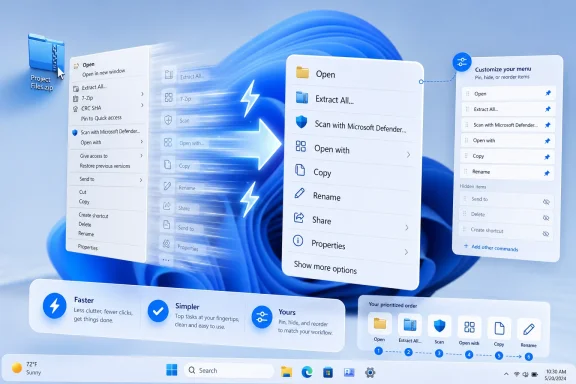
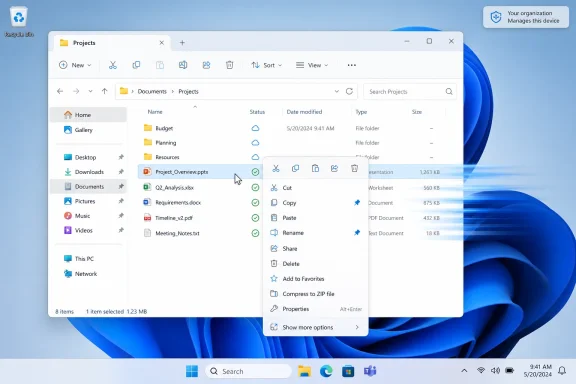
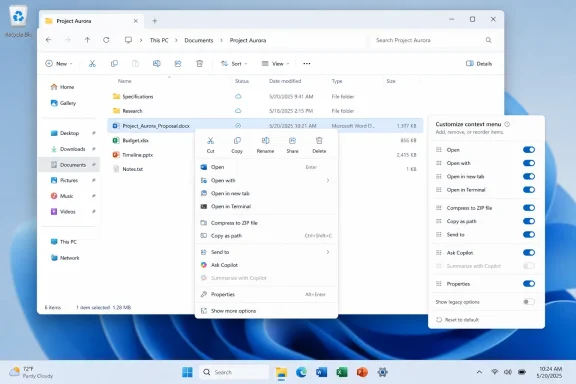
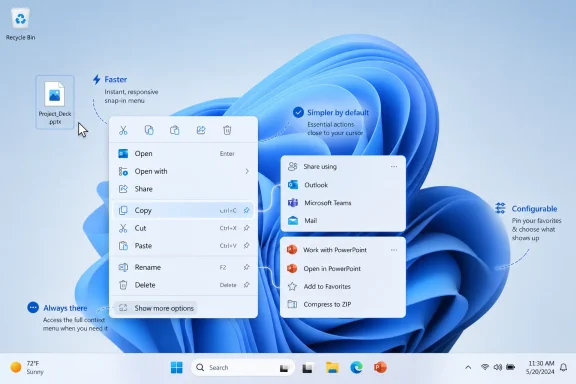
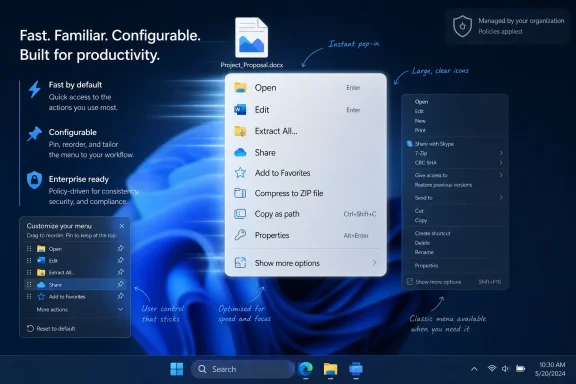
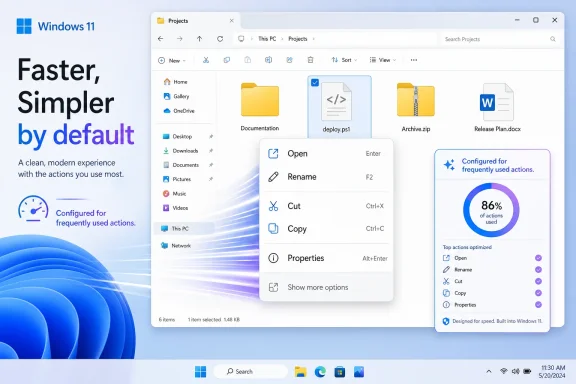
Microsoft’s Windows design lead said on June 3, 2026, that Windows 11 context menus are being reworked to become faster, simpler by default, and configurable around the actions people use most. That is a small sentence with a long shadow. The right-click menu was supposed to be one of Windows 11’s clean breaks from the cruft of Windows 10; instead, it became a daily reminder that redesigning Windows is easier than governing it. Microsoft is now conceding, without quite saying the word, that users do not want a prettier operating system if the price is friction.
Every operating system has a few pieces of furniture that users touch so often they stop seeing them. In Windows, the context menu is one of them. Right-click a file, a folder, the desktop, a picture, a script, or a compressed archive, and that little menu becomes the shortcut layer between intent and action.
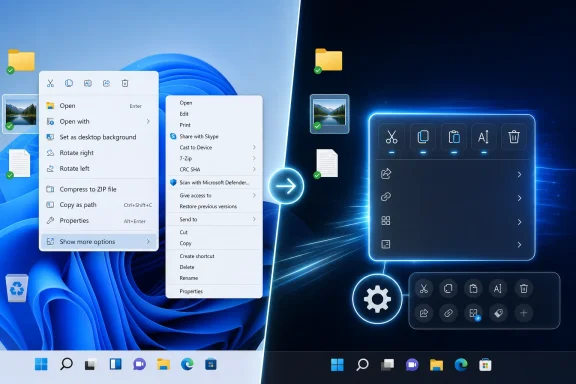
That is why Windows 11’s context menu landed so badly. Microsoft did not merely repaint an obscure settings dialog. It changed a muscle-memory surface that had been trained into users over decades, then hid familiar actions behind “Show more options” and asked everyone to accept the extra click as the cost of modernization.
The company’s original argument was not absurd. The Windows 10 menu really had become a junk drawer. Applications stuffed their verbs into it, installers treated it as free advertising space, and useful commands could end up separated by layers of accumulated shell history. Microsoft correctly diagnosed the disease.
The problem was the treatment. Windows 11 replaced a messy but direct menu with a cleaner but less predictable two-tier system. It looked more modern, but in too many workflows it felt slower, larger, and strangely less in command of its own purpose.
Windows 11’s redesigned menu tried to impose order. Common actions such as cut, copy, paste, rename, share, and delete moved into a command strip. “Open” and “Open with” were meant to sit closer together. Third-party application commands were supposed to move into cleaner app-attributed groupings. Legacy items would survive, but behind “Show more options,” where the old menu remained available for compatibility.
In theory, this was the correct architectural compromise. Microsoft could not break the shell extension ecosystem outright, because Windows is still Windows precisely because old workflows keep working. But it could steer modern applications toward a newer model and reserve the top-level menu for commands that were more likely to matter.
In practice, users experienced that compromise as a demotion. The old menu was not gone, but it was now one level away. The new menu was not empty, but it was often missing the exact command a user expected to find. The result was not a clean transition from old to new; it was a split-brain interface in which Windows 11 asked users to remember which right-click universe contained the thing they wanted.
For casual users, the damage is subtle. They may not right-click often enough to care, and the cleaner command row may be adequate for basic file operations. For power users, administrators, developers, and anyone who manages files with specialized tools, the extra layer is not subtle at all. It is a toll booth on a road they drive every day.
This is where Microsoft’s modern Windows design philosophy has repeatedly collided with Windows’ actual audience. Windows is not merely a consumer appliance. It is a workstation OS, a gaming OS, a developer box, a lab machine, an enterprise endpoint, and a compatibility platform for software that was never designed with Fluent Design principles in mind. A context menu that works beautifully for screenshots in a design review can still fail the person who uses 7-Zip, Git, PowerShell, Visual Studio, Notepad++, antivirus tooling, graphics utilities, and backup software from the same right-click surface.
The old menu’s clutter was real, but it was user-visible clutter. People could scan past the junk to reach the thing they needed. Windows 11 replaced that with policy clutter: rules about which commands deserved the modern surface, which commands belonged in the legacy layer, and which apps had updated their integrations properly. The interface looked calmer, but the mental model became more complicated.
That tradeoff has haunted Windows 11 from the beginning. Microsoft wants the OS to feel coherent across input modes, but Windows still lives on a huge range of devices, many of them traditional laptops and desktops where density is not a defect. A sysadmin on a 27-inch monitor and a user on a small tablet do not need the same context-menu geometry.
The context menu became another example of Windows 11’s tendency to treat visual modernization as a kind of universal solvent. Rounded corners, spacing, translucency, simplified surfaces, and centered layouts gave the OS a more contemporary look, but they also made long-time users suspicious that Microsoft was optimizing the operating system for screenshots rather than repeated work.
That suspicion matters because Windows loyalty is built on tolerance. Users forgive Windows for rough edges because it lets them do what they need. When the OS starts removing affordances, hiding options, or inserting indirection in the name of elegance, the bargain changes.
That is a more Windows-like answer. Windows has never won because every default was perfect. It won because defaults could be bent, replaced, scripted, managed, and worked around. The platform’s greatness has often been less about taste than permission.
If Microsoft lets users add, remove, pin, or prioritize context-menu items without registry edits or third-party utilities, it will be fixing more than a menu. It will be admitting that the right abstraction is not one universal “clean” menu. The right abstraction is a sensible default plus a supported path for users and administrators to adapt it.
The distinction matters for enterprises as much as enthusiasts. In managed environments, context menus can expose security tools, document workflows, cloud sync actions, archive utilities, and line-of-business integrations. A configurable model could help IT departments reduce clutter without breaking required actions. It could also give Microsoft a policy surface for managing what appears on endpoints, assuming the company does not bury the useful controls behind licensing tiers or incomplete mobile-device-management hooks.
But users do not care which layer is guilty. They right-click, they wait, and Windows feels worse.
That is deadly for a shell feature. A context menu is not a heavy application launch. It is supposed to feel instantaneous because it lives at the edge of intent. Even a small delay is disproportionately irritating because the user has already narrowed the action: the file is selected, the pointer is in place, and the menu is expected to appear as an extension of the hand.
Microsoft’s performance problem is broader than this one feature. File Explorer has repeatedly drawn complaints for sluggishness, delayed folder rendering, slow search, and occasional UI hesitation. The context menu concentrates that frustration into one obvious gesture. If right-click feels slow, the whole shell feels suspect.
That is why “faster” may matter more than “simpler.” A cluttered menu that opens immediately can still be useful. A beautifully organized menu that hesitates teaches users to distrust the shell.
This is not simply benevolence. Windows 10’s end-of-support deadline put pressure on Microsoft to make Windows 11 feel less like a forced migration and more like a credible upgrade. Many users stayed on Windows 10 not because they loved it unconditionally, but because Windows 11 seemed to remove too many small freedoms at once. The context menu, taskbar, and Start menu became symbols of that complaint.
Microsoft’s leadership has also been more willing to talk about “fundamentals” lately. That word is doing a lot of work. It means performance, reliability, battery life, update quality, discoverability, and the everyday shell surfaces people actually use. It also implicitly acknowledges that AI features, Copilot branding, and cloud integrations cannot compensate for a desktop that feels less efficient than the one it replaced.
The danger for Microsoft is that every restored option reminds users it was removed or constrained in the first place. The good news is that Windows users are pragmatic. They do not require a confession booth. They require the setting.
Microsoft can improve the default menu and expose user controls, but developer adoption still matters. If modern context-menu extensions remain uneven, users will continue to bounce between the new menu and the legacy one. If applications keep stuffing commands into shell surfaces with little discipline, customization may become a manual cleanup job rather than a solved problem.
The best version of Microsoft’s plan would combine three layers. First, Windows should ship with a fast, predictable default menu that exposes the most common actions without drama. Second, users should be able to pin or hide commands from installed apps. Third, administrators should have policy controls to define standard menus on managed PCs.
The worst version would be a cosmetic settings pane that lets users toggle a few Microsoft-controlled entries while the real complexity remains buried in registry locations, legacy handlers, and incompatible extension models. Windows users have lived through that kind of half-control before. It generates just enough hope to make the disappointment sharper.
That old model matched the Windows ethos: expose the machinery, let users deal with the consequences. The Windows 11 model tried to mediate the machinery. It wanted to decide which actions were dignified enough for the modern surface and which belonged in the basement.
Modern operating systems often make this trade. macOS prizes consistency by limiting the chaos third parties can inject into core UI surfaces. Mobile systems are stricter still. Windows, however, has a different inheritance. Its strength is that applications can integrate deeply, sometimes too deeply, into workflows that users depend on.
That is why the right-click menu debate is not merely nostalgia. It is a fight over whether Windows should be optimized as a tidy consumer environment or as a configurable productivity platform. The answer, if Microsoft wants to keep both audiences, cannot be one or the other. It has to be a default that does not punish beginners and a customization model that does not insult experts.
Those grievances also apply, in different forms, to the Windows 11 taskbar, the Start menu, default app handling, web integration, Copilot placement, and parts of Settings. Microsoft frequently had a defensible design argument. Users frequently had a defensible workflow objection. The company too often treated the former as more important than the latter.
The context-menu reversal, if it becomes a real product change, suggests Microsoft is learning that Windows modernization cannot succeed by subtraction alone. Removing complexity from the default experience is valuable only if the removed complexity can be recovered, managed, or replaced by something better. Otherwise simplification becomes deprivation.
That is the line Windows 11 has crossed too often. A cleaner surface is not automatically a better surface. A modern menu is not automatically a faster menu. A hidden option is not automatically a simplified option. Sometimes it is just hidden.
Automation would be the riskiest path if it is not paired with manual control. Users do not want a context menu that constantly reshuffles itself because an algorithm thinks it has detected a pattern. The context menu is valuable partly because it is spatially memorable. If a command moves unpredictably, the menu becomes less of a shortcut and more of a guessing game.
Explicit customization is safer. Let users decide which items live on the first-level menu. Let them demote noisy app actions. Let them restore legacy items without forcing the entire old menu back into place. Let admins export and enforce configurations. Let power users tune the menu without spelunking through unsupported hacks.
Microsoft also needs to be careful with defaults. A configurable mess is still a mess if every user must spend time fixing it. The default menu should be fast, modest, and context-aware, with customization as refinement rather than rescue.
If Microsoft is serious, the work has to be measurable. The menu should open quickly on average hardware with common third-party applications installed. It should remain responsive when a shell extension misbehaves. It should make clear which app owns which command. It should avoid letting Microsoft’s own services become the very clutter the redesign was meant to remove.
That last point is important. Windows users are more likely to accept Microsoft cleaning up third-party clutter if Microsoft does not use the freed space to promote its own ecosystem. A context menu overloaded with cloud actions, AI actions, sharing prompts, or app-specific Microsoft verbs would be the same old problem with a first-party badge.
The right-click menu should serve the file, not the strategy deck.
The right-click menu will not decide Windows 11’s fate by itself, but it will reveal whether Microsoft has absorbed the lesson of the last five years. Users can live with change when it is faster, clearer, and respectful of existing work. They rebel when change arrives as a one-way door. If Microsoft turns the context menu from a dictated surface into a configurable tool, it may finally make Windows 11 feel less like an operating system asking for patience and more like one earning trust again.
 The Right-Click Menu Became Windows 11’s Perfect Small Failure
Every operating system has a few pieces of furniture that users touch so often they stop seeing them. In Windows, the context menu is one of them. Right-click a file, a folder, the desktop, a picture, a script, or a compressed archive, and that little menu becomes the shortcut layer between intent and action.That is why Windows 11’s context menu landed so badly. Microsoft did not merely repaint an obscure settings dialog. It changed a muscle-memory surface that had been trained into users over decades, then hid familiar actions behind “Show more options” and asked everyone to accept the extra click as the cost of modernization.
The company’s original argument was not absurd. The Windows 10 menu really had become a junk drawer. Applications stuffed their verbs into it, installers treated it as free advertising space, and useful commands could end up separated by layers of accumulated shell history. Microsoft correctly diagnosed the disease.
The problem was the treatment. Windows 11 replaced a messy but direct menu with a cleaner but less predictable two-tier system. It looked more modern, but in too many workflows it felt slower, larger, and strangely less in command of its own purpose.
Microsoft Tried to Regulate a 20-Year Bazaar With a Velvet Rope
When Microsoft explained the Windows 11 context menu in 2021, it framed the old menu as a victim of success. The company said the menu had grown in an “unregulated environment” since the Windows XP era, when the IContextMenu model allowed applications to bolt commands into Explorer. That was a fair historical diagnosis: the old menu was powerful because developers could extend it, and chaotic for exactly the same reason.Windows 11’s redesigned menu tried to impose order. Common actions such as cut, copy, paste, rename, share, and delete moved into a command strip. “Open” and “Open with” were meant to sit closer together. Third-party application commands were supposed to move into cleaner app-attributed groupings. Legacy items would survive, but behind “Show more options,” where the old menu remained available for compatibility.
In theory, this was the correct architectural compromise. Microsoft could not break the shell extension ecosystem outright, because Windows is still Windows precisely because old workflows keep working. But it could steer modern applications toward a newer model and reserve the top-level menu for commands that were more likely to matter.
In practice, users experienced that compromise as a demotion. The old menu was not gone, but it was now one level away. The new menu was not empty, but it was often missing the exact command a user expected to find. The result was not a clean transition from old to new; it was a split-brain interface in which Windows 11 asked users to remember which right-click universe contained the thing they wanted.
“Show More Options” Was a Design Surrender Disguised as Compatibility
The phrase “Show more options” has always carried a whiff of defeat. It tells the user, in effect, that the system knows the answer may be somewhere else. It also makes the modern interface feel provisional, as though the real Windows is still hidden underneath the new one.For casual users, the damage is subtle. They may not right-click often enough to care, and the cleaner command row may be adequate for basic file operations. For power users, administrators, developers, and anyone who manages files with specialized tools, the extra layer is not subtle at all. It is a toll booth on a road they drive every day.
This is where Microsoft’s modern Windows design philosophy has repeatedly collided with Windows’ actual audience. Windows is not merely a consumer appliance. It is a workstation OS, a gaming OS, a developer box, a lab machine, an enterprise endpoint, and a compatibility platform for software that was never designed with Fluent Design principles in mind. A context menu that works beautifully for screenshots in a design review can still fail the person who uses 7-Zip, Git, PowerShell, Visual Studio, Notepad++, antivirus tooling, graphics utilities, and backup software from the same right-click surface.
The old menu’s clutter was real, but it was user-visible clutter. People could scan past the junk to reach the thing they needed. Windows 11 replaced that with policy clutter: rules about which commands deserved the modern surface, which commands belonged in the legacy layer, and which apps had updated their integrations properly. The interface looked calmer, but the mental model became more complicated.
The Menu Got Bigger While Claiming to Get Smaller
One of the stranger complaints about the Windows 11 menu is that it can feel both simplified and bloated. That is not a contradiction. The new menu removed or displaced items, but it also adopted larger spacing, modern padding, and a more touch-friendly layout. On paper, that is accessibility and design consistency. On a desktop with a mouse, it can look like the menu is taking up more space to show fewer useful things.That tradeoff has haunted Windows 11 from the beginning. Microsoft wants the OS to feel coherent across input modes, but Windows still lives on a huge range of devices, many of them traditional laptops and desktops where density is not a defect. A sysadmin on a 27-inch monitor and a user on a small tablet do not need the same context-menu geometry.
The context menu became another example of Windows 11’s tendency to treat visual modernization as a kind of universal solvent. Rounded corners, spacing, translucency, simplified surfaces, and centered layouts gave the OS a more contemporary look, but they also made long-time users suspicious that Microsoft was optimizing the operating system for screenshots rather than repeated work.
That suspicion matters because Windows loyalty is built on tolerance. Users forgive Windows for rough edges because it lets them do what they need. When the OS starts removing affordances, hiding options, or inserting indirection in the name of elegance, the bargain changes.
Customization Is the Escape Hatch Microsoft Should Have Offered First
The important part of Marcus Ash’s statement is not just that the context menu should become faster or simpler. It is that it should become configurable. That word marks a shift from Microsoft deciding what belongs in the menu to users having some say in what appears there.That is a more Windows-like answer. Windows has never won because every default was perfect. It won because defaults could be bent, replaced, scripted, managed, and worked around. The platform’s greatness has often been less about taste than permission.
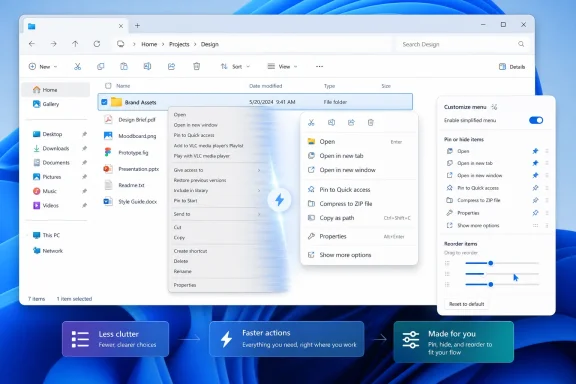
If Microsoft lets users add, remove, pin, or prioritize context-menu items without registry edits or third-party utilities, it will be fixing more than a menu. It will be admitting that the right abstraction is not one universal “clean” menu. The right abstraction is a sensible default plus a supported path for users and administrators to adapt it.
The distinction matters for enterprises as much as enthusiasts. In managed environments, context menus can expose security tools, document workflows, cloud sync actions, archive utilities, and line-of-business integrations. A configurable model could help IT departments reduce clutter without breaking required actions. It could also give Microsoft a policy surface for managing what appears on endpoints, assuming the company does not bury the useful controls behind licensing tiers or incomplete mobile-device-management hooks.
Performance Is the Complaint Microsoft Cannot Design Around
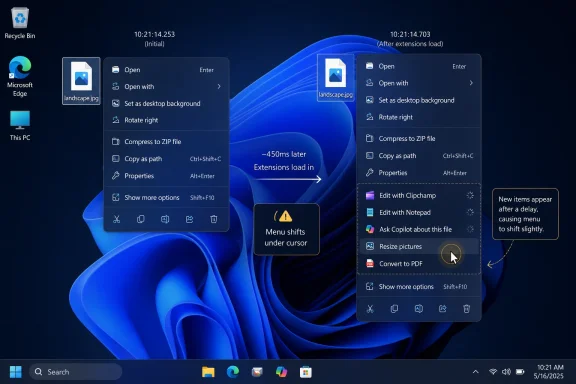
Speed is the other half of the admission. Users have complained for years that the Windows 11 context menu can feel slower than the old one, especially in File Explorer. Some of that may come from third-party shell extensions, some from Explorer itself, and some from the additional logic needed to build a modern menu while preserving legacy compatibility.But users do not care which layer is guilty. They right-click, they wait, and Windows feels worse.
That is deadly for a shell feature. A context menu is not a heavy application launch. It is supposed to feel instantaneous because it lives at the edge of intent. Even a small delay is disproportionately irritating because the user has already narrowed the action: the file is selected, the pointer is in place, and the menu is expected to appear as an extension of the hand.
Microsoft’s performance problem is broader than this one feature. File Explorer has repeatedly drawn complaints for sluggishness, delayed folder rendering, slow search, and occasional UI hesitation. The context menu concentrates that frustration into one obvious gesture. If right-click feels slow, the whole shell feels suspect.
That is why “faster” may matter more than “simpler.” A cluttered menu that opens immediately can still be useful. A beautifully organized menu that hesitates teaches users to distrust the shell.
Windows 11 Is Becoming a Course Correction Release Years After Launch
The context-menu change does not stand alone. Microsoft has recently been moving toward restoring or expanding customization in other parts of Windows 11, including Start menu controls and taskbar behavior. The broader pattern is hard to miss: features that users complained about after Windows 11’s launch are slowly being revisited, softened, or made optional.This is not simply benevolence. Windows 10’s end-of-support deadline put pressure on Microsoft to make Windows 11 feel less like a forced migration and more like a credible upgrade. Many users stayed on Windows 10 not because they loved it unconditionally, but because Windows 11 seemed to remove too many small freedoms at once. The context menu, taskbar, and Start menu became symbols of that complaint.
Microsoft’s leadership has also been more willing to talk about “fundamentals” lately. That word is doing a lot of work. It means performance, reliability, battery life, update quality, discoverability, and the everyday shell surfaces people actually use. It also implicitly acknowledges that AI features, Copilot branding, and cloud integrations cannot compensate for a desktop that feels less efficient than the one it replaced.
The danger for Microsoft is that every restored option reminds users it was removed or constrained in the first place. The good news is that Windows users are pragmatic. They do not require a confession booth. They require the setting.
The Developer Story Still Decides Whether This Works
A configurable context menu sounds straightforward until it meets the Windows ecosystem. The shell is not just Microsoft’s UI. It is a negotiation among Explorer, packaged apps, unpackaged Win32 programs, shell extensions, cloud clients, compression tools, source-control systems, security products, and legacy assumptions that have survived multiple design eras.Microsoft can improve the default menu and expose user controls, but developer adoption still matters. If modern context-menu extensions remain uneven, users will continue to bounce between the new menu and the legacy one. If applications keep stuffing commands into shell surfaces with little discipline, customization may become a manual cleanup job rather than a solved problem.
The best version of Microsoft’s plan would combine three layers. First, Windows should ship with a fast, predictable default menu that exposes the most common actions without drama. Second, users should be able to pin or hide commands from installed apps. Third, administrators should have policy controls to define standard menus on managed PCs.
The worst version would be a cosmetic settings pane that lets users toggle a few Microsoft-controlled entries while the real complexity remains buried in registry locations, legacy handlers, and incompatible extension models. Windows users have lived through that kind of half-control before. It generates just enough hope to make the disappointment sharper.
The Old Menu Was Ugly, but It Was Honest
There is a reason so many users reached for registry hacks or third-party tools to restore the classic menu. It was not because the Windows 10-era context menu was beautiful. It was because it was direct. You right-clicked, and the world of available actions appeared, warts and all.That old model matched the Windows ethos: expose the machinery, let users deal with the consequences. The Windows 11 model tried to mediate the machinery. It wanted to decide which actions were dignified enough for the modern surface and which belonged in the basement.
Modern operating systems often make this trade. macOS prizes consistency by limiting the chaos third parties can inject into core UI surfaces. Mobile systems are stricter still. Windows, however, has a different inheritance. Its strength is that applications can integrate deeply, sometimes too deeply, into workflows that users depend on.
That is why the right-click menu debate is not merely nostalgia. It is a fight over whether Windows should be optimized as a tidy consumer environment or as a configurable productivity platform. The answer, if Microsoft wants to keep both audiences, cannot be one or the other. It has to be a default that does not punish beginners and a customization model that does not insult experts.
The Small Menu That Explains the Whole Windows 11 Backlash
Windows 11’s context menu became a lightning rod because it expressed several grievances at once. It hid old functionality. It relied on a transitional compatibility layer. It looked more polished while feeling less efficient. It depended on developers updating integrations. It gave users too little control over the final result.Those grievances also apply, in different forms, to the Windows 11 taskbar, the Start menu, default app handling, web integration, Copilot placement, and parts of Settings. Microsoft frequently had a defensible design argument. Users frequently had a defensible workflow objection. The company too often treated the former as more important than the latter.
The context-menu reversal, if it becomes a real product change, suggests Microsoft is learning that Windows modernization cannot succeed by subtraction alone. Removing complexity from the default experience is valuable only if the removed complexity can be recovered, managed, or replaced by something better. Otherwise simplification becomes deprivation.
That is the line Windows 11 has crossed too often. A cleaner surface is not automatically a better surface. A modern menu is not automatically a faster menu. A hidden option is not automatically a simplified option. Sometimes it is just hidden.
Microsoft’s Next Test Is Whether “Configurable” Means Control
The phrase “configurable to what you use most” could mean several things. It could mean Windows automatically surfaces frequently used actions based on behavior. It could mean users get explicit pinning and removal controls. It could mean developers get new grouping options. It could mean all of the above.Automation would be the riskiest path if it is not paired with manual control. Users do not want a context menu that constantly reshuffles itself because an algorithm thinks it has detected a pattern. The context menu is valuable partly because it is spatially memorable. If a command moves unpredictably, the menu becomes less of a shortcut and more of a guessing game.
Explicit customization is safer. Let users decide which items live on the first-level menu. Let them demote noisy app actions. Let them restore legacy items without forcing the entire old menu back into place. Let admins export and enforce configurations. Let power users tune the menu without spelunking through unsupported hacks.
Microsoft also needs to be careful with defaults. A configurable mess is still a mess if every user must spend time fixing it. The default menu should be fast, modest, and context-aware, with customization as refinement rather than rescue.
The Right-Click Repair Kit Has to Include More Than Paint
The likely temptation inside Microsoft will be to treat this as another design iteration: adjust grouping, trim visible commands, add a settings page, declare progress. That would help, but it would not fully solve the problem. The context menu is a shell performance feature, an extension-governance feature, a developer-platform feature, and a user-trust feature all at once.If Microsoft is serious, the work has to be measurable. The menu should open quickly on average hardware with common third-party applications installed. It should remain responsive when a shell extension misbehaves. It should make clear which app owns which command. It should avoid letting Microsoft’s own services become the very clutter the redesign was meant to remove.
That last point is important. Windows users are more likely to accept Microsoft cleaning up third-party clutter if Microsoft does not use the freed space to promote its own ecosystem. A context menu overloaded with cloud actions, AI actions, sharing prompts, or app-specific Microsoft verbs would be the same old problem with a first-party badge.
The right-click menu should serve the file, not the strategy deck.
A Few Truths Hidden in the Menu Microsoft Finally Wants to Fix
The context-menu saga is small enough to understand and big enough to matter. It gives Microsoft a chance to prove that its renewed talk of fundamentals is more than a seasonal messaging campaign.- Windows 11’s context menu failed not because modernization was wrong, but because Microsoft underestimated the value of direct access for frequent workflows.
- “Show more options” preserved compatibility, but it also made the modern menu feel incomplete from the day Windows 11 shipped.
- A faster context menu will matter more to users than a prettier one, because right-click is a reflexive action rather than a destination.
- Real customization should let users and administrators pin, hide, reorder, and govern menu items without registry hacks or third-party tools.
- Microsoft’s own additions must be held to the same anti-clutter standard as third-party extensions.
- The success of the redesign will depend on developer adoption as much as Microsoft’s default layout.
The right-click menu will not decide Windows 11’s fate by itself, but it will reveal whether Microsoft has absorbed the lesson of the last five years. Users can live with change when it is faster, clearer, and respectful of existing work. They rebel when change arrives as a one-way door. If Microsoft turns the context menu from a dictated surface into a configurable tool, it may finally make Windows 11 feel less like an operating system asking for patience and more like one earning trust again.
References
- Primary source: Windows Latest
Published: Thu, 04 Jun 2026 01:28:39 GMT
Microsoft admits Windows 11's right-click menu is a mess, will let you customize it after years of complaints
Microsoft has confirmed that it'll let you customize the context menu to your liking, which means you'll be able to add or remove items. www.windowslatest.com
- Related coverage: windowscentral.com
I dug into the Windows 11 features insiders got in May 2026 and here’s what matters most | Windows Central
May 2026 brought a wave of Windows 11 improvements, focusing on accessibility, productivity, personalization, and system modernization.www.windowscentral.com - Related coverage: techradar.com
Windows 11 is finally getting the Start menu changes we all wanted — and a surprise bonus | TechRadar
The new Start menu looks excellent, and Microsoft is tackling issues with rusty old parts of the Windows 11 interfacewww.techradar.com - Related coverage: pcworld.com
Microsoft is working on a fix for Windows 11's cluttered right-click menu | PCWorld
With the new Split Context Menu, users will see a more streamlined design that's more context-aware and less cluttered.www.pcworld.com - Official source: learn.microsoft.com
[ARTICLE] Restore old Right-click Context menu in Windows 11 - Microsoft Q&A
Starting with Windows 11, the context menu in File Explorer is refreshed, offering a compact design based on modern principles. However, the refreshed context menu shows fewer items compared to the Legacy Context menu. This article discusses how to…learn.microsoft.com - Related coverage: allthings.how
Windows 11’s right‑click menu is getting split, context‑aware menus
Microsoft is testing a new “Split Context Menu” that groups related actions, trims duplicates, and can cut menu height by up to 38%.allthings.how
- Related coverage: gamehazards.com
Windows 11 Start Menu Customization Returns in Build 26300.8553 | GameHazards
So Windows 11 is getting Start menu customization. You can hide the Recommended section, resize the menu, turn off sections independently. This is in an...gamehazards.com - Related coverage: howtogeek.com
How to Find Missing Right-Click Context Menu Options on Windows 11
Reveal Windows 10-style context options from a secret menu. www.howtogeek.com
- Related coverage: tomsguide.com
Microsoft reportedly redesigning Start Menu in Windows 11 after actually listening to user complaints | Tom's Guide
Microsoft is reportedly working on yet another redesign of the Start Menu in Windows.www.tomsguide.com - Official source: blogs.windows.com
Extending the Context Menu and Share Dialog in Windows 11
 blogs.windows.com
- Related coverage: makeuseof.com
Microsoft Launches Windows 11's Stunning Context Menus
Windows 11 gives the aging operating system a new makeover, and you can see it for yourself today. www.makeuseof.com
- Related coverage: pcgamer.com
How to fix Windows 11's right-click menus | PC Gamer
Restore Windows 11's redesigned context menus to their full, classic functionality.www.pcgamer.com - Related coverage: m.hexus.net
- Related coverage: windowsreport.com