If your Windows 11 PC crashes or freezes, the first few minutes of triage matter more than you think—capturing clues quickly, avoiding needless hardware swaps, and following a measured sequence of checks will usually get you back to a stable system without panic. The four core actions covered here—consulting Event Viewer, reinstalling essential drivers (with special attention to GPU and audio), testing RAM, and checking drive health—are the fastest, highest‑value steps for isolating the most common causes of random crashes and blue screens on modern Windows 11 hardware. These are practical, field‑tested steps you can run through in sequence; each one is paired with the tools, exact steps, and safety notes you need to avoid escalating the problem.
Windows 11 is more stable today than earlier Windows releases, but complexity has increased: modern machines rely on dozens of drivers, firmware layers, and background services that must cooperate. When a crash happens, Windows records a mix of signals—kernel bugcheck codes, Event Viewer entries, and minidump files—that are the best evidence you’ll get to identify the culprit. A methodical approach that goes from non‑destructive information gathering to targeted changes minimizes downtime and reduces the risk of data loss. Community and expert troubleshooting flows converge on the same first steps: log the crash details, test memory, clean or reinstall suspect drivers, and verify storage health before assuming catastrophic hardware failure or reinstalling Windows.
If you follow this sequence, you’ll be doing the same first four things experienced Windows technicians reach for when confronted with an unstable Windows 11 machine—precisely the approach that saves time, preserves data, and isolates the real root cause.
Source: How-To Geek These Are the First 4 Things I Do When Windows 11 Crashes
 Background / Overview
Windows 11 is more stable today than earlier Windows releases, but complexity has increased: modern machines rely on dozens of drivers, firmware layers, and background services that must cooperate. When a crash happens, Windows records a mix of signals—kernel bugcheck codes, Event Viewer entries, and minidump files—that are the best evidence you’ll get to identify the culprit. A methodical approach that goes from non‑destructive information gathering to targeted changes minimizes downtime and reduces the risk of data loss. Community and expert troubleshooting flows converge on the same first steps: log the crash details, test memory, clean or reinstall suspect drivers, and verify storage health before assuming catastrophic hardware failure or reinstalling Windows.1) Check the Event Viewer — capture the clues first
Why Event Viewer comes first
Event Viewer is the single best low‑effort place to start. It collects kernel, driver, and service errors with timestamps that you can correlate to the crash. Many crashes will leave a Critical or Error entry in the System log (or the Application log) that points you to a driver name or a Windows component. Looking at these entries will usually tell you whether the failure is software (driver, service, update) or hardware (power loss, PSU, memory, or storage).How to open and use Event Viewer (quick)
- Press Windows+X and select Event Viewer (or press Windows and search for Event Viewer).
- Expand Windows Logs > System and look for entries with Level = Critical or Error around the crash timestamp.
- Filter by Event sources such as Kernel‑Power, nvlddmkm, or other device names you see in the list to focus on suspicious items.
- Note stop codes or driver filenames shown in the event description—these are your primary leads.
Read the main red flags
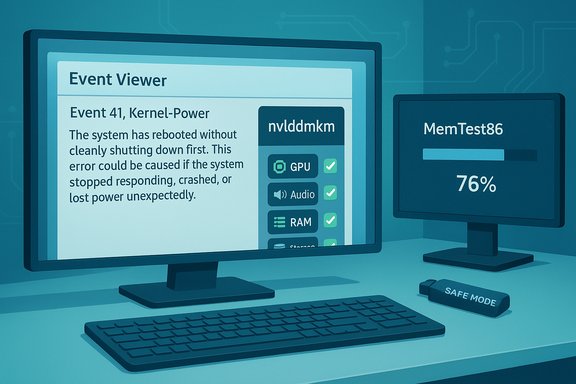
- If you see events with the source nvlddmkm or another driver filename (.sys), that usually implicates that driver—most commonly GPU or video drivers in the case of nvlddmkm.
- Kernel‑Power (Event ID 41) entries that have zeroed bugcheck parameters or no corresponding dump often point to a sudden power loss (PSU, wall power, battery) rather than a clean kernel bugcheck. That makes it worth checking power cables and the PSU switch before deep software changes.
- If the Event Viewer entry references MemoryDiagnostics‑Results after a scheduled memory test, follow that lead; Windows writes those results to the logs and they’re a clear indicator of RAM health.
Practical tip: take a photo
If the crash produces a stop code on screen (blue or black crash screen), snap a photo. The stop code and any driver name printed on the crash screen are often the fastest route to the correct fix.2) Reinstall essential drivers — GPU and audio first, then others
Why drivers are usually the culprit
Drivers are the bridge between Windows and hardware. A corrupted, misinstalled, or incompatible driver is one of the most common causes of unexpected reboots, freezes, and display failures. If Event Viewer points to a driver (for example, a display driver such as nvlddmkm), cleaning out the old driver and installing a fresh copy from the vendor frequently resolves the problem.Use DDU for stubborn GPU problems (Display Driver Uninstaller)
When a simple driver reinstall doesn’t help, use Display Driver Uninstaller (DDU) to remove every trace of GPU drivers before reinstallation. DDU runs in Safe Mode and removes driver files, registry entries, and residual services that can survive standard uninstalls—this is why community guides and hardware vendors recommend it for persistent nvlddmkm or graphics issues.- Download the DDU package from the official Wagnardsoft page and extract it.
- Boot into Safe Mode: Settings > Recovery > Advanced startup > Restart now > Troubleshoot > Advanced options > Startup Settings > Restart, then press the number for Safe Mode.
- Run DDU, select GPU and your vendor (NVIDIA/AMD/Intel), then choose Clean and restart. After reboot, install the latest driver downloaded directly from the GPU vendor site (not an auto‑updater).
Reinstall other drivers safely
For non‑GPU devices, the built‑in Device Manager is the easiest route:- Open Device Manager (Windows key → search "Device Manager").
- Right‑click the suspect device → Uninstall Device.
- Reboot: Windows will usually reinstall the correct driver automatically, or you can install the vendor driver manually.
Caution: driver cleaners and extreme measures
Driver cleaners like DDU are powerful and should be used judiciously—create a restore point or system image first. DDU is safe when used as documented, but interrupting the process can leave the system in a non‑bootable state; follow the tool’s guidance and only use Safe Mode if recommended.3) Check your RAM — the most common failing part
Why RAM often causes random crashes
Faulty RAM shows up as very random symptoms: application crashes, blue screens with memory‑related stop codes (MEMORY_MANAGEMENT, IRQL_NOT_LESS_OR_EQUAL, PAGE_FAULT_IN_NONPAGED_AREA, BAD_POOL_HEADER, etc., or persistent instability after hardware changes. Across many field reports, bad memory or memory timing instability is a top reason to see intermittent, hard‑to‑reproduce crashes.Built‑in first pass: Windows Memory Diagnostic
Windows ships with Windows Memory Diagnostic (mdsched.exe). It’s fast and easy:- Press Windows+R, type mdsched, press Enter.
- Choose Restart now and check for problems or schedule it for the next boot.
- After the run, check Event Viewer under Application and Services Logs > Microsoft > Windows > MemoryDiagnostics‑Results for results; Event ID 2001 indicates no errors. Microsoft documents this flow and how to change test intensity.
For deeper testing: MemTest86 and MemTest86+
If the Windows memory test is inconclusive, use a bootable tool such as MemTest86 or MemTest86+. These run outside Windows and provide far more thorough coverage; run them overnight or for multiple passes on suspect DIMMs. MemTest86 creates a bootable USB image and logs errors to help pinpoint a faulty DIMM. Practical approach:- Create a bootable USB with MemTest86 (download from the official site and use the imageUSB writer included).
- Boot from the USB and let MemTest86 run several full passes (the more RAM you have, the longer each pass will take).
- If errors appear, remove one DIMM at a time and retest to find the bad stick or bad slot. Replace any failing module—memory failure is not repairable.
4) Check drive health — SSDs and HDDs fail silently
Why storage health matters
Both SSD and mechanical HDD failures can cause crashes, corruption, and unexplained errors. Solid‑state drives fail differently from spinning disks: symptoms are more subtle (slowdowns, unexplained corruption, occasional crashes) rather than noisy mechanical failure. Check SMART attributes and vendor tools before concluding the OS is to blame.Tools to use
- CrystalDiskInfo (Crystal Dew World) shows SMART attributes, health status (Good/Caution/Bad), temperature, and run hours. It’s lightweight and an excellent first check for SSD/HDD health. If CrystalDiskInfo reports Caution or Bad, back up immediately and plan replacement.
- Vendor utilities (Samsung Magician, Western Digital Dashboard, Crucial Storage Executive) provide firmware updates and manufacturer‑specific diagnostics; use them when available. Community and vendor advisories during recent Windows updates have shown firmware fixes can be critical.
Mechanical HDDs: listen for clicks
Physical drives often announce failure with clicking, chattering, or grinding noises. That is an urgent signal—back up the data immediately and replace the drive. Mechanical drives also develop bad sectors that CHKDSK can locate and isolate; run chkdsk /f /r from an elevated command prompt if you suspect disk errors.Practical ordered checklist — what to try first (short, actionable)
- Collect crash details (photo of stop code, note recent changes).
- Open Event Viewer and locate Critical/Error entries around the crash time; flag any driver names or Kernel‑Power entries.
- If the log points to a driver (nvlddmkm, audio.sys, etc., reinstall that driver; for GPU issues, follow the DDU + clean install flow.
- Run Windows Memory Diagnostic (mdsched) or boot MemTest86 for extended testing if memory‑related stop codes or symptoms are present.
- Use CrystalDiskInfo and vendor tools to confirm drive SMART health; if drives show caution, back up immediately.
- If Kernel‑Power (Event ID 41) is logged and you did not have a power interruption, double‑check PSU connections, wall cable, and the PSU rear switch—unexpected power loss often leaves Event ID 41 with zeroed bugcheck data.
Advanced diagnostics and when to escalate
Minidump analysis and Driver Verifier
If basic checks point to a driver but the cause isn’t obvious, collect minidump files from C:\Windows\Minidump and analyze with WinDbg (!analyze -v) or third‑party viewers like BlueScreenView or WhoCrashed. Once you have a suspect driver, Driver Verifier can stress it to force a reproducible failure and more diagnostic output—but use Driver Verifier only if you have a recovery plan (recovery USB or system image), because it purposely triggers crashes to expose buggy drivers.Firmware updates and registry workarounds (caution)
Major Windows updates have in the past exposed incompatibilities (for example, Host Memory Buffer behavior on some DRAM‑less NVMe SSDs after Windows 11 24H2), and vendors or the community circulated temporary registry workarounds to cap or disable HMB. Those registry tweaks can reduce performance or have other side effects; prioritize official firmware updates from the SSD vendor and treat registry edits as short‑term emergency measures only. If you see vendor‑specific advisories for your drive or motherboard, follow them carefully and back up before making firmware changes.Power supply and thermal tests
If crashes happen under load (gaming, rendering) and are reproducible only during heavy use, monitor CPU/GPU temperatures with HWMonitor or similar tools and test the PSU and power rails if you suspect stability under load. Overheating and unstable power both create symptoms identical to driver or memory faults.What the evidence and sources show — strengths and limits of this approach
Strengths
- The triage sequence (Event Viewer → drivers → RAM → storage) focuses first on low‑risk, high‑signal actions that commonly resolve real‑world crashes, reducing wasted time and unnecessary hardware replacements. This order is supported by Microsoft guidance, community troubleshooting flows, and expert technicians.
- Tools recommended here—Event Viewer, Windows Memory Diagnostic, DDU, MemTest86, and CrystalDiskInfo—are well‑established in the field and provide robust diagnostics for the most common failure modes.
Limits and risks
- Some hardware issues (intermittent DIMM faults, marginal PSU rails, or failing GPU VRAM) can produce entirely non‑deterministic symptoms that require prolonged stress testing, specialized equipment, or RMA/parts replacement. MemTest86 and multi‑pass stress testing help but aren’t a guarantee—if tests are negative yet the problem persists under real workloads, hardware replacement or professional testing may be necessary.
- Aggressive debugging tools such as Driver Verifier can cause additional blue screens while diagnosing. Always ensure you have recovery media and backups before enabling such tests.
- Registry workarounds and firmware updates carry risk. The NVMe HMB registry tweak is a documented emergency mitigation for a narrow class of failures, but it may degrade performance and should be replaced by firmware fixes from the hardware vendor whenever possible. Back up data and follow vendor instructions when flashing firmware.
Fast reference: commands and tools (copyable checklist)
- Event Viewer: Windows+X → Event Viewer → Windows Logs > System.
- Windows Memory Diagnostic: Win+R → mdsched → Restart now and check for problems. Results in Event Viewer under MemoryDiagnostics‑Results.
- SFC / DISM (repair system files): Open elevated Terminal → sfc /scannow ; DISM /Online /Cleanup‑Image /RestoreHealth.
- CHKDSK (disk check): chkdsk /f /r C: (schedule and reboot if required).
- Create MemTest86 USB: Download from MemTest86 site → use imageUSB to write → boot from USB and let it run multiple passes.
- DDU workflow (GPU): Download DDU → boot Safe Mode → run DDU → Clean and restart → install vendor GPU driver.
Conclusion — a pragmatic troubleshooting playbook
Random crashes and freezes are frustrating, but they’re rarely inscrutable. The four steps here—check Event Viewer first, clean and reinstall essential drivers (GPU/audio) with DDU if needed, test RAM with Windows Memory Diagnostic and MemTest86, and verify disk health with CrystalDiskInfo and vendor tools—cover the highest‑probability causes and deliver real fixes for the majority of Windows 11 instability cases. Document each change you make, capture crash details, and move from minimally invasive checks toward more aggressive diagnostics only when required. When in doubt, back up your data and consider a clean Windows install or professional diagnosis as a last resort—most problems you’ll face can be resolved with the sequence above and the widely‑used tools described here.If you follow this sequence, you’ll be doing the same first four things experienced Windows technicians reach for when confronted with an unstable Windows 11 machine—precisely the approach that saves time, preserves data, and isolates the real root cause.
Source: How-To Geek These Are the First 4 Things I Do When Windows 11 Crashes