

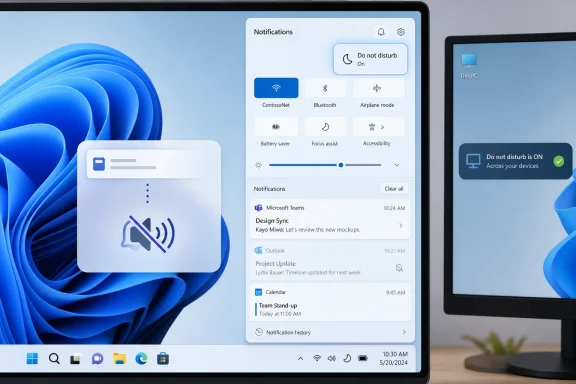
Paul Thurrott published the Thurrott.com Windows 11 Field Guide attachment “dnd-nots-button” on July 8, 2026, documenting the Do not disturb button that sits inside Windows 11’s Notifications pane and controls whether the operating system interrupts users with banners and sounds. The page is tiny, even austere: an attachment entry, a byline, a date, and a share count of zero. But the control it depicts is not tiny at all. It is one of the clearest examples of how Windows 11 has moved from “show me everything” desktop computing toward managed attention as an operating-system feature.
That shift matters because notifications are no longer just app ephemera. In Windows 11 they are part of the taskbar, the calendar flyout, the Microsoft account experience, Outlook and Teams workflows, update reminders, app permissions, focus sessions, and the daily choreography of remote work. A single button labeled Do not disturb now sits at the junction of user agency and Microsoft’s broader claim that Windows can be both a productivity platform and a calmer place to work.
The irony is that users often learn about these controls only when something goes wrong: a meeting reminder fails to appear, Outlook gets blamed for silence, a security prompt is missed, or a second monitor stubbornly refuses to open the Notification Center. Thurrott’s Field Guide framing is useful precisely because it treats this not as a glamorous new feature, but as plumbing. And in Windows, plumbing is where the real story usually lives.
Windows 10’s Focus assist was a good idea trapped behind a slightly vague name. Windows 11’s Do not disturb is simpler, more literal, and closer to the language users already understand from phones. Microsoft’s own support guidance describes the feature in plain terms: when Do not disturb is on, notification banners are suppressed, but the notifications are still collected in Notification Center for later review.
That distinction is the whole product. Do not disturb is not a notification kill switch. It is a routing rule: keep the message, stop the interruption. In a desktop operating system that may be running Outlook, Teams, Edge, Phone Link, OneDrive, Slack, browser apps, Microsoft Store apps, and system maintenance prompts at once, that routing rule is not cosmetic; it is triage.
Microsoft introduced the modern Windows 11 split between Do not disturb and Focus during the Windows 11 development cycle, with the Windows Insider team presenting Do not disturb as the mechanism for silencing notification banners and Focus as the broader work-session experience. In the September 2022 Windows 11 2022 Update, Microsoft again positioned Focus and Do not disturb as part of the operating system’s productivity pitch, alongside Snap improvements and other multitasking changes. The company was not merely adding another settings toggle. It was trying to reframe Windows from an always-on interruption surface into a workspace with modes.
That is a hard promise to keep. Windows is not iOS, where Apple controls the hardware, operating system, app distribution model, and much of the notification culture. Windows is a messy federation of Win32 applications, packaged apps, web apps, browser notifications, enterprise agents, OEM utilities, and Microsoft’s own services. A clean Do not disturb button has to sit on top of decades of notification habits that were never designed as one coherent system.
Thurrott’s “dnd-nots-button” attachment, published under the Windows 11 Field Guide umbrella, captures that practical reality. The most important Windows features are often not the ones Microsoft markets from a keynote stage. They are the small controls that make the operating system livable after the keynote is over.
That simplicity is intentional. A desktop user should not need to understand the entire Windows notification stack to stop pop-ups during a presentation, writing session, call, or screen share. The operating system’s job is to hide the complexity until the user needs more control.
The complexity appears the moment the user does need more control. Windows 11 also has per-app notification settings, notification priority behavior, Focus sessions, automatic Do not disturb rules, full-screen behaviors, and integration points with apps that may have their own notification systems. Outlook, Teams, Edge, and third-party apps can each complicate the mental model, especially when one app shows a toast, another plays a sound, and a third only writes to its own inbox or activity feed.
That is why a feature like Do not disturb needs more than a button. It needs a user expectation: “If I turn this on, what exactly stops?” The answer is specific. Windows notification banners and sounds are suppressed; notifications are retained in Notification Center. If an app has its own in-app alert, badge, tray icon, or background reminder mechanism, users may still see signs of activity elsewhere.
This is where much consumer advice about Windows notifications gets sloppy. “Turn on Do not disturb” is good advice for reducing interruptions. It is not a universal fix for every notification problem, and it is not proof that a missing alert was swallowed by the operating system. Microsoft Learn’s troubleshooting guidance for missing notifications still starts with basic checks such as whether Quiet Hours, Focus assist, or Do not disturb is enabled, because the first diagnostic step is to determine whether Windows is intentionally suppressing banners.
The button is therefore both a convenience and a liability. It makes attention management accessible, but it also creates a new support question: was the machine broken, or was it being obedient?
Multitasking is not merely Alt+Tab, Snap layouts, virtual desktops, and multiple monitors. It is the act of deciding what deserves attention now and what can wait. A notification system that constantly breaks the user’s line of thought is not helping multitasking; it is taxing it.
Windows 11’s design tries to separate “awareness” from “interruption.” Notification Center gives users a place to inspect what happened. Do not disturb controls whether those events can intrude. Focus goes further, wrapping the idea in a session that implies time, intention, and concentration.
That hierarchy is sensible. The problem is that Windows users have spent decades treating the system tray and notification area as a catch-all for everything from antivirus warnings to printer ink nags. Microsoft can rename features and polish flyouts, but it cannot instantly erase the cultural memory of Windows as a machine that always wants to tell you something.
This is why Do not disturb is more consequential on Windows than it may appear on a phone. Phone users already understand modes: silent, vibrate, sleep, driving, work. Desktop users, especially in enterprise environments, often think in terms of uptime and visibility. They worry that silence means missed work, missed compliance prompts, or missed service interruptions. The Windows 11 challenge is to make silence feel safe.
That is also why the button’s location matters. Placing it in Notification Center rather than burying it only in Settings makes it a moment-of-need control. The user does not have to commit to a philosophy of attention management. They can simply click it before a call.
That change sounds minor until you use two or three displays all day. If the system’s attention controls are only truly reachable from the primary display, they are not really system-wide in the way power users expect. They are anchored to a particular taskbar, on a particular panel, in a particular physical workflow.
This is a classic Windows 11 pattern. Microsoft redesigned the shell around cleaner defaults, then spent years restoring behaviors that experienced users had considered table stakes. The taskbar was visually calmer, but less flexible. The Start menu was simpler, but more constrained. The Notification Center was cleaner, but for multi-monitor users, not fully present where work was happening.
TechRadar and Windows Central both framed the secondary-monitor Notification Center change as a long-awaited quality-of-life improvement, and that framing is fair. But the deeper point is that attention controls must follow attention. If a user is working on a secondary monitor and a notification arrives, forcing that user back to the primary display to inspect or manage it defeats the premise of a modern multitasking desktop.
For Windows 11, this is not merely a convenience issue. Microsoft wants users to accept a more curated shell. Curated shells need to be more reliable, not less. Every missing right-click option, every absent taskbar behavior, every flyout that appears only where Microsoft expects rather than where the user works, becomes evidence in the user’s mental case against the redesign.
Do not disturb is a strong idea. It becomes stronger when the surrounding shell stops making users hunt for it.
September 20, 2022 — Microsoft released the Windows 11 2022 Update and promoted Focus, Do not disturb, and multitasking improvements as part of its productivity story.
November 14, 2024 — Microsoft’s Windows Insider team noted in Release Preview documentation that the notification bell icon might not show when Do not disturb is turned on, and that users could still click the date and time to view Notification Center.
July 28, 2025 — Windows Central reported that Microsoft was testing Notification Center access from secondary monitors in Windows 11 preview builds.
September 29, 2025 — Microsoft’s preview update documentation said Notification Center functionality was available on secondary monitors.
October 6, 2025 — Windows Central reported that the long-requested secondary-monitor Notification Center behavior had begun rolling out more broadly.
July 8, 2026 — Paul Thurrott published the Thurrott.com Windows 11 Field Guide attachment “dnd-nots-button,” a small documentation artifact for the Do not disturb button in the Notifications pane.
That is not theoretical. Microsoft Learn’s troubleshooting guidance for notifications that do not appear in the notification center explicitly directs users to check whether Quiet Hours, Focus assist, or Do not disturb is enabled. In other words, the official diagnostic path acknowledges that attention-management features can look like failures when the user does not understand their state.
Enterprise environments make this harder because not all notifications are equal. A Teams chat can wait. A security prompt may not. A Windows Update restart warning might be annoying, but in managed fleets it can also be part of compliance timing. An endpoint protection alert is not the same kind of interruption as a shopping-site browser notification.
The correct enterprise answer is not to tell users never to use Do not disturb. That would be absurd in a world of remote meetings and screen sharing. The correct answer is to define which notification channels matter, make sure critical tools use appropriate delivery paths, and train users that Do not disturb stores most notifications rather than vaporizing them.
The other admin risk is inconsistency between Windows versions, channels, and shells. Organizations that test Windows updates slowly may see different Notification Center behavior across devices, especially around taskbar changes and multi-monitor support. A feature that is obvious on one machine may be missing or behave differently on another.
That is why documentation such as Thurrott’s Field Guide remains valuable. Microsoft’s official docs describe supported behavior, but third-party field guides often show how users actually encounter a feature in the shell. The difference matters in support. Users do not file tickets against architectural diagrams; they file tickets against buttons they can or cannot find.
That linguistic shift is more important than it looks. Operating systems succeed when their controls match user intent. “Airplane mode” works because the user knows the situation. “Battery saver” works because the trade-off is obvious. “Do not disturb” works because the desired state is emotional before it is technical.
Focus, by contrast, remains more ambitious and therefore more fragile. It asks the user to opt into a session-based workflow. That can be useful, especially for people who like structured work blocks, timers, and task integration. But it is a heavier concept than a mute button for interruptions.
Microsoft’s design splits the difference. Do not disturb is the immediate suppression layer. Focus is the planned concentration layer. Notification Center is the catch-up layer. Per-app settings are the customization layer. Together, they form a reasonable model, but only if users understand that each layer has a different job.
The risk is that Microsoft sometimes overbuilds around simple ideas. Windows 11 has accumulated settings surfaces, flyouts, account prompts, cloud integrations, and feature experiments at a pace that can make the shell feel less calm than its visuals suggest. A clean Do not disturb button can help, but it cannot compensate for a notification culture that still treats every app event as potentially worthy of attention.
That is the tension at the center of Windows 11. Microsoft wants the OS to feel modern, quiet, and intentional. Microsoft also wants the OS to be a service surface for Microsoft 365, OneDrive, Copilot, widgets, tips, account nudges, Store apps, and ecosystem prompts. Do not disturb is the user’s veto over that surface, at least temporarily.
But Windows knowledge often travels through exactly this kind of material: screenshots, attachment pages, field-guide images, old walkthroughs, forum replies, support notes, and half-remembered blog posts. The big launch posts explain what Microsoft intended. The small documentation artifacts explain what users actually see.
That matters because Windows is an installed base, not just a product release. A user upgrading from Windows 10, a new employee receiving a managed Windows 11 laptop, and a power user running multiple monitors may all meet Do not disturb at different moments and with different assumptions. The same button can be obvious to one person and invisible to another.
Thurrott’s long-running Field Guide approach has always been strongest when Windows itself is in that middle state: mature enough to be widely deployed, but fluid enough that ordinary controls still move, change names, or acquire new behaviors. The “dnd-nots-button” attachment is not a scoop. It is evidence of the ecosystem doing what Microsoft alone cannot do: translating the shell into everyday practice.
There is also a subtle editorial point here. The most useful Windows coverage is not always the coverage that chases every Insider build. Sometimes it is the work that stabilizes a feature in the reader’s mind. Do not disturb is not new, but the reason to keep documenting it in 2026 is that Windows 11 itself keeps changing around it.
The notification bell changes Microsoft tested and documented over time show how delicate this balance is. If the bell disappears or changes state when Do not disturb is on, users need a clear path back to Notification Center. Microsoft’s Release Preview note in November 2024 that users could click the date and time to view messages if the bell icon did not show is exactly the kind of small behavioral caveat that matters in real life.
This is not just a UI polish issue. Notifications sit close to security, reliability, and user confidence. If users miss too much, they turn everything back on and accept constant interruption. If users are interrupted too often, they disable alerts broadly and risk missing things that matter. The goal is not maximum silence or maximum visibility. The goal is calibrated interruption.
Windows is still worse at that calibration than it should be, partly because the platform is so open. Browser notifications, legacy tray utilities, app-specific alert systems, and Windows-native notifications do not always feel like one coherent stream. Users do not care which subsystem produced the interruption. They experience it as Windows bothering them.
For Microsoft, that means the Do not disturb button carries more symbolic weight than its simple UI suggests. It is a promise that the user, not the platform, gets the final say over attention. Every exception, inconsistency, or unexplained behavior weakens that promise.
The practical conclusions are straightforward:
Windows 11 will continue to evolve through larger updates, taskbar refinements, shell experiments, and Microsoft’s expanding AI and cloud ambitions, but the operating system’s credibility will often be judged by smaller moments: whether a notification appears where expected, whether silence means silence, and whether the user can find the control that restores calm. Do not disturb is one of those moments, and its importance will only grow as Windows asks for more of the user’s attention while promising to protect it.
That shift matters because notifications are no longer just app ephemera. In Windows 11 they are part of the taskbar, the calendar flyout, the Microsoft account experience, Outlook and Teams workflows, update reminders, app permissions, focus sessions, and the daily choreography of remote work. A single button labeled Do not disturb now sits at the junction of user agency and Microsoft’s broader claim that Windows can be both a productivity platform and a calmer place to work.
The irony is that users often learn about these controls only when something goes wrong: a meeting reminder fails to appear, Outlook gets blamed for silence, a security prompt is missed, or a second monitor stubbornly refuses to open the Notification Center. Thurrott’s Field Guide framing is useful precisely because it treats this not as a glamorous new feature, but as plumbing. And in Windows, plumbing is where the real story usually lives.
 Microsoft Turned Silence Into a First-Class Windows Feature
Windows 10’s Focus assist was a good idea trapped behind a slightly vague name. Windows 11’s Do not disturb is simpler, more literal, and closer to the language users already understand from phones. Microsoft’s own support guidance describes the feature in plain terms: when Do not disturb is on, notification banners are suppressed, but the notifications are still collected in Notification Center for later review.That distinction is the whole product. Do not disturb is not a notification kill switch. It is a routing rule: keep the message, stop the interruption. In a desktop operating system that may be running Outlook, Teams, Edge, Phone Link, OneDrive, Slack, browser apps, Microsoft Store apps, and system maintenance prompts at once, that routing rule is not cosmetic; it is triage.
Microsoft introduced the modern Windows 11 split between Do not disturb and Focus during the Windows 11 development cycle, with the Windows Insider team presenting Do not disturb as the mechanism for silencing notification banners and Focus as the broader work-session experience. In the September 2022 Windows 11 2022 Update, Microsoft again positioned Focus and Do not disturb as part of the operating system’s productivity pitch, alongside Snap improvements and other multitasking changes. The company was not merely adding another settings toggle. It was trying to reframe Windows from an always-on interruption surface into a workspace with modes.
That is a hard promise to keep. Windows is not iOS, where Apple controls the hardware, operating system, app distribution model, and much of the notification culture. Windows is a messy federation of Win32 applications, packaged apps, web apps, browser notifications, enterprise agents, OEM utilities, and Microsoft’s own services. A clean Do not disturb button has to sit on top of decades of notification habits that were never designed as one coherent system.
Thurrott’s “dnd-nots-button” attachment, published under the Windows 11 Field Guide umbrella, captures that practical reality. The most important Windows features are often not the ones Microsoft markets from a keynote stage. They are the small controls that make the operating system livable after the keynote is over.
The Button Is Simple Because the System Around It Is Not
In Windows 11, the obvious path to Do not disturb runs through the Notifications pane. Open Notification Center, click the Do not disturb button, and Windows stops showing notification banners or playing notification sounds for ordinary notifications. Microsoft Support’s guidance is similarly straightforward: go back to Notification Center and select the same button again when you are ready to receive notifications normally.That simplicity is intentional. A desktop user should not need to understand the entire Windows notification stack to stop pop-ups during a presentation, writing session, call, or screen share. The operating system’s job is to hide the complexity until the user needs more control.
The complexity appears the moment the user does need more control. Windows 11 also has per-app notification settings, notification priority behavior, Focus sessions, automatic Do not disturb rules, full-screen behaviors, and integration points with apps that may have their own notification systems. Outlook, Teams, Edge, and third-party apps can each complicate the mental model, especially when one app shows a toast, another plays a sound, and a third only writes to its own inbox or activity feed.
That is why a feature like Do not disturb needs more than a button. It needs a user expectation: “If I turn this on, what exactly stops?” The answer is specific. Windows notification banners and sounds are suppressed; notifications are retained in Notification Center. If an app has its own in-app alert, badge, tray icon, or background reminder mechanism, users may still see signs of activity elsewhere.
This is where much consumer advice about Windows notifications gets sloppy. “Turn on Do not disturb” is good advice for reducing interruptions. It is not a universal fix for every notification problem, and it is not proof that a missing alert was swallowed by the operating system. Microsoft Learn’s troubleshooting guidance for missing notifications still starts with basic checks such as whether Quiet Hours, Focus assist, or Do not disturb is enabled, because the first diagnostic step is to determine whether Windows is intentionally suppressing banners.
The button is therefore both a convenience and a liability. It makes attention management accessible, but it also creates a new support question: was the machine broken, or was it being obedient?
| Windows 11 control | Primary job | What it suppresses | What it preserves | Best use case |
|---|---|---|---|---|
| Do not disturb | Silence notification interruptions | Banners and sounds for ordinary notifications | Notifications in Notification Center | Meetings, presentations, deep work, shared screens |
| Focus | Create a work session with fewer distractions | Distractions tied to the session experience | Session context and related productivity tools | Timed work blocks and task-oriented concentration |
| Per-app notification settings | Control individual app behavior | Alerts from selected apps, depending on user choices | Other apps’ notifications | Taming noisy apps without muting everything |
| Notification Center | Collect missed notifications | Nothing by itself | Notification history and access point | Reviewing what arrived while interruptions were muted |
Windows 11’s Notification Design Is a Multitasking Story
It is tempting to treat Do not disturb as a notification feature. In practice, it belongs just as much to multitasking. That is why its presence in Thurrott’s Windows 11 Field Guide matters: the button is part of the desktop’s task-management grammar.Multitasking is not merely Alt+Tab, Snap layouts, virtual desktops, and multiple monitors. It is the act of deciding what deserves attention now and what can wait. A notification system that constantly breaks the user’s line of thought is not helping multitasking; it is taxing it.
Windows 11’s design tries to separate “awareness” from “interruption.” Notification Center gives users a place to inspect what happened. Do not disturb controls whether those events can intrude. Focus goes further, wrapping the idea in a session that implies time, intention, and concentration.
That hierarchy is sensible. The problem is that Windows users have spent decades treating the system tray and notification area as a catch-all for everything from antivirus warnings to printer ink nags. Microsoft can rename features and polish flyouts, but it cannot instantly erase the cultural memory of Windows as a machine that always wants to tell you something.
This is why Do not disturb is more consequential on Windows than it may appear on a phone. Phone users already understand modes: silent, vibrate, sleep, driving, work. Desktop users, especially in enterprise environments, often think in terms of uptime and visibility. They worry that silence means missed work, missed compliance prompts, or missed service interruptions. The Windows 11 challenge is to make silence feel safe.
That is also why the button’s location matters. Placing it in Notification Center rather than burying it only in Settings makes it a moment-of-need control. The user does not have to commit to a philosophy of attention management. They can simply click it before a call.
The Second-Monitor Saga Shows Why “Small” Windows Features Become Big
The Do not disturb button is also tied to a larger Windows 11 taskbar complaint: for a long stretch, Notification Center did not behave as power users expected across multi-monitor setups. Windows Central reported in July 2025 that Microsoft was testing the ability to open Notification Center and the calendar flyout from secondary monitors. In October 2025, Windows Central covered the broader rollout tied to Microsoft’s preview update, with Microsoft’s own changelog saying Notification Center functionality was available on secondary monitors.That change sounds minor until you use two or three displays all day. If the system’s attention controls are only truly reachable from the primary display, they are not really system-wide in the way power users expect. They are anchored to a particular taskbar, on a particular panel, in a particular physical workflow.
This is a classic Windows 11 pattern. Microsoft redesigned the shell around cleaner defaults, then spent years restoring behaviors that experienced users had considered table stakes. The taskbar was visually calmer, but less flexible. The Start menu was simpler, but more constrained. The Notification Center was cleaner, but for multi-monitor users, not fully present where work was happening.
TechRadar and Windows Central both framed the secondary-monitor Notification Center change as a long-awaited quality-of-life improvement, and that framing is fair. But the deeper point is that attention controls must follow attention. If a user is working on a secondary monitor and a notification arrives, forcing that user back to the primary display to inspect or manage it defeats the premise of a modern multitasking desktop.
For Windows 11, this is not merely a convenience issue. Microsoft wants users to accept a more curated shell. Curated shells need to be more reliable, not less. Every missing right-click option, every absent taskbar behavior, every flyout that appears only where Microsoft expects rather than where the user works, becomes evidence in the user’s mental case against the redesign.
Do not disturb is a strong idea. It becomes stronger when the surrounding shell stops making users hunt for it.
Timeline
February 16, 2022 — Microsoft announced Windows 11 Insider Preview Build 22557 for the Dev Channel and introduced the modern Do not disturb and Focus experiences.September 20, 2022 — Microsoft released the Windows 11 2022 Update and promoted Focus, Do not disturb, and multitasking improvements as part of its productivity story.
November 14, 2024 — Microsoft’s Windows Insider team noted in Release Preview documentation that the notification bell icon might not show when Do not disturb is turned on, and that users could still click the date and time to view Notification Center.
July 28, 2025 — Windows Central reported that Microsoft was testing Notification Center access from secondary monitors in Windows 11 preview builds.
September 29, 2025 — Microsoft’s preview update documentation said Notification Center functionality was available on secondary monitors.
October 6, 2025 — Windows Central reported that the long-requested secondary-monitor Notification Center behavior had begun rolling out more broadly.
July 8, 2026 — Paul Thurrott published the Thurrott.com Windows 11 Field Guide attachment “dnd-nots-button,” a small documentation artifact for the Do not disturb button in the Notifications pane.
The Admin Problem Is Not Silence; It Is Uncertainty
For home users, Do not disturb is mostly a lifestyle control. For IT departments, it is a support variable. If a user misses a notification, the help desk must determine whether the notification was never generated, blocked by app settings, hidden by Do not disturb, redirected by Focus, suppressed by full-screen behavior, broken by an app bug, or stored quietly in Notification Center.That is not theoretical. Microsoft Learn’s troubleshooting guidance for notifications that do not appear in the notification center explicitly directs users to check whether Quiet Hours, Focus assist, or Do not disturb is enabled. In other words, the official diagnostic path acknowledges that attention-management features can look like failures when the user does not understand their state.
Enterprise environments make this harder because not all notifications are equal. A Teams chat can wait. A security prompt may not. A Windows Update restart warning might be annoying, but in managed fleets it can also be part of compliance timing. An endpoint protection alert is not the same kind of interruption as a shopping-site browser notification.
The correct enterprise answer is not to tell users never to use Do not disturb. That would be absurd in a world of remote meetings and screen sharing. The correct answer is to define which notification channels matter, make sure critical tools use appropriate delivery paths, and train users that Do not disturb stores most notifications rather than vaporizing them.
The other admin risk is inconsistency between Windows versions, channels, and shells. Organizations that test Windows updates slowly may see different Notification Center behavior across devices, especially around taskbar changes and multi-monitor support. A feature that is obvious on one machine may be missing or behave differently on another.
That is why documentation such as Thurrott’s Field Guide remains valuable. Microsoft’s official docs describe supported behavior, but third-party field guides often show how users actually encounter a feature in the shell. The difference matters in support. Users do not file tickets against architectural diagrams; they file tickets against buttons they can or cannot find.
Action checklist for admins
- Verify whether Do not disturb, Focus, or app-level notification settings are enabled before treating missed alerts as application failures.
- Test critical notification workflows on the Windows 11 versions and update channels actually deployed in your organization.
- Confirm that users know notifications suppressed by Do not disturb should still be available in Notification Center.
- Review meeting-room, presentation, and screen-sharing guidance so users can silence distractions without missing required follow-up.
- Document multi-monitor Notification Center behavior for your supported Windows 11 builds, especially where primary and secondary display behavior differs.
- Separate “must interrupt” enterprise alerts from ordinary productivity notifications wherever your management and security tools allow it.
Microsoft’s Language Finally Matches the User’s Mental Model
One reason Do not disturb works better than Focus assist is that the name does not require translation. Focus assist sounded like a feature that might improve concentration, block notifications, change priorities, or do something else vaguely helpful. Do not disturb says what the user wants in the moment: stop bothering me.That linguistic shift is more important than it looks. Operating systems succeed when their controls match user intent. “Airplane mode” works because the user knows the situation. “Battery saver” works because the trade-off is obvious. “Do not disturb” works because the desired state is emotional before it is technical.
Focus, by contrast, remains more ambitious and therefore more fragile. It asks the user to opt into a session-based workflow. That can be useful, especially for people who like structured work blocks, timers, and task integration. But it is a heavier concept than a mute button for interruptions.
Microsoft’s design splits the difference. Do not disturb is the immediate suppression layer. Focus is the planned concentration layer. Notification Center is the catch-up layer. Per-app settings are the customization layer. Together, they form a reasonable model, but only if users understand that each layer has a different job.
The risk is that Microsoft sometimes overbuilds around simple ideas. Windows 11 has accumulated settings surfaces, flyouts, account prompts, cloud integrations, and feature experiments at a pace that can make the shell feel less calm than its visuals suggest. A clean Do not disturb button can help, but it cannot compensate for a notification culture that still treats every app event as potentially worthy of attention.
That is the tension at the center of Windows 11. Microsoft wants the OS to feel modern, quiet, and intentional. Microsoft also wants the OS to be a service surface for Microsoft 365, OneDrive, Copilot, widgets, tips, account nudges, Store apps, and ecosystem prompts. Do not disturb is the user’s veto over that surface, at least temporarily.
The Zero-Share Attachment Is a Reminder That Documentation Has a Long Tail
The Thurrott.com attachment page itself is almost comically unviral. It lists Paul Thurrott as author, July 8, 2026 as the publication date, and a share count of zero. In the metrics economy of tech publishing, that looks like nothing.But Windows knowledge often travels through exactly this kind of material: screenshots, attachment pages, field-guide images, old walkthroughs, forum replies, support notes, and half-remembered blog posts. The big launch posts explain what Microsoft intended. The small documentation artifacts explain what users actually see.
That matters because Windows is an installed base, not just a product release. A user upgrading from Windows 10, a new employee receiving a managed Windows 11 laptop, and a power user running multiple monitors may all meet Do not disturb at different moments and with different assumptions. The same button can be obvious to one person and invisible to another.
Thurrott’s long-running Field Guide approach has always been strongest when Windows itself is in that middle state: mature enough to be widely deployed, but fluid enough that ordinary controls still move, change names, or acquire new behaviors. The “dnd-nots-button” attachment is not a scoop. It is evidence of the ecosystem doing what Microsoft alone cannot do: translating the shell into everyday practice.
There is also a subtle editorial point here. The most useful Windows coverage is not always the coverage that chases every Insider build. Sometimes it is the work that stabilizes a feature in the reader’s mind. Do not disturb is not new, but the reason to keep documenting it in 2026 is that Windows 11 itself keeps changing around it.
Where Windows Still Needs to Earn Trust
Do not disturb has the right basic shape, but Windows 11 still has work to do if it wants users to trust notification silence. The operating system should make the current state obvious without being noisy about it. It should make missed notifications easy to review without forcing users into unrelated calendar or account surfaces. It should behave consistently across monitors. And it should not let Microsoft’s own promotional or ecosystem messages erode confidence in the very controls meant to reduce distraction.The notification bell changes Microsoft tested and documented over time show how delicate this balance is. If the bell disappears or changes state when Do not disturb is on, users need a clear path back to Notification Center. Microsoft’s Release Preview note in November 2024 that users could click the date and time to view messages if the bell icon did not show is exactly the kind of small behavioral caveat that matters in real life.
This is not just a UI polish issue. Notifications sit close to security, reliability, and user confidence. If users miss too much, they turn everything back on and accept constant interruption. If users are interrupted too often, they disable alerts broadly and risk missing things that matter. The goal is not maximum silence or maximum visibility. The goal is calibrated interruption.
Windows is still worse at that calibration than it should be, partly because the platform is so open. Browser notifications, legacy tray utilities, app-specific alert systems, and Windows-native notifications do not always feel like one coherent stream. Users do not care which subsystem produced the interruption. They experience it as Windows bothering them.
For Microsoft, that means the Do not disturb button carries more symbolic weight than its simple UI suggests. It is a promise that the user, not the platform, gets the final say over attention. Every exception, inconsistency, or unexplained behavior weakens that promise.
What This Small Button Says About Windows 11’s Next Phase
The concrete lesson from Thurrott’s July 2026 attachment is not that Windows 11 has a Do not disturb button. Most users either know that already or can discover it quickly. The larger lesson is that Windows 11’s productivity story increasingly depends on small, trustworthy controls that let people manage the operating system’s growing appetite for attention.The practical conclusions are straightforward:
- Do not disturb suppresses interruption, not notification history.
- Focus is a broader work-session feature, not just a renamed mute switch.
- Notification Center is now part of the multitasking surface, especially on multi-monitor systems.
- Admins should treat notification state as a first-line troubleshooting variable.
- Microsoft’s shell improvements matter most when they restore predictable behavior users already expected.
- The more Windows becomes a cloud-connected service surface, the more important user-controlled silence becomes.
Windows 11 will continue to evolve through larger updates, taskbar refinements, shell experiments, and Microsoft’s expanding AI and cloud ambitions, but the operating system’s credibility will often be judged by smaller moments: whether a notification appears where expected, whether silence means silence, and whether the user can find the control that restores calm. Do not disturb is one of those moments, and its importance will only grow as Windows asks for more of the user’s attention while promising to protect it.
References
- Primary source: thurrott.com
Published: 2026-07-08T22:10:12.392440
Loading…
www.thurrott.com - Official source: support.microsoft.com
Loading…
support.microsoft.com - Official source: learn.microsoft.com
Notifications don't show in the action or notification center - Windows Client | Microsoft Learn
Provides basic guidelines to resolve the issue in which notifications don't show in the action or notification center by checking if the Quiet Hours (also known as focus assist) option is enabled.learn.microsoft.com - Related coverage: digitalcitizen.life
Loading…
www.digitalcitizen.life - Related coverage: pcworld.com
Loading…
www.pcworld.com - Related coverage: windowscentral.com
Loading…
www.windowscentral.com
- Official source: blogs.windows.com
Loading…
blogs.windows.com - Official source: techcommunity.microsoft.com
Loading…
techcommunity.microsoft.com - Official source: download.microsoft.com
- Related coverage: techradar.com
Microsoft makes a nifty tweak to the Windows 11 taskbar – but it's probably not the change you were hoping for | TechRadar
It's niche, but those who run a multiple monitor setup will love itwww.techradar.com
