

Microsoft’s updated Windows 11 Field Guide material on June 23, 2026, surfaced a familiar but revealing corner of the operating system: Ethernet connectivity in Settings, where Windows now treats even the oldest, plainest network pipe as part of a broader identity, security, metering, and troubleshooting model. That matters because Ethernet is no longer just “the cable that works when Wi-Fi does not.” In Windows 11, the wired connection has become a control surface for how the PC identifies itself, how it decides it is online, how it routes DNS, and how Microsoft nudges users toward a managed, cloud-aware computing experience. The humble Ethernet page is a small window into the larger bargain Windows 11 keeps asking users and administrators to accept: more intelligence in exchange for more abstraction.
Ethernet has always carried a particular emotional weight for Windows users. Wi-Fi is convenient, cellular is situational, Bluetooth is fiddly, but Ethernet is supposed to be the grown-up in the room: deterministic, low-latency, hard to misunderstand. You plug in the cable, the link lights blink, DHCP does its thing, and the operating system gets out of the way.
Windows 11 complicates that expectation. Not because wired networking is unreliable by design, but because the operating system now wraps the connection in layers of policy, telemetry, identity, security posture, and user-interface abstraction. The Settings app does not simply tell you that an adapter is connected. It asks whether the network is public or private, whether it should be metered, which DNS servers should be trusted, and whether Windows itself believes the internet is reachable.
That is a sensible evolution in one respect. Modern PCs roam across home routers, office VLANs, USB docks, travel adapters, captive portals, VPN clients, and zero-trust overlays. A wired interface may be physically stable while still being logically untrusted. Microsoft would be negligent if Windows treated every RJ-45 jack as a friendly LAN.
But the old mental model has not disappeared from the user base. When people go to Ethernet settings, they are often not looking for a policy story. They are looking for an answer to a blunt question: why does my PC say it is connected, but nothing works?
Settings is better for ordinary tasks. It exposes the active network, shows connection properties, lets users change network profiles, and increasingly brings DNS configuration into a friendlier interface. For a consumer with one Ethernet adapter and one home router, this is an improvement over the old maze of adapter properties, status dialogs, and modal windows.
The trouble is that networking problems rarely stay ordinary. The moment DHCP fails, DNS gets weird, a VPN client rewrites routes, or a docking station presents a second NIC, users fall through the polished surface into the older Windows substrate. Device Manager,
That split creates a subtle credibility problem. Settings looks like the place where networking lives, but experienced admins know it is only the front porch. Windows 11 has modernized the entrance without fully reconciling the house behind it.
For home users, the public/private toggle may look like a minor convenience. For administrators, it is a crude but consequential boundary. A private network permits more local discovery and sharing assumptions; a public network tightens exposure. That distinction matters in offices, dorms, hotels, conference centers, labs, and any environment where “wired” no longer means “inside the castle.”
The industry forced Microsoft’s hand here. Laptops move constantly. USB-C Ethernet dongles are cheap and anonymous. Work-from-home machines connect to consumer routers during the day and corporate VPNs five minutes later. The perimeter has dissolved, and Windows has had to become more suspicious at the endpoint.
Still, suspicion has a usability cost. Users who remember the old cable-era simplicity can be baffled when a wired network does not behave like a trusted LAN. Network discovery may be disabled. File sharing may not work. A device may be reachable by IP address but not name. To Windows, these are policy outcomes. To users, they look like random breakage.
Microsoft’s support for encrypted DNS is therefore more than a checkbox. DNS over HTTPS and related encrypted DNS mechanisms are part of a broader attempt to protect name queries from passive observation and manipulation. That matters on untrusted networks, and it matters even more as attackers and advertisers alike have learned to mine metadata.
But DNS is also where consumer privacy goals collide with enterprise observability. A home user may want encrypted DNS to Cloudflare, Google, Quad9, or another resolver. A corporate administrator may need DNS to flow through sanctioned infrastructure for filtering, logging, split-horizon resolution, or access control. The same feature can look like overdue privacy hygiene or like a governance problem, depending on who owns the machine.
Ethernet does not escape that fight. The wire may be boring, but the resolver choice is not. A Windows 11 Ethernet properties page can now represent a much bigger argument over who gets to interpret the internet for the PC: the local router, the employer, the ISP, the user, or Microsoft’s policy framework.
Windows uses network connectivity detection to decide whether the machine is online, and that decision affects the tray icon, captive portal behavior, Microsoft account sign-ins, Store access, Windows Update, and sometimes application behavior. If that detection fails, the user may have a browser that reaches websites while Windows insists there is “no internet.” Conversely, a PC may satisfy the connectivity test while some real-world application path is broken.
This is not merely cosmetic. The operating system’s belief about connectivity can influence workflows that now assume cloud reachability. Microsoft accounts, OneDrive, activation, Store apps, Teams, Outlook, and update services all live in the shadow of that status decision. When the network icon lies, or appears to lie, trust in the whole system erodes.
Ethernet users feel this especially sharply because the physical layer looks settled. If the cable is in and the switch port is active, the failure feels like Windows being perverse. In many cases, though, Windows is reporting the result of a layered test rather than the state of the cable. That distinction is technically reasonable and rhetorically disastrous.
That makes Ethernet less like a motherboard feature and more like a peripheral stack. Firmware, USB power management, driver versions, dock compatibility, Thunderbolt or USB4 behavior, sleep states, and Windows Update can all become part of the failure chain. The cable may still be fine. The router may still be fine. The problem may live in the adapter path between them.
This is one reason old advice sometimes disappoints. “Try another cable” is still valid, but it is no longer enough. A modern Windows 11 Ethernet issue may require checking the dock firmware, disabling aggressive power saving, reinstalling a driver, moving to a different USB-C port, or testing the same adapter on another machine.
For IT departments, this has procurement implications. The cheapest Ethernet adapter is not always cheap after a fleet spends months generating help-desk tickets. Wired reliability now depends on validating the entire physical chain, not just assuming Ethernet itself is mature enough to be invisible.
The danger is that metering is easy to forget. A metered Ethernet connection can influence update behavior, background downloads, cloud sync, app refreshes, and other data-heavy activity. Sometimes that restraint is exactly what the user wants. Other times it quietly explains why a PC seems stubbornly out of date or why synchronization feels delayed.
Microsoft’s problem is that the toggle is both powerful and context-poor. Windows can expose the setting, but it cannot easily explain every consequence in the moment. The result is another example of Windows turning a formerly simple connection into an input for system-wide behavior.
Admins understand this. Consumers often do not. If Microsoft wants Settings to replace Control Panel as the trusted center of gravity, it needs to make these cross-system effects more legible.
But automated troubleshooting has always had a credibility ceiling. It works best when the problem is common and local. It struggles when the cause is environmental, intermittent, policy-driven, or created by third-party software. VPN clients, endpoint security suites, virtualization platforms, Hyper-V switches, DNS filters, and vendor utilities can all alter networking in ways a generic tool may not explain well.
The deeper issue is that Windows often knows more than it tells the user. It can detect link state, IP configuration, gateway reachability, DNS response behavior, firewall profile, and NCSI results. Yet the consumer UI tends to collapse that into a few vague phrases. “No internet” is not a diagnosis. It is a symptom label.
A better Windows networking interface would separate the layers visibly: cable link, local address, gateway, DNS, internet test, Microsoft service reachability, and policy restrictions. That would not eliminate complexity. It would stop hiding it until the user is already angry.
The out-of-box experience pushes users toward Microsoft accounts. Settings sync, OneDrive integration, Store apps, Microsoft 365, Copilot features, widgets, web-backed search, passkeys, device encryption recovery, and update servicing all presume a functioning network path. A broken Ethernet connection is no longer just a browser problem. It can interfere with the operating system’s preferred identity and maintenance model.
This is why a basic networking page deserves more attention than its humble subject suggests. Microsoft has made connectivity part of the Windows value proposition. That means every ambiguity in connectivity becomes an ambiguity in Windows itself.
There is a strategic tension here. Microsoft wants Windows to feel continuously serviced, protected, and cloud-enhanced. Users and administrators want the machine to remain understandable and controllable when that cloud fabric frays. Ethernet, ironically, becomes the place where this tension is easiest to see because users expect it to be the least magical part of the stack.
That makes Windows 11’s richer networking model both useful and dangerous. DNS encryption can improve security, but it must align with corporate resolvers. Network profiles can reduce exposure, but misclassification can break discovery or management workflows. Metered settings can preserve bandwidth, but they can also delay updates in ways compliance teams dislike. NCSI behavior can be managed, but changing it can produce confusing status reporting.
The operational challenge is not that Microsoft has added too many features. It is that these features interact. A machine may be technically connected but blocked by policy, marked metered, using the wrong resolver, assigned a public firewall profile, or dependent on a dock driver that changed after an update. The user sees one failure. The admin sees a decision tree.
This is where documentation, baselines, and fleet tooling matter. The Settings app is not enough for organizations. Intune, Group Policy, PowerShell, driver management, endpoint analytics, and network monitoring all become part of making Ethernet boring again. In enterprise computing, boring is not an insult. It is the goal.
The old commands still matter.
This is not nostalgia. It is a reminder that Windows networking is a stack, and stacks need layered tools. A good GUI can make common tasks approachable, but it should not pretend the layers do not exist.
Microsoft’s challenge is to serve both audiences without satisfying neither. Hide everything, and power users feel patronized. Surface everything, and ordinary users drown. The current compromise often makes the first step easier but the second step harder, which is exactly the wrong trade when something breaks.
Paul Thurrott’s Field Guide project has always been valuable because it treats Windows as used software, not just shipped software. Microsoft announces features; users live inside them. The difference is especially stark in networking, where a small Settings change can alter how people troubleshoot, how admins document procedures, and how enthusiasts explain Windows to family members.
The Windows 11 Ethernet experience is not bad. In many ways, it is cleaner than the old sprawl. But it reflects the broader Windows 11 design philosophy: consolidate the obvious path, bury the legacy path, and assume the system can infer enough context to protect users from complexity.
That philosophy works until it does not. When it fails, the user needs not just a prettier panel, but a clearer account of what Windows believes, what it tested, and what decision it made. Trust comes from explanation, not minimalism.
The most useful reading of this moment is therefore pragmatic rather than nostalgic. Ethernet is still the best first test when connectivity gets strange. It is also no longer the final answer.
 The Cable Is Still Simple, but Windows Is Not
Ethernet has always carried a particular emotional weight for Windows users. Wi-Fi is convenient, cellular is situational, Bluetooth is fiddly, but Ethernet is supposed to be the grown-up in the room: deterministic, low-latency, hard to misunderstand. You plug in the cable, the link lights blink, DHCP does its thing, and the operating system gets out of the way.Windows 11 complicates that expectation. Not because wired networking is unreliable by design, but because the operating system now wraps the connection in layers of policy, telemetry, identity, security posture, and user-interface abstraction. The Settings app does not simply tell you that an adapter is connected. It asks whether the network is public or private, whether it should be metered, which DNS servers should be trusted, and whether Windows itself believes the internet is reachable.
That is a sensible evolution in one respect. Modern PCs roam across home routers, office VLANs, USB docks, travel adapters, captive portals, VPN clients, and zero-trust overlays. A wired interface may be physically stable while still being logically untrusted. Microsoft would be negligent if Windows treated every RJ-45 jack as a friendly LAN.
But the old mental model has not disappeared from the user base. When people go to Ethernet settings, they are often not looking for a policy story. They are looking for an answer to a blunt question: why does my PC say it is connected, but nothing works?
Settings Has Won the War, but Control Panel Still Haunts the Battlefield
The Windows 11 networking experience is the product of a long migration from Control Panel to Settings. Microsoft has been moving one administrative surface after another into the newer app for years, and network configuration is one of the more visible places where that transition is mostly complete but not emotionally settled.Settings is better for ordinary tasks. It exposes the active network, shows connection properties, lets users change network profiles, and increasingly brings DNS configuration into a friendlier interface. For a consumer with one Ethernet adapter and one home router, this is an improvement over the old maze of adapter properties, status dialogs, and modal windows.
The trouble is that networking problems rarely stay ordinary. The moment DHCP fails, DNS gets weird, a VPN client rewrites routes, or a docking station presents a second NIC, users fall through the polished surface into the older Windows substrate. Device Manager,
ipconfig, PowerShell, Event Viewer, firewall rules, services, and legacy adapter dialogs are all still part of the real troubleshooting map.That split creates a subtle credibility problem. Settings looks like the place where networking lives, but experienced admins know it is only the front porch. Windows 11 has modernized the entrance without fully reconciling the house behind it.
Ethernet Became a Security Boundary Without Asking Permission
The most important conceptual change is that Windows no longer treats network connection as merely physical. An Ethernet link can be fast, wired, and still hostile. That idea underpins the public/private profile model, firewall behavior, network discovery choices, and the way Windows handles name resolution.For home users, the public/private toggle may look like a minor convenience. For administrators, it is a crude but consequential boundary. A private network permits more local discovery and sharing assumptions; a public network tightens exposure. That distinction matters in offices, dorms, hotels, conference centers, labs, and any environment where “wired” no longer means “inside the castle.”
The industry forced Microsoft’s hand here. Laptops move constantly. USB-C Ethernet dongles are cheap and anonymous. Work-from-home machines connect to consumer routers during the day and corporate VPNs five minutes later. The perimeter has dissolved, and Windows has had to become more suspicious at the endpoint.
Still, suspicion has a usability cost. Users who remember the old cable-era simplicity can be baffled when a wired network does not behave like a trusted LAN. Network discovery may be disabled. File sharing may not work. A device may be reachable by IP address but not name. To Windows, these are policy outcomes. To users, they look like random breakage.
DNS Is Where the Modern Network Gets Political
DNS settings used to be an advanced corner of adapter configuration, relevant mostly to enthusiasts, sysadmins, and people trying to escape a flaky ISP resolver. In Windows 11, DNS has become part of the privacy and security mainstream. The reason is simple: the domain lookup is often the first confession a PC makes about where its user is going.Microsoft’s support for encrypted DNS is therefore more than a checkbox. DNS over HTTPS and related encrypted DNS mechanisms are part of a broader attempt to protect name queries from passive observation and manipulation. That matters on untrusted networks, and it matters even more as attackers and advertisers alike have learned to mine metadata.
But DNS is also where consumer privacy goals collide with enterprise observability. A home user may want encrypted DNS to Cloudflare, Google, Quad9, or another resolver. A corporate administrator may need DNS to flow through sanctioned infrastructure for filtering, logging, split-horizon resolution, or access control. The same feature can look like overdue privacy hygiene or like a governance problem, depending on who owns the machine.
Ethernet does not escape that fight. The wire may be boring, but the resolver choice is not. A Windows 11 Ethernet properties page can now represent a much bigger argument over who gets to interpret the internet for the PC: the local router, the employer, the ISP, the user, or Microsoft’s policy framework.
“Connected” Is No Longer a Single State
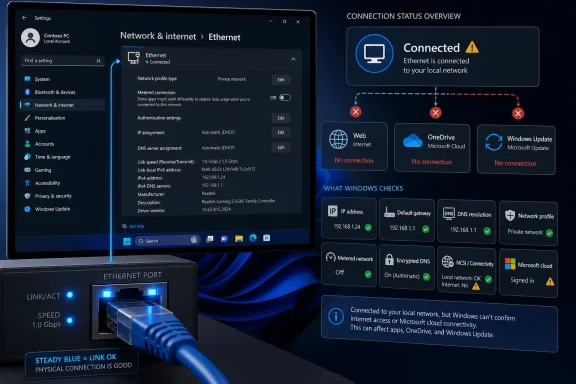
One of the most confusing parts of Windows networking is that “connected” can mean several different things. The adapter can have link. It can have an IP address. It can reach the gateway. It can resolve DNS. It can reach the public internet. It can reach Microsoft’s connectivity test endpoints. It can sign into Microsoft services. These are related states, but they are not the same state.Windows uses network connectivity detection to decide whether the machine is online, and that decision affects the tray icon, captive portal behavior, Microsoft account sign-ins, Store access, Windows Update, and sometimes application behavior. If that detection fails, the user may have a browser that reaches websites while Windows insists there is “no internet.” Conversely, a PC may satisfy the connectivity test while some real-world application path is broken.
This is not merely cosmetic. The operating system’s belief about connectivity can influence workflows that now assume cloud reachability. Microsoft accounts, OneDrive, activation, Store apps, Teams, Outlook, and update services all live in the shadow of that status decision. When the network icon lies, or appears to lie, trust in the whole system erodes.
Ethernet users feel this especially sharply because the physical layer looks settled. If the cable is in and the switch port is active, the failure feels like Windows being perverse. In many cases, though, Windows is reporting the result of a layered test rather than the state of the cable. That distinction is technically reasonable and rhetorically disastrous.
The Docking Station Turned Ethernet Into a Peripheral Problem
The rise of USB-C docks has changed wired networking more than many desktop veterans appreciate. A growing number of Windows laptops no longer have built-in Ethernet ports at all. Wired connectivity arrives through a dock, monitor, hub, or tiny USB adapter, often using Realtek, Intel, ASIX, or other controller silicon underneath a brand name the user never sees.That makes Ethernet less like a motherboard feature and more like a peripheral stack. Firmware, USB power management, driver versions, dock compatibility, Thunderbolt or USB4 behavior, sleep states, and Windows Update can all become part of the failure chain. The cable may still be fine. The router may still be fine. The problem may live in the adapter path between them.
This is one reason old advice sometimes disappoints. “Try another cable” is still valid, but it is no longer enough. A modern Windows 11 Ethernet issue may require checking the dock firmware, disabling aggressive power saving, reinstalling a driver, moving to a different USB-C port, or testing the same adapter on another machine.
For IT departments, this has procurement implications. The cheapest Ethernet adapter is not always cheap after a fleet spends months generating help-desk tickets. Wired reliability now depends on validating the entire physical chain, not just assuming Ethernet itself is mature enough to be invisible.
Metered Ethernet Is a Small Toggle With Outsized Consequences
One of Windows 11’s more underappreciated network controls is the ability to mark a connection as metered. Most users associate metered networking with cellular plans or tethered hotspots, but Ethernet can be metered too. That makes sense in edge cases: a wired connection may terminate in a satellite modem, a travel router, a shared industrial link, or a bandwidth-billed environment.The danger is that metering is easy to forget. A metered Ethernet connection can influence update behavior, background downloads, cloud sync, app refreshes, and other data-heavy activity. Sometimes that restraint is exactly what the user wants. Other times it quietly explains why a PC seems stubbornly out of date or why synchronization feels delayed.
Microsoft’s problem is that the toggle is both powerful and context-poor. Windows can expose the setting, but it cannot easily explain every consequence in the moment. The result is another example of Windows turning a formerly simple connection into an input for system-wide behavior.
Admins understand this. Consumers often do not. If Microsoft wants Settings to replace Control Panel as the trusted center of gravity, it needs to make these cross-system effects more legible.
The Troubleshooter Is a Bandage Over a Deeper Interface Gap
Microsoft increasingly pushes users toward automated troubleshooters and the Get Help app when networking breaks. That is understandable. Network failures are multi-variable, and most users do not want to parse routes, leases, DNS suffixes, interface metrics, and driver states. Automation can reset adapters, renew leases, check services, and identify obvious misconfigurations faster than a novice can.But automated troubleshooting has always had a credibility ceiling. It works best when the problem is common and local. It struggles when the cause is environmental, intermittent, policy-driven, or created by third-party software. VPN clients, endpoint security suites, virtualization platforms, Hyper-V switches, DNS filters, and vendor utilities can all alter networking in ways a generic tool may not explain well.
The deeper issue is that Windows often knows more than it tells the user. It can detect link state, IP configuration, gateway reachability, DNS response behavior, firewall profile, and NCSI results. Yet the consumer UI tends to collapse that into a few vague phrases. “No internet” is not a diagnosis. It is a symptom label.
A better Windows networking interface would separate the layers visibly: cable link, local address, gateway, DNS, internet test, Microsoft service reachability, and policy restrictions. That would not eliminate complexity. It would stop hiding it until the user is already angry.
Microsoft’s Cloud Assumptions Make Network Failures Feel Bigger
Windows has always been network-capable. Windows 11 is network-dependent in a way older versions were not. The distinction matters.The out-of-box experience pushes users toward Microsoft accounts. Settings sync, OneDrive integration, Store apps, Microsoft 365, Copilot features, widgets, web-backed search, passkeys, device encryption recovery, and update servicing all presume a functioning network path. A broken Ethernet connection is no longer just a browser problem. It can interfere with the operating system’s preferred identity and maintenance model.
This is why a basic networking page deserves more attention than its humble subject suggests. Microsoft has made connectivity part of the Windows value proposition. That means every ambiguity in connectivity becomes an ambiguity in Windows itself.
There is a strategic tension here. Microsoft wants Windows to feel continuously serviced, protected, and cloud-enhanced. Users and administrators want the machine to remain understandable and controllable when that cloud fabric frays. Ethernet, ironically, becomes the place where this tension is easiest to see because users expect it to be the least magical part of the stack.
Enterprise IT Reads the Ethernet Page Differently
For enterprise administrators, Ethernet settings are rarely about convenience. They are about repeatability. The question is not “can this one PC get online?” but “can this fleet of machines behave predictably across offices, docks, VLANs, VPNs, conditional access policies, and security baselines?”That makes Windows 11’s richer networking model both useful and dangerous. DNS encryption can improve security, but it must align with corporate resolvers. Network profiles can reduce exposure, but misclassification can break discovery or management workflows. Metered settings can preserve bandwidth, but they can also delay updates in ways compliance teams dislike. NCSI behavior can be managed, but changing it can produce confusing status reporting.
The operational challenge is not that Microsoft has added too many features. It is that these features interact. A machine may be technically connected but blocked by policy, marked metered, using the wrong resolver, assigned a public firewall profile, or dependent on a dock driver that changed after an update. The user sees one failure. The admin sees a decision tree.
This is where documentation, baselines, and fleet tooling matter. The Settings app is not enough for organizations. Intune, Group Policy, PowerShell, driver management, endpoint analytics, and network monitoring all become part of making Ethernet boring again. In enterprise computing, boring is not an insult. It is the goal.
Enthusiasts Still Need the Old Tools
Windows enthusiasts occupy the awkward middle ground between consumers and administrators. They may not manage thousands of devices, but they know enough to distrust a vague status icon. For them, Windows 11’s networking UI is useful but insufficient.The old commands still matter.
ipconfig /all remains the quickest way to see what Windows actually received from DHCP. ping and tracert still separate local reachability from upstream failure. nslookup and PowerShell’s Resolve-DnsName expose resolver behavior. Test-NetConnection is often more informative than a Settings pane. Device Manager still reveals the driver and adapter state beneath the friendly name.This is not nostalgia. It is a reminder that Windows networking is a stack, and stacks need layered tools. A good GUI can make common tasks approachable, but it should not pretend the layers do not exist.
Microsoft’s challenge is to serve both audiences without satisfying neither. Hide everything, and power users feel patronized. Surface everything, and ordinary users drown. The current compromise often makes the first step easier but the second step harder, which is exactly the wrong trade when something breaks.
The Field Guide Moment Is Really About Trust
A screenshot or attachment page about Ethernet may seem like the thinnest possible news peg. But the reason it resonates is that Ethernet represents a promise Windows has to keep. If the wired network feels mysterious, what chance does the rest of the cloud-connected operating system have?Paul Thurrott’s Field Guide project has always been valuable because it treats Windows as used software, not just shipped software. Microsoft announces features; users live inside them. The difference is especially stark in networking, where a small Settings change can alter how people troubleshoot, how admins document procedures, and how enthusiasts explain Windows to family members.
The Windows 11 Ethernet experience is not bad. In many ways, it is cleaner than the old sprawl. But it reflects the broader Windows 11 design philosophy: consolidate the obvious path, bury the legacy path, and assume the system can infer enough context to protect users from complexity.
That philosophy works until it does not. When it fails, the user needs not just a prettier panel, but a clearer account of what Windows believes, what it tested, and what decision it made. Trust comes from explanation, not minimalism.
The Practical Lesson Hiding Behind the Link Light
The Ethernet page in Windows 11 is a reminder that wired networking remains essential precisely because everything around it has become more conditional. A cable can stabilize bandwidth, reduce latency, simplify roaming, and rescue a machine with broken Wi-Fi. It cannot, by itself, simplify Windows’ modern assumptions about identity, DNS, policy, and cloud reachability.The most useful reading of this moment is therefore pragmatic rather than nostalgic. Ethernet is still the best first test when connectivity gets strange. It is also no longer the final answer.
- Windows 11 treats Ethernet as a managed network profile, not merely a live cable plugged into a network adapter.
- A wired connection can be physically connected while DNS, gateway access, Microsoft connectivity checks, or cloud sign-in paths remain broken.
- DNS configuration has become a security and privacy decision, especially where encrypted DNS intersects with enterprise policy.
- USB-C docks and adapters have made Ethernet reliability dependent on firmware, drivers, power management, and peripheral quality.
- Metered Ethernet can be useful in constrained environments, but it can also quietly change update and sync behavior.
- The best troubleshooting still separates the network into layers instead of trusting a single “connected” or “no internet” label.
References
- Primary source: thurrott.com
Published: 2026-06-23T22:10:45.159686
ethernet-02 - Thurrott.com
 www.thurrott.com
- Official source: support.microsoft.com
Fix Ethernet connection problems in Windows - Microsoft Support
Learn about different things you can try to fix Ethernet network connection problems in Windowssupport.microsoft.com - Related coverage: staff.ces.funai.edu.ng
