

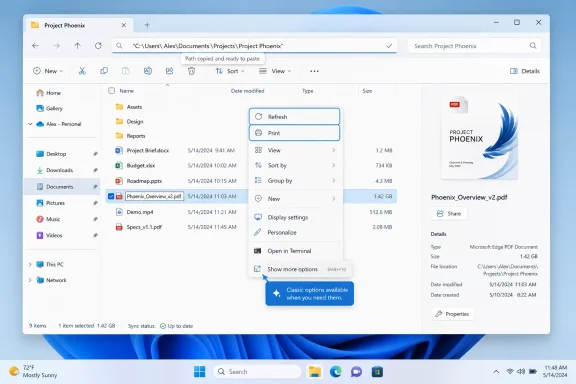
Microsoft is testing a Windows 11 File Explorer update in Experimental Build 26300.8376 that restores Refresh and Print to the modern right-click menu, changes Details view to show file sizes in KB, MB, or GB, and improves address-bar and context-menu behavior. The change is small in code but large in symbolism. After nearly five years of living with Windows 11’s split personality, Microsoft is admitting that a cleaner menu is not necessarily a better menu if it hides the actions people actually use.
That is the real story here: not Refresh, not Print, not even the long-overdue end of giant kilobyte counts for ISO files. It is Microsoft’s slow retreat from the idea that Windows could modernize its shell by subtracting decades of muscle memory and then asking users to thank it for the elegance.
Windows 11’s modern context menu arrived with a defensible brief. The old right-click menu had become a landfill of shell extensions, antivirus hooks, compression tools, GPU control panels, cloud sync entries, printer actions, developer shortcuts, and vendor cruft. Microsoft’s case was that the menu was too long, too inconsistent, and too far removed from what a touch-capable, visually coherent Windows shell should look like.
That argument was not wrong. Anyone who has right-clicked a file on a heavily used Windows installation knows the experience can feel less like invoking a menu and more like opening a museum of every application ever installed. Windows needed a way to discipline that surface.
But Windows 11 did not merely discipline it. It split it. The new menu became the front door, while the old menu remained behind “Show more options,” a phrase that has carried more user resentment than almost any other three-word label in the operating system.
The result was a compromise that satisfied neither camp. The modern menu was cleaner but incomplete. The legacy menu was powerful but one click deeper. Power users learned the keyboard shortcut, registry hacks, or muscle-memory detours. Everyone else learned that Windows had made a familiar action feel slightly less certain.
That uncertainty matters because File Explorer is not a decorative app. It is the operating system’s workbench. When Microsoft changes the meaning of a right-click in Explorer, it is not redesigning a button; it is renegotiating one of the oldest contracts between Windows and its users.
But that was never the user complaint. The complaint was that right-clicking empty space inside a folder and choosing Refresh was the gesture people had internalized for decades. It was quick, local, and spatially obvious. It did not require moving the pointer to the top of the window, remembering a shortcut, or opening the older menu.
The modern Windows 11 menu broke that habit. It did so in the name of simplification, but simplification that removes a high-frequency action is not simplification from the user’s point of view. It is relocation.
Microsoft’s decision to test Refresh in the modern context menu is therefore less a new feature than a correction. It acknowledges that some commands belong where users expect them, even if a designer can prove that an alternate route exists. In a file manager, placement is part of functionality.
There is also a practical edge to this. File Explorer still has moments where the displayed state and the underlying file system state do not feel perfectly synchronized. Network folders, synced cloud directories, removable drives, renamed files, archive extraction, developer build outputs, and automated downloads can all expose timing weirdness. In those contexts, Refresh is not superstition. It is a low-friction way to ask the shell to stop guessing and look again.
Moving Print behind the legacy menu was not catastrophic, but it was exactly the kind of paper cut that makes Windows 11 feel like it was designed around a narrower, cleaner idea of computing than the one many organizations actually inhabit. A school secretary printing a batch of PDFs, a paralegal pushing documents to a case file, or a warehouse operator printing labels does not care that the new menu is more visually balanced. They care that the command is where the workflow expects it to be.
Restoring Print to the modern menu is also a useful test of Microsoft’s stated philosophy. If the company wants the new context menu to become the real context menu rather than a curated foyer before the old one, it must carry enough real-world verbs to stand on its own. A modern menu that repeatedly punts users into the legacy menu is not modern. It is a wrapper.
The trick, of course, is avoiding the very clutter that Windows 11 was meant to solve. Print deserves a place because it is an operating-system-level action with broad applicability. That does not mean every shell extension deserves the same promotion. Microsoft’s challenge is to distinguish essential commands from vendor noise without appearing arbitrary.
That is harder than it sounds, because Windows is valuable precisely because it is extensible. The old menu became messy because the ecosystem had power. The new menu became frustrating because Microsoft overcorrected. The middle ground is not a static design; it is governance.
This is the Windows shell design trap. Users want the common commands exposed. Developers want their app commands exposed. Enterprises want their management and security tools exposed. Microsoft wants the menu to remain fast, predictable, and visually consistent. All four desires are reasonable, and all four cannot be fully satisfied at once.
Windows 11’s original solution was hierarchy: show the clean menu first, hide the rest behind “Show more options.” The current evolution suggests Microsoft is moving toward curation: bring back the actions whose absence causes the most friction, while keeping tighter control over the top-level surface. That is a better approach, but it requires continuous maintenance.
The difference between a curated menu and a cluttered menu is not just how many items it contains. It is whether the visible commands match the context. A right-click on empty folder space is different from a right-click on a PDF, which is different from a right-click on an image, which is different from a right-click in the navigation pane. If Refresh appears when it makes sense and Print appears when a file type supports it, the menu can grow without feeling bloated.
But if Microsoft simply keeps re-adding commands as complaints get loud enough, Windows 11 will end up with two context menus forever: one modernizing its way back toward the old one, and one old enough to keep rescuing it.
Showing KB, MB, and GB as appropriate is not innovation. It is the kind of basic readability improvement users expect from a mature file manager. The fact that it is arriving as a notable change says something about how much of Windows still carries old assumptions forward until someone finally forces the issue.
For administrators, developers, and enthusiasts, this matters more than it might first appear. Details view is where people compare installers, disk images, log bundles, exports, database dumps, virtual disk files, crash dumps, and driver packages. When everything is expressed in KB, the column becomes harder to scan, especially when the difference between 80MB and 8GB is visually buried in a string of digits.
Readable file sizes reduce cognitive load. They make mistakes less likely. They help a user notice that a download is incomplete, that an archive is unexpectedly huge, or that a log file has ballooned. That is not cosmetic. It is operational hygiene.
The change also affects the Details pane, which is important because Microsoft has spent years trying to make File Explorer panes more useful without overwhelming the main view. If a side pane is going to summarize a selected file, it should summarize it in language humans use. Nobody says they downloaded an 8,388,608KB ISO unless they are doing a bit.
A rigid address bar turns those copied strings into little failures. A tolerant address bar understands that the user’s intent is obvious and gets out of the way.
This is one of the oldest lessons in interface design: strictness feels clean to engineers until it collides with copied text. Windows, more than most platforms, lives in copied text. The operating system is the meeting place of GUI users, PowerShell users, domain admins, software installers, network shares, registry paths, environment variables, UNC paths, and help-desk instructions.
Making File Explorer more forgiving is therefore not a niche developer improvement. It is a small accommodation to the way Windows is actually used. If someone pastes
The same logic applies to the fix for the address bar closing correctly when an item is selected from suggestions. Explorer’s address bar is no longer merely a path display. It is a navigation field, search-adjacent surface, history interface, and suggestion host. If that surface feels flaky, the whole window feels less reliable.
That is not simply a matter of poor craftsmanship. Windows Explorer is a compatibility machine. It has to handle decades of file associations, shell extensions, network providers, removable devices, cloud sync clients, admin policies, accessibility technologies, keyboard habits, and third-party integrations. Rebuilding its surfaces without breaking its ecosystem is much harder than redesigning a standalone app.
Still, users do not experience architectural difficulty as an excuse. They experience latency, missing commands, duplicate paths to the same action, unexpected menu behavior, and views that do not update when they should. When a core shell feature feels slower or less direct than its predecessor, the modern design loses the benefit of the doubt.
That is why the return of Refresh and Print resonates. It suggests Microsoft is no longer treating complaints about the modern context menu as mere nostalgia. Some of the friction was real. Some of the removed affordances were doing work.
The irony is that the old context menu was powerful partly because it was unglamorous. It did not try to explain itself. It surfaced commands. It let the ecosystem pile on. It was ugly, but it was available. Windows 11 has been trying to prove that availability and discipline can coexist.
That said, Windows Latest reports that these changes are expected to begin rolling out more broadly in the coming weeks. The phrasing is important. Windows feature delivery is no longer a simple matter of one version number unlocking one behavior for everyone on the same day. Microsoft increasingly uses controlled feature rollouts, enablement packages, and staged deployments that make the same nominal Windows version behave differently across machines for a while.
For enthusiasts, that means the usual caveat applies: do not assume your PC is broken if the menu does not change immediately. For administrators, it means lab validation remains necessary. A File Explorer context-menu change sounds harmless until it affects training materials, support scripts, user documentation, or workflows built around the current split-menu behavior.
Enterprises will also care about whether these changes land in monthly cumulative updates, annual feature updates, or Insider-to-stable transitions tied to Windows 11 25H2-era work. Microsoft’s servicing model has made Windows more fluid, but fluidity is not always the friend of change management.
The bigger point is that File Explorer is now part of Windows’ continuous evolution rather than a component that changes only at major version boundaries. That is good when it fixes longstanding annoyances. It is less good when it means the shell is never entirely still.
The critique from power users was never that Windows should look frozen in amber. It was that Microsoft sometimes confused visual simplification with workflow improvement. A command hidden behind an extra click is not necessarily removed, but it is demoted. Demotion changes behavior.
That distinction is especially important in Windows because the platform’s appeal has always been breadth. Windows serves gamers, accountants, sysadmins, teachers, developers, receptionists, CAD users, students, lawyers, and hobbyists on the same shell. A design that feels elegant for one group can feel patronizing to another.
Microsoft’s newer approach looks more pragmatic. Bring back Refresh. Bring back Print. Make file sizes readable. Make pasted paths more forgiving. Fix renamed-file display. Smooth keyboard navigation through flyouts. These are not grand reimaginings of personal computing. They are concessions to the workflows people actually have.
And that may be exactly what Windows 11 needs. The operating system does not need every File Explorer update to be a moonshot. It needs fewer moments where users ask why the old thing worked better.
Windows has a long history of being usable through multiple input models: mouse, keyboard, touch, pen, screen reader, automation, remote session, and administrative tooling. Any modernization that privileges pointer-first interaction at the expense of keyboard predictability undermines one of the platform’s core strengths.
This is particularly important for IT pros and power users, who often move through Explorer with a keyboard because it is faster. It also matters for accessibility users who rely on consistent focus behavior, predictable menu traversal, and controls that expose themselves properly to assistive technologies. Modern UI frameworks can improve this, but only if the implementation is meticulous.
The modern context menu’s visual polish was never enough. Its behavior had to match the reliability of the old shell surfaces. When Microsoft fixes flyout navigation and menu handling, it is not just sanding down rough edges. It is making the new shell more worthy of replacing the old one.
The same applies to renamed files showing correctly and reliably. That sounds minor until a user is renaming batches of documents, media files, exported logs, or project assets and Explorer lags behind reality. A file manager’s first duty is to tell the truth about files.
What they resist is discontinuity without payoff. If a familiar action moves, the new version must be faster, clearer, more capable, or meaningfully safer. If it is merely cleaner-looking, the user pays the cost while Microsoft gets the screenshot.
The modern context menu’s missing Refresh button failed that test. The Print demotion failed it for many document-heavy users. Kilobyte-only file sizes failed it in a quieter way, because they preserved an old technical convention at the expense of comprehension.
These changes suggest Microsoft is listening to the difference between aesthetic objections and workflow objections. That is encouraging. It also shows how long the feedback loop can be for foundational parts of Windows. The modern context menu debuted with Windows 11 in 2021. Refresh returning in 2026 is not exactly rapid iteration.
Still, late is better than never, especially in a shell component that Microsoft cannot simply rip out and replace. The company appears to be converging on a more mature position: keep the modern surface, but let lived usage overrule the purity of the original design.
That does not mean the legacy context menu is going away tomorrow. In fact, the persistence of “Show more options” remains an implicit admission that Windows’ compatibility story is bigger than its design system. But if Microsoft keeps moving essential commands into the modern menu while improving performance and context awareness, the old menu can become a safety net rather than a daily dependency.
For WindowsForum readers, the practical message is simple: this is a small File Explorer update worth watching because it reflects a larger correction in Windows 11’s design philosophy. Microsoft is not abandoning the modern shell, and it should not. But it is starting to concede that modernization works only when it respects the muscle memory and messy workflows that made Windows useful in the first place.
Source: Windows Latest Microsoft brings Refresh & Print back to Windows 11 File Explorer right-click, plus readable file sizes for Details view
That is the real story here: not Refresh, not Print, not even the long-overdue end of giant kilobyte counts for ISO files. It is Microsoft’s slow retreat from the idea that Windows could modernize its shell by subtracting decades of muscle memory and then asking users to thank it for the elegance.
 File Explorer’s Right-Click War Was Always About Trust
Windows 11’s modern context menu arrived with a defensible brief. The old right-click menu had become a landfill of shell extensions, antivirus hooks, compression tools, GPU control panels, cloud sync entries, printer actions, developer shortcuts, and vendor cruft. Microsoft’s case was that the menu was too long, too inconsistent, and too far removed from what a touch-capable, visually coherent Windows shell should look like.That argument was not wrong. Anyone who has right-clicked a file on a heavily used Windows installation knows the experience can feel less like invoking a menu and more like opening a museum of every application ever installed. Windows needed a way to discipline that surface.
But Windows 11 did not merely discipline it. It split it. The new menu became the front door, while the old menu remained behind “Show more options,” a phrase that has carried more user resentment than almost any other three-word label in the operating system.
The result was a compromise that satisfied neither camp. The modern menu was cleaner but incomplete. The legacy menu was powerful but one click deeper. Power users learned the keyboard shortcut, registry hacks, or muscle-memory detours. Everyone else learned that Windows had made a familiar action feel slightly less certain.
That uncertainty matters because File Explorer is not a decorative app. It is the operating system’s workbench. When Microsoft changes the meaning of a right-click in Explorer, it is not redesigning a button; it is renegotiating one of the oldest contracts between Windows and its users.
Refresh Returns Because Muscle Memory Won
Refresh is one of those commands that looks trivial until it disappears. Technically, Microsoft could argue that folder updates should happen automatically, and when they do not, there are other ways to force a view update. The address bar can refresh. The keyboard can refresh. The shell has many ways to redraw what it is showing.But that was never the user complaint. The complaint was that right-clicking empty space inside a folder and choosing Refresh was the gesture people had internalized for decades. It was quick, local, and spatially obvious. It did not require moving the pointer to the top of the window, remembering a shortcut, or opening the older menu.
The modern Windows 11 menu broke that habit. It did so in the name of simplification, but simplification that removes a high-frequency action is not simplification from the user’s point of view. It is relocation.
Microsoft’s decision to test Refresh in the modern context menu is therefore less a new feature than a correction. It acknowledges that some commands belong where users expect them, even if a designer can prove that an alternate route exists. In a file manager, placement is part of functionality.
There is also a practical edge to this. File Explorer still has moments where the displayed state and the underlying file system state do not feel perfectly synchronized. Network folders, synced cloud directories, removable drives, renamed files, archive extraction, developer build outputs, and automated downloads can all expose timing weirdness. In those contexts, Refresh is not superstition. It is a low-friction way to ask the shell to stop guessing and look again.
Print’s Return Is a Reminder That Windows Still Runs Offices
Print is the less fashionable addition, which makes it more interesting. Consumer Windows coverage tends to treat printing as an ancient ritual performed by people trapped in 2009. Enterprise IT knows better. Printing remains stubbornly embedded in legal workflows, healthcare, education, finance, government, shipping, and any business that still has forms, labels, signed documents, invoices, or compliance packets.Moving Print behind the legacy menu was not catastrophic, but it was exactly the kind of paper cut that makes Windows 11 feel like it was designed around a narrower, cleaner idea of computing than the one many organizations actually inhabit. A school secretary printing a batch of PDFs, a paralegal pushing documents to a case file, or a warehouse operator printing labels does not care that the new menu is more visually balanced. They care that the command is where the workflow expects it to be.
Restoring Print to the modern menu is also a useful test of Microsoft’s stated philosophy. If the company wants the new context menu to become the real context menu rather than a curated foyer before the old one, it must carry enough real-world verbs to stand on its own. A modern menu that repeatedly punts users into the legacy menu is not modern. It is a wrapper.
The trick, of course, is avoiding the very clutter that Windows 11 was meant to solve. Print deserves a place because it is an operating-system-level action with broad applicability. That does not mean every shell extension deserves the same promotion. Microsoft’s challenge is to distinguish essential commands from vendor noise without appearing arbitrary.
That is harder than it sounds, because Windows is valuable precisely because it is extensible. The old menu became messy because the ecosystem had power. The new menu became frustrating because Microsoft overcorrected. The middle ground is not a static design; it is governance.
The Modern Menu Is Becoming the Thing It Replaced, Slowly and Carefully
Microsoft is reportedly also looking at reducing clutter and improving the speed of the modern context menu. That tells us the company knows the next problem is already visible. As more useful commands return, the modern menu risks becoming a prettier version of the thing it was created to replace.This is the Windows shell design trap. Users want the common commands exposed. Developers want their app commands exposed. Enterprises want their management and security tools exposed. Microsoft wants the menu to remain fast, predictable, and visually consistent. All four desires are reasonable, and all four cannot be fully satisfied at once.
Windows 11’s original solution was hierarchy: show the clean menu first, hide the rest behind “Show more options.” The current evolution suggests Microsoft is moving toward curation: bring back the actions whose absence causes the most friction, while keeping tighter control over the top-level surface. That is a better approach, but it requires continuous maintenance.
The difference between a curated menu and a cluttered menu is not just how many items it contains. It is whether the visible commands match the context. A right-click on empty folder space is different from a right-click on a PDF, which is different from a right-click on an image, which is different from a right-click in the navigation pane. If Refresh appears when it makes sense and Print appears when a file type supports it, the menu can grow without feeling bloated.
But if Microsoft simply keeps re-adding commands as complaints get loud enough, Windows 11 will end up with two context menus forever: one modernizing its way back toward the old one, and one old enough to keep rescuing it.
Human-Readable File Sizes Fix a Baffling Old Habit
The file-size change may be the most universally understandable improvement in the batch. Today, Details view can show sizes in kilobytes even when that means presenting an 8GB Windows image as a multi-million-KB number. That is technically consistent and practically absurd.Showing KB, MB, and GB as appropriate is not innovation. It is the kind of basic readability improvement users expect from a mature file manager. The fact that it is arriving as a notable change says something about how much of Windows still carries old assumptions forward until someone finally forces the issue.
For administrators, developers, and enthusiasts, this matters more than it might first appear. Details view is where people compare installers, disk images, log bundles, exports, database dumps, virtual disk files, crash dumps, and driver packages. When everything is expressed in KB, the column becomes harder to scan, especially when the difference between 80MB and 8GB is visually buried in a string of digits.
Readable file sizes reduce cognitive load. They make mistakes less likely. They help a user notice that a download is incomplete, that an archive is unexpectedly huge, or that a log file has ballooned. That is not cosmetic. It is operational hygiene.
The change also affects the Details pane, which is important because Microsoft has spent years trying to make File Explorer panes more useful without overwhelming the main view. If a side pane is going to summarize a selected file, it should summarize it in language humans use. Nobody says they downloaded an 8,388,608KB ISO unless they are doing a bit.
The Address Bar Fixes Show Where Real Users Break Polished Designs
The reported address-bar changes are less eye-catching but revealing. Support for paths containing quotation marks or double backslashes points to a class of problem that rarely appears in glossy demos but constantly appears in the real Windows world. Users copy paths from scripts, documentation, terminal output, email, tickets, deployment notes, and command examples. Those paths often contain quotes. Network and escaped paths often contain doubled slashes or backslashes.A rigid address bar turns those copied strings into little failures. A tolerant address bar understands that the user’s intent is obvious and gets out of the way.
This is one of the oldest lessons in interface design: strictness feels clean to engineers until it collides with copied text. Windows, more than most platforms, lives in copied text. The operating system is the meeting place of GUI users, PowerShell users, domain admins, software installers, network shares, registry paths, environment variables, UNC paths, and help-desk instructions.
Making File Explorer more forgiving is therefore not a niche developer improvement. It is a small accommodation to the way Windows is actually used. If someone pastes
"C:\Users" into the address bar, Explorer should not behave as though a legal contract has been violated. It should go to the folder.The same logic applies to the fix for the address bar closing correctly when an item is selected from suggestions. Explorer’s address bar is no longer merely a path display. It is a navigation field, search-adjacent surface, history interface, and suggestion host. If that surface feels flaky, the whole window feels less reliable.
Windows 11’s Shell Still Carries the Cost of Its Rebuild
The uncomfortable backdrop to all of this is that File Explorer in Windows 11 has spent years feeling like a house being renovated while people are still living in it. Microsoft has modernized pieces of the shell with WinUI and the Windows App SDK, updated panes and command surfaces, changed the context menu model, and kept legacy compatibility alive underneath. The result has improved over time, but it has also produced a long tail of oddities.That is not simply a matter of poor craftsmanship. Windows Explorer is a compatibility machine. It has to handle decades of file associations, shell extensions, network providers, removable devices, cloud sync clients, admin policies, accessibility technologies, keyboard habits, and third-party integrations. Rebuilding its surfaces without breaking its ecosystem is much harder than redesigning a standalone app.
Still, users do not experience architectural difficulty as an excuse. They experience latency, missing commands, duplicate paths to the same action, unexpected menu behavior, and views that do not update when they should. When a core shell feature feels slower or less direct than its predecessor, the modern design loses the benefit of the doubt.
That is why the return of Refresh and Print resonates. It suggests Microsoft is no longer treating complaints about the modern context menu as mere nostalgia. Some of the friction was real. Some of the removed affordances were doing work.
The irony is that the old context menu was powerful partly because it was unglamorous. It did not try to explain itself. It surfaced commands. It let the ecosystem pile on. It was ugly, but it was available. Windows 11 has been trying to prove that availability and discipline can coexist.
Experimental Does Not Mean Everyone Gets It Tomorrow
The current build number matters because it sets expectations. Experimental Build 26300.8376 is not the same thing as a broad stable-channel rollout. Features tested there can change, arrive gradually, be controlled by staged rollout flags, or appear first for subsets of Windows Insiders before wider release.That said, Windows Latest reports that these changes are expected to begin rolling out more broadly in the coming weeks. The phrasing is important. Windows feature delivery is no longer a simple matter of one version number unlocking one behavior for everyone on the same day. Microsoft increasingly uses controlled feature rollouts, enablement packages, and staged deployments that make the same nominal Windows version behave differently across machines for a while.
For enthusiasts, that means the usual caveat applies: do not assume your PC is broken if the menu does not change immediately. For administrators, it means lab validation remains necessary. A File Explorer context-menu change sounds harmless until it affects training materials, support scripts, user documentation, or workflows built around the current split-menu behavior.
Enterprises will also care about whether these changes land in monthly cumulative updates, annual feature updates, or Insider-to-stable transitions tied to Windows 11 25H2-era work. Microsoft’s servicing model has made Windows more fluid, but fluidity is not always the friend of change management.
The bigger point is that File Explorer is now part of Windows’ continuous evolution rather than a component that changes only at major version boundaries. That is good when it fixes longstanding annoyances. It is less good when it means the shell is never entirely still.
The Context Menu Is a Small Battlefield in a Larger Windows 11 Argument
Windows 11 has often asked users to accept that modernization requires disruption. The centered taskbar, redesigned Start menu, new Settings pages, altered default apps flow, revised context menus, and modernized Explorer surfaces all fit that pattern. Some changes aged well. Others remain contentious. The right-click menu became one of the clearest examples because it touched an action users perform hundreds of times a week.The critique from power users was never that Windows should look frozen in amber. It was that Microsoft sometimes confused visual simplification with workflow improvement. A command hidden behind an extra click is not necessarily removed, but it is demoted. Demotion changes behavior.
That distinction is especially important in Windows because the platform’s appeal has always been breadth. Windows serves gamers, accountants, sysadmins, teachers, developers, receptionists, CAD users, students, lawyers, and hobbyists on the same shell. A design that feels elegant for one group can feel patronizing to another.
Microsoft’s newer approach looks more pragmatic. Bring back Refresh. Bring back Print. Make file sizes readable. Make pasted paths more forgiving. Fix renamed-file display. Smooth keyboard navigation through flyouts. These are not grand reimaginings of personal computing. They are concessions to the workflows people actually have.
And that may be exactly what Windows 11 needs. The operating system does not need every File Explorer update to be a moonshot. It needs fewer moments where users ask why the old thing worked better.
Accessibility Lives in the Boring Details
Keyboard navigation improvements in File Explorer flyouts, including the context menu, are easy to overlook because they do not produce the kind of screenshot that circulates on social media. But they matter. A context menu that looks good and behaves poorly from the keyboard is unfinished.Windows has a long history of being usable through multiple input models: mouse, keyboard, touch, pen, screen reader, automation, remote session, and administrative tooling. Any modernization that privileges pointer-first interaction at the expense of keyboard predictability undermines one of the platform’s core strengths.
This is particularly important for IT pros and power users, who often move through Explorer with a keyboard because it is faster. It also matters for accessibility users who rely on consistent focus behavior, predictable menu traversal, and controls that expose themselves properly to assistive technologies. Modern UI frameworks can improve this, but only if the implementation is meticulous.
The modern context menu’s visual polish was never enough. Its behavior had to match the reliability of the old shell surfaces. When Microsoft fixes flyout navigation and menu handling, it is not just sanding down rough edges. It is making the new shell more worthy of replacing the old one.
The same applies to renamed files showing correctly and reliably. That sounds minor until a user is renaming batches of documents, media files, exported logs, or project assets and Explorer lags behind reality. A file manager’s first duty is to tell the truth about files.
Windows Users Are Not Asking for Nostalgia; They Are Asking for Continuity
It is tempting to frame every Windows 11 shell complaint as resistance to change. That is too easy. Windows users have adapted to enormous change over the decades: the Start menu, taskbar grouping, search, UAC, ribbon interfaces, Settings migration, virtualization, cloud accounts, OneDrive integration, and the Store. They are not allergic to novelty.What they resist is discontinuity without payoff. If a familiar action moves, the new version must be faster, clearer, more capable, or meaningfully safer. If it is merely cleaner-looking, the user pays the cost while Microsoft gets the screenshot.
The modern context menu’s missing Refresh button failed that test. The Print demotion failed it for many document-heavy users. Kilobyte-only file sizes failed it in a quieter way, because they preserved an old technical convention at the expense of comprehension.
These changes suggest Microsoft is listening to the difference between aesthetic objections and workflow objections. That is encouraging. It also shows how long the feedback loop can be for foundational parts of Windows. The modern context menu debuted with Windows 11 in 2021. Refresh returning in 2026 is not exactly rapid iteration.
Still, late is better than never, especially in a shell component that Microsoft cannot simply rip out and replace. The company appears to be converging on a more mature position: keep the modern surface, but let lived usage overrule the purity of the original design.
The File Explorer Fixes That Tell Us Where Microsoft Is Headed
The most concrete lesson from this update is that Microsoft is still tuning Windows 11 around daily friction rather than only around marquee features. That matters because the health of Windows is often decided in the small gestures users repeat constantly.- Refresh is returning to the modern File Explorer right-click menu, reducing the need to open the legacy menu for a long-familiar folder action.
- Print is being promoted into the modern context menu where supported, which should help document-heavy workflows that were pushed one layer deeper in Windows 11.
- Details view and the Details pane are moving toward readable file-size units, so large files should appear as MB or GB rather than unwieldy KB counts.
- The File Explorer address bar is becoming more tolerant of copied paths that include quotation marks or doubled backslashes.
- Microsoft is also addressing reliability and navigation issues, including renamed-file display, suggestion behavior, and keyboard movement through context-menu flyouts.
- The changes are being tested in Experimental Build 26300.8376, so timing and availability may vary before they reach ordinary Windows 11 installations.
The Shell Is Finally Learning From Its Users Again
The broader lesson is that Microsoft’s Windows 11 shell modernization is entering a more useful phase. The first phase was architectural and aesthetic: new surfaces, new menus, new visual language, new assumptions about what should be foregrounded. The second phase is corrective: restore what users missed, fix what slowed them down, and make the modern shell behave less like a concept piece and more like a tool.That does not mean the legacy context menu is going away tomorrow. In fact, the persistence of “Show more options” remains an implicit admission that Windows’ compatibility story is bigger than its design system. But if Microsoft keeps moving essential commands into the modern menu while improving performance and context awareness, the old menu can become a safety net rather than a daily dependency.
For WindowsForum readers, the practical message is simple: this is a small File Explorer update worth watching because it reflects a larger correction in Windows 11’s design philosophy. Microsoft is not abandoning the modern shell, and it should not. But it is starting to concede that modernization works only when it respects the muscle memory and messy workflows that made Windows useful in the first place.
Source: Windows Latest Microsoft brings Refresh & Print back to Windows 11 File Explorer right-click, plus readable file sizes for Details view
