

Microsoft’s Find my device feature in Windows 11 lets users locate and remotely lock a lost or stolen PC through the Settings app and Microsoft account device dashboard, provided the PC is signed in with a Microsoft account, connected to the internet, and allowed to use location services. The feature is simple enough to describe in a few clicks, but its real significance is larger than a map pin. It is another place where Windows 11 quietly trades the old PC model of local ownership for a cloud-mediated security bargain. That bargain is useful, but it is not neutral.
There was a time when losing a Windows laptop meant losing a machine and, if you were unlucky, losing the data inside it. Today, Microsoft wants the first instinct to be different: open the Microsoft account dashboard, find the PC among your registered devices, and issue a remote lock. That is a very modern answer to a very old problem.
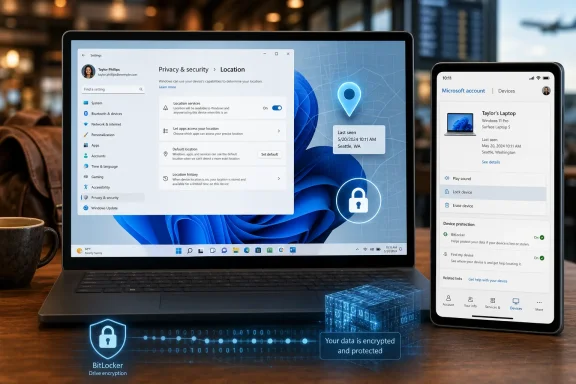
Find my device lives in Windows 11 under Settings, then Privacy & security, then Find my device. From there, Windows points the user toward the Microsoft account devices page, where enrolled PCs can be shown on a map and, in supported cases, remotely locked. It is the sort of feature that sounds obvious because phones have trained users to expect it.
The important detail is that Windows is not merely copying smartphone behavior. A phone is almost always online, almost always location-aware, and usually built around a single signed-in cloud account. A Windows PC is more complicated: it might be a desktop with no GPS, a laptop with Wi-Fi-based location, a shared household machine, a work-managed endpoint, or a local-account holdout deliberately kept away from consumer cloud services.
That complexity explains both the usefulness and the limits of Find my device. Microsoft can make the button easy to find, but it cannot make the underlying assumptions disappear.
That design makes perfect sense from Microsoft’s point of view. The Microsoft account is the identity layer that binds Windows activation, Store purchases, OneDrive, recovery keys, browser sync, and device inventory into a single consumer control plane. Find my device becomes one more reason not to treat the Microsoft account as an optional accessory.
The friction is that Microsoft’s logic is not always the user’s logic. Many Windows enthusiasts still distinguish sharply between the computer they own and the online account they use for Microsoft services. For them, Find my device is not just a security setting; it is a reminder that Windows 11 is increasingly designed around the assumption that the local PC is part of a Microsoft-managed graph.
This does not make the feature sinister. It does make it political in the small-p sense of platform politics. Microsoft is not simply asking whether users want help finding a stolen laptop. It is asking whether they accept the account-first architecture that makes that help possible.
Microsoft presents this as a practical requirement, and it is. A lost-device locator that cannot use location services is basically a device list with aspirations. But the privacy implications are real enough that Microsoft places the toggle under Privacy & security rather than burying it in an account page.
The feature’s defenders will point out that this is user-controlled, that it is tied to the signed-in account, and that a lost or stolen device is exactly the scenario where a little location disclosure is better than a lot of data loss. That is a strong argument. A stolen laptop containing tax documents, saved browser sessions, source code, or family photos is not a theoretical risk.
Still, privacy-sensitive users are right to examine the trade. Find my device is not magic; it depends on a standing permission structure that has to exist before the crisis. The user who wants zero location telemetry until the laptop disappears is asking for a contradiction.
But the word lock can mislead. Remote lock does not turn a Windows laptop into a sealed evidence vault. It does not guarantee recovery, defeat a determined attacker with physical access, or undo poor security choices made before the device vanished.
A properly secured Windows 11 laptop should already require strong sign-in credentials, use Windows Hello where appropriate, and have device encryption or BitLocker enabled. Find my device sits on top of that stack. It is the panic button, not the vault door.
This distinction matters because consumer security features often encourage a false sense of completeness. Users see a map, a lock button, and a reassuring Microsoft account page, then assume the problem is solved. In reality, Find my device is most valuable when the device was already configured well before it went missing.
A local account can be a perfectly rational choice. It reduces dependence on Microsoft’s consumer account systems, limits certain sync behaviors, and gives the user a more traditional PC experience. In some households, labs, repair environments, and privacy-conscious setups, that is exactly what is wanted.
But local accounts also give up conveniences that require cloud identity. Find my device is one of them. If the PC is not meaningfully linked to the Microsoft account device dashboard before it is lost, the user should not expect Microsoft to locate or lock it after the fact.
That is the honest version of the trade. Local-first Windows remains possible in many circumstances, but it is no longer the path of maximum feature support. Microsoft’s consumer security model increasingly assumes the account is the anchor.
Still, the existence of Find my device matters to administrators because users do not live cleanly inside policy diagrams. Employees lose personally owned devices used for work. Small businesses run Windows 11 Pro machines without mature endpoint management. Contractors mix consumer Microsoft accounts with business apps. The boundary between “consumer feature” and “enterprise risk” is porous.
The bigger lesson for IT is that device recovery should not be improvised. If a lost laptop contains company data, the organization needs to know whether it can locate, lock, wipe, or at least invalidate access from that endpoint. Hoping an employee toggled Find my device at setup is not a policy.
For managed Windows environments, the correct question is not whether Find my device exists. It is whether the organization has a tested lost-device playbook that covers encryption, identity revocation, session invalidation, compliance reporting, and user communication. Microsoft’s consumer feature may help in edge cases, but it is not a substitute for fleet management.
Yet Windows 11 does not limit the feature’s visibility to glamorous mobile hardware. Desktop PCs can appear in the device list because Microsoft’s account model is device-centric, not just mobility-centric. That can be useful for inventory, but it also exposes the awkwardness of location on machines that were never designed to be found like phones.
A desktop may report an approximate network-derived location, but that does not mean it can be tracked with precision. A stolen desktop is also less likely to remain powered, connected, and intact long enough for consumer remote-lock workflows to matter. The feature still has value, but expectations need to be lower.
This is where Microsoft’s broad Windows hardware ecosystem works against a clean story. Apple can describe Find My around a smaller set of tightly integrated mobile devices. Microsoft has to accommodate everything from ultrabooks to gaming rigs to office desktops assembled from parts.
That is why the feature should be viewed as one layer in a larger preparedness routine. Device encryption matters because physical access is a brutal adversary. Strong account security matters because a thief may be more interested in cloud accounts than in the laptop itself. Backups matter because recovery of the machine is never guaranteed.
Windows 11 has improved the baseline here, especially on modern hardware where device encryption is increasingly common. But the user experience remains fragmented. One page helps find the PC, another controls location, another manages sign-in, another stores recovery keys, another syncs files, and another governs account security.
Microsoft’s challenge is not that these pieces do not exist. It is that ordinary users rarely understand how they fit together until something goes wrong. Find my device is a visible feature sitting atop an invisible dependency chain.
That split is not accidental. Microsoft wants the account dashboard to be the place where users manage the relationship between themselves, their subscriptions, their devices, their security posture, and their recovery options. Windows Settings is the local surface; the account portal is the system of record.
There are advantages to this model. A lost PC cannot be managed from itself, so a web portal is the obvious control surface. Users can access it from a phone, another computer, or a borrowed machine. The device list also gives Microsoft a single place to connect support, warranty, security, and account functions.
But the web-dashboard model also makes Windows feel less self-contained. If the Microsoft account site has stale information, device registration issues, confusing duplication, or missing options, the user’s trust in the whole feature suffers. A security tool is only as reassuring as its weakest interface.
That comparison is not entirely fair. PCs have different power states, radios, hardware designs, and ownership models. Many Windows laptops are not constantly connected cellular devices. Some spend most of their lives asleep in bags, powered off, or disconnected from known networks.
But user expectations do not care much about architectural excuses. If a phone can be found, locked, and recovered with a polished workflow, users will expect their laptop to behave similarly. Microsoft therefore has to make Find my device feel less like a checkbox and more like a dependable safety feature.
That will require more than hiding or showing a button. It will require clearer setup messaging, better explanations of what is and is not possible, more reliable device registration, and tighter integration with encryption and account security prompts. The map is only the visible artifact of a much broader trust system.
The decision behind that setup is less trivial. Users are deciding whether the risk of a lost machine outweighs the discomfort of linking location-capable Windows hardware to a Microsoft account. For many people, especially laptop owners, the answer should be yes. The risk of loss is concrete, and the privacy cost is bounded by settings that can be reviewed.
For others, particularly users who deliberately operate offline, avoid Microsoft accounts, or run specialized machines, the answer may be no. That is not paranoia; it is preference shaped by threat model. A desktop in a locked studio does not need the same controls as a student’s laptop crossing campus twice a day.
The problem is that Microsoft rarely speaks in threat models to consumers. It speaks in defaults. Find my device is enabled by default when the right account conditions are present, which means many users receive the benefit without ever consciously choosing the architecture behind it.
That dual nature is exactly why Windows enthusiasts should pay attention. The feature is not just about theft. It is about the future shape of Windows as an operating system that increasingly assumes identity, location, recovery, and device control are distributed between the PC and Microsoft’s services.
For most Windows 11 laptop users, turning on Find my device is the sensible move. The better argument is not to reject the feature, but to understand its dependencies and pair it with stronger basics: encryption, secure sign-in, multifactor authentication, and reliable backups. A map pin is helpful; a hardened device is better.
For administrators and power users, the lesson is to test rather than assume. Make sure devices appear where they should, confirm the intended account relationship, document what remote lock does in your environment, and do not wait for a theft report to discover that a machine was never enrolled properly.
 Microsoft Turns the Lost Laptop Into an Account Problem
There was a time when losing a Windows laptop meant losing a machine and, if you were unlucky, losing the data inside it. Today, Microsoft wants the first instinct to be different: open the Microsoft account dashboard, find the PC among your registered devices, and issue a remote lock. That is a very modern answer to a very old problem.Find my device lives in Windows 11 under Settings, then Privacy & security, then Find my device. From there, Windows points the user toward the Microsoft account devices page, where enrolled PCs can be shown on a map and, in supported cases, remotely locked. It is the sort of feature that sounds obvious because phones have trained users to expect it.
The important detail is that Windows is not merely copying smartphone behavior. A phone is almost always online, almost always location-aware, and usually built around a single signed-in cloud account. A Windows PC is more complicated: it might be a desktop with no GPS, a laptop with Wi-Fi-based location, a shared household machine, a work-managed endpoint, or a local-account holdout deliberately kept away from consumer cloud services.
That complexity explains both the usefulness and the limits of Find my device. Microsoft can make the button easy to find, but it cannot make the underlying assumptions disappear.
The Feature Works Best When Windows Already Belongs to the Cloud
Find my device requires a Microsoft account for the clearest consumer experience. If the PC is set up with that account and location is enabled, Windows can periodically report enough information for Microsoft’s device portal to display a last known location. If the device goes missing and later comes online, the owner may be able to refresh its position or send a lock command.That design makes perfect sense from Microsoft’s point of view. The Microsoft account is the identity layer that binds Windows activation, Store purchases, OneDrive, recovery keys, browser sync, and device inventory into a single consumer control plane. Find my device becomes one more reason not to treat the Microsoft account as an optional accessory.
The friction is that Microsoft’s logic is not always the user’s logic. Many Windows enthusiasts still distinguish sharply between the computer they own and the online account they use for Microsoft services. For them, Find my device is not just a security setting; it is a reminder that Windows 11 is increasingly designed around the assumption that the local PC is part of a Microsoft-managed graph.
This does not make the feature sinister. It does make it political in the small-p sense of platform politics. Microsoft is not simply asking whether users want help finding a stolen laptop. It is asking whether they accept the account-first architecture that makes that help possible.
Location Privacy Is the Price of the Map Pin
The most delicate part of Find my device is not the lock button. It is the location pipeline behind the map. To locate a missing PC, Windows must be allowed to determine and transmit location information, usually through Wi-Fi positioning, network information, and whatever hardware location capabilities the device provides.Microsoft presents this as a practical requirement, and it is. A lost-device locator that cannot use location services is basically a device list with aspirations. But the privacy implications are real enough that Microsoft places the toggle under Privacy & security rather than burying it in an account page.
The feature’s defenders will point out that this is user-controlled, that it is tied to the signed-in account, and that a lost or stolen device is exactly the scenario where a little location disclosure is better than a lot of data loss. That is a strong argument. A stolen laptop containing tax documents, saved browser sessions, source code, or family photos is not a theoretical risk.
Still, privacy-sensitive users are right to examine the trade. Find my device is not magic; it depends on a standing permission structure that has to exist before the crisis. The user who wants zero location telemetry until the laptop disappears is asking for a contradiction.
Remote Lock Is a Safety Net, Not a Recovery Plan
The Lock option is the feature’s most dramatic promise. If a PC is lost or stolen, the owner can attempt to remotely lock it from the Microsoft account device page, blocking casual access and enabling continued tracking where supported. For a misplaced laptop in a coffee shop, classroom, airport lounge, or office, that may be enough to buy time.But the word lock can mislead. Remote lock does not turn a Windows laptop into a sealed evidence vault. It does not guarantee recovery, defeat a determined attacker with physical access, or undo poor security choices made before the device vanished.
A properly secured Windows 11 laptop should already require strong sign-in credentials, use Windows Hello where appropriate, and have device encryption or BitLocker enabled. Find my device sits on top of that stack. It is the panic button, not the vault door.
This distinction matters because consumer security features often encourage a false sense of completeness. Users see a map, a lock button, and a reassuring Microsoft account page, then assume the problem is solved. In reality, Find my device is most valuable when the device was already configured well before it went missing.
The Local Account Holdout Has a Real Trade-Off
Windows 11’s relationship with local accounts has become one of the longest-running arguments in the Windows community. Microsoft has steadily nudged users toward Microsoft accounts during setup, while power users have continued to find ways to create local profiles. Find my device is one of the cleaner examples of why Microsoft keeps pushing.A local account can be a perfectly rational choice. It reduces dependence on Microsoft’s consumer account systems, limits certain sync behaviors, and gives the user a more traditional PC experience. In some households, labs, repair environments, and privacy-conscious setups, that is exactly what is wanted.
But local accounts also give up conveniences that require cloud identity. Find my device is one of them. If the PC is not meaningfully linked to the Microsoft account device dashboard before it is lost, the user should not expect Microsoft to locate or lock it after the fact.
That is the honest version of the trade. Local-first Windows remains possible in many circumstances, but it is no longer the path of maximum feature support. Microsoft’s consumer security model increasingly assumes the account is the anchor.
The Enterprise Story Is Both Better and Less Simple
For IT departments, Find my device is not the whole story. Managed fleets often rely on Microsoft Intune, Entra ID, BitLocker recovery escrow, conditional access policies, endpoint detection tools, and remote wipe capabilities. In that world, the consumer-facing Microsoft account dashboard is not the primary lost-device workflow.Still, the existence of Find my device matters to administrators because users do not live cleanly inside policy diagrams. Employees lose personally owned devices used for work. Small businesses run Windows 11 Pro machines without mature endpoint management. Contractors mix consumer Microsoft accounts with business apps. The boundary between “consumer feature” and “enterprise risk” is porous.
The bigger lesson for IT is that device recovery should not be improvised. If a lost laptop contains company data, the organization needs to know whether it can locate, lock, wipe, or at least invalidate access from that endpoint. Hoping an employee toggled Find my device at setup is not a policy.
For managed Windows environments, the correct question is not whether Find my device exists. It is whether the organization has a tested lost-device playbook that covers encryption, identity revocation, session invalidation, compliance reporting, and user communication. Microsoft’s consumer feature may help in edge cases, but it is not a substitute for fleet management.
The Desktop PC Problem Shows the Feature’s Limits
Find my device is most intuitive on laptops and tablets. Those are the machines that get left in bags, rideshares, hotels, libraries, and conference rooms. A desktop tower showing up on a map is less compelling, especially if it never leaves the home office.Yet Windows 11 does not limit the feature’s visibility to glamorous mobile hardware. Desktop PCs can appear in the device list because Microsoft’s account model is device-centric, not just mobility-centric. That can be useful for inventory, but it also exposes the awkwardness of location on machines that were never designed to be found like phones.
A desktop may report an approximate network-derived location, but that does not mean it can be tracked with precision. A stolen desktop is also less likely to remain powered, connected, and intact long enough for consumer remote-lock workflows to matter. The feature still has value, but expectations need to be lower.
This is where Microsoft’s broad Windows hardware ecosystem works against a clean story. Apple can describe Find My around a smaller set of tightly integrated mobile devices. Microsoft has to accommodate everything from ultrabooks to gaming rigs to office desktops assembled from parts.
A Good Setting Is Still a Bad Backup Strategy
The uncomfortable truth is that Find my device is often most useful after the user has already lost the battle that matters most. If the missing PC contains unencrypted data, weak credentials, browser sessions with sensitive accounts, or local files that exist nowhere else, the map pin is not enough.That is why the feature should be viewed as one layer in a larger preparedness routine. Device encryption matters because physical access is a brutal adversary. Strong account security matters because a thief may be more interested in cloud accounts than in the laptop itself. Backups matter because recovery of the machine is never guaranteed.
Windows 11 has improved the baseline here, especially on modern hardware where device encryption is increasingly common. But the user experience remains fragmented. One page helps find the PC, another controls location, another manages sign-in, another stores recovery keys, another syncs files, and another governs account security.
Microsoft’s challenge is not that these pieces do not exist. It is that ordinary users rarely understand how they fit together until something goes wrong. Find my device is a visible feature sitting atop an invisible dependency chain.
The Microsoft Account Dashboard Is Becoming Windows’ Second Control Panel
The old Control Panel is still hanging around Windows like an architectural ghost, but the more important shift is happening elsewhere. Increasingly, meaningful control over a Windows PC is split between local Settings and web-based Microsoft account pages. Find my device is a perfect example: the toggle lives in Windows, while the action happens in the browser.That split is not accidental. Microsoft wants the account dashboard to be the place where users manage the relationship between themselves, their subscriptions, their devices, their security posture, and their recovery options. Windows Settings is the local surface; the account portal is the system of record.
There are advantages to this model. A lost PC cannot be managed from itself, so a web portal is the obvious control surface. Users can access it from a phone, another computer, or a borrowed machine. The device list also gives Microsoft a single place to connect support, warranty, security, and account functions.
But the web-dashboard model also makes Windows feel less self-contained. If the Microsoft account site has stale information, device registration issues, confusing duplication, or missing options, the user’s trust in the whole feature suffers. A security tool is only as reassuring as its weakest interface.
The Real Competition Is the Phone Experience
Microsoft’s standard for Find my device is not the Windows XP era. It is iPhone and Android. Consumers now expect lost devices to appear on maps, ring, lock, erase, and keep reporting through clever network effects. Against that background, Windows can feel both familiar and slightly underpowered.That comparison is not entirely fair. PCs have different power states, radios, hardware designs, and ownership models. Many Windows laptops are not constantly connected cellular devices. Some spend most of their lives asleep in bags, powered off, or disconnected from known networks.
But user expectations do not care much about architectural excuses. If a phone can be found, locked, and recovered with a polished workflow, users will expect their laptop to behave similarly. Microsoft therefore has to make Find my device feel less like a checkbox and more like a dependable safety feature.
That will require more than hiding or showing a button. It will require clearer setup messaging, better explanations of what is and is not possible, more reliable device registration, and tighter integration with encryption and account security prompts. The map is only the visible artifact of a much broader trust system.
The Feature Is Simple Because the Decision Is Not
The practical setup is easy enough. Sign in with a Microsoft account, keep location settings enabled, open Privacy & security in Windows 11 Settings, and make sure Find my device is on. If the PC goes missing, visit the Microsoft account device page from another device, choose the machine, and attempt to locate or lock it.The decision behind that setup is less trivial. Users are deciding whether the risk of a lost machine outweighs the discomfort of linking location-capable Windows hardware to a Microsoft account. For many people, especially laptop owners, the answer should be yes. The risk of loss is concrete, and the privacy cost is bounded by settings that can be reviewed.
For others, particularly users who deliberately operate offline, avoid Microsoft accounts, or run specialized machines, the answer may be no. That is not paranoia; it is preference shaped by threat model. A desktop in a locked studio does not need the same controls as a student’s laptop crossing campus twice a day.
The problem is that Microsoft rarely speaks in threat models to consumers. It speaks in defaults. Find my device is enabled by default when the right account conditions are present, which means many users receive the benefit without ever consciously choosing the architecture behind it.
Where the Windows Faithful Should Land
Find my device deserves neither breathless praise nor reflexive suspicion. It is a useful, overdue, mainstream security feature for a world where laptops are mobile, accounts are cloud-backed, and data loss can be worse than hardware loss. It also reinforces Microsoft’s steady campaign to make the Microsoft account the center of gravity for consumer Windows.That dual nature is exactly why Windows enthusiasts should pay attention. The feature is not just about theft. It is about the future shape of Windows as an operating system that increasingly assumes identity, location, recovery, and device control are distributed between the PC and Microsoft’s services.
For most Windows 11 laptop users, turning on Find my device is the sensible move. The better argument is not to reject the feature, but to understand its dependencies and pair it with stronger basics: encryption, secure sign-in, multifactor authentication, and reliable backups. A map pin is helpful; a hardened device is better.
For administrators and power users, the lesson is to test rather than assume. Make sure devices appear where they should, confirm the intended account relationship, document what remote lock does in your environment, and do not wait for a theft report to discover that a machine was never enrolled properly.
The Map Pin Is Only Useful If the Rest of the PC Was Ready
Find my device is worth enabling on the Windows 11 machines most likely to walk away, but it should be treated as the last visible step in a chain of preparation rather than the preparation itself.- Windows 11’s Find my device depends on a Microsoft account, location services, and prior device registration before a loss occurs.
- The feature can help locate a missing PC and may allow a remote lock, but it cannot guarantee recovery or defeat determined physical access.
- Users who prefer local accounts gain independence from Microsoft’s cloud identity model but give up some recovery and device-management conveniences.
- Device encryption, strong authentication, and current backups remain more important than the map view when sensitive data is at stake.
- Business users should not rely on the consumer Find my device workflow as a replacement for managed endpoint security and lost-device procedures.
References
- Primary source: thurrott.com
Published: Wed, 01 Jul 2026 17:33:02 GMT
Find My Device - Thurrott.com
Windows 11 includes a feature called Find my device that can help you locate your PC if it's lost or stolen.www.thurrott.com - Official source: support.microsoft.com
Find and lock a lost Windows device | Microsoft Support
Use Find my device to locate and lock your lost or stolen Windows devices.support.microsoft.com - Official source: learn.microsoft.com
Lock a stolen device - Microsoft Q&A
My laptop was stolen, but I'm unable to lock it. It is showing 0% battery and says, 'We can’t lock your device right now.' The issue is that I don't think I ever enabled the 'Find My Device' option on that laptop. I saw that it should lock automatically…learn.microsoft.com - Related coverage: windowscentral.com
How to enable Find My Device on Windows 11 | Windows Central
On Windows 11, you can use these steps to enable, use, and disable the Find My Device feature to help you track down your computer.www.windowscentral.com - Official source: microsoft.com
Windows Help & Support: Find Quick Answers & Helpful Resources | Microsoft Windows
Find the Windows help and support you need. From account setup to device support, search for quick answers and helpful resources so you can get the most out of Windows.www.microsoft.com - Related coverage: dir.md

Find & Lock Lost Windows Device: Step-by-Step Guide to Protect Your Data Fast
Lost your Windows laptop? Learn how to locate and remotely lock your device using Microsoft Find My Device. Protect your data in minutes.
dir.md
- Related coverage: techradar.com
Microsoft gives you another reason to hook up your Windows 11 PC and Android smartphone - it's a security feature that could come in seriously handy | TechRadar
Phone Link gets a nifty remote lock feature and morewww.techradar.com
