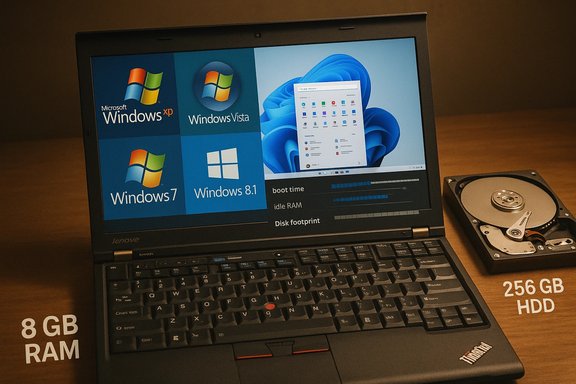
A viral, methodical speed test that installed Windows XP, Vista, 7, 8.1, 10 and 11 onto identical Lenovo ThinkPad X220 laptops found that Windows 11 finished near the back of the pack on most everyday measures — boot and resume times, idle RAM, app-launch responsiveness and several content‑creation tasks — exposing how modern Windows’ design assumptions can become liabilities on decade‑old, HDD‑based hardware.
The experiment, published as a long-form video by a community tester, used six physically identical ThinkPad X220 machines (Intel Core i5‑2520M, 8 GB RAM, Intel HD Graphics 3000, 256 GB mechanical HDD) and installed a fresh, fully patched copy of each Windows generation to run a battery of real‑world and synthetic tests. The goal was intentionally simple: hold hardware constant and measure the operating system layer. That clarity is the test’s greatest strength — it isolates OS-level tradeoffs — but it also shapes the conclusions in very predictable ways.
The headline results are stark and repeatable within the testbed: Windows 8.1 often felt and measured the snappiest, Windows XP used the least disk and memory, Windows 10 performed well in some I/O workloads, and Windows 11 typically ranked last or near‑last in perceived responsiveness on this specific hardware profile. The tester measured cold boot and resume, idle memory, disk footprint, app‑launch times (File Explorer, Paint), browser tab stress, battery life under a drain loop, file copies, and a set of synthetic benchmarks.
Source: YouTube
 Background / Overview
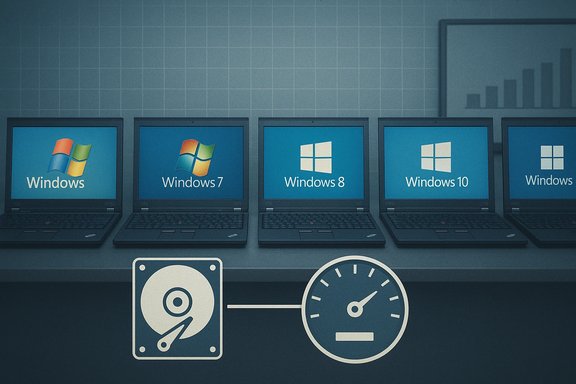
The experiment, published as a long-form video by a community tester, used six physically identical ThinkPad X220 machines (Intel Core i5‑2520M, 8 GB RAM, Intel HD Graphics 3000, 256 GB mechanical HDD) and installed a fresh, fully patched copy of each Windows generation to run a battery of real‑world and synthetic tests. The goal was intentionally simple: hold hardware constant and measure the operating system layer. That clarity is the test’s greatest strength — it isolates OS-level tradeoffs — but it also shapes the conclusions in very predictable ways.The headline results are stark and repeatable within the testbed: Windows 8.1 often felt and measured the snappiest, Windows XP used the least disk and memory, Windows 10 performed well in some I/O workloads, and Windows 11 typically ranked last or near‑last in perceived responsiveness on this specific hardware profile. The tester measured cold boot and resume, idle memory, disk footprint, app‑launch times (File Explorer, Paint), browser tab stress, battery life under a drain loop, file copies, and a set of synthetic benchmarks.
Why this test grabbed attention
- It’s rare to see an apples‑to‑apples comparison across six generations of Windows on the same hardware; that methodological choice makes differences obvious and tangible to a broad audience.
- The result challenges the marketing shorthand that newer is always faster: on legacy hardware, older releases with lighter baselines often win in day‑to‑day responsiveness.
- It surfaces concrete, actionable tradeoffs for users who still run older laptops: performance vs. security, modern features vs. resource floor.
Test methodology — what was done (and why it matters)
Hardware: a deliberate stress case
The ThinkPad X220 represents Sandy Bridge-era mobile silicon: a dual‑core i5‑2520M CPU, Intel HD 3000 integrated graphics, two SO‑DIMM slots and commonly 8 GB of DDR3 in these test machines. That configuration is common among older laptops still in circulation and makes modern OS inefficiencies visible. Running a modern OS designed with NVMe SSDs and 16+ GB of RAM on such hardware is a stress test, not a typical user scenario.Workloads and measurements
The tester combined user‑facing tasks (cold boot to usable desktop, File Explorer/ Paint launches, browser tab loading to a capped RAM threshold, battery drain loops, OpenShot video export) with standard benchmarks (CPU‑Z, Geekbench, Cinebench, CrystalDiskMark) to produce a broad picture of responsiveness and throughput. Where necessary, legacy‑compatible app builds or forks were used so older Windows versions could participate, introducing the usual caveats about software version parity.Strengths of the approach
- Identical hardware eliminates silicon variance and reveals OS-level baseline costs clearly.
- A blend of subjective, user‑visible metrics and objective benchmarks makes the findings relevant to real productivity, not just synthetic scores.
Weaknesses and confounding factors
- The X220’s mechanical HDD is the key multiplier: many modern Windows optimizations expect low-latency SSDs and can backfire on spinning disks. That choice intentionally magnifies differences but also limits generalizability.
- Windows 11 has documented hardware expectations (UEFI, Secure Boot, TPM 2.0) and performance assumptions that this testbed violates; running the OS on unsupported legacy hardware skews results.
- Driver maturity matters: older GPUs and drivers (Intel HD 3000) don’t pair well with modern compositor effects, which can make the shell feel sluggish independent of raw CPU performance.
Key technical facts verified
Before we dig into the numbers and analysis, it matters to verify a few foundational claims the test relies on.- Windows 11’s published system requirements include a 64‑bit, dual‑core 1 GHz+ processor, 4 GB RAM minimum, 64 GB storage, DirectX 12/WDDM 2.x GPU, UEFI with Secure Boot, and TPM version 2.0. These requirements codify the platform assumptions that inform many modern design choices.
- Windows’ Fast Startup (hybrid hibernation) — introduced in Windows 8.x and present in later releases — saves the kernel and drivers to disk at shutdown and restores them on boot, shortening observable cold boot times in many scenarios. Fast Startup’s benefits are storage dependent: on mechanical HDDs it can sometimes outperform a full cold POST, which helps explain why Windows 8.1’s Fast Startup produced excellent boot numbers in the test.
- Microsoft has recently trialed background preloading of File Explorer in Insider builds to reduce launch latency, an approach that trades slightly higher idle RAM for faster cold opens; early tests show mixed results and some outlets report that preloading can increase RAM use without fully fixing context‑menu and navigation lag. This is relevant because File Explorer responsiveness was one of the visible pain points for Windows 11 in the X220 runs.
Results — what the test actually measured (summary)
The following are the consistent, repeatable findings from the video and supporting writeups:- Boot/resume: Windows 8.1 recorded the fastest cold and resume times, helped by Fast Startup. Windows 11 often presented a visible desktop quickly but was slower to finish rendering taskbar and shell elements, creating a perception of “desktop visible but not fully ready.”
- Idle RAM and memory pressure: Windows 11 showed the highest idle memory consumption on this hardware — typically in the 3–4 GB range in the tester’s images — reducing headroom for heavy browser/tab workloads and multitasking. Older systems, notably XP and 8.1, used dramatically less idle RAM. Multiple independent hands‑on comparisons corroborate that out‑of‑the‑box Windows 11 images commonly show a larger idle memory footprint than comparable Windows 10 installs.
- Application responsiveness: Simple, frequently used built‑ins (File Explorer, Paint, context menus) opened more slowly on Windows 11 than on Windows 7/8.1 in the harness used. Explorer’s sluggishness is a long‑running complaint and received targeted preloading fixes in Insider channels.
- Browser tab density: Using a Chromium fork that works on older Windows builds, Windows 7 and 8.1 sustained hundreds of tabs before hitting the memory cap used in the test; Windows 11 stalled much earlier under the same capped‑memory pressure. This points to higher baseline consumption and different VM behavior rather than a pure browser bug.
- Battery life and content tasks: Under the specific drain loop and OpenShot render workloads used, Windows 11 recorded shorter battery runtimes and slower media exports in several runs. Absolute deltas were modest in minutes, but the pattern repeated across runs.
- Synthetic benchmarks: Results varied by metric — older OSes sometimes led single‑thread CPU tests — but Windows 11 tended to sit in the lower half of the matrix on this HDD‑bound, Sandy Bridge platform. Synthetic variance is expected due to scheduler and microcode differences.
Why Windows 11 lagged on this rig — the technical anatomy
The experiment’s analysis highlights several overlapping technical reasons why Windows 11 underperformed here:- Higher baseline of resident services: Modern Windows includes more enabled default subsystems — telemetry/diagnostics agents, cloud sync and OneDrive hooks, Copilot/AI plumbing, indexing services, and virtualization‑based protection features — which raise idle memory and periodic I/O activity. Those costs are negligible on NVMe/SSD + 16GB systems but painful on an HDD + 8GB rig.
- Storage‑sensitive optimizations: Windows’ modern prefetch, compressed system files and resume strategies assume lower latency persistent storage. On a spinning disk, aggressive prefetching and compressed IO can actually create I/O contention and increase perceived latency. The test’s use of a mechanical drive therefore magnified Windows 11’s penalties.
- GPU/driver mismatch and compositor costs: The Intel HD Graphics 3000 driver stack predates many of the UI/WinUI improvements in modern Windows. Increased compositor effects, rounded corners, and animation choreographies require either GPU features or driver maturity that this hardware does not provide efficiently, making shell interactions feel sluggish.
- Engineering tradeoffs (security and UX vs. resource floor): Windows 11’s inclusion of virtualization‑based security (VBS), memory integrity and sandboxing raises kernel‑mode responsibilities and periodic checks that consume cycles and memory that older operating systems never needed. These choices prioritize long‑term security and platform capability at the cost of raw responsiveness on legacy silicon.
Critical analysis — strengths, caveats, and what the test really proves
Strengths — what this test gets right
- Isolates OS-level costs: By holding hardware constant, the experiment makes OS baseline differences visible and measurable. That’s valuable for anyone managing older fleets or evaluating whether to keep running legacy hardware.
- Real‑world tasks matter: The mix of app launches, browser tab stress, battery loops and media exports is more meaningful to everyday users than a narrow synthetic microbenchmark.
Caveats — where headline claims overreach
- Not representative of modern hardware: Windows 11 was designed for a different baseline (UEFI, TPM 2.0, NVMe SSDs, 8th‑gen+ CPUs). On modern machines, many of the penalties visible on the X220 disappear or invert. Therefore, this test does not prove Windows 11 is “objectively slower” across contemporary PCs.
- Image‑specific numbers are not universal: Exact disk‑usage figures, idle GB values and battery minutes are specific to the tester’s inbox app selection, driver versions and update level. Treat those figures as comparative within the lab, not as universal constants.
- Driver and software parity issues: Legacy hardware requires older drivers and sometimes alternate app builds; those compatibility choices affect benchmark fairness and can both help and hurt older OSes relative to modern ones.
What the test legitimately proves
- Modern Windows versions have a higher baseline resource cost, and those costs are material on HDD‑bound, low‑RAM machines. That’s an important, actionable insight for hobbyists, IT admins with older fleets, and anyone asking whether to run Windows 11 on decade‑old hardware.
Practical takeaway — what to do if you care about responsiveness
For users with older machines who still want a secure, usable system, there are practical, prioritized steps that are cheaper than buying a new laptop and far more effective than downgrading the OS.- Upgrade storage to an SSD (SATA or NVMe where supported). The single biggest improvement in perceived snappiness on aging laptops is moving from an HDD to an SSD. Many of Windows 11’s optimizations assume fast persistent storage; aligning hardware to that assumption flips the script.
- Increase RAM if possible. Moving from 8 GB to 16 GB restores headroom for preloads and modern services, and mitigates the elevated idle memory floor Windows 11 imposes.
- Keep drivers current where feasible. Even certified legacy drivers can sometimes be swapped for vendor‑updated builds that better cooperate with the modern DWM and compositor. However, for very old GPUs the driver ceiling may never match modern shells.
- If hardware cannot be upgraded, consider alternatives: a supported older OS only where security exposure is controlled (air‑gapped systems, isolated legacy appliances), or a lightweight Linux distribution for everyday web browsing and productivity, recognizing application compatibility tradeoffs.
Security and support implications — why nostalgia has a cost
- Staying on XP, Vista or unpatched older Windows to chase snappiness invites severe security risk — unsupported releases lack patches for exploited vulnerabilities and should not be used for connected workloads. The test’s speed wins for older systems must be balanced against real, long‑term risk.
- Running Windows 11 on unsupported legacy hardware may solve feature or update problems, but it also risks instability and degraded battery life; Microsoft’s minimum requirements (TPM 2.0, UEFI, Secure Boot) aren’t arbitrary — they underpin security guarantees and future update fidelity.
File Explorer: a microcosm of the problem
File Explorer’s sluggishness in Windows 11 became a repeatedly visible problem in the X220 tests. Microsoft has acknowledged the issue and trialed a background preloading approach in Insider builds to improve cold launches; early reports show the fix reduces open latency but increases idle RAM and does not fix deeper context-menu or navigation lag in all scenarios. That tradeoff — lower launch latency at the cost of higher memory usage — is emblematic of the broader design tension in Windows 11. Independent testing and press coverage show mixed results: some outlets found preload helps in specific workloads, others found added RAM consumption without solving core interaction lag. That ambiguity underscores the article’s central point: many modern mitigations assume contemporary hardware and may worsen the experience on constrained systems.Verdict — what readers should conclude
The ThinkPad X220 speed comparison is not an indictment of engineering competence. It is a precise, reproducible demonstration of how software evolution reflects hardware expectations, and how those expectations can make modern code look heavier when run on legacy machines.- If you manage or use legacy PCs, this test is a cautionary, actionable lesson: prioritize an SSD and more RAM before upgrading to modern Windows, or accept the security tradeoffs of staying on older releases.
- If you run contemporary hardware (NVMe SSD, UEFI + TPM 2.0, 8th‑gen+ CPU, 16+ GB RAM), Windows 11’s architectural tradeoffs generally pay off: improved security primitives, richer UX, and targeted optimizations that modern reviews show frequently match or outperform Windows 10 on current machines. Evidence from wider reviewer testing supports this flip in the performance calculus.
Final thoughts and recommendations for readers
- Treat headline claims like “Windows 11 is slower than Windows 7” with context: the test proves that on this hardware profile — Sandy Bridge + HDD + 8 GB — older, leaner OSes can outperform modern Windows in subjective responsiveness. It does not mean Windows 11 is objectively slower across the modern PC ecosystem.
- When planning upgrades for performance, follow this priority list:
- Add an SSD (largest single‑step improvement).
- Increase RAM to 16 GB where possible.
- Update firmware/UEFI and verify TPM + Secure Boot if Windows 11 is desired.
- Keep drivers and BIOS updated and test key workloads before committing to a full fleet migration.
- For enthusiasts and administrators, this episode is a healthy reminder: benchmarks inform decisions only when you align the test hardware with the expected deployment profile. Measure, don’t assume.
Source: YouTube