

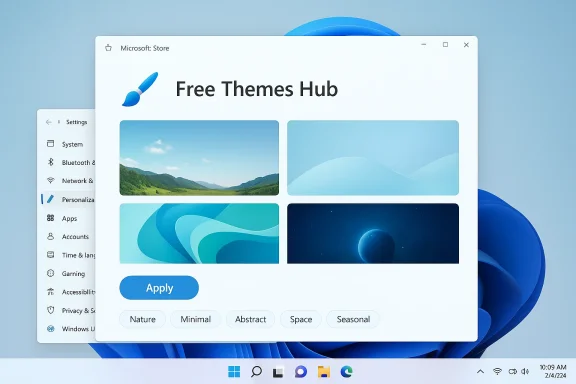
Microsoft has quietly moved desktop personalization further into the mainstream: Windows 11 now has a dedicated Free Themes Hub inside the Microsoft Store that bundles hundreds of curated, one‑click themes and ties them directly into Settings for instant application and management.
For years Windows personalization lived in several places: a legacy Microsoft themes download page, scattered Store listings, and manual .themepack files users handled themselves. That fragmentation made discovery and safe distribution cumbersome for casual users. Microsoft’s recent rework consolidates theme discovery and delivery inside a new Themes department in the Microsoft Store, pairing editorial curation with a simplified install flow and tighter Settings integration. At launch the Store’s Themes department hosts more than 400 theme packages and includes over 35 new collections added as part of the rollout, reflecting an editorial-first approach to categorizing and surfacing desktop looks.
This is a Store-first pivot: instead of downloading and unpacking files from external sites, users browse curated categories (Nature, Gaming, Abstract, Minimal, Seasonal, Space) and apply a full wallpaper-and-accent-color package with a single click. The result is meant to be fast, visual, and safe — and deliberately narrow in scope: these Store themes primarily change wallpapers and accent colors, not the full set of system elements older theme packs sometimes covered.
The approach favors mainstream friction reduction over power‑user depth. That’s a sensible trade for increasing day‑to‑day user delight: small UX wins — a better wallpaper, a complementary accent color — improve how people feel about their devices without adding complexity. Still, Microsoft must decide whether it will iterate on parity (reintroducing sounds/cursors/options) or keep themes deliberately light and Store‑centric. Early indicators suggest the initial focus is on wallpapers and colors, with additional elements left to selective publisher choices.
If you love customizing your PC, this feature is worth checking out the next time you want to refresh your workspace; if you manage many machines, plan for how Store-driven personalization fits with your deployment and compliance needs. The Themes Hub modernizes the most visible part of personalization — the wallpaper — while preserving the flexibility for advanced users to opt for third‑party tools when they need more control.
Source: WinCentral Windows 11 Gets New Free Themes Hub for Desktops
 Background / Overview
For years Windows personalization lived in several places: a legacy Microsoft themes download page, scattered Store listings, and manual .themepack files users handled themselves. That fragmentation made discovery and safe distribution cumbersome for casual users. Microsoft’s recent rework consolidates theme discovery and delivery inside a new Themes department in the Microsoft Store, pairing editorial curation with a simplified install flow and tighter Settings integration. At launch the Store’s Themes department hosts more than 400 theme packages and includes over 35 new collections added as part of the rollout, reflecting an editorial-first approach to categorizing and surfacing desktop looks.This is a Store-first pivot: instead of downloading and unpacking files from external sites, users browse curated categories (Nature, Gaming, Abstract, Minimal, Seasonal, Space) and apply a full wallpaper-and-accent-color package with a single click. The result is meant to be fast, visual, and safe — and deliberately narrow in scope: these Store themes primarily change wallpapers and accent colors, not the full set of system elements older theme packs sometimes covered.
What is the Free Themes Hub?
The Free Themes Hub is a new editorial collection inside the Microsoft Store that centralizes Windows 11 themes and gives them an app‑style storefront. It combines several distinct pieces:- A curated catalog of themed packages (photography, art, game tie‑ins, seasonal sets).
- A visual preview experience so you can see how wallpapers and suggested accent colors look before applying.
- A one‑click apply button that installs a theme and surfaces it in Settings → Personalization → Themes for easy switching.
- Editorial groupings, trending lists, and search filters to speed discovery for non‑technical users.
What’s new compared with the old theme model?
More visual, less manual
The old theme pipeline required manual downloads or hunting through poorly organized Store listings. The new hub prioritizes visual browsing over lists of filenames. Each theme page shows large previews and a clear “Apply” affordance, making it approachable for mainstream users.Curated categories and editorial picks
Themes are grouped into categories — Nature, Minimal, Abstract, Gaming, Space, Seasonal — and Microsoft supplies editorial picks and trending collections. That editorial layer is intended to reduce choice fatigue and surface high‑quality packs.Packaged experience, Store‑style
At launch the catalog spans hundreds of packs — Microsoft claims over 400 — and many are produced by Microsoft Design or trusted partners (photographers, game studios, design houses). While most packs focus on wallpapers with matching accent colors, some include rotating playlists or scheduled variations.Safety and discoverability improvements
Shifting distribution to the Store brings vetting, packaging metadata, and a familiar install flow that avoids the security risks associated with random downloads. For mainstream users this is an important accessibility and safety improvement.How it works — a practical walkthrough
- Open the Microsoft Store and look for the Themes department (paintbrush icon) or search “themes.”
- Browse categories or editorial collections and preview theme pages to view wallpapers and suggested accent colors.
- Click Get or Install, then Apply. The Store installs the theme and the configuration appears under Settings → Personalization → Themes so you can switch or save it.
- Keep Windows Update current and let Microsoft Store app updates install automatically. Microsoft is rolling out the department gradually via Store updates.
- If a downloaded theme doesn’t immediately show in Settings, open the Themes page and choose “Browse themes” to confirm the pack is present.
What a Store theme contains (and what it usually doesn’t)
Most Store themes are intentionally compact packages that include:- Desktop wallpapers (single images or a playlist that rotates).
- Suggested accent color settings that Windows can apply to UI surfaces.
- Occasionally scheduling metadata for wallpaper rotation and time/season sensitivity.
- Full one‑click swaps for all system elements (sound schemes, cursors, fonts) are not guaranteed for every theme. Microsoft’s documentation and Store listings emphasize wallpapers and accent colors as the core elements. That means the new department modernizes wallpaper and color distribution rather than fully reintroducing the old, broader .themepack feature set.
Why this update matters — user experience, engagement, and the Store ecosystem
Simplicity for mainstream users
A primary win is friction reduction. Casual users who don’t want to fiddle with ZIPs, extractors, or Settings menus can now discover and apply a cohesive desktop look in a few clicks. That’s a tangible UX improvement: discoverability + instant application.Trust and safety
Centralizing themes in the Microsoft Store reduces the risk of adware or tampered assets from obscure websites. The Store provides packaging and moderation controls, review mechanisms, and update infrastructure — valuable safeguards for a feature many users access daily.Creator opportunity and Store metrics
For creators — photographers, designers, game studios — the Themes department provides a single channel for distribution with Store analytics and discoverability. Even if themes remain free, their presence drives daily Store engagement and creates opportunities for cross-promotion of apps and content.Enterprise and IT implications
In environments where Microsoft Store access is allowed, IT teams can now offer curated theme packs to maintain branding or seasonal refreshes more reliably than distributing ZIPs. That said, enterprises that require offline deployment or tightly controlled packaging still face gaps (more on this below).Critical analysis — strengths, risks, and unanswered questions
Strengths
- Discovery and curation: The editorial model solves a decades-old discoverability problem in Windows theming. Users can browse by mood or category rather than file lists.
- Integrated flow: One‑click apply and Settings integration aligns the Store with familiar Windows UX patterns.
- Safer distribution: Store vetting and packaging reduce exposure to malicious downloads that used to circulate as “theme packs.”
Technical and UX risks
- Scope limitation: The new department focuses primarily on wallpapers and accent colors. Users who relied on older .themepack behavior — system sounds, cursors, or complete UI skin swaps — may find parity missing. This is not yet a wholesale return of the full theme system of the past.
- Rollout fragmentation: Microsoft is rolling the feature out via Store updates; not all users see the Themes tab immediately. That staggered deployment can create confusion and uneven coverage across device fleets.
- Enterprise deployment gaps: Organizations that need offline packages or managed deployments may require explicit support (an offline download option or enterprise packaging guide). The Store model favors internet-connected distribution and does not yet provide a simple offline export for large-scale deployment in many setups.
Privacy and copyright considerations
- Copyright of artwork: Themes published by partners or third parties include visual assets; organizations and end users should assume copyright restrictions apply. Microsoft’s Store moderation reduces risk of pirated content but does not eliminate rights-management responsibilities for commercial use of images. Treat theme assets as copyrighted unless explicitly labeled royalty‑free.
- Telemetry and personalization: The Store and Windows may log certain events (installs, searches, ratings) to improve recommendations and editorial picks. Users and admins concerned about telemetry should treat theme installs as Store events and manage related privacy settings accordingly.
Performance and device impact
High‑resolution wallpapers look great on modern monitors, but they consume disk space and may increase working set usage when the system caches desktop imagery. On low‑spec machines, choose lightweight single-image themes rather than rotating multi-image playlists to reduce resource pressure. Many sources within the rollout advise choosing static wallpapers for resource‑limited devices.What Microsoft did not fix — power user and parity gaps
Power users and modders who have long used third‑party tools (Wallpaper Engine, Lively Wallpaper, StartAllBack, TranslucentTB) for advanced behavior will find the Themes department complementary, not replacement-level. The new hub deliberately targets mainstream personalization needs — an aesthetic refresh, not functional UI rework such as:- Taskbar behavior changes
- Start menu re-skinning or complex windowing tweaks
- Animated or interactive backgrounds (beyond simple rotation playlists)
- Full theme element swaps (every theme will not include sounds/cursors)
Recommendations — best practices for users, creators, and IT admins
For everyday Windows 11 users
- Use the Themes department when you want a quick, safe desktop refresh — it’s the easiest option for wallpapers and matching accent colors.
- If you have a low‑end PC, prefer single-image themes or lower-resolution packs to limit memory use.
- Save favorite theme configurations in Settings after applying a Store theme so you can reapply exact combinations later.
For creators and photographers
- Publishing through the Store gives reach and structure — package curated wallpaper sets, provide clear metadata (resolution, rotation behavior), and specify whether the pack includes extra elements (sounds, cursors).
- Note that while themes are generally free, exposure inside the Store can be used to promote paid apps, prints, or creator services.
For IT administrators and enterprises
- If your org depends on offline or staged deployments, request an explicit offline distribution option or packaging guide from Microsoft — the Store model does not automatically solve offline distribution needs. Until Microsoft publishes enterprise tooling for themes, plan to deploy branded assets via existing provisioning channels.
- Consider whether organization policies should block Store access (common in secure environments); if so, alternatives for approved desktop imagery must be provided via SCCM/Intune or imaging pipelines.
Practical troubleshooting & tips
- If you don’t see the Themes tab in the Microsoft Store: update the Microsoft Store app and keep Windows Update current. Microsoft is rolling the feature out and Store updates deliver the department.
- Theme not appearing in Settings after install: open Settings → Personalization → Themes and choose “Browse themes” to locate the downloaded package. Restarting the PC or reapplying the theme typically resolves sync issues.
- Want animated or interactive backgrounds? Use dedicated apps such as Lively Wallpaper (Store-listed) or Wallpaper Engine (Steam) for real-time and animated wallpapers. The Themes department focuses on static/playlist wallpaper packs and color coordination.
SEO & discoverability angle (why this will trend)
From a content-distribution standpoint, Microsoft’s Themes Hub is well‑positioned for visibility on visual-first discovery surfaces. Search and content platforms prioritize fresh UI changes and visually rich topics, and the hub’s regular additions (35+ new collections at rollout) create ongoing editorial hooks.- Search-friendly phrases to use in guides and posts: Windows 11 Themes Hub, Microsoft Store themes, one‑click themes, free Windows 11 themes, desktop personalization, high‑resolution wallpapers.
The bigger picture — what this says about Microsoft’s approach to personalization
Moving themes into the Microsoft Store is emblematic of a larger strategy: make frequent, low‑risk personalization options accessible through friendly, curated storefronts rather than through scattered legacy pages or third‑party downloads. This protects users, adds editorial value, and brings creators closer to Microsoft’s discovery tools.The approach favors mainstream friction reduction over power‑user depth. That’s a sensible trade for increasing day‑to‑day user delight: small UX wins — a better wallpaper, a complementary accent color — improve how people feel about their devices without adding complexity. Still, Microsoft must decide whether it will iterate on parity (reintroducing sounds/cursors/options) or keep themes deliberately light and Store‑centric. Early indicators suggest the initial focus is on wallpapers and colors, with additional elements left to selective publisher choices.
Final thoughts
The new Free Themes Hub is a quiet but meaningful improvement for Windows 11: it brings safety, discoverability, and one‑click convenience to desktop personalization. For most users, that translates into a nicer daily computing experience without the hassle of manual downloads or the risk of dubious third‑party packs. For creators and the Store ecosystem, it opens a tidy channel for distribution and exposure. For power users and enterprise IT, the hub is a welcome addition but not a replacement for deeper tooling or offline packaging workflows.If you love customizing your PC, this feature is worth checking out the next time you want to refresh your workspace; if you manage many machines, plan for how Store-driven personalization fits with your deployment and compliance needs. The Themes Hub modernizes the most visible part of personalization — the wallpaper — while preserving the flexibility for advanced users to opt for third‑party tools when they need more control.
Source: WinCentral Windows 11 Gets New Free Themes Hub for Desktops
