

Windows 11 still ships with legacy utilities and interface paths from Windows 7, Windows 8, Windows 10, and even the Windows 95 era, as a recent How-To Geek tour of six buried tools shows. The discovery is funny in the way old Windows archaeology is always funny, but it also says something serious about Microsoft’s operating system. Windows is not a cleanly rebuilt product; it is a living compatibility treaty. Every old dialog box is a reminder that the modern desktop is still negotiating with three decades of user habits, enterprise workflows, and application assumptions.
Microsoft sold Windows 11 as a visual reset: centered taskbar, rounded corners, new Settings surfaces, a simplified context menu, and a more deliberate design language. That pitch was not wrong. Compared with Windows 10, Windows 11 looks less like a decade of incremental patches and more like a product with a house style.
But the operating system has never been only what appears in screenshots. Under the fluent polish is a layered machine where old control surfaces survive because people, scripts, businesses, and third-party apps still expect them to exist. Windows does not merely support old software; it often preserves the old ways of managing the system itself.
That is why a ghost hunt through Windows 11 feels less like trivia and more like product strategy made visible. The classic context menu, old Task Manager executable, Windows 7-era personalization panel, Disk Management console, Phone Dialer, and Windows Photo Viewer are not equal in importance. Some are useful, some are nostalgic, and some are barely relevant. Together, though, they expose the central contradiction of Windows 11: Microsoft wants to move users forward without breaking the past that still pays the bills.
The problem is that power users liked the junk drawer. More precisely, they liked that it put everything in one place. Compression tools, Git clients, file utilities, graphics programs, cloud sync actions, and administrative shortcuts had trained users to expect the full Win32 context menu as a kind of command palette.
That is why the registry workaround for restoring the older Windows 10-style menu became so popular. It is not just a tweak; it is a small rebellion against the idea that Microsoft knows which commands should be first-class and which should be hidden one click deeper. For many users, the old menu is not beautiful, but it is complete.
This is the Windows 11 tension in miniature. Microsoft can design a better default for the average user and still make life worse for the people who relied on the old density. The registry path that revives the classic menu survives because the shell itself still contains the old plumbing. Windows 11’s new menu is not a replacement so much as a layer sitting above the system that came before it.
And yet the older Task Manager executable can still be found in the SysWOW64 directory on some systems, sitting there like a preserved fossil with a top menu bar and none of the visual assumptions of current Windows 11. It is not a radically different tool, which is part of the point. The old and new Task Managers share the same administrative purpose, but they represent different eras of Windows design.
The older version feels denser, more utilitarian, and more comfortable to users who associate menus with discoverability. The newer version feels more coherent with Windows 11’s design language, especially for people who live in dark mode. Neither approach is inherently correct. They answer different questions: one asks how to expose function quickly; the other asks how to make a core system tool feel integrated with the rest of the OS.
This is why old interfaces persist even after redesigns arrive. A new coat of paint is rarely the same thing as a new architecture. Microsoft can change how a tool looks while leaving enough of its older implementation accessible, reusable, or simply not worth removing. In Windows, deletion is often more dangerous than duplication.
That screen saver dialog is almost comedic in 2026. It still evokes the CRT era, even though the original practical need for screen savers has mostly vanished for mainstream LCD and OLED users. It is a panel from a world where “Mystify” and “3D Text” were not retro jokes but ordinary personalization features.
But the Control Panel’s survival is not only about nostalgia. It persists because the Settings app has taken years to absorb the full breadth of Windows configuration, and even now the migration remains uneven. Modern Settings is better for mainstream tasks: displays, Bluetooth, Windows Update, storage, privacy, accounts. But Control Panel and its related dialogs still expose old, specific, and sometimes deeply nested controls that administrators and experienced users know by muscle memory.
Microsoft has been moving pieces out of Control Panel for years, but the company has never been able to simply pull the plug. Too many workflows depend on old applets. Too many help desk scripts begin with commands that open them. Too many users know exactly where a setting lives in the old interface and do not want to rediscover it through a search box.
So Windows 11 contains both the future Microsoft wants and the past it cannot retire. The Settings app is the official direction. Control Panel is the institutional memory.
Microsoft has introduced a modern disk management surface under Settings, and for many simple jobs it is good enough. But the old Disk Management snap-in remains the place many IT pros go first because it is familiar, predictable, and connected to a broader administrative console tradition. It is part of the Microsoft Management Console universe, alongside tools like Event Viewer, Services, Device Manager, Performance Monitor, and Computer Management.
That family resemblance matters. MMC snap-ins are not pretty, but they are consistent in the way enterprise tools need to be consistent. They can be launched by command, documented in procedures, used over remote sessions, and taught across generations of Windows administration. Their age is not just a liability; it is a form of operational stability.
The irony is that Microsoft’s oldest-looking tools are often the ones professionals trust most. A sleek storage UI may be friendlier, but it has to prove itself over years. Disk Management has already done that. It may look like the late 1990s, but in the Windows world, that can be a credential.
But the existence of Phone Dialer is also the purest expression of Windows compatibility culture. Microsoft has historically been reluctant to remove old components if doing so might break a niche workflow, a legacy device, an industrial setup, or a customer no one on the Windows design team has personally met. That is how operating systems become sedimentary.
Most Windows 11 users will never connect a modem to a PC. Many have never heard a dial tone outside a movie. Yet Windows has long served environments where “obsolete” does not mean “unused.” Factories, labs, public agencies, medical offices, and small businesses often run odd hardware long after consumer culture has moved on.
The result is an operating system that can feel haunted. But those ghosts are sometimes paying customers.
A photo viewer, in the old sense, should open an image quickly, show it clearly, and get out of the way. Windows Photo Viewer did that. It was not ambitious. It was not trying to become a creative suite, a cloud front end, or a content hub. It simply viewed photos.
That narrowness has become attractive again because modern apps so often expand beyond the job users originally hired them to do. The classic viewer’s old Windows 7 chrome, including relics like disc-burning options, is almost beside the point. People do not revive it because it is beautiful. They revive it because it is small, direct, and predictable.
There is a broader lesson here for Microsoft. Not every built-in Windows app needs to be a platform. Sometimes the winning user experience is the one with fewer opinions.
But inconsistency is also the cost of Windows being Windows. macOS can move more aggressively because Apple controls a narrower hardware and software universe. ChromeOS can be cleaner because it has a smaller historical burden. Linux desktops can change radically because the fragmentation is part of the deal. Windows has a different contract: yesterday’s app, tomorrow’s driver, and today’s enterprise image all have to coexist.
That contract shapes everything. Microsoft cannot treat legacy as a museum exhibit because legacy is active infrastructure. The Win32 API remains foundational. MMC still matters. Control Panel still matters. Command-line tools still matter. Even when Microsoft points users toward newer experiences, the old stack remains the escape hatch.
This is why Windows 11 sometimes feels less like a single operating system than a federation of eras. There is the modern consumer UI, the enterprise management layer, the compatibility substrate, the revived developer story around Terminal and WSL, and the old Win32 desktop that never really left. They are not always harmonious, but they are all part of the product.
Storage is a good example. A casual user may encounter modern Settings pages, classic Disk Management, DiskPart, PowerShell storage cmdlets, vendor utilities, and third-party partitioning tools. Each has a different level of power and danger. Windows offers choice, but it does not always provide a clear hierarchy.
The same issue appears in personalization, app defaults, device management, and system troubleshooting. Users are bounced between Settings, Control Panel, legacy dialogs, web account pages, and command-line tools. A sysadmin can navigate that maze. A normal user may experience it as incoherence.
Microsoft’s challenge is not merely to delete old surfaces. It is to decide when an old surface remains the professional tool, when it should be hidden but preserved, and when it should finally be replaced. The company has often avoided that decision by layering new experiences on top. That approach protects compatibility, but it also prolongs ambiguity.
It also undercuts the clean narrative of Windows 11 as a full break from the past. Windows 11 is not a break. It is an edit. Microsoft has changed the first impression, redirected common workflows, and modernized selected components, but the deeper operating system remains committed to continuity.
That continuity is both Windows’ competitive advantage and its permanent design handicap. It lets old software run, old habits persist, and administrators keep using proven tools. It also means the OS will always contain mismatched visual eras, duplicate settings paths, and little moments where 2026 suddenly turns into 2006.
For Windows enthusiasts, that mess is part of the appeal. For IT departments, it is often part of the value. For Microsoft’s designers, it must be maddening.
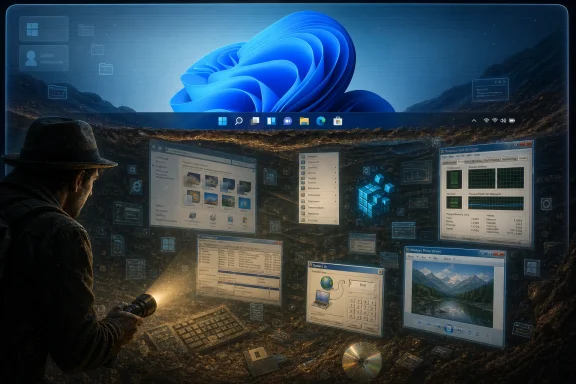 Windows 11 Is Modern on the Surface and Historical Under the Floorboards
Microsoft sold Windows 11 as a visual reset: centered taskbar, rounded corners, new Settings surfaces, a simplified context menu, and a more deliberate design language. That pitch was not wrong. Compared with Windows 10, Windows 11 looks less like a decade of incremental patches and more like a product with a house style.But the operating system has never been only what appears in screenshots. Under the fluent polish is a layered machine where old control surfaces survive because people, scripts, businesses, and third-party apps still expect them to exist. Windows does not merely support old software; it often preserves the old ways of managing the system itself.
That is why a ghost hunt through Windows 11 feels less like trivia and more like product strategy made visible. The classic context menu, old Task Manager executable, Windows 7-era personalization panel, Disk Management console, Phone Dialer, and Windows Photo Viewer are not equal in importance. Some are useful, some are nostalgic, and some are barely relevant. Together, though, they expose the central contradiction of Windows 11: Microsoft wants to move users forward without breaking the past that still pays the bills.
The Right-Click Menu Became a Referendum on Microsoft’s Taste
The Windows 11 context menu was supposed to be one of the most visible examples of modernization. Microsoft simplified it, moved common actions into icon buttons, and hid the older full menu behind “Show more options.” The goal was obvious enough: reduce clutter, tame decades of shell extensions, and make right-clicking feel less like opening a junk drawer.The problem is that power users liked the junk drawer. More precisely, they liked that it put everything in one place. Compression tools, Git clients, file utilities, graphics programs, cloud sync actions, and administrative shortcuts had trained users to expect the full Win32 context menu as a kind of command palette.
That is why the registry workaround for restoring the older Windows 10-style menu became so popular. It is not just a tweak; it is a small rebellion against the idea that Microsoft knows which commands should be first-class and which should be hidden one click deeper. For many users, the old menu is not beautiful, but it is complete.
This is the Windows 11 tension in miniature. Microsoft can design a better default for the average user and still make life worse for the people who relied on the old density. The registry path that revives the classic menu survives because the shell itself still contains the old plumbing. Windows 11’s new menu is not a replacement so much as a layer sitting above the system that came before it.
The Old Task Manager Shows That Redesign Is a Process, Not an Event
The Task Manager is one of the few legacy Windows utilities that Microsoft has meaningfully modernized over time. The Windows 8-era redesign was itself a major improvement over earlier versions, giving users a clearer process view, startup impact ratings, performance graphs, app history, and a far more approachable interface. Windows 11 later reworked that interface again with a left-side navigation rail, settings page, and dark mode support.And yet the older Task Manager executable can still be found in the SysWOW64 directory on some systems, sitting there like a preserved fossil with a top menu bar and none of the visual assumptions of current Windows 11. It is not a radically different tool, which is part of the point. The old and new Task Managers share the same administrative purpose, but they represent different eras of Windows design.
The older version feels denser, more utilitarian, and more comfortable to users who associate menus with discoverability. The newer version feels more coherent with Windows 11’s design language, especially for people who live in dark mode. Neither approach is inherently correct. They answer different questions: one asks how to expose function quickly; the other asks how to make a core system tool feel integrated with the rest of the OS.
This is why old interfaces persist even after redesigns arrive. A new coat of paint is rarely the same thing as a new architecture. Microsoft can change how a tool looks while leaving enough of its older implementation accessible, reusable, or simply not worth removing. In Windows, deletion is often more dangerous than duplication.
The Control Panel Refuses to Die Because Settings Still Has Not Won
The Windows 7-era Personalization panel is one of the stranger survivors because it does not merely look old; it represents a whole previous philosophy of Windows configuration. Open it through the shell command and the modern Settings app gives way to a familiar Control Panel-style page with theme tiles, Sounds, and the classic Screen Saver dialog.That screen saver dialog is almost comedic in 2026. It still evokes the CRT era, even though the original practical need for screen savers has mostly vanished for mainstream LCD and OLED users. It is a panel from a world where “Mystify” and “3D Text” were not retro jokes but ordinary personalization features.
But the Control Panel’s survival is not only about nostalgia. It persists because the Settings app has taken years to absorb the full breadth of Windows configuration, and even now the migration remains uneven. Modern Settings is better for mainstream tasks: displays, Bluetooth, Windows Update, storage, privacy, accounts. But Control Panel and its related dialogs still expose old, specific, and sometimes deeply nested controls that administrators and experienced users know by muscle memory.
Microsoft has been moving pieces out of Control Panel for years, but the company has never been able to simply pull the plug. Too many workflows depend on old applets. Too many help desk scripts begin with commands that open them. Too many users know exactly where a setting lives in the old interface and do not want to rediscover it through a search box.
So Windows 11 contains both the future Microsoft wants and the past it cannot retire. The Settings app is the official direction. Control Panel is the institutional memory.
Disk Management Is Ugly Because It Is Trusted
The classic Disk Management console may be the most defensible fossil in the bunch. It looks old because it is old, but unlike a screen saver dialog or phone dialer, it remains central to real work. Initializing disks, creating volumes, shrinking partitions, assigning drive letters, and checking layout details are not aesthetic exercises. They are tasks where users care less about rounded corners and more about not destroying data.Microsoft has introduced a modern disk management surface under Settings, and for many simple jobs it is good enough. But the old Disk Management snap-in remains the place many IT pros go first because it is familiar, predictable, and connected to a broader administrative console tradition. It is part of the Microsoft Management Console universe, alongside tools like Event Viewer, Services, Device Manager, Performance Monitor, and Computer Management.
That family resemblance matters. MMC snap-ins are not pretty, but they are consistent in the way enterprise tools need to be consistent. They can be launched by command, documented in procedures, used over remote sessions, and taught across generations of Windows administration. Their age is not just a liability; it is a form of operational stability.
The irony is that Microsoft’s oldest-looking tools are often the ones professionals trust most. A sleek storage UI may be friendlier, but it has to prove itself over years. Disk Management has already done that. It may look like the late 1990s, but in the Windows world, that can be a credential.
Phone Dialer Is a Joke Until You Remember What Compatibility Means
The Windows Phone Dialer app is the kind of remnant that invites easy mockery. In an age of Teams calls, smartphones, softphones, and cloud PBX dashboards, a desktop dialer associated with modems feels absurd. Type “dialer” into Windows and the past answers the door.But the existence of Phone Dialer is also the purest expression of Windows compatibility culture. Microsoft has historically been reluctant to remove old components if doing so might break a niche workflow, a legacy device, an industrial setup, or a customer no one on the Windows design team has personally met. That is how operating systems become sedimentary.
Most Windows 11 users will never connect a modem to a PC. Many have never heard a dial tone outside a movie. Yet Windows has long served environments where “obsolete” does not mean “unused.” Factories, labs, public agencies, medical offices, and small businesses often run odd hardware long after consumer culture has moved on.
The result is an operating system that can feel haunted. But those ghosts are sometimes paying customers.
Windows Photo Viewer Survives Because Simplicity Became a Feature Again
Windows Photo Viewer is another survivor with a more emotional constituency. The modern Photos app does more: editing, OneDrive integration, metadata, gallery management, and, increasingly, AI-adjacent features. For many users, that is progress. For others, it is precisely the problem.A photo viewer, in the old sense, should open an image quickly, show it clearly, and get out of the way. Windows Photo Viewer did that. It was not ambitious. It was not trying to become a creative suite, a cloud front end, or a content hub. It simply viewed photos.
That narrowness has become attractive again because modern apps so often expand beyond the job users originally hired them to do. The classic viewer’s old Windows 7 chrome, including relics like disc-burning options, is almost beside the point. People do not revive it because it is beautiful. They revive it because it is small, direct, and predictable.
There is a broader lesson here for Microsoft. Not every built-in Windows app needs to be a platform. Sometimes the winning user experience is the one with fewer opinions.
The Ghosts Are Not Bugs, They Are Microsoft’s Business Model
It is tempting to frame these old utilities as evidence of neglect. In some cases, that is fair. A dialog that has not been visually updated in decades can make Windows feel inconsistent and unfinished. When dark mode reaches the shell but not the modal window that appears three clicks later, users notice.But inconsistency is also the cost of Windows being Windows. macOS can move more aggressively because Apple controls a narrower hardware and software universe. ChromeOS can be cleaner because it has a smaller historical burden. Linux desktops can change radically because the fragmentation is part of the deal. Windows has a different contract: yesterday’s app, tomorrow’s driver, and today’s enterprise image all have to coexist.
That contract shapes everything. Microsoft cannot treat legacy as a museum exhibit because legacy is active infrastructure. The Win32 API remains foundational. MMC still matters. Control Panel still matters. Command-line tools still matter. Even when Microsoft points users toward newer experiences, the old stack remains the escape hatch.
This is why Windows 11 sometimes feels less like a single operating system than a federation of eras. There is the modern consumer UI, the enterprise management layer, the compatibility substrate, the revived developer story around Terminal and WSL, and the old Win32 desktop that never really left. They are not always harmonious, but they are all part of the product.
The Real Risk Is Not Age, but Confusion
Old tools are not automatically bad. In many cases, they are faster, more capable, or more stable than their replacements. The risk comes when Windows presents multiple ways to do the same thing without making clear which one is authoritative, current, or safest.Storage is a good example. A casual user may encounter modern Settings pages, classic Disk Management, DiskPart, PowerShell storage cmdlets, vendor utilities, and third-party partitioning tools. Each has a different level of power and danger. Windows offers choice, but it does not always provide a clear hierarchy.
The same issue appears in personalization, app defaults, device management, and system troubleshooting. Users are bounced between Settings, Control Panel, legacy dialogs, web account pages, and command-line tools. A sysadmin can navigate that maze. A normal user may experience it as incoherence.
Microsoft’s challenge is not merely to delete old surfaces. It is to decide when an old surface remains the professional tool, when it should be hidden but preserved, and when it should finally be replaced. The company has often avoided that decision by layering new experiences on top. That approach protects compatibility, but it also prolongs ambiguity.
The Windows 11 Archaeology Kit Says More Than Microsoft’s Marketing
The six tools highlighted in this latest ghost hunt are charming because they are accessible. You do not need kernel debugging skills to find them. You need a Run dialog, a registry tweak, a folder path, or a search box. That is why the exercise resonates: it makes the hidden history of Windows visible to ordinary users.It also undercuts the clean narrative of Windows 11 as a full break from the past. Windows 11 is not a break. It is an edit. Microsoft has changed the first impression, redirected common workflows, and modernized selected components, but the deeper operating system remains committed to continuity.
That continuity is both Windows’ competitive advantage and its permanent design handicap. It lets old software run, old habits persist, and administrators keep using proven tools. It also means the OS will always contain mismatched visual eras, duplicate settings paths, and little moments where 2026 suddenly turns into 2006.
For Windows enthusiasts, that mess is part of the appeal. For IT departments, it is often part of the value. For Microsoft’s designers, it must be maddening.
The Six Ghosts Draw a Map of Microsoft’s Unfinished Migration
The lesson from these buried tools is not that everyone should rush to restore every old interface. Some of them are genuinely useful; others are mostly curiosities. The more important point is that each survivor reveals a different reason Microsoft keeps the past alive.- The classic context menu remains valuable because power users prize command density over visual restraint.
- The old Task Manager shows how redesigned tools can coexist with earlier implementations long after the user-facing default changes.
- The Windows 7 personalization panel proves that Control Panel still contains configuration history the Settings app has not fully absorbed.
- The classic Disk Management console survives because administrators trust old tools that perform dangerous tasks predictably.
- The Phone Dialer app illustrates how Windows compatibility extends to hardware and workflows most consumers forgot years ago.
- Windows Photo Viewer’s continued appeal shows that lightweight, single-purpose apps still have a place in an operating system increasingly filled with feature-heavy replacements.
References
- Primary source: How-To Geek
Published: Tue, 19 May 2026 10:30:17 GMT
I went ghost hunting in Windows and uncovered these 6 forgotten tools
A walk through memory lane. www.howtogeek.com
- Official source: support.microsoft.com
Disk Management in Windows - Microsoft Support
Disk Management in Windows helps you perform advanced storage tasks like initializing a new drive and extending or shrinking volumes.support.microsoft.com - Official source: learn.microsoft.com
Manage disks | Microsoft Learn
Learn how to manage disks in a computer using Disk Management and discover whether a disk is online or offline and how to bring it online.learn.microsoft.com - Related coverage: tomshardware.com
How to Get Full Context Menus in Windows 11 | Tom's Hardware
Truncated context menus are Windows 11's worst feature.www.tomshardware.com - Related coverage: diskpart.com
How to Manage Disks on Windows 11 Safely and Easily
This article introduces 2 tools to manage disks on Windows 11, including Windows built-in tool Disk Management and a free third-party tool.www.diskpart.com
- Related coverage: mysysadmintips.com
Restore classic Right-Click menu in Windows 11
Windows 11 introduced a simplified right-click context menu. You can still get to the old fashioned classic content menu by clicking on “show more options”…www.mysysadmintips.com
- Related coverage: askwoody.com
- Related coverage: app-direct-www-cloudfront.s3.amazonaws.com
Introducing Windows 10 for IT Professionals Technical Overview
PDF documentapp-direct-www-cloudfront.s3.amazonaws.com
